


 Video Converter Ultimate
 Skærmoptager
 Video reparation
 Sikker download
Sådan farvekorrigeres med de bedste 5 must-have værktøjer
Farvekorrektion er en grundlæggende proces i videoredigering, som forbedrer og sammensmelter farverne i en video og giver et visuelt tiltalende og iøjnefaldende resultat. Det indebærer justering af en videos kontrast, mætning, lysstyrke og nuancer for at opnå den perfekte visuelle stemning. Uanset om du er professionel videofotograf eller spirende indholdsskaber, er forståelsen af, hvordan man udfører farvekorrektion, afgørende for at levere fængende visuelle udtryk. Processen starter med at identificere og analysere den eksisterende farvebalance, højlys, skygger og mellemtoneområder i videomaterialet. Herefter foretages justeringer ved hjælp af specialiseret software, som giver præcis kontrol over disse farveelementer. Lad os dykke ned i denne artikel for at lære, hvordan man løser problemer med videofarver med de bedste værktøjer, du kan stole på.

Del 1. Fem måder til, hvordan man farvekorrigerer video
At finde forskellige gratis farvekorrektioner til videoredigering online for at øge din videos visuelle appel kan være lige så nemt, som du tror. Men at lede efter mere avancerede og pålidelige er lidt vanskeligt at skabe den rigtige stemning til dine videoer. Oplev fem effektive måder til at perfektionere din videos farver ved hjælp af forskellige alsidige software, der forbedrer din historiefortælling og engagerer dit publikum.
1. Video Converter Ultimate
Video Converter Ultimate er en alt-i-én videoløsning, der giver dig mulighed for at forbedre din videokvalitet ved at justere vigtige parametre som lysstyrke, kontrast og mætning. Dette praktiske farvekorrektionsværktøj gør det også muligt at redigere videoer med funktioner som klipning, beskæring og sammenfletning. Derudover tilbyder det et væld af muligheder for videokonvertering, så du kan omdanne videoer til tusindvis af formater og tilpasse dem til forskellige enheder som MP4, MKV, MOV, MP3, AAC, GIF, iPhone, Samsung og Apple TV, så de kan nydes på tværs af forskellige platforme. Desuden kan brugerne tilføje undertekster og vandmærker for at gøre deres videoer mere personlige. Med en enkel brugerflade er dette værktøj ideelt, uanset om du er nybegynder eller erfaren bruger. Følg trinene nedenfor for at lære, hvordan du med succes farvekorrigerer din video ved hjælp af Video Converter Ultimate.
Trin 1: Download og installer farvekorrektionsværktøjet
Hent først værktøjet ved at klikke på en af Gratis download-knapperne nedenfor. Afhængigt af dit computers operativsystem skal du sikre dig, at du downloader den version af Video Converter Ultimate, der passer til din computer. Følg anvisningerne for at installere det.
Free DownloadTil Windows 7 eller nyereSikker download
Free DownloadTil macOS 10.7 eller nyereSikker download
Trin 2: Start Video Converter Ultimate
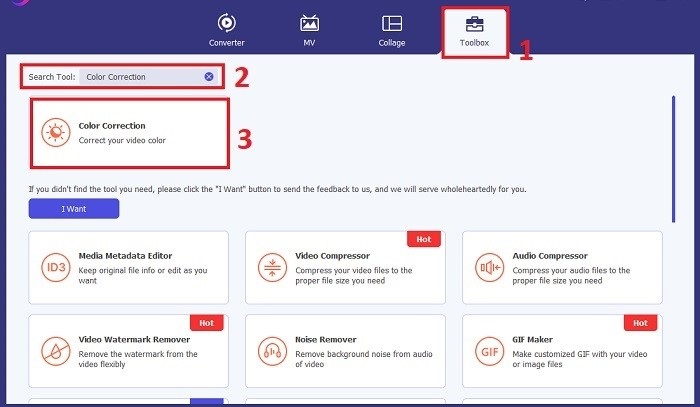
Når programmet er installeret, skal du åbne Video Converter Ultimate. Gå til Værktøjskasse i hovedmenuen, og find funktionen Farvekorrektion. Klik på den for at fortsætte.
Trin 3: Importer videoen til farvekorrektion
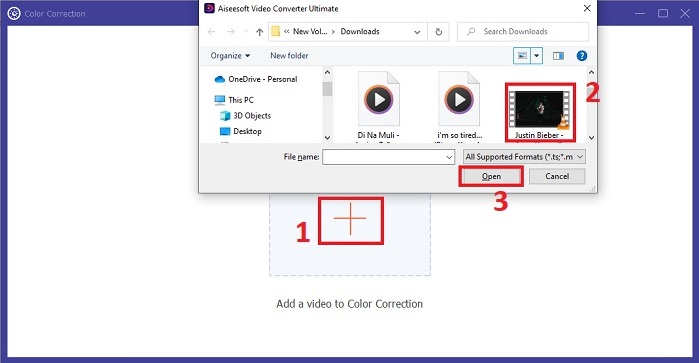
Klik nu på Plus-knappen for at importere den video, du vil farvekorrigere. Find videofilen på din computer. Vælg derefter Åbn for at hente den ind i softwaren.
Trin 4: Justér videofarveindstillinger og gem
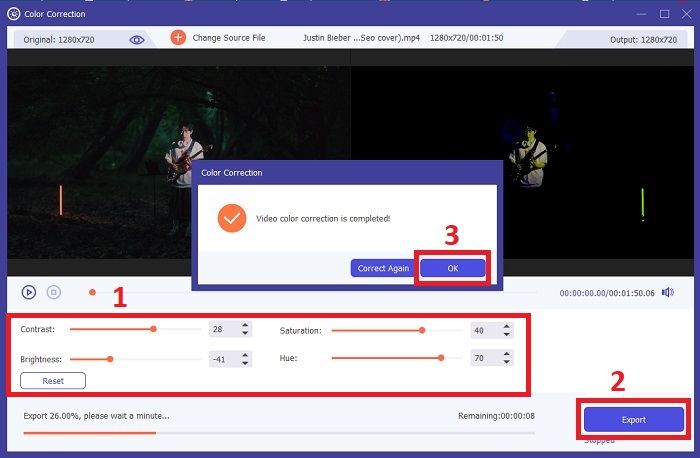
Efter at have importeret videoen kan du finjustere farveparametre som lysstyrke, kontrast, mætning og nuance for at opnå den ønskede farvekorrektion. Når du er tilfreds med farvejusteringerne, skal du klikke på Eksportér. Lad værktøjet behandle videoen og gemme den korrigerede version på den valgte placering.
2. Farvekorrektion Premiere Pro
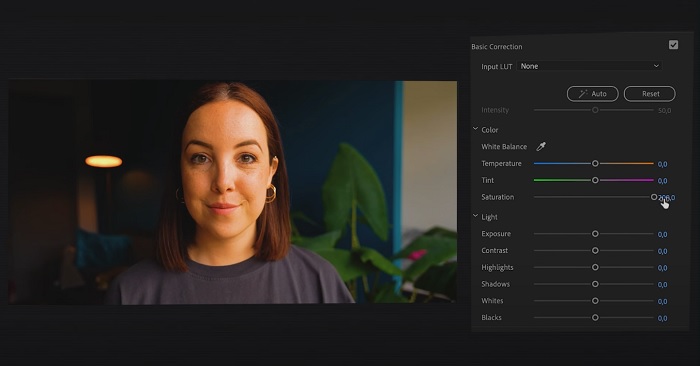
Premiere Pro er kendt for sin højkvalitets videoredigeringssoftware og omfattende farvekorrektionsevner. Det tilbyder forskellige farvegraderingsværktøjer og effekter til at foretage præcise justeringer. Color Correction Premiere Pro giver dig mulighed for at justere farvebalance og eksponering eller anvende kreative looks for at opnå den ønskede visuelle stil. Du kan også vælge mellem dets hundredvis af indbyggede videoeffekter og overgange eller starte med professionelt designede skabeloner og ændre dem for at skabe dit ønskede output. Desuden har den samarbejdsfunktioner og integreres problemfrit med anden Adobe-software, hvilket gør den til et topvalg blandt professionelle.
Trin 1. Start med at åbne Premiere Pro og importere din video. Gå derefter til Color-arbejdsområdet.
Trin 2. Inde i Color-arbejdsområdet bruger du Lumetri Color-panelet til at justere eksponering, farvebalance og kreative looks.
Trin 3. Brug scopes for at sikre, at dine farvejusteringer præcist stemmer overens med det ønskede resultat. Til sidst forhåndsvis og eksporter den korrigerede video.
3. Davinci Resolve Color Correction
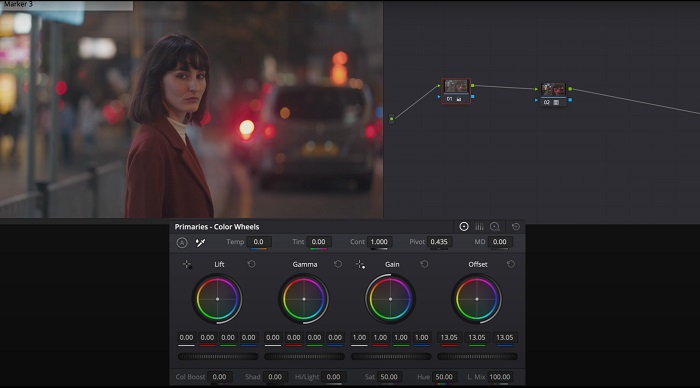
Udforsk de enestående farveklassificeringskapaciteter. Denne alt-i-én-software kombinerer professionel redigering, farvekorrektion, visuelle effekter og lydpostproduktion. Med værktøjets brugervenlige grænseflade og omfattende funktionssæt kan du bringe din kreative vision ud i livet med præcision og stil. Davinci Resolve Color Corrections avancerede farvegraderingsværktøjer gør dig i stand til at få dine videoer til at skille sig ud. Uanset om du arbejder på banebrydende Hollywood-film eller personlige projekter, giver dette værktøj fagfolk og entusiaster mulighed for at skabe overbevisende fortællinger med uovertruffen kvalitet.
Trin 1. Åbn Davinci Resolve og importér din video. Når den er importeret, skal du gå til fanen Color.
Trin 2. Inde i Color-fanen bruger du farvehjul, kurver og noder til at korrigere farverne i din video. Du kan bruge de tilgængelige scopes til præcise justeringer.
Trin 3. Efter at have foretaget de nødvendige farvejusteringer skal du forhåndsvise den korrigerede video for at sikre, at den lever op til dine forventninger. Når du er tilfreds, eksporterer du den korrigerede video, så den er klar til brug.
4. Final Cut Pro farvekorrektion
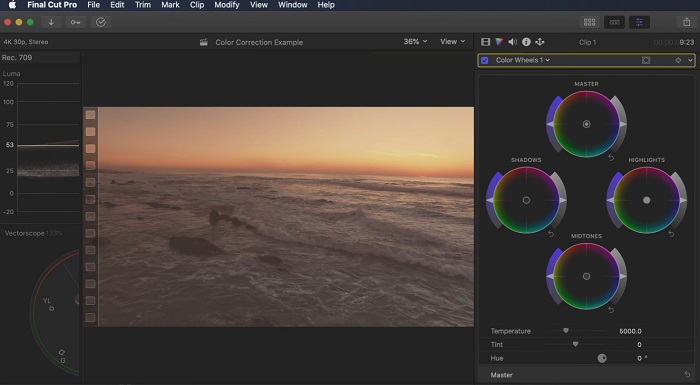
Hvis du er en Mac-bruger på udkig efter et førsteklasses videoredigeringsprogram, er Final Cut Pro en fantastisk mulighed. Den har en brugervenlig grænseflade og kraftfulde funktioner, der gør redigering til en leg. Når det kommer til farvekorrektion, tilbyder Final Cut Pro et farvetavle og farvehjul til justering af eksponering, mætning og nuance. Du kan anvende farveeffekter i realtid og bruge avancerede graderingsværktøjer til at forbedre dine optagelser. Derudover eksporterer den problemfrit til Apple-enheder og populære onlineplatforme. Hvis du er en professionel, der søger effektivitet og kreativitet, er Final Cut Pro en no-brainer. Sørg for, at du har macOS 13.4 eller nyere og en Mac-computer med Apple-silicium for optimal ydeevne.
Trin 1. Du kan starte med at importere din video i Final Cut Pro og derefter gå til Color-arbejdsområdet.
Trin 2. Brug Color Board eller Color Wheels til at foretage vigtige justeringer af eksponering, mætning og nuance.
Trin 3. Finpuds farverne i din video yderligere ved hjælp af ekstra farvegraderingsværktøjer for at sikre det bedst mulige resultat. Når du er færdig, skal du forhåndsvise og eksportere den korrigerede video.
5. Farvekorrektion After Effects
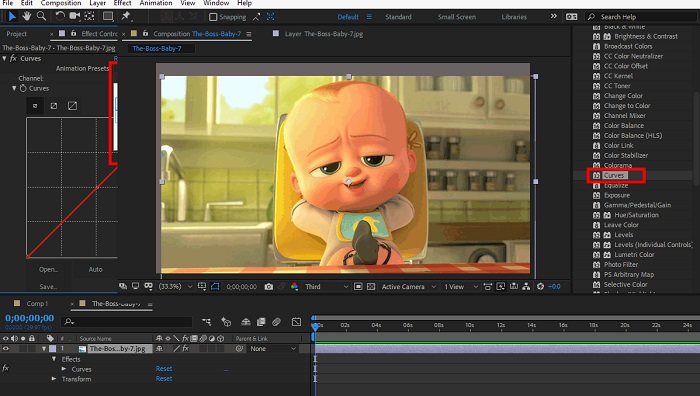
After Effects er en berømt software til bevægelsesgrafik og visuelle effekter med robuste farvekorrektionsfunktioner. Bortset fra dens grundlæggende farvekorrektionseffekter, giver den forskellige justeringslag og effekter til at forbedre og ændre farver. Du kan hurtigt animere tekst og grafik og bringe dem til live med fængslende bevægelser. Color Correction After Effects giver dig mulighed for at udnytte niveauer, kurver og blandingstilstande for at opnå den ønskede farvegradering. Det er en alsidig farvekorrektionsmulighed takket være dens integration med forskellige Adobe-produkter og et stort fællesskab, der leverer tutorials og plugins. Desuden udvikler softwaren sig løbende og introducerer funktioner såsom et intuitivt egenskabspanel, transparent lagkontrol og effektiv multi-frame-gengivelse, der strømliner arbejdsgange og holder kreationer på forkant med kreativiteten.
Trin 1. Importér dit videoklip til projektet i værktøjet. Anvend farvekorrektionseffekter ved at gå til panelet Effects & Presets og vælge passende farvekorrektionsværktøjer som Curves, Levels eller Color Balance.
Trin 2. Klik på den anvendte farvekorrektionseffekt for at få adgang til dens parametre. Justér derefter indstillinger som eksponering, kontrast, mætning og nuance for at korrigere og forbedre farverne i din video.
Trin 3. Forhåndsvis videoen i Composition-panelet for at se, hvordan farvekorrektionerne påvirker optagelserne. Finjustér indstillingerne på baggrund af forhåndsvisningen, indtil den ønskede farvekorrektion er opnået, og fortsæt derefter med at rendere eller eksportere den korrigerede video.
Yderligere læsning:
Bedste apps til forbedring af billedfarver på Android og iOS – gratis
4 fantastiske måder at tilføje et filter til en video på i Windows og macOS
Del 2. Ofte stillede spørgsmål om videofarvekorrektorer
Hvordan udfører jeg farvekorrektion på en iMovie?
For at korrigere farver i iMovie skal du importere dit videoklip, vælge det og klikke på knappen Color Correction (tryllestavsikonet). Justér skyderne for eksponering, mætning og farve, indtil du opnår det ønskede udseende.
Hvordan får jeg adgang til farvekorrektionsværktøjer i OpenShot?
I OpenShot Video Editor Color Correction vælger du et klip, går til fanen Effects og klikker på Color Correction. Justér skyderne for lysstyrke, kontrast, nuance og mætning for at opnå den ønskede farvekorrektion.
Hvordan får jeg adgang til farvekorrektionsværktøjerne i Sony Vegas?
I Sony Vegas Color Correction vælger du det klip, du vil farvekorrigere, går til fanen Video FX og søger efter Color Corrector. Træk og slip den på klippet, og justér farveegenskaberne i vinduet Effect Controls.
Konklusion
At mestre farvekorrektion er afgørende for at forbedre dine videoers visuelle appel og skabe en fængende seeroplevelse. I denne vejledning gennemgik vi fem effektive farvekorrektionsværktøjer til at opnå en fejlfri farvekorrektion. Hvis du leder efter videoredigeringsværktøjer i høj kvalitet, kan du overveje at bruge Video Converter Ultimate, Premiere Pro, Final Cut Pro, DaVinci Resolve eller After Effects. Disse programmer tilbyder et bredt udvalg af funktioner og muligheder, der hjælper dig med at skabe professionelle videoer. Hvert program har sit eget sæt funktioner og egenskaber, som tiltaler forskellige præferencer og erfaringsniveauer.
-
 Sådan tilføjer og laver du et Instagram-filter, før du sender billede og video
 Hvad er filtrene på Instagram? Hvordan anvender man det? Hvordan laver man en? Disse spørgsmål vil have ligetil svar i dette indlæg, så læs dem.
-
 Problemfri metoder til at konvertere billeder til sort/hvid
 Vil du få dine billeder til at se nostalgiske ud? Vi har et svar til dig. Dette indlæg vil tilbyde bemærkelsesværdige måder at konvertere et farvebillede til sort/hvid.
-
 6 favoritvalg Snapchat-animerede Snapchat-filtre på Snapchat
 Vil du vide de bedste måder at tilføje filtre på Snapchat-videoer? Nå, du kan klikke på dette og lære de forskellige filtre, du kan bruge til at anvende på Snapchat-videoer.
