


 Video Converter Ultimate
 Skærmoptager
 Video reparation
 Sikker download
Konverter JPG til MP4 på Windows/Mac uden at miste kvaliteten
JPG er det mest almindelige billedformat, og vi bruger det til forskellige formål, lige fra deling af billeder online til lagring af digitale snapshots på vores enheder. Med sin udbredte kompatibilitet og relativt lille filstørrelse er JPG blevet det foretrukne valg til at fange og bevare visuelle minder i hverdagen.
Men i dag er det blevet en ting at lave videoer ud af billeder. Det er også en anden måde at gemme minder på på en mere kreativ og passioneret måde. Du kan tilføje lyd, overgange eller bare lave en simpel slideshow‑MP4‑video med din yndlingsmusik som baggrund. Så hvis du er til det og planlægger at omdanne JPG til MP4, så læs videre i denne artikel og lær, hvordan du konverterer dem med 4 forskellige metoder uden at miste kvalitet. Slip de kreative kræfter løs i dig allerede i dag!

Del 1: Ultimativ måde at konvertere JPG til MP4 på Windows/Mac [Bedst til begyndere]
Den ultimative måde at konvertere JPG til MP4 på er ved at bruge FVC Video Converter Ultimate. Dette værktøj har en særlig funktion kaldet MV, der giver brugerne mulighed for at lave MP4‑videoer i god kvalitet ud fra deres JPG‑fotos. Det leveres med forudindstillede temaer, som du frit kan bruge, samt forskellige effekter og filtre. Derudover kan du nemt rotere og beskære JPG‑filer, inden du eksporterer dem til MP4. Det sjoveste ved dette værktøj er, at du kan importere din egen lyd, tilpasse videoen med et vandmærke og meget mere. Endelig er værktøjet ikke overvældende at bruge, da det har en meget intuitiv og brugervenlig grænseflade. Følg trinene nedenfor for at gøre dette:
Trin 1. Først skal du hente softwaren til enten Windows eller Mac, derefter downloade og installere den.
Gratis download til Windows 7 eller nyere Sikker download
Gratis download til MacOS 10.7 eller nyere Sikker download
Trin 2. Åbn derefter værktøjet, og blandt de 4 faner øverst skal du klikke på MV.

Trin 3. Når du nu er på MV’ets hovedgrænseflade, skal du klikke på knappen Add File for at tilføje de JPG‑filer, du vil konvertere til MP4.

Trin 4. For at tilføje, redigere og klippe din MP4‑video skal du klikke på knappen øverst over knappen Add File. Du kan også vælge et forudindstillet tema ved at klikke på fanen Theme øverst.

Trin 5. For at beskære og rotere billederne, tilføje filtre og effekter samt tilføje et vandmærke for at gøre det mere personligt, skal du blot klikke på ikonet Edit nedenfor, så kommer du til et nyt vindue.

Trin 6. Når alt dette er på plads, skal du klikke på knappen Export, hvor du kan ændre formatet til MP4 og justere billedfrekvens, opløsning og kvalitet. Du kan også angive, i hvilken mappe du vil gemme din konverterede JPG‑til‑MP4‑fil. Til sidst skal du klikke på knappen Start Export for at gemme filen.

FVC Video Converter Ultimate forenkler at omdanne JPG til MP4 med dens brugervenlige grænseflade, tilpasselige funktioner, forudindstillede temaer, redigeringsværktøjer, højkvalitetsoutput og kompatibilitet med både Windows- og Mac-operativsystemer. Det er faktisk den ultimative måde at få kedelige billeder til at blive til sjove og kreative videoer.
Del 2: Konverter JPG til MP4 på Windows 11/10 med standardværktøjsfotos
På Windows 10 og 11 er Clipchamp nu integreret med Photos-appen, som giver brugerne mulighed for at konvertere JPG til MP4-filer. Denne integration gør redigering lettere, som derefter kan gemmes til MP4. Så for at guide dig med dette, følg trin-for-trin-processen nedenfor:
Trin 1. På din computer skal du først gå til Startmenuen og derfra klikke på Photos.
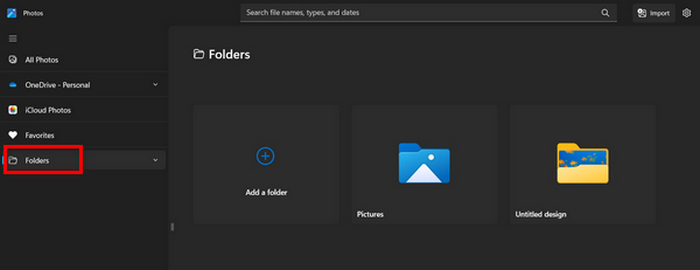
Trin 2. I Photos skal du gå til Folders i fanen til venstre. Du bliver bedt om at tilføje en mappe, eller du kan bare vælge billeder fra de fotos, som du vil omdanne til MP4.
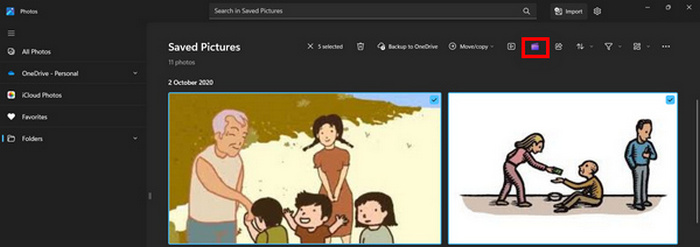
Trin 3. Når du har valgt de JPG‑billeder, du vil konvertere, skal du klikke på ikonet Create a video.
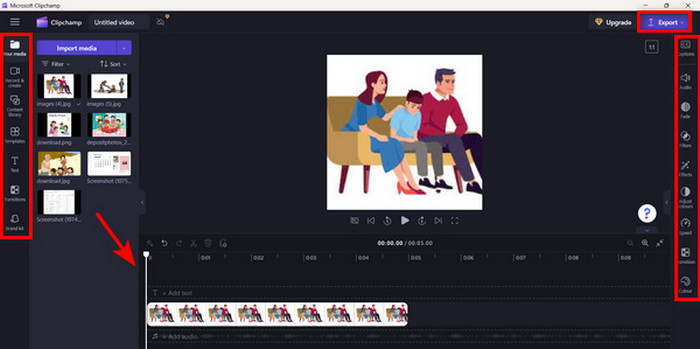
Trin 4. I et nyt Window bliver du spurgt, om du vil tilføje mediefiler til denne video. Klik på Yes to Add Video.

Trin 5. Træk nu de importerede medier ned på tidslinjen. Du kan bruge redigeringsmulighederne i fanen til venstre, hvor du kan tilføje tekst, vælge skabeloner og meget mere. I fanen til Right kan du tilføje lyd, effekter, filtre osv. Når du er færdig, skal du blot klikke på knappen Export, så bliver MP4‑filen gemt direkte på din computer.
Hvis du er en Windows-bruger, gør denne metode konvertering af JPG til MP4 rigtig hurtig. Denne metode kunne dog have været nemmere sammenlignet med andre værktøjer. Du kan heller ikke eksportere 2K/4K-videoopløsning ved hjælp af dens gratis version og har ikke adgang til andre gode effekter og filtre sammenlignet med andre konverteringsværktøjer.
Del 3: Konverter JPG til MP4 på Mac med iMovie
Hvis du er en Mac-bruger, er der en praktisk løsning til at konvertere JPG til MP4 for dig. Mac har en indbygget app kaldet iMovie. Dette er en videoredigeringsapp, der tilbyder grundlæggende redigering til sine brugere, men udover dette kan denne også bruges til at omdanne JPG-filer til MP4. De skal bare importere deres billeder, tilføje nogle effekter og filtre og derefter gemme dem som MP4.
Trin 1. På din Mac skal du åbne iMovie‑appen og klikke på Create New.
Trin 2. Tilføj derefter din JPG‑fil til appen ved at klikke på knappen Import Media på hovedgrænsefladen.
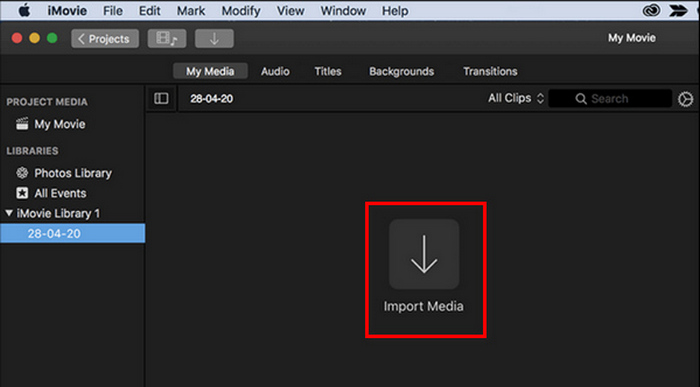
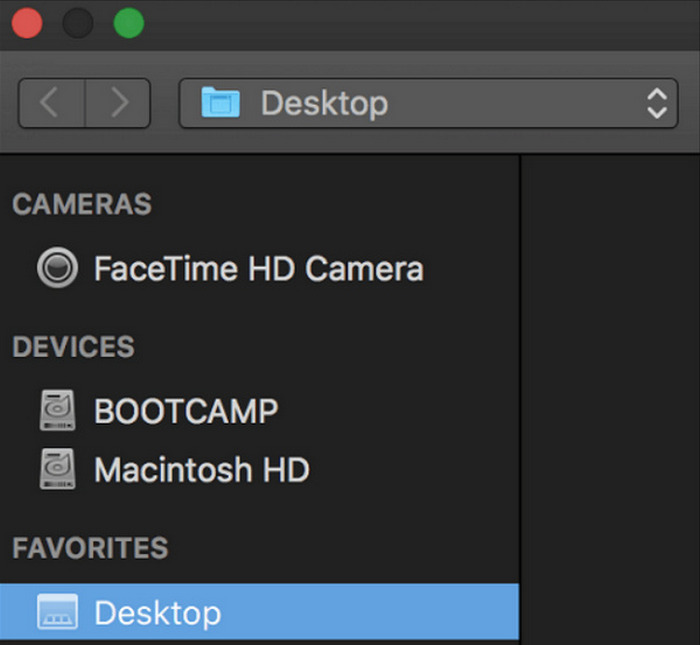
Trin 3. Find nu de JPG‑filer, du vil konvertere til MP4.
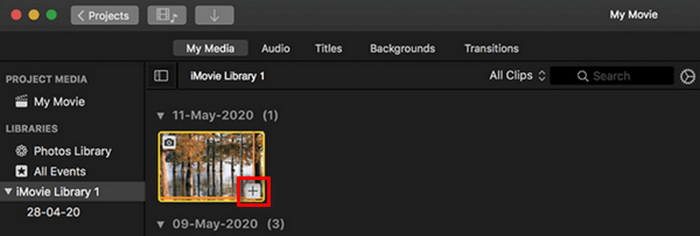
Trin 4. Når din JPG vises i appens grænseflade, kan du vælge den og se et Plus. Klik på det for at kunne tilføje billedet til tidslinjen.
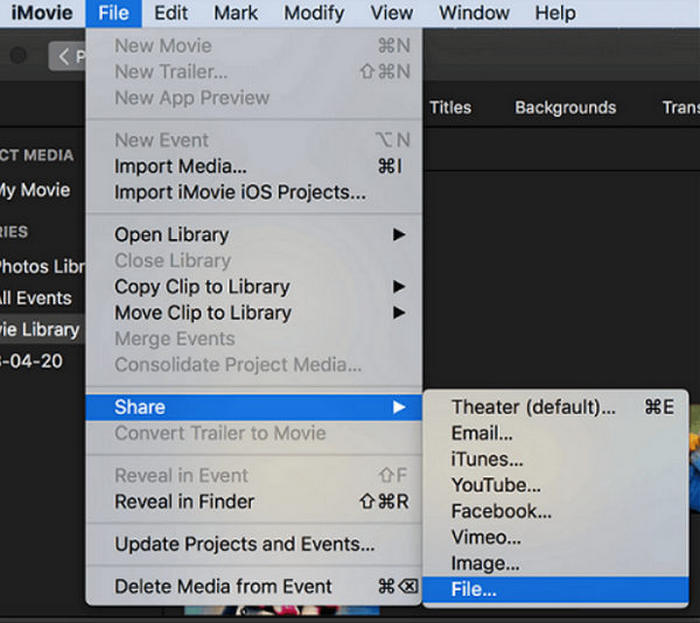
Trin 5. Når du har tilføjet JPG‑filerne til tidslinjen, kan du trække i kanterne for at udvide varigheden af din endelige MP4‑fil. Klik derefter på menuen File øverst, vælg Share, og vælg File for at eksportere din fil.
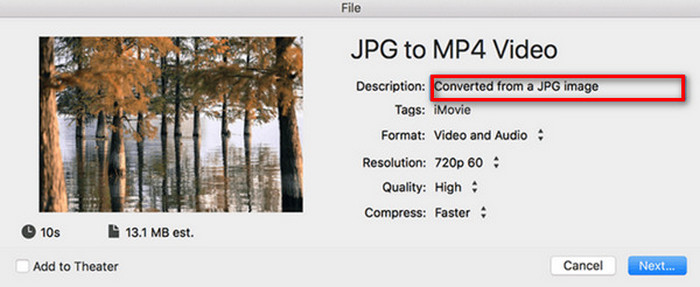
Trin 6. Til sidst skal du navngive din MP4‑fil øverst, udfylde andre metadatafelter for videofilen og klikke på Next. Vælg den ønskede placering til at gemme den MP4‑fil, du vil konvertere. Når du har valgt placeringen, starter konverteringsprocessen.
iMovie giver Mac‑brugere en praktisk måde at konvertere JPG til MP4‑filer på med sin brugervenlige grænseflade og integrerede redigeringsværktøjer. Men det kan mangle avancerede funktioner sammenlignet med andre konverteringsværktøjer, hvilket begrænser tilpasningsmuligheder og effekter. Selvom det er velegnet til basal redigering, bliver brugerne i dag mere konkurrencedygtige og kreative og søger et værktøj, der virkelig kan imødekomme alles behov og forventninger. Desuden fungerer dette værktøj ikke på Windows. Hvis du kan lide iMovie, kan du finde iMovie til Windows-værktøjer her.
Del 4: Konverter JPG til MP4 online
Nu, hvis du leder efter en anden måde at konvertere JPG til MP4, så er det måske noget for dig at konvertere dem online. En af de bedste online-konvertere til dette er Online Convert.com. Du kan køre dette værktøj fra forskellige browsere på din computer, og det kan nemt bruges på grund af dets intuitive brugergrænseflade.
Trin 1. Søg efter Online Convert.com‑siden i din browser.
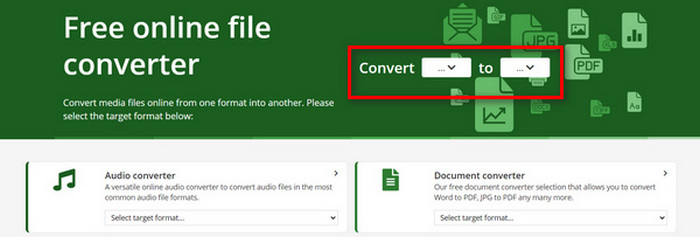
Trin 2. Når du er på deres side, skal du vælge formaterne korrekt. Da du skal konvertere JPG til MP4, skal du vælge JPG i rullemenuen Convert og MP4 i rullemenuen To.
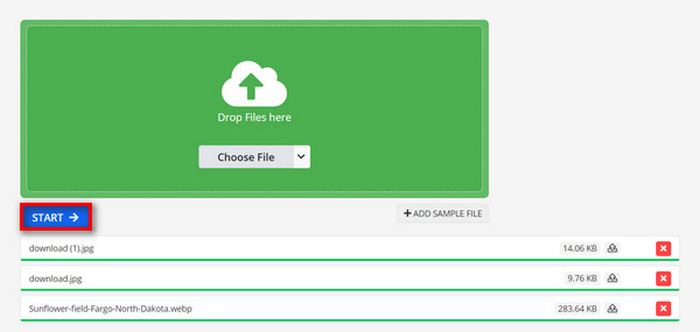
Trin 3. Upload derefter de JPG‑filer, du vil konvertere, ved at klikke på rullemenuen Choose File, hvor du kan importere filer fra din enhed, Dropbox, Google Drev og endda fra en URL.

Trin 4. Når du har uploadet de JPG‑filer, du vil konvertere til MP4, skal du klikke på knappen Start.
Trin 5. Til sidst skal du downloade din MP4‑fil ved at klikke på knappen Download.
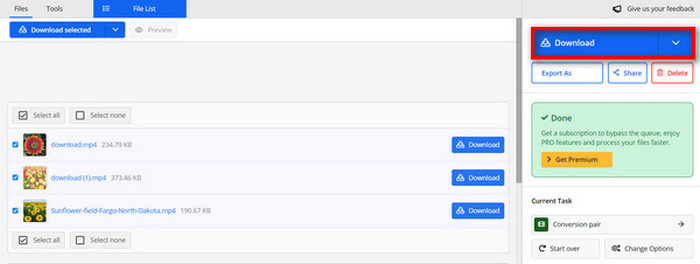
Konverteret output fra dette værktøj er et resultat af en forudindstillet videoindstilling, som brugerne manuelt justerede, før de konverterede filerne. Selvom dette nemt forvandler JPG til MP4, kan du ikke direkte forbedre den konverterede video baseret på din kreative stil.
Del 5: Ofte stillede spørgsmål om konvertering af JPG til MP4
Er JPEG det samme som JPG?
JPEG og JPG er i det væsentlige det samme digitale billedformat; begge filendelser henviser til JPEG‑formatet, der er skabt af Joint Photographic Experts Group, eller JPEG. Lær her, hvordan du kan konvertere JPEG til JPG.
Hvornår skal jeg konvertere JPG til MP4?
Du bør konvertere JPG til MP4, når du vil oprette en visuel præsentation eller dele en række billeder som en video, som at lave diasshows, digitale fotoalbum eller videodias. Bortset fra dette, hvis du vil være kreativ med, hvordan du ønsker, at dine JPG-filer skal ses, så er konvertering af dem til MP4 den ultimative måde at tilføje overgange, musik, tekstoverlejringer og andre multimedieelementer.
Hvordan kombinerer jeg JPG og MP4?
Den eneste måde at kombinere JPG og MP4 på er ved at bruge videoredigeringsværktøjer. Med denne tilgang har du fuld kontrol over arrangementet, timingen og tilpasningen af både billeder og video, du vil kombinere.
Konklusion
Nu er det din tur! At konvertere JPG til MP4 er endnu en måde at bevare minder på på en kreativ måde. Så hvis du har JPG‑filer og gerne vil konvertere dem, så følg alle de beskrevne metoder i denne artikel og vælg den, der passer dig bedst. Kom i gang i dag og se magien ske!
-
 Top 5 førende tutorials til hurtigt at konvertere PNG til JPG
 Hvis du har brug for at konvertere din PNG-fil til JPG-format, kan du lære de bedste måder her. Du vil også lære forskellen mellem PNG- og JPG-filformater.
-
 Ubesværede metoder til, hvordan man konverterer SVG til JPG-format
 Finder du den bedste måde at konvertere SVG til JPG? Dette indlæg vil give nogle surefire tutorials, du kan prøve. Du vil også opdage SVG til JPG-konverteren for dig.
-
 Nyttige metoder til nemt at konvertere TIFF til JPG/PNG
 Gå ikke glip af disse fremragende måder at omdanne TIF til JPG/PNG-formater. Dette indlæg vil give den nødvendige information, du har brug for at vide. Det inkluderer deres forskelle.
