


 Video Converter Ultimate
 Skærmoptager
 Video reparation
 Sikker download
Sådan optager du gameplay på PS5 uden begrænsning [Omfattende retningslinjer]
På bare tre år er PlayStation 5 blevet revet væk fra hylderne. Den har rundet over 50 millioner solgte enheder, siden den blev lanceret, da den er en fed konsol med stærk hardware og 4K‑gaming. Hvis du gerne vil vise dine spilevner frem eller dele dine episke øjeblikke med dine fans, er det en rigtig god løsning at optage på en PlayStation 5. Hvis du undrer dig over hvordan man optager på PS5, så har den en smart funktion, du kan bruge til at fange, justere og dele dine gaming‑oplevelser på forskellige platforme. Men hvordan gør man helt præcist alt dette? Bliv hængende og find ud af, hvordan du optager og tager skærmbilleder på din PS5 – og endda hvordan du gør det med en metode uden tidsbegrænsning.

Del 1. Sådan optager du gameplay på PS5
PS5 kommer helt sikkert med en indbygget optager, der vil hjælpe dig med at optage dit betagende gameplay. Det er dog værd at bemærke, at din konsols optager har begrænsninger og effektivitet. Når det kommer til effektivitet, er det sikkert at sige, at det er yderst effektivt til at producere optagede videoer i høj kvalitet. På den anden side, når det kommer til dens begrænsninger, skal du huske på, at denne konsol kun kan tillade dig at optage maksimalt 60 minutters spilletid. Bortset fra det vil det kun give dig mulighed for at producere videoer i MP4 og WebM som dets understøttede outputformater.
I mellemtiden, for spørgsmålet om, hvordan man skærmoptager på PS5's indbyggede gameplay-optager, tillad nedenstående trin for at give dig svar.
Optag et gameplay
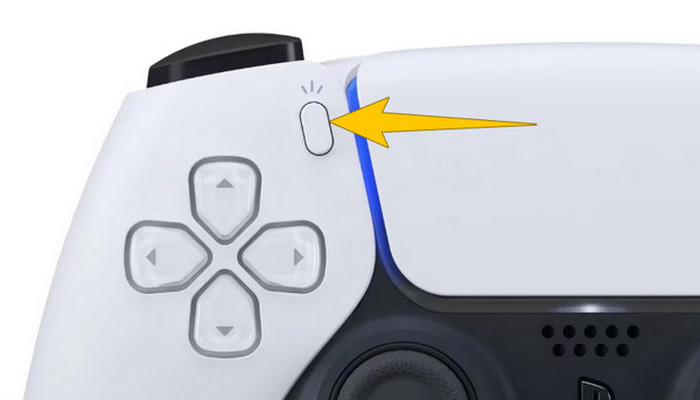
Trin 1. Tag din DualSense‑controller, og tryk på knappen over piletasterne. Denne repræsenterer Create-funktionen og kan trykkes, når du er ved at optage dit gameplay.
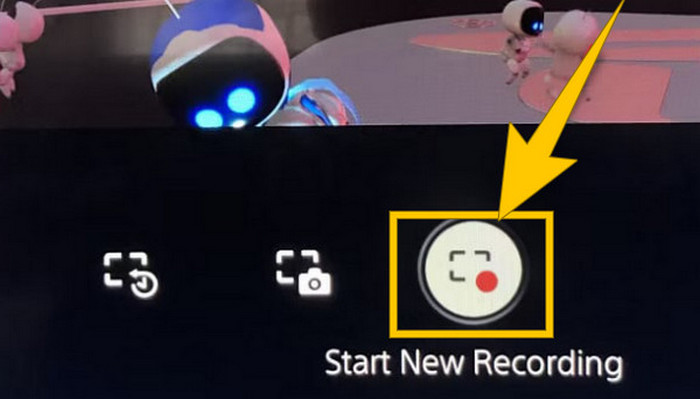
Trin 2. Efter at have trykket på knappen, kigger du på skærmen og vælger indstillingen Start New Recording. Du ser denne mulighed nederst på skærmen. Optagelsen starter med det samme, så du kan gå i gang med dit spil.
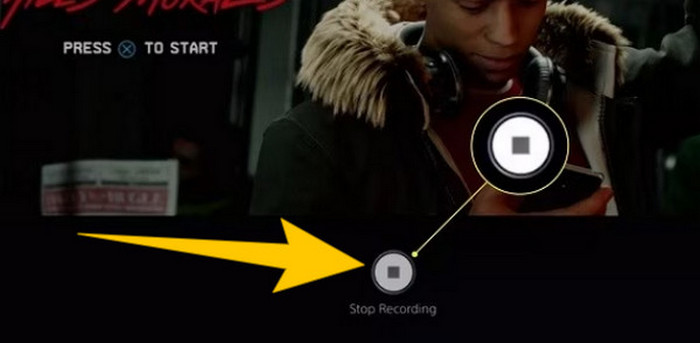
Trin 3. Når du er færdig med spillet, er det sådan, du slår gameplay‑optagelse fra på PS5. Du skal blot trykke på Create-knappen igen og denne gang klikke på Stop Recording, som du vil se på skærmen.
Download optagelserne
Efter optagelsen gemmer PS5 automatisk outputtet i dit mediegalleri, hvor alle filerne gemmes. Hvis du nu vil beholde en kopi til din separate enhed, er det uheldigt at fortælle dig, at det nævnte galleri ikke har muligheden for download. Der er dog stadig en måde at beholde filerne på.
Trin 1. Tilslut dit eksterne SD‑kort eller USB‑drev til din konsol. Gå derefter til Media Gallery og åbn det.
Trin 2. Vælg den skærmoptagelse, du netop har gemt. Klik derefter på Ellypsis eller knappen med tre prikker nederst på skærmen sammen med de andre tilgængelige muligheder.
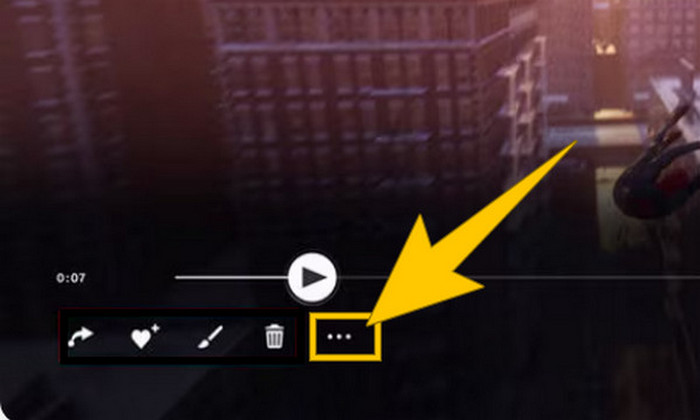
Trin 3. Når du har klikket, vælger du indstillingen Copy to USB Drive for at begynde at kopiere den optagede video til dit USB‑drev. Når det er færdigt, kan du overføre videoen til den enhed, hvor du vil gemme filen.
Del 2. Sådan skærmoptages på PS5 i 4K-kvalitet uden begrænsning
Bliv ikke bekymret, hvis PlayStation 5 kun lader dig optage op til en time af gameplay i god kvalitet. Vi ved, hvor frustrerende det er for de fleste gamere, og at det ikke er alle spil, der understøtter dette. Så hvis du vil optage ubegrænset med 4K‑kvalitet i alle PS5‑spil, kan du overveje at tjekke FVC Screen Recorder. Denne skærmoptager begrænser nemlig ikke din optagetid – kun din computers lagerplads. Derudover vil den ikke gøre dit gameplay langsommere. Med denne fantastiske game recorder kan du også finjustere dine optagelser, før du gemmer dem. Faktisk kan du klippe, sammenflette, komprimere, konvertere, redigere metadata, forbedre optagelsen og dele den til de platforme, du vælger, helt uden besvær.
Det er også værd at bemærke, at FVC Screen Recorder tilbyder forskellige optageværktøjer til at opfylde dine optagelsesopgaver. Med den kan du optage video, lyd, vinduer, webcams, telefoner osv. Bemærkelsesværdigt nok kan du nyde dine optagelser uden vandmærker indlejret i dem! Så for at lære mere om FVC Screen Recorder, følg nedenstående trin for at se, hvordan du skærmoptager på PS5.
Trin 1. Hent FVC Screen Recorder ved at downloade den til din computer. For at gøre dette skal du blot klikke på knappen Free Download og derefter følge vejledningen for at installere og åbne programmet.
Gratis downloadTil Windows 7 eller nyereSikker download
Gratis downloadTil macOS 10.7 eller nyereSikker download
Trin 2. Når du kommer til grænsefladen for FVC, finder og klikker du på værktøjet Game Recorder. Det er placeret midt på højre side af skærmen. Derfra klikker du på den lille pil ved siden af Select the Game for at vælge det vindue, hvor din PS5‑skærm vises.
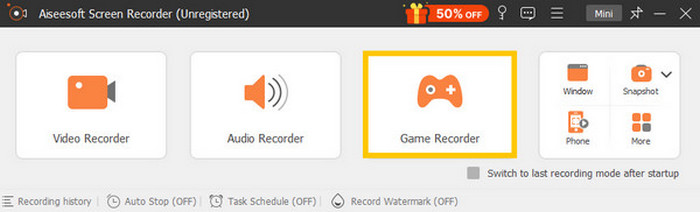
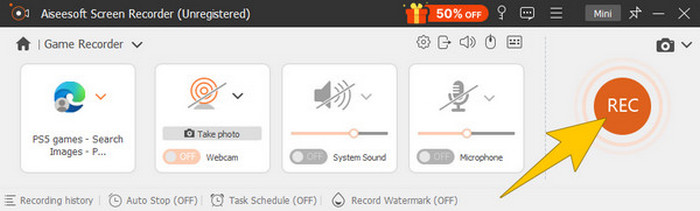
Trin 3. Når du har valgt vinduet, vil du lægge mærke til, at optageren fokuserer på det. Bemærkelsesværdigt nok kan du også vælge, om du vil have dit webcam med til billede‑i‑billede‑optagelse, systemsound og mikrofonlyd i optagelsen. Når alt er sat op, klikker du på REC-knappen for at starte spillet og optagelsen.
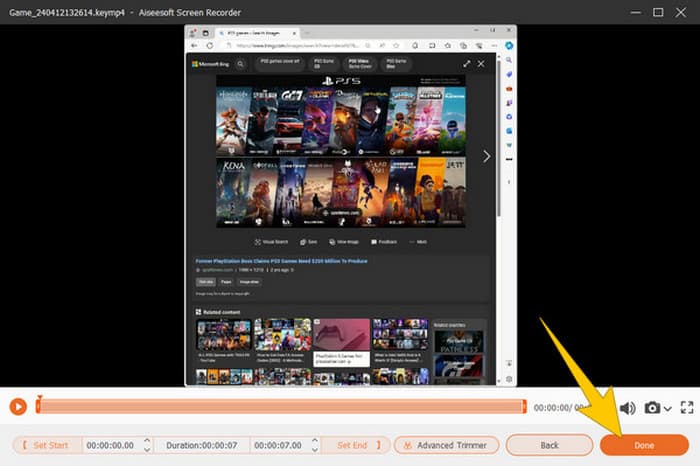
Trin 4. Når du er færdig med at optage, klikker du på Stop-knappen på den flydende værktøjslinje. Derefter kan du tilpasse videoen med de redigeringsværktøjer, der vises i det nye vindue. Når du er færdig, klikker du på knappen Done for at gemme den optagede fil i dit galleri.
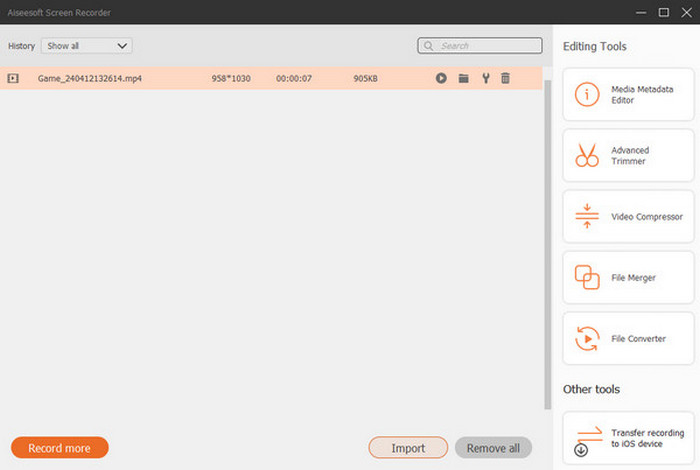
Trin 5. Dette trin er valgfrit. Men hvis du vil dele din optagelse på dine sociale mediekonti, kan du højreklikke på din seneste gameplay‑optagelse og derefter vælge Share‑indstillingen. Derudover kan du bruge ekstra avancerede redigeringsværktøjer til at forbedre dine optagelser.
Hvis du gerne vil vide mere om denne optager, er her flere tips til at lære.
Yderligere læsning
5 effektive måder at optage skærmen som GIF på Mac & Windows
Sådan optager du episke stunts, clutches eller tutorials i Minecraft
Del 3. Ofte stillede spørgsmål om optagelse af gameplay på PS5
Hvordan slår du gameplay-optagelse fra på PS5?
For at slukke eller stoppe gameplay-optagelsen på din PS5 skal du blot trykke på knappen Opret på din spilcontroller. Klik derefter på indstillingen Stop optagelse på din skærm.
Hvor kan jeg se mine optagede gameplay-klip på min PS5?
De optagede gameplay-klip gemmes i Capture-sektionen fra hovedgalleriet. Du kan få adgang til dette galleri fra startskærmen. Med den kan du se, redigere og dele dine klip, som dit galleri giver dig mulighed for.
Hvordan deler jeg mine optagelser på PS5?
Du kan dele dine klip efter optagelse på din PS5 direkte fra Capture Gallery. Du skal bare vælge det klip, du vil dele, klikke på knappen Indstillinger på din controller og vælge indstillingen Del.
Konklusion
Du behøver ikke længere spørge, hvordan man optager på PS5, for denne artikel har vist dig standardmetoderne og de bedste løsninger. Få dermed lange gameplay‑optagelser i høj kvalitet, præcis som du ønsker dem. Del også løsningerne med dine medgamere, så de kan få den samme spændende optageoplevelse på deres PS5!
-
 5 af den førende spiloptagelsessoftware, som en spiller skal kende [2024]
 Er du en gamer, der gerne vil lave en spiloptagelse? Så vil denne artikel give dig den bedste spiloptager, du kan bruge til at opleve nye spilhøjder.
-
 Top 5 Android Screen Recorder Apps, du skal anskaffe i 2024
 Har du problemer, fordi du ikke kan lave en skærmoptagelse på din Android? Hvis ja, gennemgik denne artikel de Android-skærmoptagere, du kan downloade på.
-
 Top 5 Zoom-mødeoptagere til at optage møder på Zoom [2024]
 Har du brug for at optage et zoommøde for ikke at gå glip af de vigtige detaljer om dit møde? Hvis ja, giver denne artikel de bedste zoomoptagere, du bør kende.
