


 Video Converter Ultimate
 Skærmoptager
 Video reparation
 Sikker download
Kan du lave en ringetone fra en video og hvordan du bruger den
At indstille sine yndlingsringetoner har altid været en populær handling for mange smartphone‑brugere. Når du hører din yndlingsmusik, bliver det mere fornøjeligt at tage telefonen. Med teknologiens udvikling er udvalget af ringetoner, man kan vælge imellem, blevet betydeligt bredere. Nu kan vi ikke kun optage vores egen lyd og downloade vores yndlingssange, men vi kan endda udtrække lyden fra videoer som ringetoner til indgående opkald. Denne handling er enkel, og der findes mange værktøjer, der kan hjælpe dig med det. Hvordan vælger vi imellem dem? Nedenfor giver vi dig en detaljeret guide til at bruge en video som ringetone. Uanset om du er Android‑ eller Apple‑bruger, vil du kunne finde det, du har brug for.

Del 1. Kan du indstille en video som ringetone
Før vi går i gang, lad os først overveje muligheden for at indstille en video som ringetone. Svaret er selvfølgelig ja. Generelt skal du udtrække lyden fra videoen og konvertere den til et ringetoneformat, der understøttes af din telefon, for at komme i gang. Du kan også betragte essensen af denne handling som at konvertere en fil fra videoformat til lydformat. Professionel lyd- og videoredigeringssoftware og formatkonvertere er i stand til at hjælpe dig med at konvertere video til ringetone gratis. Det er vigtigt at bemærke, at mobiltelefoner, der kører forskellige systemer, understøtter forskellige ringetoneformater, og du skal sikre dig, at du har slået oplysningerne op om de lydformater, der understøttes af din enhed, før du starter handlingen.
Del 2. Lav en ringetone fra en video
Efter at have fundet ud af, at vi kan lave en ringetone ud fra en video, skal vi vælge det rigtige værktøj til opgaven. Vi anbefaler kraftigt, at du prøver den FVC‑udvalgte Video Converter Ultimate. Det er en perfekt lyd‑ og videokonverter, som lader dig redigere lyden i videoen separat og justere musikvolumen, lydeffekter, lydspor osv. Du kan også lade den hjælpe dig med at ændre lyden, hvis der er forsinkelse. I øjeblikket understøtter den mere end hundrede formater, hvilket betyder, at den kan konvertere din video til et format, der passer til enhver smartphone, så du ikke løber ind i kompatibilitetsproblemer. Med hardwareaccelerationsteknologi er den i stand til at konvertere enhver fil op til 30 gange hurtigere. Under behandlingen vil der ikke være noget tab af lydkvalitet på dine filer, og dit privatliv vil ikke blive krænket.
Gratis download til Windows 7 eller nyere Sikker download
Gratis download til MacOS 10.7 eller nyere Sikker download
Efter at have fået en generel idé om FVC Video Converter Ultimate, er vi nødt til at forstå, hvordan man rent faktisk anvender det til at omdanne en video til en ringetone. Dernæst vil vi dissekere de detaljerede trin for dig fra perspektiverne af både iPhone og Android-telefoner.
Lav en video som ringetone til iPhone
Lad os først se på, hvordan du kan lave en ringetone til din iPhone. Det første, vi skal vide, er, at iPhone i øjeblikket understøtter ringetoner i M4R‑format. Derefter kan vi begynde selve processen.
Trin 1. Download den video, du vil konvertere, til din computer. Du skal også hente FVC Video Converter Ultimate på enheden.
Trin 2. Konvertér videoen til M4R‑format. For at udføre denne handling skal du først klikke på Add Files for at uploade din video.
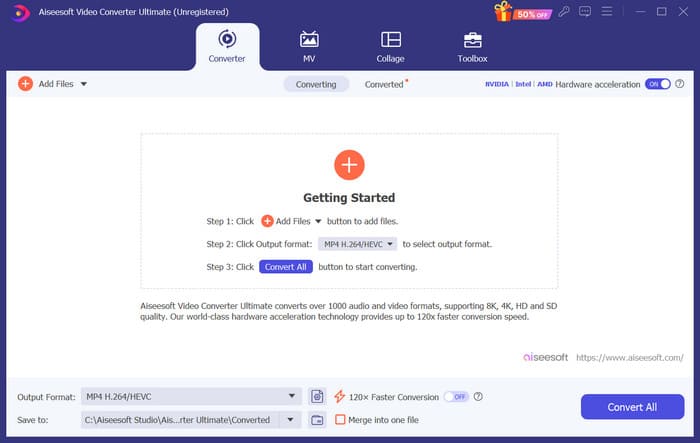
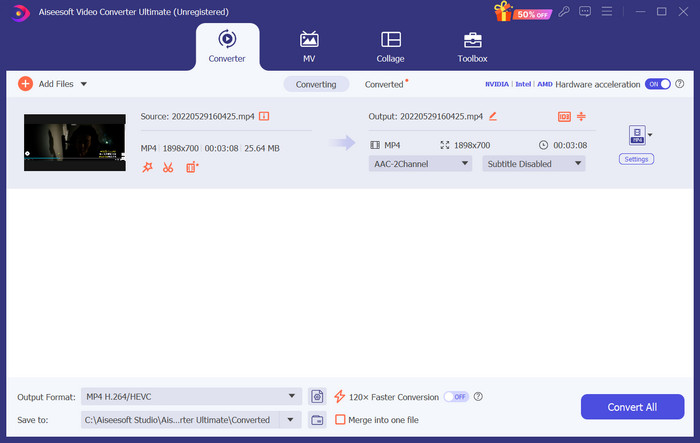
Trin 3. Udvid menuen ved siden af Output Format. Her kan du finde det format, du har brug for.
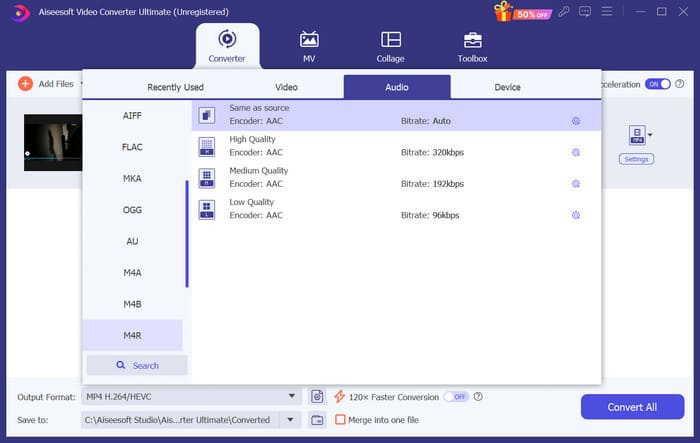
Trin 4. Klik på Audio, og vælg M4R blandt alle valgmulighederne.
Trin 5. Klik derefter på Convert All for at eksportere M4R‑lydfilen.
Trin 6. Upload derefter den konverterede video til programmet. Hvis du vil klippe lydfilen til, skal du klikke på Cut i grænsefladen. Hvis du vil justere lydspor eller lydstyrke, skal du klikke på Edit.
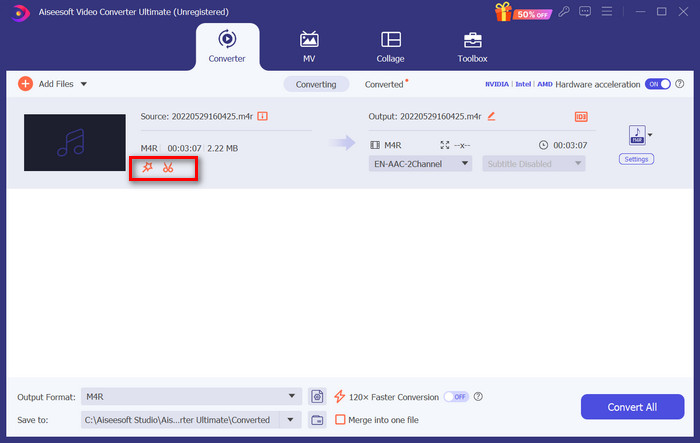
Trin 7. Klik til sidst igen på Convert All for at få din redigerede M4R‑ringetone.
Lav en video som ringetone til Android
Hvis du vil gøre en video til en Android-mobiltelefon ringetone, kan du overveje at konvertere dine videofiler til MP3, M4A, WAV eller OGG.
Her er hvad du skal gøre for at konvertere en video til en ringetone.
Trin 1. Download og installer FVC Converter Ultimate på din computer. Forbered din video til konvertering.
Trin 2. Klik på Add Files for at uploade din målvideo til platformen.
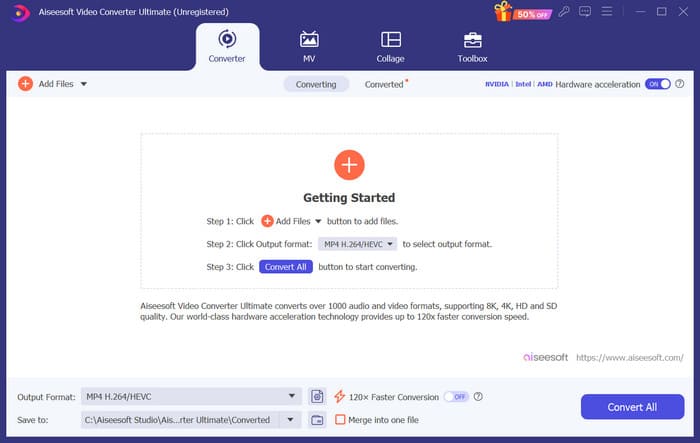
Trin 3. Åbn rullelisten over formater ved siden af Output Format.
Trin 4. Klik på Audio. Afhængigt af dine behov kan du konvertere din video til MP3, M4A, WAV eller OGG.
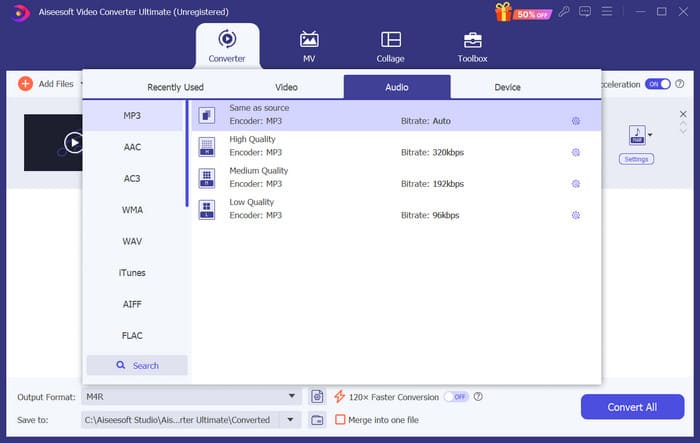
Trin 5. Vælg Convert All for først at downloade din konverterede lydfil.
Trin 6. Tilføj din lydfil til softwaren igen. Klik derefter på Cut for at vælge den del, du vil bruge som ringetone. Funktionerne under Edit kan også hjælpe dig med at ændre nogle elementer i din fil.
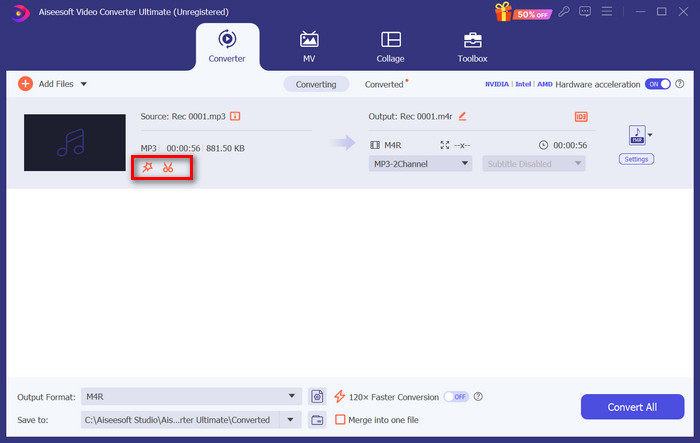
Trin 7. Når du er færdig med at redigere, skal du klikke på Convert All.
Del 3. Indstil den konverterede lyd som en ringetone
Nu hvor vi har redigeret lydfilen, skal vi gå længere ind i vores telefonindstillinger for at indstille denne konverterede video som ringetone.
Indstil ringetone på iPhone
Hvis du bruger en iPhone, kan du få brug for nogle værktøjer til at indstille din valgte M4R‑lyd som ringetone. GarageBand er et godt valg.
Her vil vi lære dig, hvordan du laver en ringetone med GarageBand ved hjælp af lyd fra en video.
Trin 1. Sørg for, at du har din redigerede lydfil på din iPhone. Åbn derefter GarageBand.
Trin 2. Når GarageBand er startet, skal du gå til Loop og vælge Files. Tryk derefter på Browse items from the Files app for at finde den lyd, du vil bruge.
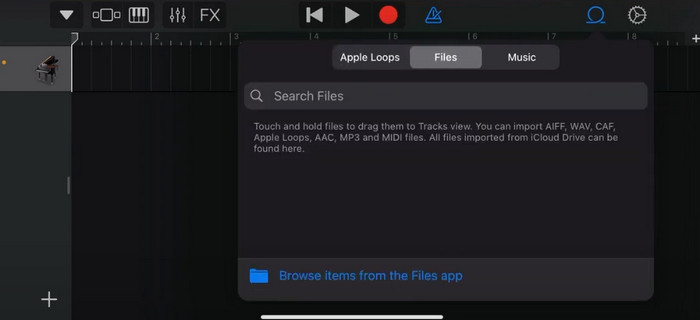
Trin 3. Placer din valgte M4R‑lydfil på GarageBand‑tidslinjen.
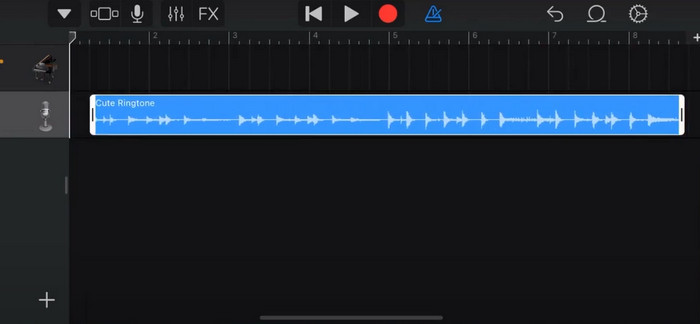
Trin 4. Tryk på metronomen for at slå den fra. Tryk på pil‑ned‑ikonet > My Songs.
Trin 5. Tryk længe på lydklippet, og vælg Share.
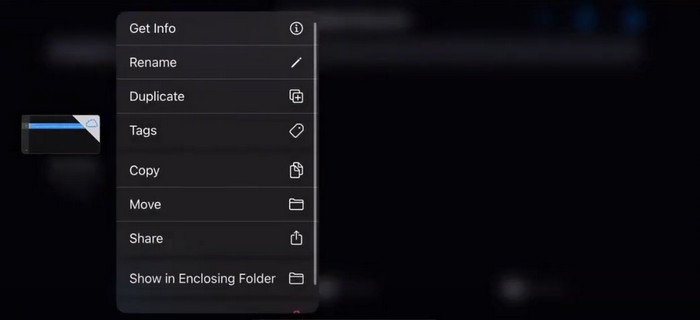
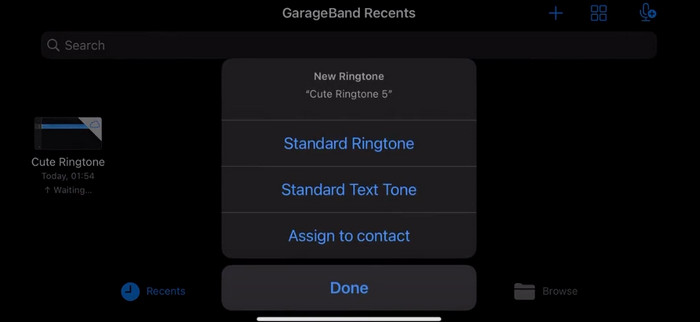
Trin 6. Vælg Ringtone > Export. Når vinduet Use sound as vises, skal du trykke på Standard Ringtone.
Indstil ringetone på Android
Hvis du vil gøre din lyd ekstraheret fra videoer som ringetoner på din Android-enhed, skal du gøre det direkte i appen Indstillinger. De nøjagtige trin er lidt nemmere.
Vi tager Samsung-telefonen som eksempel og fortæller dig, hvordan du anvender den i detaljer.
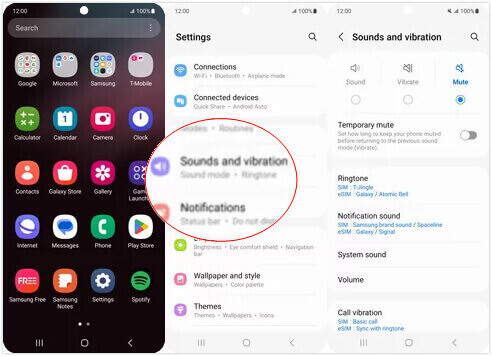
Trin 1. Gå til Settings på din Android‑enhed, og tryk på Sounds and vibration.
Trin 2. Vælg Sound under sektionen Sound mode. Tryk derefter på Notification sound.
Trin 3. Vælg den lydfil, du har konverteret og redigeret. Indstillingen træder i kraft, når du går tilbage til den forrige side.
Del 4. Ofte stillede spørgsmål om at lave en video som ringetone
Hvordan tilføjer jeg ringetoner til min Android-telefon?
På din Android-telefon skal du gå til Indstillinger og se efter indstillingen Lyd eller Lyde & Vibration. Vælg Telefonringetone eller Ringetone for at vælge en brugerdefineret ringetone. Din tilpassede ringetone skulle nu vises på listen over tilgængelige ringetoner. Vælg den for at indstille den som din ringetone.
Kan jeg downloade iPhone-ringetone til Android?
Ja, du kan downloade iPhone‑ringetoner og bruge dem på en Android‑enhed. iPhone‑ringetoner er dog som regel i M4R‑format, som ikke er direkte kompatibelt med Android‑systemet. Du skal konvertere iPhone‑ringetonen til et format, der understøttes på Android, f.eks. MP3 eller AAC. For eksempel kan den konverter, som FVC har udvalgt, hjælpe dig med at konvertere M4R til MP3.
Hvorfor ringer min telefon ikke ved indgående opkald?
Hvis din telefon ikke ringer ved indgående opkald, kan der være flere årsager til dette problem. Sørg for, at lydstyrken på din telefon er skruet op og ikke er slået fra. Tjek også, om din telefon er i Forstyr ikke-tilstand. Denne tilstand slår alle opkald og meddelelser fra. Hvis problemet stadig ikke er løst, kan du prøve at genstarte din telefon for at opdatere systemet.
Konklusion
Dette er en komplet guide til at lave en video til din ringetone. Vi anbefaler et af de bedste værktøjer, FVC Video Converter Ultimate, til at hjælpe dig med at tilpasse dine videofiler, så de bliver, som du ønsker. Dette værktøj findes til både iPhone og Android‑telefoner, så uanset hvilket system din enhed kører, kan du lave dine yndlingsringetoner med dets hjælp.
-
 Top 3 løsninger til at komprimere WAV-filer til en mindre størrelse
 Hvis du også leder efter måder at komprimere størrelsen på WAV-lydfiler på, kan du læse vores indhold. Vi vil introducere dig til forskellige værktøjer fra tre aspekter.
-
 Dybdegående lydkomprimeringsvejledning i 2024 (trin-for-trin)
 Har du brug for at komprimere lyd, men har du brug for hjælp til at finde ud af, hvor du skal starte? I dette indlæg vil vi præsentere de bedste valg for at reducere filstørrelsen på dine spor.
-
 Effektive lydkompressorer til offline- og onlinebrugere
 Har du nogle problemer med store lydfiler? Der er mange lydfilkompressorer tilgængelige for offline- og onlinebrugere. Tjek dem ud her.
