


 Video Converter Ultimate
 Skærmoptager
 Video reparation
 Sikker download
Sådan indstiller du Spotify-sang til din ringetone - en vejledning i fuld trin
Spotify tilbyder et omfattende bibliotek af musik, podcasts og andet lydindhold til brugere over hele verden. Millioner af sange er tilgængelige, som folk kan lytte til on-demand. Hvis du også vil indstille den smukke musik, den tilbyder, som ringetone på din smartphone, skal du først downloade den valgte lydfil til din enhed. Det gode er, at denne procedure ikke er kompliceret. I denne artikel opdeler vi hele processen for hvordan du gør en Spotify-sang til din ringetone i tre dele og gennemgår hver del i detaljer for dig. Når du forbereder dine ringetoner, kan du få brug for at klippe en del af lyden ud. Med dette i tankerne vil vi også anbefale et af de mest professionelle lyd- og videoredigeringsværktøjer. Nogle ofte stillede spørgsmål om opsætning af ringetoner vil også blive besvaret.

Del 1. Download Spotify-sang til ringetone
Kan du bruge Spotify til ringetoner? Svaret er selvfølgelig ja. Hvad du skal vide, før du fortsætter officielt, er, at du i øjeblikket ikke kan downloade musik direkte til din enhed via Spotify og indstille dem som dine ringetoner. Derfor har vi brug for hjælp fra nogle værktøjer. Ifølge vores undersøgelse er Spotify Downloader et ret godt valg. Alt du skal gøre er at åbne dens officielle hjemmeside i din browser, kopiere linket til din yndlingsmusik og indsætte det i den tilsvarende sektion. Du vil således kunne downloade filen direkte til din computer. Hvis du har problemer med det, vil vi forklare trinene i det følgende afsnit.
Her er, hvad du skal gøre for at downloade Spotify-sange til ringetoner med Spotify Downloader.
Trin 1. Gå ind på den officielle Spotify Downloader‑website i din browser.
Trin 2. Åbn Spotify‑appen på din telefon. Find derefter den lyd, du vil downloade.
Trin 3. Tryk på ikonet med de tre prikker, og vælg Del > Kopiér link.
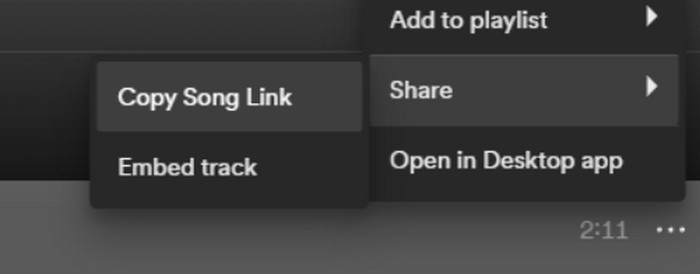
Trin 4. Nu kan du gå til siden for Spotify Downloader. Indsæt det kopierede link, og klik på Send.
Trin 5. Når processen er færdig, klikker du på Download.

Del 2. Gør en Spotify-sang til din ringetone
Når du har downloadet din yndlingsmusik til din enhed, kan du begynde at redigere den. Vi kan redigere klimakset af sangen eller din yndlingsdel af sangen og gøre en Spotify-sang til din ringetone. Det skal bemærkes, at iPhone- og Android-telefoner understøtter forskellige ringetonelydformater. I øjeblikket understøtter iPhone kun ringetoner i M4R-format, mens Android-telefoner i øjeblikket understøtter MP3, M4A, WAV og OGG. Hvis du finder ud af, at dit lydfilformat ikke opfylder ovenstående krav, kan du bruge en professionel formatkonverter til at hjælpe dig.
I dette tilfælde anbefaler vi, at du prøver et alt‑i‑et‑redigeringsværktøj til lyd, det nøje udvalgte Video Converter Ultimate, for at opnå redigering af sange ét sted. Ud over den centrale formatkonvertering understøtter det også redigering af lydens længde, justering af lydstyrke og lydspor samt tilføjelse af fade‑ind‑ og fade‑ud‑effekter til dine ringetoner. Du vil næsten ikke opleve ekstra ventetid, når du bruger det til at behandle dine filer. Det hjælper dig med at ændre parametrene for din lyd meget effektivt.
Gratis download til Windows 7 eller nyere Sikker download
Gratis download til MacOS 10.7 eller nyere Sikker download
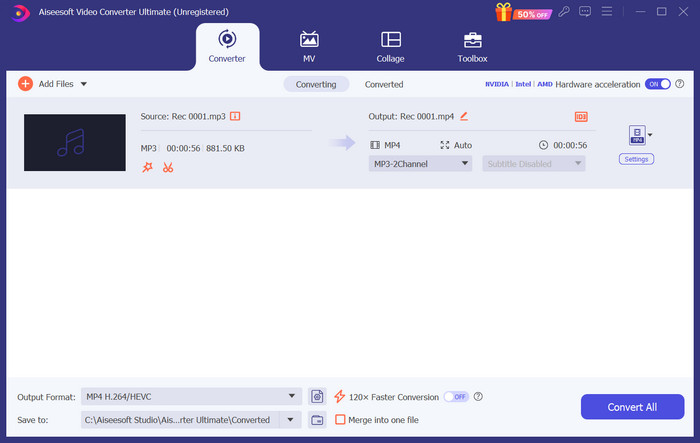
Her vil vi lære dig, hvordan du opretter ringetone fra Spotify med FVC Video Converter Ultimate.
Trin 1. Download og installer FVC Video Converter Ultimate på din computer. Sørg for, at du har gemt din yndlingssang på enheden.
Trin 2. Åbn softwaren på din computer, og klik på Tilføj filer for at uploade Spotify‑sangen til denne platform.
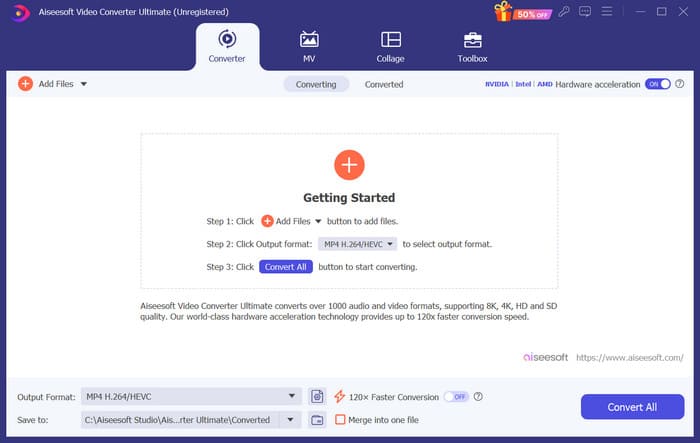
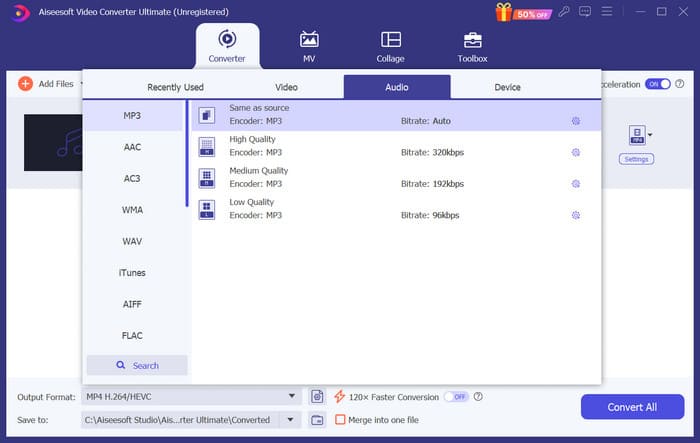
Trin 3. For at konvertere formatet på din ringetone skal du åbne rullemenuen ved siden af Outputformat. Derefter kan du vælge dit ønskede format blandt alle mulighederne under Lyd.
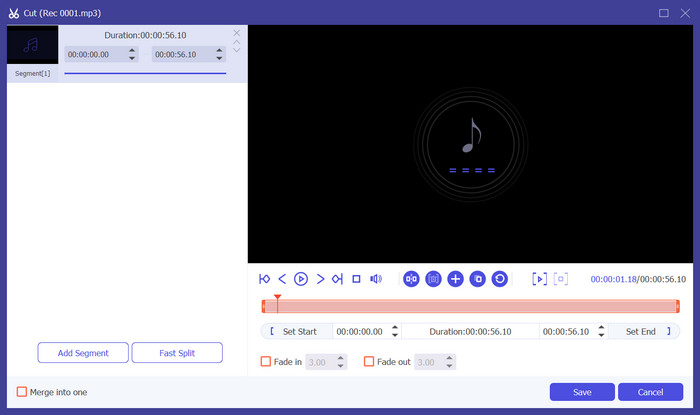
Trin 4. For at vælge en del af sangen som din telefons ringetone skal du klikke på Klip. Du kommer derefter ind på beskæringssiden. Træk skyderen for at vælge den del, du vil beholde. I dette vindue kan du også tilføje fade‑ind‑ og fade‑ud‑effekt til din ringetone.
Trin 5. For at ændre lydstyrken eller lydsporet på filen skal du klikke på Rediger. På den nye side kan du endda forhåndsvise redigeringsresultatet direkte. For at gemme ændringen skal du klikke på OK.
Trin 6. Når du er færdig med at indstille din ringetone, skal du klikke på Konverter alle for at eksportere filen.
Del 3. Indstil Spotify-sangen som ringetone
Nu hvor vi har vores nye ringetone klar og har redigeret den til den rigtige længde, skal vi tage det sidste skridt: Indstil Spotify-sangen som ringetone for indgående opkald på din telefon. I betragtning af at forskellige enheder fungerer forskelligt, vil vi guide dig i opsætningen på din enhed fra både iPhone og Android-telefoner.
Android
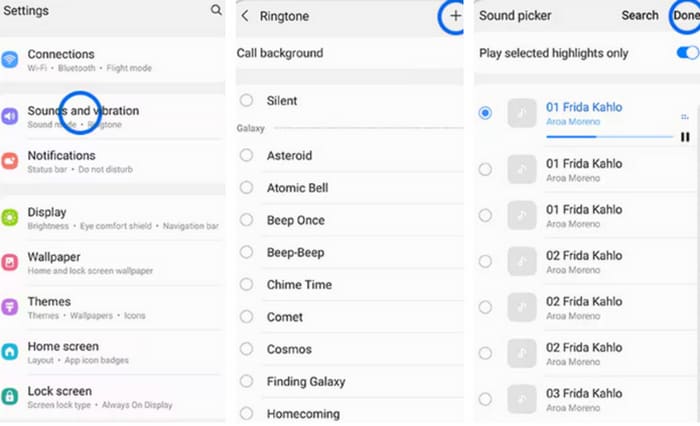
I dette afsnit vil vi guide dig gennem indstilling af Spotify-sange til ringetoner på din Android-telefon. Vi vil bruge en Samsung-telefon som eksempel. Før vi starter, bør du overføre din Spotify-sang til din telefon. Transformation via USB-kabel eller Bluetooth er begge ruter, der kan refereres til.
Trin 1. Gå til Indstillinger på din telefon, og tryk på Lyde & vibration > Telefonlyd > Mine lyde.
Trin 2. Tryk på Tilføj, og vælg den redigerede Spotify‑sang blandt alle filerne på din mobiltelefon.
Trin 3. For at gemme justeringen skal du trykke på Færdig. Nu har du med succes tilføjet en Spotify‑sang som din Samsung‑ringetone.
iPhone
Hvis du vil lave en ringetone til din iPhone, kan du få brug for tredjepartsværktøjer. Det mest populære værktøj er GarageBand, og vi forklarer, hvordan du indstiller Spotify‑sange som iPhone‑ringetoner.
Trin 1. Download og kør GarageBand på din iPhone. Vælg Projekt.
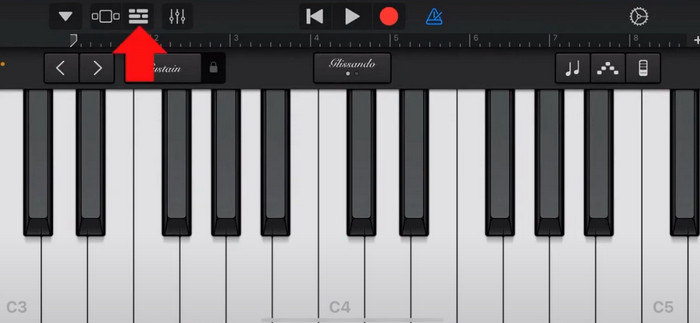
Trin 2. Vælg derefter Løkke > Filer. For at vælge din Spotify‑sang skal du vælge Gennemse emner fra Filer‑appen.
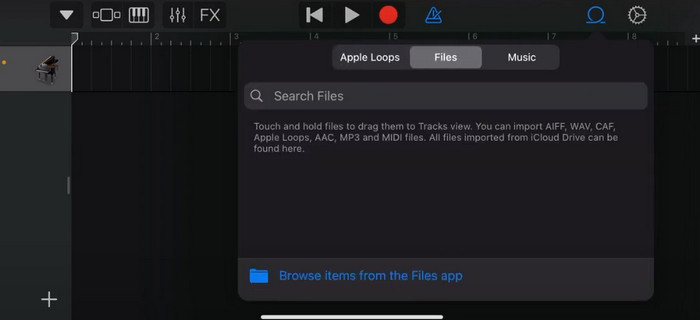
Trin 3. Placer den beskårne Spotify‑fil på tidslinjen.
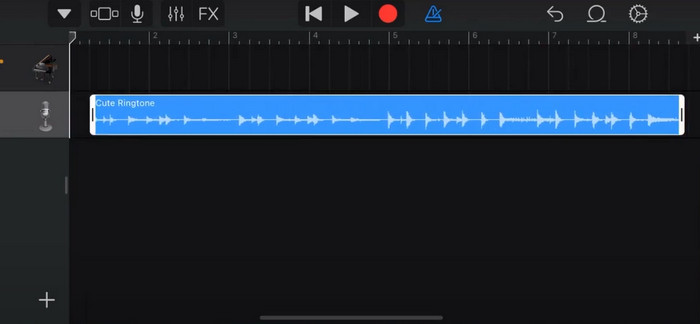
Trin 4. Deaktiver metronomen. Tryk derefter på pil‑ned‑ikonet, og vælg Mine sange.
Trin 5. Hold nede på sangklippet, og tryk på Del.
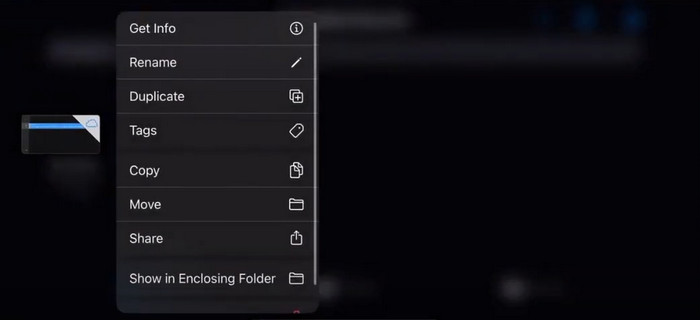
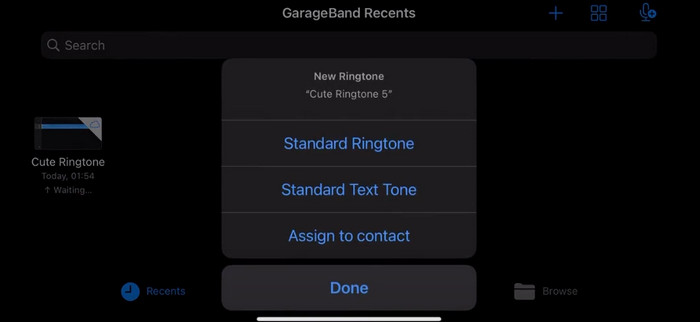
Trin 6. Vælg Ringetone > Eksporter. Tryk på Brug lyd som > Standardringetone.
Del 4. Ofte stillede spørgsmål om at gøre en Spotify-sang til din ringetone
Kan jeg bruge en Spotify-sang som ringetone direkte?
Spotify tillader ikke, at brugere direkte kan bruge en sang fra appen som ringetone på en mobilenhed. Der er dog alternative metoder, du kan bruge til at indstille en Spotify-sang som ringetone. Du kan købe den sang, du kan lide, fra en digital musikbutik som iTunes eller Google Play Musik. Der er tilgængelige tredjepartsværktøjer, der giver dig mulighed for at konvertere Spotify-sange til MP3-filer.
Hvordan laver jeg en tilpasset ringetone til min iPhone uden iTunes?
Hvis du vil oprette en brugerdefineret ringetone til din iPhone uden at bruge iTunes, kan du bruge GarageBand, en musikapp, der er tilgængelig på iOS-enheder. Denne metode giver dig mulighed for at tilpasse din ringetone med dine foretrukne lydklip på din enhed.
Hvordan konverteres Spotify til en iPhone-ringetone uden en computer?
Det er svært at konvertere en Spotify-sang direkte til en iPhone-ringetone uden at bruge en computer. Du kan dog finde nogle alternative metoder til at opnå et lignende resultat. For eksempel kan du bruge en ringetone maker-app eller vælge GarageBand.
Konklusion
Ovenfor har vi givet dig et fuldstændigt overblik over, hvordan du indstiller en Spotify‑sang som din ringetone til indgående opkald. Vi har gennemgået alle trin og givet dig et topmoderne lydredigeringsværktøj, den FVC‑anbefalede Video Converter Ultimate, til at hjælpe dig med at personliggøre din sang. Hvis du ønsker det, hjælper dette værktøj dig også nemt med at bruge en video som din ringetone. Vi er overbeviste om, at du får de instruktioner, du har brug for.
-
 Bedste gennemgang Sådan konverteres WAV til ringetone på ingen tid
 Ønsker du nemt at konvertere WAV til en ringetone? Vores brugervenlige værktøjer får jobbet gjort! Nyd lydkonvertering af høj kvalitet på et øjeblik - ingen teknisk hovedpine. Prøv dem i dag!
-
 Sådan laver du et stemmememo til en ringetone på iPhone og Android
 Hvis du vil lave et stemmememo til en ringetone, så læs denne artikel. Uanset om du er iPhone-bruger eller Android-bruger, kan du finde løsninger i vores indhold.
-
 5 MP3-skærere til nemt at skære enhver lyd [2024 Opdateret]
 Har du brug for en MP3-skærer til at trimme lyden? I så fald skal du læse denne artikel, fordi vi giver de værktøjer, du kan stole på for nem lydklipning.
