


 Video Converter Ultimate
 Skærmoptager
 Video reparation
 Sikker download
Sådan konverteres M2TS til MP4 uden at reducere kvaliteten
”Når jeg lægger videoerne fra mit Sony-kamera til computeren, er det M2TS-filer, som ikke kan deles på Facebook eller YouTube. Hvor kan jeg finde en videokonverter til at konvertere filerne til MP4 og se på min computer? ”
Nogle gange vil du afspille M2TS-filer på bærbare enheder eller uploade dem til YouTube eller Facebook. Det er fornuftigt at konvertere dem til et almindeligt videoformat som MP4. I dette indlæg deler vi 5 gratis måder at konvertere M2TS til MP4 på Windows og Mac på.

Del 1. Bedste måde at konvertere M2TS til MP4 gratis
Ikke alle medieafspillere understøtter M2TS-filer. For bedre at kunne nyde M2TS-video fra HD‑videokameraer, bør du hellere ændre M2TS til det almindeligt anvendte MP4 til afspilning. FVC Free M2TS Converter er en alt‑i‑én M2TS‑konverter og -editor. Du kan ikke kun konvertere M2TS‑filer til MP4, MKV, AVI, MOV osv., men også redigere M2TS‑filerne, f.eks. komprimere, sammenføje, tilføje tema og mere.
Gratis downloadTil Windows 7 eller nyereSikker download
Gratis downloadTil MacOS 10.7 eller nyereSikker download
Step 1. Ved at klikke på knappen Free Download kan du hurtigt downloade Free M2TS Converter. Installer og start den derefter på din Windows‑computer. Klik på knappen Add File(s) for at importere M2TS‑filen til programmet.
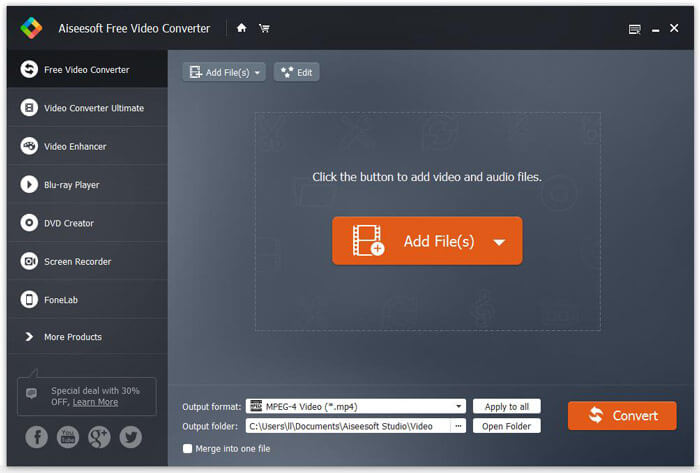
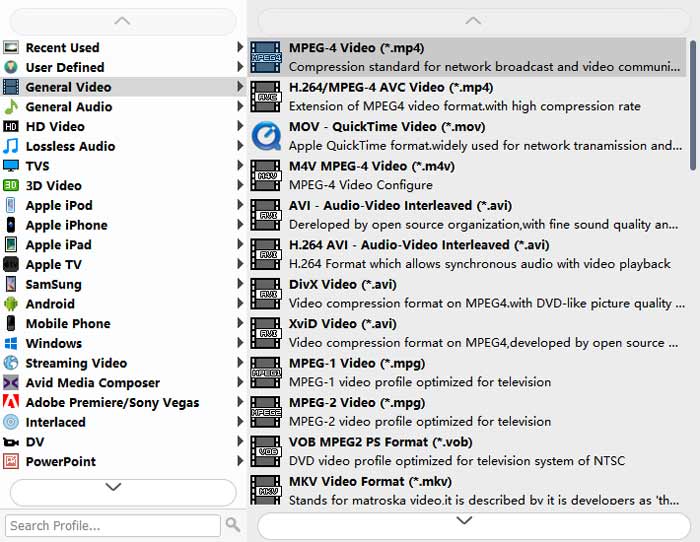
Step 2. Klik på rullemenuen Output format, og vælg MPEG-4 Video (*.mp4) som outputformat. Du kan også vælge den outputmappe, hvor den konverterede fil skal gemmes.
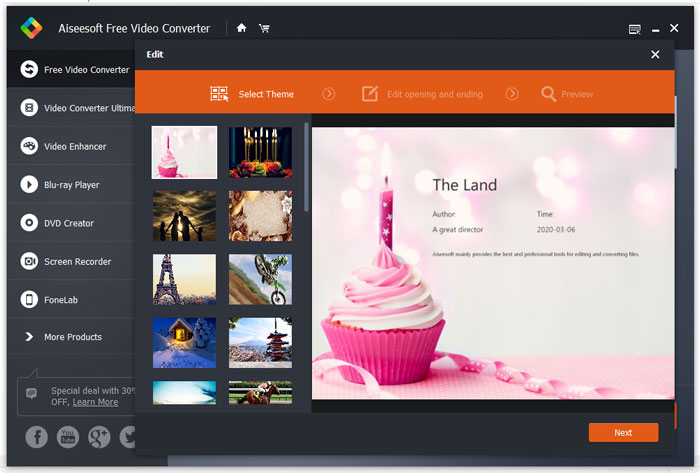
Step 3. Hvis du vil tilføje et specifikt tema til videoen, kan du klikke på knappen Edit i topmenuen for at vælge et passende tema. Når alle indstillinger er foretaget, kan du klikke på knappen Convert for at begynde at ændre M2TS‑filen til MP4.
Del 2. Sådan ændres M2TS til MP4 online
Hvis du vil konvertere M2TS til MP4 online gratis, vil FVC Free Online Video Converter være et godt valg. Som en gratis online multimediekonverter understøtter den konvertering af næsten alle gængse video- og lydformater til MP4, FLV, MKV, MOV, M4V, MTS, TS, M2TS, WMV, ASF, VOB, MP3, AAC osv. Desuden er den meget nem at bruge.
Step 1. Gå til websitet for FVC Free Online Video Converter. Klik på Add Files to Convert øverst. Download og installer derefter FVC launcher.
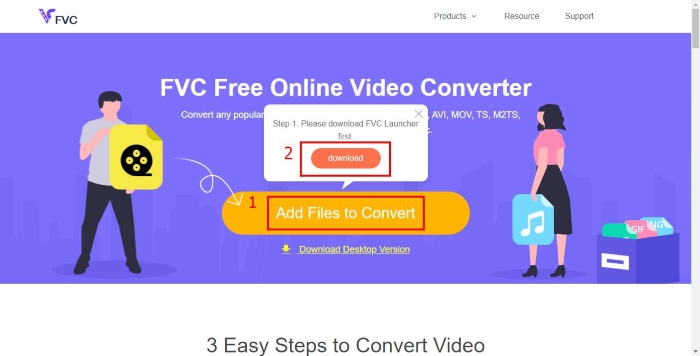
Step 2. Vælg den video, du vil konvertere. Hvis du vil have en MP4‑video, skal du blot klikke på MP4. Klik derefter på Convert.
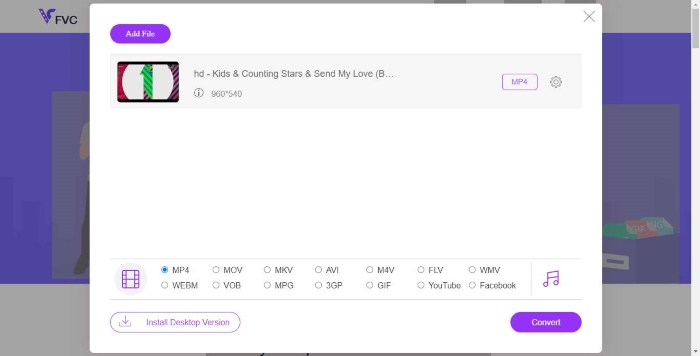
Step 3. Du kan gemme MP4‑videoen direkte på skrivebordet. Derefter starter konverteringen automatisk.
Del 3. Sådan konverteres M2TS til MP4 med ConvertFiles
ConvertFiles er den webbaserede M2TS til MP4 konverter, der understøtter mere end 200 formater af videoer, lyd, billeder, dokumenter, præsentationer og arkiver. Følg de enkle trin nedenfor for at begynde at konvertere M2TS-fil til MP4 online.
Step 1. Gå til den officielle side for ConvertFiles. Klik på knappen Browse for at uploade din lokale M2TS‑fil.
Step 2. Klik på boksen Input format og vælg HDV Video File(.m2ts), og klik på boksen Output format for at vælge MPEG-4 Video File(.mp4) som outputformat.
Step 3. Klik på knappen Convert for at begynde at omdanne M2TS til MP4 gratis. Konverteringen kan tage et par minutter. Derefter kan du klikke på downloadlinket for at hente den konverterede MP4‑fil.
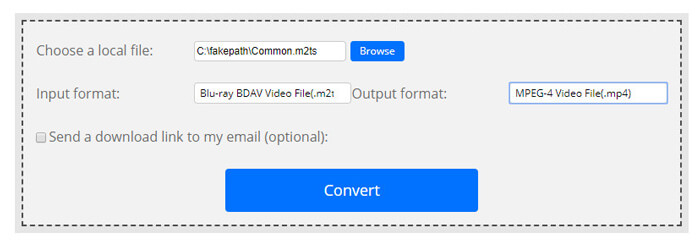
Nogle gange kan konverteringen mislykkes på grund af det ugyldige inputformat. For at opnå en høj succesrate kan du prøve Free M2TS Converter i stedet.
Del 4. Sådan transformeres M2TS til MP4 med VLC
VLC Media Player er en open source multimedie-afspiller til Windows, Mac, Linux, iOS og Android. Det fungerer også som en fantastisk M2TS til MP4 konverter til at konvertere M2TS filer til MP4, MOV, AVI og mere. Hvad mere er, kan du redigere M2TS-filer som beskære, klippe, rotere, tilføje billedeffekter og mere.
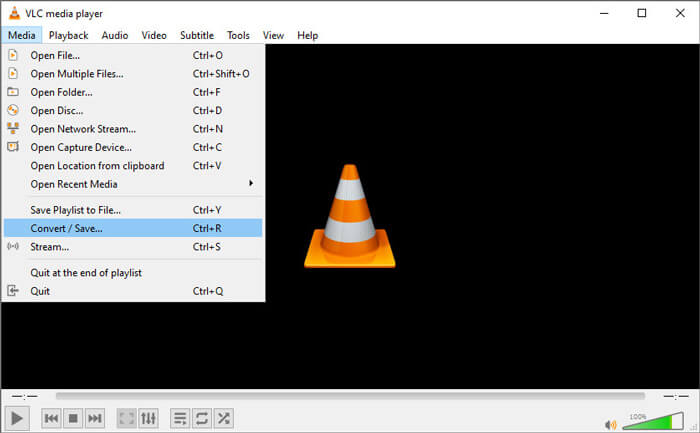
Step 1. Download og kør VLC Media Player på din computer. Klik på Media > Convert / Save... for at fortsætte. Klik derefter på knappen Add... for at tilføje din M2TS‑fil.
Step 2. Klik på knappen Convert / Save for at gå til vinduet Convert. Klik på rullemenuen Profile for at vælge Video - H.264 + MP3 (MP4) som outputformat.
Step 3. Klik på knappen Browse for at vælge en destinationsmappe. Klik derefter på knappen Start for at begynde at konvertere M2TS til MP4.
Del 5. Sådan eksporteres MP4 fra M2TS med håndbremse
HandBrake er en anden gratis og open source videotranscoder, der kan konvertere video fra næsten ethvert format. Du kan prøve Håndbremse for at konvertere M2TS-fil til MP4 med følgende trin.
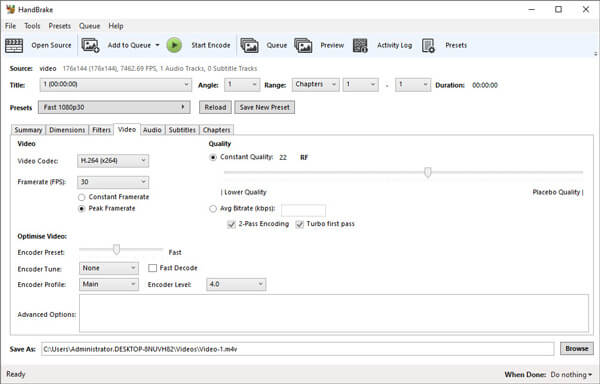
Step 1. Download gratis, installer og start HandBrake på din Windows/Mac. Klik på Open Source i venstre hjørne for at importere M2TS‑filen fra din lokale mappe.
Step 2. Du kan justere indstillingerne for M2TS‑filen. Vælg MP4 fra rullemenuen Format i fanen Summary. I fanen Video kan du justere video-codec, videokvalitet, billedhastighed og optimere videoen.
Step 3. Klik på knappen Browse for at angive destinationsmappen. Klik derefter på knappen Start Encode for at begynde at konvertere M2TS til MP4 gratis.
Del 6. Ofte stillede spørgsmål om konvertering af M2TS til MP4
Hvad er forskellen mellem M2TS og MP4?
M2TS står for MPEG-2 transportsystem. Det er et Blu-ray Disc Audio Video containerfilformat og bruges til multiplexing af video, lyd og andre streams. Generelt er M2TS-filer større end MP4-filer i samme kvalitet. MP4-filer understøttes på næsten alle medieafspillere, men M2TS-filer kan kun afspilles på nogle få afspillere.
Hvordan afspiller jeg M2TS‑filer på min pc?
Du kan åbne M2TS-filer direkte i nogle populære medieafspillerprogrammer, herunder Windows Media Player, VLC Media Player, 5K Player, SMPlayer, Splash osv. Du kan også afspille M2TS-filer med Sony Picture Motion Browser Software.
Kan VLC afspille M2TS‑filer?
Ja. Du kan afspille M2TS-filer med VLC Media Player på Windows og Mac. Kør bare VLC media player, og klik på Media for at åbne fil for at afspille M2TS-filen i VLC. Hvis det ikke fungerer ved codec-problem, skal du først konvertere M2TS til VLC-understøttet videoformat.
Konklusion
Med de 5 gratis metoder ovenfor kan du nemt konvertere M2TS-filer til MP4. Efter sammenligning skal FVC Free M2TS Converter være den bedste M2TS til MP4 converter. Med hardwareaccelerationsteknologien eksporterer den MP4-filer i høj kvalitet med på få minutter. Du kan prøve denne gratis konverter på en gang.
-
 Omfattende guide til, hvordan man konverterer TS til MP4
 Hvad er TS filer og ønsker at konvertere TS til MP4? I dette indlæg deler vi dig gratis og online metoder til at konvertere TS til MP4.
-
 Sådan konverteres MTS-filer til MP4
 Ved ikke, hvordan man konverterer MTS-fil til MP4? I denne vejledning finder du 6 gratis og nemme måder at ændre MTS-format til MP4 på Windows eller Mac uden kvalitetstab.
-
 2 enkle måder at gratis konvertere MTS til MP3
 Har du brug for at udtrække MP3-lyd fra MTS-filen, men ved ikke hvordan? Dette indlæg deler 2 nemme måder at hjælpe dig med at konvertere MTS / M2TS til MP3 med høj lydkvalitet.
