


 Video Converter Ultimate
 Skærmoptager
 Video reparation
Bedste MPG til GIF-konverter til at konvertere MPG til GIF [Gratis og Premium-version]
Den bedste måde at udtrykke dine følelser til dine kære på er at skabe et meningsfuldt budskab. Men vil du gerne vide, hvad der er meget bedre at udtrykke på en anden måde? Du kan bruge en GIF. Også kendt som Graphics Interchange Format disse er de billeder, du sender, men de er opgraderet. Disse levende billeder er skabt til simpelthen at udtrykke dine følelser overfor nogen direkte eller indirekte. Vidste du, at de fleste af beskedapps understøtter GIF såvel som vores indbyggede messenger? Men i nogle gamle versioner af telefonen giver den ikke dette format. Selvom GIF er sjovt, vil det ikke altid give dig de følelser, du ønsker at udtrykke.
Så du er her for at finde ud af, hvad der er den bedste måde at ændre dit MPG til GIF-format på. Er det ikke spændende at lave din egen GIF? I stedet for at lede efter, hvad du bør bruge, hvorfor prøver du så ikke at lave din egen GIF ved at give den dit personlige præg? Den bedste måde at finde ud af, hvordan man gør, er at læse denne artikel. Den giver nemlig tilstrækkelig information, trin og værktøjer til opgaven. Så uden at gå mere uden om emnet, lad os gå videre til de vigtige detaljer i denne artikel. Læs videre for at få mere at vide om disse lister over konvertere.

Del 1. 4 Bedste værktøj til at konvertere MPG til GIF-format PC eller Mac
1. FVC Video Converter Ultimate
Hvis du vil dele din humoristiske besked uden at skulle skrive alt for mange detaljer, så vil dette værktøj hjælpe dig. Dette værktøj giver dig mulighed for at konvertere mpg til animeret gif, og det er også udviklet af FVC. FVC Video Converter Ultimate gør det muligt for brugeren at konvertere enhver type format til et afspilleligt format, du gerne vil bruge. Måske spekulerer du på, hvorfor du skulle vælge dette værktøj. Er der noget særligt ved det? Ja, dette værktøj er multifunktionelt. Det kan være din mest pålidelige ripper, MV-maker, collage-værktøj og meget mere. Det betyder simpelthen, at dette værktøj kan gøre mere, end andre værktøjer kan tilbyde. En anden fantastisk funktion er dets ultrahurtige konvertering, som konverterer din video på ingen tid ved hjælp af dette værktøj. For at lære at bruge dette værktøj skal du følge disse trin nøje, så du får en vellykket konvertering til den ønskede formatkvalitet.
Trin 1. Installer værktøjet på din PC eller Mac. Følg instruktionerne efter installationen, og klik på “Finish” for at starte værktøjet.
Gratis download til Windows 7 eller nyere Sikker download
Gratis download til MacOS 10.7 eller nyere Sikker download
Trin 2. Når hele installationsprocessen er færdig, vil et mini-interface som dette blive vist på din skærm.
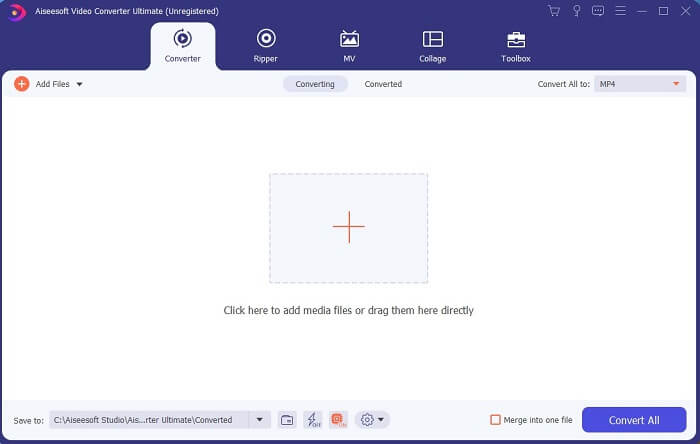
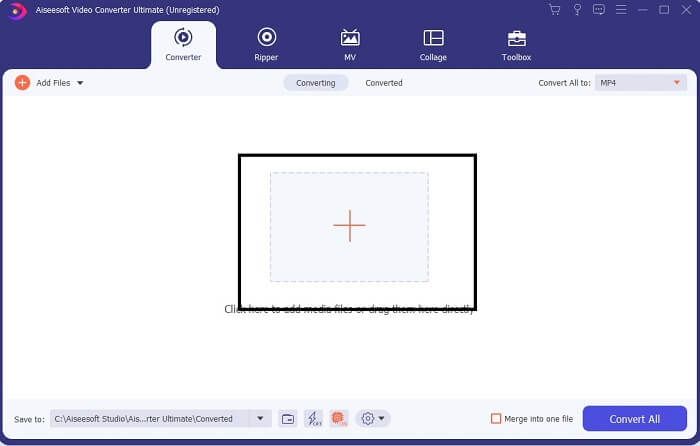
Trin 3. Klik på plus-tegnet for at tilføje filen, og klik på “Open” for at starte konverteringen, eller du kan ganske enkelt trække og slippe videofilen ind i værktøjet. Mængden af videoer spiller ingen rolle.
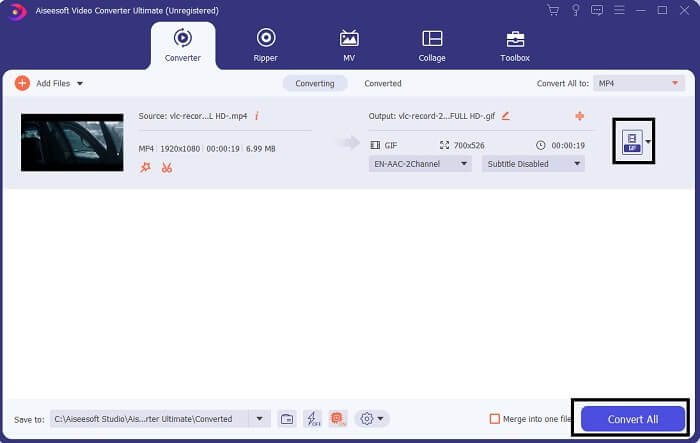
Trin 4. Klik på rullemenuen øverst til højre i interfacet, rul ned, og klik på GIF-formatet. Vælg den opløsning, du ønsker; den kan være Large, Medium eller Small. Når alt er klar, klik på Convert All for at starte konverteringen.
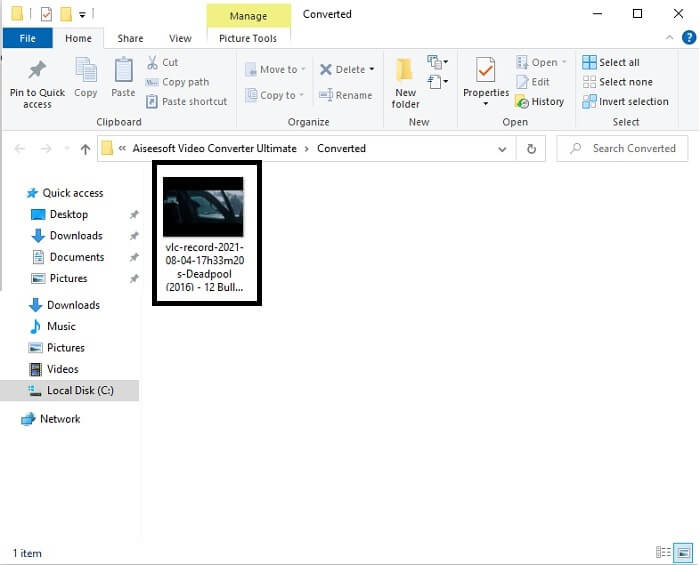
Trin 5. Efter konverteringen vil en filhåndtering dukke op og vise dit endelige output, og nu kan du nyde din GIF. Men du kan også konvertere en .gif-fil til .mpg-format ved at følge de samme trin, men ændre formatet.
2. FVC Gratis Online Video Converter
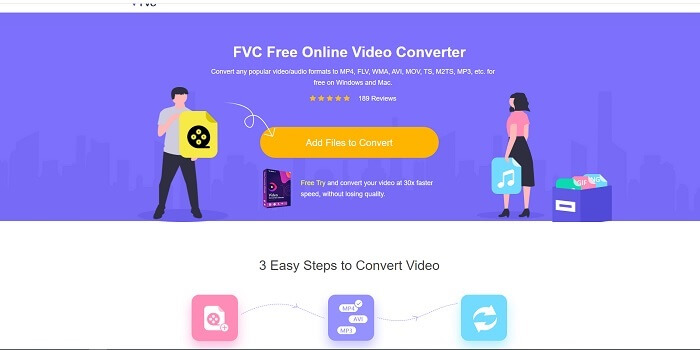
Måske tænker du, hvad hvis du ikke har penge, kan jeg stadig opleve den samme konvertering som den første? Svaret er et stort fedt JA. FVC giver altid den bedste oplevelse til sine kunder, der ikke har penge, og også til dem, der ønsker at prøve deres værktøj. Selvom dette værktøj kun udfører simpel konvertering, så forvent ikke for meget, som premiumversionen kan give. Og det kan ikke konvertere flere video- og lydformater på en hurtigere måde.
Men den konverteringsproces, det tilbyder, er langt bedre end andre betalte og gratis konvertere. FVC Free Online Video Converter er her for at redde din dag. Som navnet antyder, er det et gratis onlineværktøj, der lader dig konvertere på maksimal niveau. I modsætning til andre konvertere har dette værktøj ingen reklamer eller malware, ingen registrering, ingen log-in og ingen indtastning af personlige oplysninger, før du bruger det. Hvis du leder efter en simpel konverter, er dette det rette værktøj for dig. Følg disse trin for at forstå, hvordan dette værktøj fungerer som konverter.
Trin 1. Gå til den officielle hjemmeside ved at klikke på dette link.
Trin 2. Websiden bør se sådan ud. Klik derefter på Add Files to Convert for at starte dette onlineværktøj.
Download skrivebordsversionen for at konvertere filer i batch.
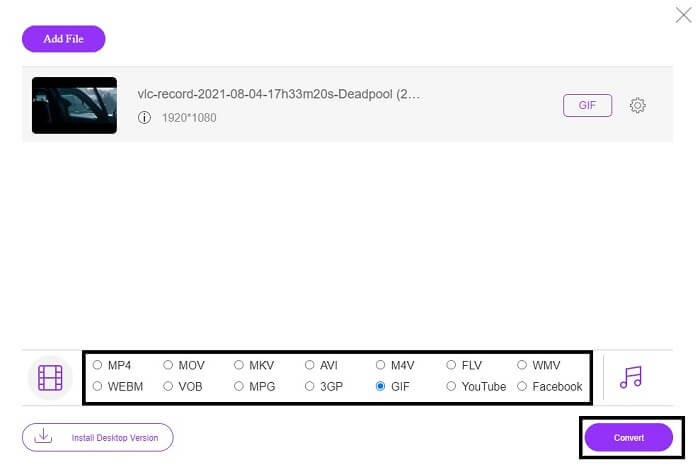
Trin 3. Vælg den video, du vil have konverteret. Efter at have valgt videoen skal du vælge GIF-filformatet. Som ekstra information kan du også vælge andre video- og lydformater; du kan tjekke dem senere, hvis du vil.
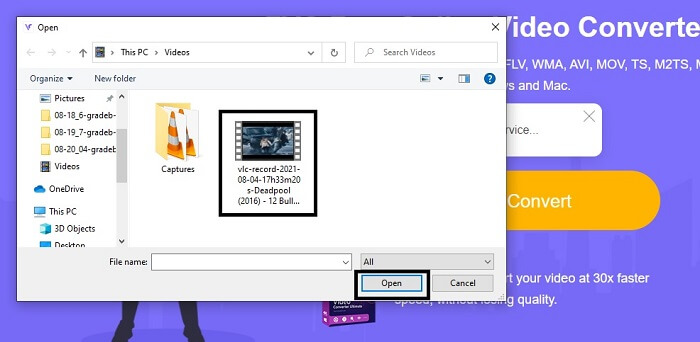
Trin 4. Vælg, hvor du vil gemme det endelige output. Når alt er klar, klik på Convert for at starte konverteringen. Det vil tage et par sekunder at fuldføre konverteringen.
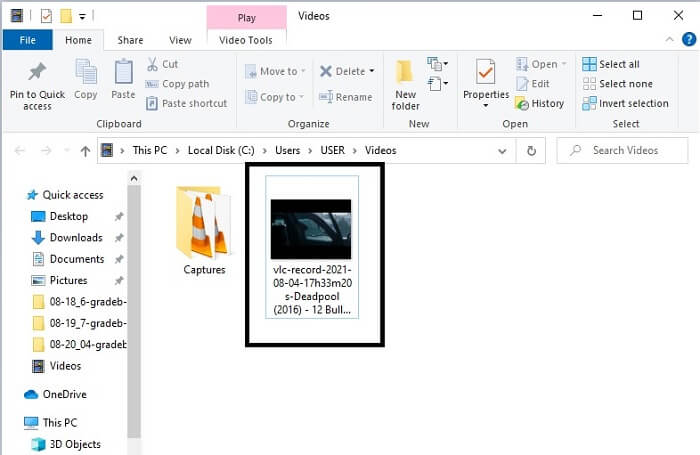
Trin 5. For at tjekke din vellykkede konvertering kan du finde din konverterede GIF-fil i din filhåndtering eller Stifinder. Klik på den og nyd den.
3. VLC Media Player
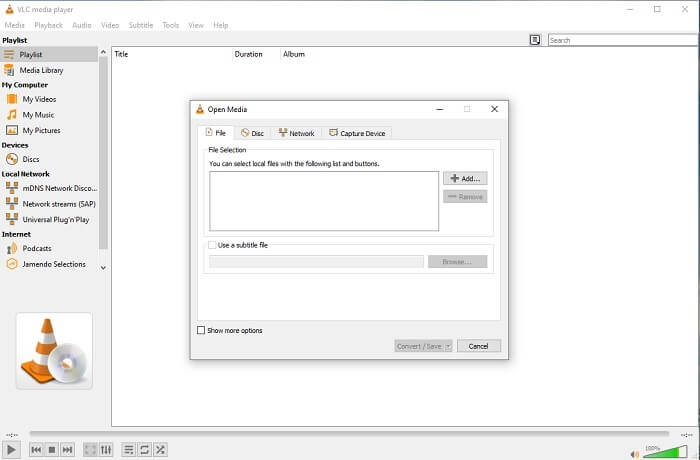
Dette værktøj er kendt for at være en af de mest kraftfulde medieafspillere. Men vidste du, at VLC-afspilleren også kan konvertere MPG til GIF? Dog er de formater, den understøtter til konvertering, meget begrænsede til kun kendte formater. På trods af at den er kendt som den bedste medieafspiller, er dens konverteringsfunktion ikke det bedste valg for dig. Så hvis du vil have en bedre konverter, bør du vælge onlineværktøjet ovenfor i stedet for dette værktøj. Men hvis du bare vil se videoen, bør VLC Media Player være dit valg, fordi det andet værktøj ikke kan fungere som videoplayer, da dets hovedformål er konvertering.
4. Zamzar
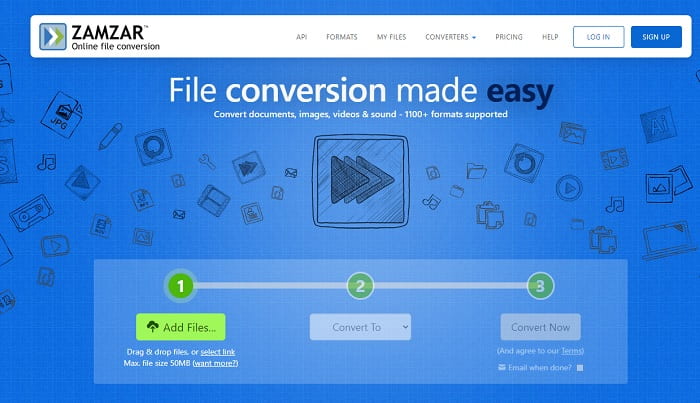
Et andet onlineværktøj, der giver en fantastisk konvertering, er Zamzar. Som enhver anden online-konverter deler de den samme grænseflade, og den giver også instruktion på stedet om, hvordan den konverteres. Men processen med at konvertere og downloade er anderledes. Selvom den gratis version, kan du kun konvertere en maksimal filstørrelse på 50 MB. For efter at du har konverteret videoen, skal du gå til fasen med at downloade den. Det er meget bøvl for dem, der forlader deres konvertering og bare venter på, at produktet bliver spillet.
Del 2. Sammenligningstabel
| Værktøjsfunktion (er) | FVC Video Converter Ultimate | FVC gratis online konverter | VLC medieafspiller | Zamzar |
| Konverter |  | | | |
| Redigeringsværktøj | |  | | |
| Kraftig konverter | | | | |
| Tilmelding nødvendig | | | | |
| Platforme | Desktop-baseret app | Web baseret app | Desktop-baseret app | Web baseret app |
| Prisklasse | $25.00 1 Måned/1 PC $55.20 Engangskøb for 1 PC $119.00 Levetid 5 PC | Det er et gratis online værktøj | Det er et gratis online værktøj | Gratis online værktøj Men det giver også en månedlig præmie. Til det grundlæggende: $9 For de professionelle: $16 For erhvervslivet: $25 |
MPG vs. GIF
Lavet af Moving Picture Experts Group (MPEG), MPG er et almindeligt digitalt videoformat til at gemme video-, lyd- og metadataoplysninger. Det er ret nyttigt, når du laver film til deling på internettet. Disse filer i MPG indeholder normalt MPEG-1 eller MPEG-2 video/lydkomprimering.
GIF er et almindeligt billedformat til webgrafik. Udover at gemme små billeder og billeder, der indeholder tekst, kan GIF også indeholde og vise grundlæggende animationer på websteder. Det er et tabsfrit format, og GIF-komprimeringen forringer ikke billedets klarhed.
Del 3. Ofte stillede spørgsmål om MPG til GIF
Er der en måde at bruge Photoshop og konvertere video til en GIF?
Ja, du kan konvertere MPG til GIF med Photoshop. Og det er ikke kun MPG-filformatet – du kan også vælge andre formater og konvertere dem til GIF. En anden særlig funktion er, at du også kan forbedre GIF’en, så den bliver bedre. Klik her for at lære, hvordan man konverterer MP4 til GIF.
Hvad er det bedste skærmoptagerværktøj til at optage GIF'er?
Det bedste skærmoptagerværktøj, du kan bruge til denne opgave, er FVC Screen Recorder. Dette værktøj er ikke kun godt til at optage videoer. Det har også sin egen indbyggede lydoptager og gameplay-optager for en langt bedre spiloplevelse i høj kvalitet. Dog kræver dette værktøj betaling, før du kan bruge det. Bliv ikke skuffet, for der findes et onlineværktøj, der kan klare optagelsen.
Hvorfor blev GIF'en oprettet?
Det blev skabt for at vise et billede og samtidig spare lagerplads. Skaberen af GIF-formatet er Steve Wilhite, en amerikansk datalog, med hjælp fra teknologigiganten CompuServe i slutningen af 1987. Klik her for at få mere information om GIF’er.
Konklusion
Endelig, nu hvor du ved, hvordan du laver en GIF på dig selv, må du hellere prøve det og nyde det. Bare ved at bruge dette nemme værktøj, kan du gøre en forskel. I stedet for at søge på nettet er du nu en certificeret GIF-maker. Ligeledes kan du nu udtrykke dine følelser på din egen måde med dit personlige præg og ekspertise udviklet blot ved at læse denne artikel. Håber du kan nyde livet af en bedre GIF, du opretter, og dele din bedste GIF til verden.
-
 [Guide] Sådan konverteres M4V-videoer til animerede GIF'er på Windows/Mac
 Hvis du vil lave animerede GIF -filer fra dine foretrukne M4V -videoer, kan du lære om 2 nemme og effektive måder at konvertere M4V -videoer til GIF'er med tilpassede indstillinger.
-
 WebM til GIF - 3 gratis WebM til GIF -konvertere til at oprette dine egne GIF'er
 Er WebM en GIF? Sådan gør du en video til en GIF? Er der nogen gratis WebM til GIF -konverter? Dette indlæg deler 3 gratis måder at hjælpe dig med at konvertere WebM til GIF.
-
 Sådan konverteres MKV -videoer til animerede GIF'er uden Photoshop/FFmpeg
 Efter at have downloadet og set MKV -film på din computer, vil du måske dele nogle vidunderlige øjeblikke med venner eller på internettet som GIF'er. I denne artikel kan du lære om de 2 nemmeste måder at konvertere MKV til GIF.

