


 Video Converter Ultimate
 Skærmoptager
 Video reparation
Mestre, hvordan du kan fremskynde videoer i Windows Media Player på bedste mulige måder [Evidensbaseret]
Alle videoscenerne varierer i deres afspilningshastighed, men de adskiller sig også i formål, når hastigheden ændres. Når du øger hastigheden på din video, symboliserer det irrelevante og uinteressante begivenheder i filmen eller videoen. Omvendt, når du sænker hastigheden på videoen, fremhæver det øjeblikke eller scener, der er meget vigtige at få tydeligt frem. Disse ændringer i afspilningshastighed er meget afgørende at udføre, når man redigerer eller skaber videofilm. Læs denne artikel for at lære brugerne hvordan man sætter fart på videoer, især i nogle almindelige medieafspillere på computeren som f.eks. Windows Media Player.

Del 1. Windows Media Player: Sådan gør du videoer hurtigere
Windows Media Player er en gratis medieafspiller fra Microsoft, der følger med hver kopi af Windows. Det er også kendt som WMP eller WM-afspiller af Microsoft. Ud over at lade dem se billeder og lytte til musik, giver det dem også mulighed for at se videoer. Rippe lyd-cd'er og organisere dit musikbibliotek er begge muligt med Windows Media Player (WMP). Den har også en redigeringsfane, der hjælper med at justere videoer, billeder og musik. Hvis du vil fremskynde en video ved hjælp af Windows Media Player, skal du følge disse trin:
Trin 1: Åbn Windows Media Player; vælg fanen Video i venstre hjørne.
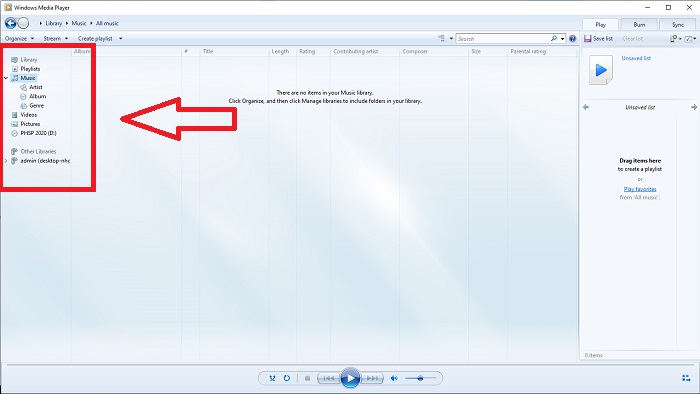
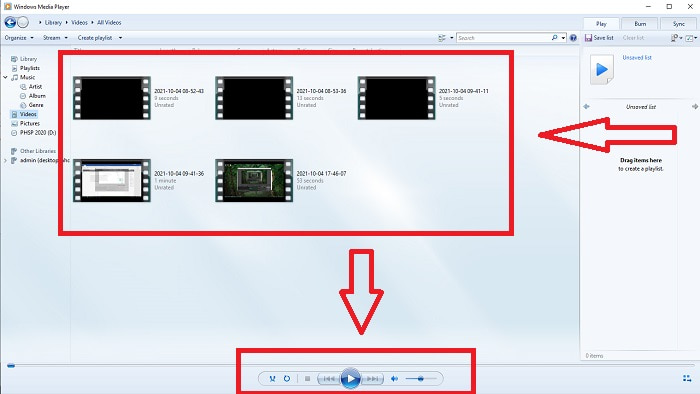
Trin 2: Afspil videoen ved enten at dobbeltklikke med venstre museknap eller højreklikke, eller du kan trykke på Afspil-knappen nederst i midten af grænsefladen.
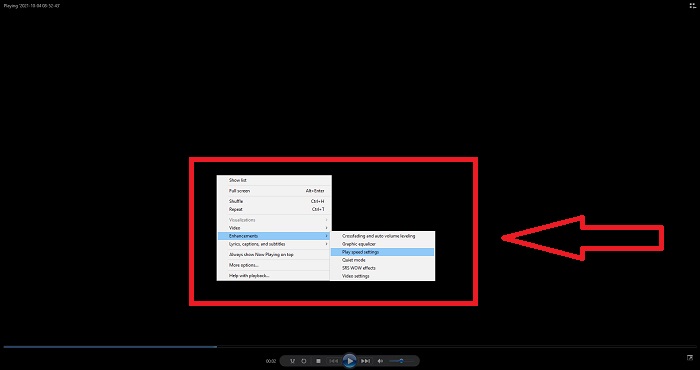
Trin 3: Højreklik derefter på skærmen for at få adgang til redigeringsfanen. Fortsæt ved at klikke på Forbedringer og Indstillinger for afspilningshastighed. Derefter kan du nu justere afspilningshastigheden på dit videoklip ved at trække i skyderen.
Del 2. Hvad hvis Windows Media Player-afspilningshastigheden ikke virker?
Når du afspiller AVI-, WAV- eller MOV-videofiler, kan du løbe ind i Windows-medieafspilleren og støde på et problem under afspilning af filfejlen. Video af middel kvalitet ses ofte i AVI-format. Andre medieafspillere har ingen problemer med at spille AVI. WMP, på den anden side, kan have en fejl, når du afspiller en AVI-fil. Windows Media Player understøtter ikke AVI-filer, fordi de er kodet ved hjælp af codecs. Du har muligvis modtaget følgende meddelelse: Windows Media Player kan ikke afspille filen. Afspilleren understøtter muligvis ikke filtypen eller understøtter muligvis ikke det codec, der blev brugt til at komprimere filen. Der er to mulige forklaringer på dette fænomen.
1. Fordi den ikke matcher den påkrævede fil, kan Windows Media Player (WMP) ikke understøtte codec'et til filen.
2. Windows Media Player understøtter ikke komprimeringscodecs.
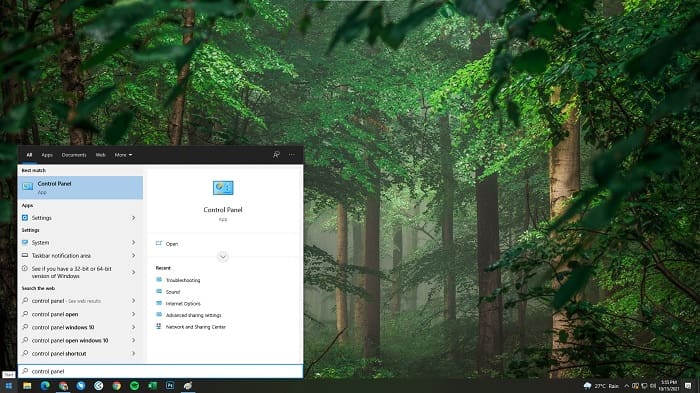
Trin 1: Åbn Kontrolpanel på din computer, og find Vis efter, klik derefter på Store ikoner for at få adgang til alle Kontrolpanelets fulde funktioner.
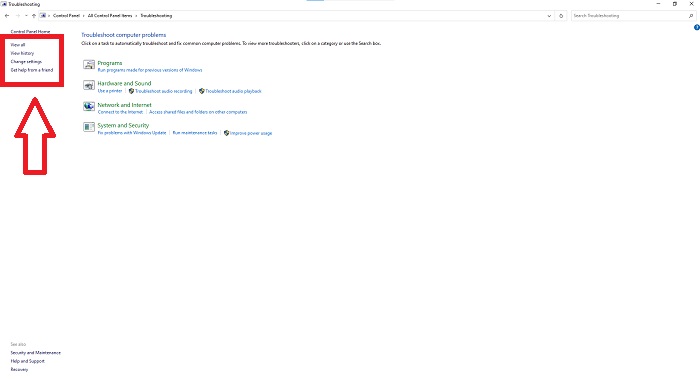
Trin 2: Fortsæt med at klikke på Fejlfinding. I venstre hjørne skal du klikke på Vis alle og finde Windows Media Player-bibliotek.
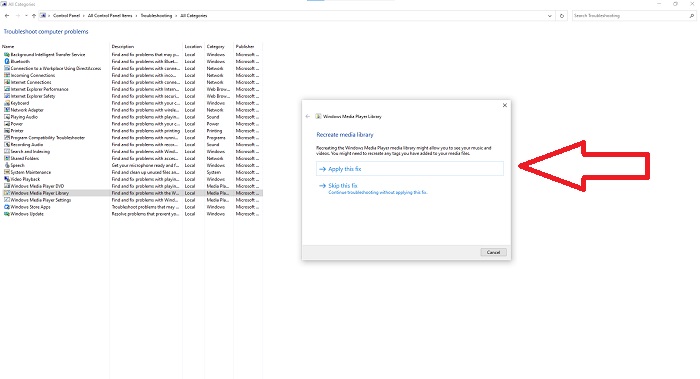
Trin 3: Til sidst skal du fejlfinde din Windows Media Player ved at klikke på Næste, når der vises et vindue. Fortsæt derefter med at vælge Anvend denne rettelse. Når fejlfindingsprocessen er afsluttet, kan du vælge, om du vil lukke fejlfindingen eller give en bedømmelse af den.
Del 3. En anden mulig måde at fremskynde videoer på
Antag, at du har problemer med at fastsætte afspilningshastigheden på dine videoer på grund af de komplicerede trin. Desuden, hvis fejlfindingen ikke virker, og du stadig ikke kan afspille videoen. Der findes webværktøjer på internettet, og nogle af dem skal købes, før du får adgang til det komplette værktøj. Video Converter Ultimate er det bedste alternativ til at fremskynde videoer, og det er gratis at bruge. Denne software kan redigere din video til det næste niveau, og her er trinene:
Trin 1: Vælg Gratis download af softwaren direkte til din computer. Tilpas og installer derefter programmet.
Gratis download til Windows 7 eller nyere Sikker download
Gratis download til MacOS 10.7 eller nyere Sikker download
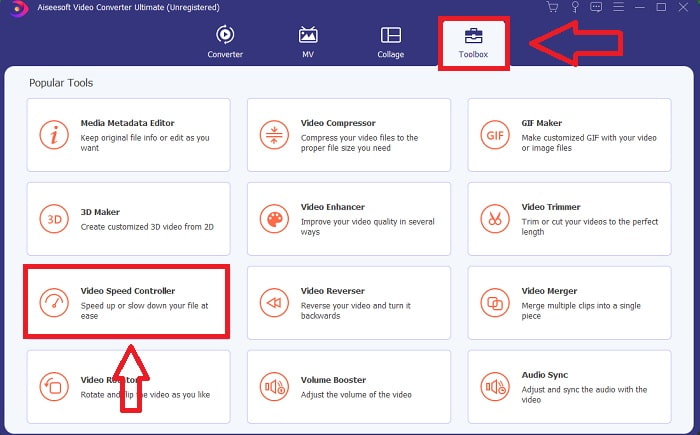
Trin 2: Når softwaren er installeret, starter du den ved at vælge Toolbox i menulinjen og derefter vælge Video Speed Controller i den viste liste.
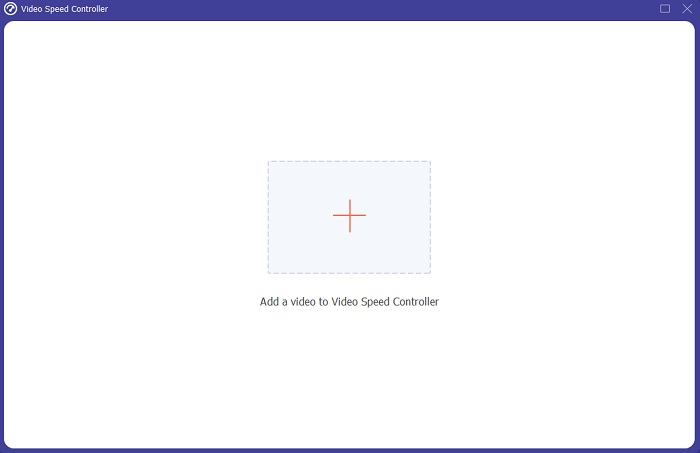
Trin 3: Klik på +-knappen efter eget ønske for at tilføje en fil, og fortsæt derefter med at redigere videoen.
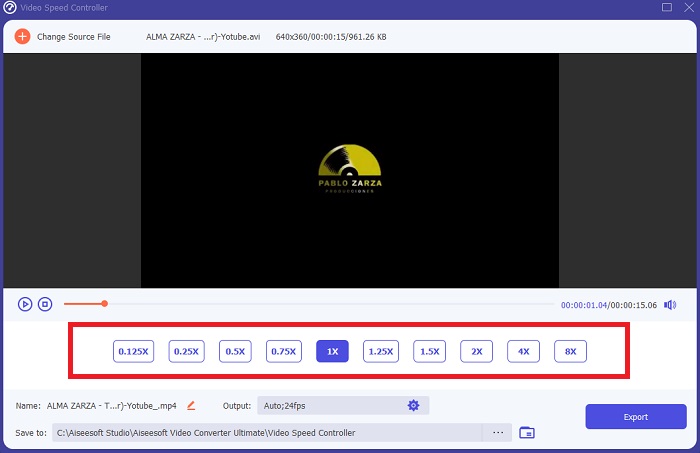
Trin 4: Vælg hvor mange gange videoens billedfrekvens skal øges eller reduceres for at ændre afspilningshastigheden.
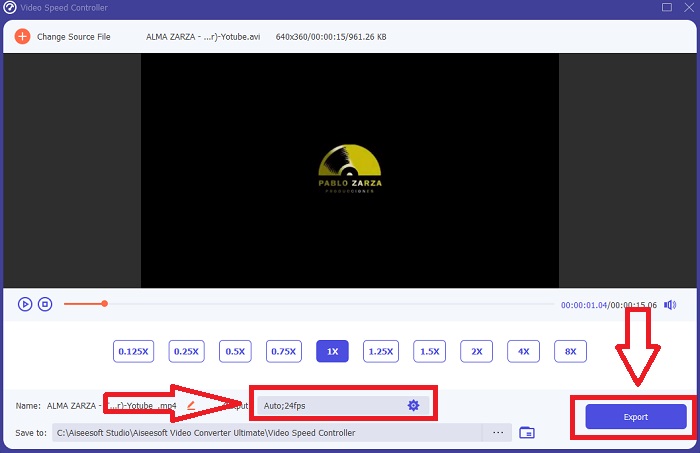
Trin 5: Ved at ændre format, opløsning, kvalitet osv. kan du vælge det ønskede output, når du er færdig med at justere din videos afspilningshastighed. Klik på Eksportér, og vælg derefter en placering til at gemme dit arbejde, når du er færdig.
Del 4. Ofte stillede spørgsmål om, hvordan man fremskynder videoer i Windows Media Player
Hvordan repareres MP4-videoer, der ikke kan afspilles på Windows Media Player?
Som artiklen nævnte tidligere, understøtter Windows Media Player ikke et bredt udvalg af videoformater. Da den kun understøtter de mest Windows-egnede formater, er det svært at løse fejl ved hjælp af denne medieafspiller. Derfor er du nødt til at lære, hvordan man konverterer, eller hvordan man afspiller MP4-videoformater. Linket her er en nyttig artikel, der kan hjælpe dig med at løse dette problem.
Hvordan afspiller man DVD i Windows Media Player?
Nogle film findes på dvd, og for at afspille dem skal du finde den rette medieafspiller til dvd. Windows Media Player er en af de almindelige medieafspillere, der kan afspille dvd’er. Derudover tilbyder denne medieafspiller også nogle indstillinger, der hjælper med redigering, mens du afspiller dvd. Her er flere oplysninger om hvordan du afspiller dvd’er i Windows Media Player.
Bliver filstørrelsen på videoen mindre, hvis du øger afspilningshastigheden?
Kun rammen bliver delt, hver gang du øger eller mindsker afspilningshastigheden på din video. Hvis du øger den 0,5x hurtigere, vil rammen være 60 billeder pr. 1/120 sekund. Kort sagt kan det ikke påvirke videoen, medmindre videoen allerede har en lav billedhastighed.
Konklusion
Afslutningsvis er Windows Media Player muligvis et fejlbehæftet program, der kun understøtter få formater. Alligevel er der nogle funktioner, som dette program kan tilbyde, der kan løse problemer relateret til videoformater. Hvis du dog vil øge afspilningshastigheden på dit videoklip, skal du downloade Video Converter Ultimate, ikke kun for at sætte fart på din video. Denne software kan løfte din video til et helt nyt niveau. Med alle de tilgængelige funktioner er dette det bedste og mest tilgængelige program, vi anbefaler at bruge.
-
 WebM til GIF - 3 gratis WebM til GIF -konvertere til at oprette dine egne GIF'er
 Er WebM en GIF? Sådan gør du en video til en GIF? Er der nogen gratis WebM til GIF -konverter? Dette indlæg deler 3 gratis måder at hjælpe dig med at konvertere WebM til GIF.
-
 Sådan konverteres MKV -videoer til animerede GIF'er uden Photoshop/FFmpeg
 Efter at have downloadet og set MKV -film på din computer, vil du måske dele nogle vidunderlige øjeblikke med venner eller på internettet som GIF'er. I denne artikel kan du lære om de 2 nemmeste måder at konvertere MKV til GIF.
-
 Opret din bedste animerede GIF via Online GIF Maker [2021]
 En informativ gennemgang om, hvordan du laver en GIF ved hjælp af disse enkle online GIF -beslutningstagere, du allerede støder på eller ikke over internettet.
