


 Video Converter Ultimate
 Skærmoptager
 Video reparation
 Sikker download
Top 4 måder at gratis konvertere MP4 til MOV
MP4 er et af de mest populære videoformater, som understøttes bredt af de fleste afspillere, redigeringsprogrammer og enheder. Men i nogle tilfælde har du stadig brug for at konvertere MP4 til MOV. Ved du hvordan man ændrer MP4 til MOV?

Når du søger på Google efter, hvordan man konverterer MP4 til MOV på internettet, kan du se, at der findes mange videokonvertere, som kan hjælpe dig med konverteringen, inklusive nogle gratis onlineværktøjer. I dette indlæg fortæller vi dig om 4 gratis måder, der kan hjælpe dig med nemt at konvertere MP4 til MOV.
Del 1. Sådan konverteres MP4 gratis til MOV på Mac / PC uden kvalitetstab
Selvom der findes et stort antal MP4 til MOV-konverteringsprogrammer på markedet, vil mange af dem miste en smule billed- og lydkvalitet under konverteringen. Hvis du vil konvertere MP4 til MOV uden kvalitetstab, bør du vælge Free Video Converter.
Free Video Converter er specielt designet til at håndtere alle former for video- og lydkonverteringer. Det understøtter stærkt næsten alle video- / lydformater inklusive MP4, MOV, MKV, FLV, AVI, WMV, MP3, AAC, FLAC og mere. Det giver dig mulighed for gratis at konvertere MP4 til MOV på Mac eller Windows PC, mens du opretholder den originale kvalitet.
Gratis downloadTil Windows 7 eller nyereSikker download
Gratis downloadTil macOS 10.7 eller nyereSikker download
Trin 1. Dobbeltklik på download-knappen ovenfor, og følg derefter vejledningen for at installere og køre denne gratis MP4 til MOV-konverter på din Mac/PC. Sørg for at downloade den rigtige version baseret på dit system.
Trin 2. Når du kommer ind i hovedvinduet, kan du klikke på Add File(s) for at importere de MP4-filer, du vil konvertere. Denne gratis MP4 til MOV-konverter er udstyret med en batchkonverteringsfunktion, som giver dig mulighed for at konvertere en eller flere MP4-filer ad gangen.
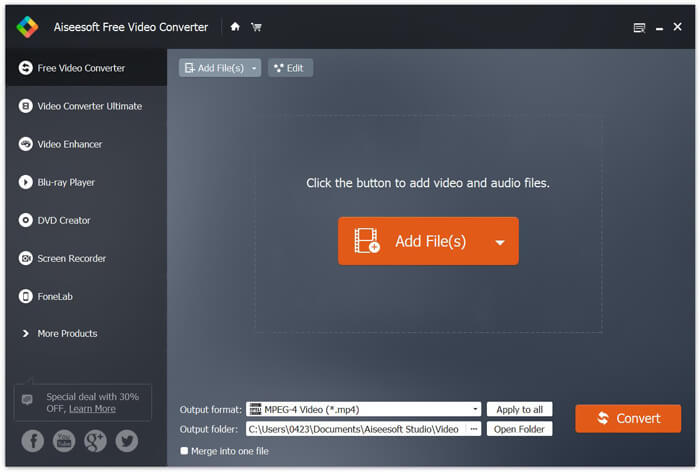
Trin 3. Klik på Output format, og vælg MOV som dit målformat på rullemenuen. Nu kan du blot klikke på knappen Convert for at starte konverteringen fra MP4 til MOV.
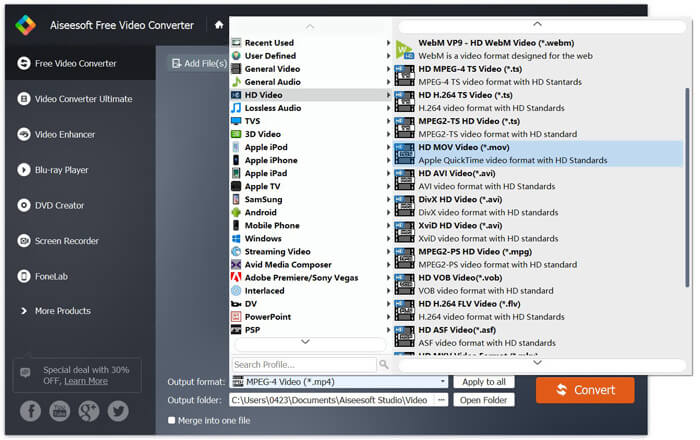
Bare et par sekunder senere konverteres den originale MP4 til MOV-format. Udover MOV kan du også konvertere MP4 til MKV, FLV, AVI osv. Med høj kvalitet. Denne gratis videokonverter har også nogle grundlæggende redigeringsfunktioner. Før den endelige konvertering af MP4 til MOV kan du bruge dem til at redigere dine MP4-videoer.
Del 2. Sådan ændres MP4 til MOV Free med Online Video Converter
Som nævnt ovenfor er der mange gratis online videokonvertere, der tilbydes på markedet, der kan hjælpe dig med at slå MP4 til MOV. Her i dette indlæg introducerer vi 2 metoder til, hvordan du ændrer MP4 til MOV online.
1. FVC Gratis Online Video Converter
Hvis du vil konvertere MP4 til MOV online gratis, er FVC Free Online Video Converter dit bedste valg. Med 3 enkle trin kan du gennemføre konverteringen og få den tabsfrie konverterede fil på få sekunder.
Trin 1. Klik på linket ovenfor, og gå til FVC Free Online Video Converter. Klik derefter på Add Files to Convert midt i banneret. Download og installer derefter FVC launcher på din computer.
Download skrivebordsversionen for at konvertere filer i batch.

Trin 2. Når du har valgt og uploadet den video, du vil konvertere, skal du vælge MOV som outputformat for den konverterede videofil.
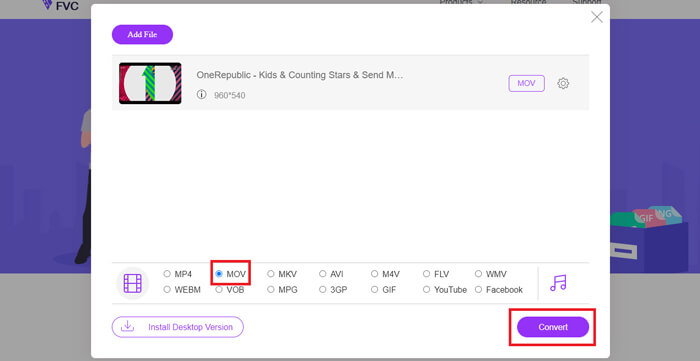
Trin 3. Klik på Convert. Og du kan vælge at gemme den konverterede fil på dit skrivebord. Derefter skal du blot vente et øjeblik, indtil du får din MOV‑video.
2. CloudConvert
CloudConvert er et meget populært og brugervenligt online videokonverteringsværktøj. Det har evnen til at konvertere over 200 formater, inklusive lyd-, video-, dokument-, e-bog-, arkiv-, billed-, regneark- eller præsentationsformater. Desuden vil denne tillidsværdige online konverter beskytte dine data og privatliv.
Trin 1. Åbn din browser, og gå til CloudConverts officielle hjemmeside. Den er designet med en enkel brugerflade, som kan give dig en behagelig konverteringsoplevelse.
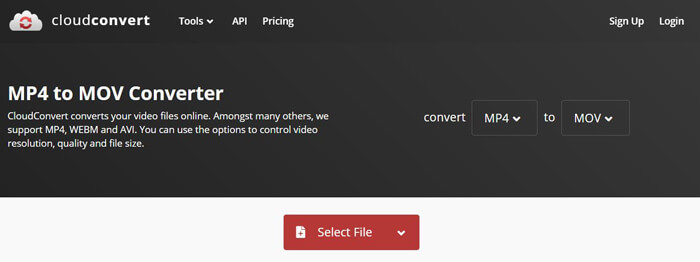
Trin 2. Klik på knappen Select File for at uploade den MP4-fil, du vil konvertere. Her kan du tilføje filer fra computer, URL, Google Drive, OneDrive eller Dropbox. I dette trin har du mulighed for at tilføje flere filer til konvertering.
En ting du skal bekymre dig om er, at denne gratis MP4 til MOV-konverter kun giver dig mulighed for at konvertere en video mindre end 1 GB. Du skal købe en pakke for at konvertere større filer.
Trin 3. Klik på knappen Convert for at begynde at uploade og konvertere din MP4-fil. Derefter kan du klikke på knappen Download for at gemme den konverterede MOV-video på din computer.

Ved hjælp af CloudConvert til at konvertere MP4 til MOV online skal du bruge mere tid på videoens upload-, konverterings- og downloadproces, især når du konverterer en stor fil.
Del 3. Sådan konverteres MP4 til MOV med VLC Media Player
VLC Media Player er en populær og open source-multimedieafspiller. Mere end bare en medieafspiller kan VLC også fungere som et videokonverteringsværktøj, der hjælper dig med forskellige videokonverteringer. Hvis du har VLC installeret på din computer, kan du bruge det til at konvertere din MP4-fil til MOV-video.
Trin 1. Åbn VLC Media Player på din computer. Hvis du ikke har VLC, kan du gå til dets officielle hjemmeside og downloade det gratis.
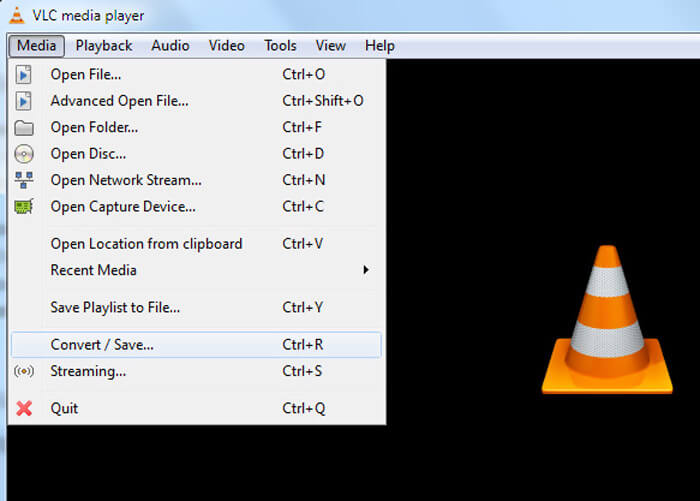
Trin 2. Klik på knappen Media på menulinjen, og vælg derefter indstillingen Convert/Save i rullemenuen.
Trin 3. Et nyt Open Media-vindue dukker op. Her kan du klikke på File > Add for at importere den MP4-fil, du vil konvertere.
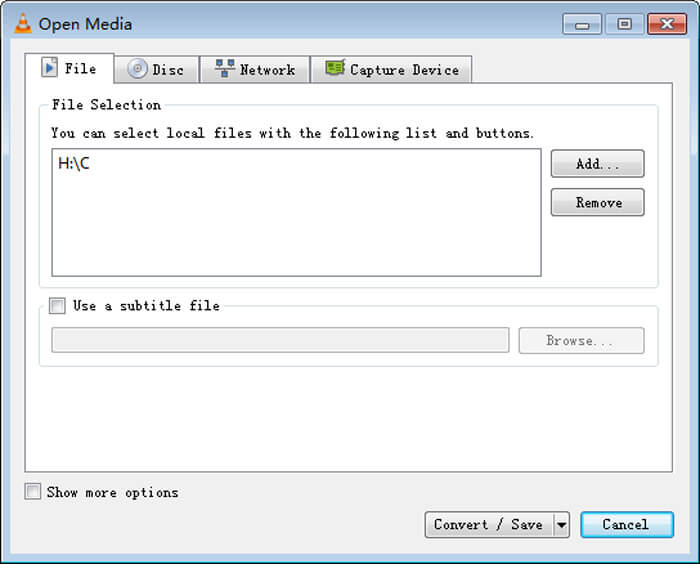
Trin 4. Klik på knappen Convert/Save nederst for at bekræfte handlingen. Så bliver du ført til et Convert-vindue, hvor du kan vælge destinationsmappe og outputformat til den konverterede video.
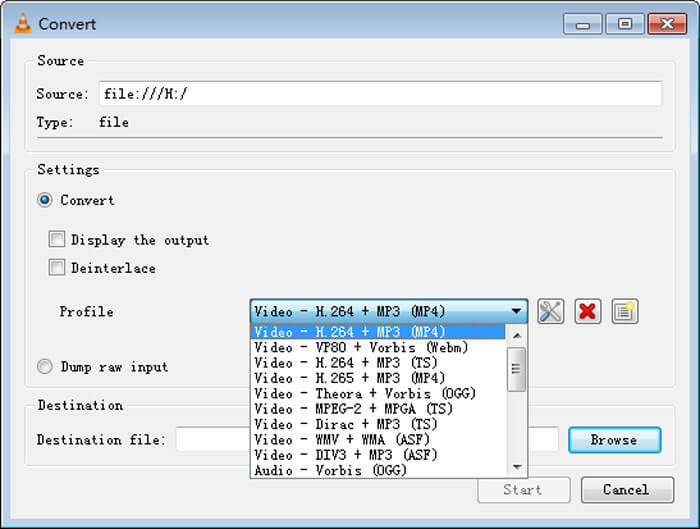
Trin 5. Vælg MOV som outputformat på rullemenuen Profile. Klik derefter på Start for at gennemføre videokonverteringen fra MP4 til MOV i VLC.
MP4 vs. MOV
Udgivet af Moving Picture Experts Group (MPEG) i 2001, kan MP4-formatet hjælpe dig med at gemme video-, lyd-, undertekst- og billeddata i separate spor. Det er en forkortelse for MPEG-4 Part 14. Derudover er det et af de mest populære formater, der bruges til at streame og dele videoer.
MOV-formatet kan bruges til at gemme en film, tv-show, kort videoklip eller hjemmefilm. Det er faktisk gemt i QuickTime File Format (QTFF), som blev introduceret af Apple i 1991. MOV-filer bruges ofte, når folk vil gemme en video med høj kvalitet.
Del 4. Ofte stillede spørgsmål om konvertering af MP4 til MOV
Spørgsmål 1. Kan QuickTime konvertere MP4 til MOV?
Når du har behov for at konvertere MP4 til MOV på Mac, kan du prøve QuickTime. Du kan åbne MP4-video med QuickTime Player. Klik derefter på knappen Eksporter, og vælg MOV-format. Du kan omdøbe filen, vælge placering og videoopløsning. Derefter kan du klikke på knappen Eksporter for at gratis konvertere MP4 til MOV på Mac.
Spørgsmål 2. Hvilket er bedre, MOV eller MP4?
MP4 er et af de mest populære multimedie-filformater til lagring. Det er en digital containerfil, kun en indpakning omkring videoen, ikke selve videoen. Ligesom MP4 er MOV også en digital containerfil. MOV er kodet med MPEG-4-codec.Den største forskel mellem MOV og MP4 er, at MOV primært bruges i Mac-miljøer. MOV er særligt designet til QuickTime. MP4 er en international standard, som kan understøttes af de fleste medieafspillere og systemer. Generelt er MOV-video ofte i højere kvalitet og større i filstørrelse. MP4-filer er typisk mere komprimerede og mindre i størrelse. Så du kan ikke bare sige, at MOV er bedre end MP4, eller at MP4 er den bedste.
Spørgsmål 3. Mister konvertering af MOV til MP4 kvalitet?
Når du vil konvertere MOV til MP4 eller ændre MP4 til MOV, skal du vælge en professionel videokonverter. I de fleste tilfælde ser du ikke noget tab af kvalitet efter konverteringen.
Spørgsmål 4. Er der nogen gratis MP4 til MOV-konverter?
Der er masser af gratis videokonvertere, der tilbydes på internettet, der kan hjælpe dig med at konvertere MP4 til MOV. Udover den anbefalede CloudConvert kan du også stole på FFmpeg, HandBrake, ZAMZAR, Convert Files og mere for at lave konverteringsversionen.
-
 Sådan konverteres dine MP4-videofiler til animerede GIF-billeder uden tab af kvalitet
 Leder du efter den bedste måde at konvertere din MP4-video til animerede GIF'er? Her er en detaljeret guide til at gøre det i Photoshop, Windows Movie Maker, online videokonverter og mere.
-
 MOV VS MP4 - Hvilken er bedre
 MOV VS MP4, hvilken er bedre? Dette indlæg fortæller forskellen mellem MP4 og MOV, så du kan få det bedre valg at bruge til dine videofiler.
-
 Sådan konverteres MOV til MP4 uden at miste kvalitet
 Vil du konvertere MOV (Apple QuickTime Movie) filer til MP4? Dette indlæg deler 4 gratis metoder til at konvertere dine MOV-videofiler til MP4-format på Windows 10/8/7 / XP og Mac OS X.

