


 Video Converter Ultimate
 Skærmoptager
 Video reparation
 Sikker download
Hvordan kan vi konvertere M4A til MP3-format på en computer gratis
M4A er et Apple-ejet lydfilformat, der bruger MPEG-4-codec'en. Det minder meget om MP4-formatet, bortset fra at MP4 kan indeholde videodata udover lydfiler. MP3 blev udgivet meget tidligere, i 1993, og er stadig den mest autoritative standard til lagring af musik. Dens største fordel er, at den komprimerer lyd meget effektivt, hvilket sikrer, at der ikke er noget betydeligt tab af lydkvalitet, samtidig med at den leverer mindre filstørrelser.
M4A gives us better sound quality compared to MP3. If you think that M4A files are more significant than MP3 files, you are wrong. In fact, M4A files can be almost half the size of MP3, and it also supports users to add DRM protection to prevent others from unauthorized distribution of audio. M4A has been regarded as the successor of MP3, but it is still much less compatible. M4A music can only be played on some devices and platforms, so it is better to convert M4A music to MP3 if we want to share the audio files with our friends more conveniently. Here, we pick five methods for turning M4A to MP3 to recommend to you, with their respective application steps.

Del 1. Bedste måde at konvertere M4A til MP3 [Hurtigt og uden kvalitetstab]
FVC Video Converter Ultimate
After actual testing and comparison, FVC Video Converter Ultimate is the best M4A to MP3 converter worth trying. As a desktop application, it is compatible with both Windows and Mac operating systems and supports up to 1000+ input and output formats. It can easily accomplish almost any file conversion task. Although M4A format files will be higher than MP3, we can hardly feel any change in sound quality when we use FVC Video Converter Ultimate to convert M4A to MP3. And this app is also loaded with a hardware gas pedal that guarantees to output files at 30X faster efficiency, and even batch process multiple tasks with one click.
Det er værd at prøve, ikke kun på grund af dets fremragende ydeevne inden for formatkonvertering. Dets brugerflade indeholder også et komplet sæt lydredigeringsværktøjer, som nemt kan forbedre lydkvaliteten, fjerne støj, trimme længde og meget mere. Med denne alt-i-én-software bliver det meget nemt at konvertere M4A til MP3.
Free DownloadTil Windows 7 eller nyereSikker download
Gratis downloadTil macOS 10.7 eller nyereSikker download
Sådan konverterer du M4A til MP3 med FVC Video Converter Ultimate.
Step 1. Get FVC Video Converter Ultimate on your device. Finish the basic settings and launch it on your desktop. After entering the main interface, click Add Files to select your M4A audio.

Step 2. The selected audio will be loaded very soon. Go to Convert All to and choose Audio > MP3. Several output options with different bit rates and sound quality are displayed on the page. Select the one that meets your requirements.
If you want to make further editions, click the Cut icon.
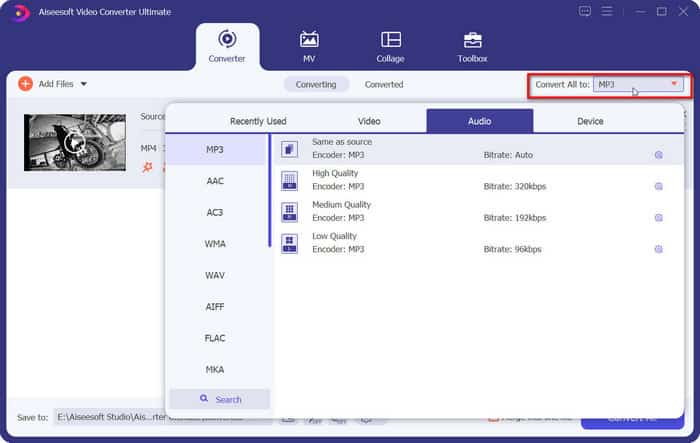
Step 3. Go to Save to and set a storage path for your converted M4A audio. Then click Convert All.

Del 2. Sådan konverteres M4A til MP3 online
FVC gratis lydkonverter
While the desktop tool is more stable and has more features, we need to complete a long list of downloads and installations before we can start the conversion. The installation package of the software will take up a lot of memory space. If we want to start the conversion immediately and save some storage space, we can seek the help of an online M4A to MP3 converter. In this area, we recommend FVC Video Converter Ultimate. the platform supports many popular audio formats, including MP3, WMA, AAC, WAV, AC3, FLAC and so on. Some online converters have file size limitations, but FVC Free Audio Converter doesn't, and we can even let it convert a large number of files at once.
Sådan konverterer du M4A til MP3 med FVC Free Audio Converter.
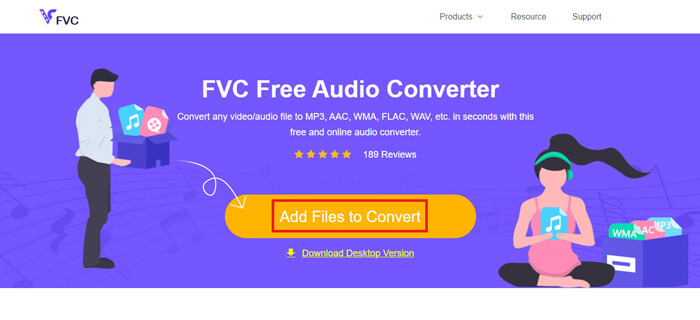
Step 1. Open the FVC Free Audio Converter using your browser. When the web page loads, click Add Files to Convert and upload your M4A audio.
Step 2. After adding, go to the bottom section and choose MP3 as the output format. Press on the settings icon if you want to make further adjustments.
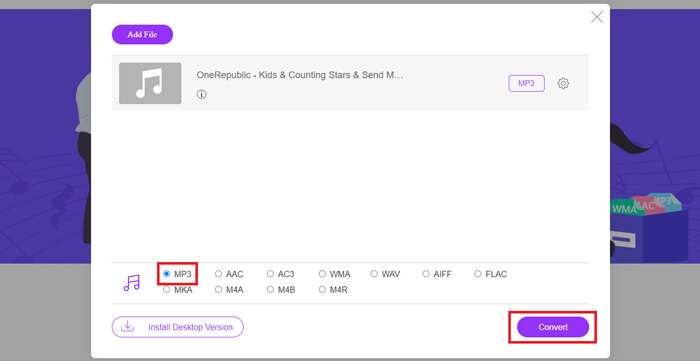
Step 3. Finally, click Convert to start the transformation.
Del 3. Sådan konverteres M4A til MP3 på Mac
Lav M4A til MP3 ved hjælp af iTunes
Begge ovenstående metoder fungerer på både Windows og Mac. Hvis du er Mac-bruger og ønsker at finde en gratis konverter, der er mere kompatibel med dit operativsystem, anbefaler vi iTunes. Denne software er indbygget i Apple-systemet, og selvom den ofte ses som en multimedieafspiller og et administrationsværktøj, understøtter den også udførelse af nogle simple formatkonverteringsoperationer. Som en sidebemærkning kan selv Windows-brugere prøve iTunes.
Sådan ændrer du M4A til MP3 på Mac ved hjælp af iTunes.
Step 1. If your computer has iTunes, open it. If not, download and install it. You should sign in with your Apple ID and password.
Step 2. Click File > Add Folder to Library, and choose the folder where your M4A audio is kept. Then click Open to upload your M4A file to iTunes.
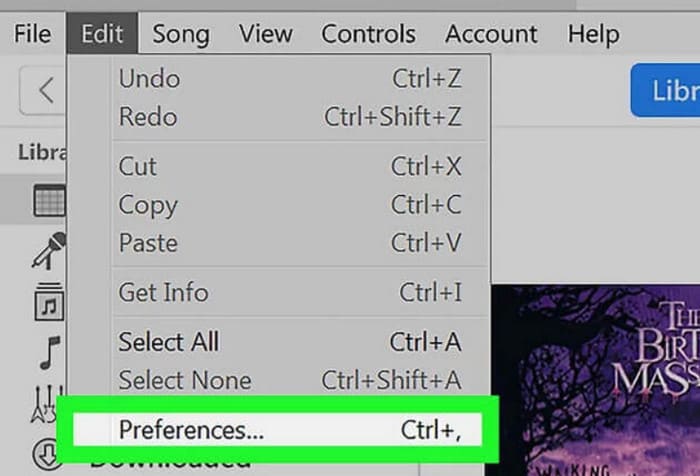
Step 3. Choose Edit > Preference to open another window.
Step 4. In the new window, click Import Settings and navigate to the Import Using dialog. Choose MP3 Encoder and click OK to keep the settings.
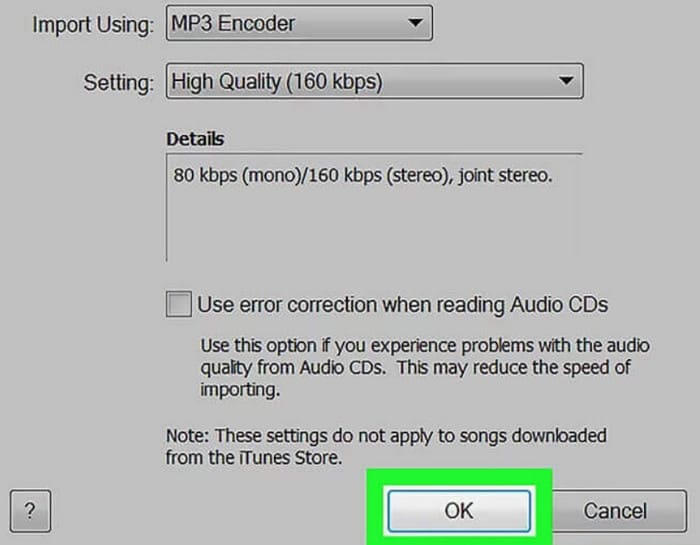
Step 5. Go back to the iTunes library and find the target M4A file. Click File > Convert > Create MP4 Version.

Del 4. Sådan konverterer du M4A til MP3 gratis
Blandt de gratis almindelige værktøjer er der to mere, der kan hjælpe os med at konvertere filformater, FFmpeg og VLC Media Player. I denne del vil vi vise, hvordan man bruger dem.
Brug FFmpeg til at overføre M4A til MP3
FFmpeg er kendt for antallet af opgaver, det kan udføre. Sammenlignet med traditionel multimedieredigeringssoftware med knapper og forhåndsvisningsvinduer fungerer FFmpeg dog unikt. Vi skal forberede kodeskabelonen og udfylde fillagringsstien. Indtast kodekommandoen i FFmpeg, og vi får den konverterede fil. Dette program er dog ikke særlig brugervenligt for uerfarne nybegyndere; det er besværligt at forberede koden.
Læs denne vejledning for at bruge FFmpeg til at overføre M4A til MP3.
Step 1. Download and install FFmpeg on your computer. Open the Terminal application.
Step 2. Prepare the command you need to use.
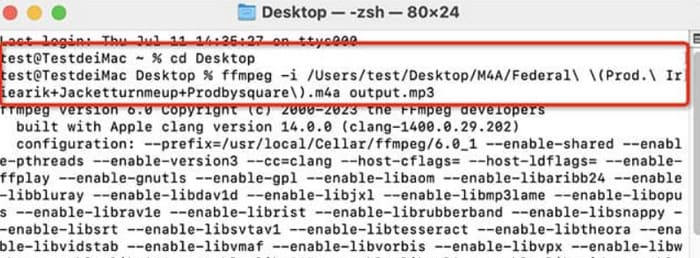
ffmpeg -i input.m4a output.mp3
Replace the location of input in the above template with the storage path where the source M4A file is located. Then, replace the output with your desired output path. If you want to convert MP3 to M4A, swap the location of these two storage paths.
Step 3. Type the command into FFmpeg. Then press Enter to start the conversion.
Udfør konvertering fra M4A til MP3 via VLC Media Player
VLC Media Player is one of the most recognizable of the free M4A player and format converters. It is known to open multimedia files in almost all formats and is compatible with Windows, Mac, and Linux devices. On its page we can also find some essential audio editing tools.
Sådan laver du M4A til MP3 med VLC Media Player.
Step 1. Open VLC Media Player on your computer. Click Media > Convert/Save.
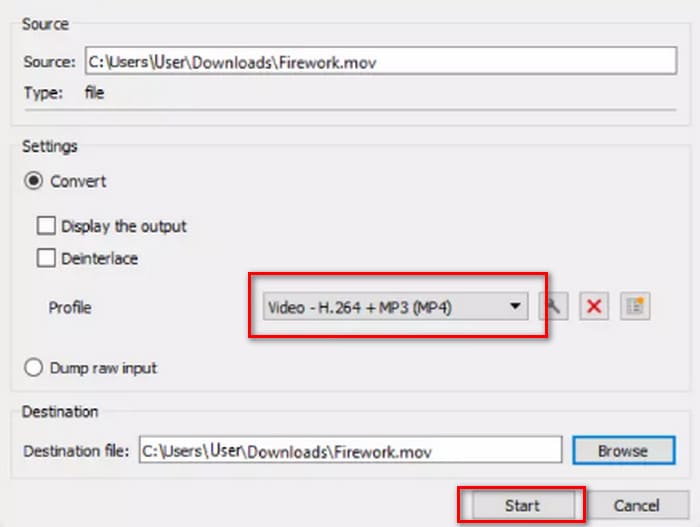
Step 2. Launch the Open Media window. Then press + Add to upload your M4A file. Next, click Convert/Save again.
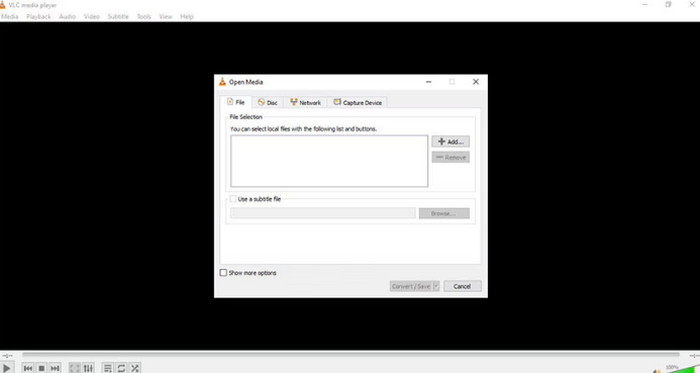
Step 3. A Convert window will appear. Choose Profile > Audio - MP3. Finally, click Start.
Del 4. Konklusion
In this article, we recommend five tools for converting M4A to MP3 and how to use them. Among the desktop software, FVC Video Converter Ultimate is the most versatile and fast converter; iTunes is suitable for Mac users; VLC Media Player is totally free but with fewer editing tools; FFmpeg can accomplish a lot of tasks but is a bit difficult to use. If you want to bypass software downloads and installations, you can use FVC Free Audio Converter.
-
 Top 4 måder at konvertere WMA til MP3
 Er det muligt at konvertere WMA til MP3 med Windows Media Player? Sådan konverteres WMA til MP3 gratis? Dette indlæg deler 4 enkle metoder til at hjælpe dig med at lave lydkonvertering fra WMA til MP3 på Mac, Windows PC og online.
-
 8 måder at konvertere MP4 til MP3-lyd (batchkonvertering og stor størrelse)
 Hvis du vil udtrække MP3-lyd fra MP4-video, kan du tjekke denne artikel og få 8 løsninger. Der er online og offline måder at konvertere MP4 til MP3 på din telefon eller computer med lethed.
-
 M4A Player - Top 5 M4A-afspillere til Android og computer
 Sådan afspilles M4A-filer på Android-telefonen? Hvilken spiller kan spille M4A? Dette indlæg deler 5 bedste gratis M4A-afspillere til Android, Mac og PC.

