


 Video Converter Ultimate
 Skærmoptager
 Video reparation
 Sikker download
Flet WAV-filer problemfrit med softwareværktøjer og tips
Uanset om du er nybegynder inden for lydredigering eller professionel, er det nødvendigt at bruge de rette værktøjer og teknikker til at kombinere WAV‑filer for at sikre, at to forskellige WAV‑filer bliver kombineret og eksporteret i tabsfri kvalitet. At finde det rigtige værktøj kan til gengæld koste brugeren både tid og kræfter. Med hjælp fra denne artikel vil vi alligevel gennemgå forskellige værktøjer med trin-for-trin-vejledninger, så du kan navigere effektivt i dem, samt få tips til at komme godt i gang og gøre processen mere enkel og effektiv.

Del 1. Kombiner WAV-filer uden tab på sekunder [med GPU-acceleration]
Når du vil kombinere to WAV‑filer til én samlet fil, er den bedste og nemmeste måde at bruge den FVC‑udvalgte Video Converter Ultimate. Dette softwareværktøj fra Aiseesoft er tilgængeligt for alle typer brugere, da det er helt gratis at downloade fra den officielle hjemmeside. Værktøjet rummer funktioner til både video- og lydredigering og kan sammenføje flere WAV‑filer til én enkelt fil. Derudover er softwaren udstyret med højhastighedsbehandling, hvilket gør sammenfletning og eksport af WAV‑filer langt mere effektivt for brugeren. Følg vejledningen nedenfor for nemt at kunne udføre opgaven med at flette WAV‑filer.
Trin 1. Download og installer WAV‑filfletteren på din computer, og åbn derefter programmet.
Gratis download til Windows 7 eller nyere Sikker download
Gratis download til MacOS 10.7 eller nyere Sikker download
Trin 2. Når du er i softwaregrænsefladen, skal du klikke på knappen Add Files øverst til venstre. Åbn og vælg derefter de WAV‑filer, du vil flette til én fil, og klik derefter på knappen Open.
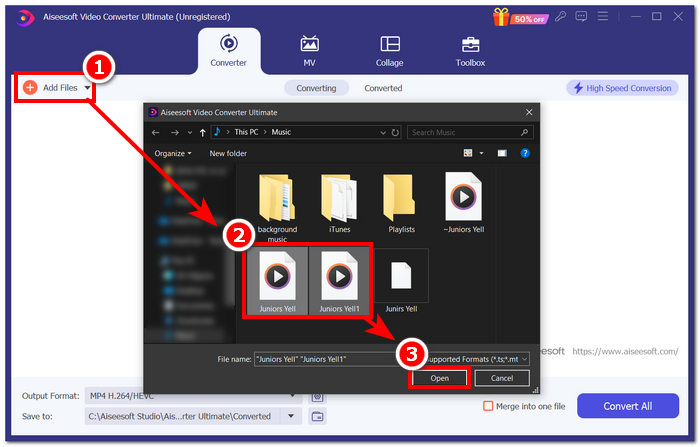
Trin 3. Når du har uploadet de WAV‑filer, du vil flette i softwaren, skal du sætte et flueben ved menuen Merge into one file, som ligger ved siden af knappen Convert All nederst til højre i programvinduet.
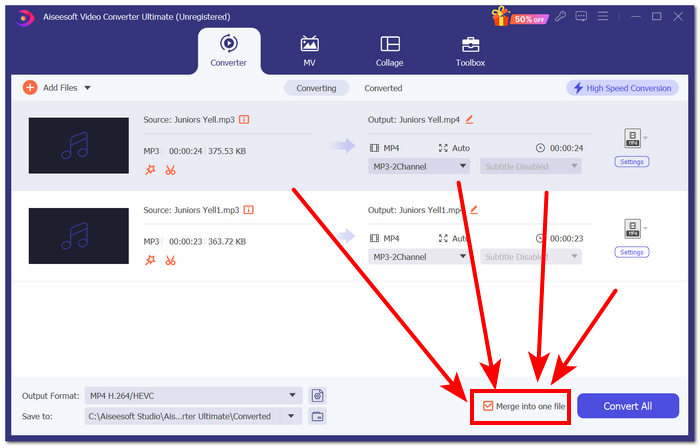
Trin 4. Klik på knappen Convert All for at starte fletteprocessen; filerne bliver derefter automatisk eksporteret til din download-mappe.

Tips
• Du kan flette flere WAV-filer i softwareværktøjet samtidigt.
• I nederste venstre hjørne af softwaregrænsefladen kan du styre outputformatet til dit mest ønskede filformat, før du eksporterer det.
• Du kan også ændre destinationen for din flettede WAV-fil ved at få adgang til og vælge din udpegede mappe placeret i nederste venstre hjørne af softwaregrænsefladen.
• For at maksimere højhastighedsbehandlingsteknologien ved fletning og eksport af din WAV-fil skal du aktivere indstillingen for højhastighedskonvertering, der er placeret i øverste højre hjørne af softwaregrænsefladen.
• Dette værktøj understøtter også mange andre formater, så du kan kombinere MP4, MKV, FLV, MP3, FLAC og flere andre formater.
Del 2. Kombiner WAV-filer online
Når du finder det ret svært at flette dine WAV-filer gennem et softwarebaseret værktøj, kan en onlineløsning være den, du har brug for. Descript er et webbaseret værktøj, der fungerer som et lyd-, video- og transskriberingsværktøj i ét. At flette WAV-filer er relativt let, da det webbaserede værktøj bruger AI til automatisk at flette dine input WAV-filer i det øjeblik, du uploader dem, og lader brugerne se dem, før de downloader dem.
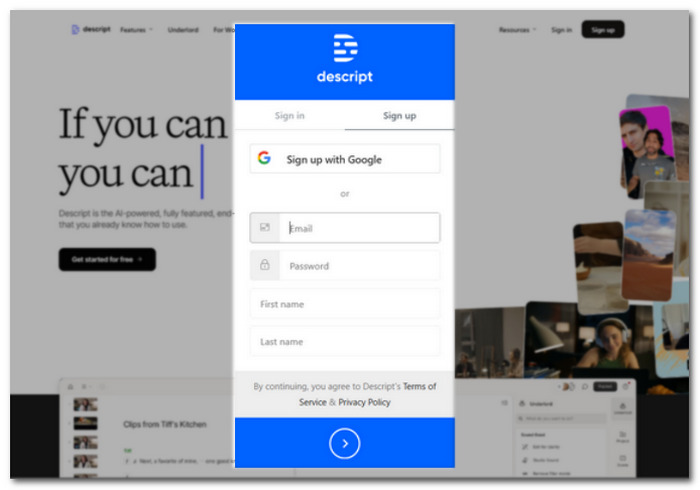
Trin 1. Gå til Descripts officielle hjemmeside, og opret en konto, så du kan bruge softwaren til at kombinere dine WAV‑filer.
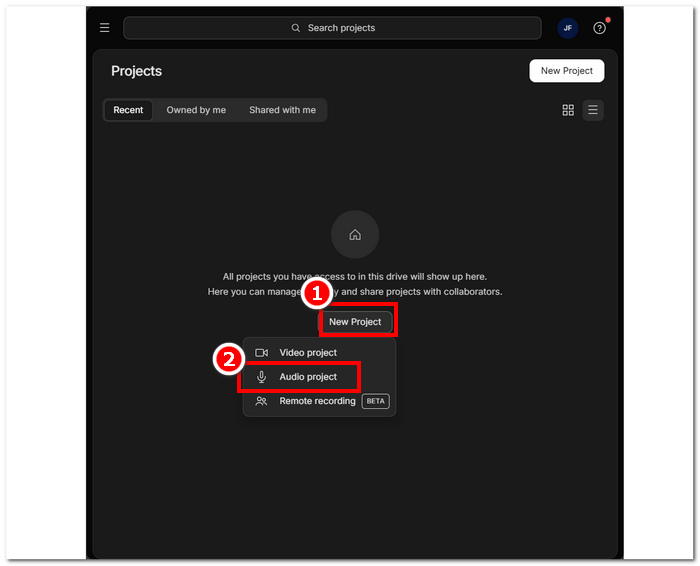
Trin 2. Når du er logget ind i værktøjets grænseflade, skal du klikke på New Project > Audio Project.
Trin 3. Upload de WAV‑filer, du vil kombinere og flette til én enkelt fil, i feltet Upload a file i værktøjets grænseflade.
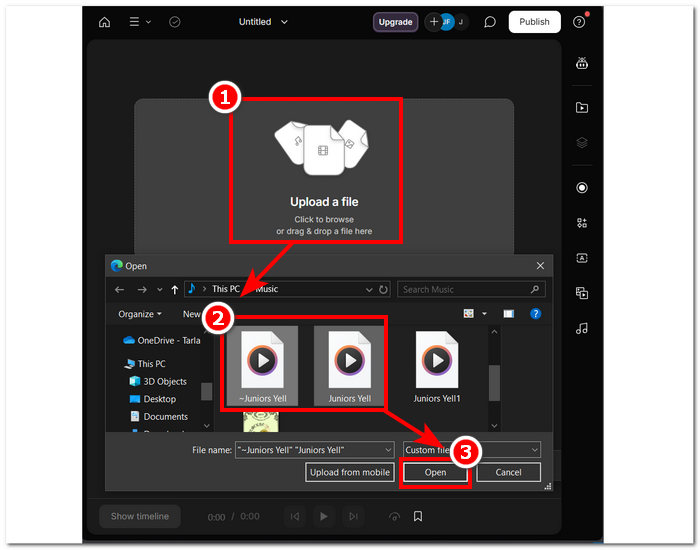
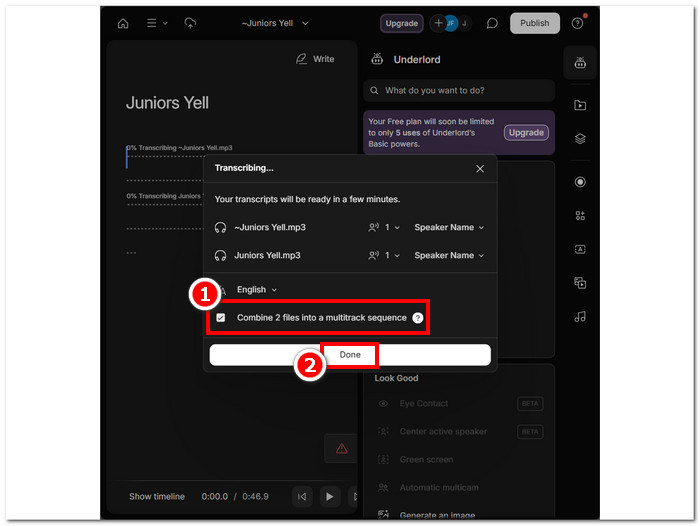
Trin 4. Mens dine WAV‑filer uploades i værktøjet, vises et vindue, hvor du kan vælge, om de skal kombineres automatisk. Sæt et flueben for at tillade den AI‑baserede fletning, og klik derefter på knappen Done.
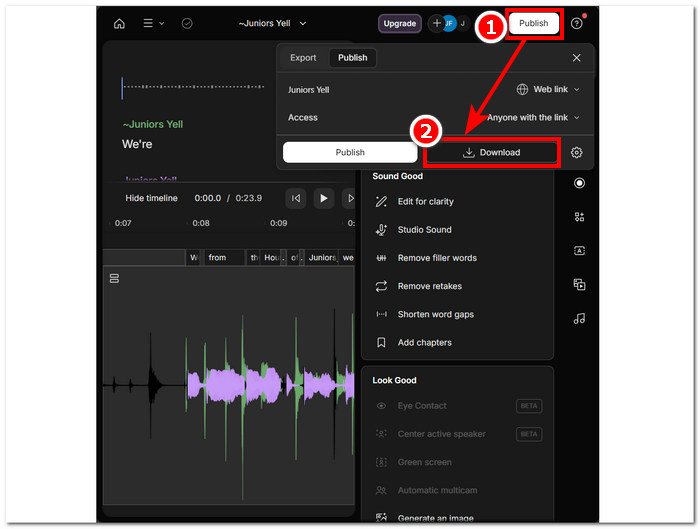
Trin 5. Vent, til værktøjet er færdigt med at flette dine WAV‑filer. Når det er gjort, kan du afspille det færdige resultat for at tjekke, om AI’en har gjort et godt stykke arbejde med at kombinere dine WAV‑filer, og foretage justeringer efter behov. Når du er tilfreds, klikker du på Publish > Download for at hente de flettede WAV‑filer ned på din computer.
Tips
• Inden du downloader dine kombinerede WAV-filer, skal du sørge for at tjekke lydsporet grundigt for at undgå spaltninger.
• At være bekendt med værktøjet kan hjælpe effektivt med at fastgøre din WAV-fil-fletningsproces.
Del 3. Kombiner WAV-filer med Audacity
Som open source-lydredigeringsprogram kan Audacity også flette spor som WAV‑filer helt uden ekstra omkostninger. Denne gratis software har i mange år hjulpet brugere med lydredigering og gjort det meget lettere at flette WAV‑filer. Audacity gør det muligt at tilføje flere WAV‑filer på én gang og understøtter desuden import af andre lydformater. Derudover har det en hurtig funktion til at arrangere hvert spor perfekt efter slutningen af det forrige, hvilket gør det meget lettere at flette dem uden risiko for, at spor overlapper forkert. Følger du vejledningen nedenfor, bliver det nemmere at navigere i programmet.
Trin 1. Download Audacity til din computer. Når du har installeret det, åbner du programmet og indlæser de WAV‑filer, du vil flette til én fil.
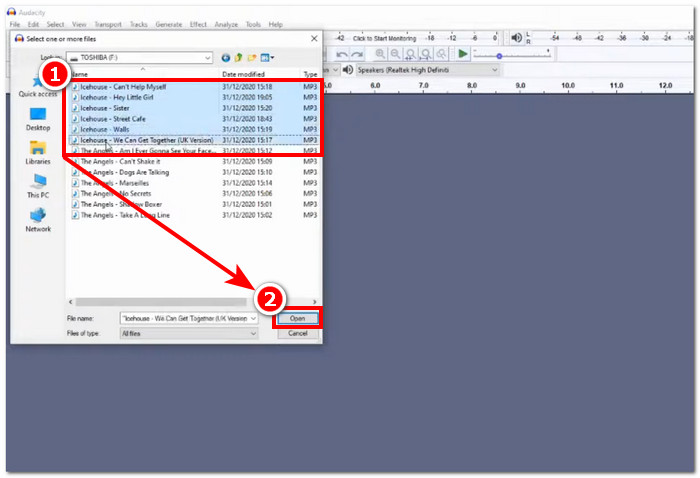
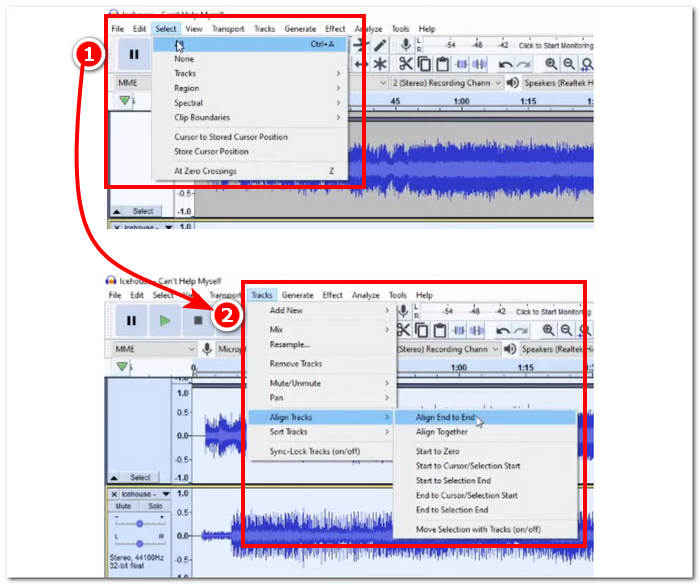
Trin 2. Når dine WAV‑filer er indlæst i værktøjets grænseflade, skal du starte med at markere alle dine spor ved at klikke på Select > All i menuen øverst i programmet. For at justere de markerede WAV‑spor klikker du derefter på sektionen Track, og under Align Tracks vælger du Align End to End.
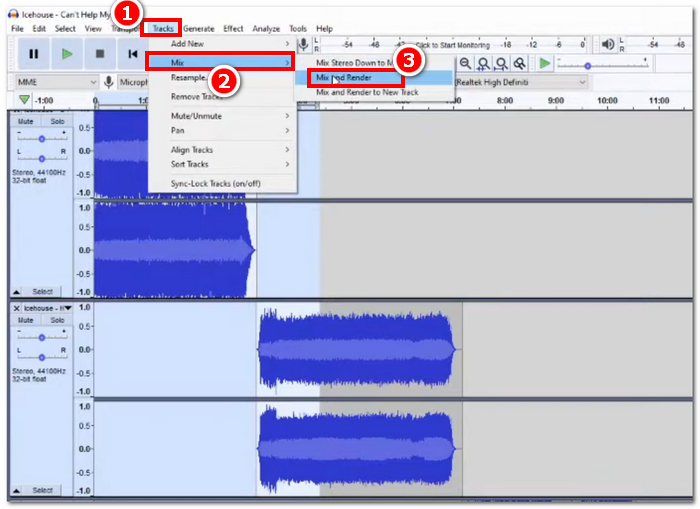
Trin 3. Når dine WAV‑filer er justeret ende mod ende, skal du klikke på sektionen Track, og under funktionen Mix vælger du Mix and Render for at starte fletteprocessen.
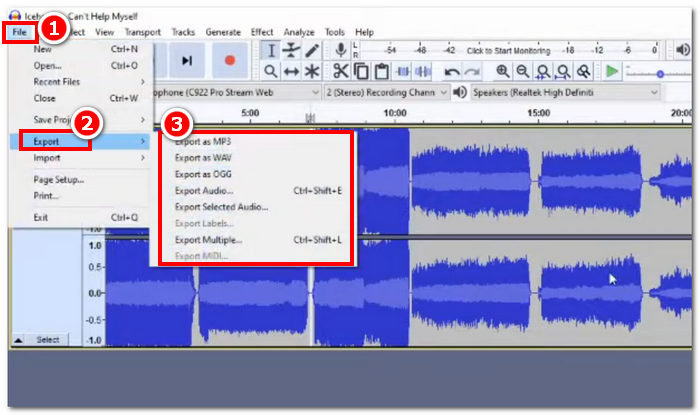
Trin 4. Når fletteprocessen er færdig, kan du eksportere din WAV‑fil ved at klikke på File > Export og frit vælge det ønskede outputformat blandt de tilgængelige.
Tips
• Når du eksporterer dine kombinerede WAV-filer, skal du vælge at eksportere som WAV, da det bevarer den originale lydkvalitet.
Del 4. Kombiner WAV-filer ved hjælp af FFmpeg
Et andet open source-softwareværktøj til lyd- og videomanipulation er FFmpeg. Denne kraftfulde multimedieramme kan bruges som en konverter og til multimedieredigering, såsom video, lyd og andre mediefiler. Ved håndtering af opgaver som f.eks. fletning af WAV-filer, indlæser softwaren en specifik kode i kommandoprompten for at begynde fletteprocessen kaldet sammenkædning af WAV-filer til en enkelt outputfil. Nedenfor er en detaljeret guide til, hvordan du bruger FFmpeg som en WAV-filfusion.
Trin 1. Gå til FFmpegs hjemmeside, og installer programmet alt efter, hvilken enhed du bruger.
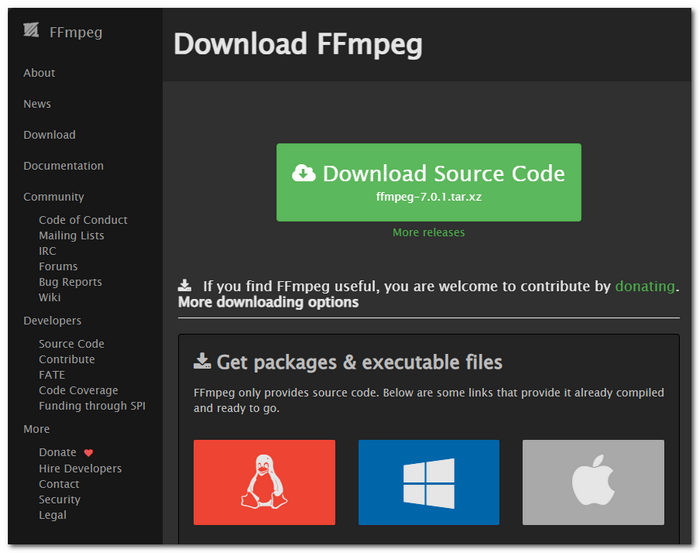
Download zip-filen fra webstedet og opret en ny mappe i din systemsti for at gemme alle FFmpeg-eksekverbare filer, inklusive flytning af zip-filen til mappen.
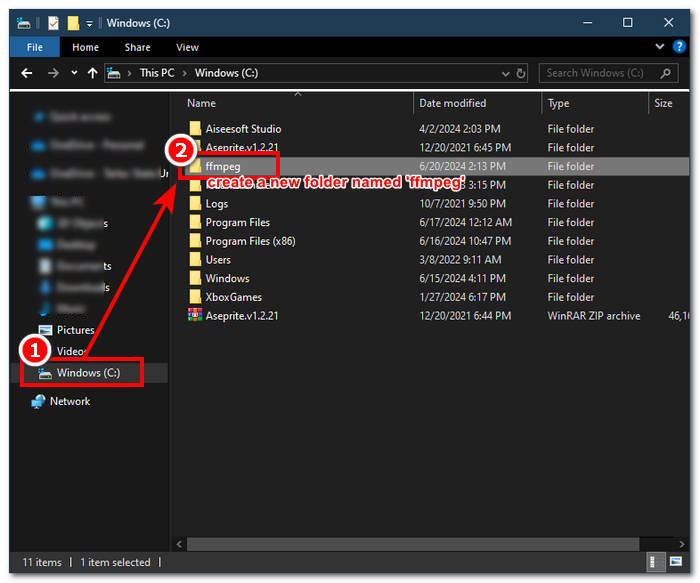
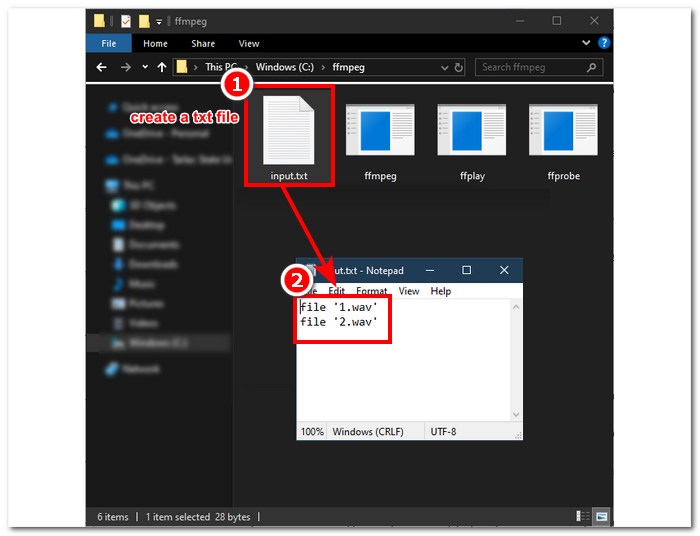
Trin 2. Flyt dine WAV‑filer til den ffmpeg‑mappe, du netop har oprettet, og forbered dine WAV‑filer ved at omdøbe dem til ‘input1.wav’ og ‘input2.wav’ i mappen.

Bemærk: Opret derefter i den samme mappe en fil med navnet ‘input.txt’, og indsæt følgende indhold:;
file 'input1.wav'
file 'input2.wav'
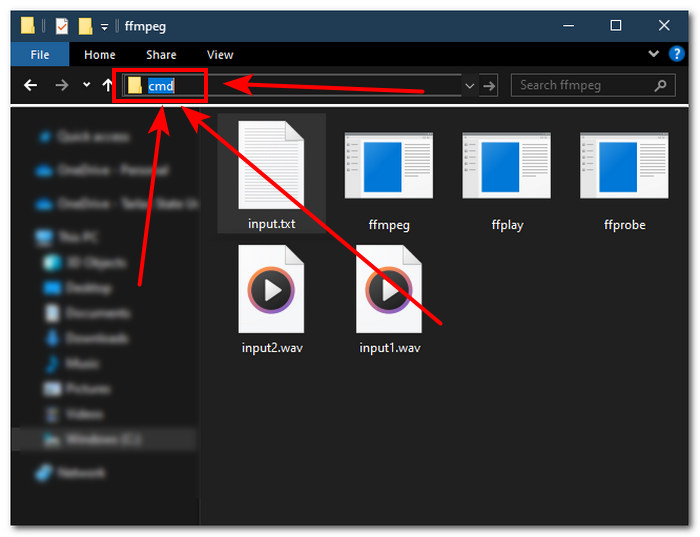
Trin 3. Kør FFmpeg-kommandoprompten ved at skrive ‘cmd’ i mappefeltet øverst i vinduet og trykke på Enter.
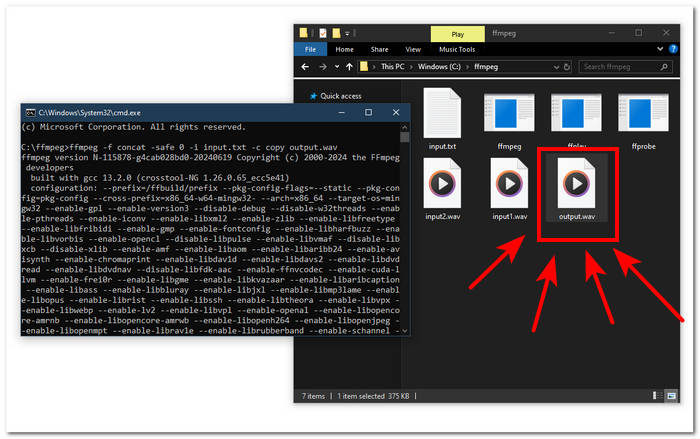
Trin 4. Når du er i FFmpegs kommandoprompt, skal du indtaste følgende kommando og trykke Enter:;
ffmpeg -f concat -safe 0 -i input.txt -c copy output.wav
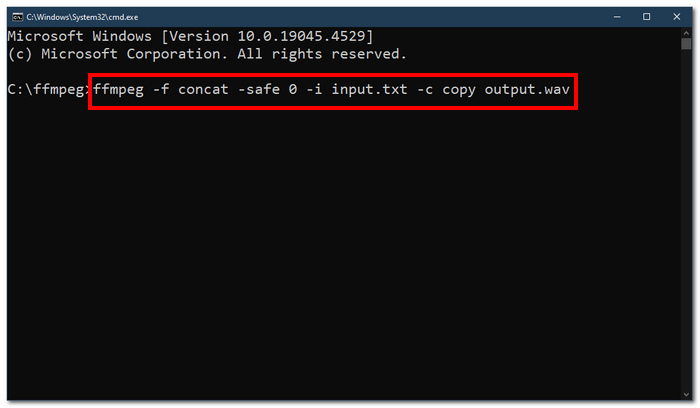
Trin 5. Der vises nu en ny WAV‑fil i din mappe, hvilket betyder, at du har flettet dine WAV‑filer til én samlet fil.
Tips
• Da værktøjet er kommandolinjebaseret, er det vigtigt at være bekendt med og kende den grundlæggende kommandolinje for effektiv navigation af værktøjet.
• Gem alle dine FFmpeg-relaterede mapper og filer under en enkelt mappe for organisering og nem adgang.
• Se selvstudier og læs vejledninger på internettet, når du vil udføre andre opgaver end at flette WAV-filer.
Del 5. Ofte stillede spørgsmål om, hvordan man kombinerer WAV-filer
Kan du blande WAV-filer?
Ja, du kan blande WAV-filer ved hjælp af tredjepartssoftware lavet til at flette WAV-filer, såsom den FVC-valgte Video Converter Ultimate og Audacity.
Kan VLC flette lydfiler?
VLC medieafspiller har ikke mulighed for at flette WAV-filer, da den udelukkende er lavet til mediestreaming og mediekonvertering.
Hvordan flettes videofiler i Windows Media Player?
Windows Media Player understøtter ikke redigering af WAV-filer endsige sammenlægning af WAV-filer. Windows Media Player er en software bygget til Windows-enheder designet til at afspille medieindhold.
Hvad er den nemmeste måde at kombinere lydfiler på?
Den nemmeste måde at flette WAV-filer på er at bruge FVC-plukket Video Converter Ultimate; denne software er designet med højhastighedsbehandlingsteknologi for at være praktisk for brugere med mindst erfaring med lydredigeringsopgaver, såsom at kombinere WAV-filer.
Kan kombination af WAV-filer påvirke lydkvaliteten?
Ja, softwareværktøjer kan i høj grad påvirke en WAV-filkvalitet afhængigt af kvaliteten af den software, du bruger. Det kan have den dårligste kvalitet, når du bruger et skitseværktøj. Når du bruger pålidelige og pålidelige softwareværktøjer såsom FVC-plukket Video Converter Ultimate, Audacity og mere, kan det hjælpe med at bevare den originale kvalitet.
Konklusion
Afslutningsvis kan du flette WAV‑filer ved hjælp af de nævnte softwareværktøjer for effektivt at kombinere dem og eksportere i tabsfri kvalitet. Det er værd at bemærke, at det er en vigtig del af processen både at finde de rigtige værktøjer og at lære at bruge dem. Fra brugervenlige, fuldt udstyrede programmer som den FVC‑udvalgte Video Converter Ultimate til det avancerede kommandolinjeværktøj FFmpeg har denne artikel sørget for at opliste trin og nyttige tips, så du blot skal følge dem for at få en enkel og problemfri fletteproces.
-
 Hvordan kan jeg konvertere MP4 til WAV online gratis
 Forsøger du hårdt at konvertere MP4 til WAV? Ved du ikke, hvilken konverter der kan hjælpe dig perfekt uden at betale en krone? Læs dette indlæg, og alle dine spørgsmål vil blive besvaret.
-
 Gennemgang af 10 bedste gratis MP3-musikafspillere
 Hvad er den bedste MP3-musikafspiller? Hvordan lægger jeg musik på en MP3-afspiller? Hvordan downloades MP3-musikafspilleren? Dette indlæg giver dig en detaljeret gennemgang af de 10 bedste gratis MP3-afspillere til Windows PC og Mac.
-
 8 bedste MOV-afspillere til pc og Mac til afspilning af QuickTime MOV-videofiler
 Lær bare mere om de 8 bedste MOV-afspillere, der er tilgængelige for både Windows og Mac. Du kan vælge den ønskede og passende til at afspille MOV-filer med den originale kvalitet.
