


 Video Converter Ultimate
 Skærmoptager
 Video reparation
 Sikker download
Lav ringetoner på iPhone ved hjælp af GarageBand og Alternative
Træt af at vågne op til de samme kedelige ringetoner på din iPhone? Selvom iPhone begrænser adgangen til de smarte ringetoner, behøver det ikke at holde dig tilbage. Fordi ringetoner er blevet en del af vores liv til simple notifikationer eller alarmformål, afspejler muligheden for at bruge eller ændre dem på sin vis vores personlighed og smag. Så hvem vil ikke gerne blive notificeret eller vækket med den lyd, vi selv vælger, vel? Så vanskeligt som det kan virke, har vi endelig fundet en måde at lave en ringetone med GarageBand på. Lær, hvordan du opretter, omdanner en eksisterende lyd og sætter den op på din iPhone med GarageBand og et alternativ i dag, og begynd at vise din personlighed og smag gennem dine fængende ringetoner.

Del 1. Sådan laver du en ringetone i GarageBand
Før vi viser dig, hvordan du opretter en ringetone i GarageBand, er det vigtigt at vide, hvad GarageBand er først. GarageBand er en digital lydarbejdsstation udviklet af Apple udelukkende til iOS, macOS og iPadOS. Det er således meget brugervenligt og kan bruges gratis på det førnævnte styresystem.
Trin 1. Åbn GarageBand på din Mac, eller download det først på din iPhone eller en anden Apple-enhed efter eget valg.
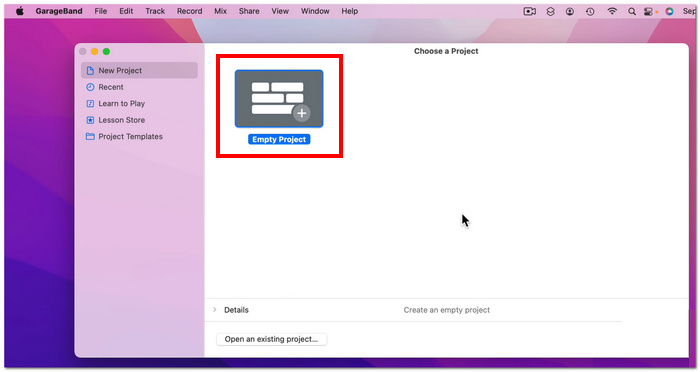
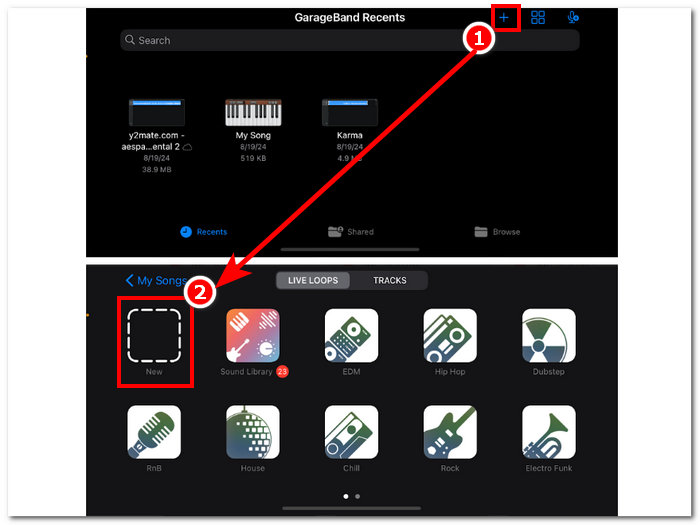
Trin 2. På appens grænseflade skal du trykke på + og derefter vælge indstillingen Nyt projekt.
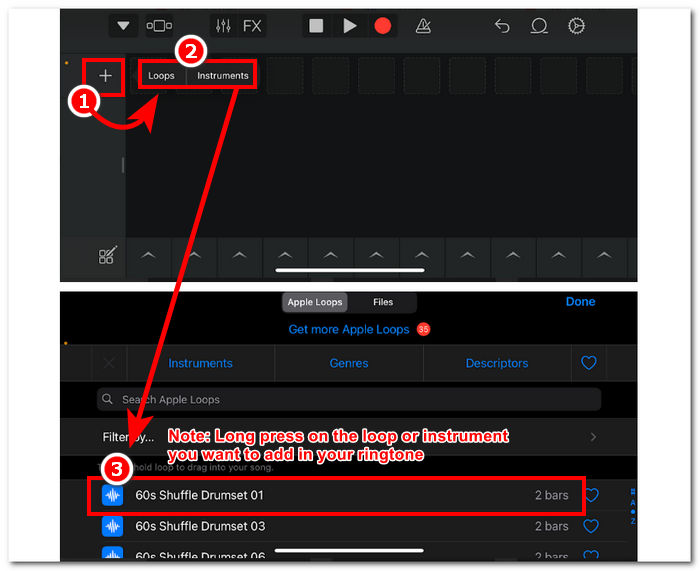
Trin 3. Du bliver derefter ført til GarageBand-tidslinjen; her kan du tilføje det instrument eller den Loop, du vil bruge til din ringetone. Tryk blot på +-knappen, og hold derefter fingeren nede på den specifikke loop eller det instrument, du vil tilføje til tidslinjen.
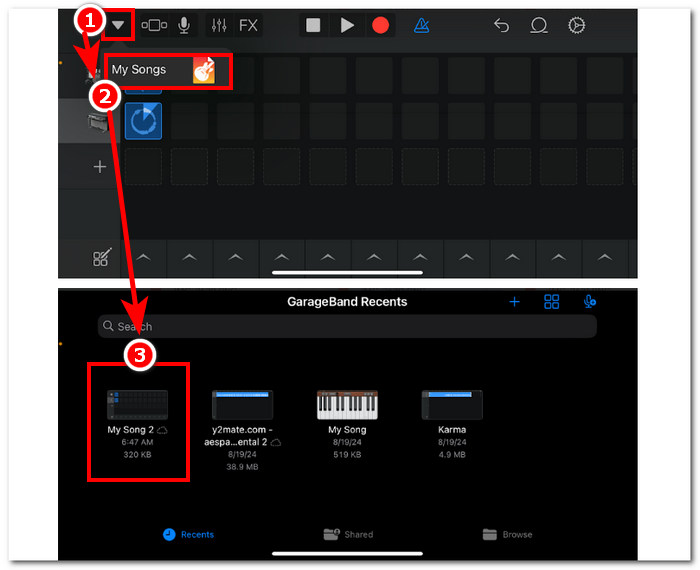
Trin 4. For at gemme din nyoprettede ringetone skal du til sidst trykke på pil-ned-knappen i øverste venstre hjørne af skærmen og trykke på Mine sange. Dine filer bliver automatisk gemt i din fillagring.
Del 2. Sådan laver du en eksisterende sang til en ringetone på GarageBand
For at lave en spændende sang til din ringetone, valgte vi musik fra Apple Music, da visse begrænsninger forbyder brugen af musik i en iPhone, hvad angår det, der kaldes DRM-beskyttelse.
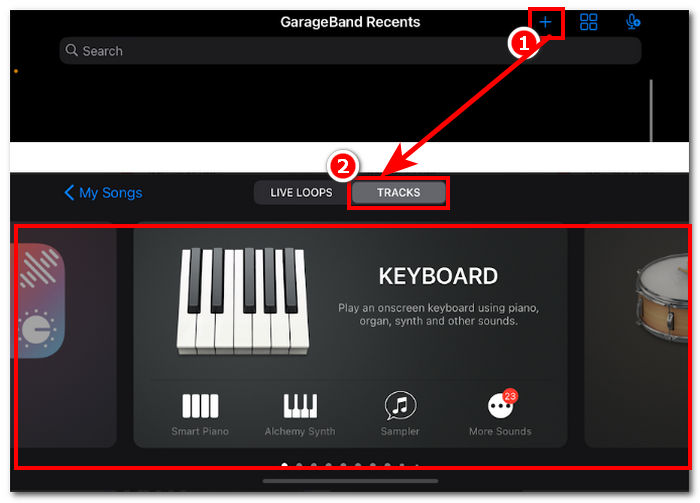
Trin 1. Åbn GarageBand-appen på din iPhone, tryk på +-knappen, og vælg et vilkårligt instrument.
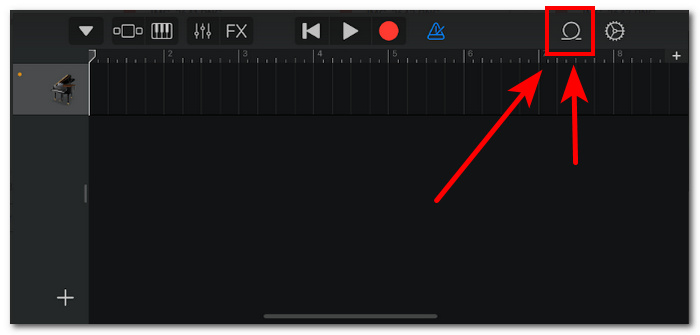
Trin 2. Når du er i appens multisporsvisning, skal du trykke på Loop-ikonet i øverste højre hjørne af skærmen.
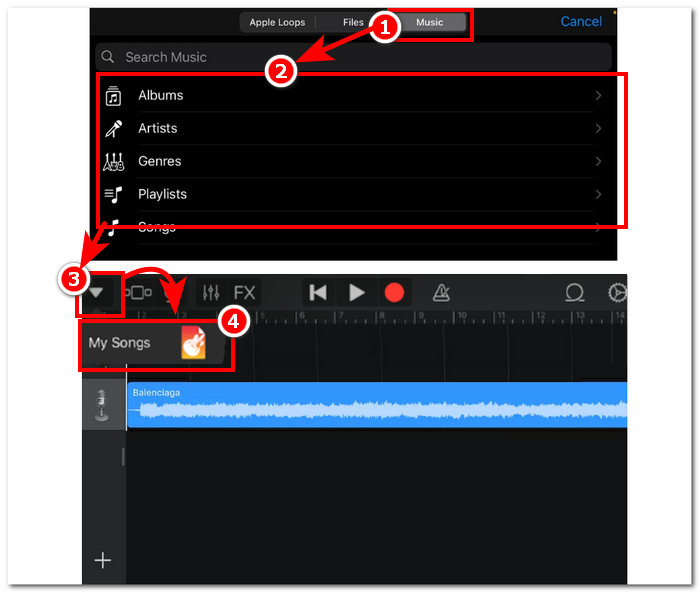
Trin 3. I loop-sektionen skal du trykke på Musik-sektionen og dér vælge den sang, du vil lave til en ringetone. Tilføj den venligst til tidslinjen ved blot at trykke eller holde fingeren nede på den. Når den er på tidslinjen, skal du trykke på pil-ned-knappen og gå til Mine sange.
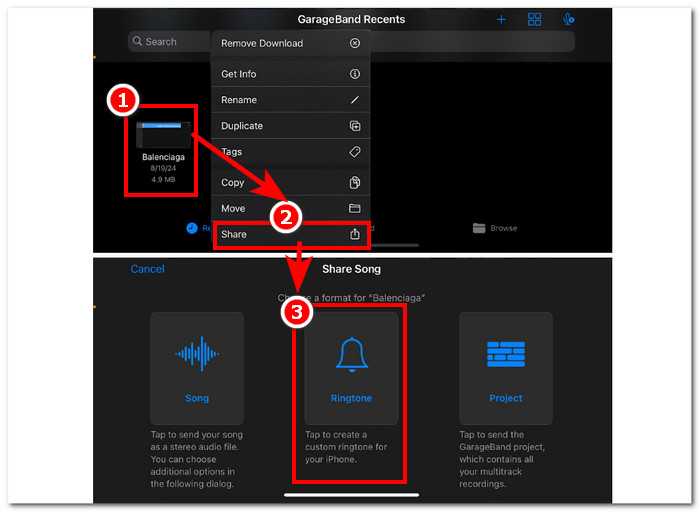
Trin 4. Hold fingeren nede på den ringetone, du lige har lavet, tryk på Del, og vælg Ringetone for at gøre den til din egen brugerdefinerede ringetone på din iPhone.
Del 3. GarageBand Alternativ til at lave en ringetone
Et softwarebaseret værktøj er den bedste løsning, hvis du vil lave en ringetone og tilpasse den for at give den et unikt præg. Med op til 1000 understøttede filtyper er FVC-picked Video Converter Ultimate et alt-i-ét-program, der ikke kun er til at lave ringetoner, men også kan konvertere, redigere, forbedre og komprimere video og lyd. Det er perfekt til at tilpasse en ringetone, i modsætning til GarageBand, som mangler lidt på tilpasningssiden. Derudover er højhastighedsbehandlingsteknologi vel integreret i systemet i FVC-picked Video Converter Ultimate for at garantere tabsfri lydkvalitet og hurtige konverteringshastigheder.
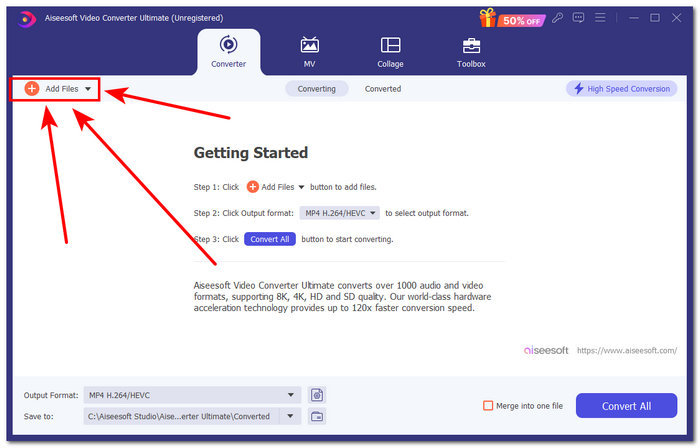
Trin 1. Brug din Mac til at downloade og installere FVC-picked Video Converter Ultimate. Åbn programmet på din enhed, indlæs den lydfil/sang, du vil lave og tilpasse som ringetone, ved at klikke på linket Tilføj filer i den øverste venstre del af grænsefladen.
Gratis download til Windows 7 eller nyere Sikker download
Gratis download til MacOS 10.7 eller nyere Sikker download
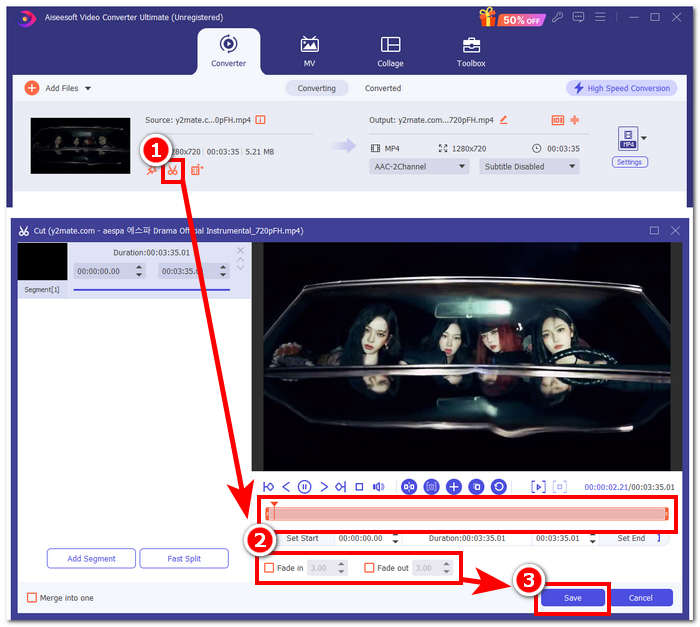
Trin 2. Klik på saks-ikonet tæt på miniaturen af din lydfil. Et nyt vindue vises på skærmen, hvor du kan tilføje fade-effekter og lave klip i din lydfil. Når du er tilfreds med dine tilpasninger, skal du blot klikke på knappen Gem for at fuldføre processen.
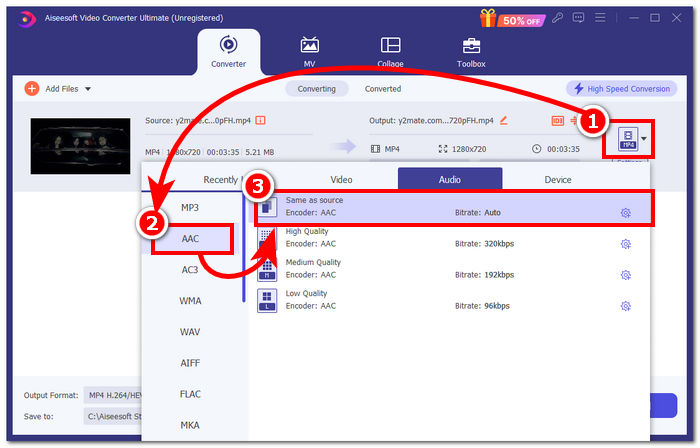
Trin 3. Når du har foretaget ændringer i din lyd, skal du ændre dens filformat fra MP4 eller MP3 til AAC, som iPhones bruger til deres ringetoner.
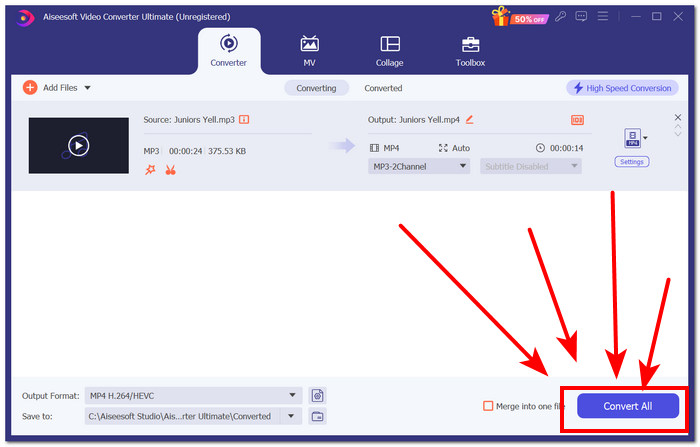
Trin 4. Klik på knappen Konvertér alle, og din ringetone bliver automatisk gemt på din enhed. Når konverteringen er færdig, kan du finde din ringetone i download-mappen.
Del 4. Sådan indstilles ringetone i iPhone fra filer med GarageBand
At indstille en sang som ringetone ved hjælp af GarageBand fra dine filer kan være noget af en proces. Det betyder, at du først skal downloade sangen og derefter få den til at gå gennem RingtoneMaker-appen, som du skal installere på din enhed.
Trin 1. Download den ønskede sang til din enhed.
Du kan søge efter en sang på YouTube og downloade den ved hjælp af en online YouTube til MP3-downloader.
Trin 2. For at lave en sang om til en ringetone skal du starte RingtoneMaker-appen og blot importere den downloadede sang til appen. Når den er indlæst, skal du trykke på knappen Make Ringtone og fortsætte ved at vælge GarageBand-appen.
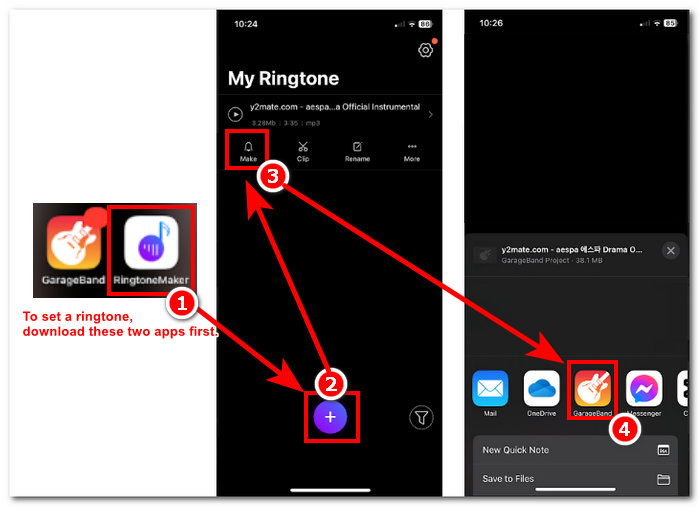
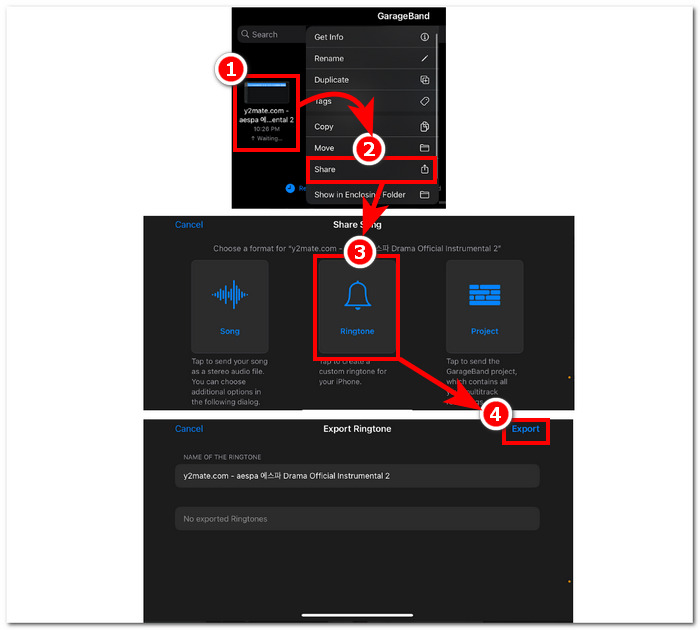
Trin 3. Når du er blevet omdirigeret til GarageBand-appen, skal du finde den sang, du importerede, og trykke på den. Følg derefter denne sti: Del > Ringetone > Eksportér. Sådan har du på ingen tid lavet en eksisterende sang om til en ringetone.
Del 5. Ofte stillede spørgsmål om, hvordan man laver en ringetone i GarageBand
Er GarageBand god nok til begyndere?
Ja, GarageBand er en god, hvis ikke bedre, ringetoneproducent til Apple-økosystemet. Dens enkle grænseflade er perfekt til alle slags brugere, fra begyndere til professionelle. Indbyggede værktøjer udelukkende lavet til at skabe iørefaldende og trendy toner og en bred vifte af tutorials tilgængelige online gør det til et begyndervenligt værktøj.
Er Garage ringetone gratis?
Ja, GarageBand er gratis at bruge og downloade til alle Apple-enheder. Det giver brugerne mulighed for at bruge dets funktioner til at oprette, komponere og eksportere uden ekstra gebyr eller abonnement.
Er der en gratis ringetone-app?
Ja, der er mange ringetone-apps, som du kan prøve. Nogle muligheder er RingtoneMaker, Sedge, Audiko, og listen fortsætter. Det er således op til brugerne at bruge alle slags apps og software. Vi anbefaler brugere at undersøge, hvilken type ringetone-app de ønsker.
Konklusion
Apple satte en vis begrænsning for, hvordan brugere kan oprette og indstille deres ringetoner ved at bruge deres helt egen GarageBand-applikation. Det gør på en eller anden måde sit arbejde effektivt, især når du opsætter en sang, der allerede er downloadet på din iPhone. Det kan dog mangle nogle tilpasningsfunktioner som hvad FVC-plukkede Video Converter Ultimate kan gøre for at gøre det mere personligt. Det er dog stadig effektivt og den eneste måde en iOS-bruger kan oprette en ringetone på deres enhed.
-
 Bedste gennemgang Sådan konverteres WAV til ringetone på ingen tid
 Ønsker du nemt at konvertere WAV til en ringetone? Vores brugervenlige værktøjer får jobbet gjort! Nyd lydkonvertering af høj kvalitet på et øjeblik - ingen teknisk hovedpine. Prøv dem i dag!
-
 Sådan laver du et stemmememo til en ringetone på iPhone og Android
 Hvis du vil lave et stemmememo til en ringetone, så læs denne artikel. Uanset om du er iPhone-bruger eller Android-bruger, kan du finde løsninger i vores indhold.
-
 5 MP3-skærere til nemt at skære enhver lyd [2024 Opdateret]
 Har du brug for en MP3-skærer til at trimme lyden? I så fald skal du læse denne artikel, fordi vi giver de værktøjer, du kan stole på for nem lydklipning.
