


 Video Converter Ultimate
 Skærmoptager
 Video reparation
 Sikker download
4 effektive metoder: Sådan reduceres billedfilstørrelsen på iPhone
Normalt skal vi med vores iPhones uploade fotos direkte på bestemte hjemmesider eller sende dem via e‑mail eller andre platforme. Men fotos taget med iPhone har som regel en stor filstørrelse på grund af den høje billedkvalitet fra de avancerede kameraer. For at reducere filstørrelsen på fotos på din iPhone uden at gå alt for meget på kompromis med kvaliteten, får du her fire effektive metoder, du bør prøve. Læs videre for at lære dem alle at kende!

Del 1. Reducer billedfilstørrelsen på iPhone i kameraindstillinger
Den nemmeste og hurtigste måde at reducere filstørrelsen på fotos på iPhone er i appen Indstillinger. Med denne metode kan du vælge formatet for alle de fotos, du tager med iPhone‑kameraet. Problemet med iPhones er, at de som standard som regel er sat til det mest kompatible format, hvilket betyder, at fotos gemmes i store filstørrelser. Hvis du vil spare lagerplads, skal du dog justere dine kameraformat‑indstillinger til høj effektivitet og slå HEIC‑formatet fra. Denne type kameraindstilling vil ikke reducere billedkvaliteten, men den vil spare dig for en masse plads på din iPhone.
Sådan kan du reducere filstørrelsen i kameraindstillinger:
Trin 1. Gå på din iPhone til Indstillinger, find Kamera, og vælg Formater.
Trin 2. Vælg øverst på skærmen Høj effektivitet. Dette format giver dig den mindste fotostørrelse uden at reducere kvaliteten.
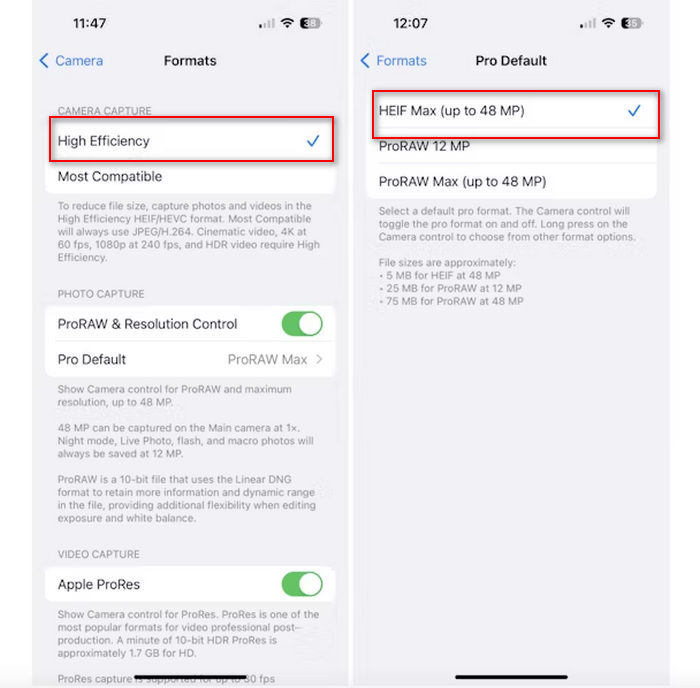
Trin 3. For yderligere at mindske størrelsen på dine billedfiler skal du trykke på Pro-standard og vælge HEIF Max op til 48 MP. Dette vil begrænse din fotostørrelse til cirka 5 MB.
At reducere filstørrelsen på en iPhone ved at ændre dens kameraindstillinger kan være en god måde at komprimere billeder på. Det vil dog tage noget tid, når du vil ændre kameraindstillingen, når du også vil tage billeder i høj kvalitet, der kan have en stor filstørrelse.
Del 2. Komprimer billeder på iPhone ved at beskære
Beskæring er en effektiv metode til at reducere størrelsen af et billede på en iPhone, fordi det fjerner unødvendige dele af billedet og derved reducere den samlede filstørrelse. Når du beskærer et billede, skærer du i det væsentlige dele af billedet ud, som du ikke har brug for, hvilket ikke kun fokuserer på de vigtige elementer i billedet, men også reducerer mængden af data, filen indeholder. Dette kan være særligt nyttigt for at spare lagerplads på din iPhone og gøre det nemmere at dele billeder på forskellige platforme.
Sådan kan du komprimere billeder på din iPhone ved at beskære dem:
Trin 1. Åbn det foto i appen Fotos, som du vil reducere filstørrelsen på, og tryk på Rediger.
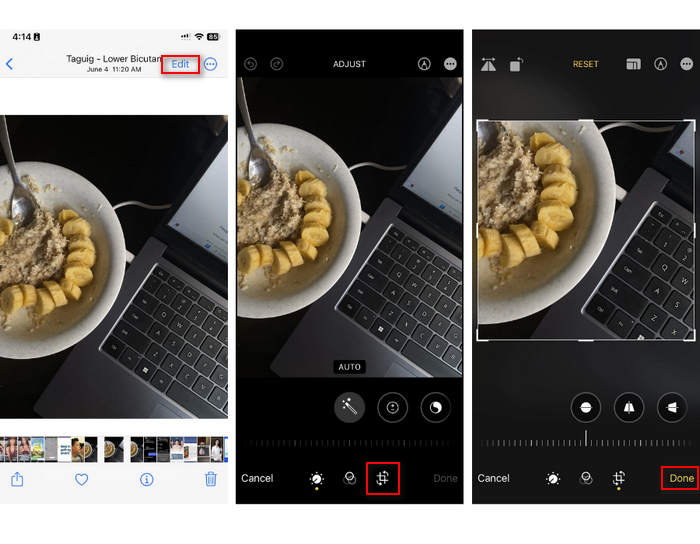
Trin 2. Tryk nu på knappen Beskær nederst, og beskær de uønskede dele af fotoet.
Trin 3. Justér beskæringen, som du ønsker, og tryk derefter på OK.
Selvom dette kan reducere billedfilstørrelsen på en iPhone, vil denne metode ikke altid være anvendelig på alle tidspunkter, så det anbefales, at andre værktøjer bruges til at komprimere billeder på en iPhone bortset fra dette.
Del 3. Reducer billedfilstørrelsen på iPhone via Social Media App
WhatsApp giver brugerne mulighed for at reducere størrelsen på fotofiler på deres iPhones. Appen giver mulighed for at komprimere billedet til en mindre størrelse, inden det sendes, hvilket hjælper med at spare lagerplads og gør det nemmere at dele fotos.
Sådan kan du komprimere billeder på din iPhone ved hjælp af WhatsApp:
Trin 1. Åbn en besked i WhatsApp.
Trin 2. Tryk derefter på fotoikonet, og vælg det foto, du vil sende.
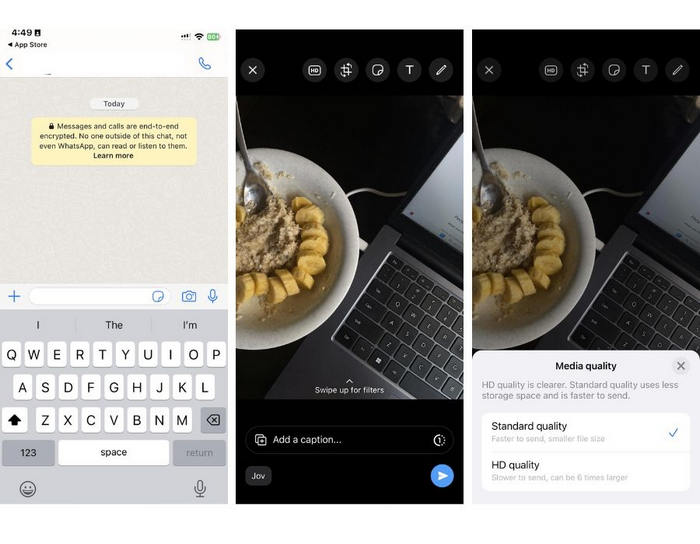
Trin 3. Tryk derefter på HD for at justere filstørrelsen ved at vælge at sende dit foto i standardkvalitet.
Trin 4. Tryk på pilen for at sende din besked og hente den.
Denne metode anbefales stærkt til dem, der har WhatsApp installeret på deres iPhones. Selvom det er en fantastisk måde at reducere billedfilstørrelsen på en iPhone, vil det markant påvirke billedets kvalitet.
Del 4. Komprimer billeder på iPhone med onlineværktøj
Hvis du derimod er på udkig efter en direkte og nemmeste måde at reducere filstørrelsen på fotos på iPhones, er det bedste værktøj, du kan bruge, FVC Free Image Compressor. Du skal blot gå ind på dette værktøj online, uploade det foto, du vil komprimere, og så er du færdig. Desuden kan du med dette værktøj komprimere flere fotos direkte fra din iPhone og komprimere dem markant uden at miste meget af kvaliteten sammenlignet med de andre metoder, der er nævnt ovenfor.
Sådan kan du komprimere billeder på din iPhone ved hjælp af FVC Free Image Compressor:
Trin 1. Søg efter FVC Free Image Compressor i Safari.
Trin 2. Tryk på knappen Upload Images for at importere de fotos, du vil reducere filstørrelsen på.
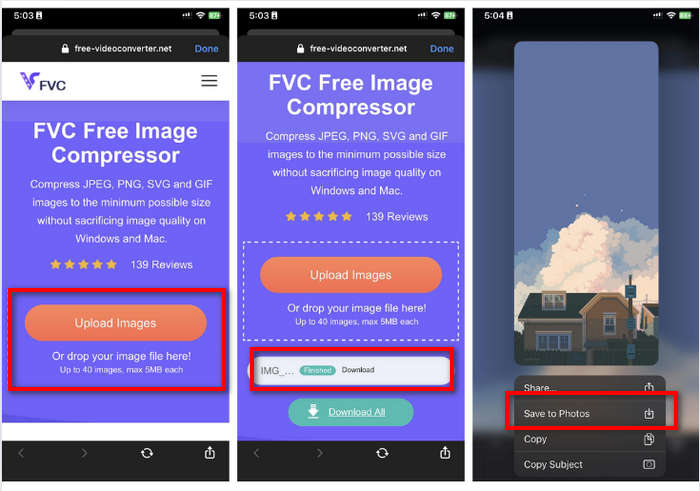
Trin 3. Derefter komprimeres dine fotos automatisk. Tryk på knappen Download, tryk længe på det komprimerede foto, og vælg indstillingen Gem i Fotos.
Med FVC Free Image Compressor kan du reducere billedfilstørrelsen på iPhone så hurtigt uden at miste meget af kvaliteten. Ydermere gør dens tilgængelighed og brugervenlige grænseflade det til et gå-til-værktøj for iPhone-brugere til at komprimere deres billeder.
Del 5. Ofte stillede spørgsmål om reduktion af billedfilstørrelse på iPhone
Hvordan reducerer jeg filstørrelsen på en JPEG uden at miste opløsning?
For at reducere størrelsen af en JPEG uden at miste opløsning, kan du bruge FVC Free Image Compressor. Dette onlineværktøj giver dig mulighed for at komprimere dine fotos, mens du bevarer deres kvalitet. Du skal blot uploade eller importere billedfilen til værktøjet, og den vil automatisk komprimere den for dig. Du kan derefter downloade det komprimerede billede tilbage til din iPhone.
Hvordan kan jeg se filstørrelsen af billeder på en iPhone?
Du kan se filstørrelsen på dine billeder i appen Filer på din iPhone. Hvis dit billede ikke er i appen Filer, skal du først uploade det til din iCloud. Når billedet er i iCloud, kan du se dets filstørrelse ved at få adgang til det via appen Filer.
Hvilken type foto tages af iPhone?
iPhones gemmer typisk billeder i HEIC eller High-Efficiency Image Coding-formatet som standard. HEIC tilbyder bedre komprimering end JPEG og samtidig opretholde høj kvalitet. Du kan ændre denne indstilling i sektionen Kamera i appen Indstillinger under Formater.
Konklusion
Da iPhones skaber fotos med stor filstørrelse, kan deling og upload være en udfordring. Derfor er det en god idé at lære, hvordan du reducerer filstørrelsen på fotos på iPhones, når du vil optimere dine billeder til problemfri brug. Nu er det op til dig, hvilken metode du vil bruge til at komprimere dine fotos. Hvad venter du på? Komprimer dine fotos på din iPhone nu!
-
 Sådan ændrer du størrelse på billede - Adobe Ændr størrelse på billede [online og offline]
 Hvis du søger efter Adobe resize image, så har vi løsningen til dig. Se dette indlæg grundigt for at lære, hvordan du ændrer størrelse på billeder ved hjælp af Adobe på din pc.
-
 Creative GIF Resizing Programværktøjer tilgængelige med bekvemmelighed
 Ændring af størrelsen på GIF'er kan være en smertefuld opgave. Brug de rigtige programmer til at ændre størrelsen på dine GIF'er og udføre dit arbejde fejlfrit. Tjek denne artikel for mere information.
-
 3 måder at ændre størrelsen på billedet til Twitter uden at miste kvalitet
 For at ændre størrelsen på billedet til Twitter, skal du have en fotoresizer i hånden. Har du ikke en? Vælg derefter på listen.
