


 Video Converter Ultimate
 Skærmoptager
 Video reparation
 Sikker download
Ultimative instruktioner til fjernelse af Canva vandmærke [Løst]
Online- og professionelle brugere, der ofte skal producere fotos, præsentationer og videoer i høj kvalitet, bruger ofte Canva. Dette program har mange fordele, herunder et stort udvalg af værktøjer, skabeloner, designs, temaer og meget mere. Desværre har pro-elementerne nu vandmærker. Pro-elementerne kræver betaling for at kunne bruges uden vandmærke. Heldigvis viser dette indlæg dig de bedste metoder, du kan prøve for at fjerne Canva-vandmærker uden at købe pro-elementerne. Læs derfor artiklen igennem for at få en idé om, hvordan du fjerner Canva-vandmærker.

Del 1: Bedste onlineværktøj til at fjerne Canva-vandmærker
Hvis du vil lære, hvordan du fjerner Canva-vandmærker gratis, kan du bruge FVC Free Watermark Remover. Dette webbaserede værktøj kan fjerne enhver genstand fra dit foto uden at du bruger en krone. Det kan også nemt slette dine Canva-vandmærker ved hjælp af værktøjer til fjernelse af vandmærker som Brush, Polygonal og Lasso. Derudover kan du også fjerne vandmærker ved at bruge beskæringsværktøjet, især når vandmærket sidder i kanten af dit foto. Desuden behøver du ikke bekymre dig om understøttede billedformater, da det understøtter næsten alle formater, såsom JPG, PNG, BMP og flere. Med dets intuitive grænseflade og grundlæggende metoder kan vi sige, at FVC Free Watermark Remover er perfekt til alle brugere, også begyndere. Denne del vil hjælpe dig med, hvordan du fjerner Canva-vandmærker fra dit foto ved hjælp af alle værktøjer til fjernelse af vandmærker, såsom Brush-, Lasso- og Polygonal-værktøjerne.
Du kan bruge børsteværktøjet, hvis du vil fjerne vandmærker, som om du bare børster dem. Du kan endda ændre størrelsen på børsten baseret på dine præferencer. Du kan bruge lassoværktøjet til at vælge lukkede dele af billeder eller figurer. Til sidst kan du bruge Polygonal-værktøjet, hvis du vil fremhæve vandmærkerne som en rektangelform for nemt at fjerne dem uden at følge vandmærkets mønster.
Brug af Brush Tool
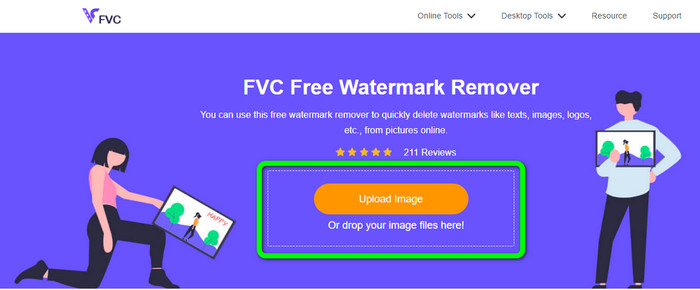
Trin 1: Det første, du skal gøre, er at gå ind på websiden for FVC Free Watermark Remover. Klik derefter på knappen Upload Image for at uploade dit billede med et Canva-vandmærke. En anden måde at uploade et foto på er at trække din billedfil ind i boksen.
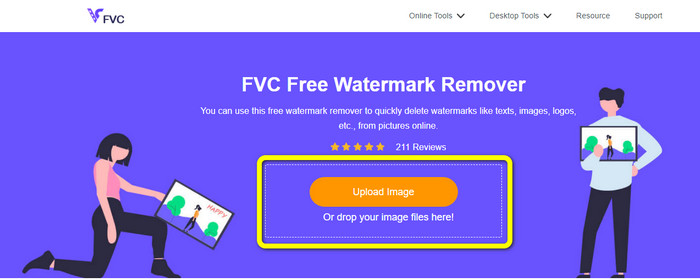
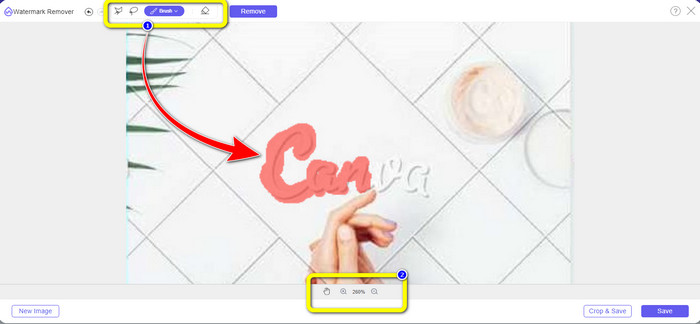
Trin 2: I den første boks øverst skal du vælge værktøjet Brush. Brug så dette værktøj til at fremhæve Canva-vandmærkerne på dit foto. Under Brush-værktøjet kan du ændre størrelsen på din pensel. Du kan zoome ud og ind på dit billede i den anden boks nedenfor for at se små vandmærker.
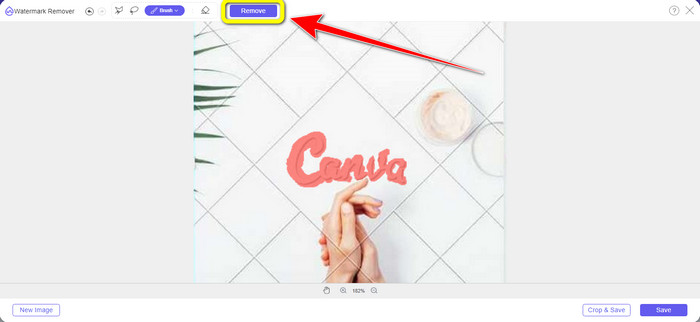
Trin 3: Når du er færdig med at fremhæve Canva-vandmærkerne på dit foto, skal du klikke på knappen Remove, så den kan gå videre til fjernelsesprocessen. Vent derefter et par sekunder.
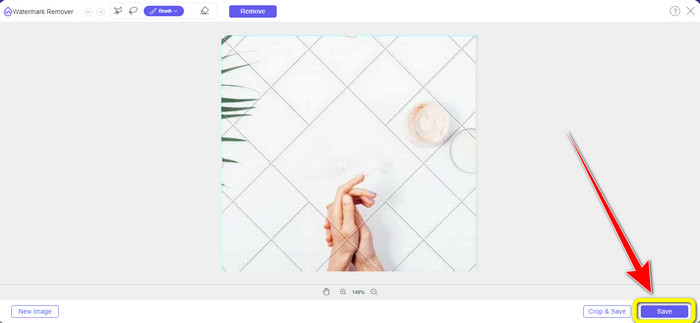
Trin 4: Efter fjernelsesprocessen kan du se, at Canva-vandmærket allerede er væk. Klik på knappen Save for at gemme dit foto.
Bruger Lasso Tool
Trin 1: Når du har uploadet dit billede med et Canva-vandmærke, skal du vælge værktøjet Lasso blandt værktøjerne til fjernelse af vandmærker. Brug derefter din mus til at fremhæve Canva-vandmærket.
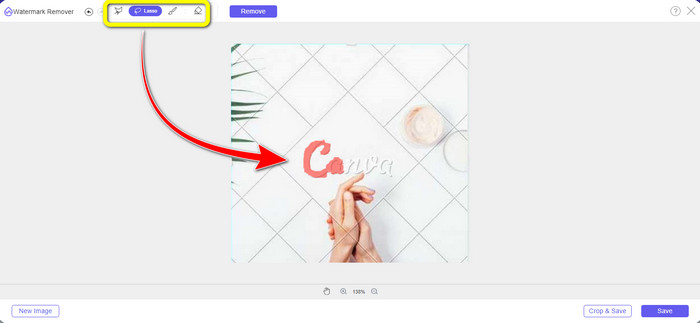
Trin 2: I den gule boks under fotoet kan du klikke på ikonet + eller - for at forstørre dit billede, så du kan se det tydeligt. Klik derefter på knappen Remove, når du er færdig med at fremhæve Canva-vandmærket med Lasso-værktøjet.
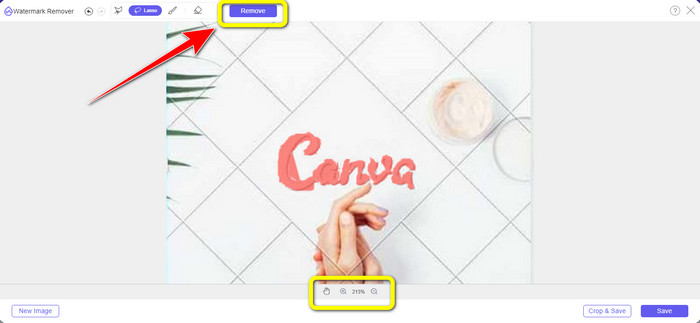
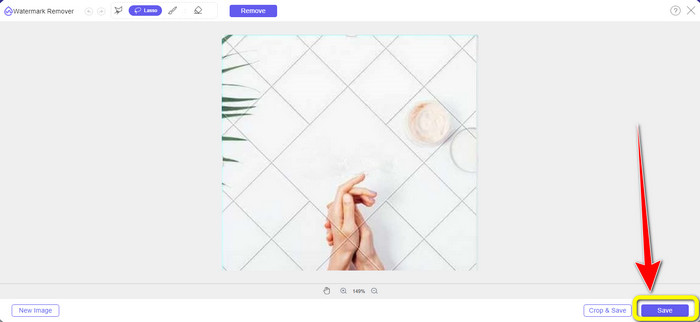
Trin 3: Når fjernelsesprocessen er færdig, og Canva-vandmærket er slettet, skal du klikke på knappen Save for at gemme dit endelige foto.
Brug af polygonalt værktøj
Trin 1: Når du er færdig med at tilføje dit foto i FVC Free Watermark Remover, skal du vælge værktøjet Polygonal blandt værktøjerne til fjernelse af vandmærker.
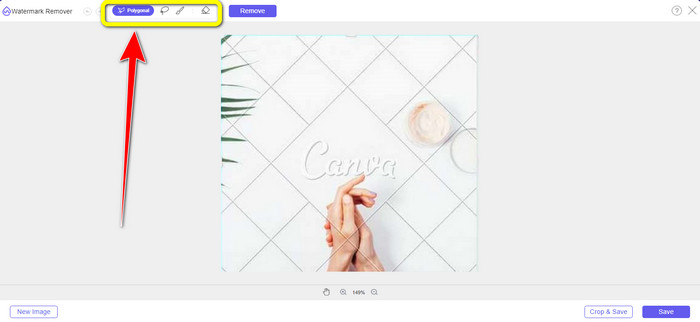
Trin 2: Brug i dette trin Polygonal-værktøjet til at fremhæve Canva-vandmærket på dit billede.
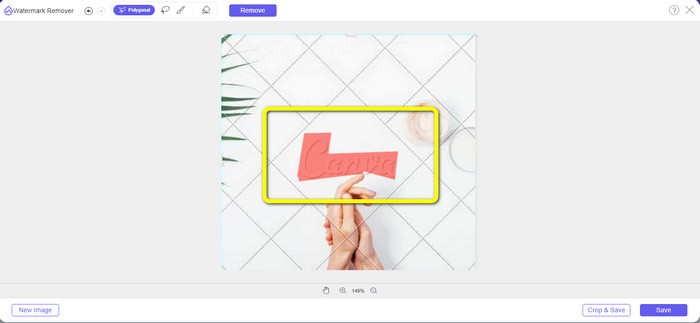
Trin 3: Efter fremhævningsprocessen kan du fjerne Canva-vandmærket ved at klikke på knappen Remove.
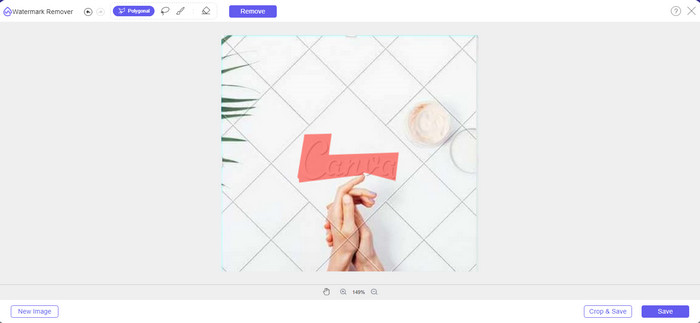
Trin 4: Efter fjernelsesprocessen kan du gå videre til den næste og sidste metode: at gemme dit foto ved at klikke på knappen Save.
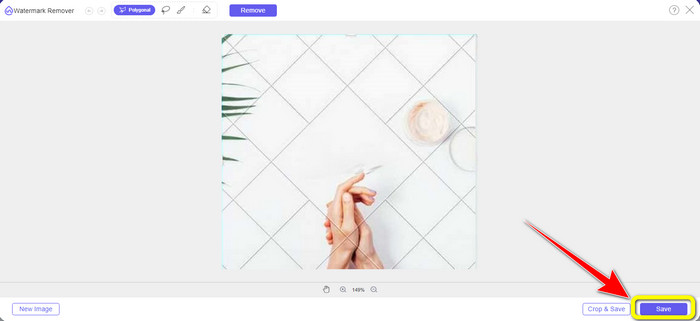
Ved at bruge disse tre værktøjer til fjernelse af vandmærker kan du hurtigt fjerne Canva-vandmærkerne fra dit billede. Lad os bruge beskæringsværktøjet denne gang til at fjerne Canva-vandmærket fra dit billede.
Brug af beskæringsværktøj
Værktøjet Cropping er den bedste måde at klippe vandmærker væk på, især hvis vandmærket sidder i kanten eller hjørnet af fotoet. Følg vejledningen nedenfor for at lære, hvordan du fjerner Canva-vandmærker ved hjælp af Cropping-værktøjet.
Trin 1: Klik på knappen Upload Image. Derefter vises din mappe på skærmen. Vælg det billede med Canva-vandmærke, som du vil fjerne.
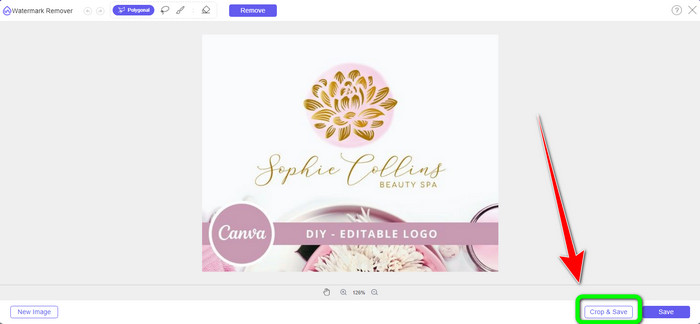
Trin 2: Når du har valgt din billedfil, skal du klikke på knappen Crop&Save. Gå derefter videre til den næste proces.
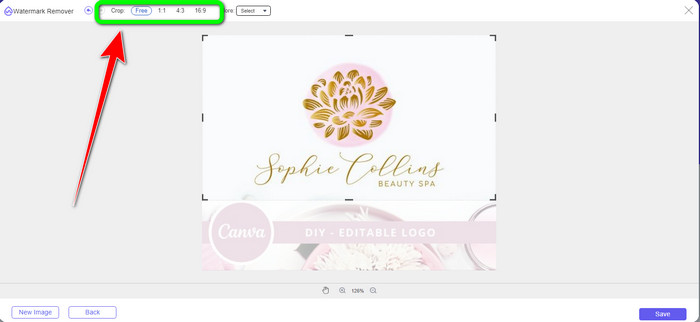
Trin 3: I denne boks kan du vælge, hvordan du vil beskære fotoet. Hvis du vælger muligheden Free, kan du også beskære dit billede manuelt, præcis som du vil.
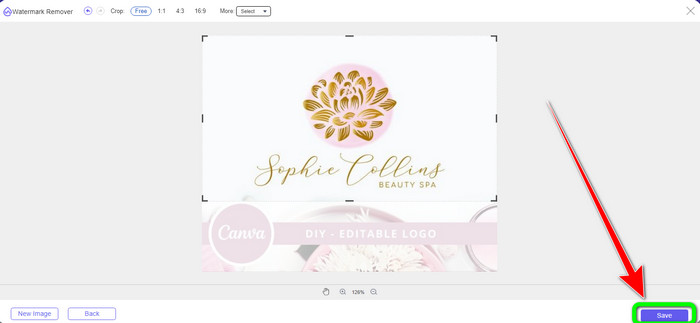
Trin 4: Når du har beskåret fotoet for at fjerne Canva-vandmærket, kan du klikke på knappen Save for at gemme dit endelige billede.
Del 2: Fjern Canva-vandmærker ved hjælp af Photoshop
En anden måde at fjerne Canva-vandmærket fra billeder på er at bruge Adobe Photoshop. Det kan også slette eventuelle forstyrrende objekter fra dit billede, herunder vandmærker, logoer, tekst, klistermærker og mere. Dette værktøj har også en hurtig fjernelsesproces, så du ikke behøver at bruge mere tid på at fjerne uønskede objekter fra dit billede. Desuden er software som Adobe Photoshop meget brugt til grafisk design, redigering af rasterbilleder og digital kunst. Lagdeling tilføjer dybde og alsidighed til udviklings- og redigeringsprocesserne og giver vigtige redigeringsværktøjer, der, når de kombineres, kan give fremragende resultater. Adobe Photoshop er dog ikke let at bruge, især hvis du er ny bruger. Photoshop er et avanceret redigeringssoftware, der er velegnet til avancerede brugere. Det betyder, at ikke-professionelle brugere vil finde det kompliceret, når de bruger værktøjet. Adobe Photoshop er heller ikke gratis. Det kan kun tilbyde en syv-dages gratis prøveperiode. Derefter skal du købe applikationen for at bruge den kontinuerligt.
Følg nedenstående trin for at fjerne Canva-vandmærket ved hjælp af Adobe Photoshop.
Trin 1: Download Adobe Photoshop på din computer og installer det. Start derefter programmet.
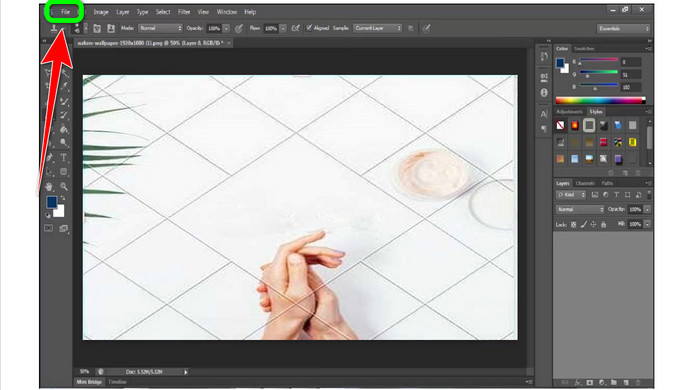
Trin 2: Gå til File > Open for at indsætte fotoet med Canva-vandmærket.
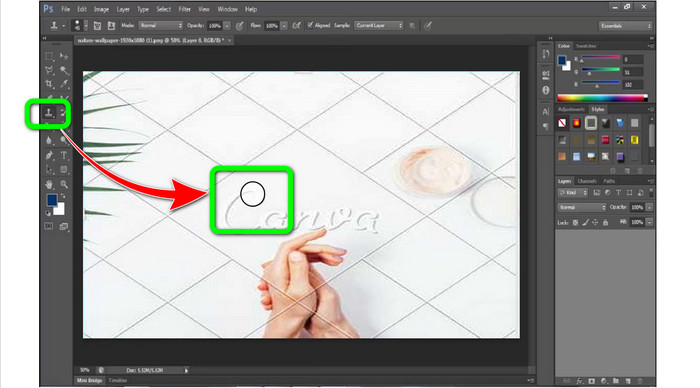
Trin 3: Vælg Clone Stamp Tool i venstre side af grænsefladen.
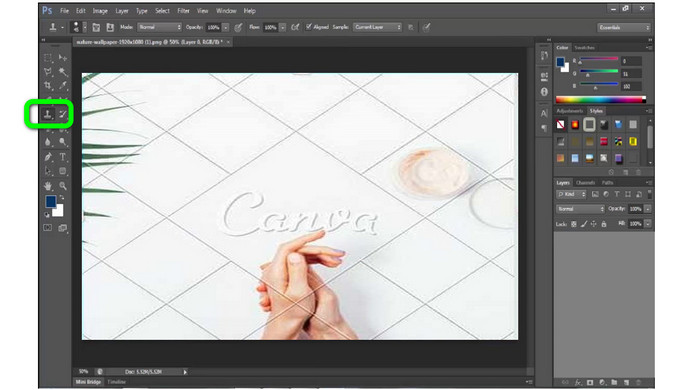
Trin 4: Når du har valgt Clone Stamp Tool, skal du bruge din mus til at klikke på Canva-vandmærket, indtil du har fjernet alle vandmærkerne.
Trin 5: Når Canva-vandmærket er væk, skal du gå til File > Save.
Relateret til:
Nem vejledning i, hvordan du fjerner WOW Slider-vandmærket [Løst]
Nemmetoder til, hvordan du fjerner Shootproof-vandmærke
Del 3: Ofte stillede spørgsmål om fjernelse af Canva-vandmærker
1. Hvordan fjerner jeg det gratis Canva vandmærke?
For at fjerne vandmærket fra alle dine designs skal du købe Canva Pro. En anden mulighed er at bruge en Canva Pro gratis prøveperiode, som vil slette vandmærket. Du kan også fjerne vandmærket ved at gemme dit design som en PDF- eller PNG-fil.
2. Hvad er forskellen mellem Canva og Canva Pro?
I Canva er planen helt gratis. Du kan få gratis skabeloner, layouts, grafiske elementer, fotos og mere. Men i den gratis version er der begrænsninger, såsom manglen på brandingværktøjer, ingen filtre og begrænsede outputmuligheder. I Canva Pro er der flere fantastiske funktioner, du kan nyde. Det tilbyder flere skabeloner, stockfotos, grafik og videoer. At bruge Canva Pro er bedre end den gratis version.
3. Hvad er den bedste måde at fjerne Canva vandmærket på?
Brug FVC Free Watermark Remover. Dette værktøj kan hurtigt hjælpe dig med at fjerne Canva-vandmærkerne fra dit foto. Det kan også fjerne andre uønskede elementer, såsom logoer, tekst, emojis osv.
Konklusion
Canva er et fantastisk værktøj til grafisk design. Men det efterlader vandmærker på næsten alle fotos. Hvis du vil fjerne Canva-vandmærker, kan du dog bruge FVC Free Watermark Remover. Det er gratis og nemmere at bruge end Photoshop.
-
 Nemmeste metoder til, hvordan man fjerner vandmærke fra fotos
 Er du irriteret over vandmærkerne på dine billeder? Vær ikke bekymret! Denne artikel vil give enkle og nemme metoder til at fjerne vandmærker fra dine billeder
-
 Måder på, hvordan du nemt fjerner Reddit-vandmærker fra billeder
 Hvis du er her, leder du muligvis efter en fremragende Reddit-vandmærkefjerner. I så fald vil vi vise dig den nemmeste metode til at fjerne Reddit-vandmærker
-
 Sådan fjerner du vandmærke i Lightroom Mobile [Løst]
 Vil du lære, hvordan du fjerner vandmærker fra fotos i Lightroom? Her er de nemmeste metoder, du kan prøve ved at bruge dine mobiltelefoner og computere
