


 Video Converter Ultimate
 Skærmoptager
 Video reparation
 Sikker download
Forbedre billedkvaliteten ved at bruge disse hurtige og nemme metoder
Do you have an image that is blurry or has a low quality? The best solution that you must do is to increase the quality of your image. Luckily, numerous tools can help you improve your image’s quality. However, not all applications or tools on a computer have the best features. That’s why we searched for the most popular photo enhancers online, offline, and on iPhone. To learn how to improve image quality, read this post.

Del 1. Sådan forbedres billedkvaliteten online
Det er mere praktisk at bruge en online billedforstærker end at downloade et softwareprogram på din computer. Fordelen ved at bruge et online værktøj er, at du frit kan tilgå det på dit web. Denne del vil vise dig, hvordan du øger dit billedes kvalitet ved hjælp af den mest fantastiske online fotoforstærker.
FVC Free Image Upscaler is an online, free-to-use image enhancer popular with many. This online application can set the magnification to 2x, 4x, 6x, and 8x. In addition to that, it supports the most standard image formats, including PNG, JPG, JPEG, and BMP. You can also access it on all web browsers, including Google, Firefox, and Safari. Also, you do not need to worry about the safety of your data because this tool is safe to use.
Desuden har den en kraftfuld AI-teknologi, der automatisk genkender de slørede dele af dit billede. FVC Free Image Upscaler kan også rette de tabte pixels, farveteksturer og flere detaljer. Hvis du vil bruge denne fremragende billedopskalerer, skal du følge den enkle guide nedenfor.
Sådan forbedrer du billedkvaliteten online ved hjælp af FVC Free Image Upscaler:
Step 1. Open your browser and search FVC Free Image Upscaler on the search box. You can go directly to their main page by clicking the link provided.
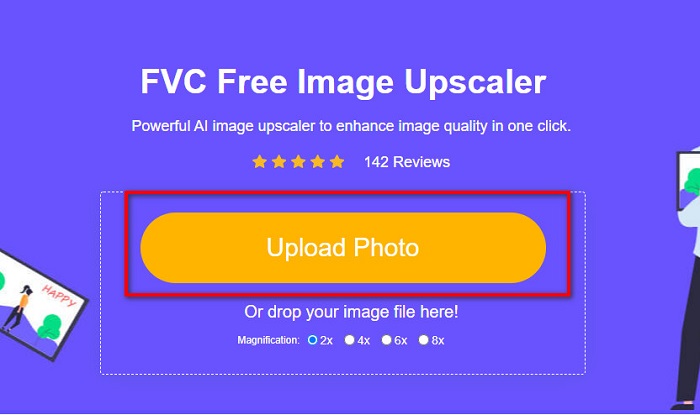
Step 2. Next, click the Upload Photo button on the main interface to upload the image you want to upscale. Wait for your image to upload, then proceed to the next step.
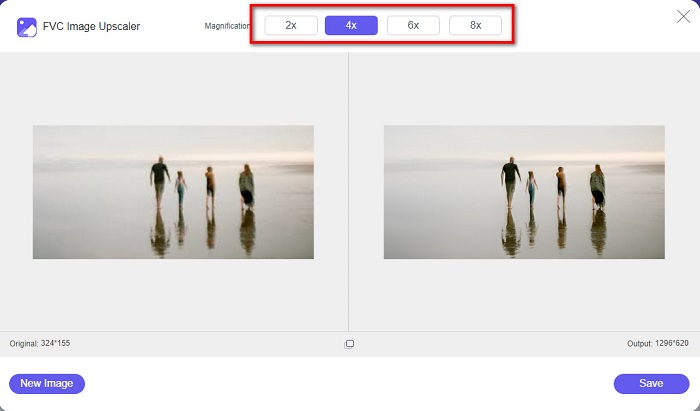
Step 3. And then, choose the Magnification that you want for your image. You can choose between 2x, 4x, 6x, and 8x.
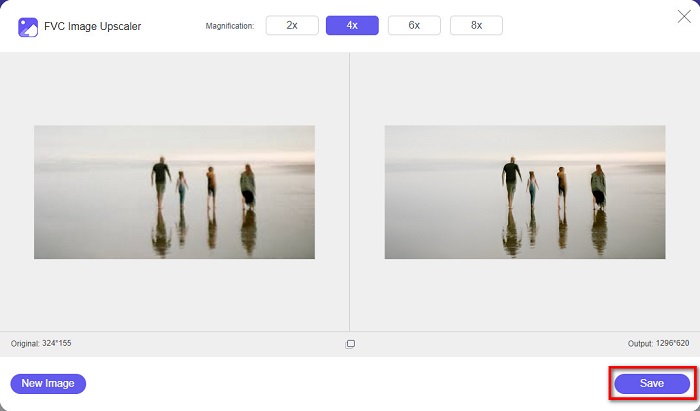
Step 4. You can see the preview of your image, and if you are content with it, click the Save button to save your upscaled image on your device.
Og det er det! Du kan nu se dit billede på din computer med en højkvalitetsvisning.
Del 2. Sådan forbedres billedkvaliteten i Photoshop
Vi har, hvad du ønsker, hvis du kan lide at bruge et professionelt værktøj til at øge dit billedes kvalitet. Denne del vil lære dig, hvordan du forbedrer billedkvaliteten ved hjælp af Adobe Photoshop.
Adobe Photoshop is a professional editing app that you can use to enhance the quality of your image. Adobe Photoshop has many editing tools that you can use to edit images. Additionally, many professionals use this tool because it has many functions. Also, this application produces high-quality outputs that you can share on other social media platforms or websites. Moreover, Adobe Photoshop is one of the best creations of Adobe Company which you can download on almost all media platforms. By using this editing application, you can design logos, banners, brochures, and more. But many users do not know that it can also enhance an image. However, many users have difficulty using this tool because it has a hard-to-operate software interface and is a bit costly to download.
Trin til, hvordan man forbedrer billedkvaliteten i Photoshop:
Step 1. First, download Adobe Photoshop on your computer. Follow the installation process, then open the app.
Step 2. Go to File > Open on the main interface and select the image you want to improve.
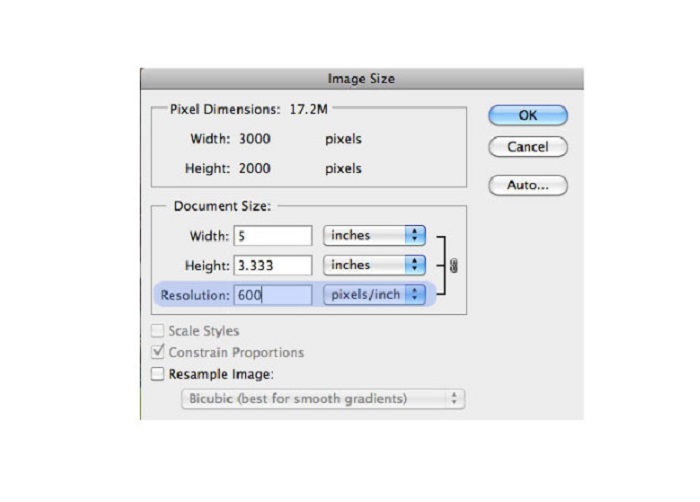
Step 3. And then, go to Image > Image Size. Then a dialog box will prompt where you will uncheck the Resample Image box so that it will only change the resolution of your image. And on the resolution option, type in the resolution that you want for your image.
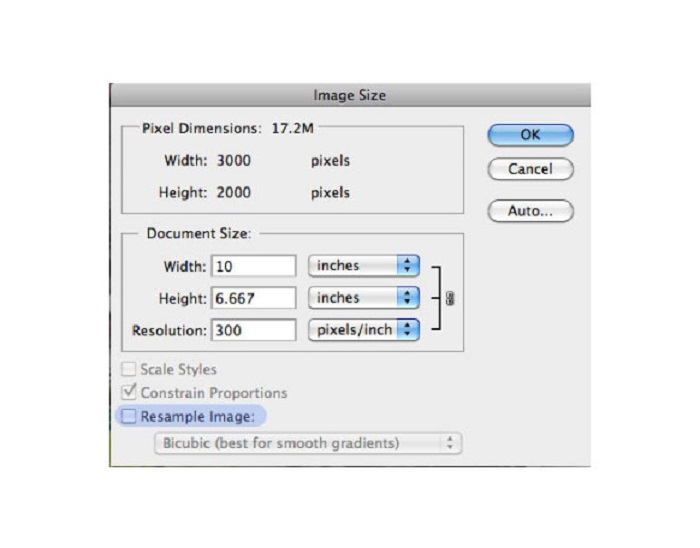
Step 4. Once you change the Resolution, the Width and Height of your image will also change. Then, click the OK button to save the change you made to your image. With this way, you can convert low resolution images to high.
Del 3. Sådan forbedres kvaliteten af et billede på iPhone
Nogle apps kan forbedre dit billede i lav kvalitet, hvis du er iPhone-bruger. Selvom mange fotoforbedringsapps er tilgængelige på AppStore, valgte vi den mest berømte blandt dem. Læs denne del for at lære, hvordan du forbedrer kvaliteten af et billede på en iPhone.
Remini is one of the best apps that you can use to enhance your low-quality image. This amazing app has a simple interface, making it a user-friendly app. Furthermore, it also uses AI technology that automatically detects the blurred parts of your image. It is also a safe-to-use app, so your files are safe when using this app. The downside of this app is that you need to watch an ad to view and download the result, or you can purchase its full version to download the results without watching an ad.
Sådan forbedrer du billedkvaliteten på iPhone ved hjælp af Remini-appen:
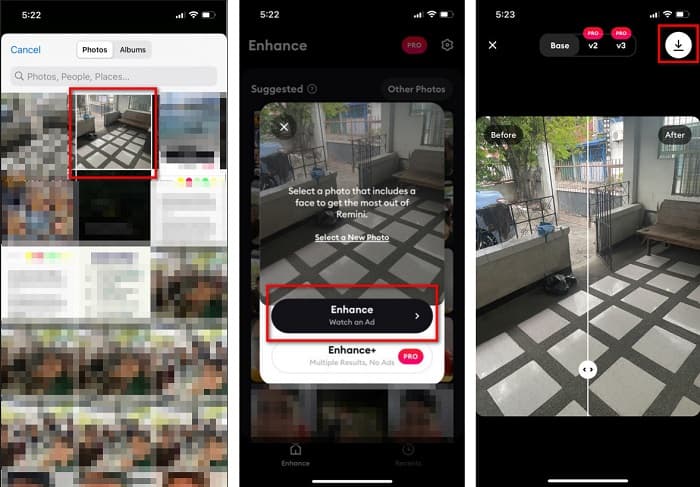
Step 1. Download the Remini app on AppStore. After downloading it, open the app on your phone.
Step 2. And then, on the main app’s interface, select the image you want to upscale.
Step 3. Next, tap the Enhance button to improve the quality of your image. If you avail of the pro version of the app, you do not need to watch an ad. But if not, it will require you to watch an ad to see and save the result.
Step 4. Now, you can view your improved image. Then, tap the Download icon in your screen's top-right corner. And voila! With those easy steps, you can improve the quality of your image.
Del 4. Ofte stillede spørgsmål om, hvordan man forbedrer billedkvaliteten
Er der en app, der kan forbedre billedkvaliteten på Android?
Værktøjet Forbedre fotokvalitet er en af de bedste billedkvalitetsforbedrende apps til at forbedre din billedkvalitet. Brug af billedet Beautifying Effects vil give dit billede et professionelt udseende.
Hvordan forbedrer man billedkvaliteten i Lightroom?
Adobe Lightroom is another Adobe product that you can use to enhance the resolution of your image. Read the simple steps below to learn how to improve photo quality in Lightroom. 1. Download Adobe Lightroom on your computer. 2. Then, open your image in Lightroom. 3. Click Choose Photo > Enhance. 4. Next, select the Super Resolution, then click Enhance. 5. And then, you will see that Lightroom will increase the resolution of your image and save it as a DNG file.
Vil det påvirke filstørrelsen, hvis du opskalerer dit billede?
Ændring af udskriftsopløsningen ændrer ikke antallet af dit billedes pixels og vil ikke påvirke størrelsen af dit billede.
Konklusion
It is easy to improve image quality, especially now that you have a guide to follow. Also, many apps on a computer or iPhone can help you upscale your image. However, if you want to use a free image upscaler that automatically upscales your blurred image, use FVC Free Image Upscaler now.
-
 5 måder at fjerne B612 vandmærke ved hjælp af de bedste værktøjer
 Vil du vide, hvordan du fjerner B612-vandmærker fra dine billeder? Du kan ubesværet fjerne B612-vandmærket fra dine billeder ved hjælp af disse fremragende værktøjer.
-
 Nemme trin til, hvordan du fjerner WOW Slider-vandmærket [Løst]
 WOW Slider er en app til at skabe et fantastisk diasshow. Det indlejrer dog vandmærker på sit output. Læs nedenfor for at lære, hvordan du fjerner WOW Slider-vandmærket.
-
 Nemme metoder til, hvordan man fjerner skudsikkert vandmærke
 Fjern Shootproof vandmærke ved at følge disse nemme metoder. Brug disse fantastiske vandmærkefjernere til nemt at fjerne Shootproof-vandmærket fra dit billede.
