


 Video Converter Ultimate
 Skærmoptager
 Video reparation
 Sikker download
Fjern objektet fra fotos med de 6 effektive software [gratis]
Millioner af fotografer, selv dem der stadig er på vej frem, tager flere billeder af solnedgange, strande, turiststeder, månen og meget mere. Med billeder kan vi udtrykke, hvem vi i virkeligheden er. Med et enkelt klik kan du vække alles kreativitet og deres indre kunstneriske sider. Men hver gang vi tager et billede, får vi ikke nødvendigvis et helt perfekt resultat; nogle gange er vi nødt til at fjerne et bestemt objekt, som ikke burde være med på det foto, du tog. Har du brug for et værktøj til at fjerne et objekt fra fotos? Her introducerer vi forskellige metoder og værktøjer, du kan bruge til øjeblikkeligt at fjerne unødvendige objekter på de billeder, du har taget.

Del 1. Fjern objekt fra billede ved hjælp af den bedste objektfjerner [Webservice]
FVC Free Watermark Remover er vores førstevalg til gratis at fjerne objekter fra fotos online. Med dette værktøj kan du øjeblikkeligt slette alt, der forstyrrer dit perfekte billede, uden at downloade software på din computer, selv hvis du ingen erfaring har med denne type redigering. Du kan stole på dette værktøj, fordi du blot skal markere objektet, og så fjerner det objektet på billedet uden at efterlade rester. Vi synes, dette værktøj er både underholdende og effektivt til at fjerne unødvendige ting på billedet; hvis du vil bruge det, skal du blot følge trinene, vi har angivet nedenfor.
Trin 1. For at åbne objektet og fjerne FVC-udviklingen kan du klikke på dette link til den officielle hjemmeside.
Trin 2. Klik på Upload Image for at importere det foto, du har taget, som indeholder et uønsket objekt.
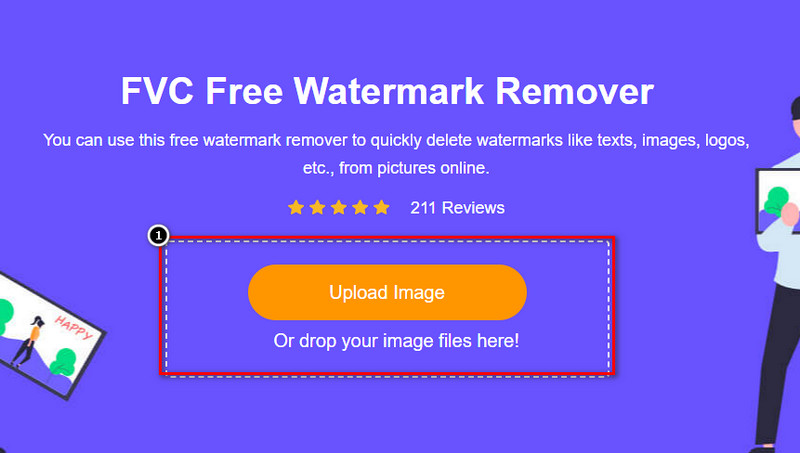
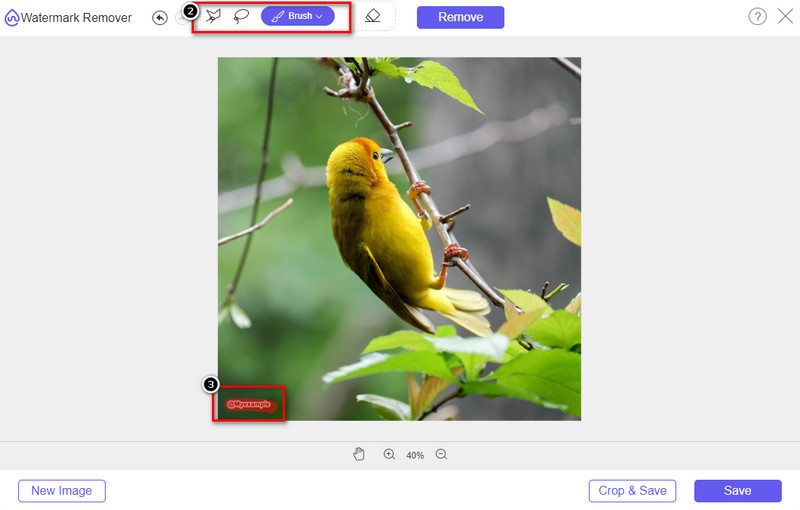
Trin 3. Med de tilgængelige værktøjer her skal du markere objektet.
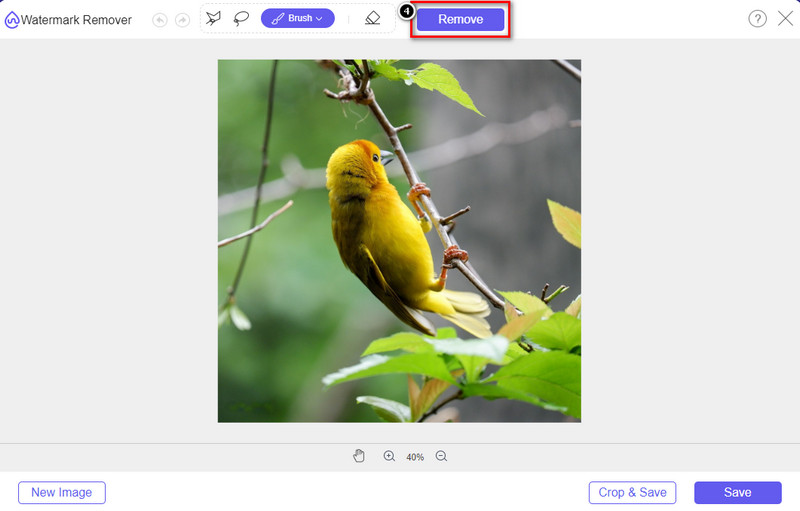
Trin 4. Tryk på knappen Remove for at fjerne objektet ved hjælp af den AI-teknologi, værktøjet understøtter.
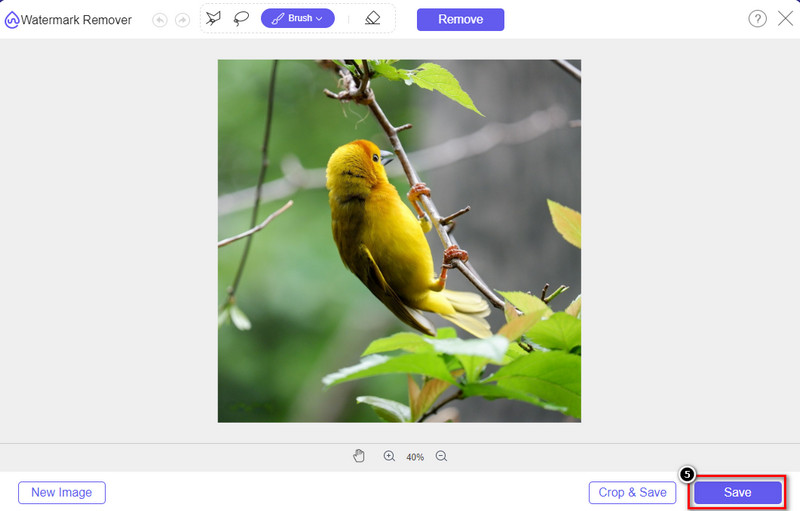
Trin 5. For at downloade det perfekte billede, du har redigeret her, skal du klikke på Save.
Del 2. Fjern objekt fra foto professionelt ved hjælp af skrivebordsprogrammer [Windows & Mac]
Photoshop
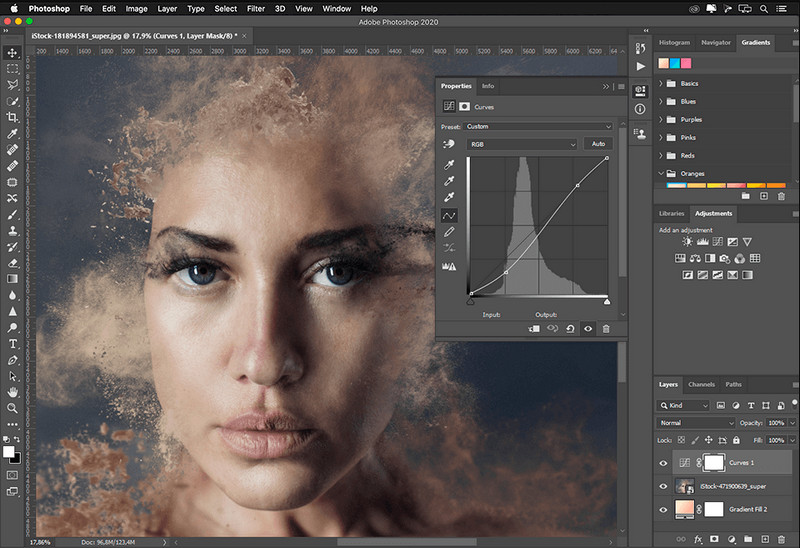
Hvis du har brug for et professionelt værktøj til at fjerne objekter fra fotos, så er Photoshop svaret! Dette værktøj er en komplet billededitor, som Adobe stolt præsenterer for os. Intet forhindrer dig i at få billedet til at se utroligt ud med dets egenskaber og funktion. På grund af dens popularitet blandt professionelle forsøger mange begyndere at bruge denne software til at redigere og skabe deres billeder. Så hvis du vil vide, hvordan du bruger dette professionelle værktøj, så kan du følge vejledningen, vi tilføjer nedenfor.
Trin 1. Åbn Adobes officielle hjemmeside, og download derefter Photoshop til din computer.
Trin 2. Klik på File og tryk på Open for at uploade det billede, du skal redigere her.
Trin 3. Vælg i venstre side Magic Wand Tool for automatisk at afgrænse objektet på billedet.
Trin 4. Gå til sektionen Edit, og vælg under den Content-Aware Fill.
Trin 5. Når du har åbnet funktionen, fjerner den automatisk vandmærket; klik derefter på OK.
GIMP
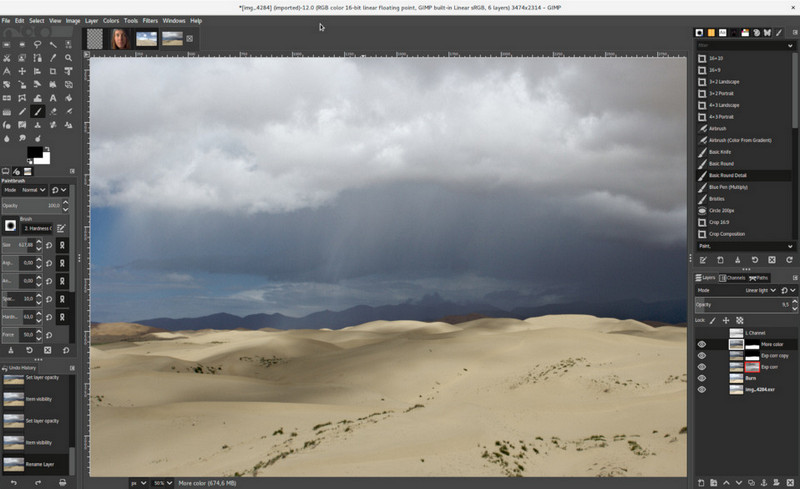
GIMP er et komplet billedredigeringsprogram, du kan bruge til at fjerne objekter fra fotos på Mac, Linux og Windows gratis. Det er et pålideligt værktøj ligesom Photoshop. Selvom værktøjet er blevet et af de mest populære alternativer til Adobe Photoshop, er det stadig under aktiv udvikling. Med dette værktøj kan du lave omfattende billedredigering og gøre dine billeder mere iøjnefaldende for publikum. Du kan også tilpasse grænsefladen, hvis du vil gøre arbejdet lettere. Hvis du overvejer at downloade dette værktøj til professionel redigering, kan vi forsikre dig om, at du kan opnå det. Selvom det er et open source-redigeringsprogram, mangler værktøjet stadig den endelige finpudsning, da dets GUI stadig er under udvikling. Hvis du vil bruge det, vil trinene nedenfor lære dig, hvordan du fjerner et objekt fra et foto i GIMP. De angivne trin nedenfor vil guide dig.
Trin 1. Download og start softwaren, så du kan uploade det billede, du skal redigere. Download også pluginnet Resynthesizer.
Trin 2. Vælg på værktøjslinjen i venstre side Free Select, og skift tilstanden til Add Current Selection.
Trin 3. Tegn nu omkring det objekt, du vil fjerne; efter du med succes har afgrænset objektet, skal du trykke på Enter på tastaturet.
Trin 4. For at bruge det plugin, du har downloadet, skal du gå til Filter, derefter Enhance og klikke på Heal Selection.
Trin 5. Så vil en dialogboks dukke op; ændr om nødvendigt samplingbredden, sæt sampling til all-around, og Filling the Order til random. Tryk på OK for at begynde at syntetisere området i billedet.
Foto-app på Mac
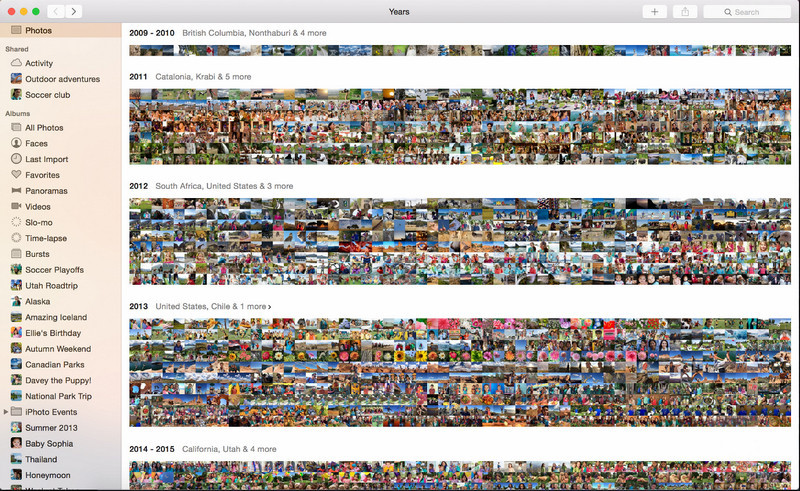
Photo App er en indbygget funktion på opdaterede Apple-produkter som Mac. Denne app er forudinstalleret, så du kan springe downloaddelen over og bruge værktøjet med det samme. Softwaren er ikke et egentligt billedredigeringsprogram, da dens formål er at fungere som bibliotek og fremviser af fotos på Mac- eller iOS-enheder. Selvom du ikke har et professionelt billedredigeringsprogram på Mac, kan du udnytte disse funktioner til at få et professionelt resultat med et enkelt klik. Hvis du vil fjerne et objekt med Photo App, kan du følge trinene, vi har angivet.
Trin 1. Åbn Photos-appen på din Mac, og vælg det billede, der har et uønsket objekt.
Trin 2. Klik på knappen Edit øverst til højre for at begynde at redigere billedet.
Trin 3. I højre side vil du se valgmuligheden Retouch; klik på den for at bruge funktionen.
Trin 4. Klik og træk musen hen over det område, du vil fjerne.
Trin 5. Tryk på knappen Done for at gemme de ændringer, du har foretaget på billedet.
Del 3. Fjern objekt fra foto ved hjælp af applikation på Android og iOS
Photoshop FIX
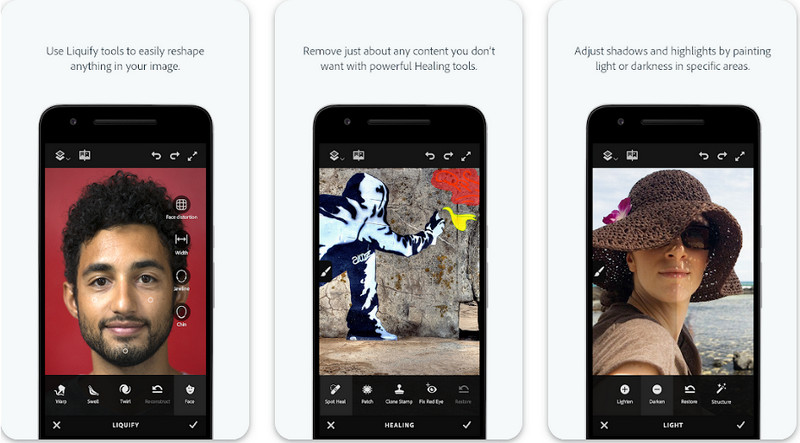
Photoshop FIX er en effektiv Android-app til at fjerne objekter fra fotos, som arbejder på et professionelt niveau og samtidig er nem at bruge. Det er en open source-app, du kan downloade til din enhed via Play Store. Selvom værktøjet er open source, er funktionen til objektfjernelse uden tvivl fremragende. Det er en af de mest downloadede apps på Android-enheder til denne opgave. Hvis du vil vide, hvordan du bruger appen, kan du læse videre nedenfor.
Trin 1. Download appen på din Android-enhed.
Trin 2. Tryk på On My Phone for at få vist alle billederne i dit bibliotek. Vælg det billede, du vil redigere.
Trin 3. For at bruge objektfjernelsen i denne app skal du klikke på Healing.
Trin 4. Her kan du vælge mellem to muligheder for at fjerne objektet. For at “børste” objektet væk skal du vælge Spot Heal. Men hvis du vil klone pixels, skal du vælge Clone Stamp. Markér vandmærket med den metode, du vælger.
Trin 5. Gem billedet i din kamerarulle, og det var det!
Fotoretouchering
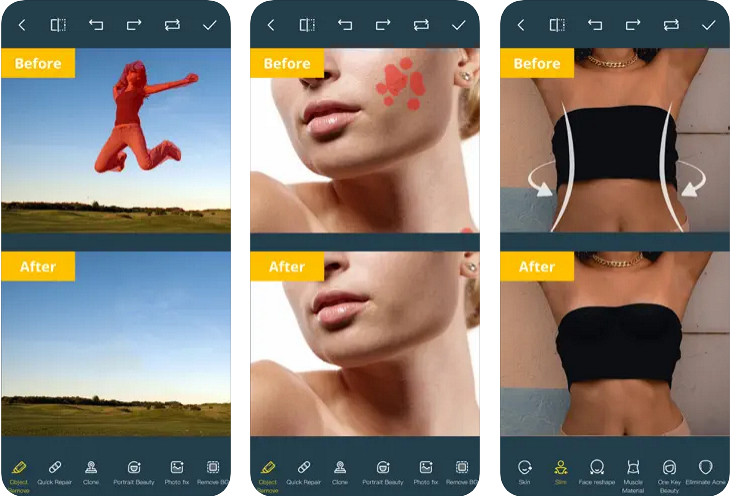
Photo Retouch er en pålidelig app til uden problemer at fjerne objekter fra fotos på iPhone. Selv om du ikke er erfaren i at fjerne objekter fra dine billeder, kan du gøre det effektivt. Du kan downloade denne app gratis i App Store, hvis du vil prøve den. Du kan også fjerne baggrunde og vandmærker på dine fotos, hvis du har brug for det. Hvis du er klar til at bruge denne app til at fjerne objekter på dit billede, kan du følge trinene, vi har angivet.
Trin 1. Download den officielle app, og start den.
Trin 2. Klik på Photo Eraser og derefter på Photo. Vælg det billede med en uønsket baggrund, du vil fjerne, og sørg for, at billedet ligger i Photos på din iPhone.
Trin 3. Vælg Object Removal nederst.
Trin 4. Brug børsten, som appen understøtter, til at afgrænse det objekt, du vil fjerne, og klik på GO for at fjerne objektet.
Relateret:
Fjern Picsart-filtervandmærket
Del 4. Ofte stillede spørgsmål om, hvordan man fjerner objekter fra fotos
Hvorfor skal jeg fjerne objekter fra billeder?
Der er mange gange, vi fanger noget, og der er fotobombere. Dette objekt er et problem for de fleste professionelle på andre mennesker, fordi det ikke fremhæver det billede, du tager. Så i stedet for at tage billedet igen, kan du læse følgende ideelle måder at fjerne objektet på dit billede på.
Kan jeg beskære billedet for at fjerne objekter?
Ja du kan. Hvis det objekt, du vil fjerne det på siden af billedet, kan du prøve at beskære billedet med din indbyggede editor. Dette valg er dog ikke en mulighed, især hvis objektet er i den midterste del eller i nærheden af det billede, du tager. Beskæring af billedet vil skære billedet ud, så det er bedre at tænke sig om to gange, hvis du vil prøve denne mulighed.
Hvorfor kan jeg ikke uploade et billede for at fjerne objektet?
Du kan ikke uploade billedet; enten er billedet beskadiget, eller også understøttes billedudvidelsen ikke. Hvis dit billede er beskadiget, er der måder at løse det på. Du kan finde dem på nettet, hvis du søger på det. Normalt kan det være billedets filtypenavn; for at løse dette problem, skal du konvertere det.
Konklusion
Det er nemt at fjerne objekter fra billedet på grund af det værktøj og den app, vi bruger i denne artikel. Så hvilket værktøj foretrækker du mest? Vi håber, at denne guide, vi tilføjer, hjælper dig med nemt at løse problemet.
-
 Sådan konverteres lavopløsningsbillede til højopløsning online
 Hvis du vil lære at konvertere billeder i lav opløsning til billeder i høj opløsning online, så er denne artikel noget for dig. Læs helt for at lære hvordan.
-
 Nemme metoder til, hvordan man fjerner skudsikkert vandmærke
 Fjern Shootproof vandmærke ved at følge disse nemme metoder. Brug disse fantastiske vandmærkefjernere til nemt at fjerne Shootproof-vandmærket fra dit billede.
-
 Sådan fjernes Bandicam-vandmærket ubesværet [3 effektive måder]
 Hvordan fjerner man Bandicam-vandmærket? Med værktøjerne tilføjer vi her, at du ved, hvordan du håndterer det effektivt!
