


 Video Converter Ultimate
 Skærmoptager
 Video reparation
 Sikker download
Gratis og professionelle måder at konvertere MKV til MOV
Kan du ikke åbne en MKV-fil med QuickTime Player på Mac og vil du gerne konvertere MKV til MOV?
MKV (Matroska Multimedia Container) er et multimedie-containerformat, som kan indeholde lyd, video og undertekster i én enkelt fil. MKV er udviklet som et open-standard‑projekt. MKV bruges i stor udstrækning på internettet til HD‑videoer, fordi det understøtter beskrivelser, bedømmelser, coverbilleder og meget mere. Men MKV‑filer kan ikke afspilles i QuickTime eller redigeres i iMovie.

MOV er det mest Apple‑venlige format. Hvis du bruger en Mac, er det bedre at konvertere MKV til MOV til afspilning eller redigering. I dette indlæg viser vi dig 2 enkle måder at konvertere MKV til MOV på Mac og Windows‑pc.
Del 1. Sådan konverteres MKV til MOV gratis online
Når du googler, hvordan man konverterer MKV til MOV på internettet, kan du se, at mange af søgeresultaterne er gratis online MKV‑til‑MOV‑konvertere. Her i den første del vil vi gerne præsentere dig for et fremragende online MKV‑til‑MOV‑konverteringsværktøj, FVC Free Online Video Converter, til at lave MKV‑videokonverteringen.
Det understøtter stærkt alle ofte anvendte videoformater, herunder MKV, MOV, MP4, AVI, FLV, WMV, MPEG og mere. Det giver en ligefrem måde at konvertere din MKV-fil direkte til MOV gratis online.
Download skrivebordsversionen for at konvertere filer i batch.
Trin 1. Når du vil konvertere en MKV‑fil online, kan du gå til FVC Free Online Video Converter‑siden i din browser. Denne gratis MKV‑til‑MOV‑konverter er kompatibel med alle populære browsere som Chrome, IE, Safari og Firefox.
Trin 2. Klik på knappen Add Files to Convert for at installere en lille launcher‑fil til MKV‑videokonverteringen. Derefter vises et pop op‑vindue, hvor du kan vælge og uploade den MKV‑fil, du vil konvertere til MOV.

Trin 3. Efter upload kan du se mange ofte anvendte videoformater som MP4, MOV, FLV, AVI, WMV, VOB, WEBM og flere, som er listet til dig at vælge imellem. Du kan vælge MOV som outputformat.
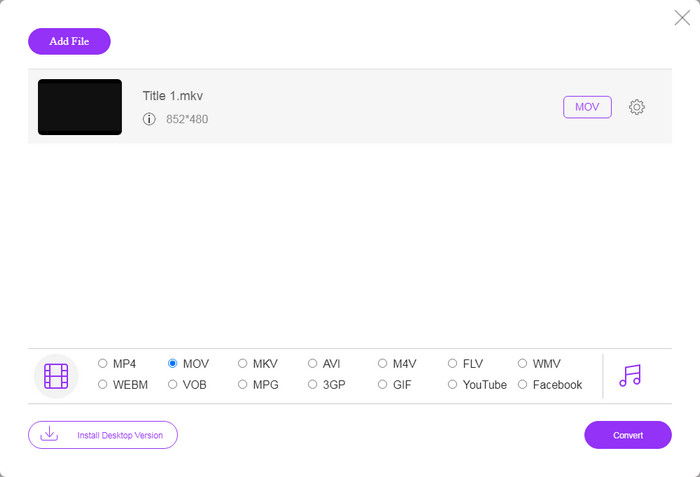
Trin 4. Denne MKV‑til‑MOV‑konverter giver dig mulighed for at justere forskellige video‑ og lydindstillinger. Du kan klikke på ikonet Settings for at tilpasse disse indstillinger.

Trin 5. Klik på knappen Convert for at begynde at konvertere video fra MKV til MOV på din computer. I dette trin kan du vælge en passende destinationsmappe til den konverterede MOV‑video. Efter konverteringen bliver du automatisk ført til mappen.
Del 2. Bedste måde at konvertere MKV til MOV uden kvalitetstab
Det skal du vide; de fleste gratis online konvertere er hovedsageligt designet til konvertering af små filer. Du skal hellere vælge en professionel videokonverter, hvis du får en bedre konverteringsoplevelse og højere outputkvalitet.
Her anbefaler vi på det kraftigste den avancerede video‑ og lydkonverteringssoftware Video Converter Ultimate, så du kan konvertere MKV til MOV på Mac og pc uden kvalitetstab. Den kan konvertere videoer, mens den bevarer den originale billed‑ og lydkvalitet.
Video Converter Ultimate er den professionelle video- og lydkonverteringssoftware, der kan konvertere MKV til MOV uden kvalitetstab.
- 1. Konverter 4K, 1080p HD og SD-video til over 300 formater som MOV, MP4, AVI, FLV, MP3 osv.
- 2. Kraftige redigeringsfunktioner som trim, beskæring, rotering, vandmærke, 3D, forbedring, effekter og mere.
Gratis download til Windows 7 eller nyere Sikker download
Trin 1. Dobbeltklik på downloadknappen ovenfor for gratis at installere og køre denne MKV‑til‑MOV‑konverter på din computer. Du skal vælge den rigtige version baseret på dit system.
Trin 2. Vælg funktionen Converter for at foretage din MKV‑videokonvertering. Klik på Add Files for at tilføje din(e) MKV‑video(er). Der er en batchkonverteringsfunktion i denne konverter, så du kan konvertere en eller flere MKV‑filer ad gangen.

Trin 3. Vælg MOV som outputformat fra rullemenuen Convert All to. Klik derefter på knappen Convert All for at starte MKV‑til‑MOV‑konverteringen.

Med anvendelsen af den nyeste accelerationsteknologi kan denne MKV‑til‑MOV‑konverter give dig en superhurtig konverteringshastighed. Den gør det også nemt for dig at komprimere MOV‑filer.
MKV vs. MOV
Matroska multimediebeholderformatet, udgivet i 2002, er et open source-format, der kan omfatte en række video-, lyd-, billed- og undertekstspor. Så du kan nemt bruge den til at gemme korte videoklip, tv-shows og film. Det er ret populært til anime-fan-subbing.
MOV-formatet kan bruges til at gemme en film, tv-show, kort videoklip eller hjemmefilm. Det er faktisk gemt i QuickTime File Format (QTFF), som blev introduceret af Apple i 1991. MOV-filer bruges ofte, når folk vil gemme en video med høj kvalitet.
Del 3. Ofte stillede spørgsmål om konvertering af MKV til MOV
Spørgsmål 1. Kan iMovie læse MKV?
Nej. Som standardvideoredigeringssoftware til Apple-enheder kan iMovie nemt redigere MOV- eller MP4-videoer. Men det understøtter ikke container- eller videokomprimeringsformater som FLV, VOB, WebM og WMV.
Spørgsmål 2. Er MKV bedre end MP4?
Du kan ikke bare sige, at MKV er bedre end MP4, eller at MP4 er bedre. Både MKV og MP4 kan levere video i høj kvalitet med H.264. Men som det mest populære videoformat kan MP4 understøttes af flere enheder, systemer, afspillere og redigeringsprogrammer. Se denne side for at sammenligne forskellene mellem MKV og MP4.
Spørgsmål 3. Kan VLC konvertere MKV til MOV?
Ja. VLC kan fungere som en god videokonverter til at foretage videokonverteringen fra MKV til MOV. Du kan åbne VLC, klikke på Media, vælge Convert/Save, tilføje din MKV‑fil og vælge MOV som outputformat og derefter klikke på knappen Start for at foretage videokonverteringen fra MKV til MOV i VLC. Du kan endda bruge den til at flette MOV‑filer.
Konklusion
Har du behov for at konvertere MKV til MOV? Efter at have læst denne side kan du få 2 effektive metoder til at ændre dine MKV‑filer til MOV. Hvis du har andre anbefalinger til MKV‑konvertere, så del dem venligst i kommentarfeltet med andre læsere.
-
 8 bedste MOV-afspillere til at spille QuickTime MOV-filer med original kvalitet
 Lær bare mere om de 8 bedste MOV-afspillere, der er tilgængelige for både Windows og Mac. Du kan vælge den ønskede og passende til at afspille MOV-filer med den originale kvalitet.
-
 QuickTime-skærmoptagelse - Optag video med lyd på Mac og pc
 Optagelsesskærm med lyd på Mac er praktisk. Den indbyggede afspiller, QuickTime Player kan gøre det. Læs hans indlæg og vide, hvordan man fanger skærmen med lyd på Mac og pc.
-
 De 4 bedste metoder til nemt at konvertere MOV til MP3 på Windows og Mac
 Når du vil udtrække MP3-lydfiler fra MOV-filer, kan du lære mere om de 4 mest effektive MOV til MP3-konvertere for at få de ønskede filer fra artiklen.

