


 Video Converter Ultimate
 Skærmoptager
 Video reparation
 Sikker download
Enestående måder at konvertere MOV-fil til M4V på dine enheder
Hvis du vil lære, hvordan du konverterer MOV til M4V-filformat, er du kommet til den rette artikel. Vi introducerer dig for fremragende og nyttige konvertere til konvertering af forskellige filer, især MOV til M4V. Du vil også lære forskellene mellem disse filer at kende. Hvis du vil vide mere, så brug din tid på at læse denne artikel.

Del 1: Forskellen mellem MOV og M4V
| MOV | M4V | |
| Filnavn | Apple QuickTime film | iTunes videofil |
| Filudvidelse | .mov | .m4v |
| Beskrivelse | MPEG-4-videobeholderen kendt som multimedieformatet.mov er ofte forbundet med Apples QuickTime-ramme. Med den første udgivelse af QuickTime i 1991, er filmfilformatet oftest krediteret med introduktionen af fuld-længde in-color film til Macintosh. Dette var før den personlige computer og Microsoft Windows-operativsystemet havde noget sammenligneligt. Flere datasekvenser eller spor opdelt i lyd, video, effekter og tekstlignende undertekster understøttes af dette filmformat. En ressourcefil ender på .mov. | M4V filtypenavnet minder meget om MP4 filtypenavnet og blev skabt af Apple specifikt til indholdet set i iTunes Store. Apple-produkter er de eneste, der understøtter M4V. MP4- og MOV-videocodecs kan konverteres til M4V, så de kan afspilles på Apple-enheder. Den primære skelnen mellem M4V og MP4 er, at M4V leverer DRM-Copyright Protection, som forbyder ophavsretten til audiovisuelt indhold. Computeren skal have tilladelse til at afspille en DRM-beskyttet M4V-fil, og det gør den ved at logge ind på den iTunes-konto, der blev brugt til at købe videofilen. For at gøre filerne kompatible med ikke-Apple-enheder behøver brugeren kun at omdøbe M4V-filtypen til MP4, hvis filerne ikke er DRM-beskyttede. |
| Udviklet af | Apple Inc. | Apple Inc. |
| Filkategori | Video | Video |
| Tilknyttede programmer | Power DVD Apple QuickTime Player Roxio Creator VLC Media Player | Zoom afspiller Klassisk medieafspiller KMPlayer VLC Media Player |
| MIME-type | video/quicktime | video/x-m4v |
Del 2: Bedste måde at konvertere MOV til M4V ved hjælp af Mac
Hvordan konverterer man MOV til M4V på Mac? Det bedste svar er Video Converter Ultimate. Dette program er en af de mest fremragende konvertere, du kan bruge. Du kan tilføje næsten alle videoformater her, fordi det understøtter over 100 videoformater, inklusive MP4, FLV, AVI, M4V, MOV, VOB, MTS, SWF og flere. Det har også en letforståelig procedure til at konvertere din MOV-fil, hvilket er velegnet til ikke-professionelle brugere. Derudover er denne konverter tilgængelig ikke kun på Mac, men også på Windows. På den måde kan du se, at denne konverter er pålidelig. Desuden er der andre ting, du kan gøre med din MOV-fil ud over at konvertere den. Du kan bruge dette program, hvis din MOV-video har et irriterende vandmærke. Med værktøjerne til fjernelse af vandmærker kan du hurtigt fjerne vandmærker fra dine MOV-videoer. Hvis du også planlægger at tilføje nogle filtre til dine videoer for at gøre dem mere behagelige for seernes øjne, kan du stadig stole på dette program. Det betyder, at du kan gøre mange ting ved hjælp af FVC Video Converter Ultimate.
Funktioner
◆ Konverter forskellige videoformater, såsom MP4, AVI, FLV, WMV, MKV, VOB, M4V, MOV osv.
◆ Opret en collage med tilgængelige filtre og skabeloner.
◆ Lav en musikvideo.
◆ Tilbyder redigeringsværktøjer til at forbedre videoer, såsom videohastighedscontroller, enhancer, cropper, trimmer, rotator osv.
◆ Konverter adskillige billedformater som BMP, JPG, PNG osv.
◆ Tilbyder batchkonvertering.
Følg de grundlæggende trin nedenfor for at konvertere MOV til M4V gratis ved hjælp af Video Converter Ultimate Mac-versionen.
Trin 1: Klik på knappen Download nedenfor for at downloade Video Converter Ultimate. Start derefter programmet, når installationsprocessen er færdig.
Gratis download til Windows 7 eller nyere Sikker download
Gratis download til MacOS 10.7 eller nyere Sikker download
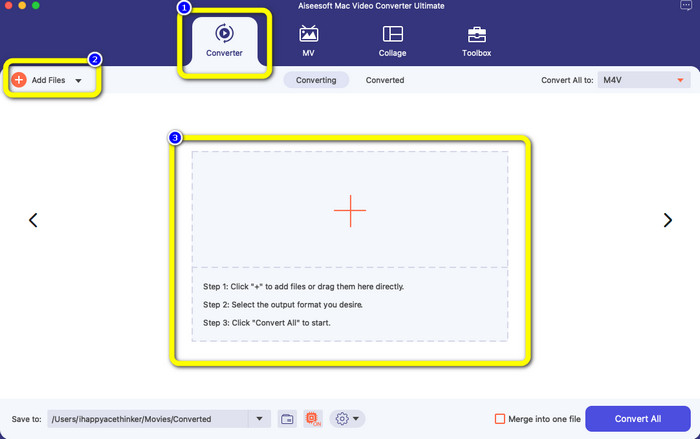
Trin 2: Vælg indstillingen Converter i den øverste grænseflade. Klik derefter på knappen Add File eller +-tegnet for at tilføje din MOV-fil. Du kan også trække din MOV‑videofil ind i boksen.
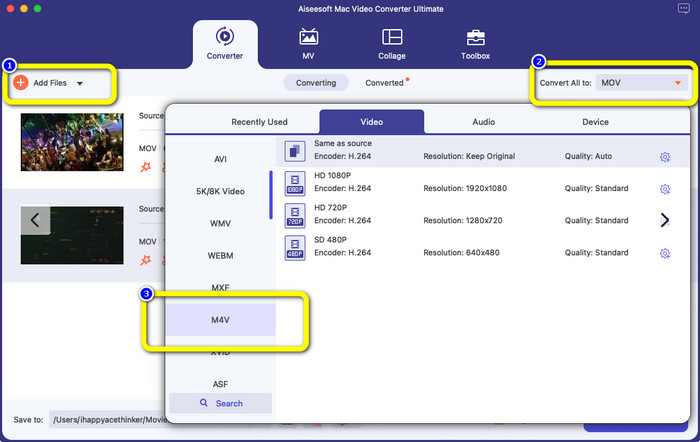
Trin 3: Du kan stadig tilføje flere filer, især hvis du vil lave batchkonvertering. Klik på knappen Add File. For at konvertere dem til M4V‑filformat skal du derefter gå til knappen Convert All to og vælge M4V‑filformatet. Du kan også vælge den ønskede opløsning.
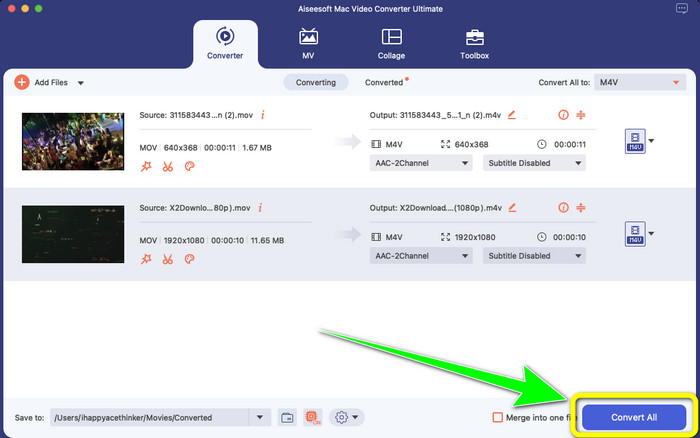
Trin 4: Klik derefter på knappen Convert All for at gemme din video. Vent på konverteringsprocessen. Og det var det! Din MOV‑video er nu konverteret til en M4V‑fil.
Del 3: 2 metoder til at konvertere MOV til M4V på Mac
Bruger QuickTime
På tidligere Mac-maskiner er det indbyggede program QuickTime. Eksportmuligheden i QuickTime er god til at konvertere MOV-videofiler til M4V-filer på en Mac, hvilket er et nyttigt værktøj, når du skal gøre det for at afspille dem på en iPhone, iPad eller Apple TV. .mov-videoer kan komprimeres og konverteres til 480p, 720p eller 1080p ved hjælp af eksportindstillingen. På nyere versioner af macOS understøttes QuickTime ikke. For at få en registreringskode til at aktivere konverteringsfunktionen skal du betale Apple. Følg trinene for at konvertere MOV til M4V ved hjælp af QuickTime.
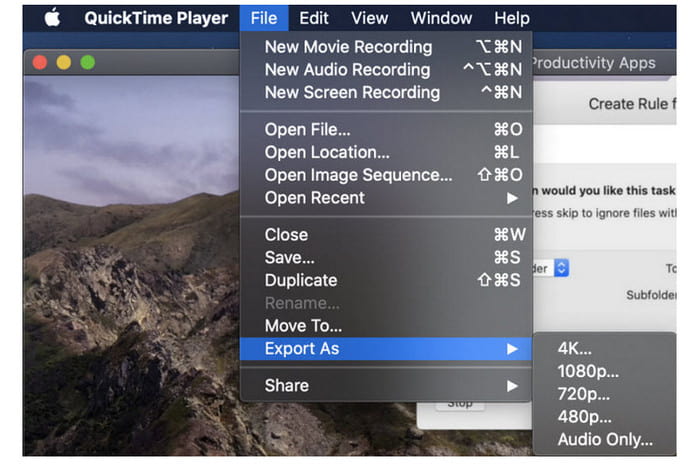
Trin 1: Åbn MOV-filen i QuickTime. Vælg derefter menuen File øverst, og vælg Export.
Trin 2: Der er adskillige muligheder under menuen Export, herunder 480p, 720p, 1080p, iPad, iPhone, iPod touch, Apple TV, iTunes og Audio Only. Vælg iPad, iPhone, iPod touch & Apple TV, når du konverterer MOV til M4V til iPhone, Apple TV eller andre Apple-enheder, og et nyt vindue giver dig mulighed for at vælge størrelsen baseret på, hvor du vil se din video.
Trin 3: Giv den konverterede videofil et navn. Videofilens filtypenavn skal være .m4v. Når alt er klar, skal du trykke på knappen Save nederst. Vælg en placering, hvor du vil gemme din fil.
Trin 4: Klik til sidst på knappen Save endnu en gang for at eksportere .m4v-filen. For at stoppe konverteringsprocessen på et hvilket som helst tidspunkt skal du klikke på X-knappen i statuslinjen. Den giver dig også mulighed for at konvertere AVI til M4V.
Brug af iTunes
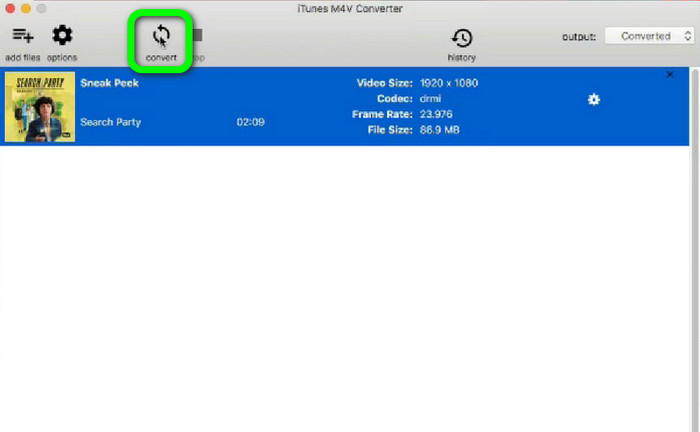
Vil du konvertere MOV til M4V ved hjælp af iTunes? Derefter kan du følge de detaljerede vejledninger nedenfor. iTunes er en anden konverter, du kan stole på. Det har dog en kompliceret proces, og mulighederne er for forvirrende.
Trin 1: Åbn iTunes. Vælg Movies i biblioteket, og tilføj MOV-filen.
Trin 2: Gå til menuen Advanced, og vælg Convert Selection for Mac.
Trin 3: Ændr derefter videoens filtypenavn til M4V.
Trin 4: Gå derefter til File > Convert. Vent på konverteringsprocessen, og gem din video i dit bibliotek.
Del 4: Fremragende måde at konvertere MOV til M4V online
For at konvertere MOV til M4V online kan du bruge FVC Free Video Converter Online. Denne konverter kan konvertere filer øjeblikkeligt. Desuden giver denne software dig mulighed for at konvertere flere filer på én gang. Derudover understøtter den forskellige video- og lydformater, såsom AVI, VOB, MP4, 3GP, AAC, AC3, MP3, FLAC og flere. Du kan bruge de enkle trin nedenfor til nemt at konvertere MOV til M4V.
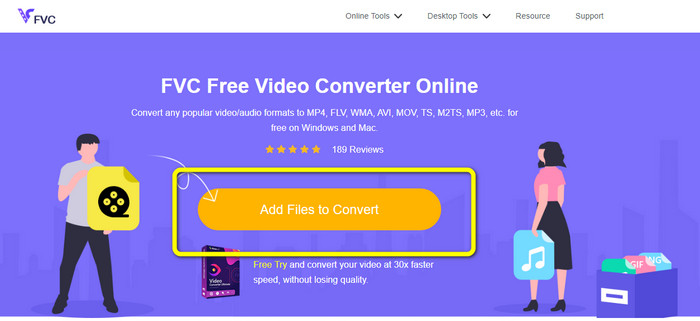
Trin 1: Gå til websitet FVC Free Video Converter Online. Klik derefter på Add Files to Convert for at tilføje din MOV-fil.
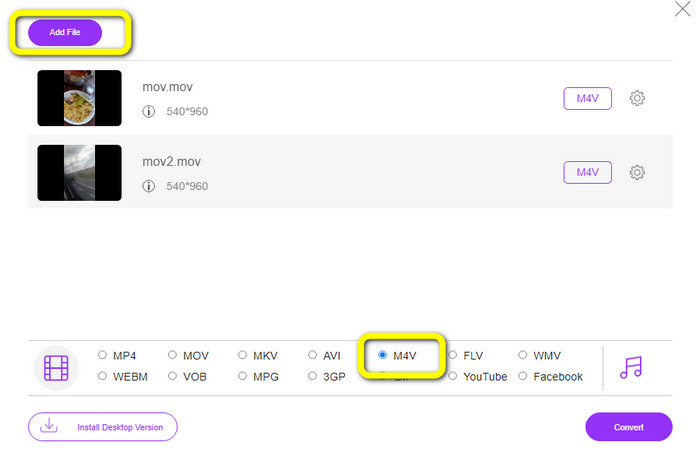
Trin 2: For at tilføje flere filer skal du klikke på knappen Add File. Gå derefter til formatindstillingerne og vælg filformatet M4V.
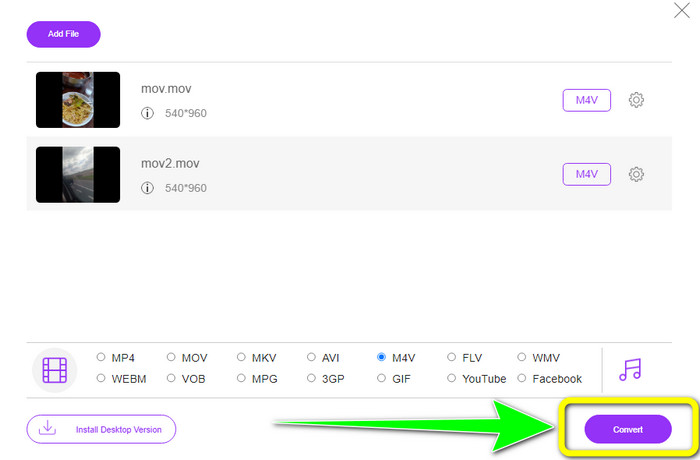
Trin 3: Klik på knappen Convert for at konvertere MOV til M4V. Gem derefter din fil på den ønskede placering. Du kan også bruge dette værktøj til at konvertere MOV til MKV.
Del 5: Ofte stillede spørgsmål om konvertering af MOV til M4V
Hvad er bedre i kvalitet, MOV eller M4V?
M4V er bedre i kvalitet. M4V-formatet er at foretrække, hvis du ser filmen på en mobilenhed såsom en iPhone, iPad eller iPod, fordi næsten alle mobile enheder kan afspille dette format. M4V-filer burde ikke have nogen kompatibilitetsproblemer sammenlignet med MOV-filer.
Hvad er fordelen ved en MOV-fil?
MOV er et praktisk filformat, fordi det kan gemme flere mediekomponenter på et lille rum, inklusive lyd og video. Den beholder information, så du hurtigt kan ændre filen, hvis det er nødvendigt uden at skulle besvære med omskrivning.
Hvorfor er MOV så stor?
Videoer, du tager med din iPhone, iPad eller Mac, gemmes i .mov-format. MOV-filer er lavet for at bevare de detaljer, som kameraet optager; de er større og mere velegnede til redigering.
Konklusion
Baseret på oplysningerne ovenfor er dette de bedste måder at ændre MOV til M4V-filformat på. Nogle af dem er forvirrende at bruge og kræver, at man aktiverer en kode. Hvis du vil have en enkel måde at konvertere dine filer på, så brug FVC Free Video Converter Online.
-
 Nemme måder at konvertere MTS til M4V ubesværet
 Har du ønsket at konvertere din MTS-fil til M4V uden at støde på problemer? Gå til denne artikel. Vi har givet detaljerede procedurer, du kan følge.
-
 Lær om, hvordan du konverterer VOB til M4V [Offline og gratis]
 Er det muligt at konvertere VOB til M4V? Kend svaret ved at læse denne guidepost, da du vil lære de bedste metoder, du kan prøve at konvertere VOB til M4V med det samme.
-
 Lær hvordan du konverterer WMV til M4V på Windows og Mac
 Vi ved, at du vil konvertere WMV til M4V blot med den bedste konverter. I så fald vil vi vise dig de bedste metoder, du kan prøve at konvertere dine filer.
