


 Video Converter Ultimate
 Skærmoptager
 Video reparation
Retningslinjer du skal følge ved konvertering af MXF til MOV med høj kvalitet
Material Exchange Format er, hvad MXF står for. Et åbent filformat, der muliggør udveksling af audiovisuel materiale og tilhørende data og metadata, kaldes OMF. Den første udformning af MXF blev udviklet af en gruppe førende broadcast- og digitalproduktionsselskaber. MXF’s mål er at standardisere filformater, gøre det lettere at opnå kompatibilitet på tværs af forskellige hardware- og softwareleverandører og i sidste ende fjerne behovet for bånd. Hvis du leder efter en passende konverter til at konvertere MXF til MOV, finder du her nogle valgmuligheder, så du kan vælge det, der passer dig bedst.
Del 1. En oversigt: MXF & MOV
MXF er et fremragende valg til både optagelse og levering. Brug af interframe-komprimering er ikke optimalt til filmproduktion. Det tager længere tid at dekomprimere interframe-komprimering, da mange metoder kræver subpixel‑information for præcision billede for billede i AE. Når man bruger interframe‑komprimering, skal nogle billeder genskabes under dekomprimeringen, og det er her, After Effects løber ind i problemer.
Men filendelsen MOV repræsenterer Apples QuickTime‑videoformat. Denne multimediebeholder kan også gemme mange spor med forskellige data (lyd, video, undertekster). Funktioner som adskillelse af mediedata fra medieforskydninger, abstrakte datahenvisninger og sporredigeringslister gør den ideel til videoredigering. MOV‑videobeholderen bruges også i vid udstrækning til online videodistribution.
Del 2. Fremragende metoder til brug ved konvertering af MXF til MOV
Ved hjælp af den nyeste og effektive software kaldet Video Converter Ultimate kan du nu konvertere MXF til MOV offline i et bredt udvalg af formater, der kan gendannes. Med denne software kan du nu konvertere MXF til MOV hurtigere end med andre konvertere. Videokvaliteten kan også ændres, før du konverterer. Du kan også forbedre din videofil ved at gøre brug af konverterens forskellige funktioner. Ved at bruge denne app behøver du ikke bekymre dig om at konvertere videoformater, der ikke er kompatible med det format, du foretrækker. Nu hvor du kender den bedste konverter, er dette, hvad du skal gøre:
Trin 1. Klik på knappen Free Download nedenfor for at begynde at downloade! Når overførslen er fuldført, kan du vælge at hente softwaren til enten Windows eller Mac. Du skal først installere softwaren på din computers skrivebord og derefter klikke på Start Now for at begynde at bruge den.
Gratis download til Windows 7 eller nyere Sikker download
Gratis download til MacOS 10.7 eller nyere Sikker download
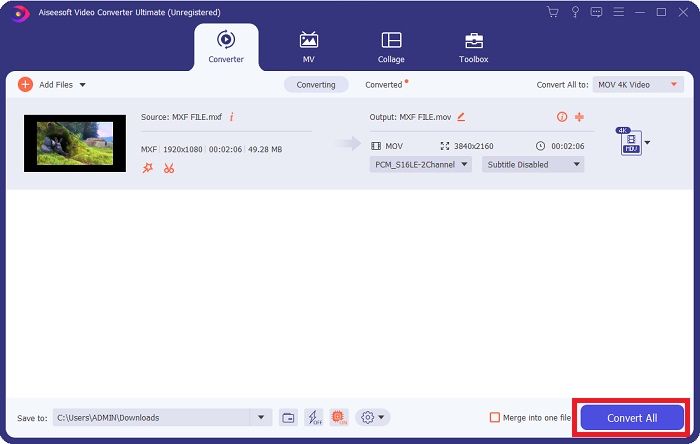
Trin 2. Start det downloadede program ved at klikke på knappen. Converter-grænsefladen vises, så snart du åbner softwaren for første gang. Det er her, du begynder processen med at transkode din video.
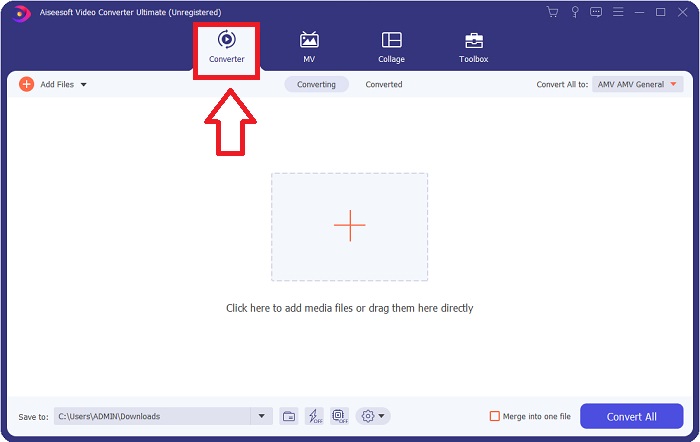
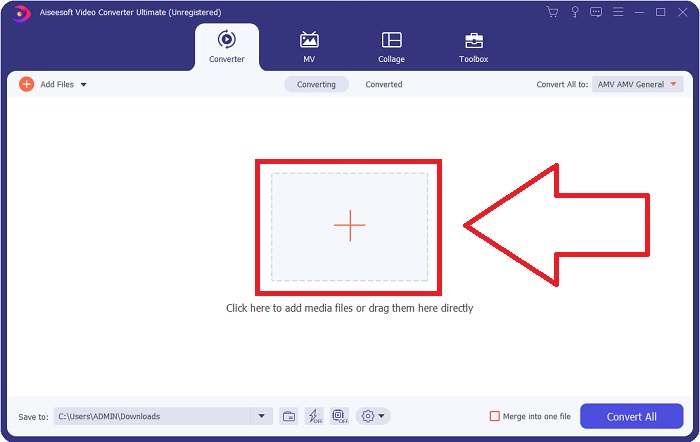
Trin 3. Start konverteringsprocessen ved at importere dine filer til konverteren. Den videofil, du vil konvertere, kan trækkes og slippes hen på +-ikonet.
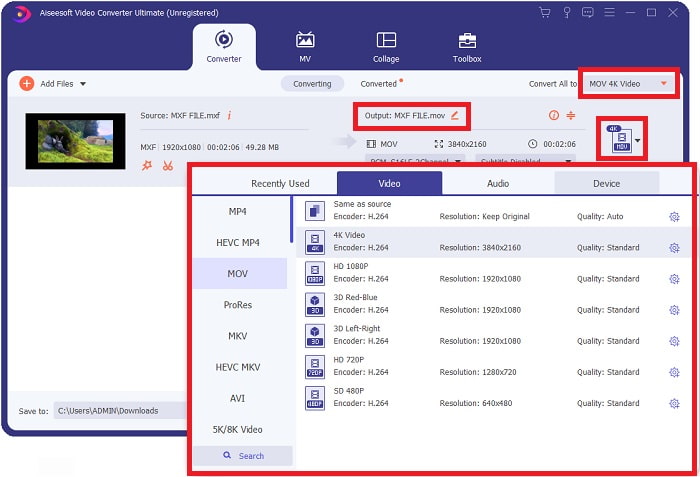
Trin 4. Vælg derefter MOV-formatet i rullemenuen Convert All to. Når du har valgt en MOV‑fil, får du adgang til en række forskellige indstillinger for videokvalitet. Men hvis dit ønskede videooutput ikke er på listen, kan du ændre kvalitetsindstillingerne, så de passer til dine behov. Ved at vælge tandhjulsikonet kan du justere skærmopløsning, billedhastighed og endda lydkvalitet. Klik på knappen Create New for at gemme dine ændringer.
Trin 5. At konvertere din video er lige så enkelt som at klikke på Convert All, når du er færdig med at redigere kvalitet, opløsning, billedhastighed osv.
Del 3. Et andet tip til at konvertere MXF til MOV [Online]
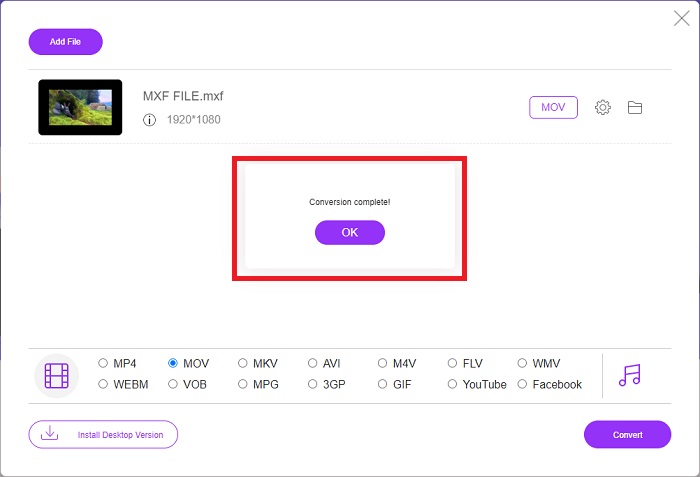
At bruge Free Video Converter Online er den bedste måde at konvertere et bredt udvalg af videoformater på i løbet af kort tid. Denne konverter, i modsætning til andre online konvertere, har ingen begrænsninger på, hvilke formater den kan acceptere. Derfor er den et godt valg for visse nybegyndere. Her er de trin, du skal følge for at lære mere om dette onlineværktøj.
Trin 1. Gå ind på FVC‑konverterens startside ved at klikke på dette link.
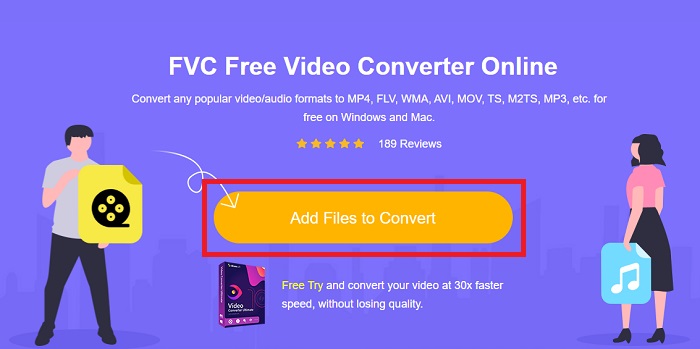
Trin 2. For at hente programstarteren til din computer skal du klikke på knappen Add Files to Convert, hvis det er første gang, du bruger værktøjet. Så snart den er hentet igen, vil den køre automatisk. Åbn filen fra din downloadmappe ved at vælge den og klikke på Open.
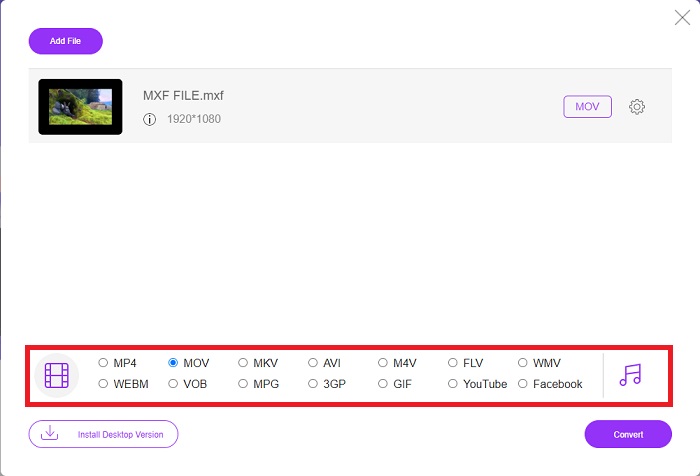
Trin 3. Når du har valgt det MOV-format, du vil bruge, skal du klikke på det for at starte konverteringsprocessen.
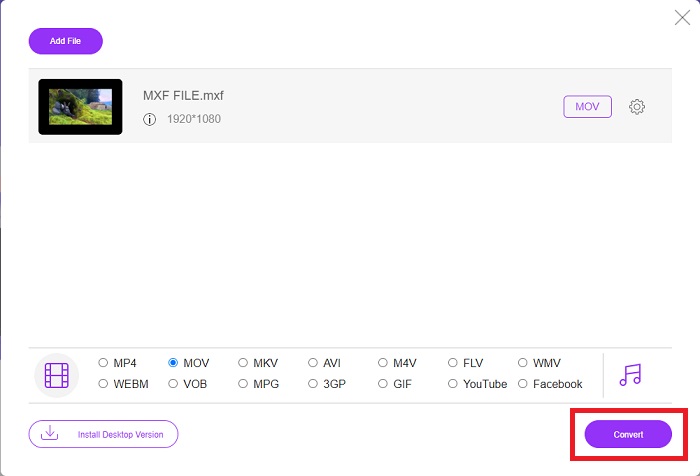
Trin 4. Du kan begynde konverteringsprocessen ved at klikke på knappen Convert, når du har valgt MOV-formatet.
Trin 5. Du kan begynde at se den konverterede fil ved at klikke på den efter et par minutter, når den vises i en mappe på din computers skrivebord.
Del 4. Ofte stillede spørgsmål om MXF til MOV-konvertering
Er MXF det samme som MOV?
Også i den digitale verden er dette et problem. Materialeudvekslingsformat og QuickTime-videoformat falder begge ind under paraplybegrebet 'containerformater'. Når et videoprogram understøtter et givet containerformat, kan det bruge standardværktøjer til at manipulere containerne, såsom at åbne filen, søge efter et bestemt tidspunkt og afspille eller spole frem eller tilbage ved at bruge almindeligt tilgængelige standarder og biblioteker. Et nyt filformat eller nye biblioteker til at manipulere medier er ikke nødvendige.
Er MOV rå?
Når du arbejder med RAW-video, er de mest almindeligt forekommende filtyper AVI (.avi) og MOV (.mov); fordi de er ukomprimeret video, kan deres filstørrelser være ekstremt store – op til en gigabyte eller mere afhængigt af længden og kvaliteten af videoen.
Hvad er MXF file Pro Tools?
Ved at bruge Pro Tools' Quicktime-funktioner kan SoundCode Exchange MXF udveksle MXF-filer. Pro Tools kan visualisere MXF-filer som Quicktime-film takket være en Quicktime-komponent og et træk-og-slip-værktøj. Et videospor kan oprettes på få sekunder ved hjælp af Quicktime Import-funktionen i Pro Tools, som kan afspille high-definition eller standard definition MXF-filer. Ved hjælp af et Blackmagic-skærmkort kan du nu se optagelserne som et vindue i Pro Tools eller output til en ekstern skærm. Samtidig kan MXF-lydspor importeres som WAV-filer til redigering og mixning i Pro Tools.
Konklusion
Afslutningsvis har du mange forskellige muligheder, uanset om du bruger et program eller en webservice til at konvertere din video fra ét format til et andet. Men med hensyn til de muligheder eller bekvemmeligheder, de tilbyder, supplerer de stadig hinanden. Nogle klarer blot opgaven, mens andre byder på en lang række funktioner. Denne artikel fokuserer på dette for at hjælpe dig med at beslutte, hvilken du skal bruge, afhængigt af din situation. Da du aldrig ved, hvornår du får brug for nogle af disse ekstra funktioner – tilbagespoling, forbedring, sammenfletning osv. – anbefaler vi Video Converter Ultimate mest. I stedet for konstant at skulle lede efter en konverter online kan du have denne software liggende på din computer hele tiden.
-
 4 gratis måder at konvertere videokamera MXF til MP4 til universel afspilning
 Dette indlæg er den detaljerede guide til konvertering af MXF til MP4 på computeren. Du kan få 4 gratis MXF til MP4 konvertere til at omkode videokamera MXF til MP4 i enkle trin.
-
 4 øverste MXF-konvertere til at konvertere MXF til AVI [gratis og betalt]
 Hvad er en MXF fil? Sådan konverteres MXF til AVI? Det er de få spørgsmål, vi besvarer. Så hvis du har det samme spørgsmål, så læs denne artikel.
-
 Sådan konverteres AVI til MOV med nemme trin og værktøjer
 Vil du vide, hvordan du konverterer AVI til en spilbar MOV? Du skal følge denne artikel for at vide, hvordan du gør det og tips til en vellykket konvertering.
