


 Video Converter Ultimate
 Skærmoptager
 Video reparation
WebM-fil til MOV-konverteringsproces: problemfri metoder, du bør kende
Når det kommer til produktion og streaming, er ikke alle videoformater kompatible med enhver digital platform. Når du forsøger at indtaste, producere, uploade eller downloade relevante filer, kan dette forårsage store problemer. Apple bruger for eksempel ikke de traditionelle browsere, som vi er vokset ind i dengang – det har sin egen platform kaldet Safari. Derfor er videoformater, der kun understøttes af Google Chrome, Mozilla Firefox, Opera og Microsoft Edge, ikke altid tilgængelige for Mac-brugere browsermæssigt.
En af disse er en WebM‑video, som er et format, der giver åben videokomprimering til HTML5. Hvis du er Mac‑bruger, kræver det en medieafspiller fra tredjepart for at kunne afspille den. Men hvis du vil afspille dine videoer uden besvær, er et MOV‑filformat det, du har brug for, da det er Apples eget format udviklet til Apple QuickTime Player. Det, du ønsker, er derfor at konvertere WebM til MOV på din Mac, og i denne artikel viser vi dig de bedste måder at gøre det på.
Del 1. En oversigt: WebM og MOV
Hvis du har været udsat for videoforbrug og streaming i et stykke tid nu, skal du have set en masse videoer i forskellige formater på forskellige platforme. Du har måske engang undret dig over, hvad disse filtypenavne repræsenterer, eller hvordan de er forskellige fra hinanden. Du har helt sikkert prøvet at afspille en bestemt video i din browser, men den vil ikke gøre det, og siger, at den ikke understøttes. WebM understøttes for eksempel kun af flere moderne browsere som Chrome, Firefox og edge, da det typisk er indlejret i websider ved hjælp af en HTML5
Del 2. Bedste konverter, der hjælper med at konvertere WebM til MOV
At konvertere videofiler er ikke så svært, som du måske tror. Selvom der findes talrige programmer og software, der kan hjælpe dig, er der stadig ét af dem, som klarer opgaven hurtigt og nemt. FVC Video Converter Ultimate er et gratis program, du kan downloade, som sparer dig for tiden med at lede på nettet efter den bedste onlinekonverter. Vi vil trods alt gerne give dig det bedste. Du behøver ikke bekymre dig om formatet på den video, du vil konvertere, fordi denne software understøtter adskillige formater og, for ikke at glemme, giver dig mange muligheder for at redigere din video under selve konverteringen. Her er de trin, du skal følge for at bruge dette program:
Trin 1: Før selve konverteringsprocessen skal du først downloade programmet, og det kan du gøre ved at klikke på knappen Free Download. Du kan vælge det enten til Windows eller Mac. I dette tilfælde vælger du For Mac OS. Vent, til .exe‑filen er færdig med at downloade, og åbn den, når den er færdig, for at begynde installationen.
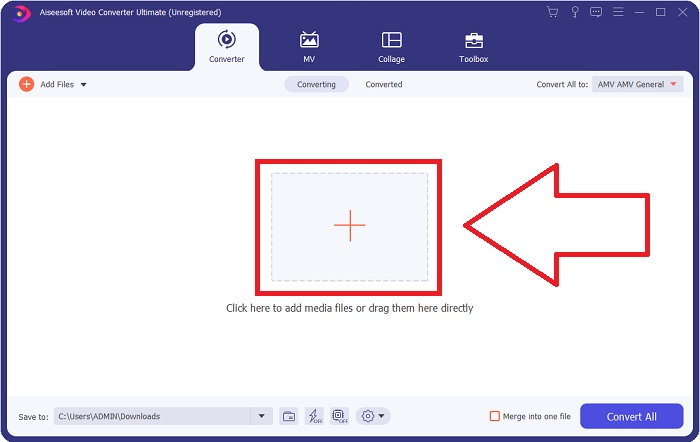
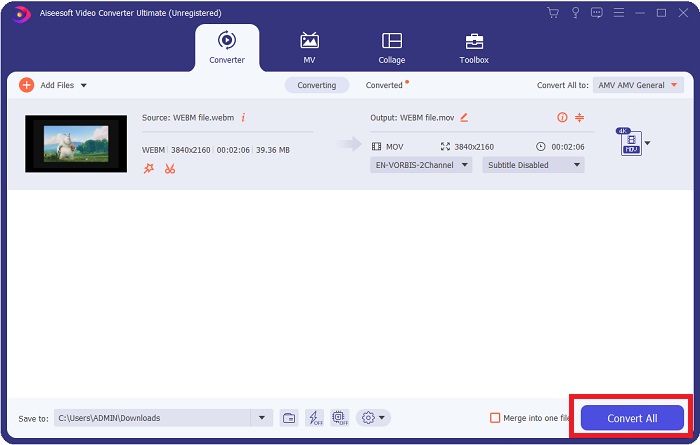
Trin 2: Når programmet er færdig med at installere, starter du det, og der vises et interface. Når programmet åbnes, vil du automatisk befinde dig på fanen Converter. Hvis ikke, skal du klikke på den.
Trin 3: Der vil være en +‑knap midt i interfacet, som du kan klikke på for at importere den videofil, du vil konvertere. Du kan også bare trække og slippe dine videoer uden besvær.
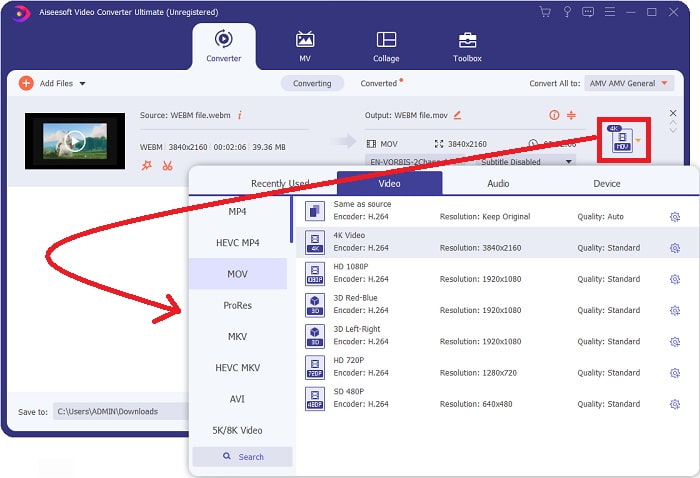
Trin 4: Et andet interface vil dukke op, når din video er importeret korrekt. Der kan du se, hvilket format din video aktuelt er i, helt ude til højre. Der er en rullemenu‑pil ved siden af; klik på den, og forskellige muligheder vil dukke op. Du kan vælge det format, du vil have din video konverteret til, men i dette tilfælde skal du vælge MOV. Der er valgmuligheder hvad angår opløsning og lydkvalitet. For flere muligheder skal du klikke på tandhjulsikonet ved siden af den kvalitet eller opløsning, du har valgt, og du kan yderligere redigere din video alt efter behov. For at gemme de ændringer, du har foretaget, skal du klikke på Create New.
Trin 5: Når du er færdig og tilfreds med ændringerne, kan du finde Convert All nederst i højre hjørne af interfacet og klikke på den for at eksportere din konverterede video.
Del 3. Bonustips: Andre onlinekonverterere, der konverterer WebM til MOV
Metode 1: Brug Free Convert
Hvis du ikke ønsker at downloade software længere og bare komme i gang med konverteringsprocessen allerede, kan vi vise dig alternativer til denne. Dette gøres udelukkende online, mens det stadig tilbyder dig de funktioner, du har brug for til dine redigeringsbehov. Hvis du vil have en problemfri metode, er dette webværktøj én vej at gå.
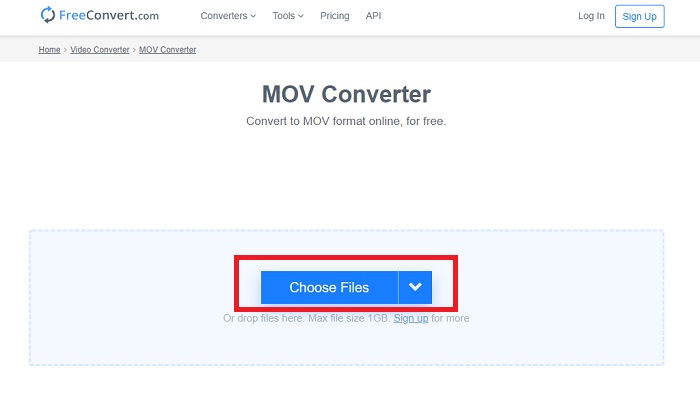
Trin 1: Gå til selve websiden, og du vil se et interface, hvor der er en Choose Files-knap midt på siden. Klik på den for at importere den videofil, du vil konvertere.
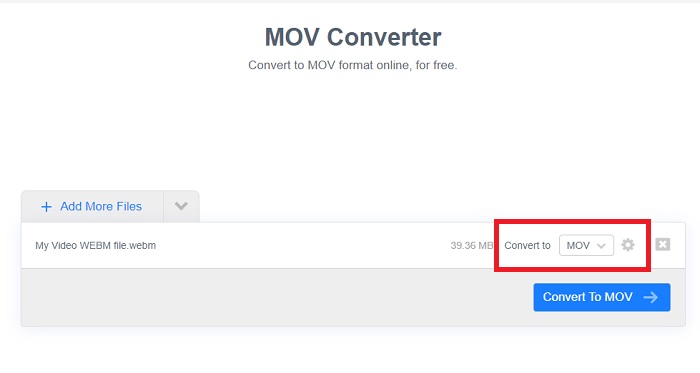
Trin 2: Ligesom i selve programmet kan du se det aktuelle format på din video til højre, og ved siden af er der en rullemenu‑pil. Klik på den, og vælg mellem de formater, du vil have din video konverteret til. For flere muligheder klikker du på tandhjulsikonet for at redigere din video yderligere. Klik på knappen Apply Settings for at gemme de ændringer, du har foretaget.
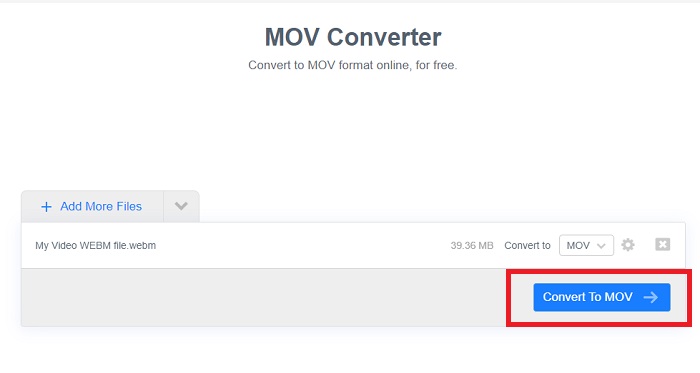
Trin 3: Når du er færdig med alle ændringerne, kan du starte konverteringen ved at klikke på knappen Convert to MOV lige nedenunder og vente på, at den bliver færdig. Derefter kan du eksportere din konverterede video ved at klikke på Download MOV.
Metode 2: Brug Cloud Convert
Dette webværktøj tilbyder et par flere muligheder for dig, mens du konverterer din WebM-fil til MOV online. Du kan ikke kun redigere opløsningen eller lydkvaliteten, men også fps, undertekster og mange flere. Følg disse nemme trin for at bruge denne online-konverter:
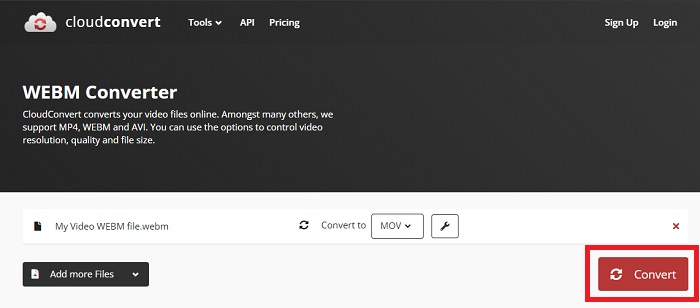
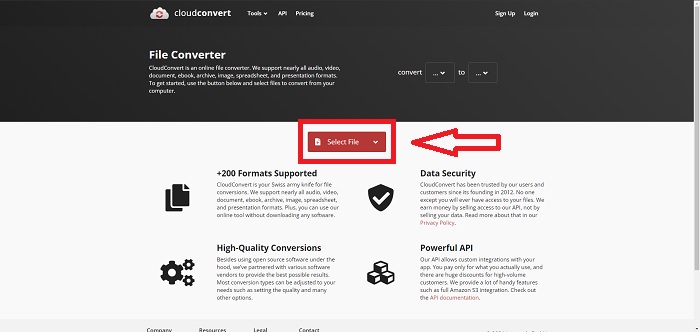
Trin 1: Først skal du importere den videofil, du vil konvertere, ved at klikke på knappen Select File midt på siden. Hvis du vil konvertere filer samtidigt, skal du klikke på Add more Files.
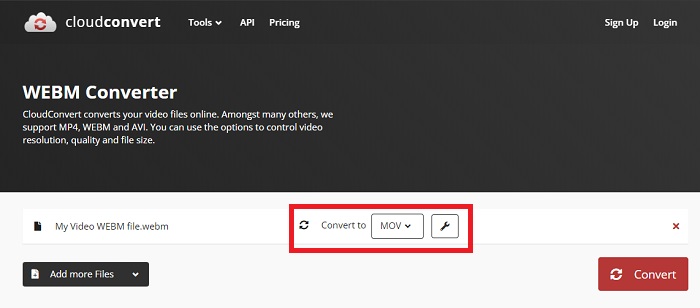
Trin 2: Ved siden af filen kan du vælge hvilket videoformat ved at klikke på rullemenu‑pilen. Klik også på skruenøgle‑ikonet for flere muligheder. Derfra kan du redigere bestemte aspekter af din video og dens lyd. Klik derefter på OK for at gemme ændringerne.
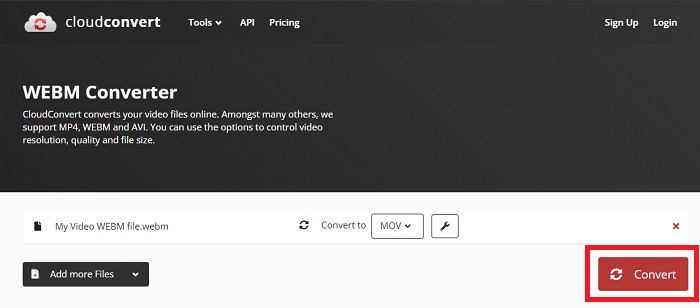
Trin 3: Når du er færdig med alle redigeringerne, skal du klikke på knappen Convert, der er markeret med rødt, og vente på, at processen afsluttes. Til sidst klikker du på Download, som er markeret med grønt, for at eksportere din fuldt konverterede video.
Metode 3: Brug ZamZar Convert
Dette webværktøj tilbyder færre muligheder for din video, da det kun konverterer video- og lydformatet. Det får dog arbejdet gjort hurtigere end de andre nævnte metoder. Følg nedenstående trin for at bruge denne online-konverter:
Trin 1: Midt på siden er der kun tre knapper, du skal klikke på, for at få din video konverteret. Først skal du klikke på Add files for at importere din videofil.
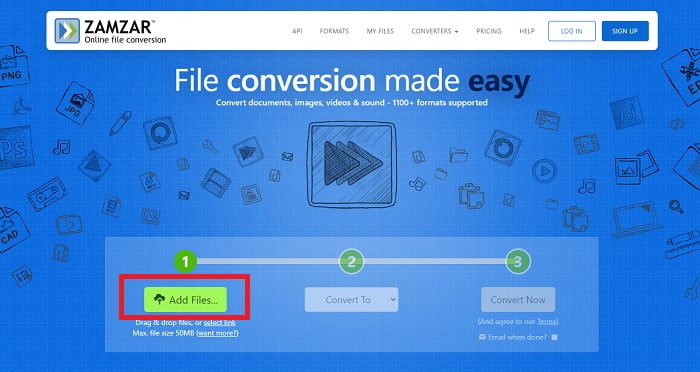
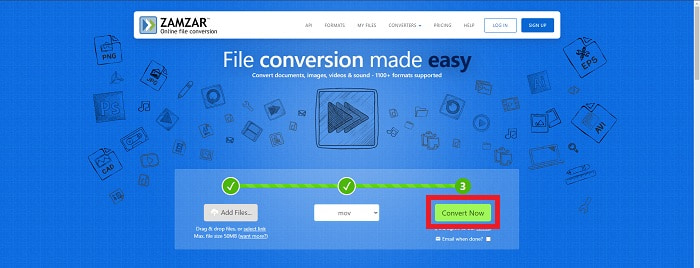
Trin 2: Med den anden knap kan du vælge, hvilket video- og lydformat du ønsker til din video. I dette tilfælde skal du vælge MOV‑format.
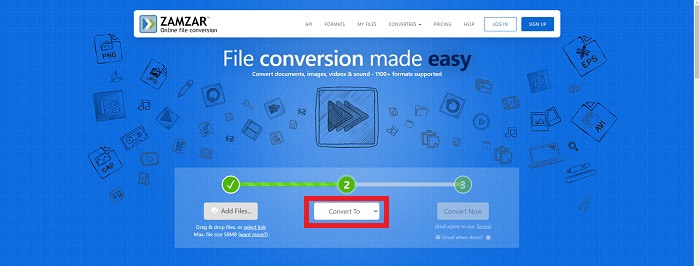
Trin 3: Til sidst skal du klikke på den tredje og sidste knap, Convert Now, for at starte selve konverteringen og vente på, at den bliver færdig. Når den er færdig, klikker du på Download for endeligt at eksportere din video til dit skrivebord.
Del 4. Ofte stillede spørgsmål om konvertering af WebM til MOV
Hvad er WebM-format egentlig?
WebM er et web-specifikt åbent mediefilformat, der inkluderer videostreams komprimeret med VP8- eller VP9-videocodecs, lydstreams komprimeret med Vorbis- eller Opus-lydcodecs og WebVTT-tekster. WebM-filstrukturen er baseret på Matroska-mediebeholderen. De fleste webbrowsere accepterer WebM-filer, da de nogle gange bruges på HTML5-websteder til at afspille onlinefilm. For eksempel bruger YouTube WebM Video-filformatet til alle videoer på deres side, lige fra 360p til andre ekstremt høje kvaliteter. Wikimedia og Skype er det samme.
Hvilke medieafspillere skal jeg bruge for at afspille WebM-videoer, hvis jeg ikke vil konvertere den til MOV?
Der findes et alternativ, hvis du ikke vil igennem hele konverteringsprocessen for at afspille din WebM‑video. Du kan bruge et tredjepartsprogram, eller det vi kalder cross‑platform‑afspilning. Nogle af disse tredjeparts medieafspillere er VLC, KM Player, Media Player Classic, Winamp, jetAudio Basic, Moovidia, Persian og XBMC, som du kan downloade fra deres respektive hjemmesider for at afspille dine WebM‑filer.
Er MOV høj eller lav kvalitet?
Videoafspilning er af ret høj kvalitet med MOV-filer. MOV er især nyttigt, da det kan indeholde blandede medier såsom billeder, videoer og 360-graders animationer. Den indeholder også alle video- og lydoplysninger. Dette gør det meget nemmere at redigere filen.
Konklusion
Der er faktisk en masse værktøjer, du kan bruge til at konvertere din video fra et format til et andet, uanset om det er ved at bruge en software eller gennem et webværktøj, som du kan finde online. De går dog stadig hånd i hånd med hensyn til de muligheder eller bekvemmelighed, de tilbyder. Nogle får bare arbejdet gjort, og nogle giver dig forskellige muligheder at vælge imellem. Denne artikel fokuserer på dette for at hjælpe dig med at vide, hvilken du skal bruge afhængigt af dine behov. Det er derfor, vi anbefaler Video Converter Ultimate mest, da det tilbyder alle de ekstra muligheder, du måske aldrig ved, hvornår du får brug for det. Det er bedre at have denne software ved din side hele tiden for at spare dig for alle besværet med at finde en konverter online, hver gang du har brug for en.
-
 Sådan ændres GIF til WebM -format uden at miste filkvaliteten
 Konverter dine Gif'er til et WebM -videoformat for at have et HTML5 -videotag. Stol på dette værktøj herunder for at vide, hvilken der er bedst til jobbet.
-
 3 måder at konvertere WebM til MP3 uden at miste lydkvalitet
 Har du et problem, fordi WebM-filerne ikke kan bruges til at afspille den lyd, du gemmer? Så læs denne artikel, da vi giver en effektiv hjælp ved at konvertere WebM til MP3.
-
 3 Fantastisk software, der bruges til at konvertere WebM-fil til AVI-format
 Har du ingen idé om, hvordan man konverterer WebM til AVI? Så lad os begynde at læse denne artikel. Som vi specificerer alle detaljerne om WebM og de tre konvertere, du kan bruge til at konvertere.
