


 Video Converter Ultimate
 Skærmoptager
 Video reparation
 Sikker download
Sådan konverteres MP3 til ringetone på iPhone ubesværet
Synes du, at standard-ringetonerne på din iPhone ikke helt er dine favoritter, og ønsker du, at en af dine MP3-filer kunne være din iPhone-ringetone i stedet? Hvad nu, hvis vi fortæller dig, at det er muligt at konvertere MP3 til ringetone på en iPhone?
I denne artikel kan du lære 3 forskellige måder at få dine MP3-musikfiler på din iPhone til at blive en ringetone. Det er lidt vanskeligt at konvertere dem, men med det rigtige værktøj og metode, lad os gøre dette så meget som enkelt og bekvemt til din ende. Hvad venter du på? Lad os dykke ned!

Del 1. Konverter MP3 til ringetone til iPhone på Mac/Windows
En af de nemmeste og hurtigste måder at konvertere MP3 til ringetone på iPhone er ved at bruge den FVC‑udvalgte Video Converter Ultimate på din Windows- eller macOS-computer. Dette alt‑i‑et konverteringsværktøj understøtter op til 300 forskellige formater, herunder M4R-formatet, hvilket gør det til et pålideligt værktøj til at forvandle MP3-musikfiler til en iPhone-ringetone. Desuden er denne konverter op til 120 gange hurtigere end andre konverteringsværktøjer, så konverteringen bliver hurtig og problemfri.
Sådan bruger du den FVC‑udvalgte Video Converter Ultimate til at konvertere din MP3 til en ringetone:
Trin 1. Download og installer først værktøjet på din computer, enten Windows eller Mac.
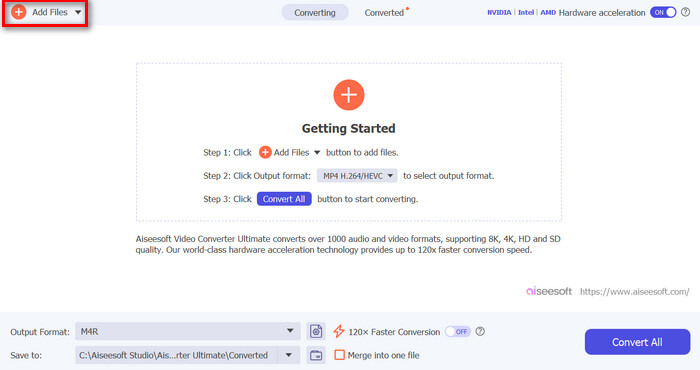
Trin 2. Start værktøjet, og når du er på hovedskærmen, skal du klikke på knappen Add Files. Dette giver dig mulighed for at importere den MP3-fil, du vil konvertere til en iPhone-ringetone.
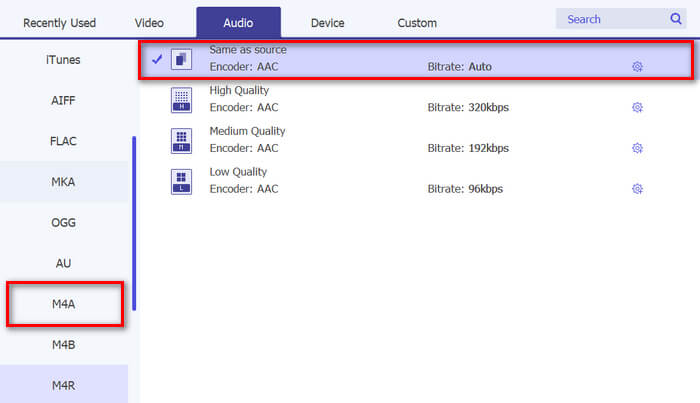
Trin 3. Gå nu til Output format, og vælg M4R blandt de forskellige lydformater på listen. M4R er filformatet til iPhone-ringetoner.
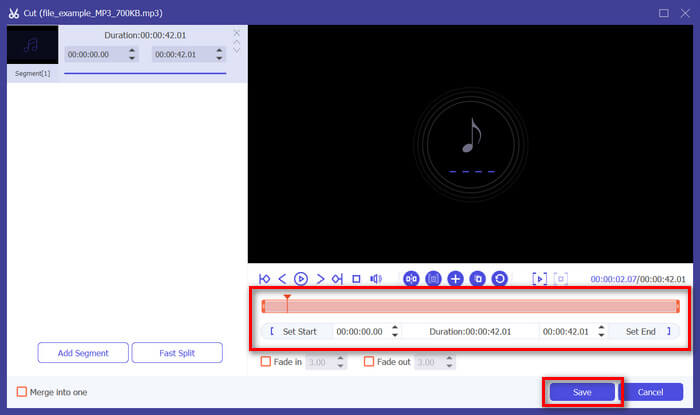
Trin 4. Sørg derefter for, at din MP3-fil kun er 30 sekunder lang. Hvis den er længere end det, skal du gå til knappen Cut og justere længden på din fil ved blot at justere bjælken på tidslinjen eller manuelt angive filens sluttid til 30 sekunder.
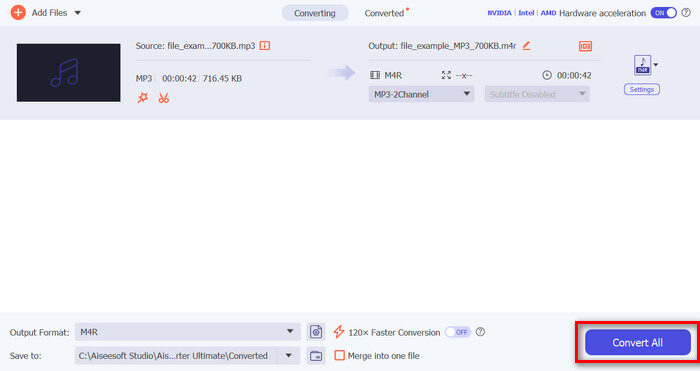
Trin 5. Klik nu på knappen Convert All for at begynde at konvertere dine MP3-filer til iPhone-ringetoner. De konverterede filer gemmes direkte i en mappe på din computer.
Det er hurtigt, ikke? Det er virkelig utroligt, hvordan dette FVC-valgte Video Converter Ultimate-værktøj gør konverteringen af MP3 til en iPhone-ringetone let og hurtig. Så hvis du leder efter et konverterværktøj, der kan spare dig tid, så prøv dette værktøj nu.
Del 2. Konverter MP3 til ringetone på iPhone
Hvis du foretrækker en direkte metode uden at bruge en computer, tilbyder GarageBand en bekvem løsning til at konvertere MP3 til ringetoner direkte på din iPhone. Dette værktøj er en kraftfuld musikskabelsesapp, der er forudinstalleret på de fleste iPhones. Dette værktøj er ikke kun brugervenligt, men giver også forskellige funktioner til at tilpasse dine lydfiler effektivt.
Sådan bruger du GarageBand til at konvertere din MP3 til en ringetone:
Trin 1. Start først GarageBand‑appen på din iPhone. Hvis du ikke har appen installeret, skal du gå til App Store og installere den.
Trin 2. Tryk på ikonet Project, og derefter på ikonet Loop nær øverste højre hjørne.
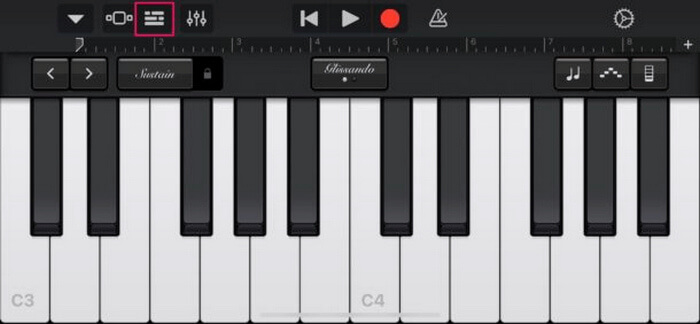
Trin 3. Tryk nu på Music or Files for at vælge MP3-filen, og hold fingeren nede på den for at importere den til GarageBand.
Trin 4. Tryk derefter på sporet, og træk i begge ender for at trimme lyden. Sørg for, at ringetonen er under 30 sekunder.
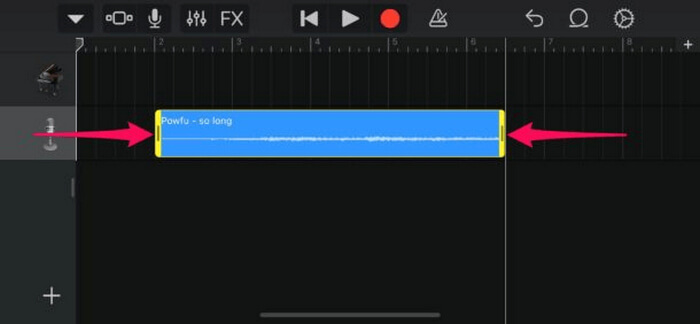
Trin 5. Du vil se en nedadvendt pil i øverste venstre hjørne. Tryk på den, og vælg derefter My Songs for at gemme klippet.
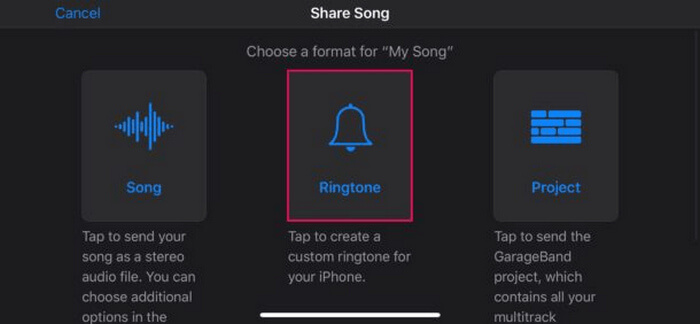
Trin 6. Find det klip, du har lavet, hold fingeren nede på det, tryk på Share, og vælg derefter indstillingen Ringtone. Glem ikke at navngive ringetonen og trykke på Export.
Trin 7. For at bruge den konverterede MP3-fil som ringetone på din iPhone skal du trykke på Use Sound As for at indstille ringetonen som standardteksttone eller for en bestemt kontakt. Alternativt kan du gå til Settings, Sounds & Haptics og Ringtone for at ændre ringetonen på din iPhone.
Hvis du foretrækker at konvertere MP3-filer direkte til ringetoner på din iPhone, er denne metode perfekt egnet til dig. Nye brugere skal dog bruge lidt tid på at lære dette, da det indeholder komplekse funktioner, der kan overvælde dem i starten.
Del 3. Konverter MP3 til iPhone ringetone [online og gratis]
Hvis du foretrækker en gratis og online metode til at konvertere MP3 til iPhone-ringetone, er FVC Free Audio Converter noget for dig. Med dette værktøj kan du nemt konvertere enhver lydfil, især MP3 til M4R, da det understøtter MP3, AAC, AC3, WMA, WAV, AIFF, FLAC, MKA, M4A, M4B og M4R-lydformater. Desuden er dette værktøj perfekt til dem, der har brug for et lydkonverteringsværktøj på farten, takket være dets meget intuitive og enkle grænseflade.
Sådan bruger du FVC Free Audio Converter til at konvertere din MP3 til en ringetone:
Trin 1. Klik på knappen Add Files for at importere de MP3-filer, du vil konvertere til ringetone.
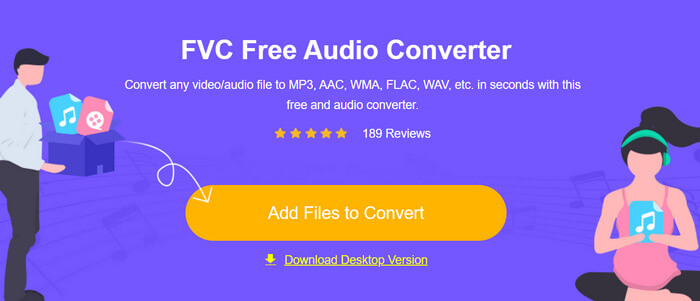
Trin 2. Vælg M4R som dit lydoutputformat.
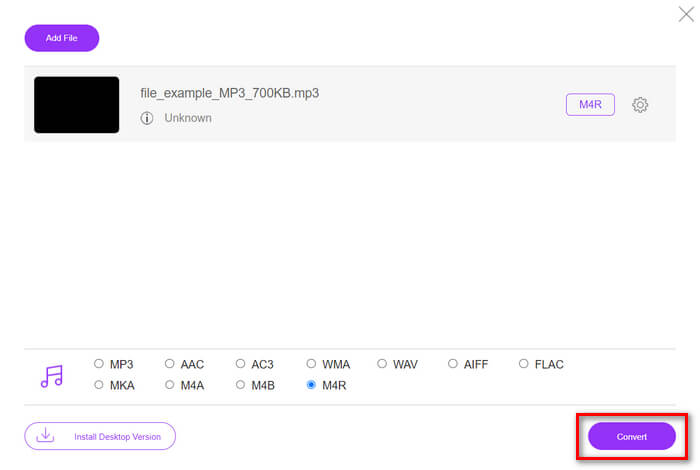
Trin 3. For til sidst at gennemføre konverteringen af din MP3-fil til ringetone skal du klikke på knappen Convert. Den konverterede fil gemmes direkte på din computer.
Hvis du leder efter en gratis og online alternativ metode til at konvertere MP3 til M4R-ringetone på en iPhone, er FVC Free Audio Converter en perfekt løsning. Dens intuitive grænseflade gør konverteringsprocessen enkel, og den understøtter en række forskellige lydformater, hvilket sikrer kompatibilitet med forskellige filtyper.
Del 4. Sådan overføres konverterede ringetoner til iPhone fra en computer
Nu hvor du endelig har konverteret dine MP3-filer til ringetoner på din computer, er den hurtigste måde at overføre dem til din iPhone ved at bruge iTunes.
Sådan overfører du konverterede ringetoner til iPhone med iTunes:
Trin 1. Åbn iTunes på din computer, og tilslut din iPhone med et USB-kabel.
Trin 2. Træk den konverterede ringetonefil ind i iTunes-biblioteket. Sørg for, at den vises under sektionen Tones.
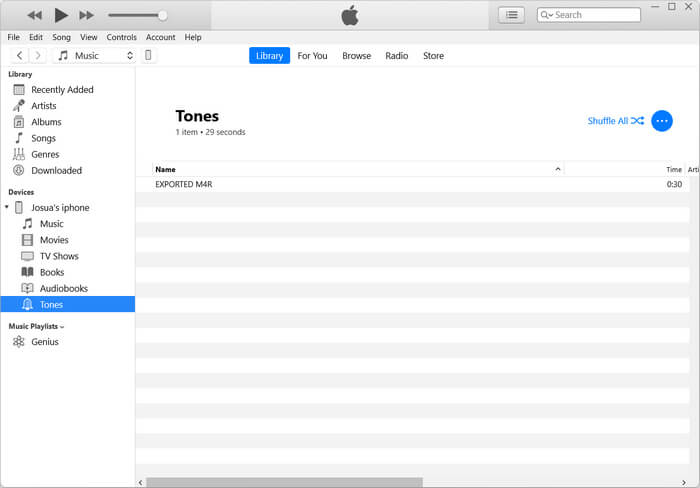
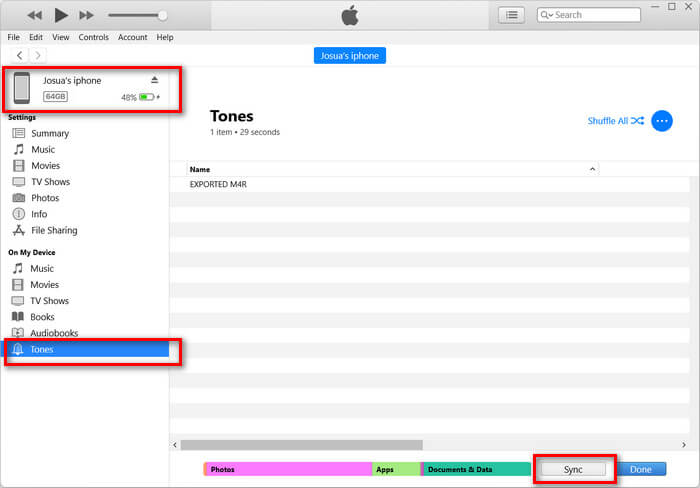
Trin 3. Vælg ikonet for din iPhone i iTunes, gå til fanen Tones, og markér Sync Tones. Vælg derefter den ringetonefil, du har importeret, og klik på Apply for at synkronisere.
Trin 4. Gå nu på din iPhone til Indstillinger, vælg Sounds & Haptics, tryk på Ringtone, og vælg din nye ringetone.
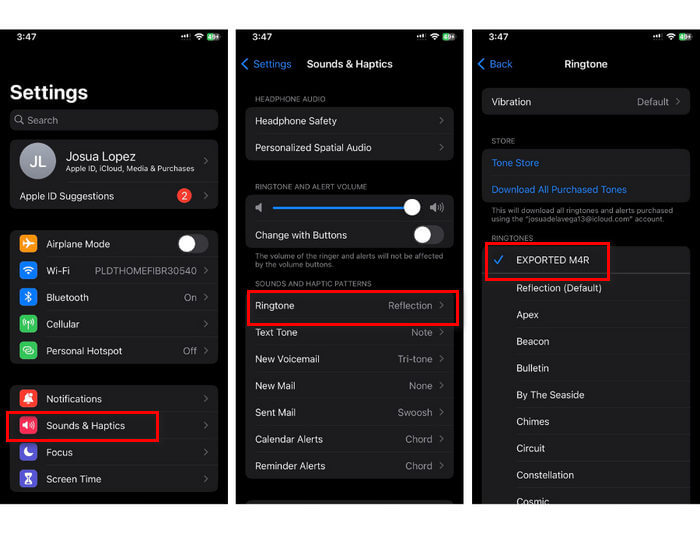
Der har du det. Du kan nu nemt overføre og bruge den konverterede MP3 til ringetone på din iPhone, hvilket giver din enhed et personligt præg med dine yndlingslyde.
Del 5. Ofte stillede spørgsmål om konvertering af MP3 til ringetone
Hvad er den bedste gratis ringetoneside?
Mange websteder tilbyder gratis ringetoner, men nogle populære og pålidelige inkluderer Zedge, Mobile9 og Tones7. Disse websteder tilbyder en bred vifte af ringetoner, som du kan downloade og bruge på din telefon.
Hvilket format er MP3 til iPhone ringetone?
iPhone-ringetoneformatet er M4R. Når du konverterer en MP3-fil til at blive brugt som ringetone på en iPhone, skal den gemmes i M4R-formatet.
Hvordan tilføjer man MP3 til iPhone-ringetone?
For at tilføje MP3 til din iPhone-ringetone skal du først konvertere MP3-filen til M4R ved hjælp af et konverterværktøj som den FVC-valgte Video Converter Ultimate. Når du har konverteret MP3-filen, skal du bruge iTunes til at overføre den til din iPhone og bruge den som din nye ringetone.
Konklusion
Du kan nu bruge dine yndlings‑MP3-filer og lave en ringetone til din iPhone. Vælg blot det konverteringsværktøj, der passer bedst til dine behov. Hvert af dem tilbyder en enkel måde at konvertere MP3 til en ringetone på iPhones. Så hvad venter du på? Begynd at skabe din unikke ringetone nu og gør din iPhone virkelig til din egen!
-
 MOV VS MP4 - Hvilken vælger du?
 MOV VS MP4, hvilken er bedre? Dette indlæg fortæller forskellen mellem MP4 og MOV, så du kan få det bedre valg at bruge til dine videofiler.
-
 FLAC vs. MP3: Hvilket lydfilformat er det højeste
 Dette indlæg vil sammenligne de vigtigste forskelle mellem FLAC vs. MP3. Det inkluderer deres lydkvalitet, filstørrelse, kompatibilitet og mere.
-
 Sådan konverteres MP3 til M4A for forbedret lydkvalitet
 Forbedre kvaliteten af dine musikfiler ved at konvertere MP3 til M4A med vores eksperttips og tricks. Vores guide tilbyder trin-for-trin instruktioner og anbefalet software.
