


 Video Converter Ultimate
 Skærmoptager
 Video reparation
 Sikker download
Top MP3 til M4A konvertere: Hurtig og nem lydkonvertering
Er du utilfreds, når du lytter til lyd i lav kvalitet, som ikke yder dine yndlingssange retfærdighed? Så er det tid til at opgradere din lydoplevelse med kraften fra MP3 til M4A-konvertering! Ved at konvertere dine lydfiler til M4A kan du frigøre dit musikbiblioteks fulde potentiale og selv høre forskellen. I denne guide gennemgår vi fordelene ved at konvertere MP3 til M4A og giver dig de bedste softwarekonvertere, så du får en gnidningsfri konverteringsproces. Gør dig klar til at forvandle din lydoplevelse og nyde din musik som aldrig før.

Del 1. Bedste måder at konvertere MP3 til M4A
Her er nogle af de bedste lydkonvertere fra MP3 til M4a. Der er en offline måde, som er en desktop-app, og et andet online-værktøj, som er et webbaseret program. Tjek dem ud for at lære mere.
1. Video Converter Ultimate
Video Converter Ultimate er et fleksibelt program, der tilbyder en række funktioner til lyd- og videokonvertering. Når det gælder konvertering fra MP3 til M4A, er Video Converter Ultimate et fremragende valg, som giver brugerne en enkel og ligetil proces til at konvertere deres lydfiler. Værktøjet understøtter et bredt udvalg af lydformater, og dets avancerede lydcodec-teknologi sikrer output i høj kvalitet. Uanset om du skal konvertere lydfiler til personlig eller professionel brug, gør Video Converter Ultimate processen hurtig, så du kan fokusere på det vigtigste – at nyde dine lydfiler i høj kvalitet.
Trin 1. Hent programmet og installer det
Vælg først en af knapperne til Gratis download, og følg derefter vejledningen på skærmen for at gemme filen på din computer. Det næste trin er at starte appen og gøre dig fortrolig med de intuitive kontroller.
Free DownloadTil Windows 7 eller nyereSikker download
Gratis downloadTil macOS 10.7 eller nyereSikker download
Trin 2. Tilføj lydfiler
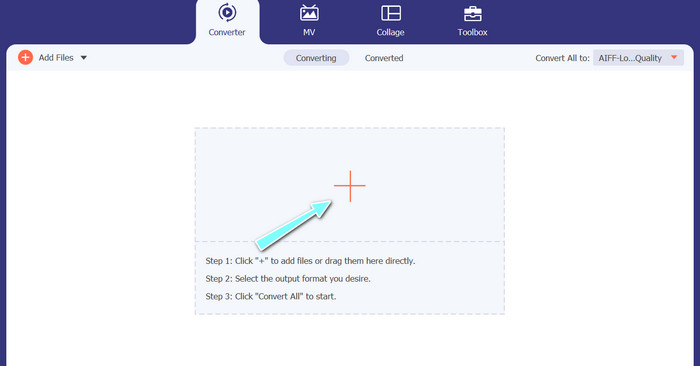
Vælg derefter plus-symbolet i hovedgrænsefladen, og gå til placeringen af den lydfil, du vil konvertere. Når en fil er uploadet, vises en forhåndsvisning af den i brugergrænsefladen. Hvis du ønsker at batchkonvertere MP3 til M4A, kan du uploade en hel mappe med filer.
Trin 3. Vælg et outputformat
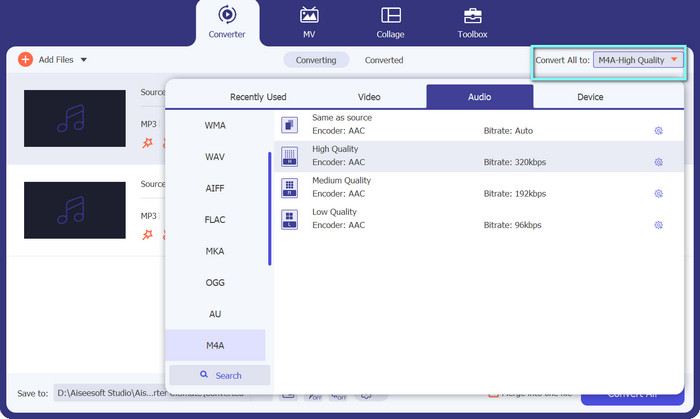
Vælg derefter outputformat ved at klikke på fanen Audio i menuen Profile (placeret øverst til højre i værktøjet). Du kan konvertere til eller fra MP3 ved at bruge enten MP3- eller M4A-formatet.
Trin 4. Gem outputtet
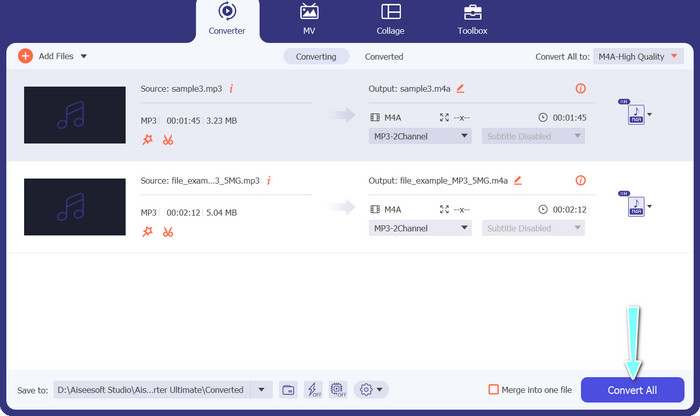
Vælg destinationsmappen nederst på skærmen. Når du er klar til at starte konverteringen, skal du klikke på knappen Convert All.
2. Gratis Video Converter Online
Har du ikke plads til endnu et program? Bare rolig, du kan vælge et onlineværktøj til at hjælpe dig med at konvertere filer uden at downloade et program. Den webbaserede app Free Video Converter Online gør det muligt at konvertere direkte fra din browser. Derudover understøtter den mange formater, både til video- og lydfiler. For ikke at nævne, at du kan foretage bulk-konvertering med dette onlineværktøj. Oven i det er muligheden for at tilpasse lydfilens output en anden stor funktion ved værktøjet. Se her, hvordan denne MP3 til M4A-onlinekonverter fungerer.
Trin 1. For at begynde at bruge Free Video Converter Online skal du først åbne din foretrukne webbrowser og gå direkte til hjemmesiden.
Trin 2. Vælg derefter den MP3-fil, du ønsker at konvertere til M4A, ved at klikke på knappen Add Files to Convert.
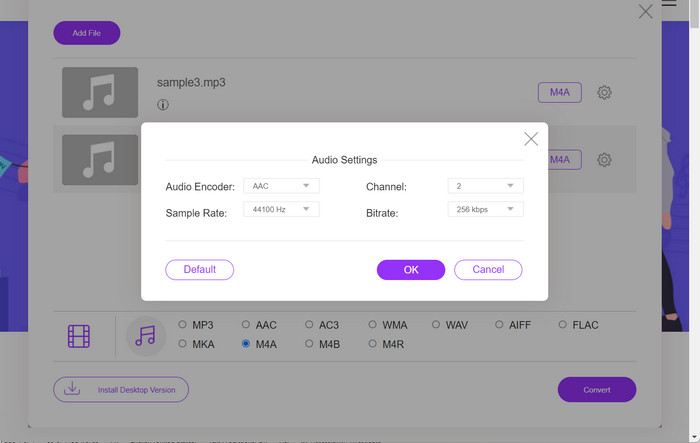
Trin 3. Vælg M4A som dit ønskede outputformat under indstillingen Audio-format. Du kan også ændre M4A-filens outputkvalitet, dvs. bitrate.
Trin 4. Klik på knappen Convert for at starte konverteringsprocessen. Det er sådan, du konverterer MP3 til M4A online.
Del 2. Konverter MP3 til M4A på Windows
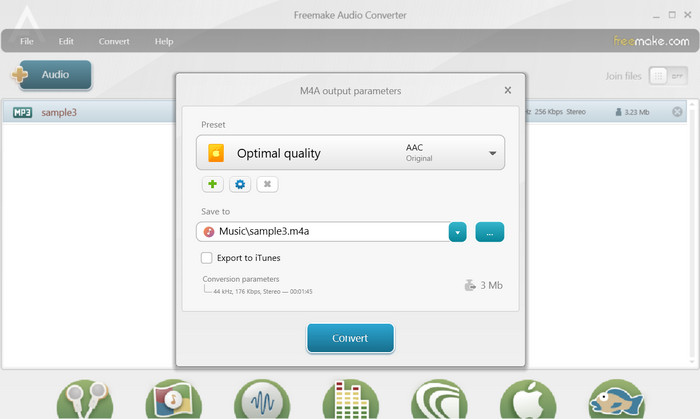
Freemake Audio Converter er et gratis og letanvendeligt program, der giver brugerne mulighed for at konvertere lydfiler til forskellige formater, inklusive M4A, MP3, WAV og mere. Med sin enkle træk-og-slip-grænseflade kan brugere nemt tilføje deres MP3-filer og konvertere dem til M4A uden komplicerede indstillinger eller konfigurationer. Værktøjet har også en række tilpasningsmuligheder, som giver brugerne mulighed for at justere parametre som bitrate og sample rate for at få den ønskede outputkvalitet. Alt i alt er det en af de bedste MP3 til M4A-konvertere, du kan bruge.
Trin 1. Download og installer Freemake Audio Converter på din Windows-computer.
Trin 2. Start programmet, og klik på knappen +Audio for at tilføje din(e) MP3-fil(er) til programmet.
Trin 3. Vælg M4A fra listen over tilgængelige formater nederst i programvinduet. Brug rullemenuen til at vælge de ønskede kvalitetsindstillinger for din outputfil.
Trin 4. Vælg den outputmappe, hvor du ønsker, at din konverterede fil skal gemmes. Til sidst skal du klikke på knappen Convert for at starte konverteringsprocessen.
Del 3. Konverter MP3 til M4A på Mac
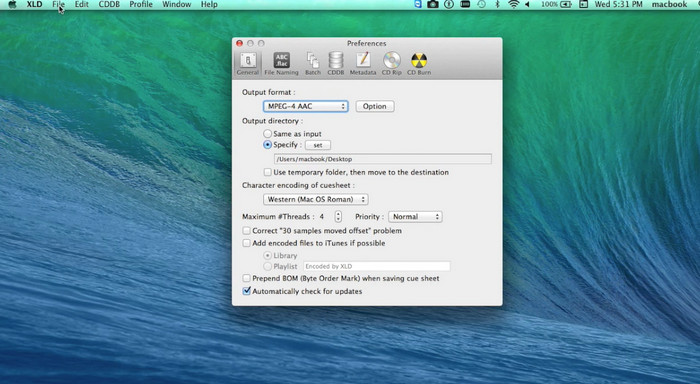
XLD er et gratis og brugervenligt program, der giver Mac-brugere mulighed for at konvertere lydfiler til forskellige formater, herunder M4A, MP3, FLAC og mere. Med sin enkle træk-og-slip-grænseflade kan brugere nemt tilføje deres MP3-filer og konvertere dem til M4A uden komplicerede indstillinger eller konfigurationer. XLD tilbyder også en række tilpasningsmuligheder, der giver brugerne mulighed for at justere parametre som bitrate og sample rate for at opnå den ønskede outputkvalitet.
Trin 1. Download og installer XLD på din Mac-computer.
Trin 2. Start programmet, og klik på knappen Open for at tilføje din(e) MP3-fil(er) til programmet.
Trin 3. Vælg M4A fra listen over tilgængelige formater i programmets indstillinger. Du kan bruge rullemenuen til at vælge de ønskede kvalitetsindstillinger for din outputfil.
Trin 4. Vælg derefter den outputmappe, hvor du ønsker, at din konverterede fil skal gemmes. Til sidst skal du trykke på knappen Convert for at starte konverteringsprocessen. Sådan konverterer du MP3 til M4A gratis på Mac.
Del 4. Konverter MP3 til M4A på Android
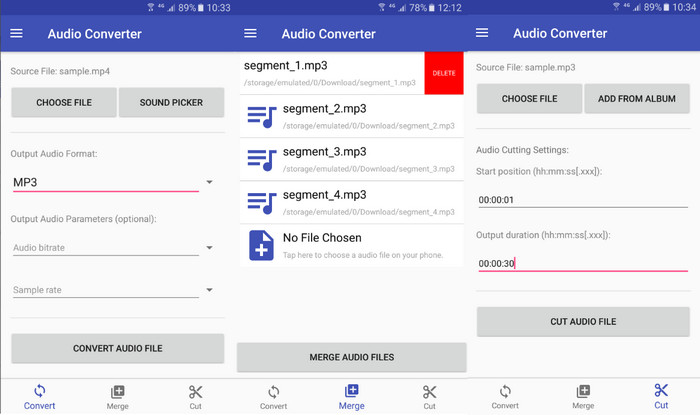
Når det kommer til at konvertere lydfiler, er den gratis og ligetil Android-software Audio Converter fra Online-Convert.com svær at slå. Brugere kan blot trække og slippe deres MP3-filer i programmets grænseflade for at begynde konverteringsprocessen til M4A. Udgangskvaliteten af en lydfil kan justeres ved at ændre indstillinger som bitrate og samplinghastighed i Audio Converter. Her er trinene til at ændre MP3 til M4A på Android:
Trin 1. Download og installer Audio Converter fra Online-Convert.com via Google Play Butik på din Android-enhed. Start appen, og tryk på knappen Convert Audio.
Trin 2. Vælg derefter MP3 som inputformat og M4A som outputformat.
Trin 3. Tryk nu på knappen Select Files for at tilføje din(e) MP3-fil(er) til appen. Til sidst trykker du på knappen Start Conversion for at starte konverteringsprocessen. Så nemt er det! Nu har du lært, hvordan du konverterer MP3 til M4A på Android.
Del 5. Konverter MP3 til M4A på iOS
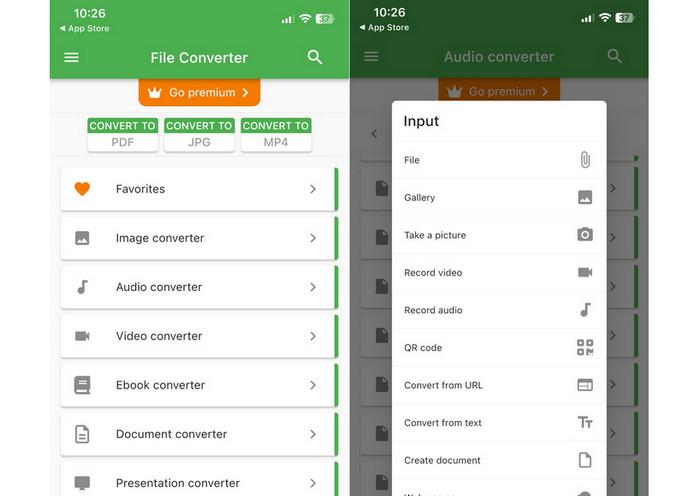
Lydfiler, såsom MP3, kan konverteres til det mere bærbare og tabsfrie M4A-format ved hjælp af File Converter Free, en gratis og ligetil iOS-software. Dens ligetil design gør det nemt for enhver at indlæse MP3-filer og konvertere dem til M4A uden at skulle rode med nogen indstillinger eller opsætninger.
Trin 1. File Converter Free kan findes i App Store og er gratis at downloade og bruge. Start programmet, og tryk på fanen Audio.
Trin 2. Vælg MP3 som inputformat og M4A for Apples AAC-format som output. Vælg den ønskede outputkvalitet via rullemenuen. For at importere en MP3 til programmet skal du vælge knappen Add File.
Trin 3. Klik på knappen Convert for at starte konverteringsprocessen.
Del 6. Ofte stillede spørgsmål om konvertering af MP3 til M4A
Kan jeg konvertere MP3 til M4A ved hjælp af Windows Media Player?
Ja, du kan konvertere MP3 til M4A ved hjælp af Windows Media Player, men det kræver et par ekstra trin, da M4A ikke er et format, som Windows Media Player understøtter direkte. Eller du kan ganske enkelt bruge et alternativ til Windows Media Player.
Vil konvertering af MP3 til M4A resultere i tab af lydkvalitet?
Konvertering af MP3 til M4A kan resultere i et lille tab af lydkvalitet på grund af forskellene i komprimeringsalgoritmer, der bruges af de to formater.
Kan jeg konvertere M4A tilbage til MP3?
Ja, mange lydkonverteringsprogrammer og -værktøjer giver dig mulighed for at konvertere M4A til MP3, hvis det er nødvendigt. Vær dog opmærksom på, at gentagen konvertering mellem formater kan medføre kvalitetstab.
Konklusion
MP3 til M4A-konvertering er en værdifuld proces for alle, der ønsker at forbedre kvaliteten og kompatibiliteten af deres lydfiler. Ved at følge de trin og tips, der er beskrevet i denne gennemgang, kan du nemt konvertere dine MP3-filer til M4A og nyde lyd i høj kvalitet på enhver enhed.
-
 Gratis og online | Sådan konverteres MP4 til M4A på Windows / Mac
 Hvordan konverterer jeg MP4 til M4A online? Kan jeg udtrække lyden fra MP4-filer? Læs dette indlæg, og du får alle svarene om konvertering fra MP4 til M4A.
-
 Bedste værktøjer, du kan bruge til at batchkonvertere MP3 til M4R-filer
 Leder du efter en konverter, der kan omdanne din MP3-fil til en M4R-ringetone til din iPhone eller iPad i batch? Læs artiklen igennem for at opdage nogle af de bedste, der findes.
-
 5 MP3-skærere til nemt at skære enhver lyd [2023 Opdateret]
 Har du brug for en MP3-skærer til at trimme lyden? I så fald skal du læse denne artikel, fordi vi leverer de værktøjer, du kan stole på, som giver nem klipning af lyden.
