


 Video Converter Ultimate
 Skærmoptager
 Video reparation
Mest praktiske måder at konvertere MP3 til M4R til Apple-enheder
Har du nogensinde overvejet at gøre din yndlingsmusik til ringetone på din iPhone? Er det overhovedet muligt? Ja, det er det bestemt. Du skal bare konvertere filen for at gøre det. Hvorfor skal vi konvertere den først? Fordi vi vil kunne sætte den op som ringetone. For at kunne angive en bestemt fil som sangringetone, skal den være i M4R-format. Det vil sige, at du skal finde den bedste MP3 til M4R iTunes-konverter, der passer til dig. Denne artikel giver forskellige metoder til, hvordan du kan konvertere din MP3-fil – og endda foretage batch-konvertering fra MP3 til M4R ved at læse indholdet herunder.

Del 1. Den mest mulige måde at konvertere MP3 til M4R
Video Converter Ultimate er langt det mest overbevisende værktøj, du kan bruge til at konvertere MP3 til M4R. Ikke kun en enkelt fil, men den kan også udføre batchkonvertering fra MP3 til MP4. Det er en konverter, der kan producere HD-videoer og tabsfri lyd. Faktisk er det ideelt og anbefales for den at konvertere filen uden at miste dens originale kvalitet. Hastigheden er 30x hurtigere end den normale konverter derude. Plus, hvis du konverterer en afspilningsliste for at gemme på din telefon, kan dette værktøj helt sikkert gøre jobbet for dig. Ubesværet og ingen sved. I mellemtiden er her nogle af de andre funktioner, som du også kan nyde ud over at konvertere lyd. Der blev også skrevet en trin-for-trin guide nedenfor til din reference, hvis du beslutter dig for at bruge den.
◆ Rediger metadata.
◆ High-Speed GPU-acceleration.
◆ Teknisk support i realtid.
◆ Komprimering af video er understøttet.
Trin 1. For at bruge den skal du hente appen ved at klikke på download-knappen nedenfor. Når appen er downloadet på din Windows- eller Mac-computer, skal du starte den.
Gratis download til Windows 7 eller nyere Sikker download
Gratis download til MacOS 10.7 eller nyere Sikker download
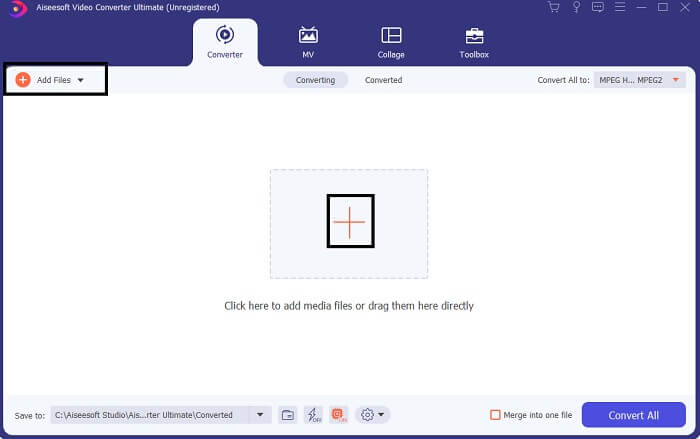
Trin 2. I hovedgrænsefladen til værktøjet vil du se to muligheder for at uploade filen. Enten klikker du på ikonet med plustegnet i midten eller på knappen Add Files øverst til venstre. Vælg den ønskede fil, og upload den.
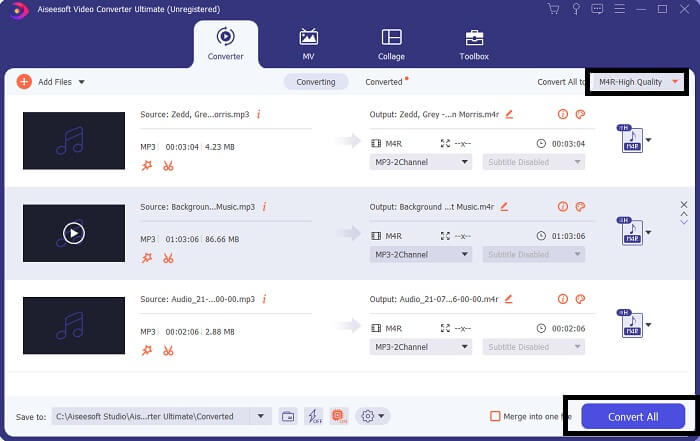
Trin 3. For at få det ønskede output skal du ændre formatet ved at klikke på rullemenuen øverst til højre i grænsefladen.
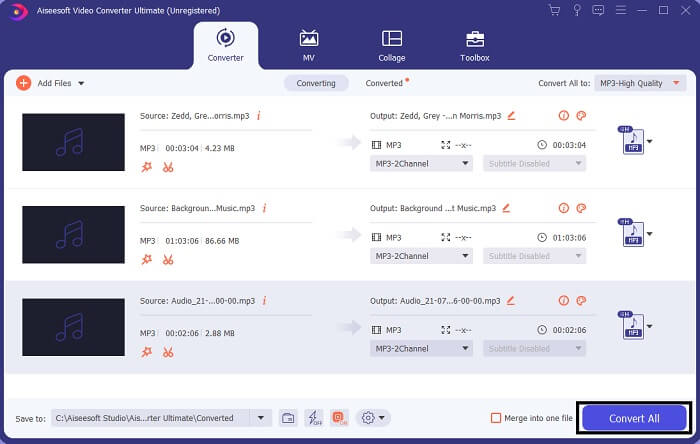
Trin 4. Klik til sidst på knappen Convert All nederst til højre i hovedgrænsefladen. Vent derefter, til filen er konverteret.
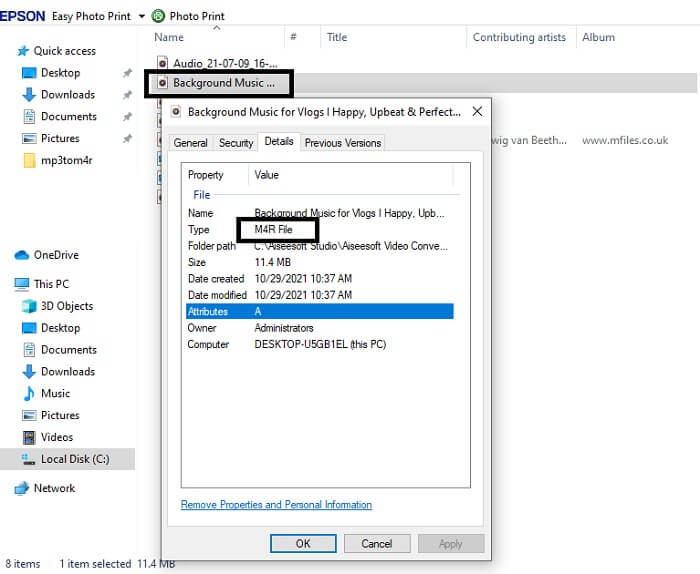
Trin 5. Åbn til sidst den mappe, hvor lydfilen er gemt, og overfør den til din iPhone. Du kan bruge et overførselsværktøj eller en app til det. Du kan finde anbefalinger på internettet. Du skal blot søge, og derefter følge processen for at gøre den til ringetone på din iPhone.
Del 2. Nogle af de bedste værktøjer til at konvertere MP3 til M4R Online
FVC gratis online lydkonverter
Et premiumværktøj til konvertering er godt, men intet slår et praktisk værktøj. Med tanke på dit behov har FVC lavet en gratis version af værktøjet. FVC Free Audio Converter er dit gratis adgangsværktøj når som helst og hvor som helst. Alt, hvad du behøver, er en fungerende internetforbindelse og en understøttet browser. Denne MP3 til M4R iPhone-ringetonekonverter kan fremstille lyd i høj, tabsfri kvalitet. Outputtet er tilfredsstillende og uden at du skal bruge penge på det. Og der er mere: Vidste du, at det også kan lave batchkonvertering? Ja, det kan du! Her er også nogle bemærkelsesværdige funktioner, du får, hvis du bruger det. Derudover er der skrevet en vejledning for at gøre det nemt for dig.
◆ Den konverterede fil har samme kvalitet som originalen.
◆ 100% gratis og sikker at bruge.
◆ Ingen grænse i størrelse ved konvertering.
◆ Batchkonvertering understøttes.
Trin 1. For at få adgang til værktøjet skal du besøge den officielle hjemmeside for FVC Free Audio Converter.
Trin 2. Klik derefter på Add Files to Convert. Som førstegangsbruger skal du give adgang ved at klikke på Open FVC Launcher. Derefter vises et vindue på skærmen, hvor du kan finde den fil, du vil konvertere.
Download skrivebordsversionen for at konvertere filer i batch.
Trin 3. Når du har uploadet filen, vil et nyt vindue dukke op. Nederst ændrer du filformatet for outputfilen ved at markere M4R.
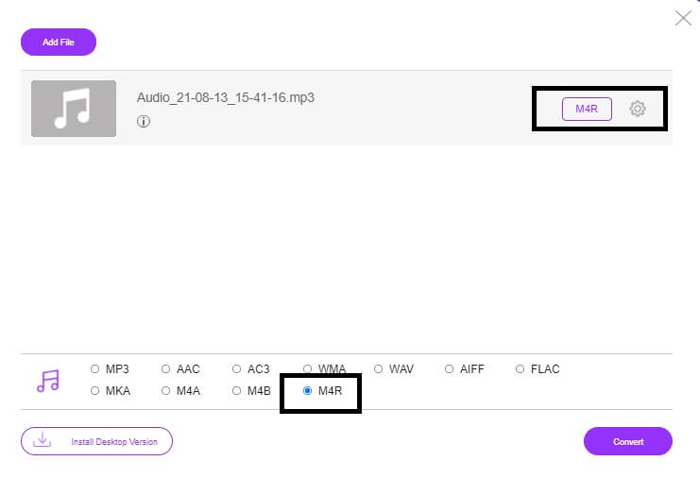
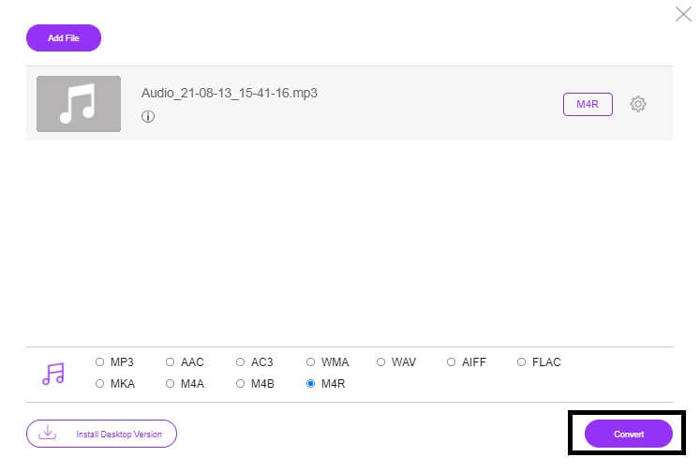
Trin 4. Klik derefter på knappen Convert for at starte konverteringen.
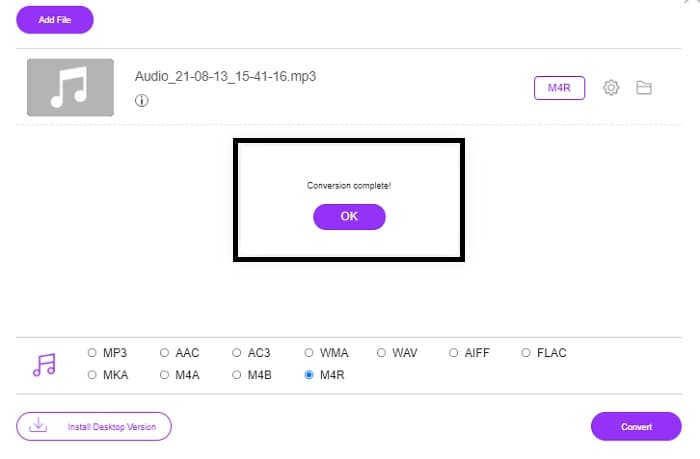
Trin 5. Vælg til sidst en mappe, hvor du kan gemme filen, og filen bliver automatisk gemt. Overfør den derefter til din iPhone. Husk, at du kan lave batchkonvertering, så begræns ikke dig selv.
Relateret:
M4ROnline af File Converter
Enkelt men pålideligt – sådan beskriver brugerne dette onlineværktøj. Som udgangspunkt er det specifikt lavet til at konvertere MP3 til M4R. Som navnet antyder, er det netop det, værktøjet er lavet til. Det fungerer i forskellige webbrowsere, så du behøver hverken at downloade eller købe det. Hvis du besøger hjemmesiden, vil du bemærke, hvor enkelt værktøjets interface er. Det er meget ligetil – du skal bare klikke på knappen Browse for at starte upload- og konverteringsprocessen. Hvis du vil prøve det, anbefales det at besøge den officielle hjemmeside og selv opleve det. Derfor er dette værktøj et godt alternativ. Du kan også se trin-for-trin-vejledningen nedenfor for at lære, hvordan du bruger værktøjet.
Trin 1. Det første du skal gøre er at gå til den officielle side M4R Online og derefter klikke på Browse.
Trin 2. Vælg filen fra din mappe, og klik på knappen Upload File.
Trin 3. Når du ser beskeden om, at processen er fuldført, skal du klikke på filen for at downloade den.
Online-convert.com
Dette er et værktøj, der har leveret tjenester i ganske lang tid nu. Det er sikkert at sige, at mange finder dette onlineværktøj meget nyttigt til deres konverteringsbehov. Ellers ville det ikke stadig eksistere den dag i dag, hvis det ikke havde bevist sin nytte. Når du besøger hjemmesidens forside, ser du alle tilgængelige værktøjer. Fra lydkonverter, videokonverter, billedkonverter, dokumentkonverter til e-bogskonverter – alt sammen på forsiden. Ved at samle dem bliver det lettere for brugeren at finde de nødvendige værktøjer, han eller hun har brug for. Det fortjener derfor at komme med på denne liste over MP3 til M4R iTunes-konvertere. Her er desuden, hvordan du kan bruge værktøjet som reference.
Trin 1. Besøg værktøjets officielle side, og vælg Audio Converter.
Trin 2. Klik på Drop down-menuen, vælg outputformatet, og klik derefter på GO.
Trin 3. Et nyt vindue vil derefter dukke op. Klik her på knappen Choose Files, og upload filen. For at starte konverteringsprocessen skal du klikke på Start Conversion. Når filen er klar, bliver den automatisk downloadet til din pc.
MP3 vs. M4R
MP3-formatet blev udgivet i 1993 af Moving Picture Experts Group (MPEG). Det var standarden for lagring af musik, da det kunne komprimere lyd til en meget mindre størrelse end andre ukomprimerede formater. Det er stadig meget brugt i dag, især til distribution af lyd online.
En M4R-fil bruges til at gemme en brugerdefineret iPhone-ringetone oprettet med Apple iTunes. Normalt kan du se dette format, når du overfører et stykke ringetone fra computeren til en iOS-enhed. M4R-filer oprettet med iTunes inkluderer normalt ophavsretsbeskyttelse.
Del 3. Ofte stillede spørgsmål om konvertering af MP3 til M4R
Hvad er M4R?
Det er en filtypenavn specifikt skabt af Apple og strengt brugt som ringetone til iPhone og andre Apple-enheder. Dette er lige så godt som M4A og MP4, når det kommer til kvalitet.
Er der en MP3 til M4R-konverter bortset fra iTunes?
Det er der bestemt. Du kan vælge mellem værktøjerne ovenfor eller overveje at bruge Windows Media Player ved at rippe. Hvis du ikke ønsker at gennemgå alle processerne, kan du blot bruge de gratis værktøjer, der er tilgængelige online. De konverterer direkte lyden til dit ønskede format i stedet for at gennemgå den lange proces med at rippe.
Hvorfor skal jeg konvertere min fil fra MP3 til M4R for at bruge den som ringetone?
Det er et must. For at blive betragtet som en fil for at være en ringetone, skal filen som standard være i M4R-format for at blive afspillet som din ringetone.
Konklusion
Med alt det kan du helt sikkert stole på de værktøjer, der er anført ovenfor. Du skal blot få adgang til hvilket værktøj, der kan være nyttigt for dig afhængigt af dine behov. Hvis du er studerende og almindelig borger, der ønsker at konvertere og vil konvertere MP3 til M4R på Mac gratis eller hvilken enhed du bruger, kan du henvise til de gratis værktøjer. Til professionel brug anbefales det at bruge Video Converter Ultimate. Du kan altid gå tilbage til denne side, hvis du vil vide mere om flere værktøjer til at konvertere.
-
 [Gratis og online] 3 metoder til at konvertere MP3 til MP4 med billede
 Sådan konverteres MP3 til MP4 i høj kvalitet? Dette indlæg viser 3 effektive og gratis metoder til at ændre MP3 til MP4 med billeder på Windows og Mac.
-
 Find ud af hvordan du konverterer MP3 til et WAV -format
 Vil du vide, hvordan du konverterer MP3 til WAV? Bestem hvilket af værktøjerne, der producerer den bedste kvalitetskonvertering, du kan få.
-
 Retningslinjer for, hvordan man konverterer M4A til WAV [PC og Mac]
 Få mere at vide om, hvordan du konverterer M4A til WAV med detaljerede trin og forskellige værktøjer, du kan vælge imellem.

