


 Video Converter Ultimate
 Skærmoptager
 Video reparation
 Sikker download
Konverter din PPT til MP4 med 3 effektive metoder
PPT er et fantastisk værktøj, når det kommer til at præsentere præsentationer, uanset om det er i skole, arbejde osv. Nogle gange, efter en præsentation, kan nogle bede om en kopi af PPT-materialet til reference.
Det er dog vigtigt at erkende, at nogle mennesker ikke kan få adgang til filen, fordi de ikke har applikationen eller softwareværktøjet installeret på deres enheder. Med dette har de fleste af oplægsholderne en konverteret MP4-version af præsentationen for nemt at dele materialet for alle.
Så hvis du leder efter en måde at konvertere din PPT til MP4 for hurtigt at kunne dele den og gøre materialet mere tilgængeligt, er du på den rigtige side. Fortsæt derfor med at læse denne artikel, og fordyb dig i at lære de 3 forskellige metoder til, hvordan du kan lave din PPT‑fil om til en video.

Del 1: Sådan konverteres PowerPoint til MP4 i PPT
Ved hjælp af PowerPoint-præsentationen kan brugere nemt konvertere deres PPT til MP4. Det er en fantastisk indbygget funktion for bekvemmelighed og fleksibilitet.
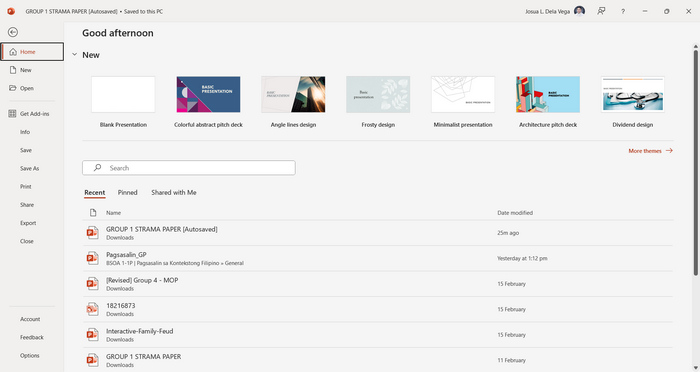
Trin 1. Åbn din præsentation med PowerPoint‑programmet på din enhed.
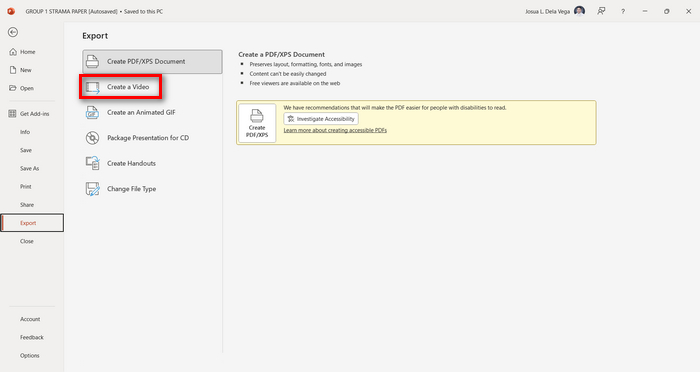
Trin 2. Gå til fanen Filer, find knappen Eksportér, og klik på den.
Trin 3. Når du er på fanen Eksportér, skal du klikke på indstillingen Opret en video.
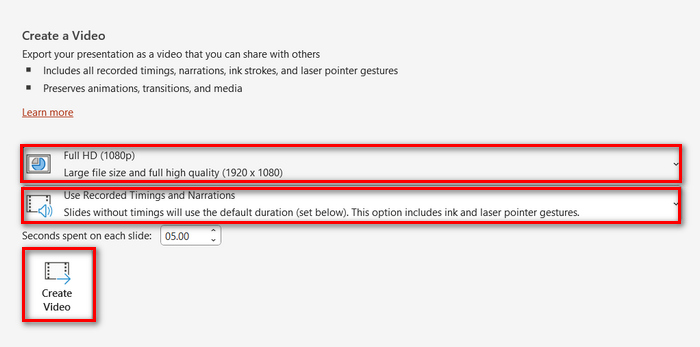
Trin 4. Indstil nu din foretrukne videoopløsning. Du kan vælge mellem 480p og 4K. Under indstillingen Brug optagede tidsindstillinger og fortællinger kan du også manuelt angive varigheden af dine slides. Klik derefter på knappen Opret video.
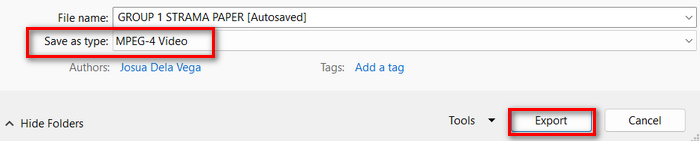
Trin 5. Efter at have klikket på knappen Opret en video vises der et nyt vindue, hvor du kan kontrollere formatet på din fil og vælge, hvor den skal gemmes. Når alt er indstillet, skal du blot klikke på knappen Eksportér og vente, til processen er færdig.
Det er bestemt praktisk at konvertere PowerPoint til MP4 ved hjælp af den indbyggede funktion. Den mangler dog tilpasningsmuligheder, hvis du gerne vil tilføje noget baggrundsmusik. Ikke desto mindre, hvis dit mål blot er at kunne dele filen, er dette ikke et problem for dig.
Del 2: Konverter PPT til MP4 med Audio Online Gratis
Hvis du har PPT-filen, og hvis du vil konvertere den online, da du ikke har en PowerPoint-præsentationssoftware-app eller -værktøj på din enhed, kan du bruge MagicSlides. Dette online konverterværktøj giver dig mulighed for nemt at konvertere PowerPoint til MP4 ved blot at importere filen til deres system.
Trin 1. Upload den PPT‑fil, du vil konvertere til MP4, ved at klikke på knappen Upload din kildefil.
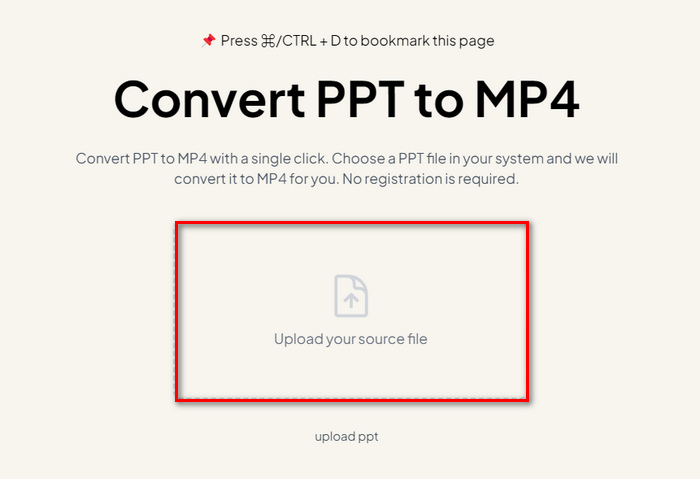
Trin 2. Når filen er importeret, skal du klikke på knappen Create MP4 for at starte konverteringsprocessen.
Trin 3. Når det er færdigt, kan du først forhåndsvise den konverterede PPT‑fil, og når du er tilfreds med resultatet, skal du blot klikke på knappen Download for at gemme den direkte på din enhed.
Selvom dette værktøj tilbyder meget enkle trin til at konvertere PPT til MP4, tager import af PPT-filer så meget tid, hvilket kan være foruroligende, især når du har travlt. Desuden har den ingen tilpasningsmuligheder. Det forvandlede bogstaveligt talt PPT-filer til en video.
Del 3: Sådan konverteres PPT til MP4 med effekter og lyd
Hvis du vil konvertere din PPT til MP4, men denne gang med effekter og lyd, er dette helt sikkert noget for dig. Med FVC Screen Recorder kan du gøre din PowerPoint‑præsentation til en kreativ og interaktiv MP4‑fil ved hjælp af dets redigeringsfunktioner. Derudover behøver du ikke bekymre dig om outputkvaliteten, da det understøtter op til 4K videoopløsning. Følg vejledningen nedenfor for at bruge værktøjet:
Trin 1. Download først softwareværktøjet og installer det på din computer.
Gratis downloadTil Windows 7 eller nyereSikker download
Gratis downloadTil macOS 10.7 eller nyereSikker download
Trin 2. Åbn din PowerPoint‑præsentation, og sørg for, at den vises i fuldskærm.
Trin 3. Vælg derefter funktionen Videooptager i skærmoptageren, og vælg optageområdet som Fuld.
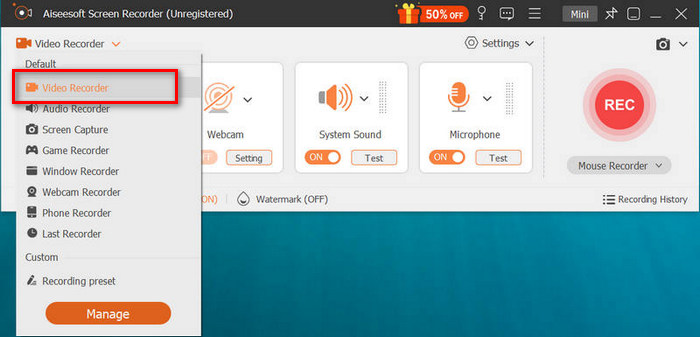
Trin 4. Start derefter diasshowet i PowerPoint. Klik samtidig på knappen REC for at begynde at optage din PowerPoint.
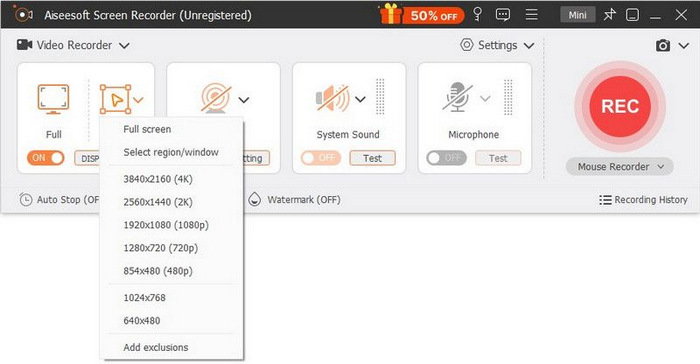
Trin 5. Når du er færdig, skal du blot klikke på knappen Stop, hvorefter du bliver ført til forhåndsvisningsvinduet. Her kan du nederst i hjørnet finde redigeringsfunktionerne, som du kan bruge til at redigere lyd og effekter, når du konverterer din PPT til MP4.

Trin 6. Til sidst kan du få adgang til din fil ved at klikke på knappen Åbn mappe.
Det gode ved at bruge FVC Screen Recorder til at omdanne PowerPoint til MP4 er, at du kan tage kontrol over timingen og tempoet for diasene. Desuden, i modsætning til andre værktøjer, der kun tilbyder en grundlæggende konvertering, har dette værktøj redigeringsfunktioner, der kan bruges til at forbedre den konverterede MP4-fil yderligere.
Del 4: Ofte stillede spørgsmål om konvertering af PPT til MP4
Hvor lang tid tager det at konvertere PPT til MP4?
Tidspunktet for konverteringsprocessen afhænger af filstørrelsen, der konverteres. Men normalt tager simple præsentationer ikke meget tid under konverteringen.
Kan jeg beholde animationer og overgange, når jeg konverterer PPT til MP4 i PPT?
Ja. Den indbyggede funktion giver brugerne mulighed for at beholde animationer og overgange under konverteringsprocessen. Dette er for at sikre, at de visuelle elementer i præsentationen, såsom overgange og animationer, bevares, mens de konverteres til MP4-format. Det er dog vigtigt at bemærke, at kompatibiliteten af animationer og overgange kan variere afhængigt af den anvendte version af PowerPoint og kompleksiteten af de anvendte effekter.
Vil kvaliteten af min PowerPoint-præsentation blive bevaret, når jeg konverterer til MP4?
Ja. PowerPoint-præsentation understøtter op til 4K videoopløsning. Derfor vil valget af en højere opløsning være med til at bevare kvaliteten af præsentationen. Derudover, når du vælger at konvertere din PPT til MP4 ved hjælp af et avanceret konverterværktøj, der tilbyder muligheder for at justere bitrate og komprimeringsindstillinger for at optimere videokvaliteten yderligere, kan du garantere et kvalitetsoutput.
Konklusion
At konvertere PPT til MP4-format giver uden tvivl nemmere håndtering og bedre tilgængelighed, når du skal dele filen på tværs af forskellige platforme og enheder. Nu hvor du ved, hvordan du kan konvertere dem, er det tid til at omsætte denne viden til praksis. Begynd at konvertere i dag, og øg rækkevidden og effekten af dine præsentationer!
-
 Sådan ændres størrelsen på et billede i PowerPoint [hurtigste måde at ændre størrelse på]
 Det er vigtigt at lære at ændre størrelse på billeder i PowerPoint, især hvis du vil bruge det i din præsentation. Læs denne artikel for at vide, hvordan du gør det.
-
 Apowersoft Watermark Remover Review – Funktion, fordele og ulemper og pris
 Apowersoft Watermark Remover er et af de bedste fjernelse af vandmærker, der understøtter online og offline, klik her for at vide mere!
-
 Sådan rettes video, der ikke afspilles i PowerPoint | Hurtig guide
 Afspiller din PowerPoint-video ikke? Overvind frustrationen over indlejrede videoer, der ikke afspilles nu med vores bedste fem løsninger til at løse dem uden besvær.
