


 Video Converter Ultimate
 Skærmoptager
 Video reparation
 Sikker download
Almindelige metoder til at konvertere Xvid til MP4 online og offline
Are you encountering some problems when playing your Xvid videos? Then we offer the best solutions for you. The best solution you can do is to convert your Xvid to other great formats, like MP4. This way, you won’t get into trouble streaming your videos. This article will give you a free Xvid to MP4 converter you can use. This tool will help you convert your video files easily and instantly. If we caught your interest in this kind of discussion, read the following parts and cherish your time learning new things!

Del 1: Nemmeste måde at konvertere Xvid til MP4 på Mac og Windows
Use Video Converter Ultimate to convert Xvid to MP4. You can use this converter on both a Mac and a Windows computer. It converts data 30 times faster than other converters. Additionally, because it supports batch conversion, you can convert numerous Xvid files into a single MP4 format. You may easily and quickly convert files with this feature. Additional video file types supported by this utility include AVI, FLV, MKV, MOV, VOB, WMV, M4V, and more than 100 more. It is available for Xvid and MP4 users. Additionally, because of its user-friendly design and basic conversion techniques, this converter may be used by both novice and experienced users. To learn more about what to anticipate when using the Video Converter Ultimate, see the extra features listed below.
Funktioner
◆ Konverter forskellige videofilformater, såsom Xvid, MP4, DIVX, M4V, FLV, AVI, MKV, WMV, SWF og mere.
◆ Konverter flere videofiler samtidigt.
◆ Den tilbyder en konverteringsproces med ultrahastighed, som er 30 gange hurtigere end andre konvertere.
◆ Tilbyder videoredigeringsværktøjer, herunder en videoforstærker, kompressor, trimmer, cropper, reverser osv.
Følg de detaljerede trin nedenfor for at konvertere Xvid til MP4 på din Mac eller Windows ved hjælp af FVC Video Converter Ultimate.
Step 1: Download Video Converter Ultimate on your Mac or Windows by clicking the Download button below. After that, when you are done installing it, launch the application.
Gratis download til Windows 7 eller nyere Sikker download
Gratis download til MacOS 10.7 eller nyere Sikker download
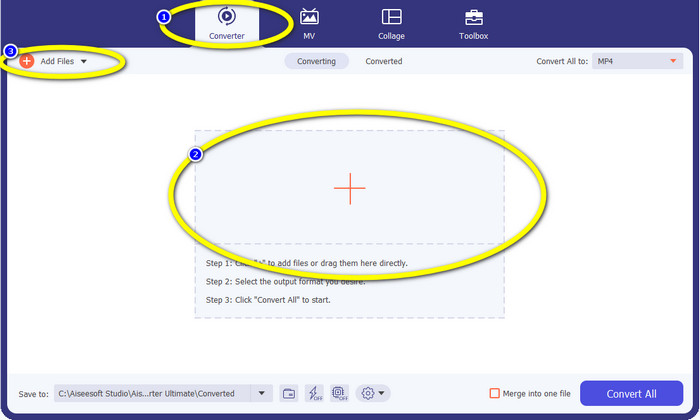
Step 2: When the interface is already on your screen, select the Converter option and click the + icon to add the Xvid file. Another way to add a video file is to click the Add Files button.
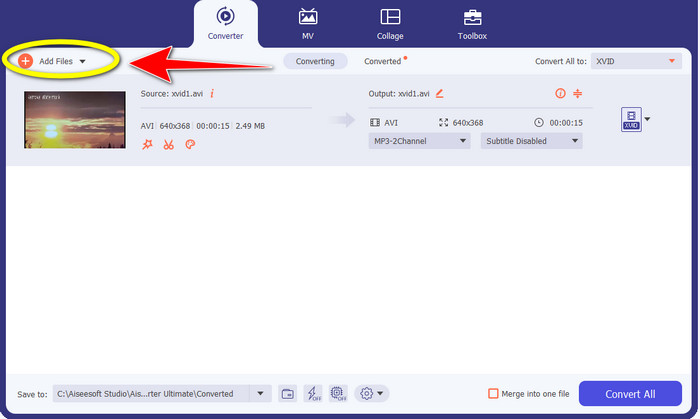
Step 3: This application lets you convert multiple files. So to add another Xvid video you want to convert, click the Add Files button on the upper left of the interface.
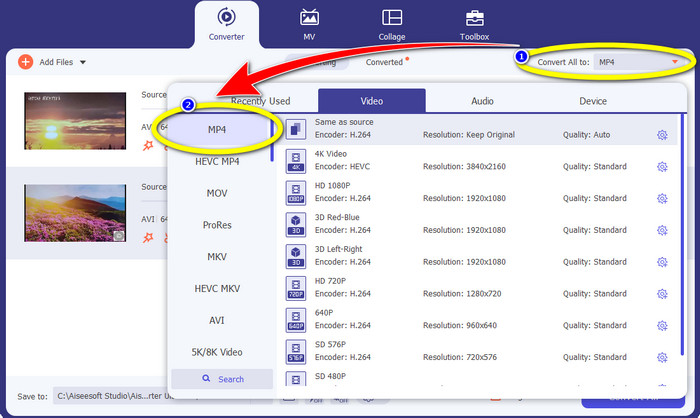
Step 4: Afterwards, to convert them into one MP4 file, click the Convert All to button. Select the MP4 file from the format options and choose your desired video quality.
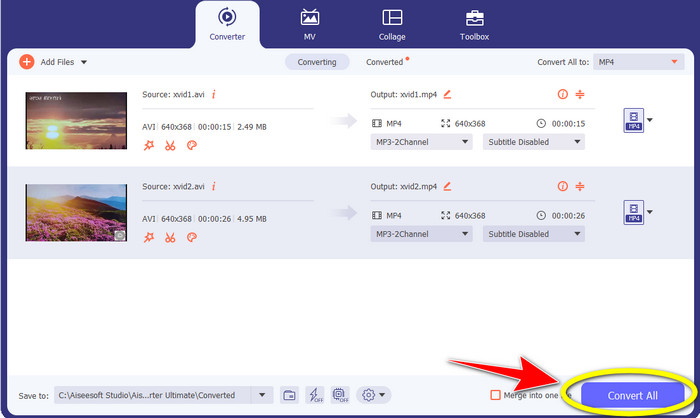
Step 5: After selecting the desired output format, you can proceed to the conversion process by clicking the Convert All button. Then, save your MP4 video on your device.
Del 2: Sådan konverteres Xvid til MP4 på VLC
In this part, you will learn how to convert Xvid to MP4 in VLC. For additional information, VLC Media Player can convert multiple video files besides playing videos. It supports video file formats, such as MP4, TS, WEM, OGG, and more. Moreover, it can convert audio files like MP3, FLAC, etc. In this case, VLC is also a reliable application for converting various files. However, this software is not suitable for beginners. It has a hard-to-understand interface, which makes it more complicated to utilize. Also, it takes too much time when downloading and installing it on your computers.
Step 1: Download and install the VLC Media Player on your computer. Then, launch the application.
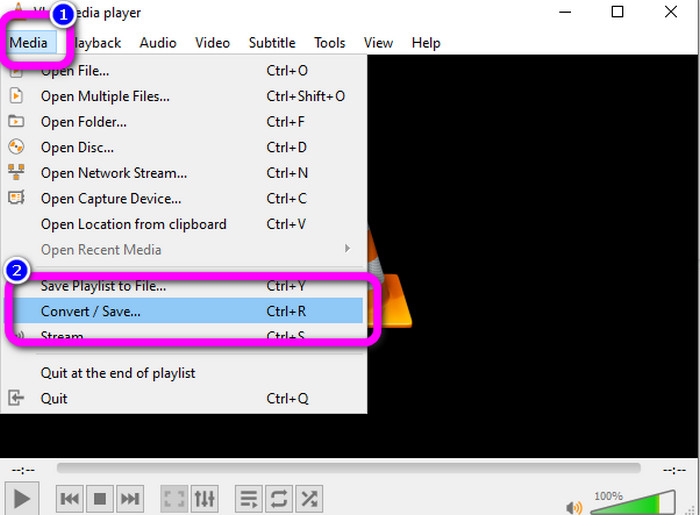
Step 2: Go to the upper part of the interface and select the Media option. Then, click the Convert/Save button.
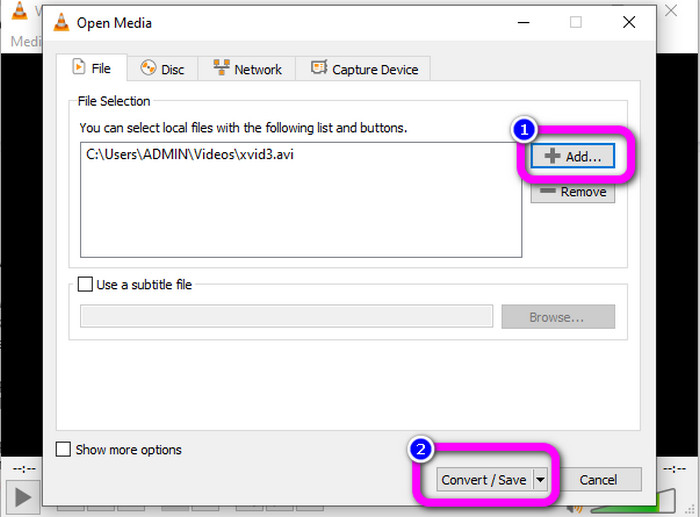
Step 3: Press the Add button to insert the Xvid video file. When the file is already added, click the Convert / Save button.
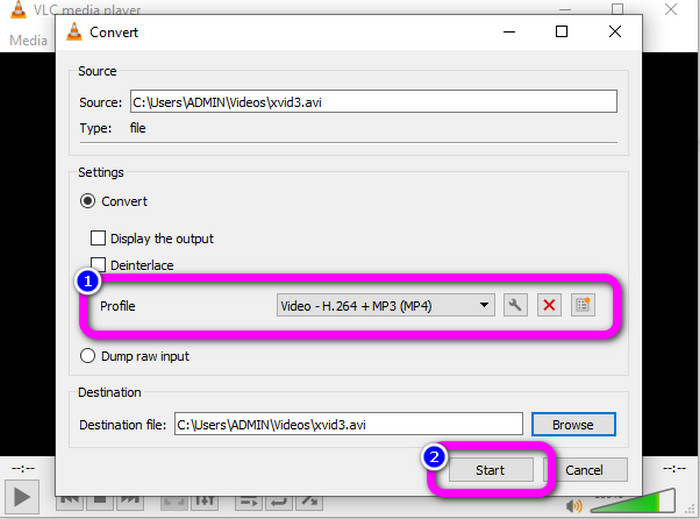
Step 4: For the last step, click the Profile to see the format options and select the MP4 file format. Set your destination file and proceed to the conversion process by clicking the Start button.
Del 3: Nemme trin til at konvertere Xvid til MP4 på håndbremsen
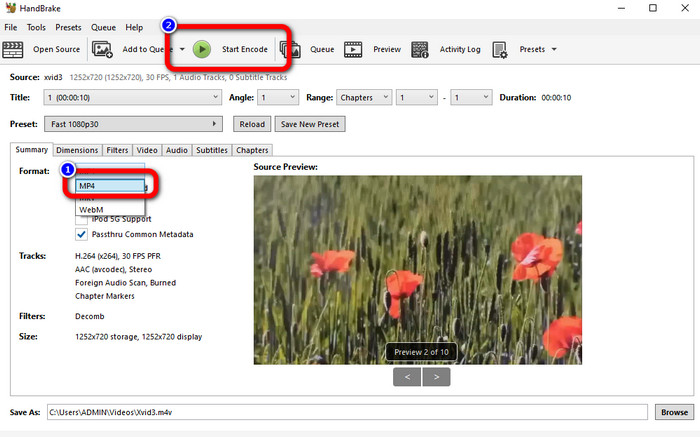
Håndbremse er et andet offline værktøj, du kan stole på til at konvertere din Xvid-fil til MP4-format. Dette værktøj tilbyder også en batchkonverteringsproces, hvor du kun skal indsætte en mappe bestående af flere videoer og konvertere dem på én gang. Det er dog ikke nemt at bruge. Mange muligheder er forvirrende for begyndere. Følg den enkle guide nedenfor for at konvertere Xvid til MP4 ved hjælp af en håndbremse.
Step 1: Download the Handbrake on your computer. Launch it after the installation process.
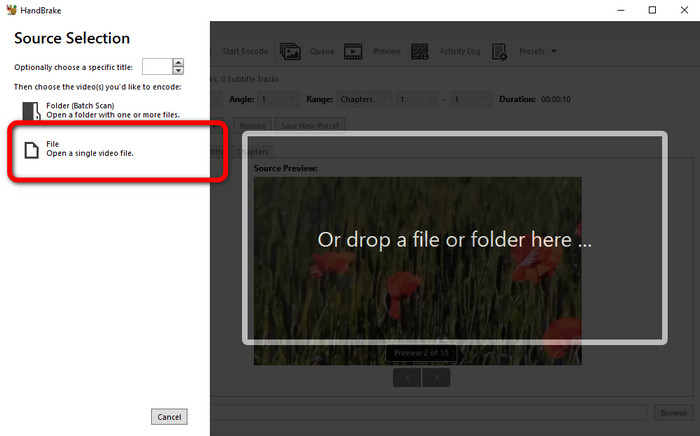
Step 2: Open the File button to add the Xvid video file.
Step 3: Go to the Format option and select the MP4 file format. Then, click the Start Encode button to convert your Xvid file to MP4 format.
Del 4: Proces til at konvertere Xvid til MP4 online
FVC Free Video Converter Online is a great tool to convert Xvid to MP4 online. It offers a user-friendly interface which is perfect for beginners. You can only convert files in just three simple steps. In addition, you can also convert multiple files at once because it allows you to do a batch conversion process. This tool supports various video file formats, such as FLV, AVI, MKV, WMA, MOV, VOB, and more. If you want to use FVC Free Video Converter Online, use the simple instructions below.
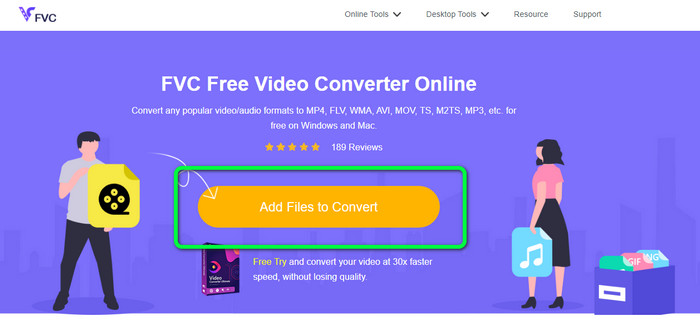
Step 1: Go to the FVC Free Video Converter Online website. On the main page, select the Add Files to Convert button to upload the Xvid video file you want to convert.
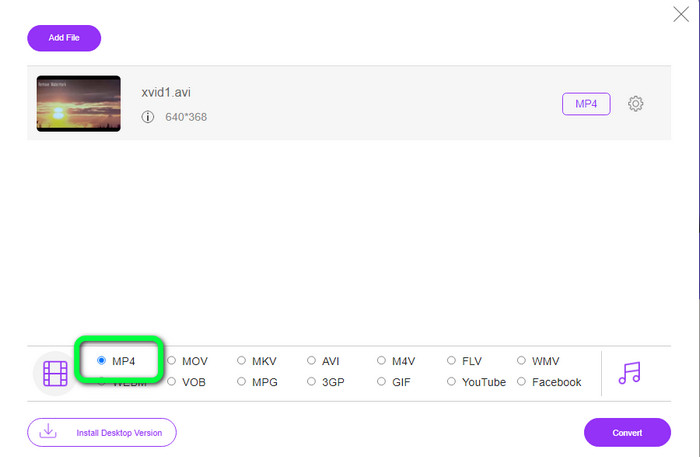
Step 2: As you can see on the lower part of the interface, there are format options. Select the MP4 as your output file format.
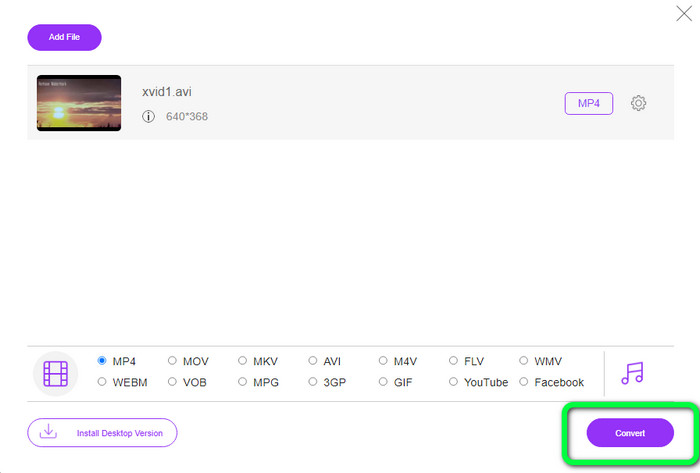
Step 3: Hit the Convert button to convert your Xvid file to MP4 format. Wait for the conversion process and save your final video.
Del 5: Fantastisk metode til at konvertere Xvid til MP4 ved hjælp af Android
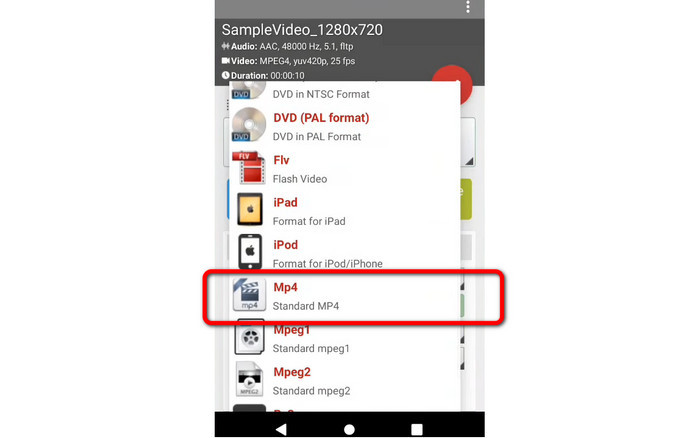
If you want an Xvid to MP4 converter for Android, you can use the Video Format Factory. You can easily change a video file to other formats using this application. However, converting your videos is time-consuming because the conversion process is slow. See the steps below to convert Xvid to MP4.
Step 1: Download and install the Video Format Factory on your Android.
Step 2: After launching the application, select the Video button to insert the Xvid file.
Step 3: Select the Convert Option and select the MP4 format from the format options. Then start the conversion process by clicking the Checkmark.
Yderligere læsning:
Easy-to-learn Methods on How to Convert Xvid to DivX
Excellent Techniques to Convert XviD to 3GP Quickly
Del 6: Ofte stillede spørgsmål om konvertering af Xvid til MP4
1. Hvad er Xvid-filformatet?
Xvid-filformatet er et video-codec, der følger MPEG-4-kodningsstandarden. Denne codec komprimerer videofiler ved brug af MPEG-4 Part 2 A SP-format.
2. Er Xvid god kvalitet?
Ja. Denne fil er en fortsættelse af Project Mayo. Dens mål er at udvikle et højkvalitets open source MPEG-4-codec.
3. Er MP4 komprimeret?
Ja det er. Der findes en komprimeret MP4-fil. Forskellige codecs af video kan inkluderes i en MP4-fil. Blandt de mest populære video-codecs til MP4 er H.264, H.265 og MPEG-4. Med H.264-komprimering kan en timelang video komprimeres til omkring 1 GB ved hjælp af MP4-videocodec.
Konklusion
With all the information above, you already know how to convert Xvid to MP4 online, offline, and using Android devices. But the best converters you can use are Video Converter Ultimate and FVC Free Video Converter Online. These two converters offer you an intuitive interface that is suitable for all users.
-
 Sådan konverteres MPG til M4V på Mac og ved hjælp af onlineværktøj
 Er du ny Mac-bruger og ved ikke, hvordan man konverterer MPG til M4V? Så kan du læse denne artikel for at vide mere og finde ud af, hvordan du konverterer filer ved hjælp af din Mac
-
 Succesfulde metoder til at konvertere DIVX til MP4 med det samme
 Hvordan konverterer jeg DIVX til MP4? Hvis du leder efter den bedste løsning, er du i den rigtige artikel. Vi viser dig, hvordan du nemt konverterer DIVX til MP4
-
 Sådan konverteres F4V til MP4 med de mest effektive metoder
 Er dine F4V-videoer ikke af en god kvalitet? Gør den derefter til en MP4-fil. Dette indlæg vil tilbyde den bedste måde at konvertere F4V til MP4 online og offline
