


 Video Converter Ultimate
 Skærmoptager
 Video reparation
 Sikker download
Sådan afspilles MP4 i Windows Media Player på Windows 10-computer
Nogle gange spiller en MP4-fil ikke i Windows Media Player, men kan afspilles på andre afspillere som VLC Media Player eller KM Player. Da MP4 er det mest populære videoformat, der er kompatibelt med alle medieafspillere og multimedieenheder. Du har muligvis mange videofiler gemt i MP4-format. Det er ret irriterende, hvis MP4-filen ikke kunne afspilles i Windows Media Player. Så hvordan man spiller MP4-filer i Windows 10? Der er ikke behov for at skulle bekymre sig om. Her er alle løsninger til at rette Windows Media Player, der ikke spiller MP4-filer.

Del 1. Hvorfor afspiller Windows Media Player ikke MP4
According to Microsoft, not all versions of Windows Media Player support MP4 file format. Windows Media Player 7, Windows Media Player for Windows XP, Windows Media Player 9 Series, Windows Media Player 10/11 don't support MP4 file format.
Hvis Windows Media Player ikke kan afspille MP4-videoklippet, er MP4-videoen muligvis beskadiget eller beskadiget. I dette tilfælde kan du prøve at afspille den ikke-afspilbare MP4-fil i en anden medieafspiller.
En anden grund til, at Windows Media Player ikke spiller MP4, er, at MP4-filen ikke har den rigtige codec-pakke til den.
Del 2. Spil MP4 med det bedste alternativ til Windows Media Player
If MP4 videos still not playing, you can switch to a media player like FVC Free Video Player. It is a free online video player that plays all popular multimedia files like MP4, MKV, FLV, MOV, AVI, 3GP, MP3, FLAC, AAC, etc. on Windows and Mac. Based on HTML 5 technology, you can play any video files, whether it is from local computer or downloaded.
Step 1. Visit the official website of FVC Free Video Player (https://www.free-videoconverter.net/free-video-player/). Click Play Now button to download and install launcher.

Step 2. Click Open File button to load the MP4 file you want to play. You can also click File menu and select Open File to add the MP4 file.

Once the MP4 video is uploaded, it will be playing on your Windows computer automatically.If you want to edit video effects, you can click Tools and select Effects option and you can adjust hue, brightness, contrast, saturation and gamma to enhance your video.

Del 3. Konverter MP4 til afspilning i Windows Media Player
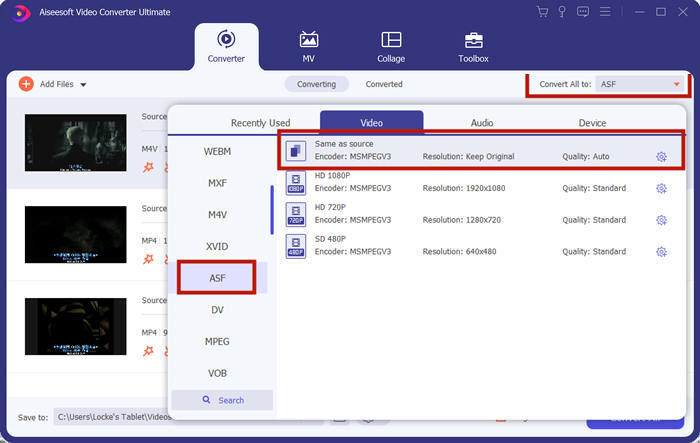
If Windows Media Player cannot play the MP4 file, one simple way is to convert the MP4 file to other format supported by Windows Media Player. You can use a video converter tool like FVC Video Converter Ultimate to convert the MP4 to the default file format for Windows Media Player like WMV, ASF or WMA.
Gratis download til Windows 7 eller nyere Sikker download
Gratis download til MacOS 10.7 eller nyere Sikker download
Step 1. Free download, install and launch Video Converter Ultimate on your Windows computer. Click Add Files button to add the MP4 file you want to play.

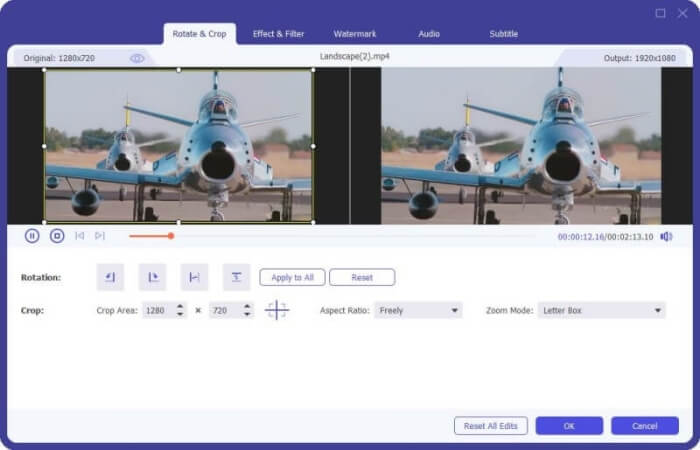
Step 2. If you want to add some effects to your MP4 file, you can click the Edit icon to enter the editing interface. Here you can add effects, apply a filter, rotate or crop the MP4 file, add watermark, adjust audio track and subtitles.
Step 3. Then click the drop-down arrow next to Convert All to, locate in Video tab and select ASF or WMV as the output format.
Step 4. Finally, set the output folder where the converted MP4 file will be saved. Click the Convert All button to convert the MP4 file. After conversion, you can play the converted MP4 file in Windows Media Player.

Del 4. Almindelige tip til afspilning af MP4 i Windows Media Player
To play MP4 on Windows 10, you can locate in the folder where MP4 files are stored. Right-click on the MP4 file you want to play, select Open with and choose Windows Media Player. As simple as it is, sometimes you may get failed to open MP4 file in Windows Media Player. To fix the issue, you can try the following tips.
1. Spil MP4 med andre medieafspillere
If your MP4 file doesn't play in Windows Media Player, you can try other media players to open the MP4 file. There are so many media players like FVC Free Video Player, VLC Media Player, KM Player, Real Player, GOM Player, BS Player, DivX Player and more.
2. Installer den rigtige codec til Windows Media Player
Der mangler codecs, hvis Windows Media Player ikke afspiller MP4-fil. For at løse problemet skal du installere den rigtige codec til Windows Media Player.
Step 1. Open Windows Media Player. Click Organize menu and select Options.
Step 2. Move to the Privacy tab and check Download usage rights automatically when I play or sync a file option.
Step 3. To play the MP4 file, you can click the OK button to save the changes.
3. Kør fejlfinding på Windows
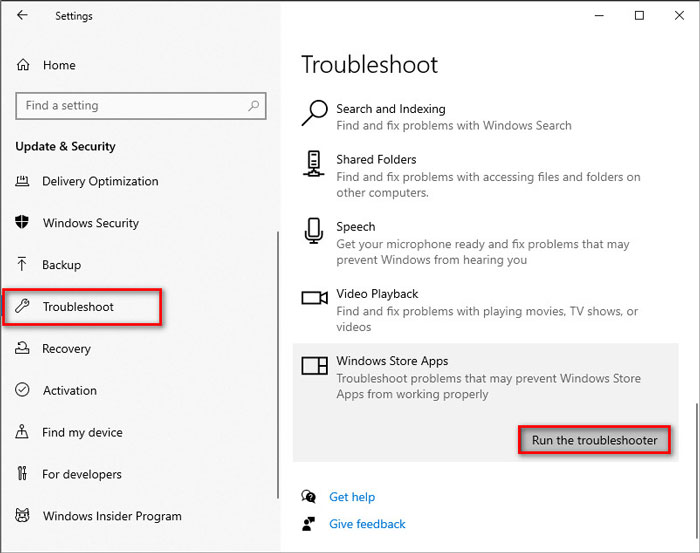
Hvis MP4 ikke kunne afspilles i Windows Media Player, kan du bruge værktøjet Fejlfinding til at løse problemet i Windows 10. Følg trinene til fejlfinding af problemet.
Step 1. On your Windows 10 computer, open Settings and select Update & Security.
Step 2. Go to Troubleshoot area, and click Windows Store Apps.
Step 3. Click Run the troubleshooter button to troubleshoot the Windows Media Player playback issue.
Del 5. Ofte stillede spørgsmål om afspilning af MP4 i Windows Media Player
Hvad er standardformatet for Windows Media Player?
Standardfilformatet for Windows Media Player er WMV (Windows Media Video) og WMA (Windows Media Audio). Det understøtter også ASF (Advanced Systems Format) og dets eget XML-baserede afspilningslisteformat, Windows Playlist.
Hvad er den bedste MP4-afspiller?
There are many popular MP4 players on the market, including FVC Free Video Player, VLC Media Player, KM Player, QuickTime Player, RealPlayer, Media Player Classic, GOM Player, PotPlayer and more.
Kan jeg spille MKV i Windows Media Player?
Den indbyggede Windows Media Player 12 i Windows 10 understøtter ikke MKV-afspilning. Du skal installere den korrekte codec til afspilning.
Konklusion
MP4 er det mest populære digitale multimedieformat, der ofte bruges til at gemme video og lyd. Det er frustrerende, hvis MP4-filen ikke kunne afspilles i Windows Media Player. Håber du kan afspille dine MP4-filer flydende i Windows 10 med alle vores tip og løsninger. Du kan prøve en anden videoafspiller som FVC Free Video Player for at afspille dine MP4-filer.
-
 Sådan afspilles MP4-filer i Google Drive
 MP4 afspilles ikke på mit Google Drev? Sådan afspilles MP4-filer i Google Drev? Dette indlæg fortæller 3 måder at afspille MP4-videoer på Google Drev.
-
 Afspil MP4-filer på Chromebook 2021
 Kan du afspille videoer på Chromebook? Sådan afspilles MP4-filer fra USB på Chromebook? Dette indlæg deler 3 måder at afspille MP4 på Chromebook.
-
 Sådan afspilles DVD på Windows Media Player i 2021
 Hvorfor afspilles min DVD ikke på Windows Media Player? Hvordan afspilles DVD på Windows 7 medieafspiller? Dette indlæg deler 3 måder at afspille DVD'er med eller uden WMP.
