


 Video Converter Ultimate
 Skærmoptager
 Video reparation
 Sikker download
5 måder at rette op på Windows Media Player fungerer ikke på Windows 7/8/10
Windows Media Player er stoppet med at fungere. Et problem fik programmet til at stoppe med at fungere korrekt. Det afspiller også lyd, men ikke video. Hvordan løses dette problem?
Når Windows Media Player holder op med at arbejde, kan du modtage fejlen "Window Media Player har stoppet med at arbejde" uden nogen specifik information om det, eller du får besked om, at "Filtypen understøttes ikke". Selv der er ingen meddelelser, og dine klik virker bare ikke.
Der er mange årsager til, at Windows Media Player ikke fungerer. Det mest almindelige problem er, at filerne ikke understøttes, hvilket medfører afspilning af videoer uden billede, lyd eller undertekster. Ellers kan årsagerne være meget forskellige uden nogen specifik fejlmeddelelse. I dette tilfælde er du nødt til at gennemgå alle problemerne, der er listet i den følgende artikel, for at rette denne komplekse fejl. Men du kan også vælge den bedste løsning ved at bruge en alternativ videoafspiller til at se enhver video uden problemer og begrænsninger.

Del 1: Den bedste alternative medieafspiller, du ikke bør gå glip af
For at undgå, at Windows Media Player ikke fungerer, bør du vælge et professionelt alternativ. FVC Free Video Player er en gratis online videoafspiller, der løser alle de problemer, du kan støde på, når du bruger Windows Media Player. Den understøtter afspilning af videoer uden begrænsninger på format og opløsning. Uden at downloade anden software kan du afspille alle videoformater problemfrit.
- 1. Understøtter afspilning af næsten alle formater, inklusive FLV, MKV, RMVB og DVD eller Blu-ray-filer.
- 2. Afspil videoer med høj kvalitet, der når 4K-opløsning.
- 3. I stand til at justere lydsporene og underteksterne på forskellige sprog.
- 4. Tag et screenshot når som helst, når du afspiller videoer.
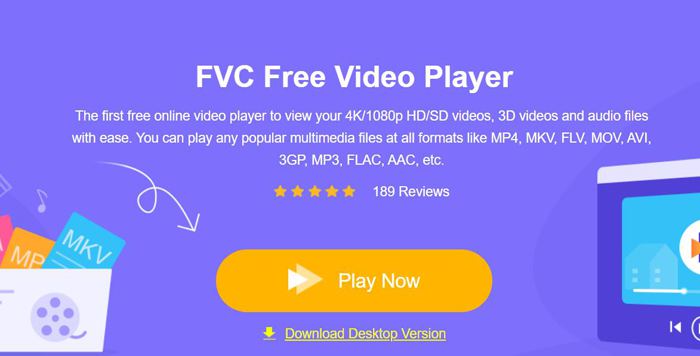
Trin 1: Gå til websitet for FVC Free Video Player i en vilkårlig browser. Klik derefter på knappen Play Now for at installere startprogrammet. Efter et par minutter skal du klikke på Play Now-knappen igen for at starte FVC Free Video Player.
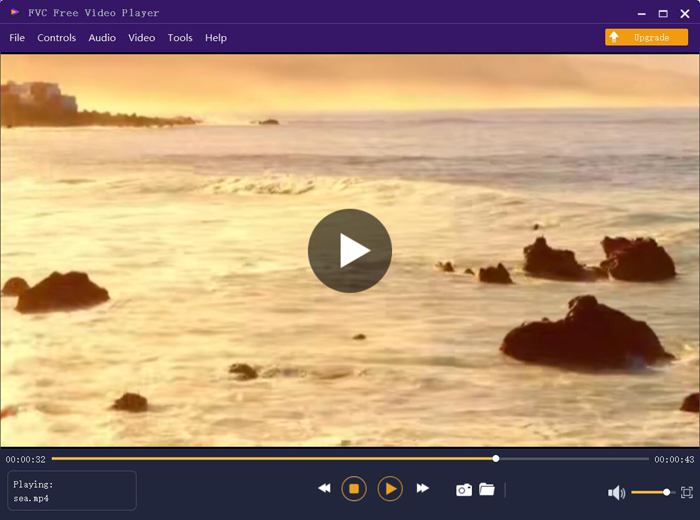
Trin 2: Klik på knappen Open Files for at vælge den ønskede video. Den begynder derefter at blive afspillet automatisk. I menuen Control kan du se genvejstasterne til at justere lydstyrken. Du kan også vælge lyd- eller videospor efter behov. Hvis du desuden klikker på knappen Tools og vælger Effect-indstillingen, kan du endda justere farvetone, lysstyrke, kontrast, mætning og gamma.
Del 2: Sådan løses Window Media Player, der ikke fungerer på Windows 7/8/10
Som nævnt før kan mange årsager forårsage, at Windows Media Player ikke fungerer, og der er 3 metoder til at løse dette problem i forskellige situationer.
Metode 1: Start fejlfindingsprogrammet til Window Media Player
Når din Windows Media Player ikke reagerer efter klik, hjælper denne måde dig med at løse det.
Trin 1: Tryk på knapperne Windows og R på tastaturet for at starte Kør-programmet. Kopiér og indsæt derefter msdt.exe -id WindowsMediaPlayerConfigurationDiagnostic i søgefeltet. Klik på knappen OK for at gå til fejlfindingsværktøjet for Windows Media Player-indstillinger. Klik derefter på knappen Next for at starte det.
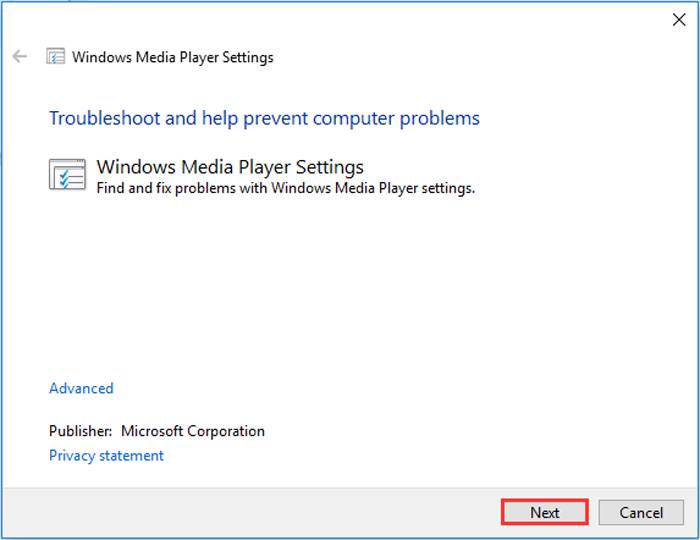
Trin 2: Når vinduet dukker op, skal du klikke på knappen Apply this fix for at nulstille Windows Media Player til standardindstillingerne. Derefter kan du prøve at genstarte Windows Media Player.
Metode 2: Installer andre dekodere på Windows Media Player
Hvis din Windows Media Player ikke arbejder med nogle specielle videoer eller lydbånd, kan du downloade den responderende dekoder for at afspille disse videoer.
Trin 1: Åbn Microsoft Store på din computer. Klik på knappen Search, og skriv derefter Video Extension i søgefeltet. Du kan downloade den ønskede video-udvidelse til din computer.
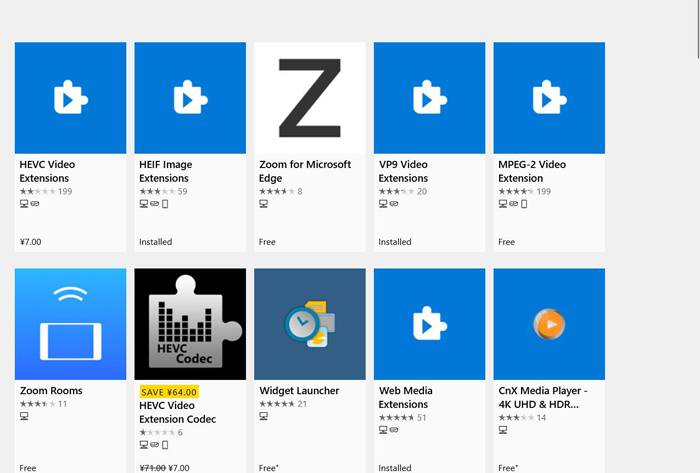
Trin 2: Efter installationen skal du åbne videoerne igen via Windows Media Player. Men du skal være opmærksom på, at der stadig er mange formater, der ikke understøttes, herunder FLV, RMVB osv.
Metode 3: Geninstaller Windows Media Player.
Hvis den nævnte metode ikke virker, skal du prøve at geninstallere softwaren, når Windows Media Player holder op med at arbejde.
Trin 1: Tryk på knapperne Windows og R på tastaturet for at åbne Kør-programmet. Skriv derefter optionalfeatures.exe i søgefeltet. Klik på knappen OK for at åbne eller lukke en funktion. Derefter kan du fjerne markeringen ud for Windows Media Player.
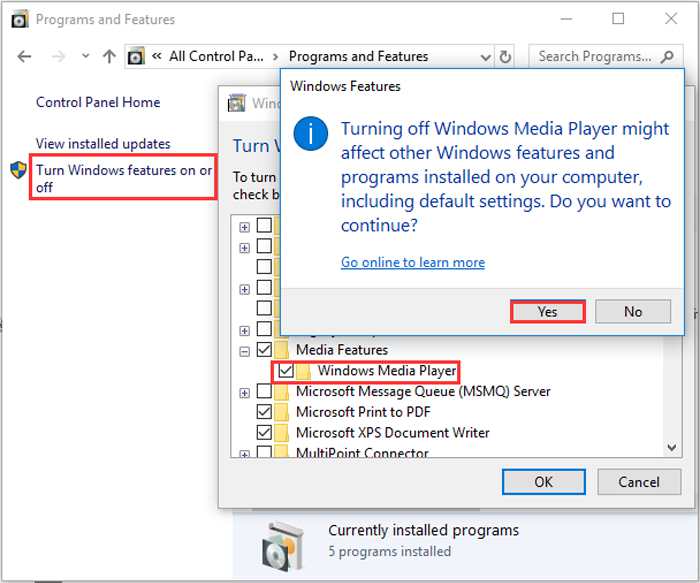
Trin 2: Genstart din computer, og gentag den forrige handling. Sæt derefter flueben ved Windows Media Player igen. Derefter skal du genstarte computeren endnu en gang, og softwaren vil blive installeret automatisk på din computer.
Bortset fra disse problemer har Windows Media Player også mange ulemper. Du kan ikke justere hastigheden på videoafspilning, og genvejstasterne er altid ubrugelige. Så hvorfor ikke vælge den gratis online videoafspiller til at løse alle problemerne?
Del 3: Ofte stillede spørgsmål om Windows Media Player fungerer ikke
1. Hvorfor kan FLV-videofiler ikke afspilles på Windows Media Player?
Selvom Windows Media Player understøtter installation af flere decodere for at afspille videoer i nogle mere usædvanlige formater, understøttes FLV-formatet ikke. I dette tilfælde kan du prøve at downloade alternativer til Windows Media Player eller konvertere videoformaterne.
2. Hvorfor fungerer min Window Media Player ikke efter opdateringer af Windows 10?
Måske blev Windows Media Player beskadiget efter opdateringen. Du kan prøve den nævnte metode 3 for at geninstallere Windows Media Player.
3. Hvordan vælges undertekstspor på Window Media Player?
Desværre er der ingen mulighed for at vælge forskellige undertekster, video og lydspor på Windows Media Player. Du kan vælge andre alternativer til at afspille videoer.
Konklusion
Årsagerne til, at Windows Media Player ikke fungerer, vil være meget komplekse, hvilket gør det vanskeligt at løse dette problem. Således kan du simpelthen downloade den bedste alternative medieafspiller - FVC Free Video Player for at afspille videoer jævnt med høj kvalitet. På denne måde kan du forhindre, at Windows Media Player ikke fungerer for evigt.
-
 Sådan afspilles DVD på Windows Media Player i 2021
 Hvorfor afspilles min DVD ikke på Windows Media Player? Hvordan afspilles DVD på Windows 7 medieafspiller? Dette indlæg deler 3 måder at afspille DVD'er med eller uden WMP.
-
 6 verificerede løsninger til løsning af videoer, der ikke kan afspilles i Chrome
 For at løse problemet med, at videoer ikke afspilles på Chrome, skal du bare læse vores fejlfinding og udføre de bekræftede løsninger en efter en.
-
 5 100% Arbejdsløsninger til løsning af videoer, der ikke kan afspilles på iPad
 Dine videoer afspilles ikke på iPad? Her er fem løsninger, der hjælper dig med at slippe af med dette problem, og så kan du nemt nyde dine yndlingsvideoer på håndsættet.
