


 Video Converter Ultimate
 Skærmoptager
 Video reparation
 Sikker download
Sådan optager du MP4 på iPhone: Indstillinger og bedste løsninger til at opdage
Optager iPhone i MP4? Typisk optager iPhones videoer i MOV‑format, hvilket som regel fungerer fint. Men hvis du vil dele disse iPhone‑videoer med enheder, der ikke understøtter MOV, løber du ind i problemer. Derfor er det vigtigt at forstå iPhone‑ens videoformater, uanset om du ser, optager eller redigerer video på din iPhone. Denne forståelse eller viden kan hjælpe dig med at undgå afspilningsproblemer ved at bruge den rigtige filtype og de rette codecs. I denne artikel viser jeg dig derfor tre enkle måder at optage videoer i MP4 på din iPhone, så videoerne bliver kompatible til afspilning og redigering.

Del 1. Optager iPhone videoer i MP4
Mange mennesker, især ikke-iPhone-brugere, spekulerer på, om en iPhone optager i MP4-format. Nå, for at svare hurtigt på det, kan iPhones optage videoer i to formater. Men dette afhænger stadig af indstillingerne. Standardindstillingen er MOV, som er et meget brugt format til Apple-enheder, der spiller godt på nogle enheder. iPhones tilbyder dog også en pladsbesparende mulighed kaldet høj effektivitet eller HEVC. Dette bruger et andet format, men du kan stadig se disse optagelser direkte på din iPhone.
Nu, hvad angår skærmoptagelse, gemmer den indbyggede skærmoptager på iPhone kun optagelser i MOV-format. Så hvis du har brug for MP4-optagelser, og hvis du vil redigere disse MP4-videoer direkte på din iPhone, bliver du nødt til at ty til en professionel skærmoptager eller redigeringssoftware på din computer på grund af begrænsninger i App Store.
Del 2. Sådan optager du MP4 på iPhone uden konvertering
I forlængelse af optagelse af video i MP4 på en iPhone er her et professionelt program kaldet FVC Screen Recorder, som hjælper dig med at skærmoptage alt på din iPhone, også videoer, og gemme dem som MP4. FVC Screen Recorder har flere forskellige optagere, herunder én til din iPhone. Programmet spejler din telefonskærm og optager derefter alt på den, inklusive systemlyd. Det, der gør det særligt, er, at det tilbyder annoteringsværktøjer, som hjælper dig med at tilpasse dine optagelser. Med denne FVC Screen Recorder behøver du faktisk ikke længere konvertere iPhone‑videoer for at få god MP4‑videokvalitet. Du skal blot følge vejledningen nedenfor om, hvordan du optager MP4 på en iPhone, så er du klar.
Trin 1. Det første, du skal gøre, er at hente optageren til din computer. Du kan hente den til en desktop eller Mac ved at klikke på Download-knapperne nedenfor. Tip: Du kan allerede nu gøre din iPhone klar og forbinde den til det samme WLAN, som din computer er tilsluttet.
Gratis downloadTil Windows 7 eller nyereSikker download
Gratis downloadTil MacOS 10.7 eller nyereSikker download
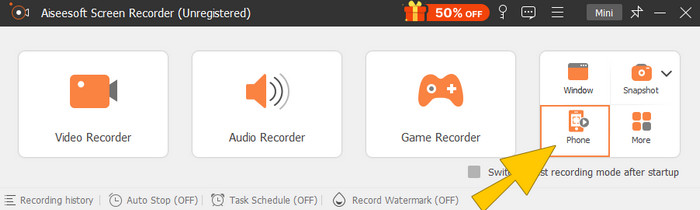
Trin 2. Start skærmoptageren, og klik på værktøjet til Telefon-optagelse. Vælg derefter iOS-indstillingen. Gå til Kontrolcenter på din iPhone, tryk på funktionen Skærmspejling, og vælg Screen Recorder‑indstillingen der. Dette forbinder dine to enheder, så optagelsen kan begynde.
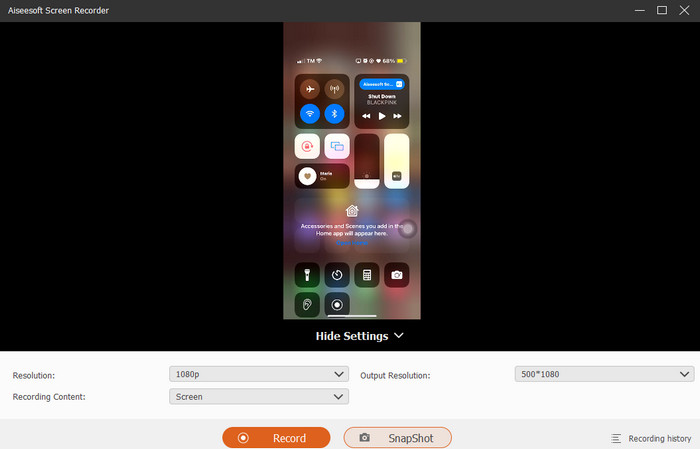
Trin 3. Når forbindelsen er oprettet, kan du nu klikke på knappen Record. Klik derefter på knappen Stop, når du er færdig.
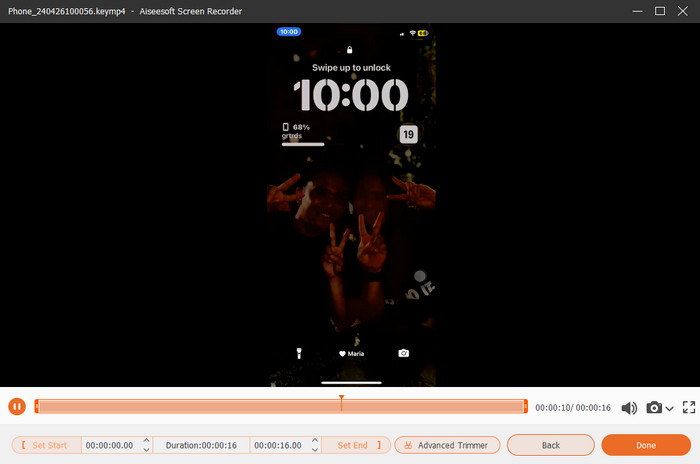
Trin 4. Efter optagelsen fører værktøjet dig til sin gemmesektion, hvor du kan redigere den rå optagelse. Redigeringen omfatter lydstyrke, trimning og skærmbillede. Ellers kan du klikke på knappen Done for at gemme den optagede MP4‑fil.
Del 3. Sådan optager du MP4 via iPhone-indstillinger
Typisk bliver de videoer, du optager med din iPhone, ikke gemt som MP4-filer. Men hvis du vil have dem i MP4-format, skal du justere indstillingerne, hvilket nok er den enkleste måde at gøre det på. Men vent, det er vigtigt at bemærke, at skift til MP4 kan tære på en masse lagerplads på din telefon. Derfor, før du justerer indstillingerne, skal du overveje, om det er værd at prøve. Ellers skal du se nedenstående trin.
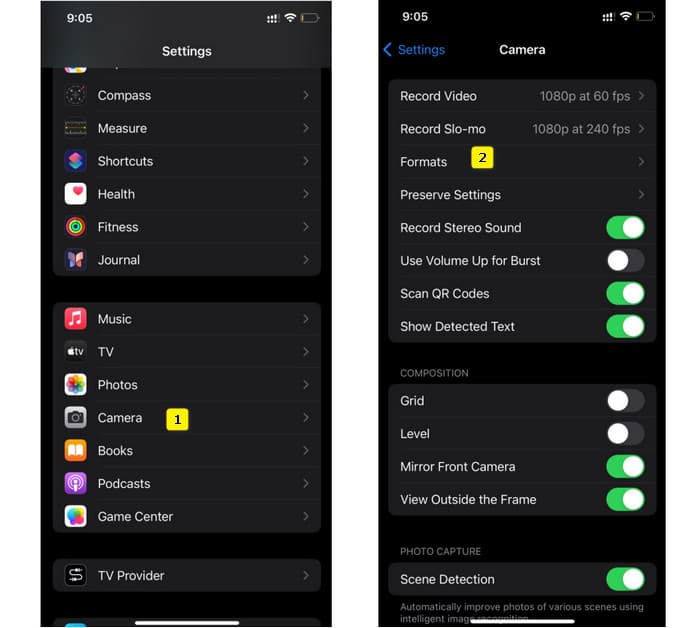
Trin 1. Gå til din telefons app Indstillinger, find Kamera‑appen, og tryk for at åbne den.
Trin 2. Gå nu til afsnittet Format, og tryk på det. Indstil det derefter til indstillingen Most Compatibility for at få MP4 som standard.
Trin 3. Derefter kan du begynde at optage på din iPhone ved at bruge dens indbyggede skærmoptager.
Del 4. Konverter iPhone-optagelser til MP4 online gratis
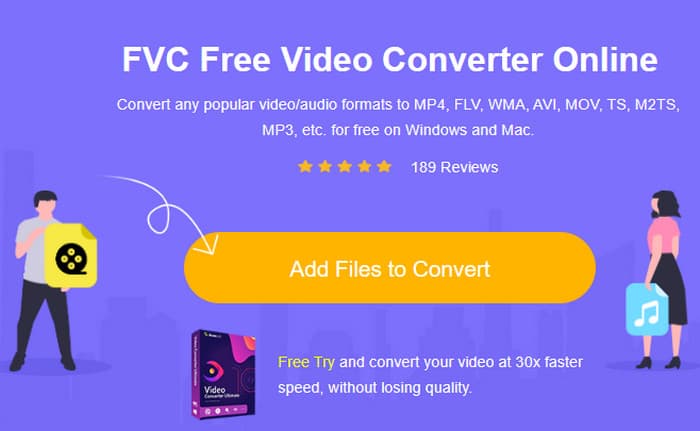
Erkend det: Når direkte optagelse i MP4 ikke er en mulighed for dig, bliver din sidste udvej konvertering. I den forbindelse kan du bruge en gratis online‑konverter, som giver dig en nemmere og hurtigere løsning til din video. Mød FVC Free Video Converter Online, et gratis program, der lader dig konvertere dine videoer og din musik til forskellige formater. Det fungerer med populære video‑ og lydfiler og kan konvertere dem til formater som MP4, FLV, AVI, WMV, MOV, MKV og mange flere. Selv højopløste videoer kan konverteres hurtigt uden kvalitetstab! Du kan også konvertere flere videoer på én gang, hvilket hjælper dig med at spare tid på konverteringen. Det, der gør det endnu mere praktisk, er, at du ikke behøver at downloade dine konverterede filer enkeltvis, da du blot skal vælge en målmappe, hvor dine filer gemmes direkte! Lad os derfor prøve dette fantastiske værktøj og hurtigt konvertere dine iPhone‑videoer!
Trin 1. Gå til værktøjets officielle hjemmeside i din browser på computeren. Klik derefter på knappen Add Files to Convert for at hente startprogrammet. Når det er hentet, skal du klikke på knappen igen for at uploade dine iPhone‑videoer.
Trin 2. Når du er på hovedgrænsefladen og vil tilføje flere iPhone‑videoer til konvertering, skal du blot klikke på knappen Add File. Indstil derefter filerne til MP4 ved at klikke på dem og vælge formatet nederst.
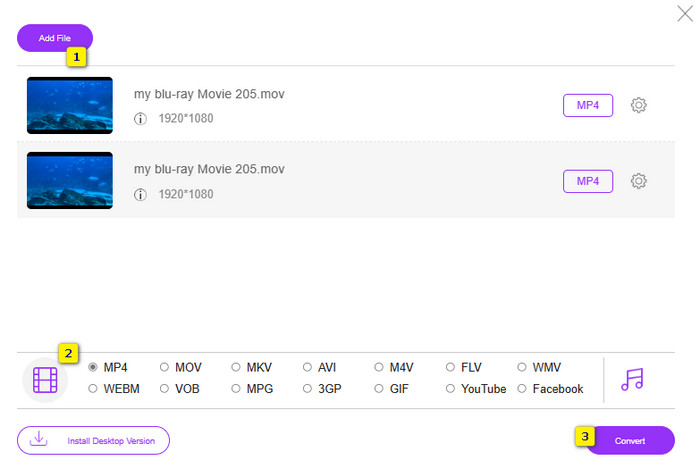
Trin 3. Når du er færdig, skal du klikke på knappen Convert og vælge din målmappe. Umiddelbart efter, at du har valgt, starter konverteringsprocessen.
Med ovenstående trin kan du nemt konvertere iPhone‑MOV‑videoer til MP4 gratis.
Del 5. Ofte stillede spørgsmål om iPhone MP4-videooptagelser
Kan jeg redigere MP4-videoer optaget på min iPhone?
Ja, du kan redigere MP4-videoerne på din iPhone. For at gøre det skal du bruge forskellige videoredigeringsapps, der er tilgængelige på din App Store. Ellers kan du overføre videoerne til din computer og redigere dem ved hjælp af professionel videoredigeringssoftware.
Hvordan kan jeg overføre MP4-videoer fra min iPhone til en pc?
Der er flere metoder, du kan bruge til at overføre dine videoer fra iPhone til pc. Du kan bruge et USB-kabel, uploade videoerne til skylageret eller bruge software, der hjælper dig med at overføre dem.
Hvilken videokvalitet og opløsning optager iPhone i MP4?
Dette afhænger af din iPhones model. iPhones optager normalt video i MP4-format med forskellige opløsninger og kvalitetsindstillinger. Mulighederne spænder fra standard definition til high definition og endda 4K på nyere modeller.
Konklusion
Det er de metoder, der giver dig vejledning i, hvordan du nemt optager MP4 på din iPhone. Vælg det, der passer dig bedst, og del det også med dine venner!
-
 Sådan konverteres MP4 til MOV på Mac / PC / Online
 Sådan konverteres MP4 til MOV på Mac? Er der nogen gratis måde at konvertere MP4 til MOV uden kvalitetstab? Dette indlæg deler 4 enkle måder at hjælpe dig med at lave videokonvertering fra MP4 til MOV på Mac, Windows PC og online.
-
 Vejledning - 4 gratis måder at flette videoer på iPhone ind i en ny
 Vil du kombinere videoer til én på din iPhone? Læs og få 4 nemme måder med alle iPhone-modeller og iOS-versioner understøttet.
-
 [Løst] Sådan repareres videoer, der ikke afspilles på iPhone, med detaljerede trin
 Lokale videoer i galleriet kan ikke afspilles på din iPhone via standardvideoafspilleren? Online YouTube -videoer, der ikke afspilles på iPhone, sker altid? Her er 5 løsninger til at hjælpe dig i denne artikel.
