


 Video Converter Ultimate
 Skærmoptager
 Video reparation
 Sikker download
Top 5 WebM -optagere til optagelse af WebM -video i høj kvalitet
WEBM-filtypen bruges normalt af webbrowsere. De fleste af dem er moderne browsere som Google Chrome, Opera, Firefox, Safari og Edge. Typisk er disse browsere HTML5‑websites, der understøtter live videostreaming. Et godt eksempel er YouTube, Twitch og andre medieplatforme. Denne type understøtter videoopløsninger fra 360p og op til den højeste opløsning. Hvis vi skal sammenligne dette format, er det et komprimeret format, der ligner MKV, MOV og MP4. Forskellen ligger i filindholdet i formatet. Både Windows og Mac kan afspille denne specifikke fil, så længe afspilleren har de rette codecs og plug‑ins. Hvis du i mellemtiden leder efter en bedre måde at optage eller få WebM‑filer på, kan du se listen over de bedste WebM‑optagere nedenfor.

Del 1. Bedste WebM -optager: FVC -skærmoptager
Få den nemmeste måde at tage snapshots, optage din skærm og optage WebM -videofiler i tre lette trin med FVC Screen Recorder. Denne .webm -skærmoptager til Windows og Mac kan optage WebM -websteder som YouTube, Skype -opkald og livestreaming og andre websteder understøtter WebM -format. Optag din gameplay -livestreaming uden at gå på kompromis med videokvaliteten. Plus at kunne optage video, lyd og mikrofon. Garanteret ingen baggrundsstøj, fordi den registrerer systemlyde. Så oplev problemfri optagelse og fremragende redigeringsfunktioner til din videoundervisning med FVC -skærmoptagelse. På den anden side er her, hvordan du bruger værktøjet.
Trin 1. Download FVC Screen Recorder ved at bruge downloadknapperne nedenfor.
Gratis downloadTil Windows 7 eller nyereSikker download
Gratis downloadTil macOS 10.7 eller nyereSikker download
Trin 2. Installer og start appen, når du har fulgt installationsguiden.
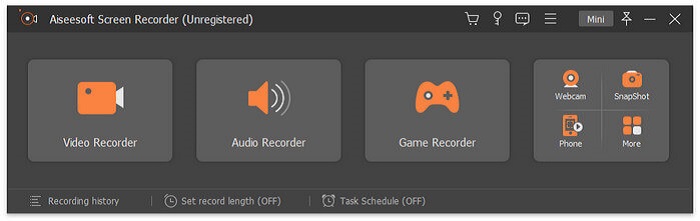
Trin 3. Når den flydende værktøjslinje vises, skal du klikke på Videooptager.
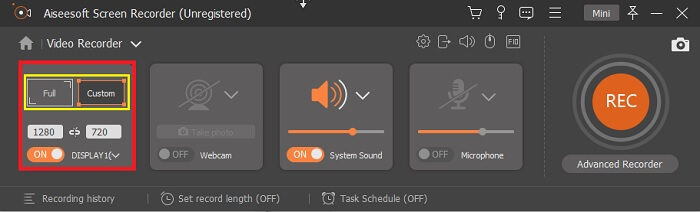
Derfra vises et nyt vindue. Denne gang skal du klikke på Brugerdefineret eller Fuld skærm. Hvis du vælger brugerdefineret, skal du justere ramme-størrelsen til den ønskede størrelse.
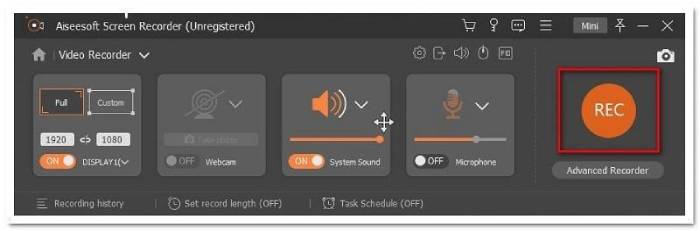
Trin 4. For at begynde optagelsen skal du klikke på knappen REC og blot gøre, hvad du plejer at gøre.
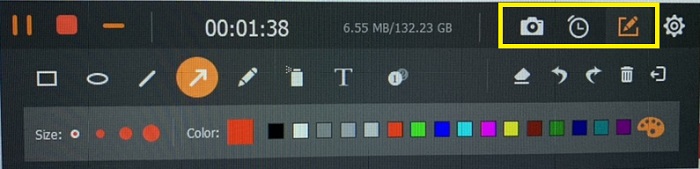
Du kan derefter kommentere, tilføje pile og skrive til optagelsen.
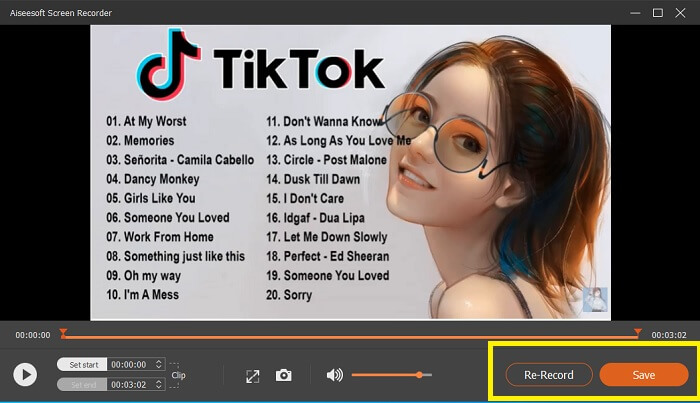
Trin 5. Klik derefter på den røde firkantede knap for at stoppe optagelsen. Et nyt vindue vises, hvor du kan vælge mellem at gemme eller optage igen. For at tjekke optagelsen skal du se på listen nederst på den flydende værktøjslinje.
Del 2. Andre populære WEBM -optagere til din computer
1. FVC Free Screen Recorder
Særpræget funktion: Fri for malware. 100% sikker
Hvis det første værktøj ikke tilfredsstillede dig, er du måske på udkig efter et mere praktisk et. FVC Free Screen Recorder er dit foretrukne værktøj, hvis du vil udnytte gode funktioner uden at bruge en krone. Selvom gratis værktøjer er kendt for at give lavere kvalitet end premium‑værktøjer, hæver dette værktøj barren en smule. Det kan producere videoer i høj kvalitet og levere krystalklar lyd, selvom det er gratis. Oven i det er det nemt at bruge. Følg trinnene nedenfor for at lære mere om det.
Trin 1. Start appen på din pc via webbrowseren. Det er ligegyldigt, hvilken browser du bruger, dette værktøj er fleksibelt nok til at kunne tilgås overalt. Klik på linket for at komme direkte til den officielle webside.
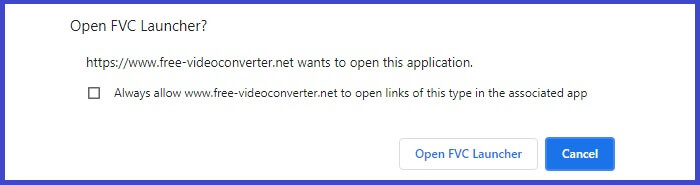
Trin 2. Start værktøjet ved at klikke på knappen Start Recording.
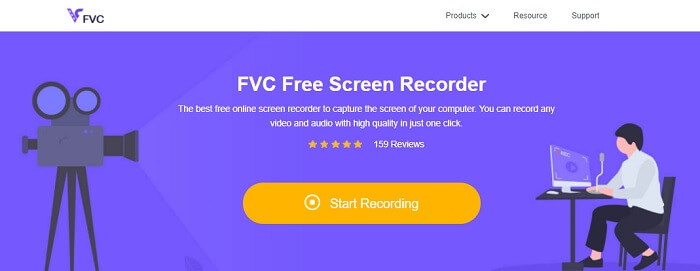
Trin 3. Når værktøjet er startet, vil du se den flydende værktøjslinje. Juster rammen for at ændre billedformatet, og begynd derefter at optage ved at klikke på knappen REC.
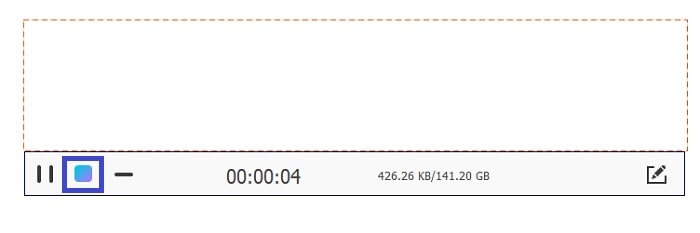
Trin 4. For at stoppe optagelsen skal du i mellemtiden klikke på den firkantede knap vist på billedet nedenfor.
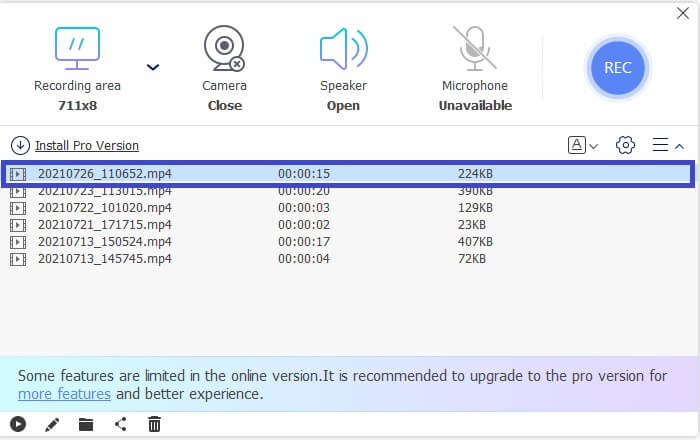
Trin 5. For at se filen, du har optaget, skal du tjekke listen under den flydende værktøjslinje.
Fordele
- 100% sikkert fra malware.
- Det er fleksibelt til at justere billedformatet, bitrate og billedhastighed.
- Billede i billede understøttes.
Ulemper
- Det understøtter ikke hardware acceleration.
2. Tiny Take
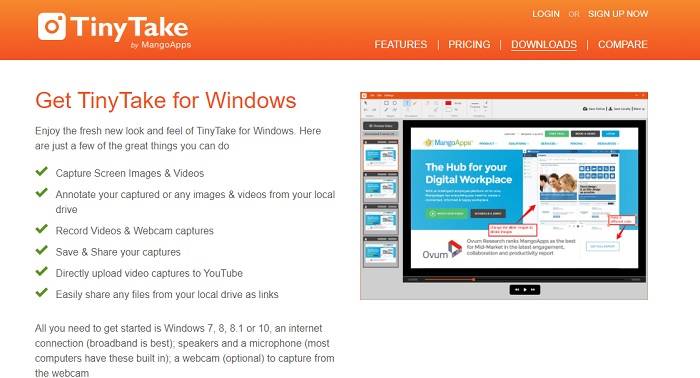
Særpræget funktion: Samarbejde eller fjernarbejde understøttes.
TinyTake er et videooptagelses- og gratis skærmoptagelsesværktøj udviklet af Mango Apps. Tiny Take tilbyder fantastiske løsninger til enkel skærmoptagelse eller optagelse af professionelle eller personlige møder. Det, der gjorde dette værktøj populært, er samarbejdsfunktionen, hvor du eksternt kan arbejde, udføre massedeling af filer, bruge annotationsfunktioner og langtidsopbevaring og Galleri (Online).
Fordele
- Det kan optage billeder og videoer fra dit lokale drev.
- Del det direkte på YouTube.
- Kommenter under optagelse.
Ulemper
- Ingen funktion til låsning af vinduer.
3. Screencast-O-Matic
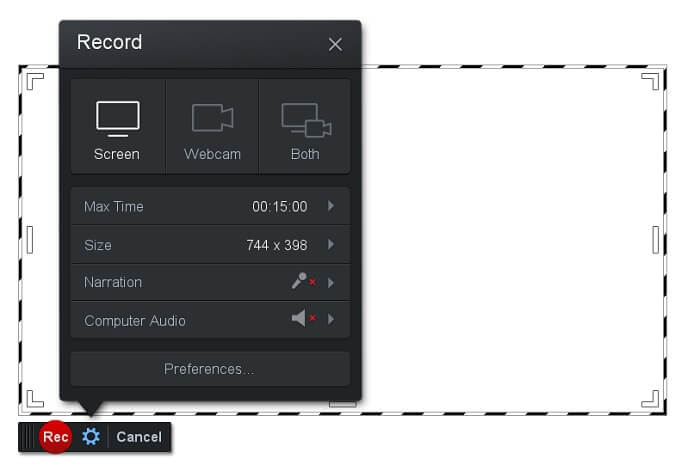
Særpræget funktion: Værktøjet har en brugervenlig og let navigerbar grænseflade. Meget ligetil.
Screencast-O-Matic er et af de mest almindeligt anvendte programmer for mange. Det kan optage computerskærmen gratis, når du har registreret dig. Det anbefales at oprette en konto for at bruge det gratis værktøj. Udover det har udvikleren tilføjet en funktion, hvor du kan redigere din video direkte, før du eksporterer den. Du kan hente inspiration i værktøjets indbyggede stockbibliotek og fortsætte med at forbedre dine videoer. Tag også skærmbilleder og del alt indhold på din sociale mediekonto.
Fordele
- Det har en Cloud Hosting -funktion.
- Upload en video til redigering.
- Værtsindhold.
Ulemper
- Registrering nødvendig.
4. Screencastify
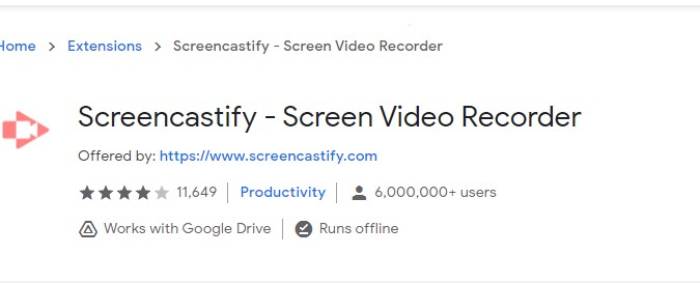
Særpræget funktion: Udvidelse til webbrowser
Lad os give lidt forskellighed til listen. Screencastify er et webafhængigt værktøj specifikt en udvidelse til Chrome Browser. Dette bruges mest af pædagoger og studerende. Hovedsageligt på grund af værktøjets enkelhed og annoteringsevnen, der holder pædagogen og eleven i fokus i klassen. De fleste mennesker, der studerer via Udemy og sådanne læringswebsteder, bruger denne skærmoptager. Hvis du gør det samme, kan du overveje at bruge det. I mellemtiden er her mere detaljerede oplysninger om værktøjet.
Fordele
- Kompatibel med alle medieplatforme.
- Værtsindhold.
- Upload en video til redigering.
Ulemper
- Selvom det er let adgang, fordi det er browserafhængigt, kan det også være ufordelagtigt.
- Det kræver mange tilladelser for at bruge det.
Del 3. Ofte stillede spørgsmål om WebM Recorder
Hvorfor åbnes min WebM -fil ikke?
Jeg forstår forvirringen; du tænker måske, at du bruger en moderne browser, og alligevel vil den ikke afspille. Har du prøvet at tjekke, om du kører den nyeste version af browseren? Hvis ikke, så opdater venligst. Det er en af de mest almindelige årsager til, at en video ikke kan afspilles. Men bemærk, at dette er nogle af de versioner, som WebM‑filen understøtter: Chrome 6, Firefox 4 og Internet Explorer 9 og nyere. Eller du kan prøve at bruge WebM‑afspillere til at hjælpe dig med at åbne den.
Hvorfor kan jeg ikke afspille WebM -video på min Mac?
Jeg vil meget anbefale at downloade VLC -afspiller eller VLC til Mac OS X -plugin. Den skal have en 64-bit Intel-processor.
Del 4. Sammenligningstabel
| Funktion | FVC -skærmoptager (Premium) | FVC -skærmoptager gratis | TinyTake | ScreenCast-O-matic | ScreenCastify |
| Optagelse af lyd og video |  | | | | |
| Videoredigeringsfunktion | | |  | | |
| Lock-in Window-funktion | | | | | |
| Kommenterende funktion | | | | | |
| WebM understøttes | | | | | |
| Malware sikkert | | | | | |
| Justerbar bithastighed og billedformat | | | | | |
Konklusion
Alle WebM -optagelsesværktøjer, der gennemgås i denne artikel, er pålidelige og effektive. Du skal bare se, hvilket værktøj der passer til kravene på din pc og dit operativsystem. De fleste mennesker vil gå på sikker grund ved at bruge en webbaseret app. Men det er stadig din opfordring til at bestemme.
-
 The Unbiased Cinch Review Audio Recorder og det bedste alternativ
 Cinch Audio Recorder er den bedste måde at downloade musik fra streaming-sider. Lær mere om den upartiske gennemgang og det bedste alternativ fra artiklen.
-
 Top 5 bedste mus- og tastaturoptagere til Windows og Mac
 Her er de fem bedste programmer til mus og tastaturoptager, der kan gemme dine musebevægelser og tastaturklik og gentage begivenhederne.
-
 Top 4 gratis AVI-skærmoptagere til at optage skærmvideo som AVI-filer
 For at optage skærm i AVI-filer i høj kvalitet identificerer og delte artiklen de 4 bedste gratis AVI-skærmoptagere i dette indlæg. Lær flere detaljer for at finde den ønskede i overensstemmelse hermed.
