


 Video Converter Ultimate
 Skærmoptager
 Video reparation
Plump for de bedste M4A til WAV-konvertere online og offline
M4A-formatet er kendt som MPEG‑4 Audio; det er en type container, der bruges til kun at gemme lydfiler ligesom MP3. I modsætning til andre lydformater er M4A stadig i udviklingsfasen. Det betyder, at nogle medieafspillere ikke kan afspille M4A-formatet på grund af teknologien bag det. Det gemmer lyd i god kvalitet, men med en lille filstørrelse. For at afspille M4A skal du derfor konvertere det til et afspilleligt format som WAV. Måske tænker du: hvorfor WAV? Simpelthen fordi det understøttes på rigtig mange platforme. Så lad os se på, hvordan man ændrer M4A til WAV, og hvilket værktøj der er bedst til denne konverteringsopgave. For at vide mere om hvert enkelt værktøj kan du læse beskrivelserne nedenfor med tilhørende trin til, hvordan du konverterer.

Del 1. Sådan konverteres M4A til WAV online [web-baseret]
1. FVC Free Audio Converter
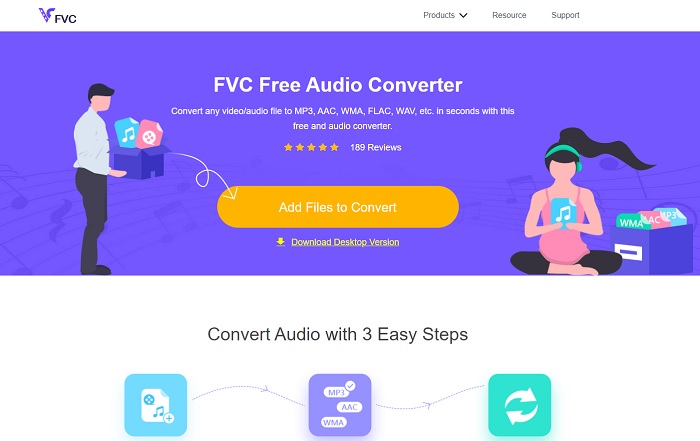
FVC tilbyder den bedste online konverter, nemlig FVC Free Audio Converter. Lær, hvordan du konverterer M4A-filer til WAV online med dette værktøj, som giver det bedste output. De vigtigste funktioner i premium-versionen vises dog ikke her, da dette kun er den gratis version. Men lad os sige det sådan: at konvertere filer her er sikkert, nemt og effektivt – præcis som FVC ønsker, du skal opleve det. Du kan også ændre bitrate, fps og opløsning, i modsætning til andre onlineværktøjer, der er nævnt her og uden for denne artikel. For at lære at bruge webværktøjet skal du blot følge trinnene nedenfor, så går vi i gang.
Trin 1. Klik på hyperlinket ovenfor for at gå til hovedsiden.
Trin 2. For at starte værktøjet skal du klikke på knappen Add Files to Convert og derefter klikke på Tillad.
Download skrivebordsversionen for at konvertere filer i batch.
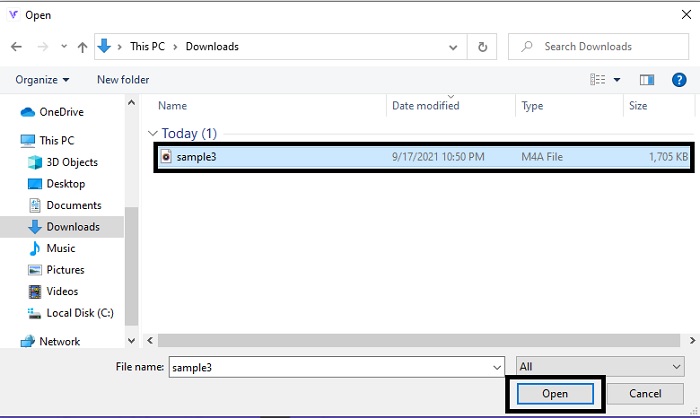
Trin 3. Vælg din M4A-fil, og klik på Open for at indsætte M4A-filen.
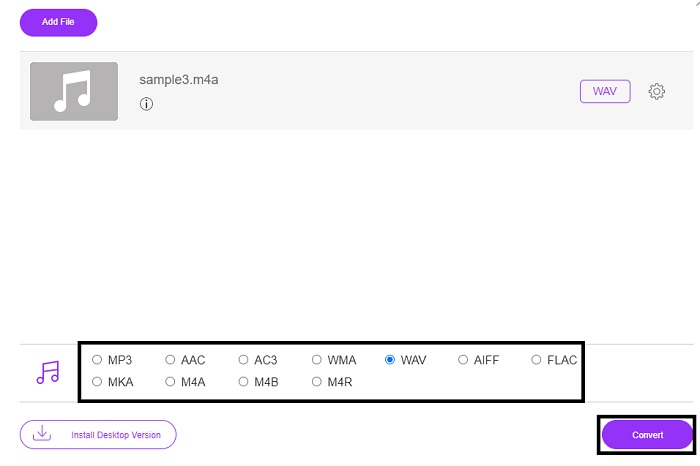
Trin 4. For at ændre M4A-format til WAV skal du vælge det format, du ønsker, nedenfor. Klik derefter på knappen Convert for at starte processen.
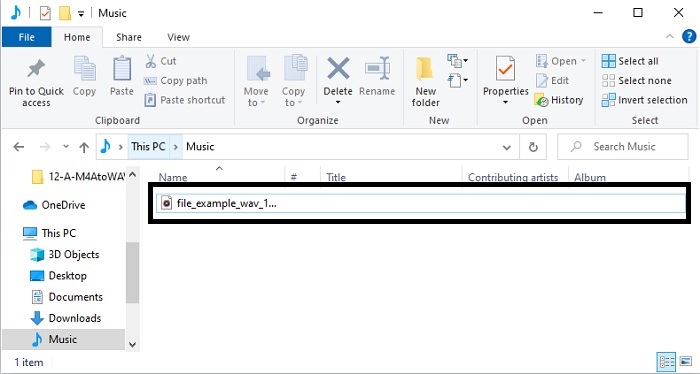
Trin 5. Når filen er færdig, skal du gå til din filhåndtering for at tjekke den konverterede lydfil, du lige har lavet.
2. Zamzar
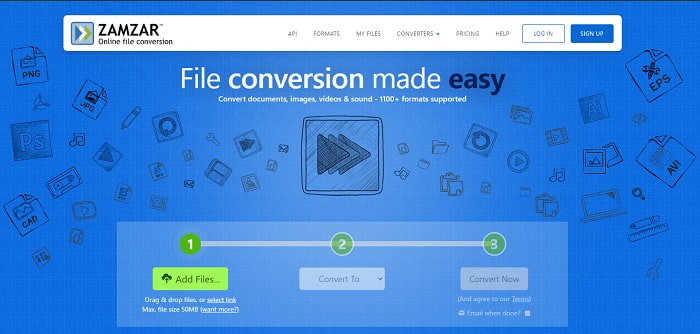
Når vi taler om et af de bedste onlineværktøjer til at konvertere M4A til WAV på Windows 10, skal der gøres plads til Zamzar. Dette værktøj er den nemmeste måde at konvertere en mediefil til et nyt format på, da du blot vælger via en rullemenu. Dette værktøj understøtter dog mange formater ligesom FVC Free Audio Converter. Ulempen ved at bruge det er, at du ikke kan tilpasse filen, så den passer perfekt til dine behov. Der er ingen indstillingsmuligheder, og derfor er det ikke det bedste værktøj for professionelle brugere, som vil have den bedst mulige lydkvalitet efter konvertering.
3. FreeConvert.com
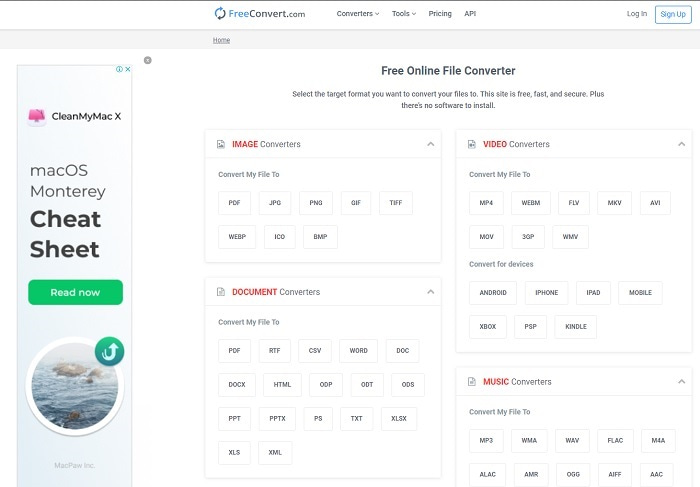
Konverter enhver fil på FreeConvert.com, da det understøtter mange forskellige filformater – hvad enten det er billeder, lyd, video eller dokumenter. En anden fordel er, at du ikke behøver at downloade et program, for at det kan fungere, ligesom med de to første værktøjer ovenfor. Selvom det er en af de mest egnede konvertere at bruge, er der dog reklamer overalt. Så vær forsigtig med ikke at klikke på dem, da mange reklamer kan indeholde vira. Men der er ingen grund til panik, for reklamerne her er som minimum begrænset til aldersmærkningen PG.
Del 2. Top 3 måder at gøre M4A til WAV offline på [Desktop – baseret og standardapp]
1. FVC Video Converter Ultimate
Konverter M4A til WAV på Mac og pc med hjælp fra byens bedste konverter, FVC Video Converter Ultimate. Dette værktøj bruges af millioner af brugere som deres foretrukne konverter på grund af den hurtige konverteringsproces og effektiviteten. Selv hvis du kombinerer alle værktøjerne, der er nævnt her, vil dette stadig skille sig ud. Har du problemer, fordi din nuværende konverter ikke tilbyder nok funktioner som forbedring og forstærkning af lyden? Bare rolig, for vi stiller disse funktioner til rådighed. For loyale brugere med høje standarder er FVC Video Converter Ultimate altid klar til at tilfredsstille dig. Så uden yderligere forsinkelse: lad os se, hvordan denne ultimative konverter fungerer, ved at følge trinene nedenfor.
Trin 1. Før du kan konvertere M4A til WAV, skal du først downloade værktøjet. Installer det, tilpas opsætningen, og klik på Finish, når det er færdigt, for at gemme.
Gratis download til Windows 7 eller nyere Sikker download
Gratis download til MacOS 10.7 eller nyere Sikker download
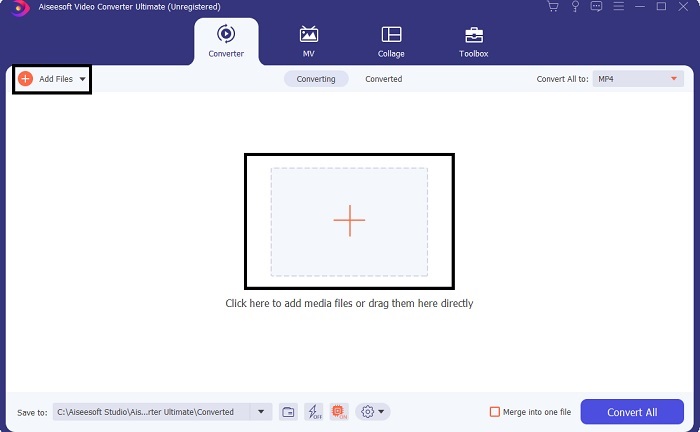
Trin 2. Når du har startet værktøjet, skal du gå til Add Files for at indsætte filen, eller du kan klikke på plus-ikonet, hvis du vil – begge åbner mappen, hvorfra du kan indsætte filer. Hvis der er mere end to filer, skal du trække og slippe dem direkte ind i programvinduet.
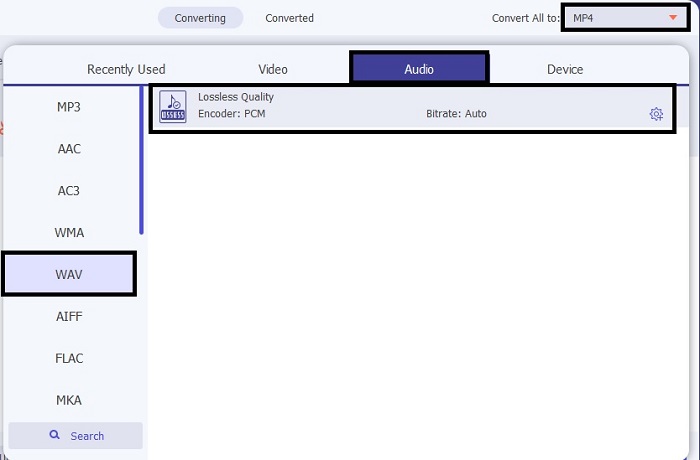
Trin 3. Når du har valgt filerne, skal du klikke på drop-down for at ændre lydformat og vælge det format, du ønsker.
Trin 4. Når du er færdig med at vælge det endelige output, skal du klikke på Convert All for at starte konverteringsprocessen.
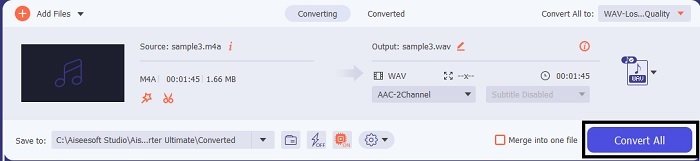
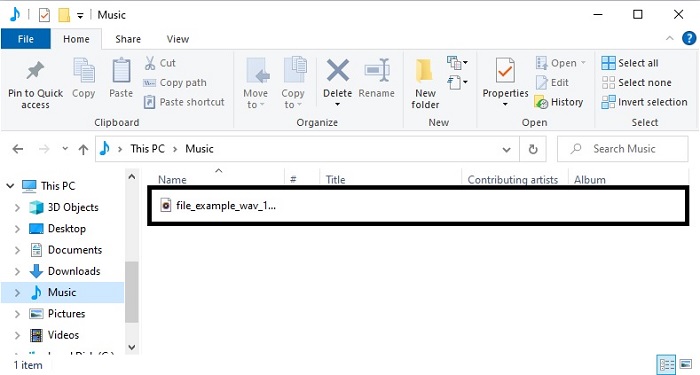
Trin 5. Når konverteringen er færdig, åbnes en mappe på skærmen med den placering, hvor din fil er blevet gemt. Klik på filen, og lyt til den konverterede lyd, du lige har lavet. Hvis du desuden vil have din lyd til at lyde endnu bedre, skal du gå til Toolbar og finde Audio Booster, før du konverterer.
I øvrigt lader dette værktøj dig også ændre M4A‑videoer til MP3, OGG, AAC eller andre populære lydformater uden at skade kvaliteten.
2. Frækhed
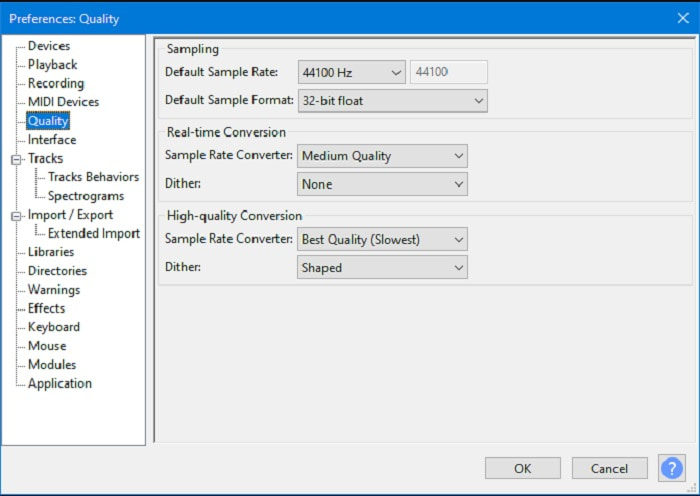
At bruge Audacity som din konverter er ikke en fejl, da det også giver en god konvertering. Du kan konvertere M4A til WAV i Audacity, selv når du er offline. Men dette værktøj er ikke helt så billigt som det første værktøj ovenfor, og dets brugerflade er ret kedelig. Bare det at se på den kan gøre én træt og uoplagt. Konverteringsprocessen virker også langsommere. Ikke nok med det – de understøttede formater er begrænsede – men hvis vi taler om de bedste konvertere, kan Audacity stadig ligge i top 15.
3. iTunes
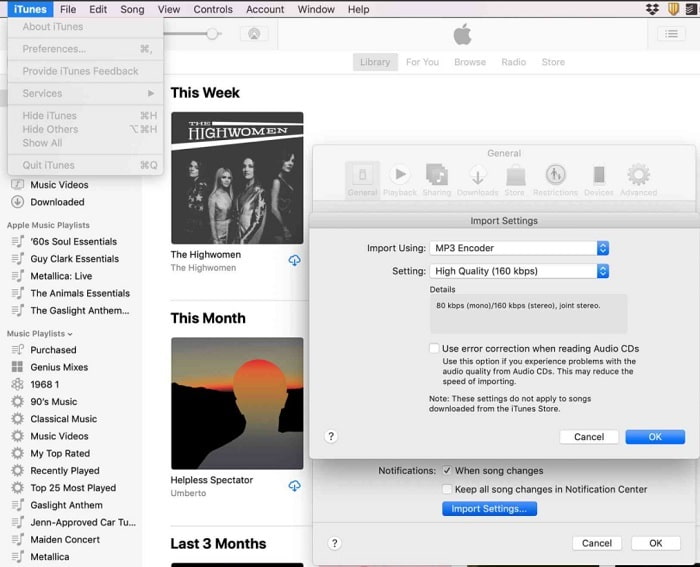
Standardmedieafspilleren for alle Apple-brugere har nu også en konverteringsfunktion, og ja, iTunes kan også konvertere. Men at lære hvordan man konverterer M4A til WAV i iTunes er en smule besværligt, fordi der er mange trin. I modsætning til de andre værktøjer her, selv webværktøjerne, er dette program ret svært at bruge som konverter på grund af alle de processer, du skal igennem. I nogle tilfælde kan du heller ikke konvertere til det ønskede format, fordi mulighederne er begrænsede. Og du kan ikke få adgang til iTunes, hvis du ikke bruger Apple-produkter. Men hvis du gerne vil prøve at konvertere dit format her, og du er Apple-fan, kan dette være din chance.
M4A vs. WAV
Dette Apple-format er faktisk MPEG-4-formatet, som kun gemmer lyd. I sådanne tilfælde gemmes filen i MPEG-4 med filtypenavnet .m4a, som står for MPEG-4 Audio. Navneændringen er for at skelne den fra MP4, MPEG-4 videofilformatet.
WAV, også kendt som WAVE-formatet, er baseret på Resource Interchange File Format (RIFF). Det er udviklet af Microsoft og IBM sammen i begyndelsen af 1990'erne. Det er en mulighed for at gemme rå, ukomprimeret lyd i Microsoft Windows. Således afspilles WAV-filer oftere på Windows-computere.
Del 3. Ofte stillede spørgsmål om M4A til WAV
Kan jeg bruge VLC til at konvertere?
Ja, du kan bruge VLC-medieafspilleren til at konvertere. Selvom du kan konvertere, skal du forvente et begrænset udvalg af formater, når du går i gang. Men det kan stadig betale sig at konvertere M4A til WAV i VLC, selv om det er et lydformat – bare husk ikke at forvente for meget, hvis du bruger dette som din primære konverter.
Hvad er forskellen mellem M4A og WAV?
M4A og WAV giver os begge chancen for at gemme lyd med meget høj kvalitet. Men forskellen mellem de to er meget at forklare, men lad os skelne mellem de vigtigste forskelle. M4A er en lydkomprimeret fil, der bruger tabsfri komprimering. Og det er meget brugt som en erstatning eller skal vi sige efterfølger af MP3-format. Men WAV'en bruges af mange fagfolk til at gemme og optage lyd, fordi den ikke er komprimeret og også giver den bedste kvalitet.
Hvad er bedre, M4A eller MP4?
Som nævnt tidligere i denne artikel kan M4A kun indeholde lydfiler. MP4 er derimod meget udbredt, fordi det er en multifunktionscontainer, der kan indeholde både lyd og video. Hvis du kun vil gemme lyd, skal du vælge M4A, og hvis du vil gemme både video og lyd, skal du bruge det universelle MP4-format. Vil du konvertere MP4 til M4A? Klik her for at få flere detaljer.
Konklusion
For at afslutte problemet skal du vælge den langsigtede løsning, så du ikke behøver at bruge andre tredjepartsværktøjer til at gøre det. Ligesom FVC Video Converter Ultimate er den designet til at være fremtidssikret på grund af de tilgængelige funktioner her. I modsætning til nogen af ovenstående værktøjer er konvertering i dette ultimative værktøj super nemt, selvom du har en blindfold i øjet, kan du stadig udføre konverteringsprocessen. Faktisk er det fantastiske ved dette værktøj, at det også er et multifunktionelt. For at give dig et eksempel på dette, er det ikke kun til konvertering, men du kan også forbedre, oprette og redigere din fil her. Så tag ikke andet end den bedste konverter i byen, og det er FVC Video Converter Ultimate.
-
 Sådan konverteres gratis MP4 til WAV på skrivebordet eller online [2021]
 Prøver du hårdt på at konvertere MP4 til WAV? Ved du ikke, hvilken konverter der kan hjælpe dig med det perfekt uden at betale en krone? Læs dette indlæg og alle dine spørgsmål vil blive besvaret.
-
 WAV til MP3 - Top 5 gratis konvertere til at konvertere WAV til MP3
 Denne side er en lang liste med gratis WAV til MP3-konverter (iTunes, Audacity, VLC, Windows Media Player og Free Audio Converter) for at ændre WAV til MP3 på computeren.
-
 FLV til WAV - Konverter FLV til WAV online gratis og på Mac / PC
 Hvordan konverterer jeg en FLV-fil? Kan VLC konvertere YouTube FLV til WAV? Dette indlæg fortæller 3 gratis måder at konvertere FLV til WAV uden kvalitetstab.

