


 Video Converter Ultimate
 Skærmoptager
 Video reparation
3 effektive måder at omdanne M4V til MKV på Mac/Windows/Linux uden kvalitetstab
Jeg skal vende de M4V-videoer, som jeg downloadede på iTunes. Har du nogen idé om, hvordan man konverterer M4V til MKV på Mac og senere bruger det på mit tv?
Dette problem er udbredt, især på M4V‑videoer, der er downloadet fra iTunes, fordi dette format er omfattet af Apples Fair Play‑politik og er beskyttet. Derfor kan du ikke afspille .m4v‑videoer direkte på andre enheder uden først at konvertere dem. Denne artikel vil præsentere fakta om de konvertere, du kan bruge, og hvordan du med succes kan konvertere M4V‑formatet. Uden yderligere forsinkelser, lad os begynde at lære den effektive metode til at ændre M4V til MKV på Mac eller Windows.

Del 1. Konverter iTunes M4V til MKV på Mac og Windows [mest udvalgte]
Der findes mange gratis M4V‑til‑MKV‑konvertere på markedet, som du kan downloade, og en af dem er FVC Video Converter Ultimate. Men dette ultimative værktøj giver en mere effektiv konvertering end de andre konvertere på grund af dets lynhurtige konverteringshastighed, ubegrænsede upload til konvertering og intuitive grænseflade. Er du imponeret over den ultimative konverter? Eller vil du gerne vide mere om den? I så fald finder du nedenfor de nøglefunktioner, du vil få, hvis du anskaffer denne konverter.

FVC Video Converter Ultimate
2.999.368+ downloads- Det kan konvertere flere iTunes M4V til MKV eller til 200+ medieformater såsom MOV, AVI, MP4 osv.
- Med den ultrahurtige konvertering er din proces med at konvertere din M4V på et øjeblik
- Avancerede redigeringsfunktioner er tilgængelige for at gøre din video endnu bedre.
- Indstil fantastiske funktioner til at komprimere, ændre størrelse, GIF-fremstiller osv. under Værktøjskassen.
Gratis download til Windows 7 eller nyere Sikker download
Gratis download til MacOS 10.7 eller nyere Sikker download
Er det ikke fantastisk, hvordan alle disse funktioner kan være på ét værktøj? Lad os ikke spilde mere tid og bestemme, hvordan dette værktøj effektivt konverterer din iTunes M4V til MKV ved at følge nedenstående trin.
Trin 1. Download først den ultimative konverter til din harddisk ved at klikke på downloadknappen nedenfor. Vælg den platform, du bruger nu, følg installationsprocessen, og tryk på Start Now for at fortsætte. Husk, at du bør sætte dig godt ind i værktøjets grænseflade for at undgå vanskeligheder.
Gratis download til Windows 7 eller nyere Sikker download
Gratis download til MacOS 10.7 eller nyere Sikker download
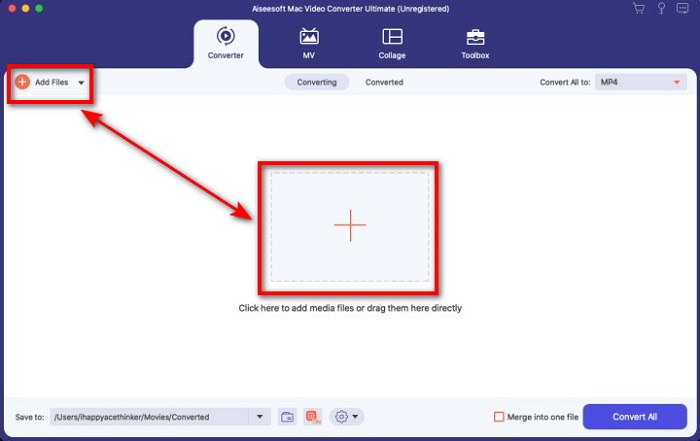
Trin 2. Upload M4V‑filen til grænsefladen ved at klikke på Add Files eller +-knappen. Derefter åbnes en computer-mappe på din skærm, gennemse .m4v‑filen, og tryk på Open.
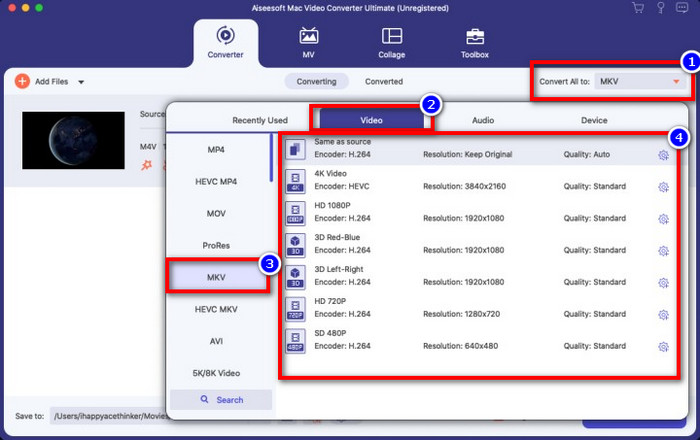
Trin 3. Vælg MKV-formatet under Convert All to, og klik på det.
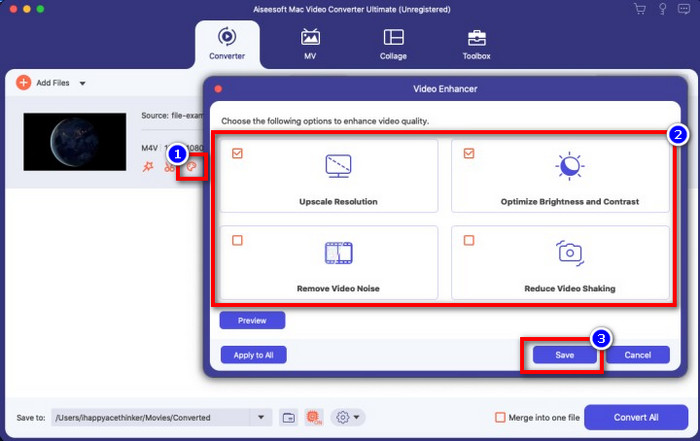
Valgfrit. Effekten af dette er uden tvivl rigtig god indtil videre. Men vidste du, at dette værktøj også tilbyder video‑forbedring? Hvis du klikker på enhance video-indstillingen, vises et dialogvindue; sæt flueben i den box, du vil forbedre på din video, og klik på Save for at anvende det.
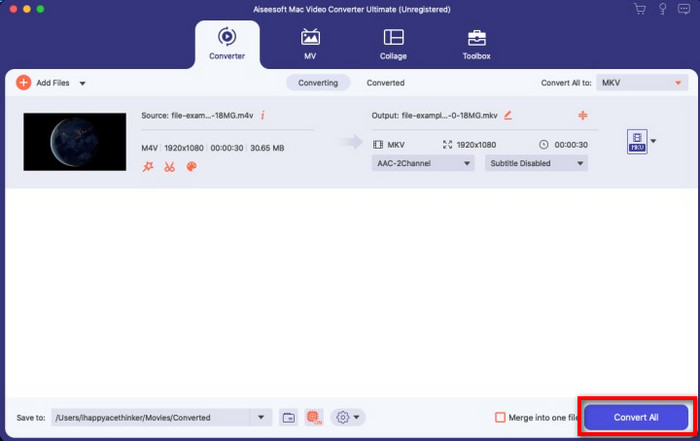
Trin 4. Ved at klikke på knappen Convert All begynder konverteringen inden for kort tid. Sådan, nu har din videofil filtypen .mkv.
Del 2. Konverter M4V til MKV Online
Vil du ikke betale for at konvertere M4V‑filer, men i stedet konvertere M4V til MKV online? Hvis det er tilfældet, er FVC Free Video Converter Online en online konverter, der garanterer effektivitet i din konverteringsproces selv på nettet. Konverteren kan klare opgaven uden, at du behøver at købe selve konverteren eller endda downloade den. Der er heller ingen reklamer eller registrering, der kræves for at bruge den. Selvom konverteren er gratis, fokuserer funktionerne her kun på selve konverteringen. I modsætning til det ultimative værktøj, som tilbyder omfattende og imponerende funktioner. Har du brug for at konvertere dine M4V‑filer online, så brug denne konverter og følg trinene nedenfor.
Trin 1. Klik venligst på dette link for at åbne FVC Free Video Converter Online.
Trin 2. Tryk på Add Files to Convert for at starte og uploade den M4V‑fil, du vil konvertere.
Download skrivebordsversionen for at konvertere filer i batch.
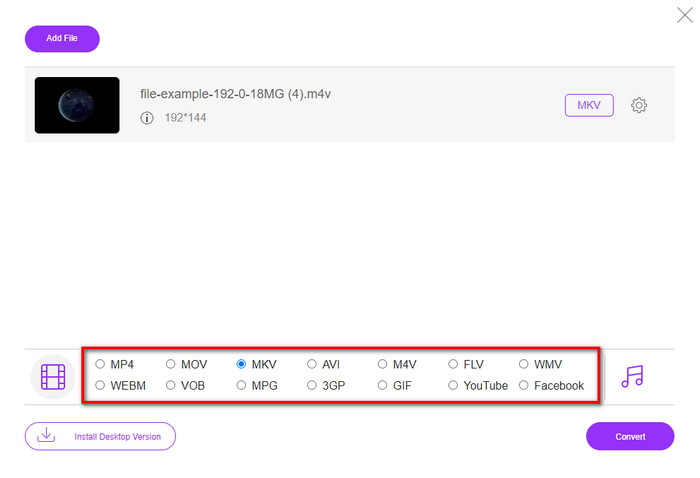
Trin 3. Vælg MKV-formatet nedenfor eller et andet format, du ønsker.
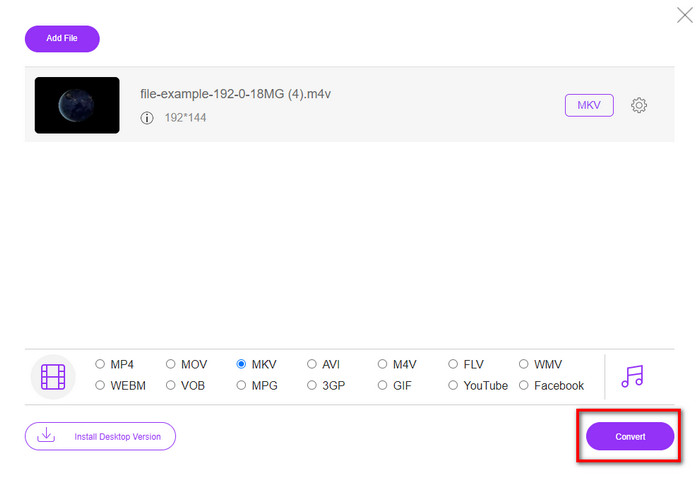
Trin 4. Klik på Convert, for at processen kan begynde.
Del 3. Konverter M4V til MKV gratis
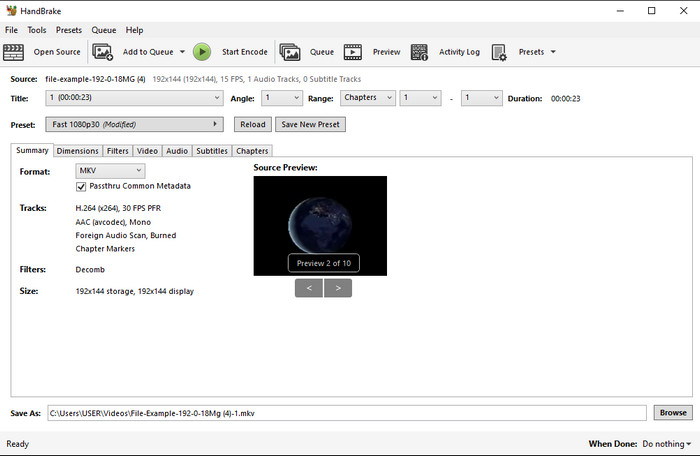
Handbrake giver en hurtig og effektiv konverteringsproces ligesom de andre konvertere, der er præsenteret her. Men de formater, dette værktøj understøtter, er begrænsede, hvilket betyder, at du har færre valgmuligheder for, hvilket format du vil have det i. Men hvis du vil bruge og konvertere M4V til MKV i Handbrake, skal du følge trinene nedenfor.
Trin 1. Download Handbrake til din computer. Upload .m4v‑filen ved at trække og slippe den på grænsefladen. Du kan også klikke på File, finde filen i computer-mappen og trykke på Open.
Trin 2. Klik på Format, og vælg MKV.
Trin 3. Klik på Start Encode for at starte konverteringsprocessen.
Del 4. Hvad er lighederne og forskellene mellem M4V og MKV
Før vi sammenligner M4V og MKV, lad os finde ud af lighederne mellem disse to formater. M4V og MKV er begge beholdere til medieindhold og elementer. Disse to formater er også kendt for at gemme en af de bedste videokvaliteter, såsom HD-videoer eller 4k. Og de er også store til at indeholde elementer som f.eks. metadata. Desuden er de efterfølgende detaljer nedenfor forskellen mellem de to formater.
M4V minder meget om MP4-formatet; dette format er dog under DRM-kopibeskyttelse, hvilket betyder, at du ikke frit kan bruge det. Men ikke alle M4V-filer har Apple-beskyttelse, fordi nogle af de M4V, der kan downloades, har en uautoriseret licens, så sørg for at downloade .m4v-filen på iTunes for at undgå den ondsindede virus, der vil inficere dit system. Selvom formatet har en begrænsning, kan du stadig bruge dette format på flere medieafspillere til at se den video, du downloader på iTunes. Desuden, hvis du har brug for et beskyttet design på Mac, er dette format det bedste valg.
Tværtimod er MKV specifik til at indeholde flere medieindhold og elementer i én fil. Denne funktion er kun tilgængelig på MKV, da dette format er gratis at bruge, og det er mere fleksibelt end M4V. Desuden er der mange grunde til at ændre M4V til MKV på Mac eller Windows, og en af dem er at gøre videofilen ubegrænset.
M4V vs. MKV
M4V er udviklet af Apple, som også bruger MPEG 4. M4V-filer bruges ofte til at gemme de videoer, der er downloadet fra Apple iTunes Store, som musikvideoer, tv-episoder osv. Du kan finde nogle M4V-filer kopibeskyttede, da den bruger Apples FairPlay DRM ophavsretsbeskyttelse.
Matroska multimediebeholderformatet, udgivet i 2002, er et open source-format, der kan omfatte en række video-, lyd-, billed- og undertekstspor. Så du kan nemt bruge den til at gemme korte videoklip, tv-shows og film. Det er ret populært til anime-fan-subbing.
Del 5. Ofte stillede spørgsmål om M4V til MKV-konvertering
Hvad er bedre til redigering, M4V eller MOV?
De to nævnte formater er begge Apple‑formater, så du vil lægge mærke til, at der ikke er nogen væsentlig forskel mellem M4V og MOV. MOV er dog langt bedre til redigering, fordi dette format ofte indeholder en serie af videoafspilninger, hvilket gør det til det bedste valg til professionel redigering. Måske tænker du, at du bør lave din M4V om til MOV til redigeringsformål. Hvis ja, så klik på dette link for at få mere at vide om konvertering af M4V til MOV med en omfattende forklaring.
Er M4V og MP4 ens?
M4V og MP4 er meget identiske med hensyn til struktur og videokvalitet. Men på grund af Apple Plays-beskyttelsen har M4V et lille antal understøttelser, og du kan ikke bare afspille en video eller redigere i .m4v-udvidelsen.
Hvilke medieafspillere understøtter M4V?
Ikke mange medieafspillere understøtter denne type format på grund af DRM‑beskyttelsen. Så hvis du leder efter en MKV‑afspiller, vil du bruge meget tid på at lede og teste, hvilket er tidskrævende. Men hvis du læser denne artikel, kan du downloade eller bruge de 5 bedste MKV‑medieafspillere, der findes på alle platforme.
Konklusion
De tre værktøjer, der er præsenteret i denne artikel, vil helt sikkert give dig den effektive konvertering, du ønsker, når du følger trinnene. Selvom konverterne har meget til fælles, er der stadig også mange forskelle. Hvis du læser de oplysninger, vi har givet ovenfor, vil du lære en masse om de tre værktøjer. Hvis du ønsker en fremragende konvertering i ét hug og stadig bevare effektiviteten i konverteringen, anbefaler vi FVC Video Converter Ultimate. Lyder det utroligt? Det er det bestemt, så download det til din computer og prøv selv.
-
 M4V til MP3 Converter - 4 bedste metoder til at udtrække MP3 fra M4V filer
 Når du nemt vil udtrække MP3-lyd fra M4V-videoer, kan du lære mere om de 4 bedste M4V til MP3-konvertere for at få de ønskede lydfiler fra artiklen.
-
 [Guide] Sådan konverteres M4V-videoer til animerede GIF'er på Windows/Mac
 Hvis du vil lave animerede GIF -filer fra dine foretrukne M4V -videoer, kan du lære om 2 nemme og effektive måder at konvertere M4V -videoer til GIF'er med tilpassede indstillinger.
-
 3 Video Converter Program Bruges til at konvertere iTunes M4V til AVI på Mac
 Har du ingen idé om, hvordan man konverterer MKV til et AVI-format? Mens vi fortsætter med at læse denne artikel, kender vi de 3 værktøjer, der kan hjælpe dig med at konvertere dette filformat.

