


 Video Converter Ultimate
 Skærmoptager
 Video reparation
 Sikker download
Førsteklasses teknikker til, hvordan man konverterer MPEG til M4V
Er din MPEG-fil ikke til at afspille i QuickTime Player? Hvis det er dit problem, er den bedste løsning, du kan prøve, at konvertere din MPEG-fil til M4V-format. Du kan afspille en M4V-fil i QuickTime Player og andre medieafspillere. I denne vejledning giver vi dig de tre bedste metoder, du kan bruge til straks at konvertere MPEG til M4V ved hjælp af Mac- og onlineredskaber. Derudover viser vi dig forskellene mellem MPEG-filformatet og M4V, så du får et klart billede af disse to formater. Læs denne artikel og få mere at vide om metoderne.

Del 1: Hvad er forskellene mellem MPEG og M4V
Se i tabellen nedenfor for at se oplysningerne om MPEG- og M4V-filformaterne.
| MPEG | M4V | |
| Beskrivelse | Da MPEG-1 blev oprettet i 1993, vandt det hurtigt popularitet som lagringsformat til både lyd og video. Det er nu den medietype, der er mest kompatible på verdensplan. Da formatet oprindeligt kom ud, var det innovativt og forud for sin tid, og leverede filer af en rimelig kvalitet, mens de reducerede deres størrelse og komprimerede dataene, hvilket gjorde det nemt at uploade og downloade filer. Disse funktioner tillod udsendelse af digital lyd, digitalt tv og video. Da MPG er forældet og ikke længere beskyttet af patenter, er talrige hardware- og Mac- og Windows-software udstyret med indbygget understøttelse af MPEG-video og -lyd. | M4V, en type videobeholder, som iTunes-filer kan gemme lyd- og videodata. Det er bedst at købe lyd- eller videofiler fra iTunes Store, hvis de er Apple FairPlay DRM-beskyttet mod uautoriseret visning og kopiering. Fordi formatet er baseret på MPEG-4-struktur, kan praktisk talt enhver moderne afspiller vise ubeskyttede filer. |
| Filkategori | Video | Video |
| Filudvidelse | .mpeg | .m4v |
| Udvikler | ISO, IEC | Æble |
| Tilknyttede programmer | VLC Media Player Video LAN Windows Media Player | Quicktime-afspiller VLC Media Player Apple iTunes |
Del 2: Fremragende metode til at konvertere MPEG til M4V ved hjælp af Mac
Du kan downloade Video Converter Ultimate for nemt at konvertere MPEG til M4V på Mac. Den har en højhastighedskonvertering, der er 30x hurtigere end andre konvertere. Den understøtter også batch-konvertering. På den måde kan du konvertere din MPEG-fil til M4V-format, og samtidig kan du konvertere flere filer på én gang. Med denne arbejdsgang kan du være sikker på, at du kan konvertere et stort antal filer på kort tid. Du kan også konvertere din MPEG-fil til andre formater, såsom MOV, MKV, WMV, MP4, AVI, FLV og over 100 andre. Desuden er Video Converter Ultimate ikke kun pålidelig til konvertering. Hvis du vil beskære din MPEG-video, før du konverterer den, kan du gøre det i dette program. Denne konverter har et beskæringsværktøj, så du kan klippe og beskære din video for at fjerne de dele, du ikke vil se. Og hvis du planlægger at lave en fotocollage, kan du også bruge dette program. Det har en collagefunktion. Med denne funktion kan du bruge gratis skabeloner med forskellige designs, og det har også adskillige filtre, du kan bruge. På den måde er det muligt at lave en fantastisk collage. Hvis du vil opdage mere om dette program, må du prøve at bruge det selv.
Funktioner
◆ Konverter mere end 100 videofilformater, inklusive M4V, MPEG, MKV, WMV, MOV, FLV, AVI, MP4 og mere.
◆ Det kan oprette en collage med gratis skabeloner og filtre.
◆ Tilbyder forskellige redigeringsværktøjer, såsom videoforstærker, kompressor, farvekorrektion, cropper osv.
◆ I stand til at lave en attraktiv musikvideo med gratis temaer.
◆ Kan bremse og fremskynde en video fra 0,125x op til 8x hurtigere.
◆ Det kan komprimere video og lyd.
Fordele
- Perfekt til den ikke-professionelle bruger.
- Det kan konvertere filer 30x hurtigere end den normale konverteringshastighed.
- Den har en intuitiv grænseflade.
- Tilbyder batchkonverteringsproces.
Ulemper
- Du skal købe softwaren for at nyde de fantastiske funktioner i pro-versionen.
Følg den enkle vejledning nedenfor for at konvertere MPEG til M4V ved hjælp af Mac.
Trin 1: Klik på knappen Download for at downloade og installere Video Converter Ultimate på din Mac. Start derefter programmet.
Gratis download til Windows 7 eller nyere Sikker download
Gratis download til MacOS 10.7 eller nyere Sikker download
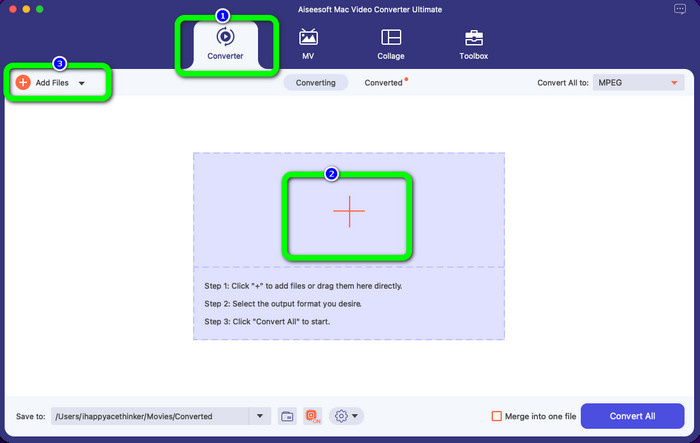
Trin 2: Når du har åbnet programmet, ser du fire muligheder øverst i grænsefladen. Vælg Converter, og klik på Plus-ikonet midt i grænsefladen for at tilføje den MPEG-video, du vil konvertere. Du kan også klikke på knappen Add Files.
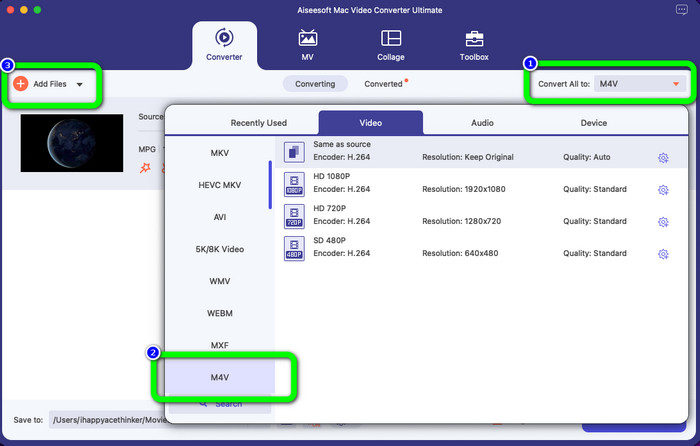
Trin 3: Når du har indsat din MPEG-videofil, skal du vælge knappen Convert All to øverst til højre i grænsefladen. Derefter vises formatmulighederne på skærmen. Klik på M4V-filen, som er dit ønskede outputformat. Dette værktøj understøtter batch-konvertering, så du kan klikke på knappen Add Files for at tilføje flere filer, du vil konvertere.
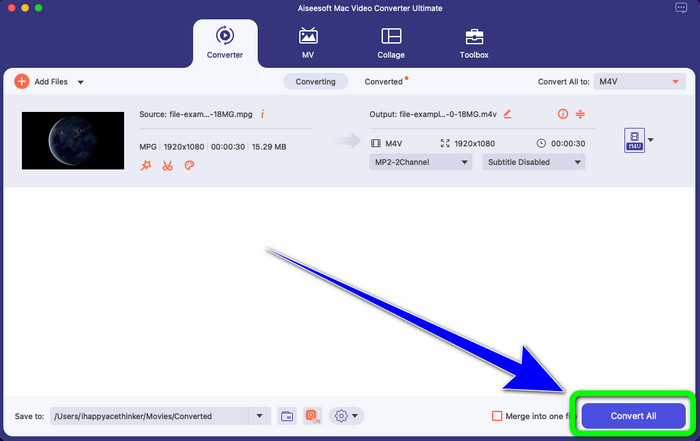
Trin 4: Når du er færdig med at ændre MPEG-filen til dit ønskede format, skal du klikke på knappen Convert All for at gemme din endelige video i M4V-filformat.
Del 3: Bedste måde at konvertere MPEG til M4V online
Den bedste måde at konvertere MPEG til M4V ved hjælp af et onlineværktøj er FVC Free Video Converter Online. Det er en alsidig videokonverter, der kan konvertere næsten alle formater, såsom AVI, MOV, MP4, FLV, TS og flere. Du kan også konvertere din MPEG-fil, mens du bevarer den oprindelige kvalitet. Desuden er denne konverter 100 % gratis, så du kan bruge værktøjet uden begrænsninger og uden at betale noget. Følg de enkle trin nedenfor for at konvertere MPEG til M4V med FVC Free Video Converter Online.
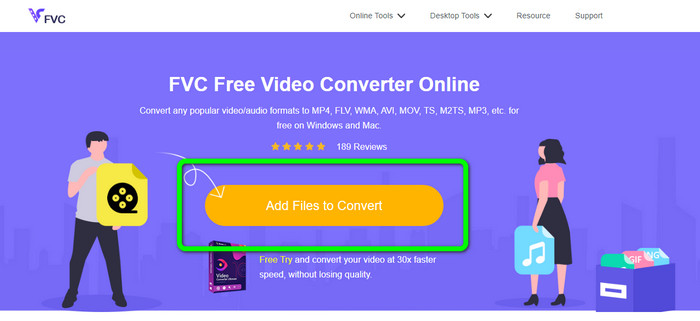
Trin 1: Åbn din browser, og gå til websiden FVC Free Video Converter Online. Klik derefter på knappen Add Files to Convert. Din mappe vises på skærmen, og du vælger den MPEG-fil, du vil konvertere.
Trin 2: Når du har tilføjet din MPEG-videofil, ser du formatmulighederne nederst i grænsefladen. Vælg dit ønskede outputformat, som er M4V-filen.
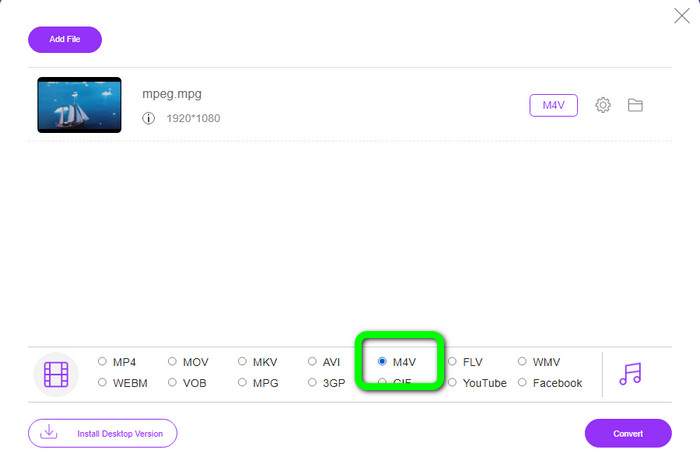
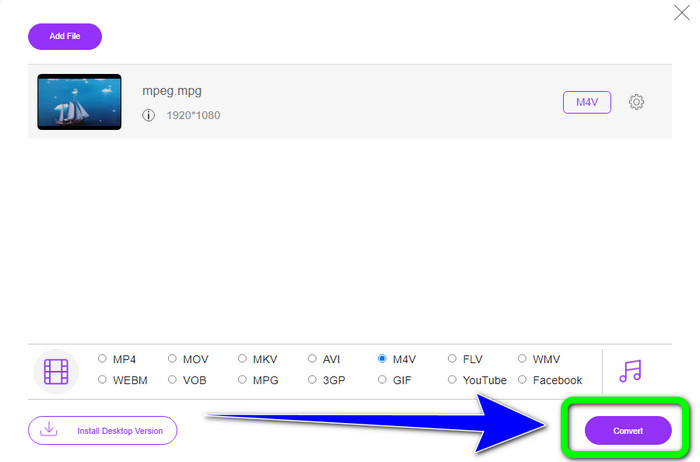
Trin 3: Til sidst skal du klikke på knappen Convert, efter at du har valgt M4V-filformatet. Gem den derefter på den ønskede placering. Vent på konverteringsprocessen, og klik på OK. Dette værktøj kan også hjælpe dig med at konvertere MP4 til M4V online.
Del 4: Ofte stillede spørgsmål om konvertering af MPEG til M4V
Hvordan bruger man FFmpeg til at konvertere MPEG til M4V?
Download FFmpeg på din computer. Åbn derefter din kommandoprompt. Skift din kommandolinje til "Desktop". Konverteringskommandoen begynder med FFmpeg -i, efterfulgt af navnet og filtypen for kildefilen, samt navnet og filtypen for outputfilen. Tryk derefter på "Enter" og vent på konverteringsprocessen. Efter konvertering vil du se din konverterede fil på dit skrivebord.
Kan VLC konvertere MPEG til MP4?
Ja. VLC, en populær medieafspiller på tværs af platforme, kan afspille alle større filtyper, inklusive MP4, MPEG, AVI, MOV og flere. Afspilleren kan også bruges til hurtigt og nemt at konvertere dine MPG-filer til MP4, fordi den også understøtter filkonvertering.
Kan jeg bruge et fremragende onlineværktøj til at konvertere MPEG-filer til andre formater?
Ja, selvfølgelig! Du kan bruge FVC Free Video Converter Online. Dette onlineværktøj kan straks konvertere din MPEG-fil til andre formater uden at ændre videokvaliteten.
Konklusion
De to metoder, der er vist ovenfor, er den bedste løsning til at konvertere MPEG til M4V-filformat. Du kan bruge Video Converter Ultimate, hvis du vil have en downloadbar konverter. Og hvis du foretrækker at bruge et onlineværktøj, kan du bruge FVC Free Video Converter Online.
-
 3 måder at konvertere MPG til 3GP på Windows og Mac [Gratis]
 Hvis du leder efter måder at konvertere MPG til 3GP, skal du læse denne artikel for at kende de bedste måder at konvertere MPG til 3GP på Windows og Mac.
-
 Sådan konverteres MPG til DivX uden kvalitetstab
 Leder du efter et problemfrit program, du kan bruge til at konvertere MPG til DivX? Denne artikel vil give dig forskellige effektive metoder, du skal prøve.
-
 Sådan konverteres M4V til DivX gratis på Mac [Bedste værktøjer]
 Leder du efter måder at konvertere M4V til DivX gratis? Vi listede de bedste konvertere for dig til at konvertere din M4V-fil til DivX på Mac.
