


 Video Converter Ultimate
 Skærmoptager
 Video reparation
Online og offline konverteringsproces: SWF til WMV
SWF er et ældre filformat oprettet af Adobe til Shockwave Flash‑afspilleren. Flash understøttes ikke længere af mange browsere, har aldrig været understøttet på iOS‑enheder, og SWF‑filformatet bruges sjældent i dag på grund af problemer med ydeevne og sikkerhed. WMV derimod er et sæt videokomprimeringscodecs skabt til tidlig internetvideostreaming og fysiske medier som HD‑DVD og Blu‑ray. Video i dette filformat kan afspilles direkte på Windows‑enheder, så du kan have lyst til at konvertere SWF‑filer til WMV, fordi Flash‑afspillere bliver mere og mere udfaset, og du ikke længere kan afspille SWF‑filer. Derfor giver vi dig to muligheder for at konvertere din SWF til WMV.

Del 1. Sådan konverteres SWF til WMV på Windows og Mac med lethed
Video Converter Ultimate er en multimedieomformer, der konverterer stort set alle gængse video‑ og lydfiler til det ønskede outputformat. Den kan konvertere videofiler i batches, hvilket gør den mere effektiv, end den umiddelbart virker. Den stopper ikke ved at konvertere; den giver også brugerne mulighed for at redigere deres videoer ved hjælp af nyttige redigeringsværktøjer. Derudover understøtter denne videokonverter forskellige formater, herunder dem, der er mest udbredte i dag. Endnu vigtigere er det, at den konverterer hurtigere end sammenlignelig software. For at bruge dette program skal du følge disse enkle trin:
Trin 1: Klik på knappen Free Download for at downloade .exe‑filen, du skal bruge til at installere softwaren. Vent, til den er færdig, åbn den, og følg installationsprocessen. Klik på Start Now, og start programmet.
Gratis download til Windows 7 eller nyere Sikker download
Gratis download til MacOS 10.7 eller nyere Sikker download
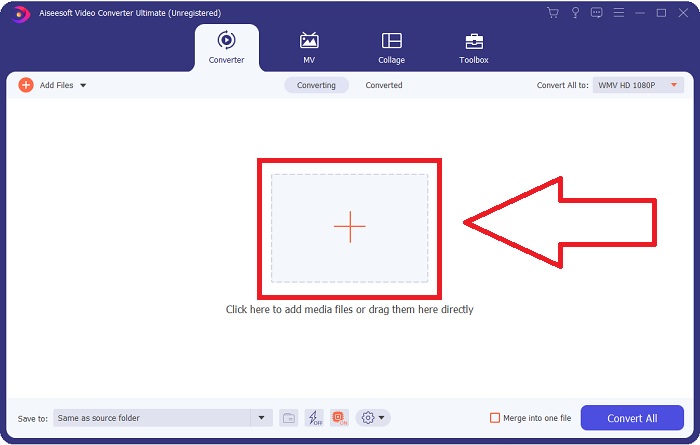
Trin 2: Upload den videofil, du vil konvertere, ved at klikke på +-knappen i midten af interface’et. Alternativt kan du trække filen fra dit skrivebord og slippe den på interface’et, hvorefter den automatisk bliver importeret.
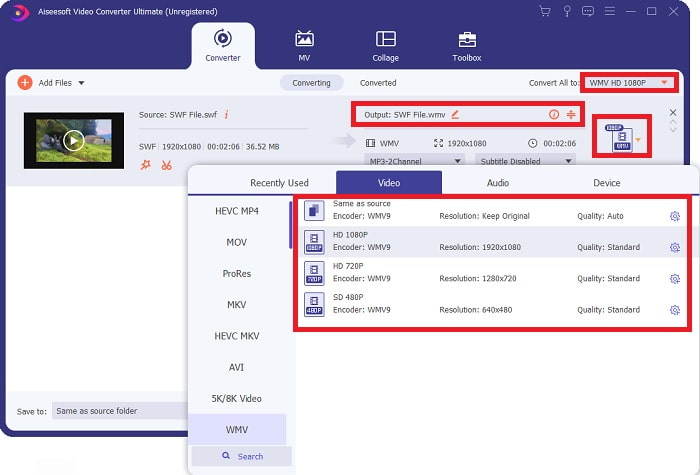
Trin 3: Klik på rullemenu‑pilen til højre, hvor du kan se det aktuelle format, din video har, og hvor alle de tilgængelige formater vises. I dette tilfælde skal du rulle ned og vælge WMV eller blot skrive det i søgefeltet. Alle videokvaliteter kan også vælges i panelet til højre.
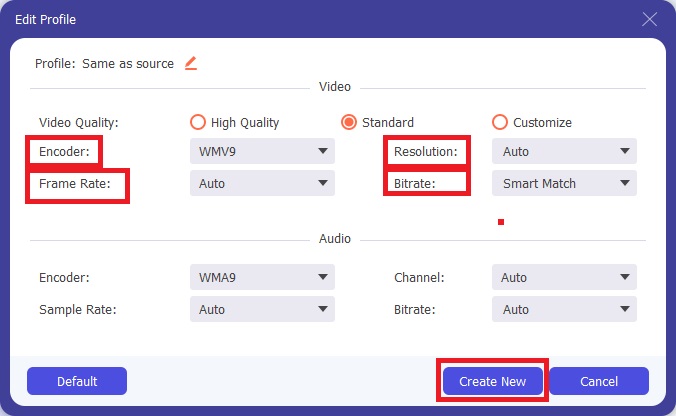
Trin 4: For at redigere din video yderligere skal du klikke på tandhjulsikonet til højre for at få vist alle de praktiske redigeringsværktøjer. Derfra kan du foretage alle de nødvendige justeringer, der passer bedst til dine behov. Klik blot på knappen Create New, når du er færdig.
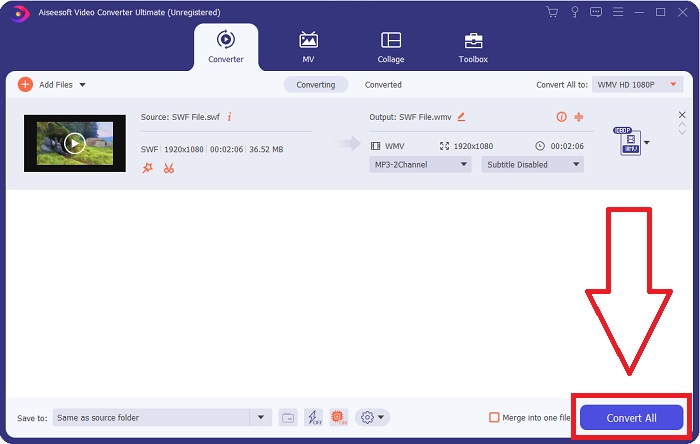
Trin 5: Afslut konverteringsprocessen ved til sidst at klikke på knappen Convert All i nederste højre hjørne af vinduet og vente, til den er færdig.
Del 2. Et andet tip til at konvertere SWF til WMV Online
FVC Free Video Converter er altid gratis og kræver ingen registrering. Nogle gratis online videokonverterere begrænser konverteringstidsrammer eller filstørrelse. Hvis du har brugt alle dine gratis konverteringstider, eller din fil er for enorm, bliver du nødt til at købe en plan, selvom du sjældent konverterer videoer. Men FVC Free Video Converter har ingen sådanne begrænsninger og kan konvertere videoer til enhver tid.
Desuden behøver denne service ikke registrering for at konvertere større filer, i modsætning til de fleste online videokonverterere kræver registrering for at konvertere videoer større end 1 GB. Her er de trin, du skal følge for dette fantastiske værktøj:
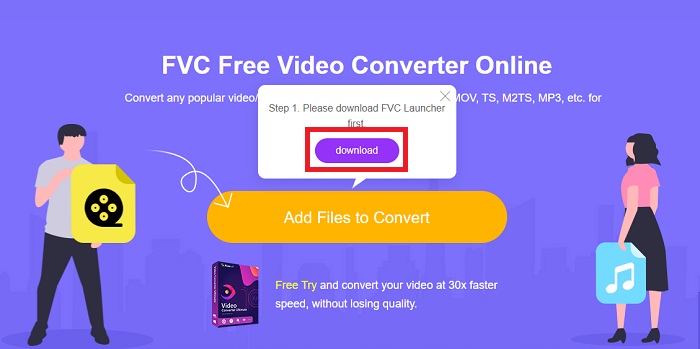
Trin 1: For at gå til hjemmesiden skal du klikke på dette link. Download derefter hurtigt startprogrammet ved at klikke på knappen Add Files to Convert og vente, til det er færdigt.
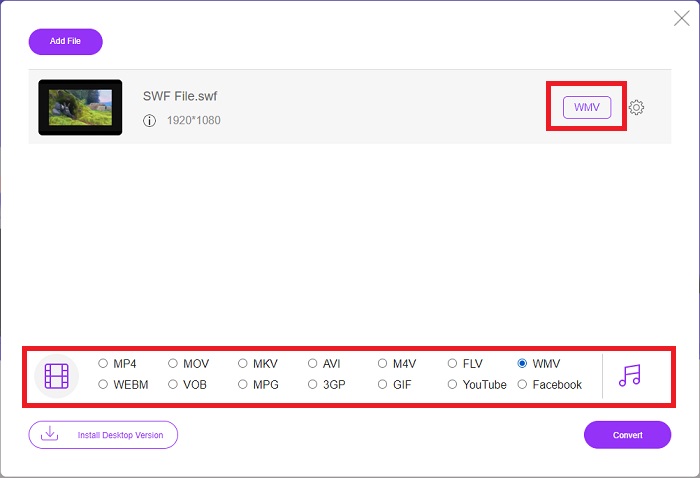
Trin 2: Klik på den samme knap igen, og denne gang kan du uploade den videofil, du vil konvertere. Vælg derefter WMV blandt alle de tilgængelige formater.
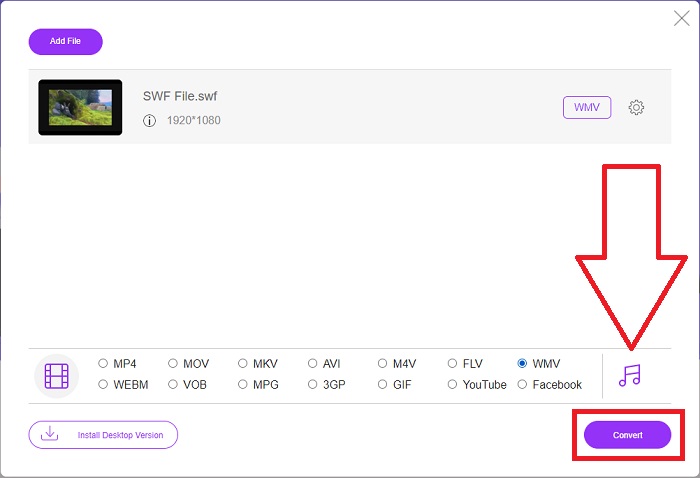
Trin 3: Du kan stadig bruge praktiske redigeringsværktøjer, ligesom i softwaren. Klik blot på tandhjulsikonet, og det vil vise dig alle de justeringer, du kan foretage. For at gemme de ændringer, du har lavet, skal du klikke på OK, og når du er færdig med at justere, skal du klikke på Convert for at starte processen.
Relateret:
Del 3. Omfattende viden om SWF- og WMV-formater
Hvis du vil vide mere om de to formater, så fortsæt med at læse denne artikel. Vi giver alle de nødvendige og væsentlige oplysninger, du måtte have brug for som baggrund.
Adobe bruger SWF-filformatet til at gemme film og vektorbaserede animationer. Small Web Format er forkortelsen; det er dog også kendt som ShockWave Format. Det bruges normalt til at udsende video via internettet, især browserbaserede spil. Desværre udtalte Adobe, at det ville stoppe med at understøtte Flash-formatet ved udgangen af 2020 på grund af ydeevne- og sikkerhedsproblemer.
På den anden side er en WMV-fil en Windows Media Video-fil, der kan komprimere ved hjælp af et eller flere af Microsofts videokomprimeringsformater. Det er et populært videolagringsformat i Windows, og det er derfor, det bruges af visse tredjepartsapps til ting som korte animationer. Den er designet til at fungere med Microsofts medieafspillere som Windows Media Player og Movies & TV. Til brug med DRM-systemer (Digital Rights Management) kan WMV-filer være krypteret.
| Lille webformat | Windows Media video | |
| Filudvidelse | .swf | .wmv |
| Udvikler | Adobe Systems Incorporated | Microsoft |
| Understøttende programmer | ◆ Adobe Flash Player ◆ Adobe Flash ◆ Professionel CC ◆ GOM-afspiller ◆ Adobe Dreamweaver 2020 | ◆ VLC Media Player ◆ MPlayer ◆ Klassisk medieafspiller ◆ Windows Media Player |
Del 4. Ofte stillede spørgsmål om konvertering af SWF og WMV
Hvad er brugen af WMV-filer?
WMV-videofiler er det bedste format til at sælge videomateriale online eller via HD DVD og Blu-ray-diske.
Hvad er brugen af SWF-filen?
Flash-filer eller SWF-filer bruges ofte til effektiv distribution af multimedieinformation over internettet.
Kan SWF-filer redigeres?
Adobe Flash er et filformat, der bruges af Adobe. I modsætning til andre multimediefiler kræver en SWF-fil Flash Player-plugin'et for at se en webbrowser. Desuden kan brugere ikke redigere SWF-filer direkte.
Konklusion
FVC Video Converter Ultimate er den perfekte mulighed for dig, hvis du er nybegynder eller blot en amatør, når det kommer til videokonvertering. Du konverterer ikke videoformater særlig ofte. Dens fordele, såsom konstant videoformatkonvertering, hurtig videofilkonvertering sammenlignet med sammenlignelige programmer, enkel betjening, understøttelse af forskellige formater og så videre, hjælper den med at blive den bedste videokonverter derude. Når det kommer til videokonvertering, er Video Converter Ultimate og dets online-ækvivalent de mest acceptable muligheder.
-
 [2 løsninger] Sådan konverteres SWF til GIF -filer let gratis
 Når du ikke eksporterer GIF-format via Flash-software, kan du prøve at gemme filerne i SWF-format først. Derefter kan du lære 2 nemme måder at konvertere SWF til GIF-filer fra denne artikel.
-
 Top of the Line 5 bedste gratis SWF til AVI-konvertere [web- og skrivebordsbaseret]
 Vil du vide, hvordan du konverterer din SWF-fil til AVI? Så hvis ikke, så læs denne artikel, da vi giver en løsning på din konvertering af SWF-problemet.
-
 [Gratis og let] Enestående værktøjer til brug ved konvertering af SWF til MOV
 Har du prøvet at konvertere SWF til MOV, fordi du ikke kan redigere videoer? Hvem er skyld i din videoeditors inkompatibilitet? Fortsæt med at læse for din løsning.
