


 Video Converter Ultimate
 Skærmoptager
 Video reparation
 Sikker download
Trin-for-trin om, hvordan du tilføjer albumkunst til MP3 ved hjælp af den bedste software på skrivebordet
At tilføje albumcover kan være nyttigt, især hvis du vil hjælpe lytteren med at føle sig mere knyttet til den musik, de hører. Med dette albumcover kan brugerne få et glimt af, hvad musikken handler om, især den digitale. I nogle tilfælde har en MP3‑fil ikke et ordentligt albumcover eller er ikke forsynet med et. Hvis du oplever det samme, er det vigtigt at lære, hvordan man tilføjer albumcover til MP3-musik på computeren. For at lære mere om emnet kan du læse videre i denne artikel, hvor vi giver kompakt viden om problemet.

Del 1. Sådan tilføjer du albumcover til MP3 med Video Converter Ultimate [Recommended Tag Editor]
Leder du efter det ultimative program til at tilføje albumcover til MP3? FVC Video Converter Ultimate er den anbefalede tag‑editor til denne opgave. Dette program er ikke anbefalet uden grund. I modsætning til anden software er der ellers ofte kun få billedformater, du kan uploade og bruge som cover til din MP3‑musik, men ikke med dette værktøj. Med dette ultimative program kan du tilføje albumcover til dine MP3-, WAV-, WMA-, AAC-, FLAC-filer og mere end 1000 video- og lydformater. Fantastisk, ikke? Dette værktøj er førstevalg til at tilføje et billedcover til dit album. Vil du vide, hvordan man bruger det ultimative program? I så fald kan du læse og nøje følge den vejledning, vi har med nedenfor.
Trin 1. Klik på downloadknappen herunder, og vælg det operativsystem, du bruger. Når du har downloadet programmet, skal du installere værktøjet. Når alt er klar, klik på Start nu for at starte programmet på din computer.
Gratis download til Windows 7 eller nyere Sikker download
Gratis download til MacOS 10.7 eller nyere Sikker download
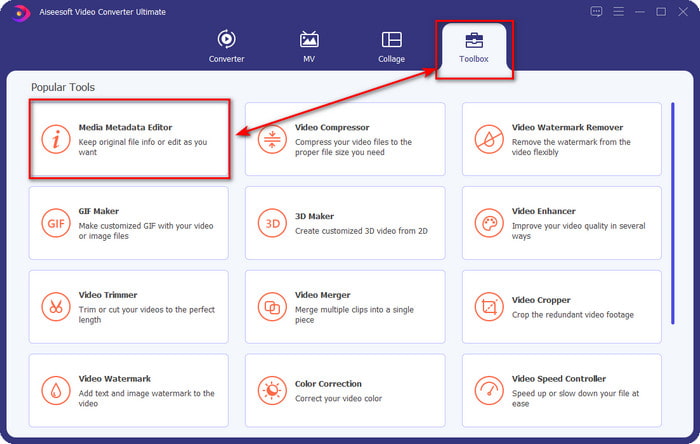
Trin 2. Gå til sektionen Værktøjskasse, og klik på Media Metadata Editor under den.
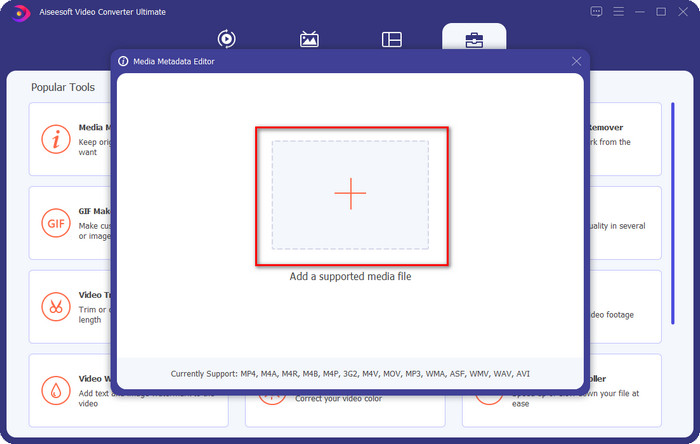
Trin 3. Vælg den musikfil, du vil tilføje albumcover til, ved at klikke på +-knappen. For at indsætte den valgte musikfil skal du klikke på Åbn.
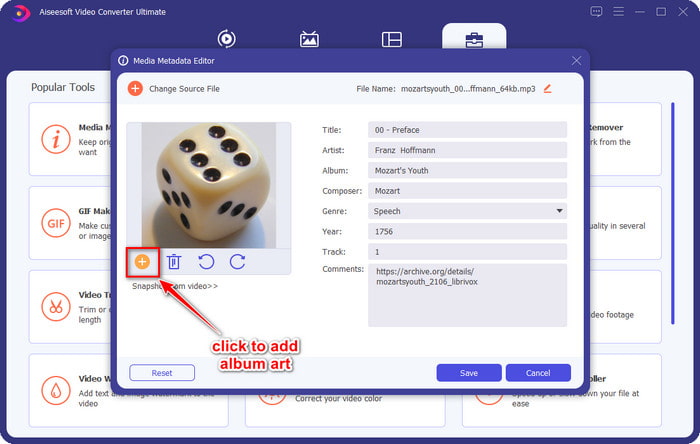
Trin 4. Klik derefter på +-knappen nederst til venstre i grænsefladen, find det albumcover, du vil bruge, og klik på Åbn. Tilføj anden metadata, du ønsker, i tekstboksen, hvis du har brug for det.
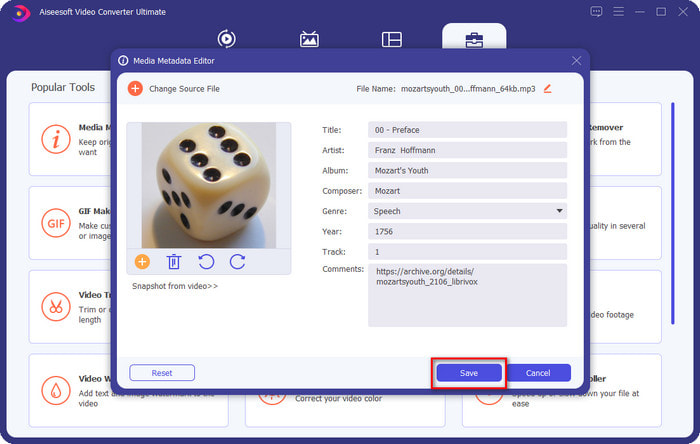
Trin 5. Når du er færdig med at tilføje albumcover og metadata til den MP3‑fil, du har, kan du nu klikke på Gem for at vedhæfte albumcoveret til den MP3‑fil, du har uploadet. Nemt, ikke? Alt bliver muligt og let, hvis du bruger det ultimative værktøj til at løse problemet.
Del 2. Sådan tilføjes albumkunst til MP3 ved hjælp af VLC Media Player Gratis Metadata Editor]
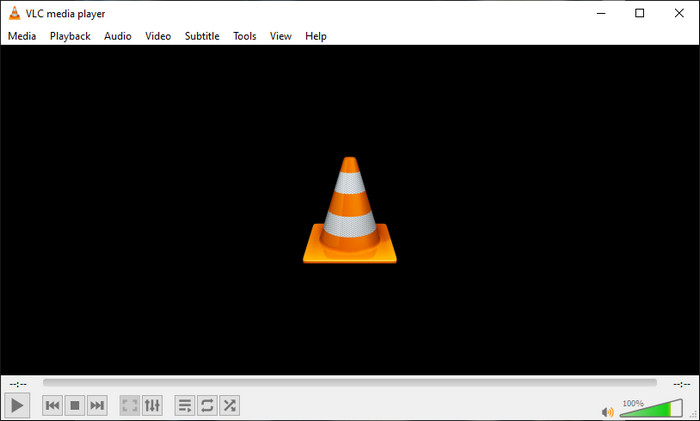
VLC Media Player er den bedste medieafspiller, som de fleste af os har. Dette værktøj kan afspille enhver videofil og kan også redigere metadata, f.eks. tilføje albumcover til musikfiler. Med denne medieafspiller kan du frit justere eller tilføje metadata. Hvis du vil have en vejledning i at tilføje albumcover til MP3 på Windows 10/11 eller Mac med dette værktøj, er nedenstående trin til dig.
Trin 1. Download medieafspilleren til din computer, og åbn den.
Trin 2. Klik på Funktioner i hovedgrænsefladen, og klik derefter på Information.
Trin 3. Højreklik på VLC‑ikonet i nederste højre hjørne, tilføj albumcoveret, og klik på Gem.
Del 3. Sådan tilføjes albumkunst til MP3 i iTunes [Indbygget Metadata Editor på Mac]
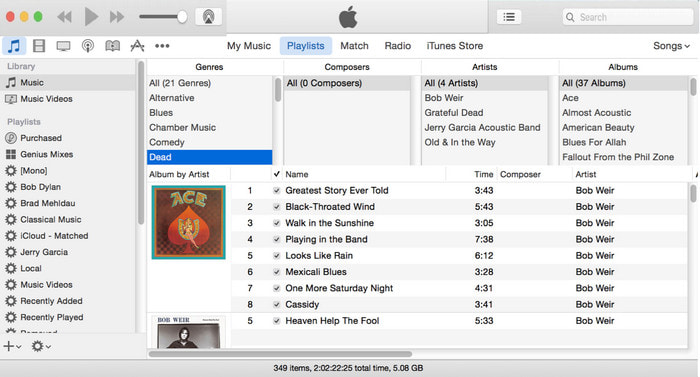
For Mac‑brugere er iTunes vores foretrukne metadata‑editor til at tilføje et billedcover til vores MP3‑filer. Denne indbyggede app kan hjælpe os med at redigere metadata i de filer, vi har på Mac. Softwaren er dog i øjeblikket ikke tilgængelig på nogle Mac‑versioner, fordi den nu er opdelt i tre separate apps, der udfører det samme som iTunes. Men på nogle Mac‑computere med en ældre version findes den stadig. Hvis du er en af de Mac‑brugere, der gerne vil vide, hvordan man tilføjer albumcover til MP3 i iTunes, kan du følge trinnene nedenfor.
Trin 1. Åbn iTunes‑appen på din Mac.
Trin 2. Klik på Musik og derefter Bibliotek, og højreklik på den musikfil, der ikke har albumcover.
Trin 3. Klik på Artwork i valgmulighederne ovenfor, derefter Tilføj artwork, vælg det billede, du vil uploade, og klik på OK for at anvende det.
Del 4. Ofte stillede spørgsmål om, hvordan man tilføjer albumkunst til MP3
Kan jeg tilføje albumcover til MP3 på Audacity?
Desværre kan du ikke tilføje billedkunsten på den MP3-fil, du har, ved hjælp af Audacity. Dette værktøj understøtter ikke noget billed- eller videoformat, fordi det er beregnet til at blive brugt som musikredigeringsprogram. Men du kan stadig bruge Audacity som en metadata-editor, hvis du vil redigere dine MP3-metadata.
Hvorfor mangler mit albumcover i min lydfil?
Der er tre grunde til, at dit albumcover mangler i din lydfil. Den første grund er, at den fil, du skal downloade, ikke indeholder albumcover, især hvis dette er piratkopiering. Det meste af den musikfil, vi har downloadet på nettet, kommer ikke med albumcover for at undgå copywriting-problemer. Dernæst forsvandt filen, fordi billedet ikke var korrekt vedhæftet. Nogle brugere støder på dette problem, og det er svært at håndtere det, så det er vigtigt at bruge en professionel albumcover. Til sidst er billedet beskadiget; hvis den fil, du har uploadet, ikke er tilgængelig som albumcover, eller den musikfil, du har, er beskadiget, kan det være årsagen bag det.
Hvad er de bedste metadata, jeg kan bruge?
Hvis de metadata‑editorer, vi har nævnt ovenfor, er for begrænsede, kan du klikke på dette link for at gå til en ny artikel og finde alle de bedste metadata‑editorer, du kan bruge.
Konklusion
Nu hvor vi har ideen om at tilføje albumcover på MP3, er det tid til at vælge, hvilket værktøj vi synes passer bedst til os. Hvis du er en Mac-bruger og ikke ønsker at downloade nogen software på dit skrivebord, skal du vælge iTunes. Men iTunes er udfaset på den opdaterede version af Mac. Hvis du vil downloade et gratis værktøj, der kan hjælpe dig med at tilføje coveret til din musik, så er VLC et godt valg. Værktøjet er dog ikke et professionelt værktøj. Så hvis du vil have ekspertsoftware, der kan imødekomme dig i denne opgave, tilgængelig på både operativsystemer, Windows og Mac, så brug den ultimative software. Download softwaren på dit skrivebord for at have det professionelle værktøj ved din rækkevidde ved at klikke på downloadknappen vist ovenfor.
-
 Sådan nemt kan du se metadata af fotos og videoer på iOS
 Vil du vide, hvordan man ser metadata på iPhone og iPad? Så kan læsning af denne artikel hjælpe dig med at løse dette problem uden besvær.
-
 Bedste teknikker til, hvordan man redigerer iD3-tags på iTunes [Effektive tips]
 Har du brug for at vide, hvordan man redigerer tags på iTunes? Så er du det rigtige sted. Som vi diskuterede metoderne, kan du følge for at redigere tags ved hjælp af iTunes.
-
 Sådan redigeres egenskaber for WAV-filer på Windows 10/11 og Mac [Løst]
 Leder du efter en måde at redigere egenskaberne for dine WAV-filer på Windows 10/11? Dette spørgsmål vil have et svar, hvis du bliver ved med at læse denne artikel.
