


 Video Converter Ultimate
 Skærmoptager
 Video reparation
Mestrer kunsten at tilføje vandmærke på iMovie med detaljerede trin
En af de bedste editorer, du kan bruge på Mac, er iMovie. Dette værktøj giver en meget intuitiv brugerflade for Mac‑brugere. Selvom værktøjet er fremragende og let at håndtere, søger nogle brugere stadig en vejledning i, hvordan man bruger det. Så hvis du er Mac‑bruger og gerne vil lære hvordan man tilføjer vandmærke til video i iMovie, kan du følge guiden nedenfor for at få mest muligt ud af værktøjet.

Del 1. Selvstudium om, hvordan man tilføjer vandmærke til en video i iMovie på macOS
Vi har allerede introduceret iMovie, så de efterfølgende detaljer vil lære dig, hvordan du sætter et vandmærke på en video i iMovie. For at lære, hvordan du tilføjer, kan du følge den detaljerede guide nedenfor, og læs den grundigt for at forstå hele ideen.
Trin 1. Start iMovie på din Mac, og hvis du ikke kan finde det, kan du hurtigt gå til Finder og søge efter det.
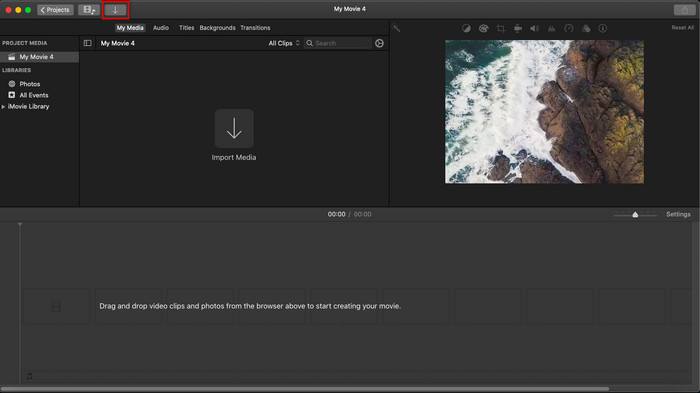
Trin 2. Klik på knappen Importer for at uploade videoen og det billede, du vil bruge som vandmærke. Træk videofilen og billedet ned på Tidslinjen nedenfor, ligesom med billeder. Sørg for, at videoen ligger øverst på videotidslinjen. Foretag nogle justeringer af billedet ved at trække, ændre størrelse osv.
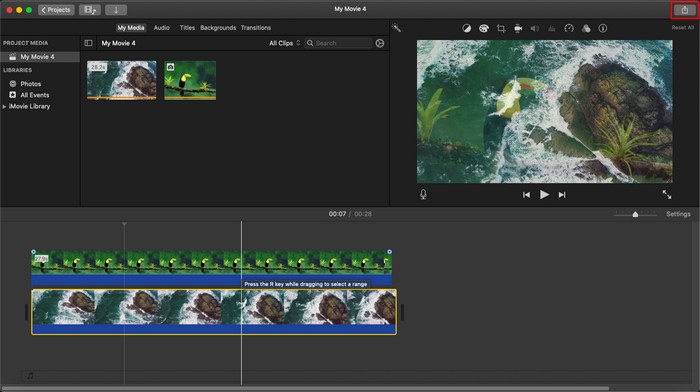
Trin 3. Hvis du er tilfreds med justeringerne, skal du klikke på Eksporter øverst til højre i værktøjet og derefter vælge Eksporter fil.
Fordele
- Det er gratis at bruge på enhver Apple-enhed som macOS og iOS-enheder.
- Foretag hurtige redigeringer på de rå videoer for at få dem til at se godt ud.
- Væsentlige op til gennemsnitlige redigeringsfunktioner er tilgængelige.
Ulemper
- Den understøtter mindre format, så hvis du vil redigere videoen her, skal du konvertere den til MOV eller et hvilket som helst format, der er kompatibelt med Apple-enheder.
- Mindre støtte til professionel redigering.
Del 2. Bedste værktøj til at bruge og sætte vandmærke på video på Mac-computere på en mindre besværlig måde
Hvis du synes, at det er svært at tilføje et vandmærke i iMovie, kan du i stedet bruge det bedste alternativ, Video Converter Ultimate. Dette værktøj giver en langt nemmere måde at tilføje et vandmærke til din video. Forestil dig dette: det ultimative værktøj er endnu mere tilgængeligt, selv hvis iMovie allerede er let at bruge. Selvom det er nemt at bruge, er den endelige kvalitet, det leverer, fremragende, og en af dets fordele i forhold til iMovie er, at det understøtter flere billedformater, du kan uploade. Vil du vide mere? Så kan du læse de funktioner, vi har præsenteret for dig nedenfor.

FVC Video Converter Ultimate
5.689.200+ downloads- Giver omfattende redigeringsfunktioner, du kan bruge til at gøre din video mere fremragende end den anden.
- Det understøtter ultrahurtige processer og hardwareacceleration for hurtigt at importere og eksportere videoen.
- Det understøtter videoformater som MOV, MKV, AVI, MP4, FLV, RMVB og mere.
- Det har en meget interaktiv grænseflade for at få den bedste oplevelse.
- Tilgængelig på alle desktop-platforme såsom Windows og Mac.
Gratis download til Windows 7 eller nyere Sikker download
Gratis download til MacOS 10.7 eller nyere Sikker download
Er det ikke fantastisk at have alle disse funktioner på ét værktøj? Hvis vi er på samme side, lad os grave i detaljerne om, hvordan man vandmærker en video i iMovie, men på en mere nem måde med det ultimative værktøj.
Trin til, hvordan du indsætter vandmærke på video med det ultimative værktøj
Trin 1. Download softwaren til din Mac, følg installationsproceduren, og tryk på Start nu for at åbne værktøjet.
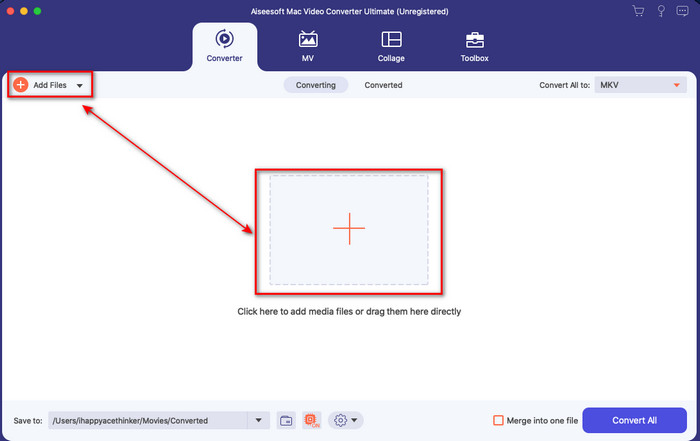
Trin 2. Upload den videofil, du vil bruge, ved at klikke på +-knappen eller Tilføj filer. Find videoen i den mappe, der vises på skærmen, og tryk på Åbn for at uploade den.
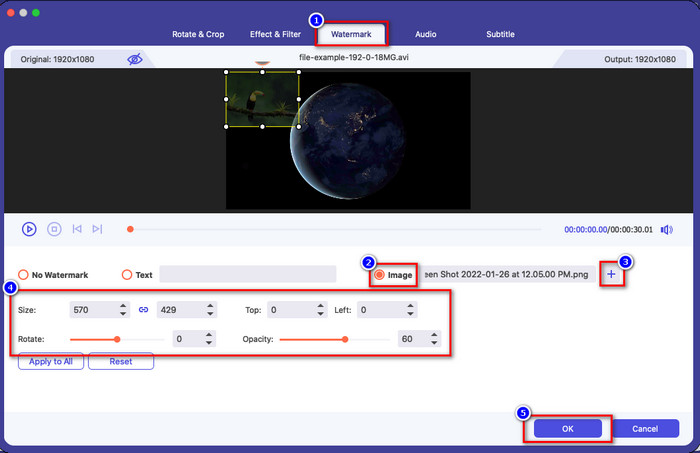
Trin 3. Klik på tryllestavs-knappen for at åbne redigeringsvinduet i værktøjets grænseflade. Klik derefter på sektionen Vandmærke, markér Billede, og tryk på +-knappen for at tilføje det billede, du ønsker. Justér derefter billedets gennemsigtighed eller roter det, og klik på OK for at gemme de ændringer, du har foretaget.
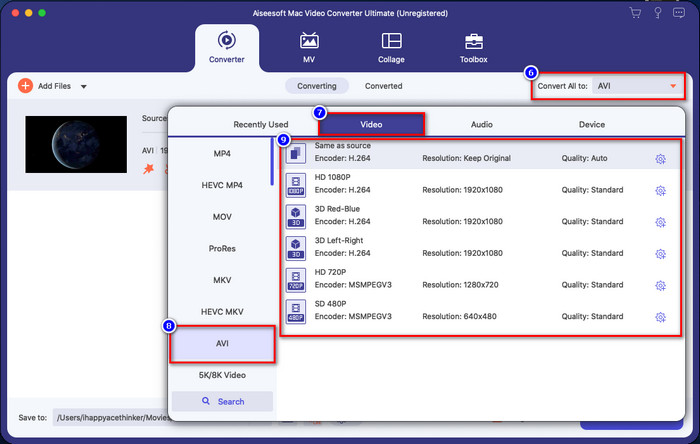
Valgfrit. Hvis du vil ændre formatet, skal du klikke på Konvertér alle til, vælge det format på listen, du vil bruge, og klikke på det. Hvis du ikke vil ændre formatet, kan du gå videre til det sidste trin.
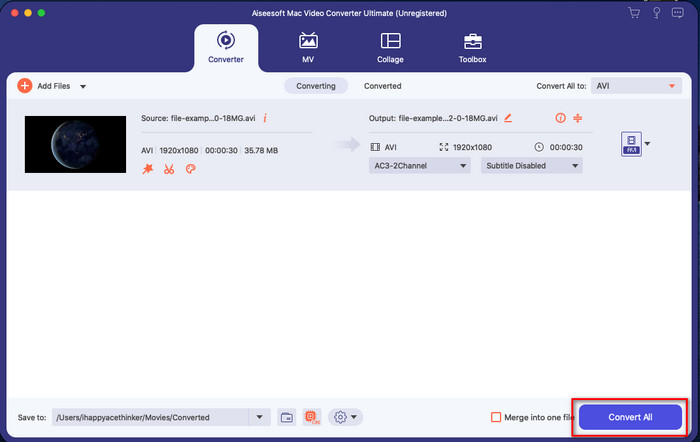
Trin 4. For at eksportere videoen med vandmærke skal du klikke på Konvertér alle. Du behøver ikke vente længe på grund af den ultrahurtige konverteringsproces, det tilbyder. Dermed har du tilføjet billedvandmærket til din video på under ét minut.
Fordele
- Det er det bedste valg for enhver bruger, der har ringe eller ingen idé om, hvordan man redigerer.
- Det understøtter flere videoformater, du kan uploade for at spare tid og undgå at konvertere det.
- Tilgængelig på alle platforme som Windows eller Mac til download.
Ulemper
- Det er ikke gratis at downloade, men det er ikke for dyrt.
- Det er nødvendigt at downloade det på dit drev.
Del 3. Ofte stillede spørgsmål om tilføjelse af vandmærke på iMovie
Er iMovie gratis at bruge?
Ja, iMovie er gratis at bruge, hvis du har et Apple‑produkt, men du kan ikke downloade det, hvis du bruger Android eller Windows. Bemærk, at der ikke findes nogen officiel version af iMovie på andre platforme. Så hvis du downloader et iMovie‑program på en computer eller telefon, der ikke er fra Apple, skal du regne med, at det ikke fungerer lige så godt som iMovie, eller i værste fald indeholder det virus. For at undgå dette kan du klikke og læse denne artikel for at kende til alternativer til iMovie.
Er iMovie den bedste editor på Mac?
Vi kan sige, at det er en af de bedste, men ikke den bedste, fordi forskellige editorer giver flere redigeringsfunktioner, som du ikke kan finde på iMovie. Selvom det mangler på nogle måder, er det stadig en førsteklasses editor, du kan bruge på din Mac gratis til at lave videoredigering til vlogging, forretning, promovering og mere.
Efter eksport af videoen på iMovie, har den et vandmærke?
Fra denne dag er videoens vandmærke ikke i de eksporterede videoer. Så du kan nyde de downloadede videoer, du redigerer på iMovie frit uden det irriterende vandmærke.
Kan jeg bruge .avi-videoen på iMovie?
iMovie understøtter ikke et bredt udvalg af formater, men du kan klikke og læse denne artikel og lære, hvad du kan gøre for at gøre din AVI‑fil kompatibel med iMovie.
Konklusion
Denne artikel har allerede vist, at du kan bruge den indbyggede editor, som Apple stiller til rådighed, og tilføje vandmærker til videoer ved hjælp af de trin, vi har angivet, som du nemt kan følge. Selvom du frit kan bruge iMovie, mener vi stadig, at Video Converter Ultimate er det bedste værktøj til denne opgave til hver en tid. Så hvis du vil have hjælp, kan du downloade det på din Mac eller Windows ved at trykke på download‑knappen ovenfor.
-
 3 metoder til at konvertere MPEG til WMV uden at miste kvalitet
 Vil du se dine videoer på din foretrukne afspiller, men den understøtter ikke det format, videoen er? Læs denne artikel, da vi giver dig de mest effektive måder at konvertere MPEG til WMV på.
-
 2 af de foretrukne konvertervalg til at konvertere F4V til WMV [2022]
 Er du en af brugerne, der leder efter den bedste måde at konvertere F4V til WMV? Hvis det er tilfældet, så prøv at læse denne skrive-up for bedre at vide, hvordan man gør det, og hvad er de tilgængelige værktøjer.
-
 Bedste MXF til WMV-konvertere til at konvertere MXF til WMV gratis
 Vil du vide den nemmeste måde at ændre din MXF-fil til WMV-format? Hvis du er klar til at udforske, hvordan du gør det, skal du læse denne artikel omhyggeligt.
