


 Video Converter Ultimate
 Skærmoptager
 Video reparation
 Sikker download
Skift hurtigt videometadata på iPhone som en professionel på mindre end et minut
I dag er det blevet helt afgørende for mange – især iPhone‑brugere – at få styr på deres filer. Med de rigtige tags kan vi fastlægge en fils placering og organisere mediefilerne i vores bibliotek eller mapper. I nogle tilfælde oplever iOS‑brugere, at det er besværligt at finde en fil på iPhone, når metadataene ikke er i orden, for så er de sværere at søge efter. Vil du vide, hvordan vi kan løse det? Den rigtige løsning til at rette metadata på iPhone er at ændre dem efter dine egne specifikationer, så filerne bliver synlige og velorganiserede. Bliv klogere og lær at ændre videometadata på iPhone ved at læse denne artikel.

Del 1. 2 af de bedste apps til at ændre videometadata på iPhone
Metapho – Video- og fototag-editor på iPhone
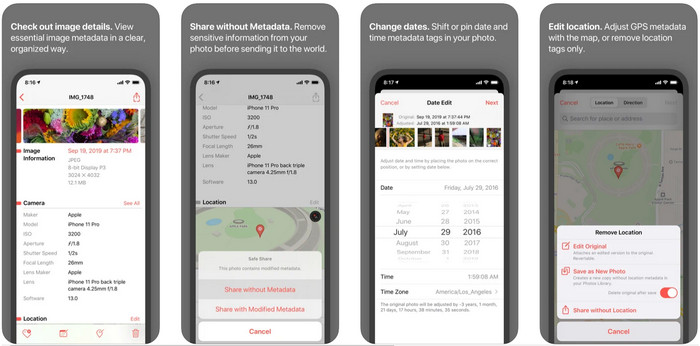
Metapho er en af de bedste tag‑editorer, du kan downloade og bruge til at ændre videometadata på en iPhone. Appen er en enkel editor, der lader dig ændre dato, filnavn, størrelse, enhedsmodel, lukkertid og placering. Med denne app kan du også se metadata på hvert eneste Live Photo, du tager, og redigere dem korrekt, hvis du ønsker det. Selvom appen virker lovende, skal du købe den for at kunne redigere dine metadata; hvis du ikke gør det, kan du kun se metadata gratis, intet andet. Men du behøver ikke bekymre dig, for det er et engangskøb, så du kan frit nyde appen, når du først har købt den.
Trin 1. Åbn App Store, og download Metapho på din iPhone.
Trin 2. Åbn appen, vælg en af de filer, du vil åbne i Fotos, og tryk på den for at fortsætte. Derefter vises en liste over redigeringsmuligheder, du kan bruge til dine tags; redigér dem efter dine behov.
Trin 3. Tryk på knappen Save, når du er færdig med at redigere tags.
Exif Metadata – Foto- og Live Photo Tag Editor på iPhone
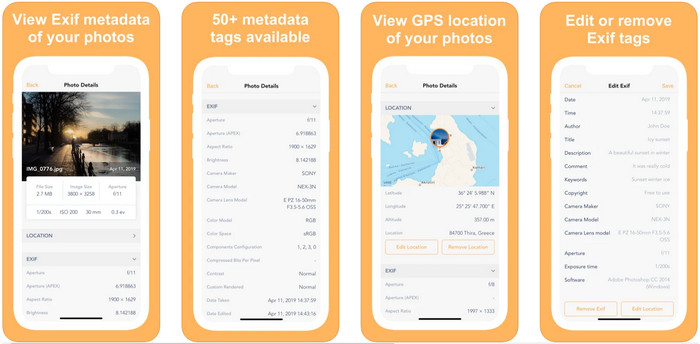
EXIF Metadata gør det, en metadata‑editor skal gøre, for at hjælpe iPhone‑brugere med at redigere deres tags. Dette værktøj har en unik brugergrænseflade og er mere indbydende end Metapho. Med denne app kan du gratis se langt mere dybdegående information om dit billede. Selvom appen tilbyder en Pro‑version, er de redigeringsfunktioner, du har brug for, allerede tilgængelige i den gratis version, men du kan opgradere til Pro for at tilføje endnu mere information til dine metadata. En af ulemperne ved denne app er, at den kun understøtter billedfiler, så det er umuligt at ændre metadata på video. Hvis du vil ændre billedmetadata på en iPhone, skal du følge trinnene nedenfor.
Trin 1. Download og installer appen på din iPhone.
Trin 2. Åbn værktøjet, tryk på knappen +, og vælg, hvilket billedtag du vil ændre.
Trin 3. Tryk på Edit, tilføj de oplysninger, du har brug for, og tryk derefter på Save.
Del 2. Bedste Media Metadata Editor til Windows & Mac – FVC Video Converter Ultimate
Ikke alle de oplysninger, du har brug for at ændre i dine metadata, understøttes af de apps, der er nævnt ovenfor. Hvis du vil have mere detaljerede oplysninger i dine tags, anbefaler vi, at du vælger den bedste tag‑editor til Windows og Mac, FVC Video Converter Ultimate. Softwaren kan hjælpe dig med at tilføje flere tag‑oplysninger til din mediefil med blot nogle få klik. Uanset om du er professionel eller nybegynder, bliver det langt mindre besværligt at tilføje metadata til din fil med dette ultimative program.
Måske er du bekymret, hvis din fil understøttes her. Dette værktøj understøtter mere end 1000+ formater, og det format, du har, understøttes faktisk. For at give dig et forspring i, hvordan du ændrer din iPhones videometadata, skal du læse de detaljerede oplysninger, vi anskaffer nedenfor, for at følge dem i overensstemmelse hermed, fordi succes er på vej.
Trin 1. Ved at klikke på downloadknappen nedenfor kan du få dette ultimative værktøj til både Windows og Mac. Klik på filen, du har downloadet, for at installere værktøjet på din disk, og start det derefter.
Gratis download til Windows 7 eller nyere Sikker download
Gratis download til MacOS 10.7 eller nyere Sikker download
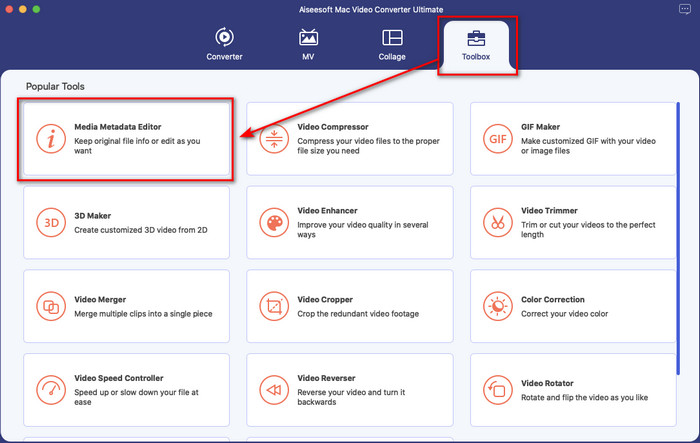
Trin 2. Gå til sektionen Toolbox, og klik på Media Metadata Editor under funktionslisten.
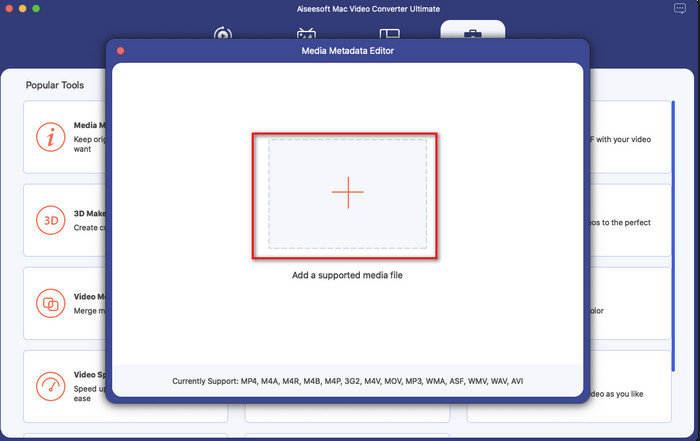
Trin 3. Tryk på knappen +, hvorefter en dialog med filer vises på skærmen; find den fil, du vil tilføje metadata til, og klik på Open for at uploade filen.
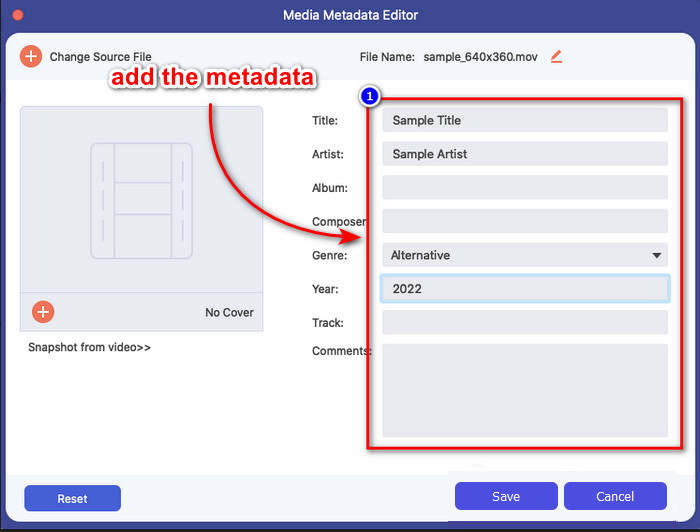
Trin 4. I det nye vindue kan du nu redigere eller fjerne metadata i din fil; klik i hver tekstboks, og skriv de oplysninger, du vil tilføje som metadata. Derudover kan du også tilføje et albumcover til din mediefil, hvis du ønsker det, ved at trykke på +‑knappen, finde albumbilledet i dine filer og klikke på Open for at indsætte det.
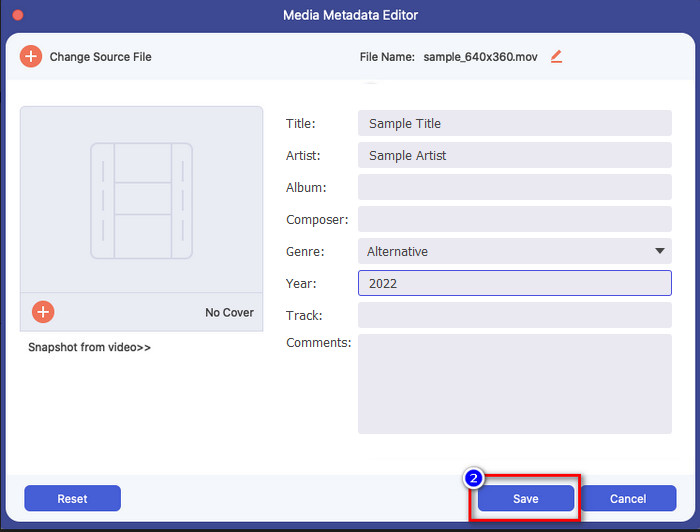
Trin 5. Når du er færdig med alle redigeringer og ændringer i din mediefil, kan du klikke på Save. På et øjeblik har du nu ændret metadataene i din mediefil; med nogle få enkle klik og hjælp fra værktøjet blev alt muligt.
Del 3. Ofte stillede spørgsmål om iPhone Metadata Editor
Kan jeg redigere metadata på iPhone?
Ja, du kan redigere metadata på din iPhone, men du har kun lov til at redigere placeringen og se filens grundlæggende tags, men ikke redigere dem. Hvis du ønsker at ændre filens metadata i detaljer, foreslår vi, at du bruger en tredjepartsapp, der vil dække dine behov på dit metadataproblem.
Hvorfor skal jeg fjerne metadata?
Vi fjerner metadata af hensyn til privatlivet. Nogle mennesker kan få meget dybdegående oplysninger om os via metadata; uden at du ved det, kan metadata gemme din nøjagtige placering, dato, tid, koordinater og endda mobilnumre. Hvis du ikke vil afsløre sådanne oplysninger om dig selv, anbefaler vi, at du fjerner metadata fra dine filer. Vil du vide hvordan? I så fald vil denne artikel hjælpe dig med at fjerne metadata fra din fil på under et minut.
Er det nemt at ændre metadata på iPhone?
Absolut, ja, det er nemt at ændre metadata på iPhone ved hjælp af den rigtige metadataeditor. Selvom opgaven virker lidt svær, er den stadig overskuelig for enhver bruger. Hvis du vil vide det bedste værktøj til at udføre denne opgave, skal du læse informationen om de to værktøjer, vi har leveret ovenfor. For at hjælpe dig færdig med at skifte tag på iPhone som en professionel.
Konklusion
Nu hvor du er nået til slutningen, har vi lært, at det er en enkel opgave at ændre videometadata på iPhone. Med hjælp fra denne artikel og din egen indsats er det blevet muligt. Nu skal du blot vælge den metode, du synes passer bedst til dig. Selvom FVC Video Converter Ultimate ikke findes til iPhone, er det stadig et af de bedste programmer, du kan have på din Mac eller Windows‑pc til at redigere tags. Dette værktøj understøtter tilføjelse af dybdegående oplysninger om den mediefil, du har, så du kan organisere dem og gøre dem synlige. Vil du vide, hvilke andre funktioner og muligheder softwaren har? Klik på downloadknappen ovenfor for at få et indblik i dem.
-
 Top 3 FLAC Metadata Editors på Mac og Windows [Opdateret 2022]
 Vil du ændre FLAC-metadata? I dette tilfælde skal du læse denne artikel, da vi giver tilstrækkelig viden om den nyeste FLAC-metadataeditor til at kunne bruge.
-
 Bedste måder at redigere MKV-metadata på som en professionel [Nem]
 Har du ikke en idé om, hvordan man redigerer MKV-metadata? Nogle brugere har svært ved at redigere tags på MKV, hvis du er en af dem, så læs denne artikel.
-
 Bedste teknik til, hvordan man hurtigt redigerer WebM-metadata
 Læs de fulde detaljer, vi har givet nedenfor, mens vi indsætter en vejledning om, hvordan du redigerer WebM-metadata. Klik på dette link for at vide mere om det.
