


 Video Converter Ultimate
 Skærmoptager
 Video reparation
 Sikker download
4 nemmeste måder at ændre videohastighedsafspilning på desktop, web og telefoner
De fleste brugere finder en effektiv måde at se en time‑lang video på på under en time. Den eneste løsning, der kan løse dette problem, er at ændre afspilningshastigheden på den video, du ser i øjeblikket. De fleste videoredigeringsprogrammer, du finder på markedet, kan hjælpe dig med at udføre opgaven, men spørgsmålet er: er de pålidelige? Under vores research fandt vi ud af, at du kan ændre videohastighed på computer, online, iOS og Android‑enheder. Hvis du vil vide, hvordan du gør det, skal du læse videre i dette blogindlæg, hvor vi gennemgår værktøjer og apps, der kan hjælpe dig.

Del 1. Bedste anbefalede måde at ændre videohastighed på Windows og Mac ubesværet
For nemt at ændre videohastighed skal du vælge det bedste værktøj, som kan levere fremragende resultater med blot få klik – vi præsenterer FVC Video Converter Ultimate. Dette værktøj justerer effektivt hastigheden på dine videoer når som helst og hvor som helst. Du kan også ændre videohastigheden, selv hvis formaterne er MP4, MOV, AVI, FLV, TS, RMVB og 1000+ andre formater; det er hurtigt og nemt at uploade din fil her. Uanset om du er Windows‑ eller Mac‑bruger, kan du downloade softwaren til dit styresystem og ændre afspilningshastigheden med blot få klik.
Udover sin videohastighedskontrolfunktion har værktøjet også en stolt multifunktionel værktøjskasse, der kan hjælpe andre opgaver. Såsom tilføjelse af metadata, oprettelse af en GIF, fjernelse af vandmærker og mange flere. Selvom værktøjet kan downloades, vil du bemærke, mens du bruger det, at du ikke behøver en masse erfaring med redigering, for det er brugervenligt. Der er funktioner og funktioner, som vi ikke har skrevet endnu, som fremhæver dette produkt. Men hvis du vil lære, hvordan du ændrer hastigheden på en video, skal du læse detaljerne for at få viden.
Fordele ved at bruge den ultimative software som en videohastighedsændring:
◆ Intuitiv grænseflade, så de lærer at bruge den på få minutter.
◆ Upload mere end 1000 videoer for at fremskynde afspilningen.
◆ Brugervenlig for at hjælpe brugerne med at opleve det meste af det.
◆ Andre funktioner er på Toolbox, såsom grundlæggende og avanceret videoredigering.
◆ Det er førstevalget blandt næsten en million brugere, der downloader det.
◆ Tilgængelig på Windows og Mac for at downloade værktøjet uden besvær.
Trin til, hvordan du ændrer videohastighed ved hjælp af den ultimative software:
Trin 1. Du kan få dette ultimative program på både Windows‑ og Mac‑systemer ved at klikke på download‑knappen. Gennemfør installationsprocessen efter at have klikket på den fil, du downloader, og start derefter programmet for at fortsætte.
Gratis download til Windows 7 eller nyere Sikker download
Gratis download til MacOS 10.7 eller nyere Sikker download
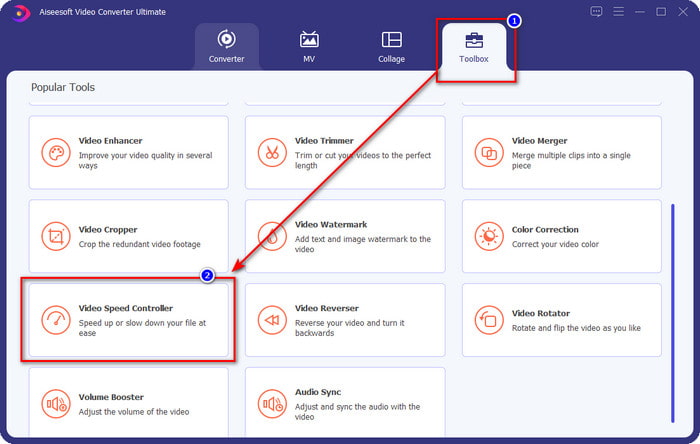
Trin 2. Når du har åbnet programmet, skal du gå til sektionen Toolbox og derunder åbne Video Speed Controller. Du behøver ikke at downloade ekstra ressourcer for at bruge dette værktøj.
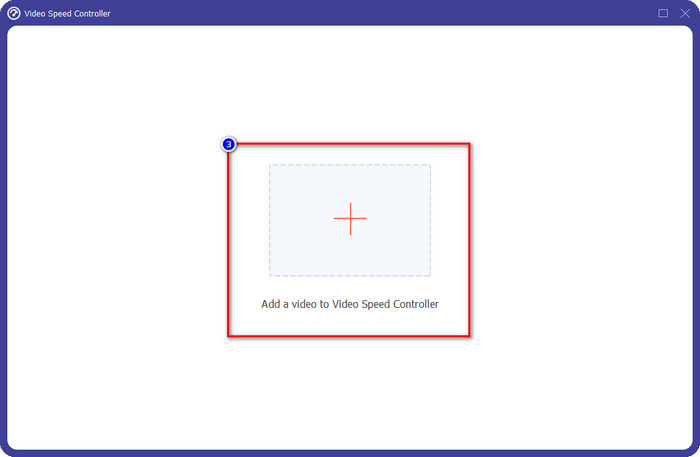
Trin 3. Tryk på +-ikonet, tilføj den fil, du har i mappen, klik på den, og tryk på Open for at uploade videofilen.
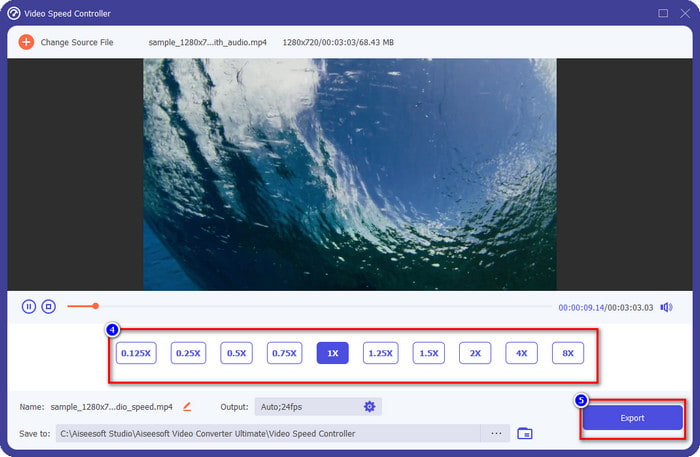
Trin 4. Vælg på listen den afspilningshastighed, du ønsker at opnå – vi har alle forskellige ønsker til afspilningshastighed. Klik på Export for at gemme det endelige resultat af den video, hvor du har ændret hastigheden. På under et minut har du allerede ændret hastigheden på din video. Nu kan du nyde at se den på kortere tid.
Del 2. Bedste gratis måde at ændre videohastigheden på nettet
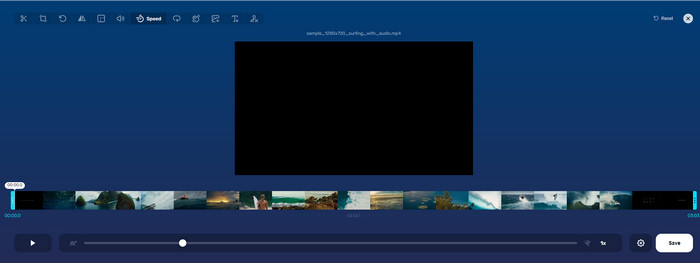
Med hjælp fra Online Video Cutter kan du ændre videohastigheden online gratis. I modsætning til det første værktøj behøver du ikke downloade ekstra ressourcer eller installationsfiler til din computer for at bruge webværktøjet. Ud over funktionen til at ændre hastigheden kan du også bruge dette værktøj til grundlæggende redigering. Selvom værktøjet er godt, kan du ikke uploade alle de formater, du har, fordi de understøttede formater er begrænsede. Følg trinnene nedenfor for at bruge det.
Trin 1. Åbn den browser, du vil bruge, og søg efter webværktøjet.
Trin 2. Åbn webværktøjet, klik på Open File, find den videofil, du har, og upload den.
Trin 3. Træk sliders til venstre eller højre for at ændre hastigheden; klik på knappen Save, når du er tilfreds med hastigheden.
Del 3. Bedste videoeditor på iOS til at ændre videohastighed gratis
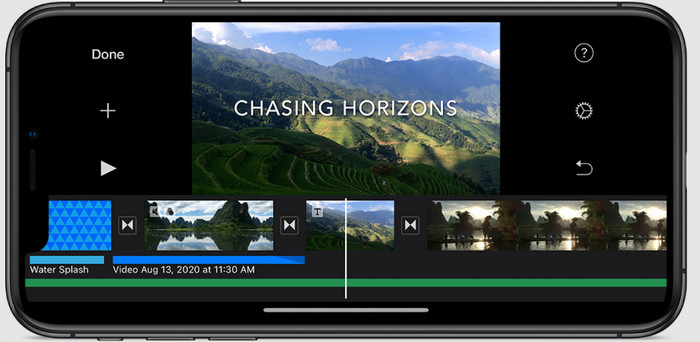
For iOS-brugere kan du bruge iMovie til at lære, hvordan du ændrer videohastighed på iPhone gratis. Selvom værktøjet er en indbygget videoredigerer på Mac, har du stadig et valg om at downloade appen på din enhed eller ej. Dette valg beviser, at iOS-brugere kan beholde editoren eller ej, for at spare lidt plads på deres lager. Men hvis du har appen på din iPhone, kan du følge de trin, vi tilføjer nedenfor, for at vide, hvordan dette værktøj fungerer.
Trin 1. Download og åbn derefter appen på din iPhone, og i Project skal du klikke på +‑tegnet og derefter klikke på Movie.
Trin 2. Tryk på den video, du vil gøre hurtigere, og tryk derefter nederst på skærmen på Create Movie for at uploade den til tidslinjen.
Trin 3. Ved at trykke på klippet, du har uploadet, skal du klikke på ikonet speed controller og justere hastigheden på videoen ved at trække sliders på din iPhone. Klik på Done for at gemme den, og eksporter den derefter, hvis du ønsker det.
Del 4. Bedste måde at ændre videohastighedsafspilning på Android-enheder ved hjælp af den indbyggede editor
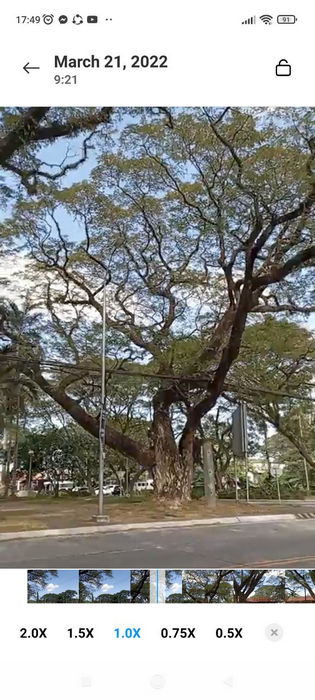
At downloade en app er ikke tilfældet, hvis du er Android-bruger; ændre videohastigheden på din telefon med den indbyggede videoeditor. Med denne editor kan du lave den nødvendige grundlæggende redigering på din video for at få den til at se bedre ud end før. Du kan finde denne editor i Galleriet eller Albummet på din Android. Hvis du vil vide, hvordan du bruger det, vil følgende oplysninger hjælpe dig.
Trin 1. Åbn din Gallery eller Album, og tryk derefter på den video, du vil ændre hastigheden på.
Trin 2. Klik på Edit for at fortsætte.
Trin 3. Tryk på sektionen Playback Speed, og ændr derefter hastigheden efter dine behov.
Del 5. Ofte stillede spørgsmål om ændring af videohastigheden
Kan jeg ændre hastigheden på YouTube?
Absolut ja, du kan ændre afspilningen af videoen på YouTube, selvom du ikke downloader software til at gøre det. Følg trinene for at vide, hvordan du ændrer videoens hastighed på YouTube. Først åbnes YouTube, find den video, du vil se i en ændret bevægelse, klik på tandhjulsikonet, og under det, afspilningshastigheden, vælg den hastighed, du vil opnå, og nyd.
Forkorter ændring af hastigheden videoens varighed?
Det afhænger af, hvordan du ændrer hastigheden; hvis du bremser videoen, så forvent, at dens varighed vil strække sig, fordi du afspiller den i en langsom tilstand. Men hvis du ændrer hastigheden til høj, så vil varigheden af den video, du afspiller, være kortere end originalen. For at vide mere om at ændre videohastigheden, skal du læse følgende detaljer, vi tilføjer ovenfor.
Efter at have ændret hastigheden, vil kvaliteten så have en effekt?
Afhængigt af den videohastighed, du indstiller, kan kvaliteten falde eller forblive. Hvis du afspiller en video otte gange eller mere, skal du forvente den video, du vil afspille. Du vil dog ikke mærke den store forskel udover afspilningen, kvalitetsmæssigt vil den forblive den samme.
Konklusion
Nu hvor vi har en idé om, hvordan man ændrer videohastighed på computere, online og på telefoner, er det tid til at beslutte, hvad vi skal bruge. Hvis du ikke ønsker at downloade software på din computer for at spare plads og undgå installationstrin, skal du læse del to af denne artikel. Men hvis du er iOS‑ eller Android‑bruger, er del tre og fire til dig. Hvis du vil bruge den bedste videoredigeringsapp på Windows og Mac, skal du downloade FVC Video Converter Ultimate. Det er den bedste video-hastighedskontroller til ubesværet at ændre afspilningshastigheden på de videoer, du har på din computer. Hvad venter du på? Download den nu og benyt dig af vores kampagnetilbud, som kun er til dig!
-
 Sådan fremskyndes video i Premiere Pro og med dens alternativer
 Vil du vide, hvordan du bruger premiere pro til at fremskynde en video? Så er du i den rigtige artikel, da vi leverer trin og andre overkommelige alternativer.
-
 2 ubesværede måder til, hvordan man fremskynder en video på TikTok
 Vil du vide hemmeligheden om, hvordan man fremskynder video på TikTok? Så læs denne artikel for at få ideen til, hvordan du gør det og vide, hvad de andre 2 værktøjer er, der vil hjælpe dig.
-
 Fremragende tip fra 2021: Sådan gør du en video hurtigere på iMovie
 Din ven foreslår iMovie for at hjælpe dig med dit problem med, hvordan du kan fremskynde en video ved hjælp af iOS-operativsystemet, men du ved ikke, hvad du skal gøre? Se mere om dette, når du læser mere gennem denne artikel.
