


 Video Converter Ultimate
 Skærmoptager
 Video reparation
2 nemme måder at komprimere MKV-filer uden at miste kvalitet
Vil du reducere størrelsen på en MKV-fil, men ønsker ikke at gå på kompromis med videokvaliteten? Findes der nogen enkel, især gratis måde at komprimere MKV-filer på?
En MKV-fil giver som regel god video- og lydkvalitet, men den har ofte en stor filstørrelse. Når du vil uploade og dele en MKV-video, er det derfor ret nødvendigt at komprimere den. Spørgsmålet er, hvordan komprimerer man MKV-filer uden kvalitetstab?

Der findes faktisk et stort antal videokompressorer, herunder gratis onlineværktøjer på markedet, som kan hjælpe dig med at reducere filstørrelsen på dine MKV-videoer. I dette indlæg vil vi gerne dele 2 enkle måder at komprimere MKV på.
Del 1. Sådan frigøres komprimering af MKV-filer online
Som nævnt ovenfor kan mange gratis online videokompressorer eller -redigeringsværktøjer hjælpe dig med at komprimere MKV og reducere filstørrelsen. Først vil vi anbefale en populær online Free Video Compressor til at hjælpe dig med opgaven.
Denne gratis online MKV-filkompressor er specielt designet til videokomprimering. Det understøtter stærkt næsten alle videoformater inklusive MKV, MP4, MOV, FLV, AVI og mere. Det har evnen til at reducere filstørrelsen på 4K-, HD- eller SD-videofiler uden at miste kvalitet. Hvad mere er, dette MKV-komprimeringsværktøj har en batchkomprimeringsfunktion for at sikre, at du kan gennemføre videokomprimeringen med en hurtigere hastighed.
Trin 1. Åbn din browser og gå til den officielle side for dette MKV-komprimeringsværktøj. Det er kompatibelt med alle almindeligt anvendte browsere som Google Chrome, IE, Firefox, Safari og flere.
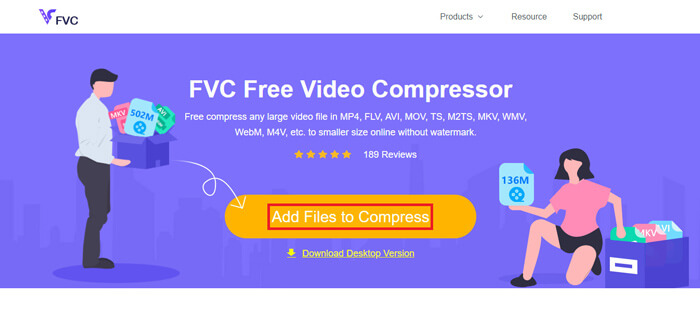
Trin 2. Klik på knappen Add Files to Compress for at downloade og installere en lille launcher til MKV-komprimeringen.
Trin 3. Vælg og tilføj den MKV-fil, du vil komprimere. Derefter kan du se MKV-filens størrelse og dens videolængde i det øverste højre hjørne.
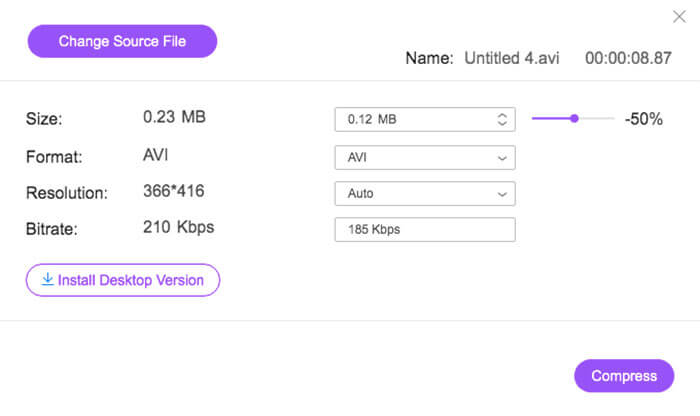
Trin 4. Du kan justere MKV-videoens opløsning, billedhastighed og bitrate. Desuden kan du vælge et passende outputformat til den komprimerede video. Når alle indstillinger er foretaget, skal du klikke på knappen Compress for at begynde at komprimere MKV-filen.
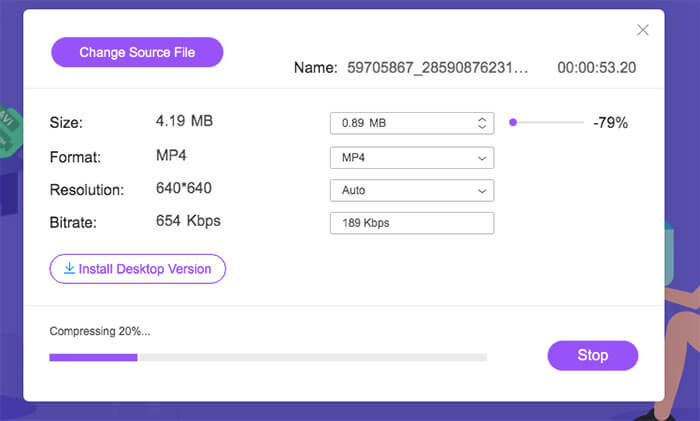
Inden for få klik kan du let komprimere en MKV-fil for at reducere filstørrelsen. Mere vigtigt er, at der ikke tilføjes noget vandmærke til din komprimerede video. Du skal vide, at de fleste online videokompressorer vil indsætte et vandmærke i din outputfil.
Del 2. Professionel måde at komprimere MKV-filer på
Med metoden ovenfor kan du nemt og gratis komprimere en MKV-fil online. Men hvis du komprimerer din MKV-video for meget, vil du sandsynligvis ende med en komprimeret fil i dårlig kvalitet. Du kan faktisk vælge at klippe de unødvendige dele fra for at reducere filstørrelsen uden noget kvalitetstab. Her introducerer vi et effektivt værktøj til videokonvertering og -redigering, Video Converter Ultimate, som kan hjælpe dig med at komprimere dine MKV-filer uden at miste kvalitet.
Video Converter Ultimate er specielt udviklet til at håndtere forskellige opgaver inden for videokonvertering og -redigering. Det kan beskære video og kun gemme den nyttige del. Derudover er det udstyret med en Video Compressor-funktion til komprimering af MKV-filer.
Gratis download til Windows 7 eller nyere Sikker download
Gratis download til MacOS 10.7 eller nyere Sikker download
Trin 1. Dobbeltklik på download-knappen ovenfor for gratis at installere og starte dette MKV-komprimeringsprogram på din computer. Denne videokompressor gør det muligt at komprimere MKV-filer på både Windows-pc og Mac.
Trin 2. Når du kommer ind i hovedvinduet, skal du klikke på fanen Toolbox og derefter vælge funktionen Video Compressor.
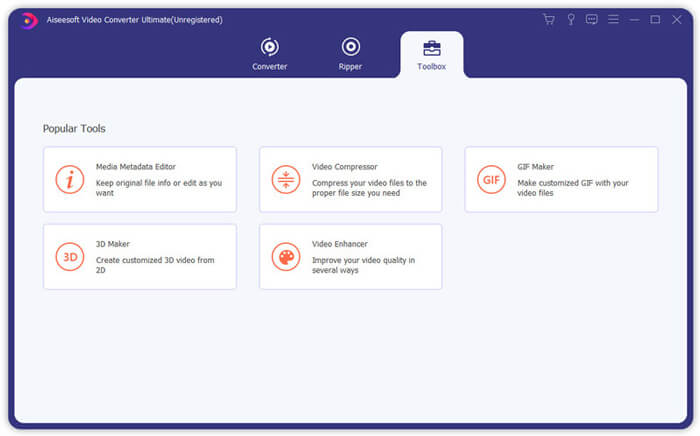
Trin 3. Klik på + ikonet for at importere en MKV-fil, der skal komprimeres.
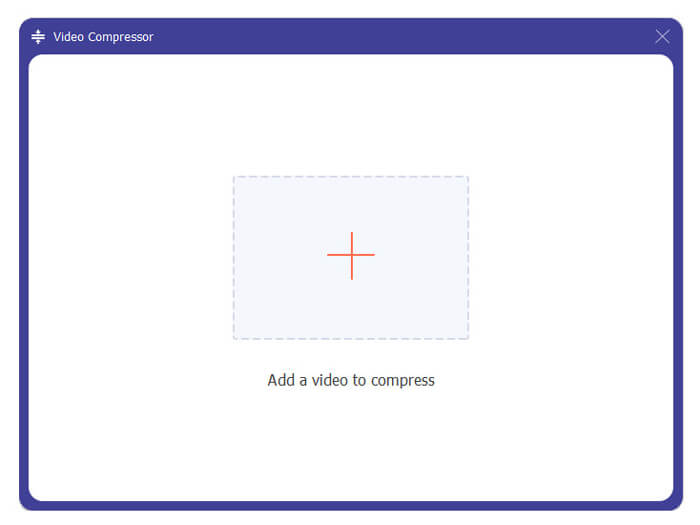
Nu kan du nemt reducere MKV-filstørrelsen efter dit behov. Under dette trin kan du også tilpasse videoopløsning, bithastighed, varighed og filnavn, som du vil. Desuden kan du vælge et passende outputformat til den komprimerede video.
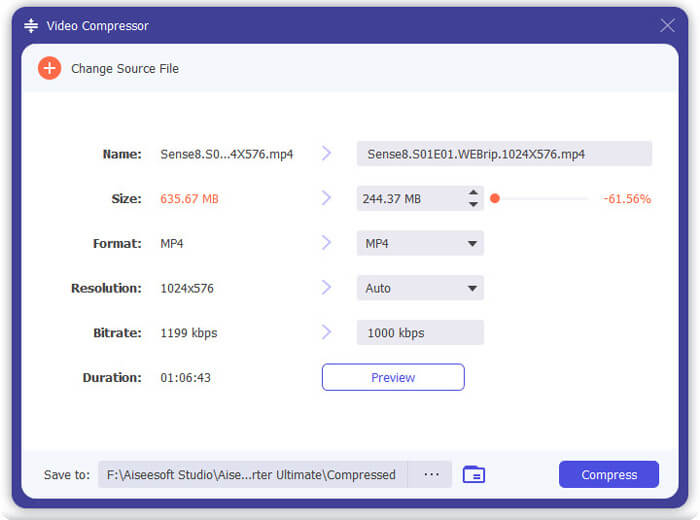
Trin 4. Klik på knappen Compress for at begynde at komprimere din MKV-video til en mindre fil.
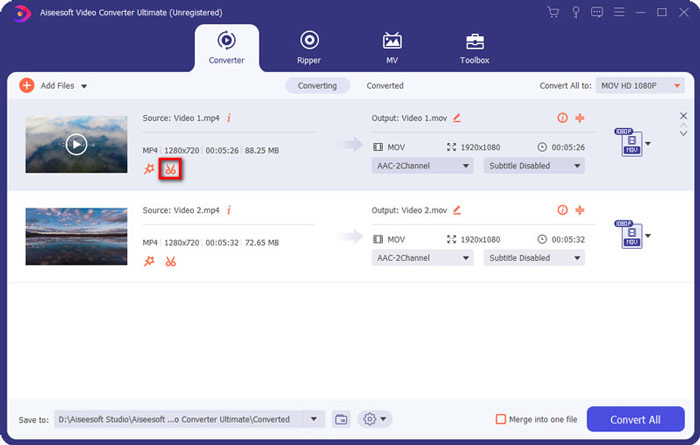
Trin 5. Hvis du vil reducere MKV-filens størrelse ved hjælp af trim-funktionen, kan du gå tilbage til hovedvinduet og vælge indstillingen Converter. Efter at have importeret MKV-videoen kan du klikke på ikonet Cut for at fjerne de unødvendige dele.
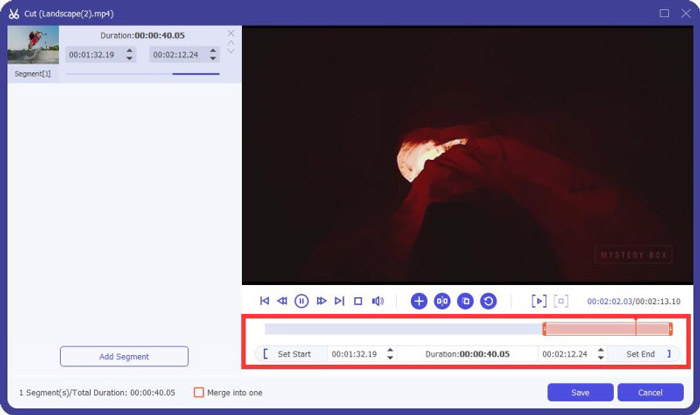
Trin 6. Du kan trække markøren på tidslinjen eller direkte indtaste start- og sluttidspunkt for at trimme din MKV-fil. Derefter kan du klikke på knappen Save for at bekræfte din handling.
Herefter bliver du ført tilbage til hovedvinduet. Her kan du klikke på knappen Convert All for at eksportere MKV-videoen. Dette MKV-komprimeringsprogram er udstyret med en indbygget medieafspiller, som kan hjælpe dig med direkte at se komprimeringsresultatet.
Uanset om du vil komprimere en video til e-mail eller WhatsApp, kan du nemt gøre det i dette program.
Del 3. Ofte stillede spørgsmål om komprimering af MKV-fil
Spørgsmål 1. Hvordan komprimerer du en video uden at miste kvalitet?
Du kan vælge at trimme video for at reducere filstørrelsen. Ved at gøre det kan du komprimere en video uden kvalitets tab. Hvis du vælger en gratis online eller professionel videokompressor, mister videoen bestemt noget billed- eller lydkvalitet. Men du bemærker måske ikke kvalitetstabet fra dine øjne.
Spørgsmål 2. Hvordan konverteres en MKV-fil til MP4 gratis?
For gratis at konvertere en MKV-fil til en MP4-video kan du benytte den pålidelige Free Online Video Converter. Den kan nemt klare MKV til MP4 og andre video/lyd-konverteringer.
Spørgsmål 3. Hvorfor er MKV-filer så store?
MKV er et containerformat, der brugte en bedre codec med et højere kompressionsforhold. MKV-filer tages normalt fra Blu-Rays og har højere opløsning.
Konklusion
Efter at have læst dette indlæg kan du få 2 nemme måder at komprimere MKV-filer på. Med de anbefalede videokompressorer kan du nemt reducere filstørrelsen på dine MKV-filer. Hvis du har en bedre måde at komprimere MKV på, må du meget gerne dele den i kommentaren med andre læsere.
-
 Vejledning til komprimering af en video til e-mail på iPhone / Android / Online
 Kan du ikke sende en video via e-mail, der er for stor? Hvis du har dette problem, kan du få brugbare måder at komprimere en video til e-mail her. Denne artikel viser dig, hvordan du krymper store videofiler gratis i detaljer.
-
 Vejledning til at komprimere GIF og reducere dens filstørrelse med høj kvalitet
 Her er 2 nemme måder at komprimere GIF på din computer eller mobiltelefon. Du kan bruge FVC Free Online Video Compressor og Photoshop reducere GIF-filstørrelsen i forskellige aspekter.
-
 2 måder at komprimere AVCHD-videoer til små filstørrelser gratis
 ead og få 2 nemme måder at komprimere AVCHD-videofiler på. Du kan bruge online og offline videokompressorer til at reducere AVCHD-videostørrelsen gratis på din computer.
