


 Video Converter Ultimate
 Skærmoptager
 Video reparation
 Sikker download
Komprimer nemt MP4-videoer til e-mail på 5 måder [2025]
Det kan nogle gange være overvældende at sende videofiler via e-mail på grund af visse begrænsninger for filstørrelse. Generelt kan e-mail kun håndtere en filstørrelse på 25 MB pr. vedhæftet fil. Enhver vedhæftet fil, der overstiger denne størrelse, vil blive konverteret til et Google Drive-link. Så hvis du leder efter en måde at løse dette problem på, er du kommet til det rette sted.
In this article, learn five ways to easily compress video for email. This way, you can no longer experience any hiccups when sending video files through email. So, what are you waiting for? Let’s dive in!

Del 1. Komprimer en filmfil til e-mail ved hjælp af en videokompressor
Komprimering af en filmfil til e-mail ved hjælp af en videokomprimeringsværktøj kan nemt gøres med de rigtige og dedikerede videokomprimeringsværktøjer. Der findes forskellige videokomprimeringsværktøjer, der hver især tilbyder forskellige niveauer af komprimering, kvalitetsbevarelse og brugervenlighed. Nogle værktøjer tilbyder forudindstillede profiler til e-mailvenlig komprimering, mens andre tillader manuelle justeringer for at afbalancere størrelse og kvalitet. Nedenfor er de tre metoder, du kan prøve at komprimere en filmfil til e-mail:
Den bedste måde at komprimere video til e-mail
The best way to compress video for email is through the FVC-picked Video Converter Ultimate. This full-featured video converter tool has a toolbox where you can find the video compressor function. When you compress a video with this tool, you can easily process it. This tool has a user-friendly interface that only allows users to take 2-3 steps when compressing their videos. To get to know about this tool, check its features below:
Main Feature:
• Komprimer videofilstørrelser til e-mail, samtidig med at høj kvalitet opretholdes.
• Sørg for videokompatibilitet med enhver e-mailplatform ved at konvertere formater.
• Brug forudindstillede e-mailvenlige profiler, eller juster komprimeringsindstillingerne manuelt.
• Den kan batchkomprimere flere videofiler.
Nu hvor du ved, hvad FVC pick, Video Converter Ultimate, er i stand til, lad os gå videre med, hvordan du kan bruge det.
Step 1. First, you need to install and download the tool on your computer.
Free DownloadTil Windows 7 eller nyereSikker download
Gratis downloadTil macOS 10.7 eller nyereSikker download
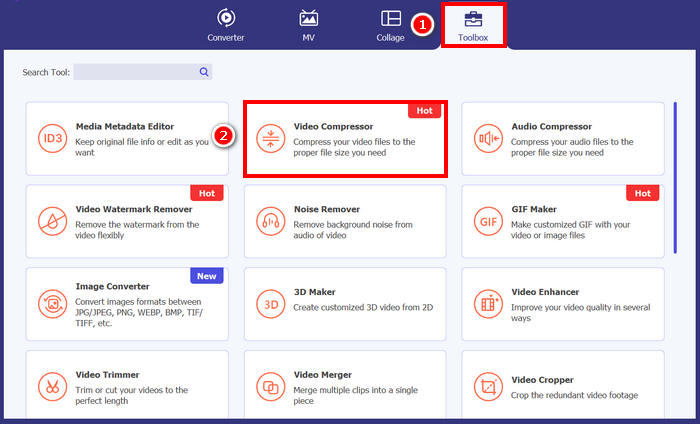
Step 2. Open the tool, go to the Toolbox, and click on the Video Compressor. Once done, just click the Red Plus button to add the video that you want to compress.
Step 3. After that, to compress the video file size, on the Size option, you can simply slide the Slider to adjust the file size of your video, or else manually type it in the Box. Once done, click the Compress button.
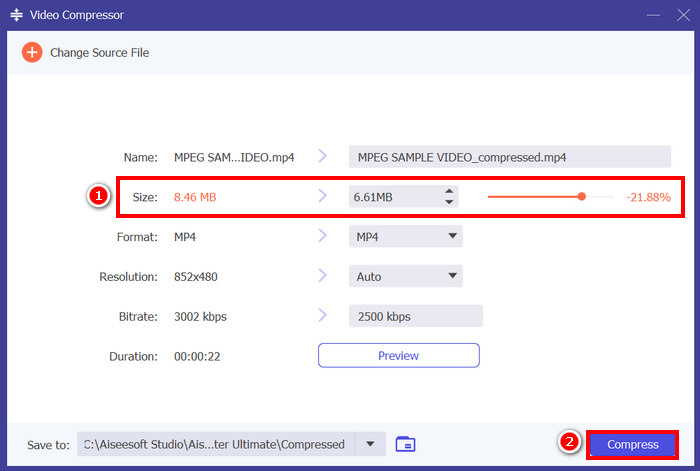
Note: If you want to further enhance your video while it is being compressed, you can also customize its resolution, bitrate, etc.
FVC valgte Video Converter Ultimate, som virkelig er et af de bedste værktøjer til at komprimere video til e-mail. Det er hurtigt, nemt at bruge og bevarer videokvaliteten. Derudover tilbyder det ekstra funktioner som batchkomprimering og formatkonvertering, hvilket gør det til en alsidig løsning til håndtering af videofiler.
Komprimer video til e-mail [Gratis]
Hvis du leder efter en gratis måde at komprimere video til e-mail, kan du bruge VLC Media Player. Dette værktøj er ikke bare en medieafspiller, der afspiller og streamer flere medier. Det kan også bruges til at komprimere videoer. Følg nedenstående trin for at gøre det:
Step 1. First, open the VLC Media Player, or if you don’t have one, download and install it.
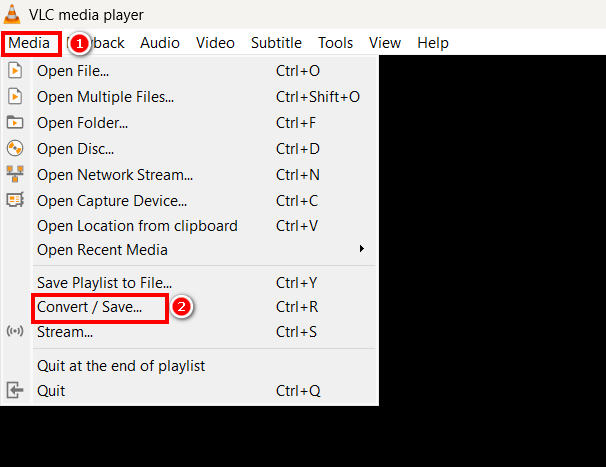
Step 2. After that, go to the Media tab and select Convert/Save below.
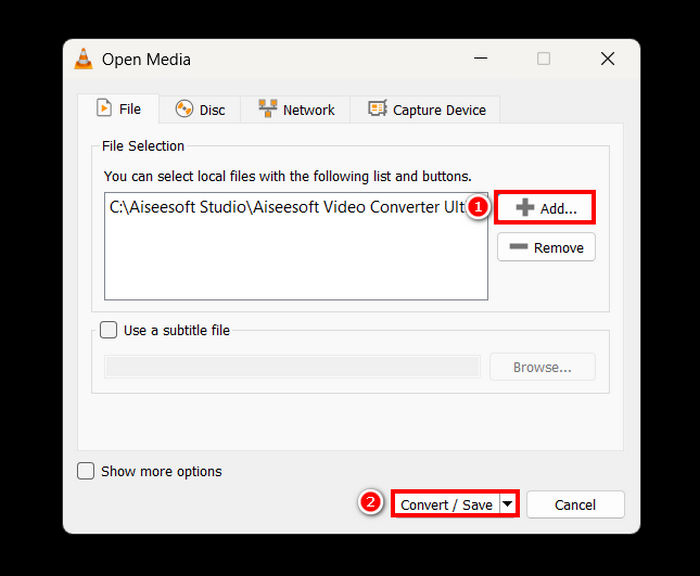
Step 3. Now, click on the Add button to import the video that you want to compress for email, and click the Convert/Save button.
Step 4. Now, in the new panel, select the Edit Selected Profile option, and from there, go to the Video Codec tab and change the resolution, bitrate, and frame rate of your video.
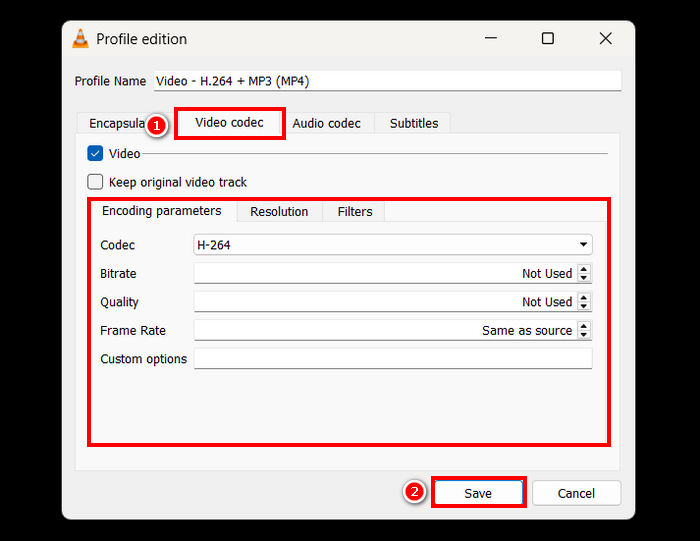
Step 5. Once all is done, save it and click the Start button to start compressing your video.
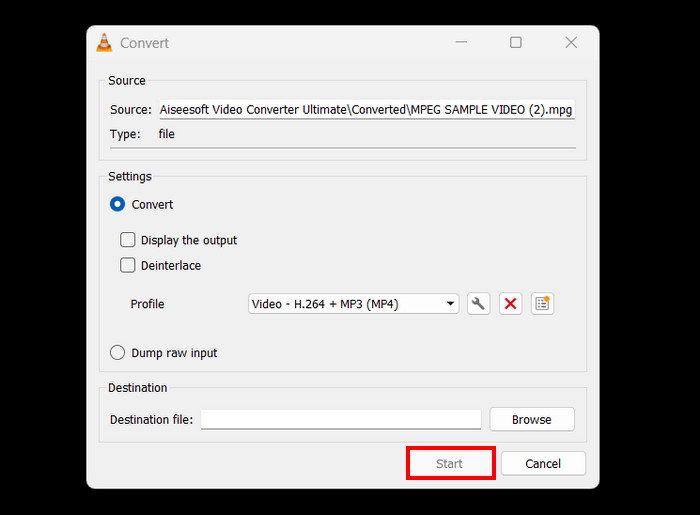
Limitation: Compared to a dedicated video compressor, compressing videos in VLC is not direct and does not have a preset profile for email. Rather, it requires manual customization, which might be overwhelming and not ideal for those who need a quick and direct solution.
Sådan kondenserer du en video til e-mail online
If you want an online method, you can use the Video Compressor of FreeConvert. This web-based video compressing tool allows users to compress video for email. The difference between using this tool and a software application is that it does not require app installation, which might be convenient for some. However, this tool has limitations with the video that you can compress in terms of size. To use this tool, follow the steps below:
Step 1. Go to the official website of FreeConvert. Just search for FreeConvert Video Compressor on your internet browser.
Step 2. After that, to import the video that you want to compress for email, click on the Choose Files button.
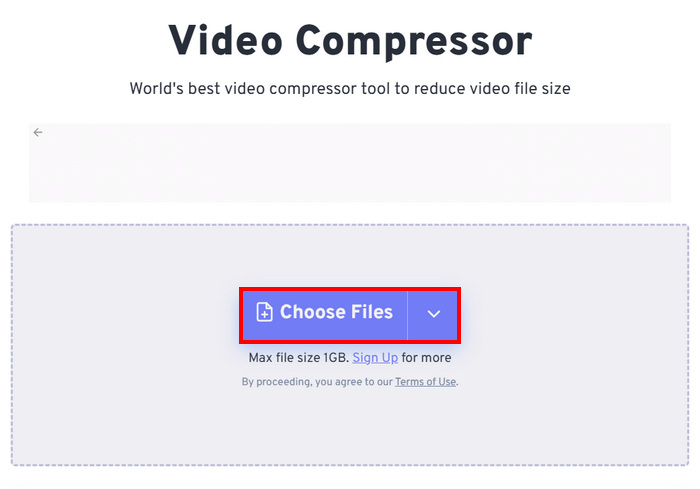
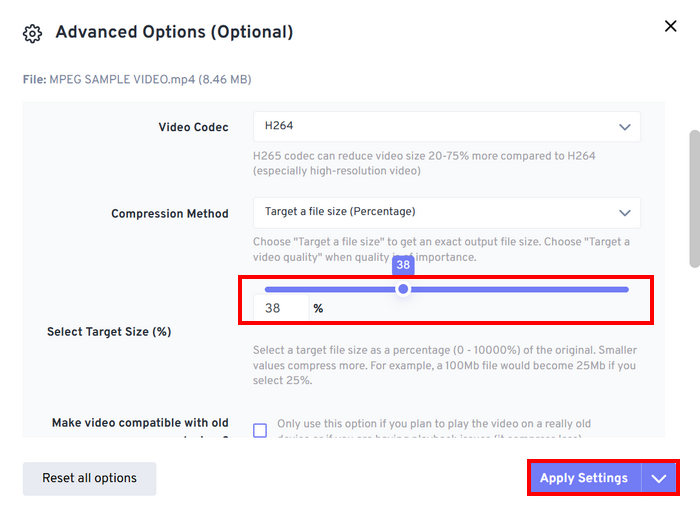
Step 3. Now, go to the Advanced Settings, which is represented by a Gear icon, and from there, you can adjust the size of the video. Just slide the Slider to the left to decrease the size of the video. Finally, to start compressing your video, click on the Apply Settings button.
Step 4. Lastly, click the Compress Now button to start compressing your video for email.
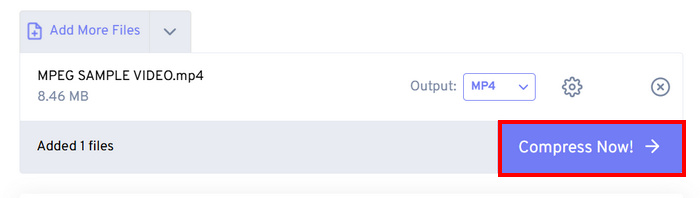
Limitation: Users can only compress up to 1GB in size of video; anything that surpasses this file size requires a subscription to their premium plans. Moreover, since it is a web-based video compressor, the speed of the compression process may vary depending on the internet the user uses.
Del 2. Sådan krymper du videostørrelsen til e-mail med en ZIP-videofil
En anden måde at nemt formindske videostørrelsen til e-mails er ved at oprette en ZIP-fil af dem. Denne metode fungerer godt til at reducere filstørrelsen en smule og gruppere flere videoer i én vedhæftet fil. Denne metode kan også nemt gøres. Denne metode er dog ikke så effektiv sammenlignet med at bruge dedikerede videokomprimeringsværktøjer. Følg nedenstående trin for at gøre dette:
Step 1. First, in your Library, locate the video that you want to compress for email.
Step 2. Next, Right-click on it and select the Compress to option, and from there, choose ZIP File.
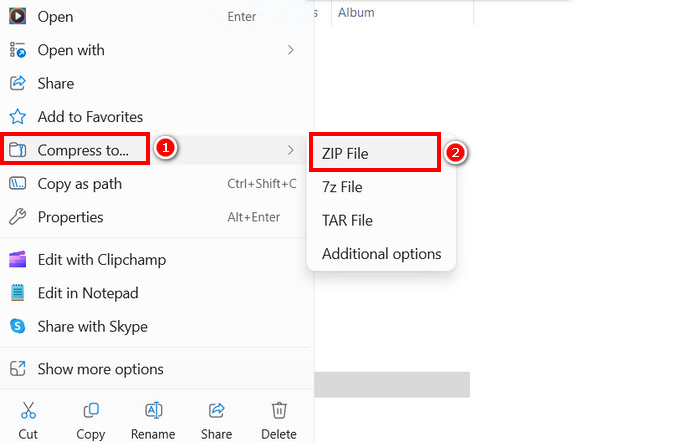
Limitation: While creating a ZIP file is a quick way to compress videos for email, it does not significantly reduce the file size, unlike video compression tools that adjust bitrate, resolution, or format to achieve better compression. If your ZIP file is too big, a dedicated video compressor is a better solution.
Del 3. Hvordan gør man en video mindre til e-mail via Google Drev
Det er umuligt for Google Drev at komprimere en video direkte på samme måde som dedikerede videokompressorer. Ved at downloade gemmes den video, der blev uploadet til drevet, i en ZIP-fil. Dermed reduceres videoens størrelse en smule til lagring og overførsel.
Note: This method means minimal reduction and may not be enough for large video files.
To make a video smaller for email via Google Drive:
Step 1. On your Google Drive, you can first upload the Videos that you want to shrink in size.
Step 2. After that, right-click the videos that you want to shrink their sizes.
Step 3. Once downloaded, those video files are saved in a ZIP file.
Limitation: As said, Google Drive doesn’t have a direct ability to compress videos for email. Moreover, downloading it as a ZIP file is still not an efficient solution.
Del 4. Ofte stillede spørgsmål om komprimering af en video til e-mail
Hvad er den bedste måde at komprimere en video til e-mail?
The best way to compress a video for email is by using a dedicated video compressor like FVC Video Converter Ultimate. This video converter tool was intended for compressing various video files, allowing users to easily handle large video sizes when sending them to emails.
Hvorfor kan jeg ikke sende en stor videofil via e-mail?
Det er vigtigt at bemærke, at de fleste e-mailtjenester, inklusive Gmail, har en grænse på 25 MB filstørrelse pr. vedhæftet fil. Derfor vælger afsendere, der tilfældigvis har større filstørrelser end nødvendigt, at komprimere deres videoer først. Det er også netop derfor, at der er behov for at komprimere video til e-mails.
Forringer komprimering af en video dens kvalitet?
Ja, komprimering af en video til e-mail kan reducere dens kvalitet en smule, fordi du dybest set reducerer opløsningen, bithastigheden og andre kodningsparametre for at gøre filstørrelsen mindre. Der findes dog avancerede videokompressorer som FVC picked Video Converter, der giver dig mulighed for at kontrollere opløsning, bithastighed og format for at minimere kvalitetstab.
Kan jeg komprimere en video til e-mail online?
Ja. Du kan bruge onlineværktøjer som Video Compressor fra FreeConvert til at komprimere videoer uden at installere software. Gratisversioner kan dog have begrænsninger på filstørrelsen.
Hvordan sender jeg en stor video, hvis komprimering ikke er nok?
Hvis komprimering ikke er nok, kan du overveje at uploade videoen til Google Drive, OneDrive eller Dropbox og dele linket via e-mail i stedet for at vedhæfte filen.
Konklusion
With all the restrictions on video file size in all email services, the ability to compress them is a necessity. So, if you’re in the same position and you’re struggling to find a tool that can compress video for email, just try all the methods in this article and find the one that suits you.
Begynd at komprimere dine videoer i dag, og send dem problemfrit!
-
 Sådan komprimeres GoPro-video fra 4K til 1080p (gratis og online)
 Når du bruger GoPro-kamera til at optage en video, er filstørrelsen på den optagede video normalt ekstrem stor, hvilket vil være svært at dele med andre. Så dette indlæg viser dig, hvordan du komprimerer GoPro-video.
-
 2 måder at komprimere video til YouTube
 YouTube-videoer er store og langsomme at uploade? Komprimer bare videofilstørrelsen til mindre på YouTube på 2 måder online og på computeren.
-
 Adobe Premiere Compress Video: Ting du skal overveje
 Denne artikel indeholder de bedste og mest egnede metoder til at komprimere GIF Premiere. Find ud af løsningen og forskellige alternativer til Adobe Premiere Compress.
