


 Video Converter Ultimate
 Skærmoptager
 Video reparation
 Sikker download
Opdag, hvordan du ændrer størrelse på en video på Android med effektive metoder
Uanset om du er en influencer på sociale medier eller bare gerne vil dele dit seneste rejseeventyr med venner og familie, kan ændring af størrelsen på dine videoer gøre en stor forskel. Det kan ikke kun optimere filstørrelsen, så de er lettere at dele, men også forbedre seeroplevelsen for dit publikum. I dette indlæg viser vi dig hvordan du ændrer størrelsen på videoer på Android, fra justering af billedformat til ændring af videoens opløsning. Med vores enkle og letforståelige guide kan du ændre størrelsen på dine videoer som en professionel og løfte dit indhold til næste niveau.

Del 1. Tutorial, hvordan man beskærer en video på Android med Samsung Gallery
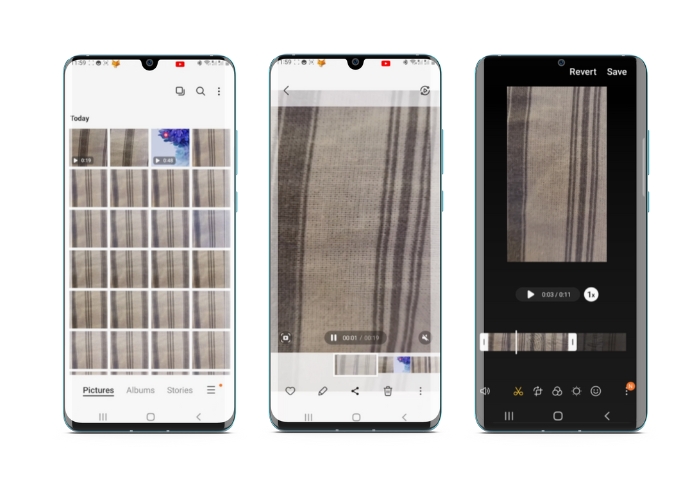
Samsung Gallery-appen er et must-have til at administrere og redigere dit visuelle indhold, hvis du ejer en Samsung-enhed. En af appens nyttige funktioner er muligheden for at beskære videoer på farten. Det giver brugerne mulighed for at fjerne uønskede dele af en video eller justere billedformatet. Beskæringsfunktionen gør det nemt og intuitivt. Med Samsung Gallery kan du nemt oprette og dele videoer i høj kvalitet, der er skræddersyet til dine behov. Se trinene nedenfor for at hjælpe dig med at bruge dette Android-videoredigeringsværktøj.
Trin 1. Åbn Samsung Galleri‑appen på din enhed, og find den video, du vil beskære.
Trin 2. Tryk på videoen for at åbne den, og tryk derefter på knappen Rediger (blyantsikonet) nederst på skærmen. Vælg derefter Beskær på Rediger-skærmen.
Trin 3. Du vil nu se et rektangel lagt oven på videoen med håndtag i hvert hjørne. Træk i håndtagene for at ændre størrelsen på rektanglet efter behov for at beskære videoen. Tryk på Afspil-knappen for at få en forhåndsvisning af den beskårne video.
Trin 4. Hvis du er tilfreds med resultatet, skal du trykke på knappen Gem for at gemme den beskårne video i dit Galleri.
Del 2. Gennemgang af, hvordan man beskærer en video på Android med Google Fotos
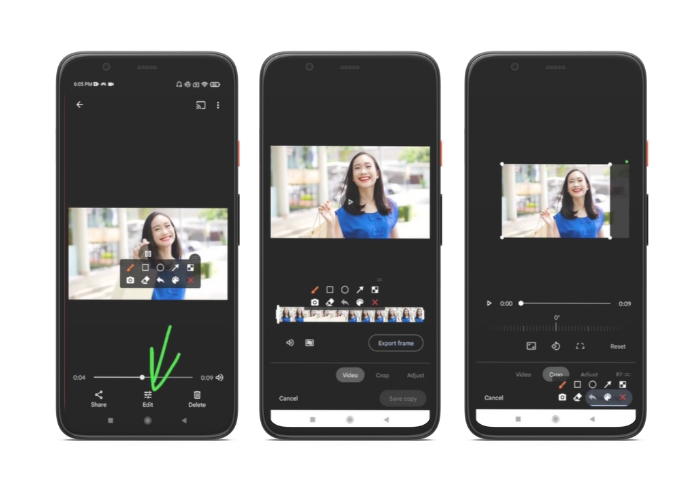
Google Fotos er en populær foto- og videostyringsapp til Android-brugere, og den kommer med en lang række funktioner, der hjælper dig med at redigere og forbedre dit visuelle indhold. En fantastisk funktion ved dette værktøj er evnen til at beskære videoer, som giver dig mulighed for at fjerne uønskede dele og fokusere på de vigtigste øjeblikke. Du kan beskære videoer med blot et par tryk, hvilket gør det nemt og intuitivt at skabe poleret og professionelt udseende videoindhold på din Android-enhed. Her viser vi dig, hvordan du beskærer videoer med Google Fotos trin-for-trin.
Trin 1. Start Google Fotos‑appen på din Android‑enhed, og find den video, du vil beskære. Tryk derefter på knappen Rediger, som er placeret nederst på skærmen.
Trin 2. Vælg indstillingen Beskær og rotér på Rediger‑skærmen.
Trin 3. Du vil nu se et rektangel lagt oven på videoen med håndtag i hvert hjørne. Brug håndtagene til at ændre størrelsen på rektanglet efter behov for at beskære videoen.
Trin 4. Tryk til sidst på Gem for at gemme de ændringer, du har foretaget i videoen.
Del 3. Vejledning, hvordan man beskærer en video på Android med en tredjepartsapp
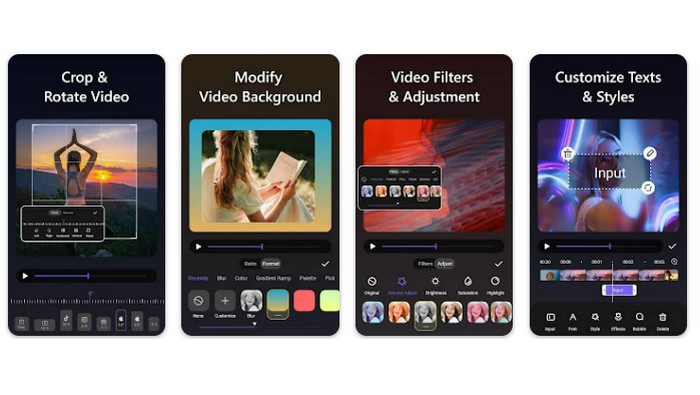
Nem videoproduktion og redigering er nu inden for rækkevidde for alle med en Android‑telefon takket være Vid.fun. Dette program giver brugerne mulighed for at redigere deres film på mange måder, herunder at tilføje musik, tekst og effekter, klippe og flette klip og meget mere. Du kan lære, hvordan du ændrer størrelsen på en video på Android, ved at følge trinene til dette program nedenfor.
Trin 1. Download Vid.fun‑appen fra Google Play Butik, og start derefter et nyt projekt.
Trin 2. Vælg det klip, du vil beskære, i din enheds galleri eller kamerarulle, og træk det ned på tidslinjen.
Trin 3. Vælg det ønskede videoklip på tidslinjen ved at trykke på det, og brug derefter knappen Beskær nederst på skærmen til at ændre klippet.
Trin 4. Et rektangel er blevet lagt oven på videoen, og du kan trække i hjørnerne for at lave justeringer. For at beskære videoen skal du blot tage fat i hjørnehåndtagene og trække dem til den ønskede position. Når du er færdig, kan du sende videoen til dine nærmeste eller lægge den op på nettet.
Del 4. App-anbefaling
Selvfølgelig har vi efter mobilappsene også en anbefaling til et skrivebordsprogram. Video Converter Ultimate fra FVC er et komplet program til at ændre videoformater, som også indeholder mange værktøjer til redigering. Muligheden for at justere videoens billedformat er en fremtrædende funktion.
Med dette program kan du nemt ændre videoens form og størrelse ved at ændre billedformatet. Hvis du ønsker at dele en video på sociale medier med et specifikt billedformat, eller hvis du bare skal få videoen til at passe til en bestemt skærmstørrelse, har FVC Video Converter Ultimate dig dækket. Find ud af, hvordan du beskærer videoer på Android ved hjælp af dette program.
Trin 1. Download og installer FVC Video Converter Ultimate
Du kan downloade appen ved at klikke på en af Gratis download-knapperne nedenfor. Når programmet er downloadet, skal du installere det og starte det på din computer.
Free DownloadTil Windows 7 eller nyereSikker download
Gratis downloadTil macOS 10.7 eller nyereSikker download
Trin 2. Importér den video, der skal beskæres
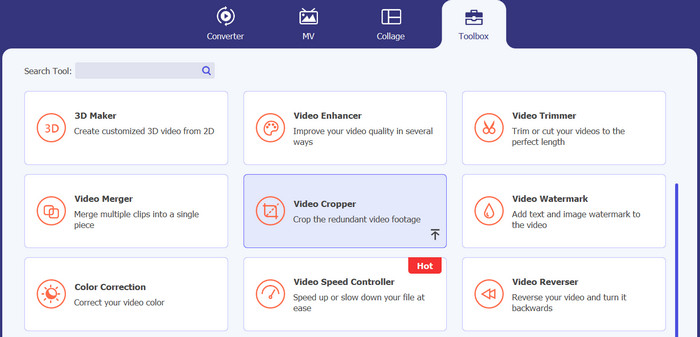
Gå derefter til fanen Værktøjskasse øverst i programmets grænseflade. Vælg derefter Video Beskærer-indstillingen og tilføj en fil ved at klikke på knappen med plus-symbolet.
Trin 3. Beskær videofilen
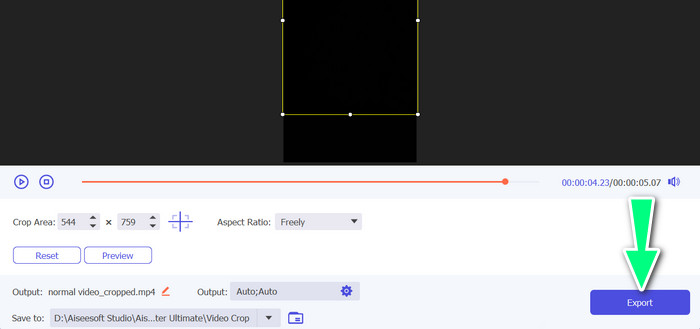
Du kan nu beskære den importerede video. Brug skyderne for beskæringsområde til at justere det område, du vil beskære fra videoen. Du kan også vælge et specifikt billedformat fra rullemenuen. Forhåndsvis den beskårede video for at sikre, at den ønskede del af videoen er blevet beskåret.

Trin 4. Eksportér den beskårne video
Til sidst skal du klikke på knappen Eksportér nederst til højre for at afslutte beskæringen og gemme den beskårne video.
Del 5. Ofte stillede spørgsmål om beskæring af videoer på Android
Hvordan beskærer jeg videoer uden at miste kvalitet?
En måde at beskære videoer på uden at miste kvalitet er at bruge et videoredigeringsværktøj, der understøtter ikke-destruktiv beskæring. Det betyder, at den originale videofil ikke ændres, og kun den beskårne del gemmes som en ny fil.
Vil beskæring af en video på Android påvirke dens kvalitet eller opløsning?
Ja, beskæring af en video på Android kan påvirke dens kvalitet eller opløsning, da processen involverer at fjerne en del af den originale video. Men i hvilket omfang kvaliteten eller opløsningen påvirkes afhænger af forskellige faktorer, såsom størrelsen af beskæringen, kvaliteten af den originale video og den metode, der bruges til at beskære videoen.
Er det muligt at beskære en video og tilføje effekter eller filtre på samme tid på Android?
Ja, det er muligt at beskære en video og tilføje effekter eller filtre på samme tid på Android. Der findes forskellige videoapps i Google Play Butik, som både tilbyder beskæring og videoeffekter samt videofiltre. Nogle populære eksempler er FVC Video Converter Ultimate, Filmora osv.
Konklusion
At lære hvordan man beskærer en video på Android er en enkel proces, som kan udføres med forskellige apps og programmer. Samsung Galleri, Google Fotos og FVC Video Converter Ultimate er blot nogle få eksempler på værktøjer, der kan hjælpe dig med at beskære dine videoer på Android‑enheder.
-
 Vejledning om, hvordan man reparerer videoer, der ikke afspilles på Android -telefoner
 Vil du vide, hvad der er årsagerne til, at videoer på din Android -enhed ikke kan afspilles? Og hvis ja, er der nogen måder at løse problemet på egen hånd? Fortsæt med at læse for at vide mere.
-
 Nemmeste måder til at fremskynde en video på dine Android-enheder [2023]
 Vidste du, at du kan fremskynde en video på din Android? Så hvis du vil vide, hvordan du fremskynder en video på din Android-telefon, så læs denne skrivning.
-
 3 fremragende metoder til, hvordan man trimmer video på Android
 Vil du bruge din Android-enhed til at klippe en video? Så er dette indlæg noget for dig. Vi vil diskutere værdifulde måder om, hvordan man forkorter en video på Android.
