


 Video Converter Ultimate
 Skærmoptager
 Video reparation
 Sikker download
Løsninger til at klippe videoer online [Trin-for-trin vejledninger]
Hvordan gør du din lange video kortere? Hvis du ikke kender de bedste metoder, du kan bruge, er der en grund til, at du skal læse denne vejledning. Mens du læser denne artikel, giver vi dig al den væsentlige information om, hvordan du kan forkorte længden på din video. Vi vil også introducere online og offline videoredigeringssoftware, du kan bruge. På den måde får du endnu bedre muligheder for at nå dit mål. Så uden yderligere omsvøb – læs dette indlæg og lær, hvordan du kan klippe video online.

Del 1. Fremragende metoder til at klippe video online
1. InVideo
Et af de nyttige videoredigeringsværktøjer, du kan finde online, er InVideo-videotrimmeren. Denne webbaserede software tilbyder et letanvendeligt layout. Efter at have besøgt webstedet, behøver du ikke installere værktøjet. Alt du skal gøre er at tilføje videoen, og du kan allerede fortsætte med at trimme. Da den har et simpelt layout, vil der desuden også være en forståelig metode. På denne måde, uanset om du er en professionel eller ikke-professionel bruger, kan du bruge InVideo. Desuden er InVideo tilgængelig på næsten alle webplatforme. Du kan bruge værktøjet på Google Chrome, Mozilla Firefox, Internet Explorer og mere. InVideo har dog nogle ulemper. Når du bruger den gratis version, kan InVideo ikke tilbyde høj videokvalitet. Det kan også kun tilbyde lav videokvalitet, hvilket er utilfredsstillende ved. Hvis du vil have fremragende videokvalitet, skal du købe et abonnement. Følg nedenstående trin for at klippe/trimme din video ved hjælp af InVideo-videotrimmeren.
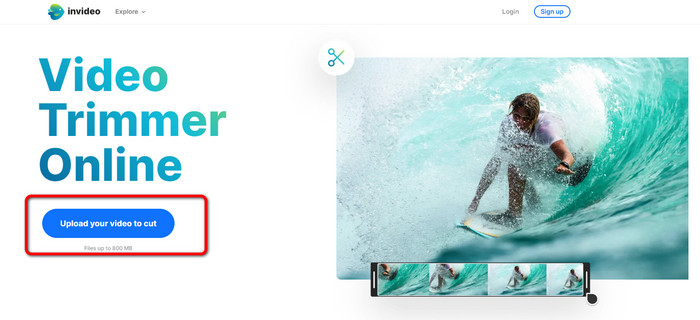
Trin 1. Åbn din browser, og gå til den officielle hjemmeside for InVideo. Hvis du allerede er på websiden, skal du klikke på knappen Upload your video to cut. Når dialogboksen til filer vises på skærmen, skal du vælge den video, du vil trimme/klippe, og åbne den.
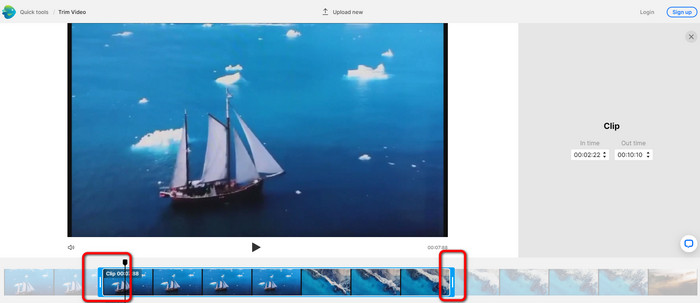
Trin 2. Efter at have valgt en video, bliver du ført til den sektion, hvor du kan trimme den. For at trimme din video skal du flytte skyderne i hver ende af videoen til det tidspunkt, du ønsker.
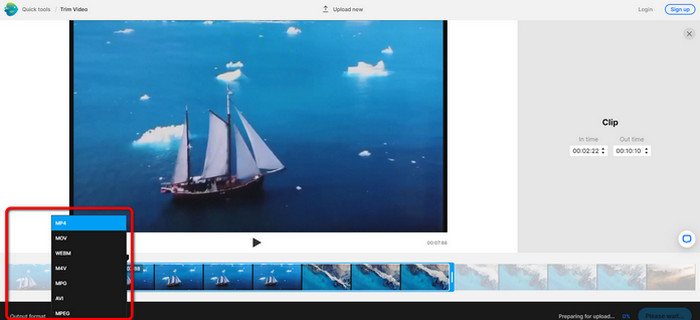
Trin 3. Når du trimmer din video, kan du gemme den i forskellige formater. Gå til indstillingen Output Format nederst til venstre i grænsefladen. Vælg derefter det ønskede outputformat, når formatmulighederne vises. Klik derefter på Done.
Trin 4. Du skal registrere en konto hos InVideo eller logge ind med en allerede oprettet konto, før du kan gemme din video. Din video vil være klar til at blive gemt efter få sekunder, når du blot har udfyldt dine legitimationsoplysninger.
2. Ezgif
En anden gratis videotrimmer online er Ezgif. Den har enkle procedurer til at forkorte en video. Ezgif er et gratis onlineværktøj, så du behøver ikke bekymre dig om at bruge penge. Derudover kan du få adgang til onlineværktøjet i alle browsere, herunder Google, Edge, Firefox, Explorer og flere. Dog understøtter tjenesten kun GIF. Så hvis du planlægger at klippe en video i et andet format, er Ezgif ikke det rette værktøj. Desuden vises der mange forstyrrende reklamer på skærmen, når du bruger værktøjet. Det kan derfor blive generende under redigeringen af en video.
Trin 1. Gå til Ezgifs hjemmeside, og vælg indstillingen Cut.
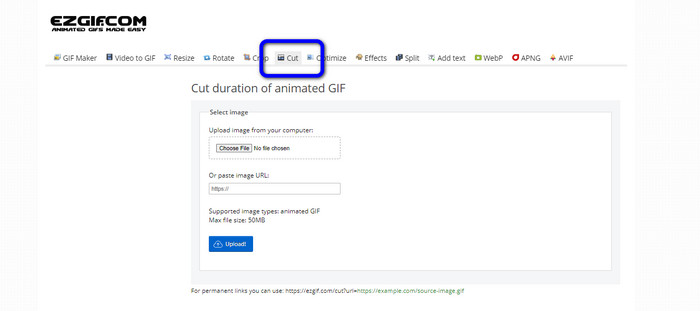
Trin 2. Klik derefter på knappen Choose File. Tilføj så den GIF-fil, du vil uploade, fra computerens mappe.
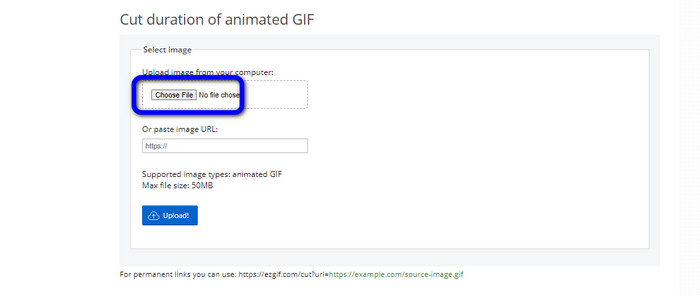
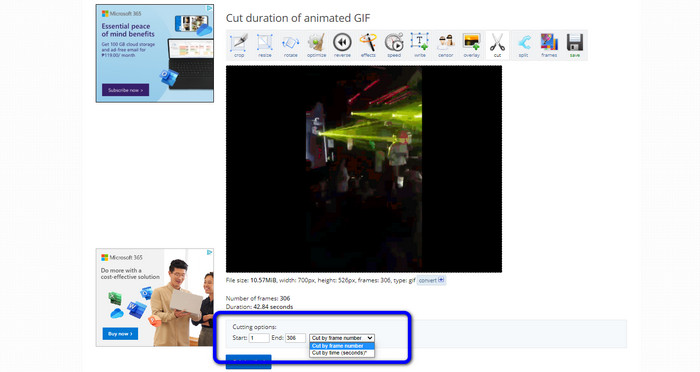
Trin 3. Når du har uploadet GIF-filen, kan du allerede klippe den. Der er to måder at klippe GIF-filen på. Du kan klippe efter framenummer eller klippe efter tid. Klip den på den måde, du foretrækker.
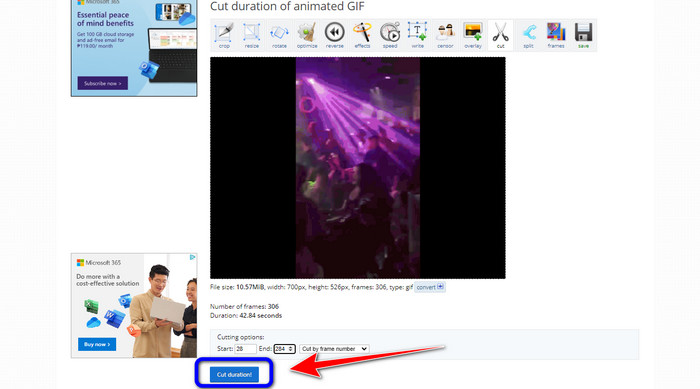
Trin 4. Klik på knappen Cut Duration for at starte klippeprocessen.
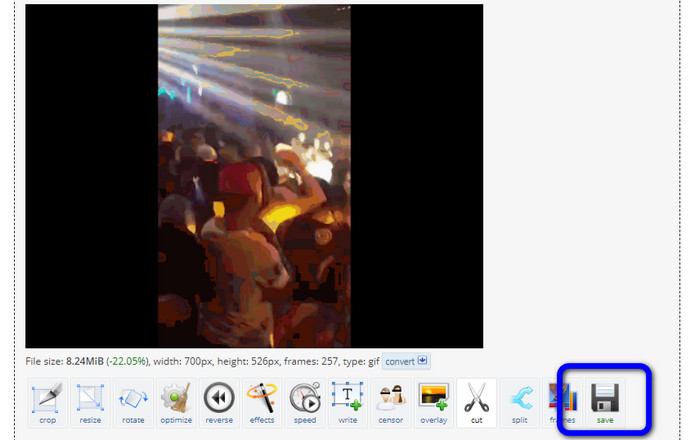
Trin 5. Derefter vises den redigerede version. Klik på Save-indstillingen for at downloade det endelige resultat til din computer.
3. Kapwing
For at klippe video kan du også bruge videotrimmeren Kapwing. Dette webbaserede værktøj kan klippe en video på en problemfri måde. Derudover kan du tilgå værktøjet på forskellige webplatforme, herunder Chrome, Mozilla, Edge og flere. Desuden understøtter Kapwing forskellige videoformater, såsom MP4, MOV, AVI, FLV, WEBM og flere, hvilket gør det praktisk for alle brugere. Kapwing har dog nogle ulemper. Der vises forstyrrende reklamer hele tiden på skærmen. Derudover kan du kun uploade en video i 720p-kvalitet, når du bruger gratisversionen. Det tilføjer også irriterende vandmærker efter redigering af videoen. Hvis du vil have videoen uden vandmærker og nyde flere gode funktioner, skal du købe et abonnement.
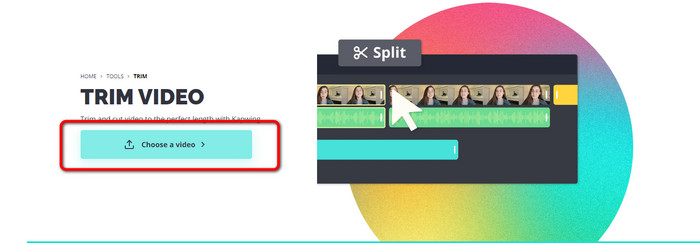
Trin 1. Gå til Kapwings hjemmeside. Klik derefter på indstillingen Choose a video for at gå videre til værktøjets hovedgrænseflade.
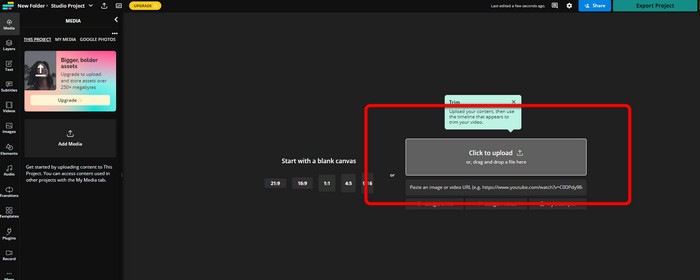
Trin 2. Klik på knappen Click to upload for at indsætte videoen fra filmappen.
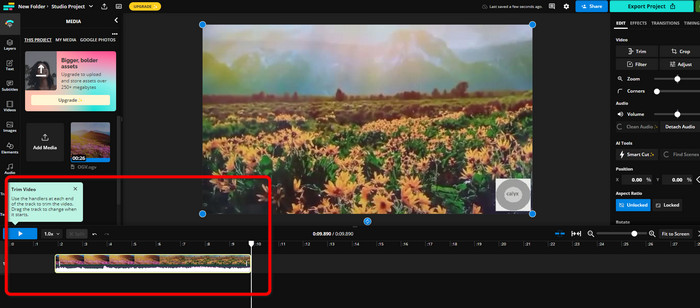
Trin 3. Når videoen allerede ligger på tidslinjen, kan du klikke og trække i håndtagene i hver side for at begynde at trimme videoen.
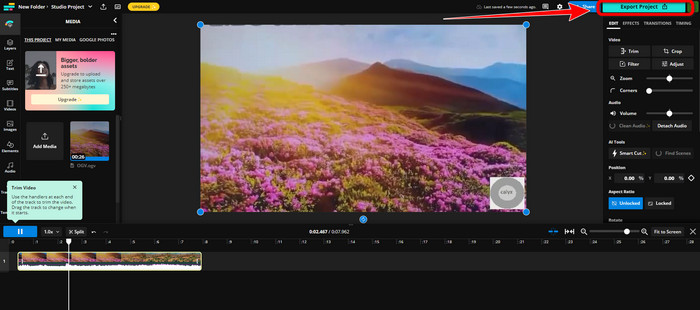
Trin 4. Når du er færdig, skal du gå til det øverste højre hjørne af grænsefladen og klikke på knappen Export Project. På den måde kan du gemme den redigerede video på din computer.
Del 2. Alternativ måde at trimme video offline på
Brug Video Converter Ultimate til at redigere videoer offline på den bedst mulige måde. Dette værktøj gør det enkelt at klippe og/eller trimme din video. Det har også en enkel grænseflade med ligetil navigation, hvilket gør det ideelt for alle brugere. Dit færdige resultat kan også gemmes i en række forskellige formater, blandt andet MOV, AVI, MP4, MKV og andre. Der er endnu flere ting, du kan gøre, når du klipper videoer. Du kan foretage forskellige justeringer ved at gå til Output-indstillingerne. Du kan ændre videoens billedhastighed, opløsning, encoder, kvalitet osv. Derudover tilføjer Video Converter Ultimate ikke vandmærker til den redigerede video. På den måde kan du stadig se den redigerede film uden irriterende elementer. Både Windows- og Mac-brugere kan desuden få adgang til Video Converter Ultimate. Det betyder, at programmet er praktisk for både Windows- og Mac-brugere. Følg den detaljerede vejledning nedenfor for at begynde at klippe videoen.
Trin 1. Klik på Download-knappen nedenfor for at få Video Converter Ultimate på din computer. Åbn programmet efter installationsprocessen.
Gratis download til Windows 7 eller nyere Sikker download
Gratis download til MacOS 10.7 eller nyere Sikker download
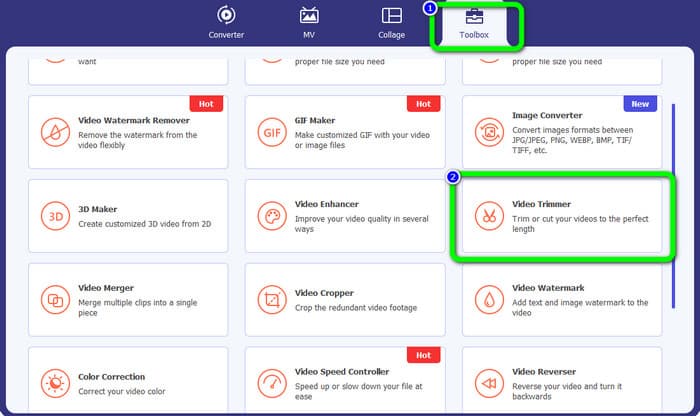
Trin 2. Klik på menuen Toolbox i grænsefladen, og vælg værktøjet Video Trimmer.
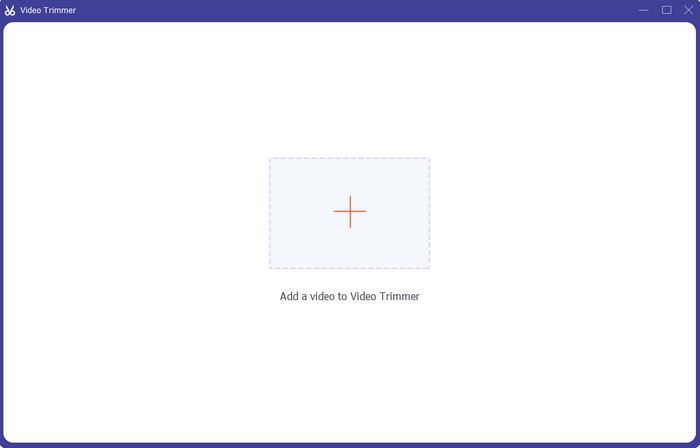
Trin 3. Når den nye grænseflade vises på skærmen, skal du klikke på Plus-symbolet for at indsætte den video, du ønsker at redigere.
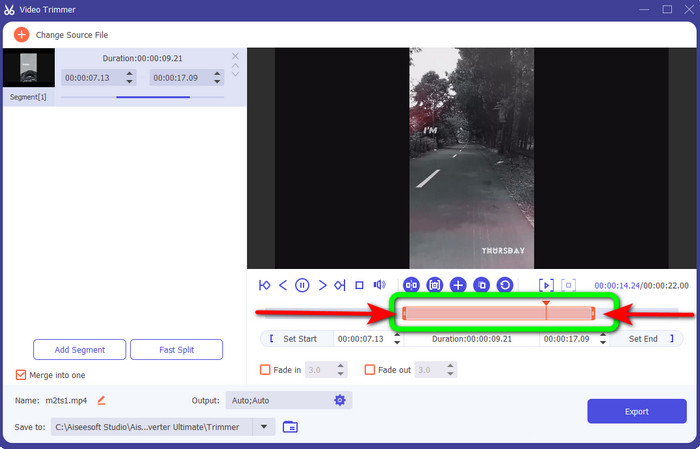
Trin 4. Derefter kan du allerede begynde at redigere din video i denne del. Du kan flytte kantdelen af videoen for at styre, hvordan du vil klippe/trimme videoen. Du kan flytte de højre og venstre kanter efter behov.
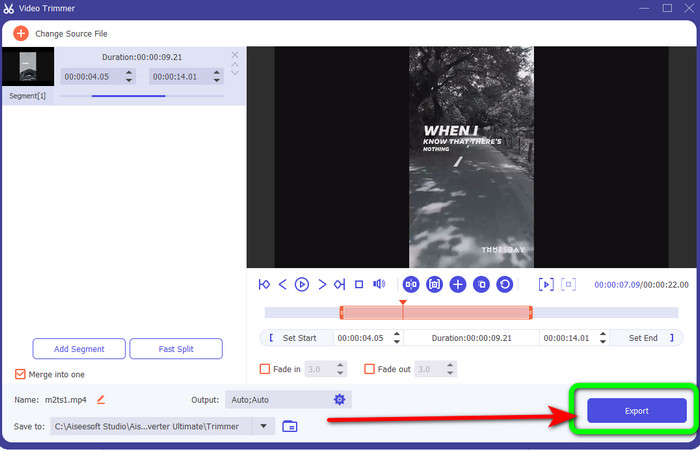
Trin 5. Når du er tilfreds med videoen, skal du klikke på knappen Export for at fortsætte med eksporten. Gem derefter din endelige, redigerede video.
Del 3. Ofte stillede spørgsmål om, hvordan man klipper video online
Hvordan trimmes en video på en iPhone?
Når du er startet, skal du trykke på den video, du ønsker at redigere i appen Billeder. Klik på Rediger. Skift start- og stoptider ved at trække skyderne på hver side af videoens tidslinje. Brug afspilningsknappen for at se en forhåndsvisning af din redigerede video. Vælg Gem video eller Gem video som nyt klip efter at have valgt Udført.
Hvordan klipper man videoer i Shotcut?
Træk videofilen til tidslinjen efter import af den til Shotcut. Placer afspilningshovedet i begyndelsen af det segment, du vil trimme. Tryk derefter på genvejstasten I. Tryk på tasten O efter at have fremført afspilningshovedet til afsnittets afslutning. Segmentet ville nu blive adskilt fra resten af videoen.
Hvad er den bedste software til at klippe MP4-filer offline?
Hvis du vil klippe MP4-filer offline, skal du bruge Video Converter Ultimate. Dette gratis downloadbare program gør det muligt at klippe MP4-filer uden besvær.
Konklusion
Dette er de bedste metoder til at klippe video online. Du kan bruge alle de videoredigeringsværktøjer, der er nævnt ovenfor, til at klippe en video. Når du bruger et onlineværktøj, kan der dog være tidspunkter, hvor det ikke fungerer optimalt på grund af dårlig internetforbindelse. I så fald bør du bruge Video Converter Ultimate. Det er et program, du kan downloade, som lader dig redigere videoer uden internetforbindelse.
-
 [4 måder] Sådan gør du nemt dine videoer online hurtigere
 Vil du fremskynde en video online? Læs denne artikel for at vide mere om at fremskynde en video på forskellige mulige måder.
-
 Sådan klipper og fletter du sange online - 4 bedste måder, du bør kende
 Når du vil klippe og flette sange online for at oprette et stykke musik, kan du lære mere om de 4 bedste onlineværktøjer til at klippe sangene og kombinere filer fra artiklen.
-
 Oplev den bedste MP4 -trimmer med procedure og information
 Vil du lære at klippe videoer som de vloggere, du ser? Fortsæt derefter med at læse dette indlæg for at vide, hvilke MP4 -trimmere du kan bruge.
