


 Video Converter Ultimate
 Skærmoptager
 Video reparation
 Sikker download
Sådan flettes M4V-filer? Her er de 2 hurtigste løsninger
M4V-filer, også kaldet MPEG-4-videofiler, downloades som regel fra iTunes. De ligner meget MP4-filer, fordi de begge bruger MPEG-4-containerformatet. Det sker let, at du får downloadet flere ufuldstændige videoklip i M4V-format fra iTunes og derefter gerne vil samle M4V‑filerne til én sammenhængende fortælling uden synlige overgange. Hvordan kan man kombinere M4V‑filer? Denne artikel giver dig to metoder, så du kan gøre det effektivt og uden tab af billedkvalitet.

Del 1: Hurtigste løsning - Brug en gratis M4V-fusion online
For den hurtigste løsning kan du bruge FVC Free Online Video Merger, som ikke kræver meget tid at lære at bruge med hensyn til trin og indstillinger. Du skal blot åbne værktøjet i din browser, tilføje dine M4V-filer og derefter klikke én gang for at flette M4V‑filerne.
Nøglefunktioner
- • Flet M4V-filer af ethvert beløb og enhver størrelse i en fil gratis.
- • Brugervenlig grænseflade og intuitive processer til sammenfletning.
- • Du kan gemme de flettede M4V-filer som 9 andre store formater.
- • Efterlad intet vandmærke i de kombinerede M4V-videoer.
- • Upload dine filer i alle størrelser på kun 1 sekund.
Trin til at sammenføje M4V‑filer gratis online
Trin 1. Klik her for at åbne FVC Free Online Video Merger. På onlineværktøjets webside skal du klikke på knappen Upload Videos to Merge midt på skærmen.
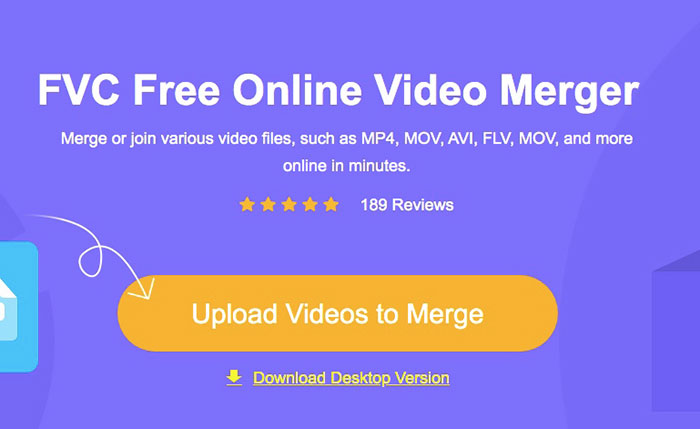
Bemærk: Værktøjet vil bede dig om at downloade og installere et startprogram, hvis du bruger værktøjet for første gang. Når du har installeret startprogrammet, skal du klikke på knappen Upload Videos to Merge igen.
Trin 2. Nu bør vinduet Open dukke op. Her skal du vælge M4V‑filerne og derefter klikke på knappen Open nederst i vinduet.
Trin 3. Efter upload af M4V‑filerne kan du justere rækkefølgen af M4V‑filerne ved at fjerne de eksisterende og indsætte nye på de ønskede pladser.
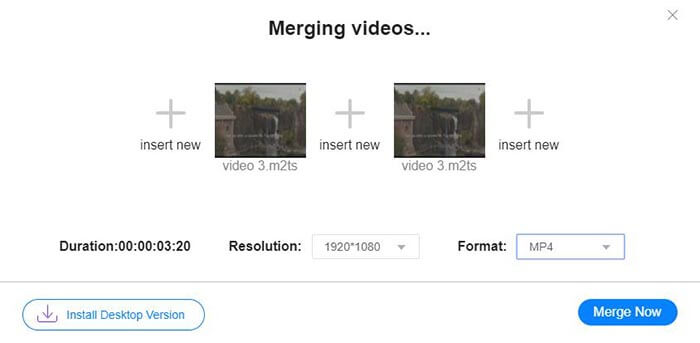
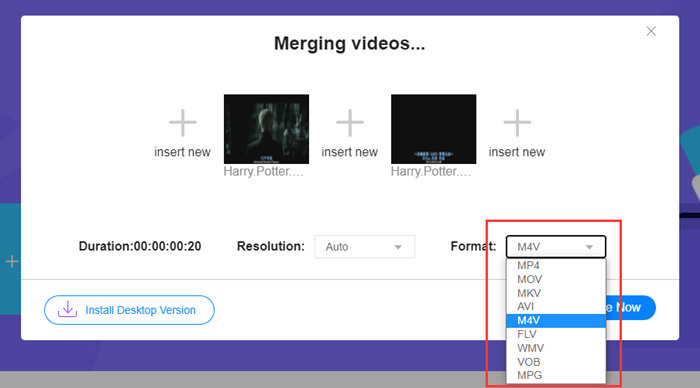
Trin 4. For at beholde den flettede fil i M4V‑format skal du vælge M4V på listen Format. Du kan også vælge et hvilket som helst af de andre formater på listen for at konvertere den flettede M4V‑video.
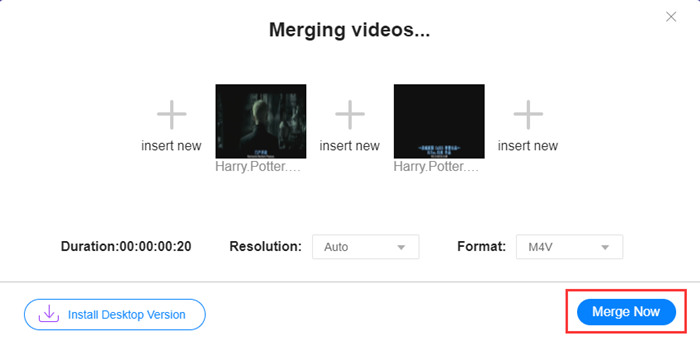
Trin 5. Klik på knappen Merge Now for at begynde at kombinere M4V‑filerne. Værktøjet vil derefter bede dig vælge destinationen for outputfilen.
Når du ser succesmeddelelsen nedenfor, gemmes den flettede video på din computer.
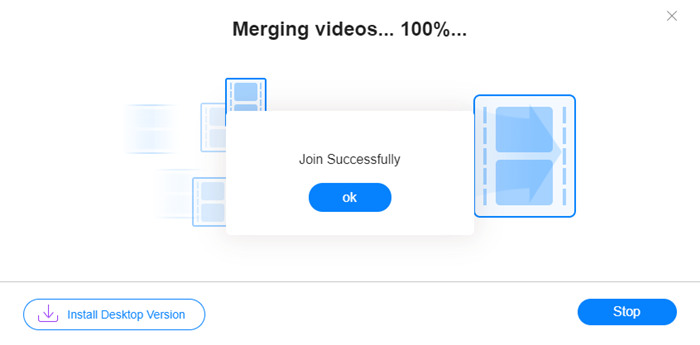
Du har nu lært den hurtigste måde at kombinere M4V‑filer på. Denne metode giver dig dog kun mulighed for at sætte videoerne sammen ende mod ende og kan ikke hjælpe dig med at klippe de uønskede afslutninger væk, hvilket kan føre til perioder med sort skærm i videoen. Måske har du også brug for den næste metode, så du ikke blot kan sammenføje M4V‑filerne, men også klippe dem sammen uden synlige overgange. Du kan komprimere M4V‑filer her.
Del 2: En metode til at flette M4V-filer problemfrit
For at få en komplet og helt glidende video er det ikke nok blot at sætte M4V‑filerne sammen ende mod ende. Du skal også klippe de uønskede segmenter væk i starten og slutningen. Det kræver et videoredigeringsværktøj. Du har mange muligheder at vælge imellem, men her vil vi gerne anbefale Video Converter Ultimate. Årsagen er enkel: Den er nem at bruge, og dens funktioner er tilstrækkeligt kraftfulde.
Nøglefunktioner
- • Flet, trim, roter, beskær og tilføj effekter til M4V-videoer.
- • Hardwareaccelererende teknologi hjælper med at afslutte sammenføjning af M4V-filer 70 gange hurtigere.
- • Rigelige filtre og effektsamling for at pynte dine videoer
- • Brug den indbyggede videoforstærker til at forbedre din videokvalitet
- • Gør dine videoer til 3D, og nyd dem med dine 3D-briller
Gratis download til Windows 7 eller nyere Sikker download
Gratis download til MacOS 10.7 eller nyere Sikker download
Trin til at flette M4V‑filer uden synlige overgange
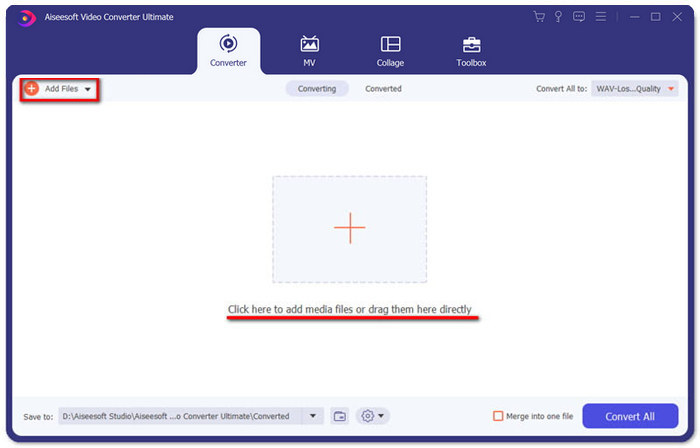
Trin 1. Installer og start Video Converter Ultimate. Klik på knappen Add Files, eller træk filer ind i programvinduet for at tilføje videoer.
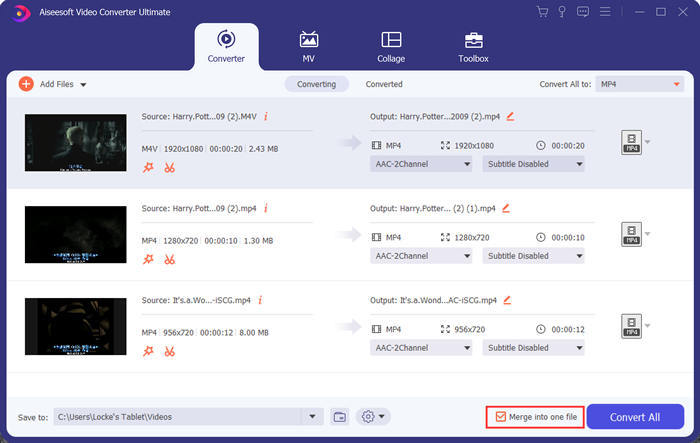
Når de er tilføjet, kan du trække filerne op og ned for at arrangere deres rækkefølge. Du skal også markere feltet Merge into one file, så programmet ikke konverterer de tilføjede videoer hver for sig.
Trin 2. For at bruge klippefunktionen kan du klikke på ikonet Cut på en tilføjet video.
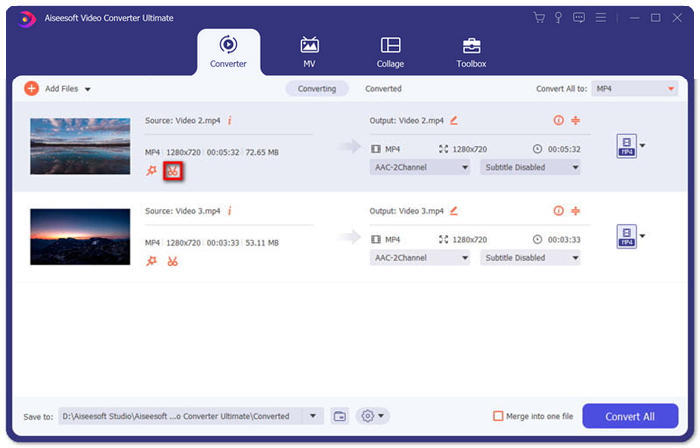
I Cut-vinduet kan du nemt klippe de uønskede dele af en video væk. Vælg blot et segment ved at angive start- og slutpunkter, og klik derefter på skraldespandsikonet for at fjerne det.
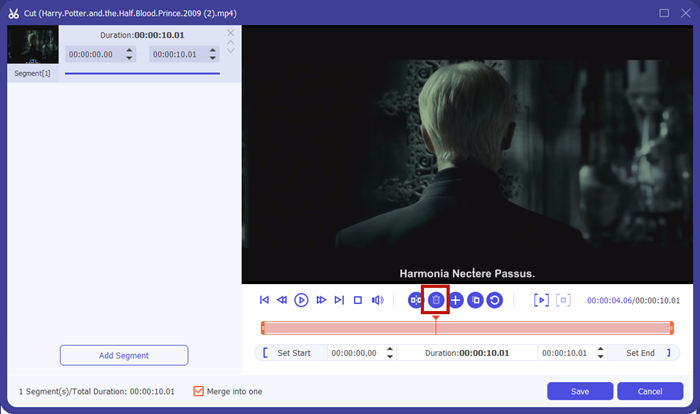
Trin 3. Tilbage i hovedvinduet kan du vælge outputfilen. Klik på pilen nedad ved siden af Convert All to. Så kan du vælge M4V eller andre formater som outputformat.
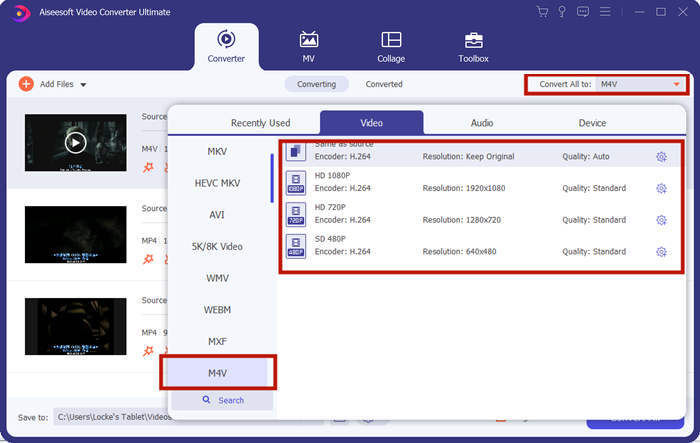
Trin 4. Klik på knappen Convert All i nederste højre hjørne af programmet, og vent på, at programmet sammenføjer M4V‑filerne.

Når sammenlægningen er afsluttet, vil du se en succesmeddelelse. Derefter kan du finde den flettede M4V-fil i destinationsmappen. Ovenstående er to metoder til at slutte sig til M4V-videofiler. Vi har også konkluderet med flere ofte stillede spørgsmål nedenfor.
Del 3: Ofte stillede spørgsmål om tilslutning til M4V-filer
Hvad er en M4V-fil?
M4V, designet af Apple, kaldes også undertiden iTunes Video File. Det ligner MP4, fordi de begge er baseret på MPEG-4. Det mest specielle ved M4V er, at iTunes kunne tilføje DRM-beskyttelse i det for at forhindre uautoriseret distribution af iTunes-videoer.
Hvordan åbner jeg en M4V-fil?
Hvis en M4V-fil ikke er beskyttet af DRM, kan den afspilles i VLC, QuickTime, Windows Media Player og mange andre medieafspillere. Nogle gange virker det også at ændre filendelsen .M4V til .MP4 for at åbne den. En M4V-fil med DRM‑beskyttelse kan derimod kun afspilles på autoriserede enheder.
Kan jeg fjerne DRM-beskyttelsen fra en M4V-fil?
Ja du kan. Du kan finde utallige DRM-fjernelsesprogrammer på markedet. Her er nogle af dem: TunesKit DRM M4V Converter, Aimersoft DRM Media Converter, Requiem DRM Remover, Ondesoft iTunes Convertert, Apple Music Converter.
Konklusion
Denne tekst har introduceret to effektive måder at samle flere M4V‑videofiler til én. Til den hurtigste løsning er FVC Free Online Video Merger dit bedste valg. Du kan bruge den uden at downloade noget program, og uploadprocessen kan også afsluttes med det samme. Men hvis du ønsker højere kvalitet eller ikke kun vil kombinere M4V‑filer, men også klippe dem, kan du benytte Video Converter Ultimate. Den giver dig kraftige redigeringsfunktioner, samtidig med at brugerfladen er venlig for begyndere. Hvis du har fundet endnu bedre løsninger, vil vi meget gerne høre om dem. Skriv blot en kommentar nedenfor.
-
 Sådan konverteres M4V til MP4 med / uden DRM
 6 måder at gratis konvertere M4V til MP4 (inkluderet DRM-fjernelse)
-
 De 5 bedste M4V-afspillere, der nemt kan afspille M4V-filer på computere / mobiltelefoner
 Top 5 M4V-afspillere til Windows / Mac / Android / iOS, du bør kende
-
 Sådan udtrækkes MP3 fra M4V med 4 fremragende metoder, du bør kende
 M4V til MP3 Converter - 4 bedste metoder til at udtrække MP3 fra M4V filer
