


 Video Converter Ultimate
 Skærmoptager
 Video reparation
 Sikker download
Storslåede måder at fjerne logo fra en video ved hjælp af dine enheder
Det er tilfredsstillende at se dine yndlingsvideoer – indtil videoen har et unødvendigt element, såsom logoer, vandmærker, tekst osv. Hvis du leder efter de mest fremragende og nyttige metoder, skal du læse denne artikel for at få et overblik. Ved hjælp af fremragende programmer kan du prøve mange måder at fjerne logoer fra videoer både offline og online. Med hjælp fra disse logo-fjernere kan du nyde at se dine yndlingsfilm, videoklip, slideshow og mere. På den måde vil du ikke støde på det samme problem igen. Hvis du vil lære effektive måder at fjerne et logo fra dine videoer på, så spring ikke denne informative artikel over.

Del 1: Bedste metode til at fjerne logo fra en video
Hvis du leder efter en gratis logo-fjerner, er det bedste program, du kan bruge, Video Converter Ultimate. Dette program kan hjælpe dig med at fjerne et logo fra din video. Ikke kun et logo, men også andre unødvendige elementer i dine videoer, såsom vandmærker, tekst, billeder osv. Derudover kan du nemt fjerne logoet, fordi processen kun består af få enkle trin, som selv en nybegynder kan følge.
Desuden har Video Converter Ultimate en hurtig fjernelsesproces, i modsætning til de andre applikationer, der bruger meget tid på at fjerne logoer fra en video. Ved hjælp af denne applikation kan du fjerne logoet i to nemme værktøjer, videovandmærkefjerneren og videobeskæreren. Ydermere har den funktioner, du kan nyde, såsom en videokonverter, videohastighedscontroller, videokompressor, farvekorrektion, videobeskæring, collagemaskine og mere. Hvis du vil vide disse to måder at fjerne logoerne ved hjælp af Video Converter Ultimate, skal du følge nedenstående trin.
1. Brug af funktionen Video Watermark Remover
Trin 1: Gå først til Video Converter Ultimate-webstedet og download softwaren. Efter download går du videre til installationen og starter Video Converter Ultimate på din computer.
Gratis download til Windows 7 eller nyere Sikker download
Gratis download til MacOS 10.7 eller nyere Sikker download
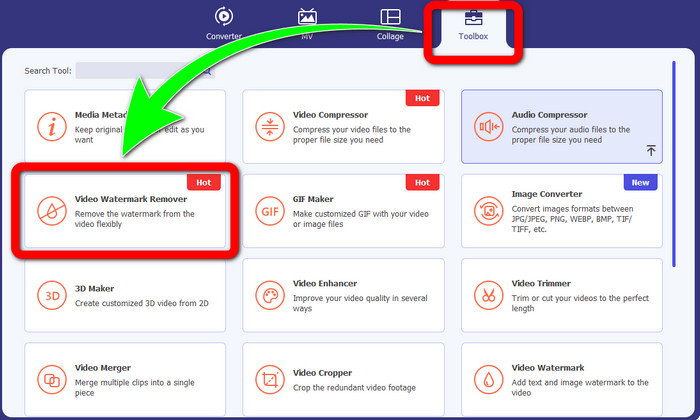
Trin 2: Efter at have startet softwaren, går du til panelet Værktøjskasse. Find derefter Video Watermark Remover og klik på den.
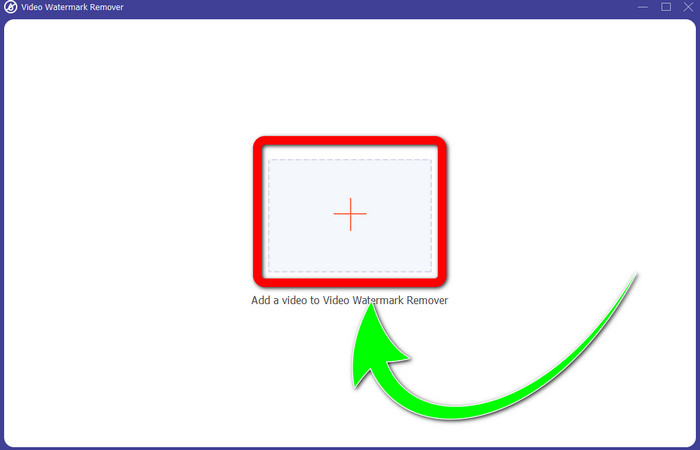
Trin 3: Når du har klikket på Video Watermark Remover, vises der et nyt vindue på din computer. Vælg Plus-ikonet og importer din video med et logo.
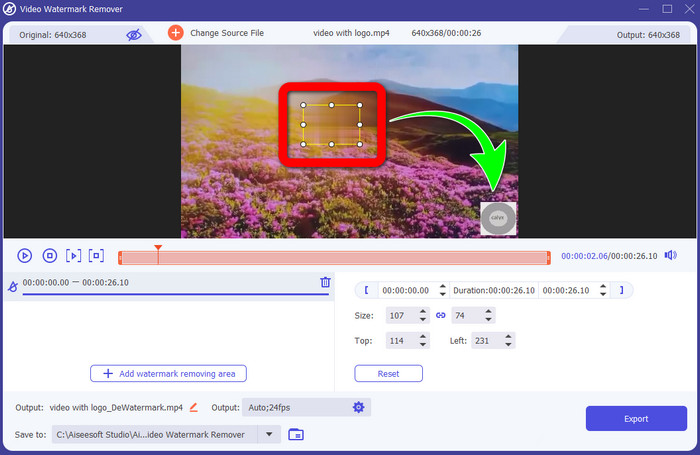
Trin 4: Vælg knappen Add Watermark Removing Area. En lille boks vises på din video. Flyt boksen hen over logoet for at dække det.
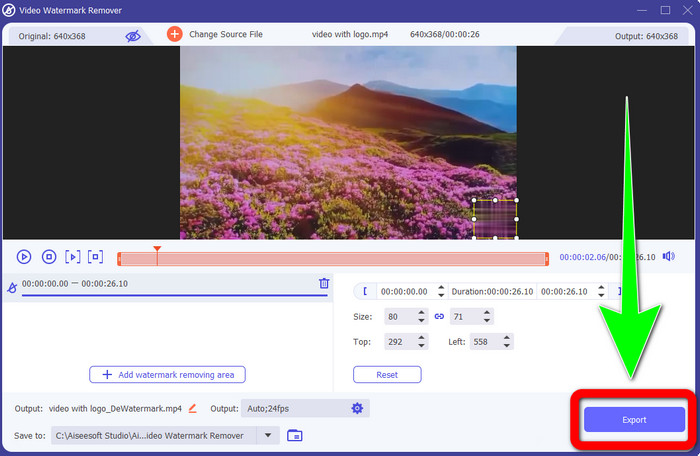
Trin 5: Når du er færdig med at flytte boksen, så logoet er dækket, vælg knappen Eksporter for at gemme din færdige video.
1. Brug af videobeskæringsfunktionen
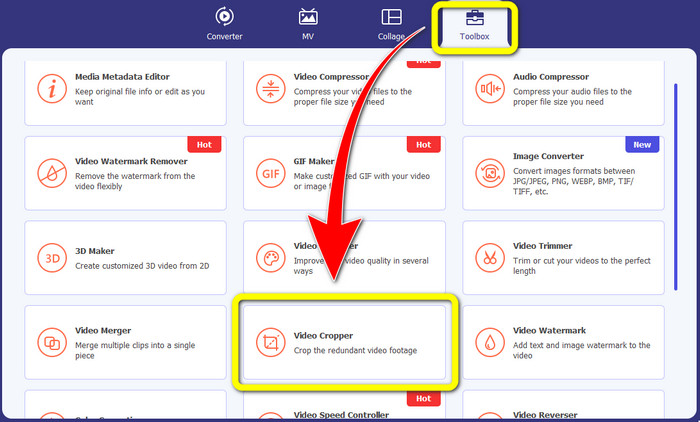
Trin 1: Åbn Video Converter Ultimate, gå til Værktøjskasse, og klik på knappen Video Cropper. Derefter vises et nyt vindue på skærmen.
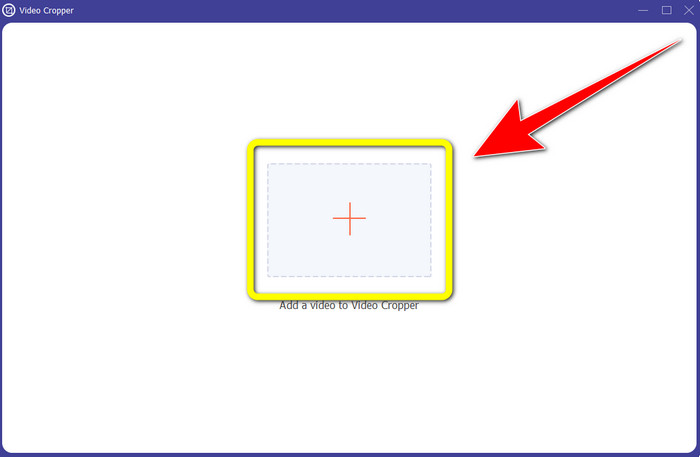
Trin 2: Når det nye vindue allerede er vist på skærmen, skal du klikke på Plus-ikonet for at importere din video med et logo.
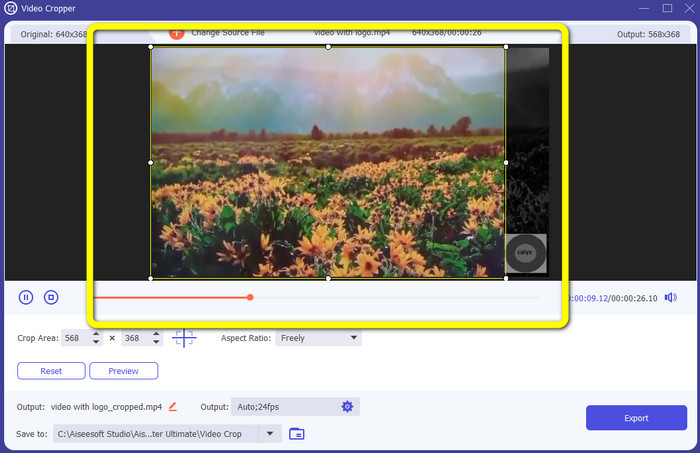
Trin 3: Når du har importeret videoen, kan du beskære din video for at fjerne logoet.
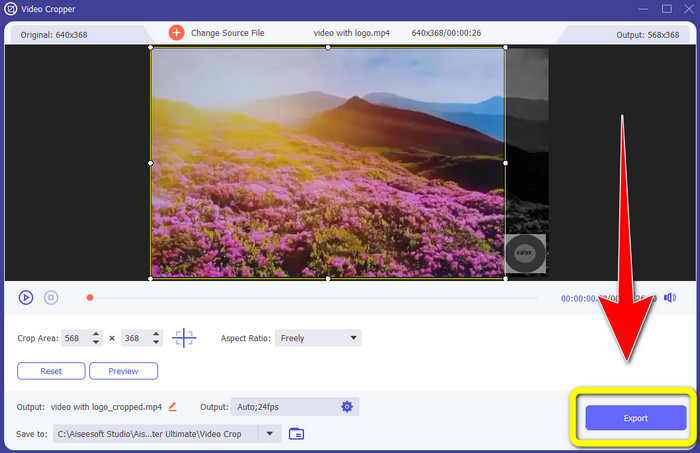
Trin 4: Klik på knappen Eksporter, når du er færdig med at beskære videoen.
Del 2: Sådan fjerner du logo fra video online
Hvis du leder efter et fantastisk program, du kan bruge til at hjælpe dig med at fjerne logoet fra videoen, kan du bruge 123APPS. Dette program kan hjælpe dig med hurtigt og ubesværet at fjerne et logo fra din video, hvilket er perfekt og velegnet til begyndere. Derudover er dette onlineværktøj gratis, så du behøver ikke bekymre dig om, hvorvidt du skal købe det eller ej. Et af dets gode funktioner er desuden at fjerne irriterende elementer fra dine videoer, såsom vandmærker, tekst, billeder osv. Desuden understøtter det forskellige filformater som MOV, WMV, AVI, MP4 og flere. Dog tager det lang tid, hver gang du uploader en fil. Selve fjernelsesprocessen er også meget langsom. Hvis du vil fjerne et logo fra dine videoer, skal du følge disse enkle trin.
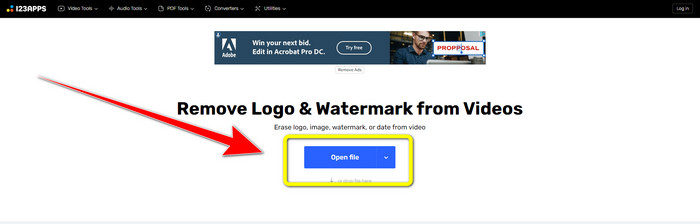
Trin 1: Gå til 123APPS-webstedet. Klik på knappen Open file, og tilføj din video med TikTok-logo.
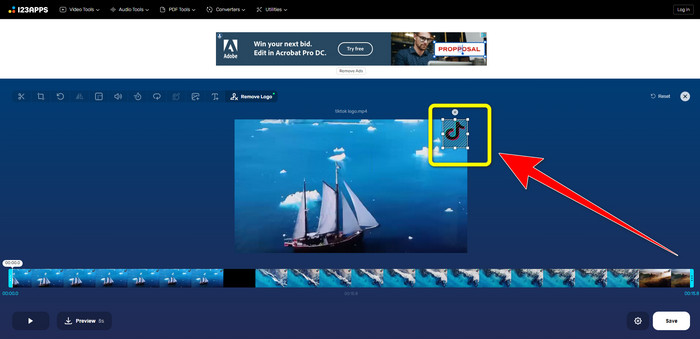
Trin 2: Når du har tilføjet din video, skal du lave en boks med musen på skærmen og dække logoet for at fjerne det.
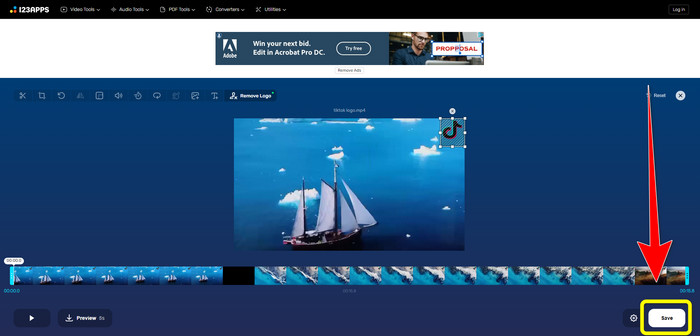
Trin 3: Når du har dækket logoet, kan du klikke på knappen Save for at gemme din færdige video uden logo.
Del 3: Sådan fjerner du logo fra video på iPhone og Android
Sådan slettes logo fra video på Android
Hvis du vil vide, hvordan man fjerner logoet fra en video på Android, er Remove and Add Watermark det program, du kan bruge. Denne software kan hjælpe dig med straks at fjerne et logo fra dine videoer. Den er heller ikke kun brugbar til at fjerne unødvendige elementer fra dine videoer. Du kan også fjerne eller slette logoer fra dine billeder, hvilket er praktisk for brugerne. Derudover er denne fjerner enkel og let at bruge. Endelig er den hurtig til at gemme dine videoer. Hvis du vil fjerne logoet fra dine videoer, skal du følge de enkle trin nedenfor.
Trin 1: Download Remove and Add Watermark på din Android-enhed.
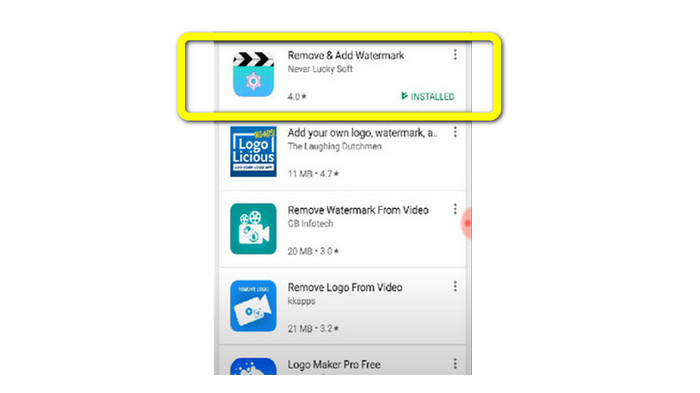
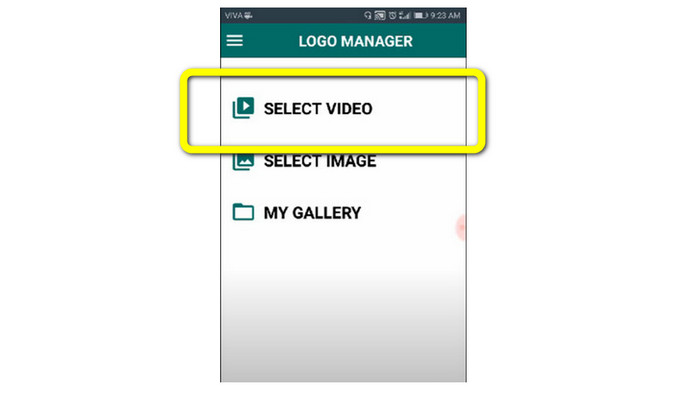
Trin 2: Når du har downloadet appen, skal du klikke på knappen Select Video > Remove Logo for at tilføje din video med et logo.
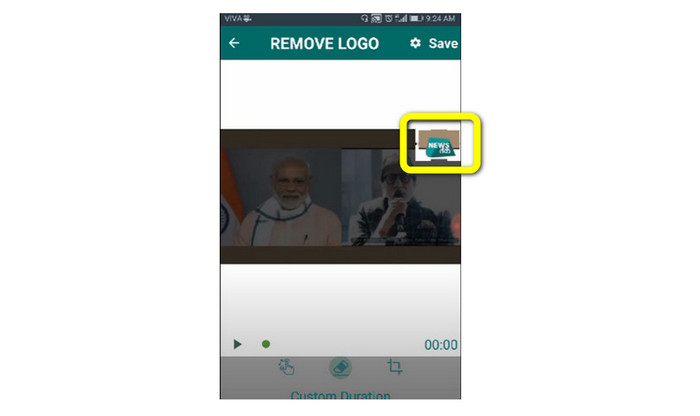
Trin 3: En lille boks vises på skærmen, når du har tilføjet din video. Brug boksen til at fjerne logoet.
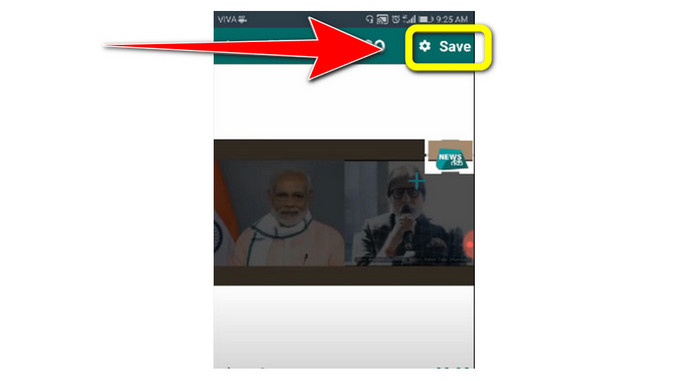
Trin 4: Når du er færdig med at dække logoet, skal du klikke på knappen Save for at gemme din video uden logo.
Sådan sletter du logo fra video på iPhone
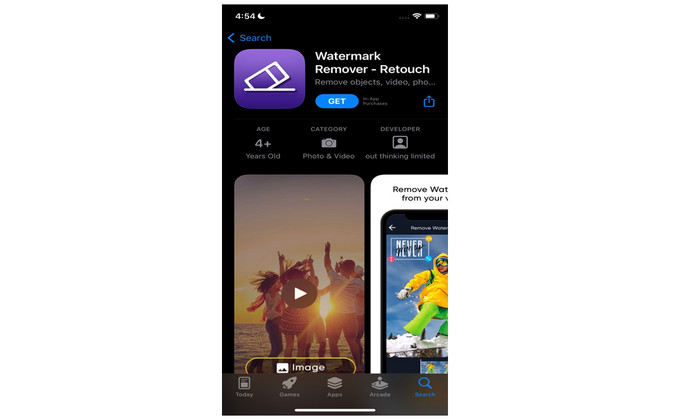
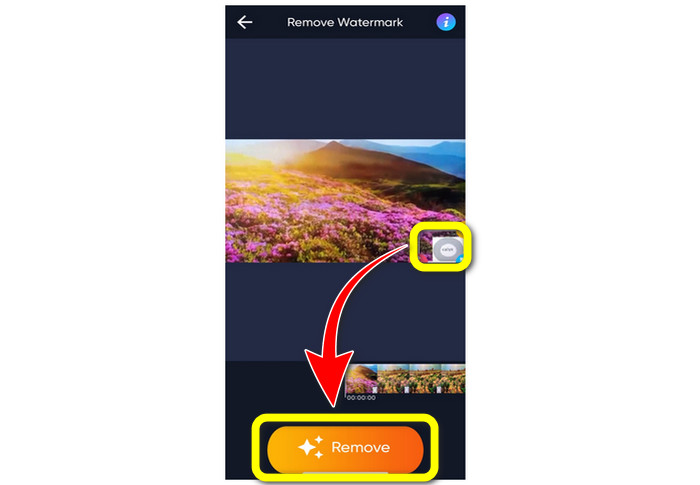
Hvis du vil fjerne et logo fra dine videoer på iPhone, er det bedste program, du kan bruge, Watermark Remover Retouch. Denne app giver dig mulighed for at fjerne unødvendige elementer fra dine videoer, såsom logoer, vandmærker, tekst, billeder osv. Du kan også fjerne dem hurtigt, hvilket er velegnet til nye brugere. Derudover har den en enkel brugerflade, så du let kan bruge appen. Hvis du vil bruge denne app til at fjerne logoer fra videoer på din iPhone, skal du følge de enkle trin nedenfor.
Trin 1: Download Watermark Remover Retouch på din iPhone. Start derefter appen og tilføj videoen med et logo.
Trin 2: En lille boks vises på videoen, når den er tilføjet. Brug denne boks til at dække logoet. Klik derefter på knappen Remove og gem din video uden vandmærke.
Relateret til:
Sådan fjerner du Filmora-vandmærket fra dine videoer eller projekter gratis
Den hurtigste metode til at fjerne Adobe Stock-vandmærket fra en video [vejledning]
Del 4: Ofte stillede spørgsmål om fjernelse af logo fra video
Er det sikkert at fjerne logoet online?
Ja det er! Online applikationer er sikre og sikre at bruge. Det bedste, du skal gøre, er at kigge efter et program, der hjælper dig med at fjerne logoer og bruge dem.
Er det muligt at fjerne signaturer fra mine videoer?
Ja, selvfølgelig. Du kan fjerne signaturer fra dine videoer ved hjælp af Video Converter Ultimate. Signaturer, vandmærker, logoer og tekst kan nemt fjernes med dette fremragende program.
Hvad er det bedste program, jeg kan bruge til at fjerne logoer med min Mac?
Det bedste program, du kan bruge til at fjerne logoer på din Mac, er Video Converter Ultimate. Dette program er tilgængeligt ikke kun til Windows, men også til Mac, hvilket er praktisk for brugerne.
Konklusion
Denne artikel har givet dig en effektiv og pålidelig måde at fjerne logoer fra dine videoer på. På den måde kan du nyde at se dine yndlingsvideoer uden logo. Til sidst, hvis du vil have den mest enkle og ubesværede metode til at fjerne logoer fra dine videoer, skal du bruge Video Converter Ultimate.
-
 Sådan fjerner du Animaker-vandmærket uden omkostninger [Beviste måder]
 Hvordan fjerner man Animaker-vandmærket? Med de bedste værktøjer, vi får på denne blog, kan du bruge dem til at slippe af med vandmærket.
-
 Selvstudium om fjernelse af vandmærket fra Origin Graph [100% Working]
 For at fjerne vandmærket fra Origin Graph har du brug for hjælp. Den hjælp du har brug for er inkluderet i denne artikel, du kan læse dette for at vide.
-
 Sådan fjerner du vandmærket i SmartDraw med lethed [2 gennemprøvede måder]
 Hvordan fjerner man vandmærket i Smart Draw? Hvis du har det samme spørgsmål, kan du stole på denne artikel, da vi har dækket dig!
