


 Video Converter Ultimate
 Skærmoptager
 Video reparation
 Sikker download
Nemmeste metoder til, hvordan du fjerner ManyCam-logoet på din enhed
Vil du gerne lære hvordan du fjerner ManyCam-logoet på din Windows- og Mac-computer? I så fald vil dette indlæg give dig forskellige måder at fjerne et logo fra dine videoer på, som du bør prøve. At afspille dine yndlingsvideoer med vandmærker eller logoer er en smule irriterende. Du kan ikke nyde dine videoer, og det bliver en distraktion. Du kan endda ikke se nogle dele af videoerne på grund af vandmærker, billeder, tekst eller logoer. Heldigvis kan du bruge fremragende softwareprogrammer med værktøjer til at fjerne vandmærker til at fjerne disse unødvendige objekter fra dine videoer.
Ved hjælp af disse applikationer bliver du aldrig skuffet igen. Hvis du er interesseret i at kende de bedste metoder til at fjerne ManyCam-logoet, er dit bedste valg at læse denne artikel.

Del 1: Sådan fjerner du ManyCam-logoet ved at aktivere abonnementet
Hvis du vil lære, hvordan man fjerner vandmærker fra ManyCam, er du kommet til det rette sted. ManyCam er et live-streamingprogram, der er tilgængeligt på både Windows og Mac. Dette program lader dig lave unikke udsendelser på dine platforme, lave tutorials, forretningspræsentationer, gamestreaming og meget mere. Desuden har det flere gode funktioner, du kan nyde, såsom at tilføje musik, optage din skærm, tilføje greenscreen, streame spil og mere. For indholdsskabere er ManyCam værdifuldt og nyttigt. Det har vigtige værktøjer, de har brug for, såsom screencasting og skærmoptagelse, hvilket gør det bekvemt for dem.
Men hver gang du opretter eller redigerer din video, er der et Manycam-logo på den nederste del af videoen, hvilket er foruroligende. Heldigvis kan du fjerne dette logo ved at aktivere abonnementet på ManyCam. Følg disse trin nedenfor for at lære, hvordan du fjerner manycam-logoet ved at aktivere abonnementet.
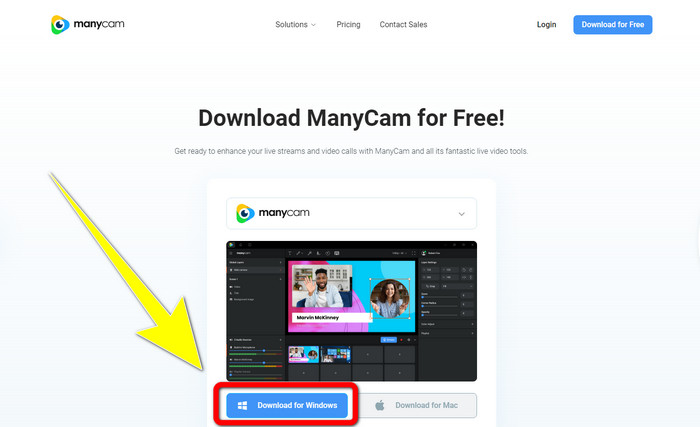
Trin 1: For at downloade ManyCam skal du klikke på knappen Download for Windows. Fortsæt derefter til installationsprocessen.
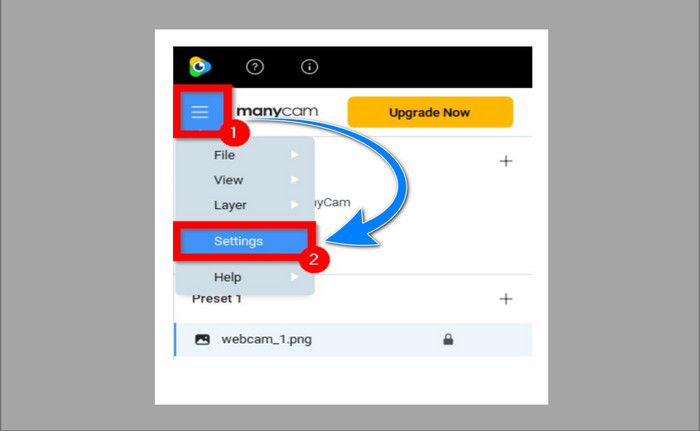
Trin 2: Start programmet på din computer, og klik på ManyCams sandwich-ikon, gå derefter til Settings > Account, og log ind på den konto, du oprettede, efter du købte abonnementet.
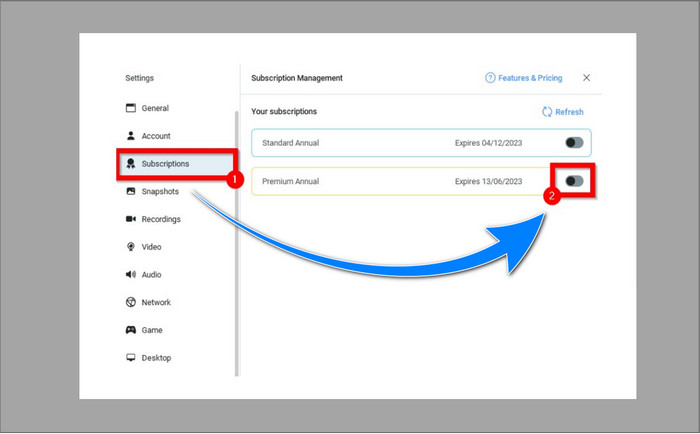
Trin 3: Gå til fanen Subscription for at sikre, at abonnementet er aktiveret.
Trin 4: Hvis abonnementet allerede er aktiveret, vises der en pop op-besked, og så er du færdig.
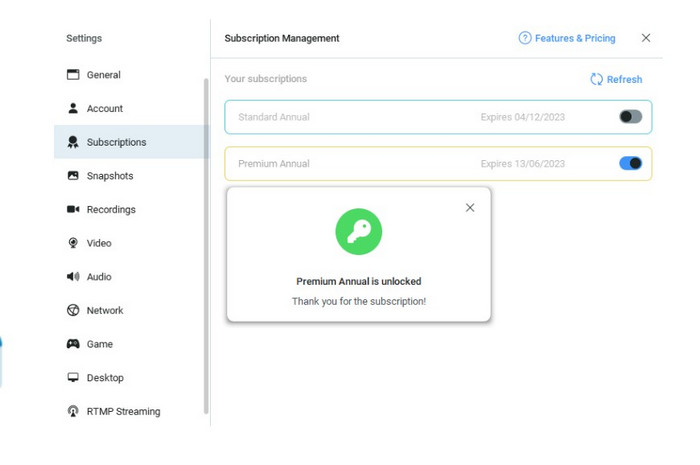
Hvis din ManyCam-applikation allerede er aktiveret, vil vandmærkerne eller logoet på dine videoer automatisk blive fjernet. Du kan nyde at se dine yndlingsvideoer uden at støde på vandmærker på dem.
Del 2: Sådan fjerner du ManyCam-logoet uden abonnement
Vil du fjerne vandmærket fra ManyCam gratis? Ud over ManyCam-programmet kan du også bruge et andet program til at fjerne logoet fra ManyCam. Det bedste program, du kan bruge, er Video Converter Ultimate. Dette program kan fjerne unødvendige objekter i dine videoer, såsom tekst, vandmærker, logoer osv. Derudover har Video Converter Ultimate mange redigeringsværktøjer, du kan nyde, såsom videohastigheds-kontroller, video-forbedrer, tilføjelse og fjernelse af vandmærker, farvekorrektion, volumeforstærker og meget mere. Det bedste værktøj, du kan bruge til at fjerne vandmærker med Video Converter Ultimate, er Video Watermark Remover.
Dette værktøj hjælper dig med at fjerne vandmærker med lethed. Desuden er denne applikation tilgængelig på både Windows og Mac. Du vil heller ikke have svært ved at bruge denne applikation. Det understøtter også flere lyd- og videofilformater, som MP4, FLV, MOV, MKV, MP3, AAC og mere. Hvis du vil fjerne ManyCam-logoet ved hjælp af Video Converter Ultimate, vil denne artikel vise dig to måder. Disse måder er at bruge video cropper og video vandmærke remover.
1. Brug af Video Cropper
Trin 1. Download FVC Video Converter Ultimate, og fortsæt til installationsprocessen.
Gratis download til Windows 7 eller nyere Sikker download
Gratis download til MacOS 10.7 eller nyere Sikker download
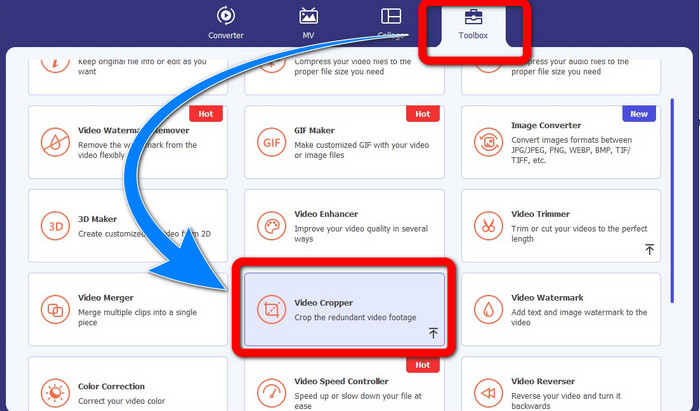
Trin 2: Efter installationen skal du starte programmet. Klik på Toolbox > Video Cropper.
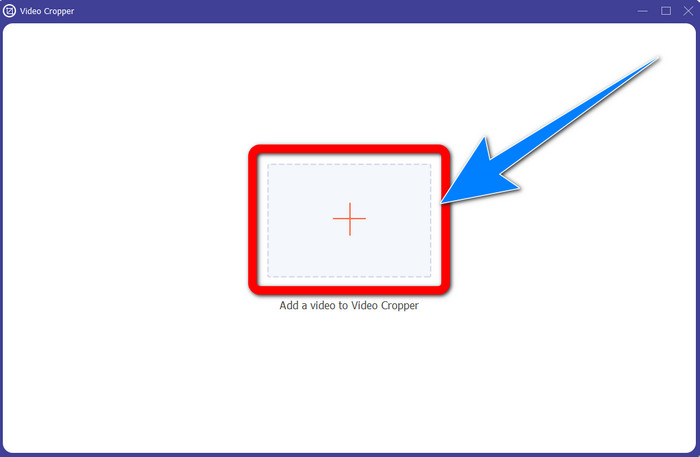
Trin 3: Efter at have klikket på Video Cropper kommer der et nyt vindue frem. Klik på Plus-knappen, og tilføj dine videoer med vandmærke fra ManyCam.
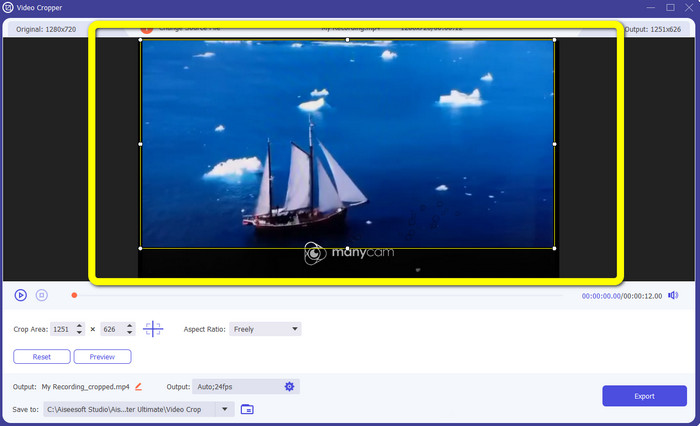
Trin 4: Når din fil allerede er tilføjet, kan du beskære din video og fjerne vandmærket.
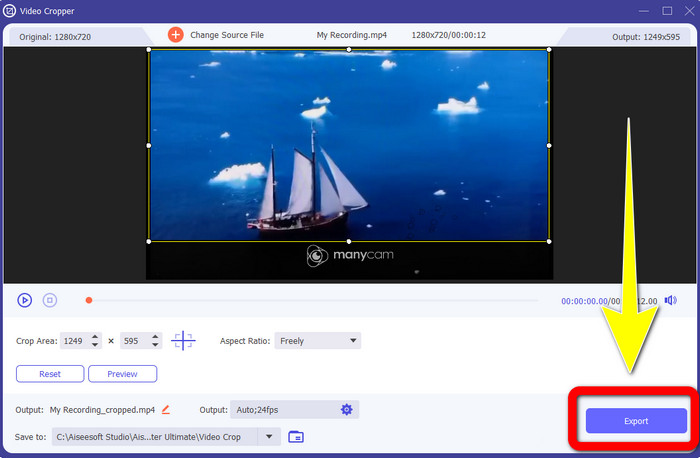
Trin 5: Når vandmærket er fjernet, skal du klikke på knappen Export for at gemme dit endelige resultat. Nu kan du afspille din yndlingsvideo uden vandmærke.
2. Brug af Video Watermark Remover
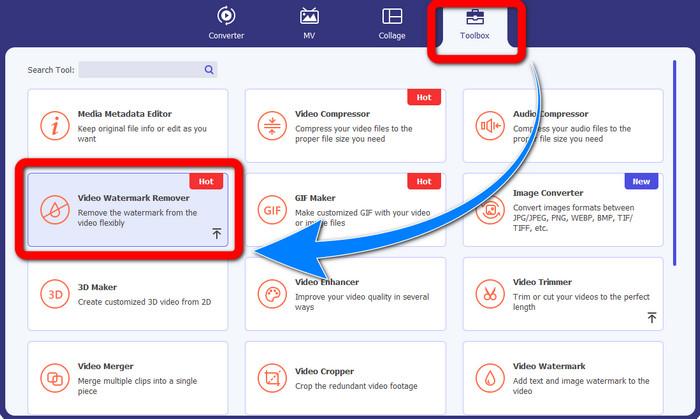
Trin 1: Åbn programmet. Gå til Toolbox > Video Watermark Remover.
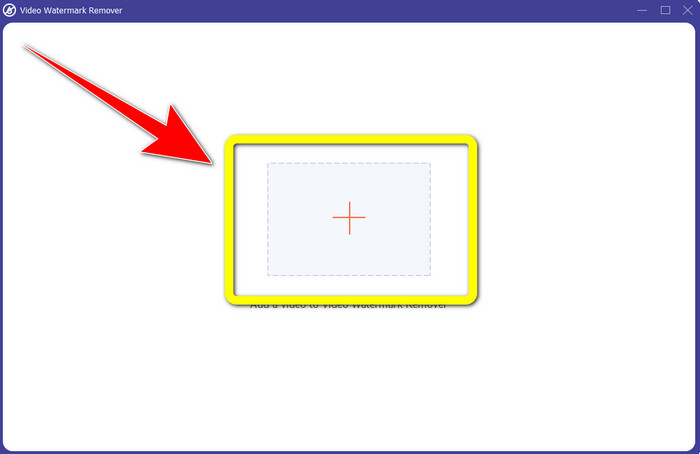
Trin 2: Et nyt vindue vises, efter du har klikket på Video Watermark Remover. Klik på Plus-knappen for at tilføje din video med vandmærker fra ManyCam.
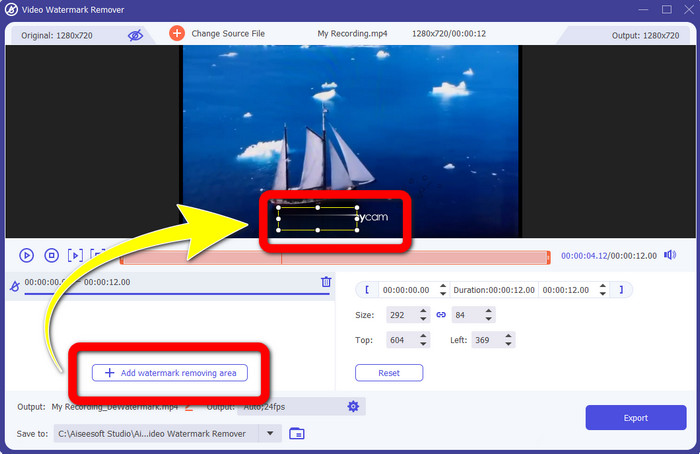
Trin 3: Hvis du allerede har tilføjet din video, skal du klikke på Add Watermark Removing Area, så vises der en boks i din video. Træk boksen hen over vandmærket for at dække det.
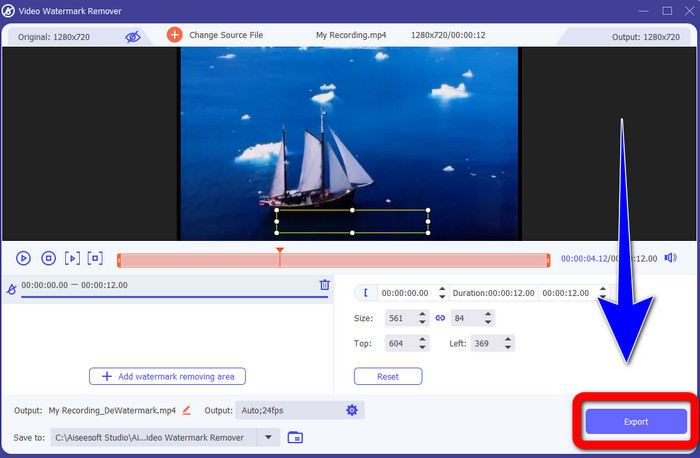
Trin 4: Når du er færdig med at fjerne vandmærker fra dine videoer, skal du klikke på Export for at gemme dit resultat. Dette er den bedste måde at fjerne ManyCam-logoet gratis.
Del 3: Ofte stillede spørgsmål om fjernelse af ManyCam-logoet
Hvor lang tid tager det at fjerne logoet?
Du behøver ikke vente længere, fordi fjernelsesprocessen af logoet eller eventuelle unødvendige genstande kun vil tage et par sekunder.
Kan jeg fjerne ManyCam-logoet på min telefon?
Ja! Du kan fjerne ManyCam-logoet på din Androids eller iPhone ved hjælp af forskellige softwareprogrammer med vandmærkefjernere. Se efter applikationen i din play-butik eller app-butik, og prøv at bruge de applikationer, du kan se i de øverste resultater.
Er der en bedste måde at fjerne vandmærker på min Mac?
Ja, bestemt! Du kan bruge et fremragende program med et værktøj til at fjerne vandmærker til at fjerne vandmærker på din Mac. Dette program er Video Converter Ultimate. Det fungerer perfekt på både Windows og Mac. Denne software kan hjælpe med at fjerne unødvendige objekter i dine videoer, såsom logoer, vandmærker, billeder og tekst.
Kan jeg bruge beskæringsværktøjet fra ManyCam-applikationen til at fjerne ManyCam-logoet?
Desværre nej! Det er ikke effektivt at bruge værktøjet til beskæring til at fjerne logoet fra ManyCam. Selvom du prøver at beskære videoen for at fjerne logoet, vil det stadig dukke op. Den eneste løsning til at fjerne logoet er at aktivere abonnementet på ManyCam.
Bortset fra ManyCam, er der en alternativ måde at fjerne vandmærker på mine videoer?
Ja der er! Bortset fra ManyCam er der flere applikationer med vandmærkefjerner, du kan bruge uden at købe. Et af de bedste programmer, du kan bruge til at fjerne vandmærker på dine videoer, er Video Converter Ultimate. Den er enkel og nem at bruge, hvilket er velegnet til begyndere.
Konklusion
Baseret på oplysningerne ovenfor kan du lære hvordan du fjerner ManyCam-logoet på din Windows- og Mac-computer. Du kan bruge ManyCam-programmet til nemt at fjerne logoet, efter du har aktiveret dit abonnement. Derudover, hvis du vil bruge et program med et gratis værktøj til at fjerne vandmærker, bør du bruge Video Converter Ultimate. Dette program vil være en stor hjælp, når det gælder om at fjerne unødvendige objekter i dine videoer.
-
 Nemmeste metoder til, hvordan man fjerner vandmærke fra fotos
 Er du irriteret over vandmærkerne på dine billeder? Vær ikke bekymret! Denne artikel vil give enkle og nemme metoder til at fjerne vandmærker fra dine billeder.
-
 Sådan fjerner du Powtoon-vandmærket ved hjælp af 4 effektive metoder
 Læs denne artikel for at lære, hvordan du fjerner Powtoon-vandmærket ved hjælp af de bedste værktøjer, vi inkluderede her og en tutorial.
-
 Apowersoft Watermark Remover Review – Funktioner, fordele og ulemper og priser
 Apowersoft Watermark Remover er et af de bedste fjernelse af vandmærker, der understøtter online og offline, klik her for at vide mere!
