


 Video Converter Ultimate
 Skærmoptager
 Video reparation
 Sikker download
Fantastisk måde at fjerne vandmærke fra Camtasia 9, som du skal prøve
Hvis du leder efter en enkel og bedste måde at fjerne vandmærket i Camtasia 9 på, er dette det rette sted. Der er mange fremragende videoer, vi gerne vil se. Men nogle af dem har et stort vandmærke, hvilket gør dem mere irriterende og gør, at man ikke kan værdsætte selve videoens indhold. Desuden er der på grund af disse unødvendige objekter nogle dele af videoen, du ikke kan se, hvilket skuffer seerne endnu mere. Heldigvis findes der nogle softwareprogrammer med værktøjer til at fjerne vandmærker, som du kan bruge til at fjerne vandmærker på dine videoer, så du kan nyde at se dine yndlingsfilm uden forstyrrelser. Hvis du vil lære mere om hurtigt at fjerne vandmærker på dine videoer, skal du læse denne artikel fra start til slut.

Del 1: Bedste måde at fjerne vandmærke fra Camtasia
Brug af Video Converter Ultimate
Hvis du leder efter et godt og pålideligt program med værktøjer til at fjerne vandmærker, er Video Converter Ultimate en fremragende software, du kan bruge. Du kan fjerne vandmærker på dine videoer ved hjælp af dette program. Du kan også bruge programmet, hvis din video har vandmærker fra andre apps som Camtasia. Derudover er det nemt og enkelt at bruge, hvilket er velegnet til begyndere. Desuden har det forskellige redigeringsværktøjer, du kan benytte, såsom videokompressor, video-forbedrer, videotrimmer, lydkompressor, videoreverser, videorotator og mere. Denne artikel viser to måder at fjerne vandmærker på dine videoer ved hjælp af Video Converter Ultimate.
1. Brug af Video Watermark Remover
Trin 1: Download Video Converter Ultimate på din computer. Gå derefter videre til installationsprocessen.
Gratis download til Windows 7 eller nyere Sikker download
Gratis download til MacOS 10.7 eller nyere Sikker download
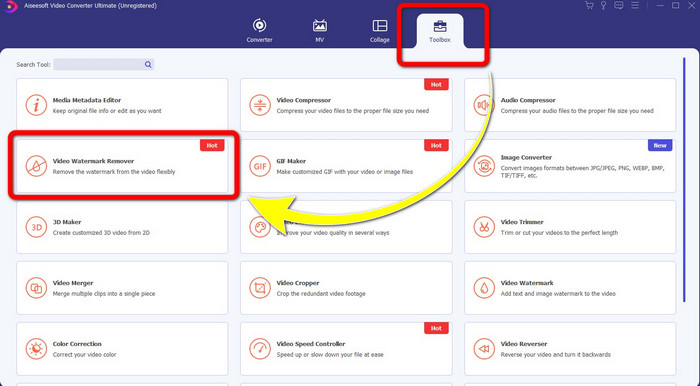
Trin 2: Når installationen er færdig, skal du åbne programmet og gå til Toolbox > Video Watermark Remover. Derefter vises der en ny grænseflade på din skærm.
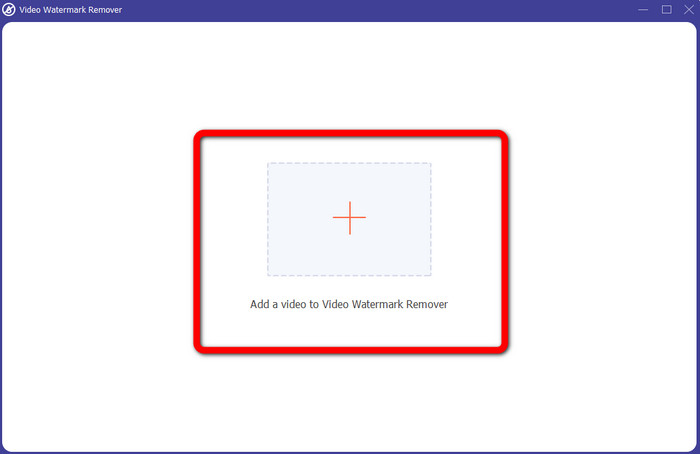
Trin 3: Når den nye grænseflade er dukket op, skal du klikke på Plus-knappen og tilføje den video, der har vandmærket.
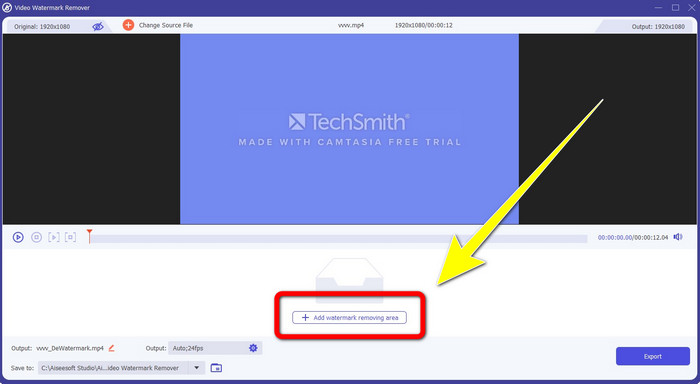
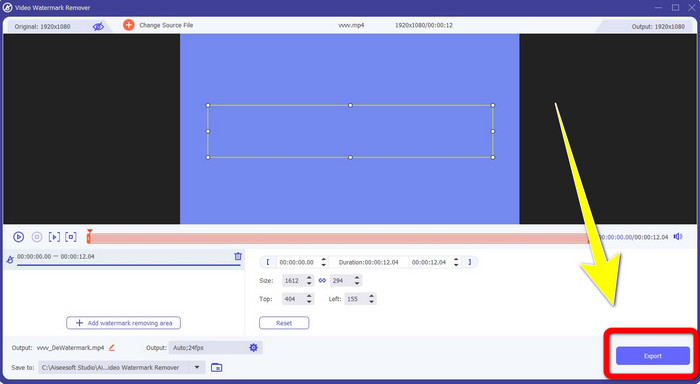
Trin 4: Når du har tilføjet din video med vandmærke, skal du klikke på Add Watermark Removing Area.
Trin 5: Der vil komme en boksformet markering frem på din skærm. Brug boksen til at dække vandmærket på din video.
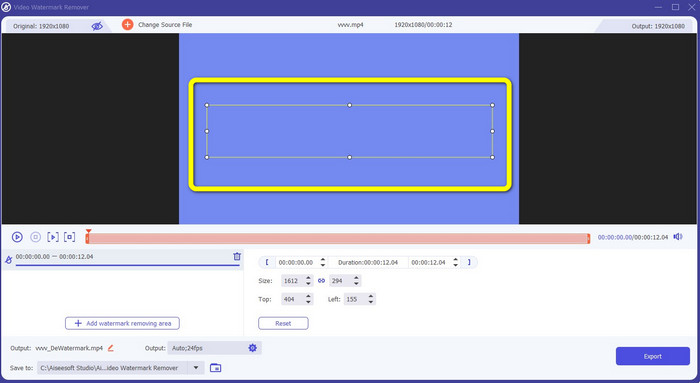
Trin 6: Når vandmærket er blevet dækket, vil vandmærkerne være væk fra din video. Klik på Export for at gemme din video. På denne måde kan du nu fjerne videoen med vandmærke fra Camtasia.
2. Brug af beskæringsfunktionerne
En anden metode, du kan prøve, er beskæringsfunktionen i Video Converter Ultimate. Det er en af de nemmeste måder at fjerne vandmærker på dine videoer, især hvis vandmærket kun er i hjørnet eller langs kanten af dine videoer. Ved at beskære dine videoer kan du straks fjerne de unødvendige objekter i videoen. Følg disse enkle trin for at fjerne vandmærker ved hjælp af et beskæringsværktøj.
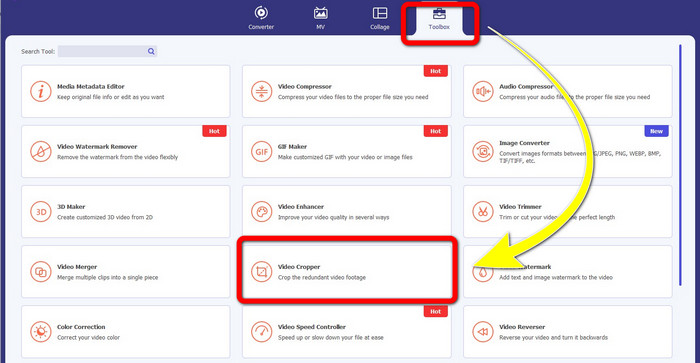
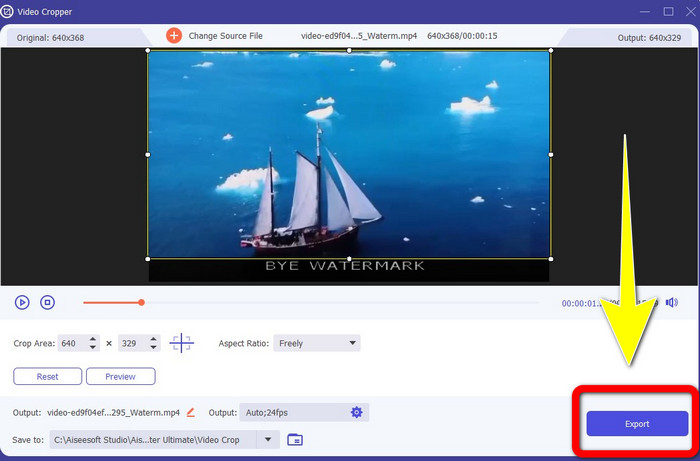
Trin 1: Åbn Video Converter Ultimate. Klik på Toolbox > Video Cropper. Derefter vises der en ny grænseflade på din skærm.
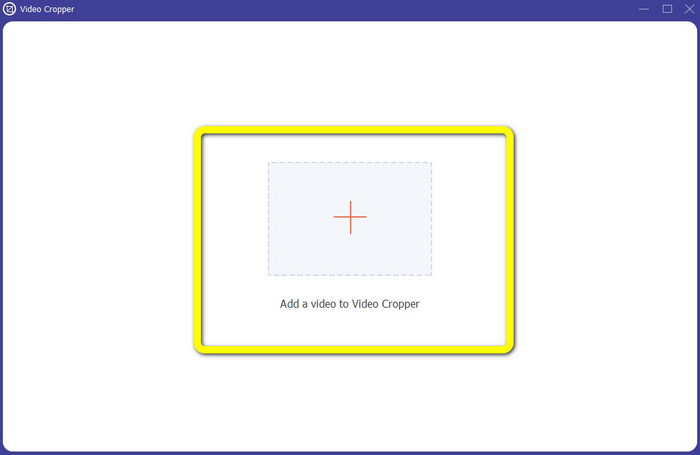
Trin 2: Klik på Plus-knappen, og tilføj din video med et vandmærke, du vil fjerne.
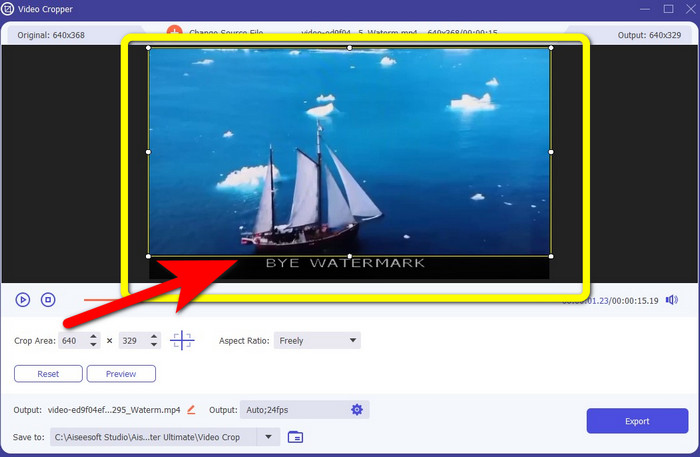
Trin 3: Når du allerede har tilføjet din video med vandmærke, kan du nu beskære kanten af din video ind til området med vandmærket. På denne måde kan du fjerne vandmærkerne.
Trin 4: Hvis du allerede har beskåret din video og kan se, at vandmærket er væk, skal du klikke på Export for at gemme din redigerede video. Nu kan du nyde at se din video uden vandmærker på skærmen.
Del 2: Sådan producerer du videoer i Camtasia uden et vandmærke
Ønsker du at lære, hvordan man laver en Camtasia-video uden vandmærker? Lad os først definere, hvad Camtasia er. Camtasia er et enkelt og nyttigt redigeringsværktøj, du kan bruge. Desuden er det også en skærmoptagelsessoftware, du kan have. Derudover har det forskellige redigeringsfunktioner, du kan nyde, såsom annoteringer, overgange, animationer, lydeffekter, videoeffekter og mere. Du kan også lave et slideshow i dette program.
Ved hjælp af denne applikation kan du gøre dine videoer mere attraktive og unikke for seerne. I Camtasia kan du producere smukke videoer, som du kan nyde. Denne applikation har dog et vandmærke, efter du har eksporteret din video, medmindre du køber applikationen. Følg disse enkle trin for at lære mange ting i denne applikation, især oprettelse af videoer i Camtasia.
Ved hjælp af denne applikation kan du gøre dine videoer mere attraktive og unikke for seerne. I Camtasia kan du producere smukke videoer, som du kan nyde. Denne applikation har dog et vandmærke, efter du har eksporteret din video, medmindre du køber applikationen. Følg disse enkle trin for at lære mange ting i denne applikation, især oprettelse af videoer i Camtasia.
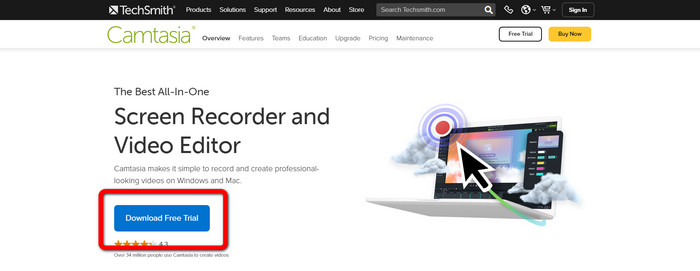
Trin 1: Du skal downloade Camtasia på din Windows-computer. Klik på knappen Download Free Trial for at hente programmet. Åbn derefter programmet efter installationsprocessen.
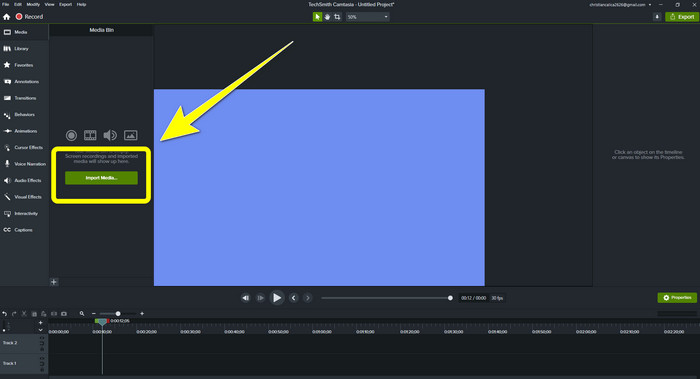
Trin 2: Når du har startet programmet, skal du klikke på knappen Import Media for at tilføje den fil, du vil redigere.
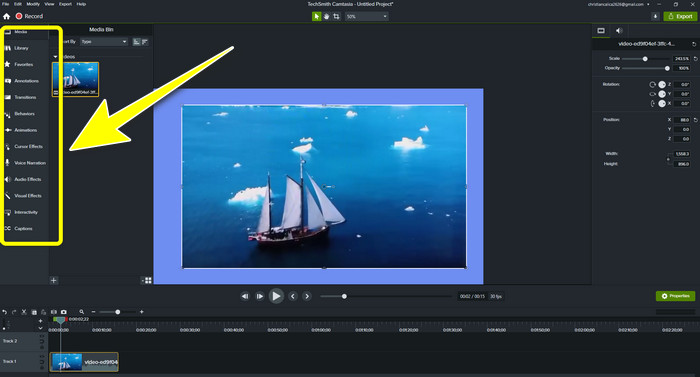
Trin 3: Du kan nu redigere dine filer i dette program ved hjælp af redigeringsværktøjer, såsom at tilføje undertekster, overgange, animationer, annoteringer, behaviors og mere.
Trin 4: Hvis du er færdig og tilfreds med at have redigeret dine videoer, kan du nu klikke på knappen Export > Local File for at gemme dit resultat.
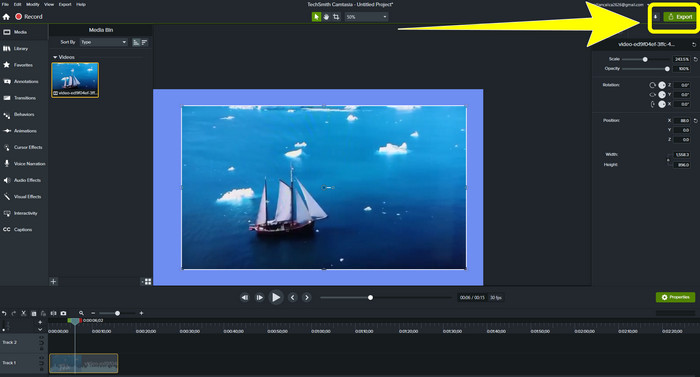
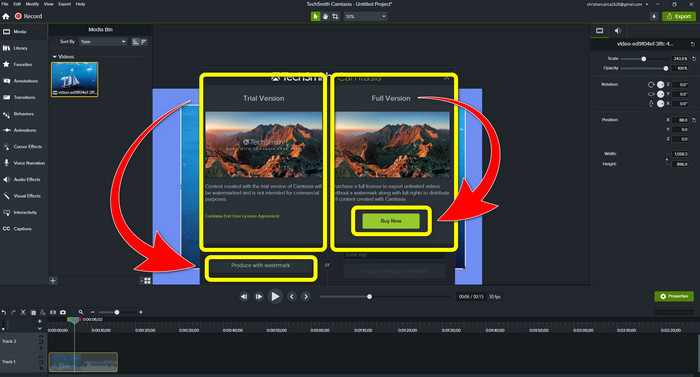
Trin 5: Efter at have klikket på Export > Local File Button vises en ny grænseflade. Hvis du vil købe programmet, skal du klikke på knappen Buy for at lave en video i Camtasia uden vandmærke. Men hvis du kun bruger en gratis prøveversion, vil din video have et vandmærke efter eksport og lagring.
Relateret til:
Sådan fjerner du Filmora-vandmærket fra dine videoer eller projekter gratis
Den hurtigste metode til at fjerne Adobe Stock-vandmærket fra en video [ Vejledning ]
Del 3: Ofte stillede spørgsmål om fjernelse af vandmærker
Er der en fremragende vandmærkefjerner, jeg kan bruge på min Mac?
Helt bestemt, ja! Du kan bruge programmer med værktøjer til at fjerne vandmærker, såsom Video Converter Ultimate. Det er i stand til at fjerne vandmærker på dine videoer. Derudover er dette program tilgængeligt på både Windows og Mac, hvilket gør det mere praktisk.
Er der en måde, jeg kan fjerne vandmærker fra billeder på?
Selvfølgelig ja! Du kan bruge mange applikationer på din enhed til at fjerne vandmærker fra fotos. Det bedste, du skal gøre, er at søge i dine browsere om værktøjer til fjernelse af vandmærker og se efter de 10 bedste resultater på resultatsiden.
Kan jeg fjerne vandmærker ved hjælp af min telefon?
Ja du kan! Nogle af applikationerne med vandmærkefjernere er nu tilgængelige på Mac og Windows og mobiltelefoner som Android-telefoner og iPhones.
Hvordan kan jeg fjerne vandmærker ved hjælp af et beskæringsværktøj?
Fjernelse af vandmærker på dine fotos eller videoer ved hjælp af et beskæringsværktøj er et stykke kage, især hvis vandmærket er på kanten af billedet. Alt du skal gøre er at beskære det, fjerne vandmærket, og du er færdig.
Konklusion
Som du kan se, viser denne artikel de bedste måder at fjerne vandmærket fra Camtasia 9 på. Den giver også et fremragende og pålideligt program med to metoder til at fjerne unødvendige objekter fra dine videoer. Dette program er Video Converter Ultimate.
-
 5 måder at fjerne et vandmærke fra en video på på en professionel måde
 Skal du fjerne et vandmærke fra en video for at få den til at se professionel ud? Nå, læs denne artikel, mens vi tilføjer en tutorial om, hvordan man gør det!
-
 3 af de nyeste Shutterstock-vandmærkefjernere, du nogensinde får brug for
 Kan du ikke lide Shutterstock-vandmærket knyttet til eksporteret video? Du kan bruge en Shutterstock vandmærkefjerner til at slette det effektivt.
-
 Nemmeste metoder til, hvordan man fjerner vandmærke fra fotos
 Er du irriteret over vandmærkerne på dit billede? Vær ikke bekymret! Denne artikel vil give enkle og nemme metoder til at fjerne vandmærker fra dine billeder
