


 Video Converter Ultimate
 Skærmoptager
 Video reparation
 Sikker download
Sådan fjerner du Viva-videovandmærket på videoer nemt og effektivt
Viva Video er en app til videoredigering og videofremstilling, som du kan downloade på dine mobile enheder for at skabe en fremragende video, som du ikke kan opnå med den anden videoredigerer. Med dette kan du bruge dens gratis version eller premium videoredigering til din fordel. Således støder brugere på problemer med at bruge den gratis version, fordi den efterlader et vandmærke, og andre redigeringsfunktioner er ikke de samme som pro-versionen. Vandmærket, der er indlejret i videoen, kan hindre det visuelle, og det er bedre at fjerne det.
Du kan dog bruge nogle værktøjer til at fjerne vandmærket, som du kan finde i PlayStore og App Store – men hvilket er det bedste? Læs videre i denne artikel, hvor vi præsenterer det værktøj, du kan bruge til at fjerne vandmærket, sammen med en vejledning i sådan fjerner du Viva Video‑vandmærket i din video.

Del 1. Sådan fjerner du Viva-videovandmærket ved hjælp af de bedste apps til fjernelse af vandmærker
Video Eraser - Fjern vandmærke/logo fra video [Android]
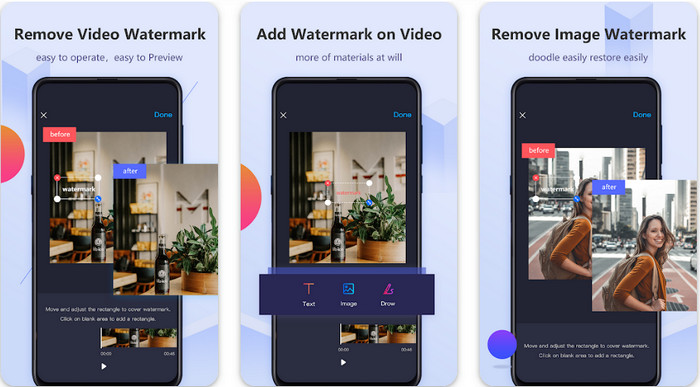
Video Eraser - Remove Watermark/Logo from Video er et kraftfuldt værktøj til at fjerne vandmærker, som du kan downloade på din Android‑enhed for at fjerne vandmærket, der er indlejret i din video. Denne app kan hjælpe med at fjerne alle typer vandmærker i din video, f.eks. logo, tekst, stempler osv. Du kan også udnytte den, hvis du vil tilføje dit eget personlige vandmærke, beskære, klippe, reverse, komprimere og ændre videohastighed. Selvom den har mange funktioner, kan du downloade dette værktøj gratis. Så for at fjerne Viva Video‑vandmærket på din Android kan du følge trinene nedenfor.
Trin 1. Download først appen på din Android ved at gå til PlayStore, og klik derefter på Download.
Trin 2. Åbn værktøjet til at fjerne vandmærker, klik på Remove Watermark from Video, giv værktøjet adgang til dine videoer, og upload derefter videoen med vandmærket.
Trin 3. Placer rektanglet over vandmærket, så det bliver dækket.
Trin 4. Tryk på Done for at gemme videoen uden vandmærket.
Relateret:
Video Eraser - Retoucheringsfjernelse [iOS]
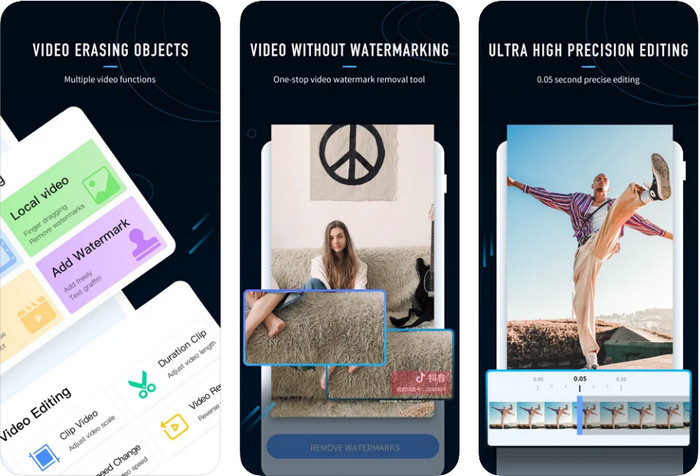
Til iOS kan du downloade Video Eraser- Retouch Removal i App Store. Det er et af de Viva Video‑vandmærkefjernere, du kan downloade gratis, som effektivt lader dig fjerne mærket i din video. Ligesom den Android‑app til fjernelse af vandmærker, vi præsenterer her, understøtter den også andre redigeringsfunktioner, du kan bruge, såsom at opskalere video, tilføje vandmærke, klippe, trimme, komprimere og vende. Alt dette er samlet her. Selvom den har lignende funktioner som Android‑appen, er der forskel på deres funktioner, og før du kan bruge dette værktøj til at fjerne vandmærket, skal du købe det. Du kan følge trinene nedenfor, som viser dig, hvordan du fjerner vandmærket fra den Viva Video‑fil, du har eksporteret; følg blot trinene herunder.
Trin 1. Download appen i App Store, og åbn den, når den er downloadet.
Trin 2. Når du har åbnet softwaren, skal du klikke på Local Video/GIF for at uploade videoen med vandmærket. Sørg for at give appen adgang til dine Fotos.
Trin 3. Tryk på den del af din video, hvor vandmærket er; derefter vises en rektangulær form på skærmen.
Trin 4. Tryk på Eliminate Watermark for at eksportere videoen og gemme den uden forstyrrende vandmærke.
Del 2. Sådan fjerner du Viva-videovandmærket på Windows og Mac [Ultimate Software]
Som Windows‑ og Mac‑bruger har du brug for effektiv software til at fjerne vandmærket i din video uden at efterlade striber. FVC Video Converter Ultimate kan vise dig, hvordan du fjerner Viva Video‑vandmærket gratis med et professionelt resultat til sidst. Ligesom de apps til fjernelse af vandmærker, du kan downloade på Android og iOS, understøtter dette værktøj også flere funktioner og muligheder, som du kan drage fordel af. Dette værktøj tilbyder mere end de to apps til fjernelse af vandmærker, vi har nævnt.
Hvad gør dette værktøj imponerende? Fjernelsesfunktionerne, som dette værktøj understøtter, er bedre end andre vandmærkefjernere, du kan bruge på din video. Så hvis du bruger dette, kan du nyde at se videoen uden vandmærket efter at have fjernet det her. Har du brug for en tutorial om, hvordan du bruger dette? De næste detaljer giver dig mulighed for at vide, hvordan du bruger dette værktøj så let som 1-2-3.
Trin 1. For at downloade denne ultimative software kan du klikke på downloadknappen nedenfor og derefter installere softwaren på din enhed. Følg WinRAR‑opsætningen, og klik derefter på Start Now.
Gratis download til Windows 7 eller nyere Sikker download
Gratis download til MacOS 10.7 eller nyere Sikker download
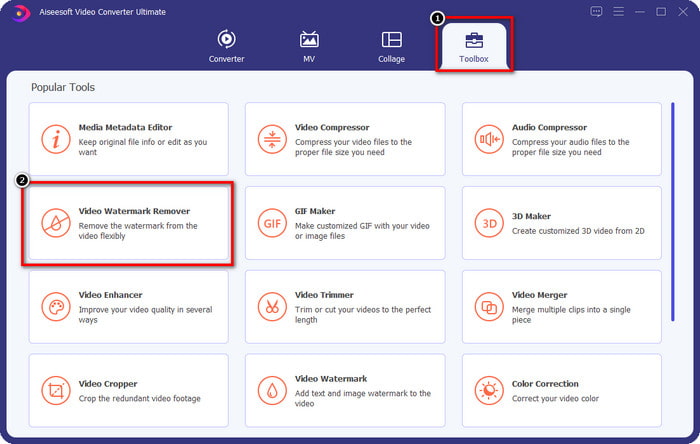
Trin 2. Gå til Toolbox, og klik derefter på Video Watermark Remover for at begynde at bruge dette værktøjs effektive funktion til fjernelse af vandmærker.
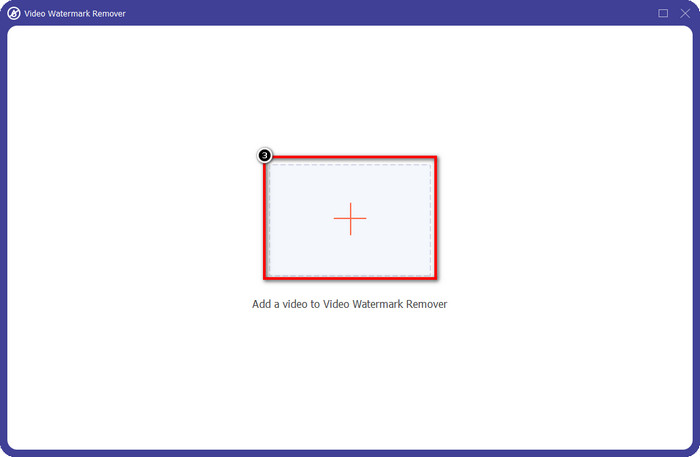
Trin 3. Du kan uploade Viva Video‑filen med vandmærke, som er gemt på dit skrivebord, ved at klikke på +‑ikonet. Find videofilen i den mappe, der vises på skærmen, og klik på Open for at uploade den.
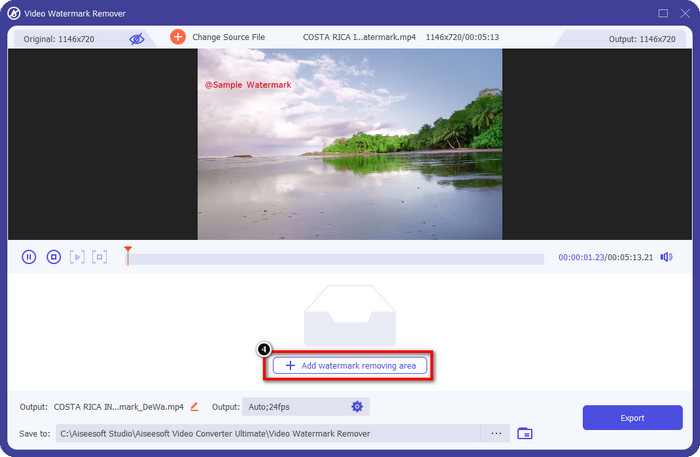
Trin 4. Klik på Add Watermark Removing Area for at begynde at bruge funktionen til fjernelse af vandmærker.
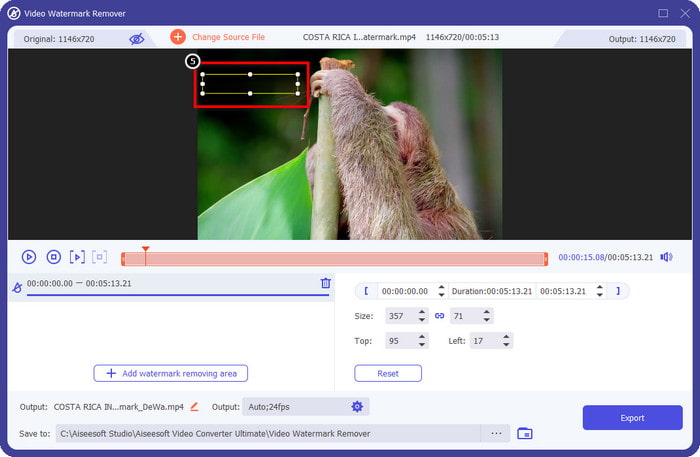
Trin 5. Træk og placer den rektangulære form over vandmærket i din video, og dæk det helt. Det er vigtigt at dække det helt, for hvis du ikke gør det, vil der være en rest af vandmærket, og du kan ændre størrelsen på formen efter behov.
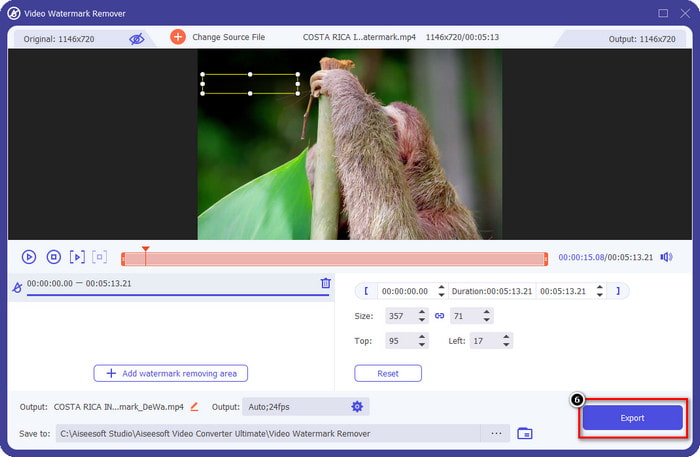
Trin 6. Klik derefter på Export for at gemme videoen uden vandmærket. Nemt? Det er netop formålet med dette ultimative værktøj – nemt at bruge, men effektivt til det hele.
Del 3. Ofte stillede spørgsmål om, hvordan du fjerner Viva-videovandmærket
Kan jeg downloade Viva Video uden et vandmærke?
Ja, du kan købe pro-versionen af dette værktøj, så når du eksporterer den video, du redigerer her, vil den ikke efterlade et vandmærke på videoen. Når du har købt pro-versionen af dette værktøj, vil du også bruge den anden premium-funktion, som dette værktøj har, som ikke er tilgængelig gratis.
Har Viva Video en desktopversion?
Du kan kun downloade Viva Video-versionen på Android og iOS. Så hvis du vil downloade desktopversionen, vil du ikke finde nogen, men du kan søge efter de bedste alternativer til videoredigering som det, Viva Video tilbyder.
Har Viva Video spyware?
I 2017 bekræftede rapporter om denne app senere, at den har malware. Så folk, der downloadede denne software, slettede denne app med magt på deres enheder for at undgå yderligere konsekvenser.
Konklusion
Med denne artikels Viva Video-vandmærkefjerner kan du fjerne det vandmærke, som Viva Video indlejrer på den eksporterede video. Du kan prøve at bruge de ovennævnte apps og følge den instruktion, vi inkluderer, om hvordan du fjerner vandmærket. Men for Windows- og Mac-brugere med et Viva Video-vandmærke er det bedre at bruge den ultimative software til at fjerne vandmærket hurtigt og effektivt og få et professionelt resultat. Hvad venter du på? Klik på download-knappen for at få det ultimative vandmærke fjernet på din enhed lige nu, og brug det ved at følge trinene ovenfor.
-
 Sådan fjerner du Lomotif vandmærke ved hjælp af disse fantastiske værktøjer
 Vil du lære, hvordan du fjerner Lomotif vandmærke fra din video? Læs denne artikel for at kende de mest fremragende metoder til at fjerne det online og offline.
-
 Sådan fjerner du turister fra fotos ved hjælp af vandmærkefjernere
 Hvordan fjerner man turister fra billeder? Hvis du ønsker at lære at fjerne uønskede ting fra dit billede, vil disse værktøjer hjælpe dig. Læs denne artikel for at vide mere.
-
 123rf vandmærkefjernere – grundig gennemgang af de ultimative værktøjer
 Hvis du vil vide, hvad der er de mest fremragende 123rf vandmærkefjernere, så læs denne artikel grundigt. Denne artikel giver en dybdegående gennemgang af værktøjerne.
