


 Video Converter Ultimate
 Grabador de pantalla
 Reparación de vídeo
 Descarga segura
WMV a MP3: La forma más sencilla de extraer archivos de audio de WMV
Hay pistas de música en WMV que no puedes dejar de escuchar. Los archivos WMV también ofrecen buena calidad de audio, lo cual es ideal para reproducir pistas de audio. Sin embargo, escuchar pistas de audio en este formato requiere reproducir el vídeo completo, lo cual puede ser un inconveniente. Para facilitar las cosas, puedes extraer el audio y convertirlo a formato MP3.
Extraer un MP3 de un archivo WMV es una tarea sencilla, sobre todo si utilizas la herramienta adecuada. Así que, si estás buscando una solución para resolver este problema, ¡no hay motivo para preocuparse! En este artículo, descubre cuatro maneras de convertir WMV a MP3 fácilmente y disfrutar de la pista de audio sin ninguna molestia. ¡Empecemos!

Parte 1. Convertir WMV a MP3 sin pérdida de calidad
La mejor y más sencilla forma de convertir WMV a MP3 es mediante el Video Converter Ultimate seleccionado por FVC. Esta completa herramienta de conversión de vídeo y audio permite a los usuarios convertir cualquier archivo de vídeo y audio, incluida la conversión de archivos WMV a MP3. Con esta herramienta de conversión, se garantiza que la pista de audio extraída del archivo WMV se conserve gracias a su avanzada tecnología de procesamiento de audio. Asegura que el archivo MP3 extraído mantenga su calidad de sonido original sin ninguna pérdida por compresión. Además, FVC Video Converter Ultimate admite la conversión por lotes y también permite a los usuarios personalizar varios ajustes de audio, entre ellos la tasa de bits, la frecuencia de muestreo y los canales de audio.
Paso 1. Primero, descarga e instala en tu ordenador el Video Converter Ultimate seleccionado por FVC.
Descarga gratuitaPara Windows 7 o posteriorDescarga segura
Descarga gratuitaPara macOS 10.7 o posteriorDescarga segura
Paso 2. Ahora, importa los archivos AVI que quieres comprimir a MP4. Después de eso, haz clic en el botón Añadir archivos.
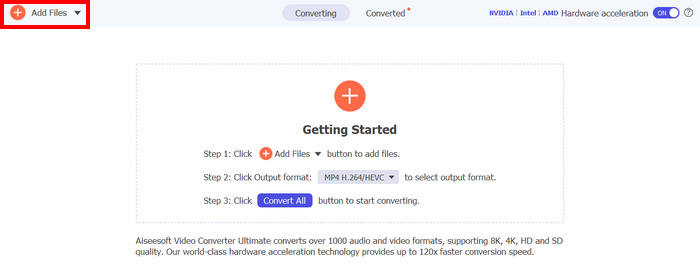
Paso 3. Por último, en la opción Formato de salida que aparece abajo, haz clic y ve a la pestaña Audio. Desde ahí, selecciona MP3 de la lista. Una vez seleccionado, haz clic en el botón Convertir todo para empezar a extraer la pista de audio del archivo WMV.
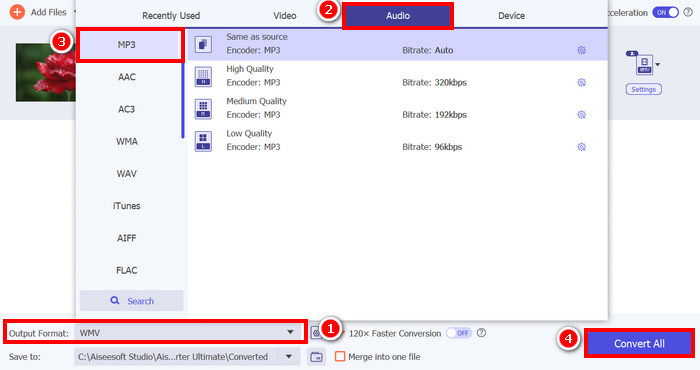
La capacidad de FVC chosen Video Converter Ultimate para convertir WMV a MP3 es realmente excepcional. Solo tienes que subir tus archivos WMV y, al elegir tu formato de audio preferido, podrás extraer la pista de audio. Así que, tanto si eres un profesional como un principiante, esta herramienta es para quienes necesitan una forma rápida y sencilla de convertir archivos de vídeo a audio.
Haz clic aquí para obtener más información sobre algunos reproductores MP3 si lo necesitas.
Parte 2. Convertir WMV a MP3 gratis con VLC Media Player
VLC Media Player es un reproductor multimedia popular que usamos habitualmente para ver y reproducir diversos archivos multimedia. Además, VLC no se limita a su función de reproductor multimedia; también puede utilizarse como conversor de WMV a MP3. ¡Sí, has leído bien! La herramienta cuenta con una función especial que permite exportar y convertir archivos de vídeo seleccionados a formato de audio. Para ello, sigue estos pasos:
Paso 1. Primero, descarga e instala en tu ordenador el Video Converter Ultimate seleccionado por FVC.
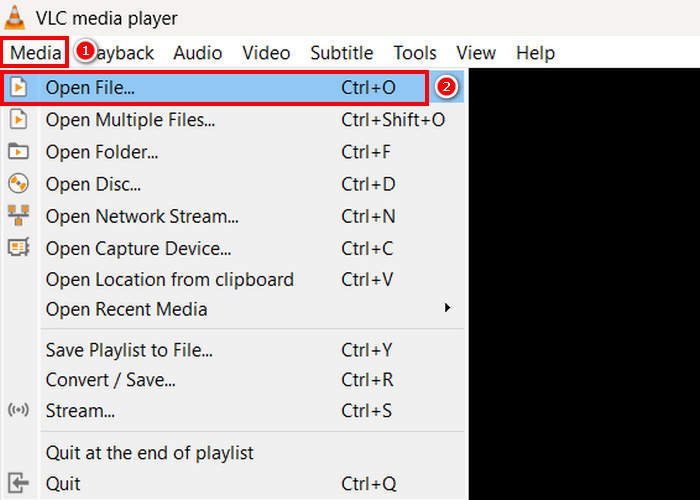
Paso 2. A continuación, ve a la pestaña Medio y, debajo de ella, haz clic en Abrir archivo. Desde ahí, importa el archivo WMV que quieres convertir a MP3.
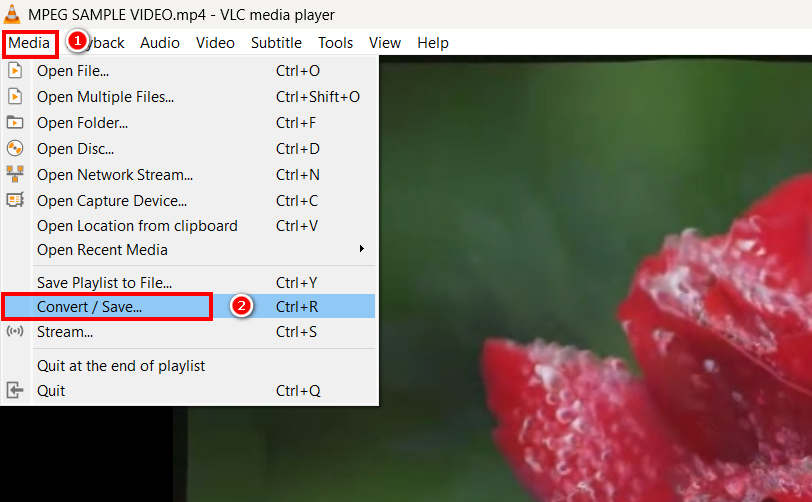
Paso 3. Después de eso, vuelve de nuevo a la pestaña Medio y esta vez selecciona Convertir/Guardar en la parte inferior.
Paso 4. Ahora haz clic en Perfil y selecciona MP3 como formato de salida. Una vez seleccionado, haz clic en el botón Iniciar de abajo para comenzar a extraer el contenido de audio del WMV.
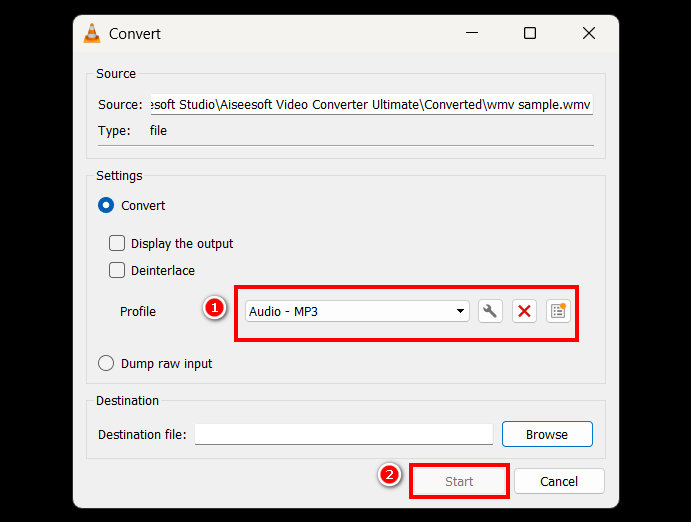
Lo único que tiene VLC, en comparación con otras herramientas de conversión especializadas, es que carece de opciones avanzadas de procesamiento de audio y funciones de personalización. Si bien es cierto que VLC puede extraer MP3 de archivos WMV, no permite a los usuarios ajustar la calidad de salida, como la tasa de bits, la frecuencia de muestreo o los canales de audio.
Parte 3. Convertir WMV a MP3 con Windows Media Player
El Reproductor de Windows Media no puede convertir directamente WMV a MP3 a menos que el archivo WMV esté grabado en un disco. Por lo tanto, si tiene un archivo WMV en su disco, puede extraerlo a formato MP3. Para ello, siga estos pasos:
Paso 1. Abre Windows Media Player en tu ordenador.
Paso 2. Haz clic en la pestaña Organizar y selecciona Opciones en la parte inferior.
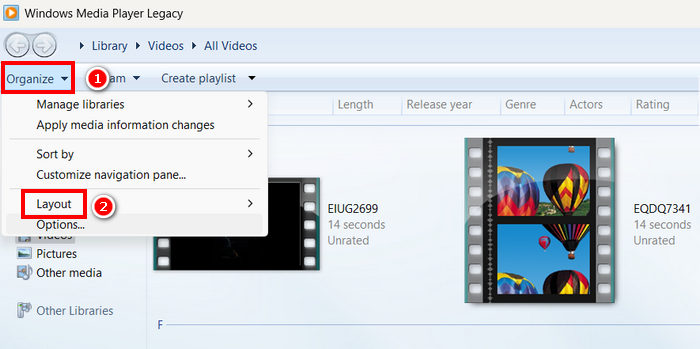
Paso 3. Desde ahí, haz clic en Copiar música. Después de eso, selecciona MP3 como formato de salida y marca la opción Copiar CD automáticamente.
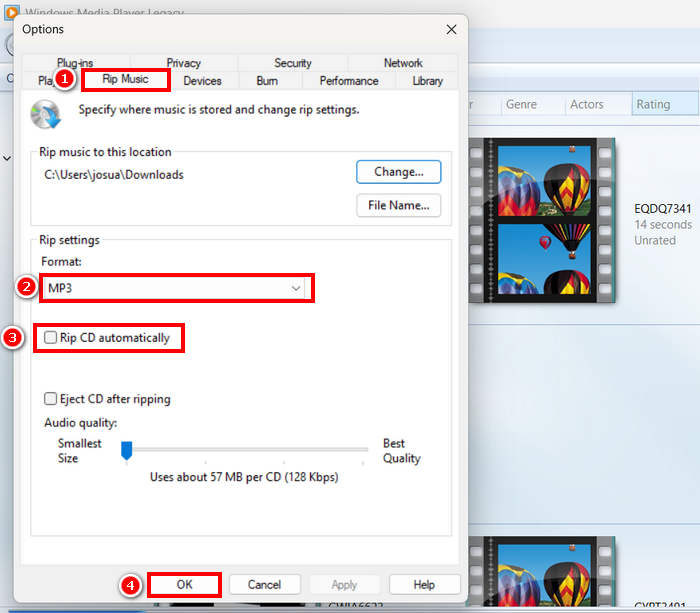
Paso 4. Cuando hayas terminado, haz clic en Aceptar para empezar a convertir tu WMV a MP3.
Haz clic aquí para obtener más información si el Windows Media Player no funciona.
Parte 4. Convertir WMV a MP3 en línea
El último método para convertir WMV a MP3 es hacerlo en línea. La herramienta que puedes usar es FreeConvert. Este conversor en línea te permite convertir WMV a MP3 rápidamente sin necesidad de instalar ningún software. FreeConvert es una herramienta web compatible con varios formatos de video y audio, lo que la convierte en una opción conveniente para quienes prefieren una solución en línea.
Paso 1. Primero tienes que acceder a su sitio web oficial. Simplemente busca FreeConvert en tu navegador de Internet.
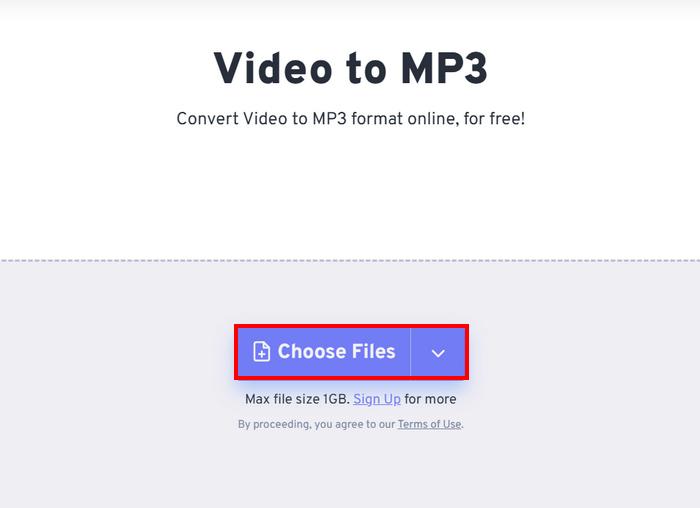
Paso 2. A continuación, haz clic en el botón Elegir archivos para importar el archivo WMV que quieres convertir a MP3.
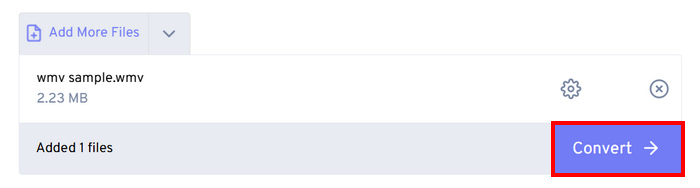
Paso 3. Después de eso, haz clic en Salida y elige MP3 como formato de salida. Ahora, para comenzar a convertir tu WMV a MP3, simplemente haz clic en el botón Convertir.
Lo único que ofrece FreeConvert es que hay un límite de tamaño para los archivos que puedes convertir. Solo puedes convertir archivos de menos de 1 GB; de lo contrario, debes suscribirte.
Parte 5. Preguntas frecuentes sobre la conversión de WMV a MP3
¿Convertir WMV a MP3 afecta la calidad del audio?
La calidad del audio depende de la herramienta que utilice. Conversores de alta calidad como FVC Video Converter Ultimate garantizan una conversión de WVA a MP3 sin pérdidas. Además, los usuarios pueden mejorar y personalizar su salida de audio ajustando la tasa de bits, la frecuencia de muestreo y los canales de audio para mantener una calidad de sonido óptima dentro de la herramienta.
¿Convertir WMV a MP3 reduce el tamaño del archivo?
Sí. Los archivos MP3 son formatos de audio comprimido; por lo tanto, su tamaño de archivo es menor en comparación con los videos WMV.
¿Puedo convertir por lotes varios archivos WMV a MP3?
Sí. Herramientas como FVC Video Converter Ultimate admiten la conversión por lotes, lo que le permite convertir múltiples archivos WMV a MP3 a la vez para mayor eficiencia.
Conclusión
El MP3 es realmente un formato estupendo cuando quieres escuchar tu pista de audio favorita sin interrupciones. Aunque el WMV también es un buen formato para esto, exige reproducir el vídeo completo, lo que puede resultar incómodo si solo quieres el audio. Ahora que tienes muchas opciones sobre qué método utilizar para convertir WVA a MP3, depende de ti qué herramienta usar. Solo asegúrate de que se adapte a tus necesidades y preferencias para evitar cualquier inconveniente en el futuro. ¡Prepara tus archivos WMV y empecemos a convertirlos en archivos MP3 hoy mismo!
-
 Cómo convertir TS a AVI / MKV / MOV / WMV en línea y gratis en Win / Mac
 ¿Quiere convertir TS a AVI/MKV/MOV/WMV rápidamente? Este artículo muestra los mejores convertidores de video en línea y fuera de línea. Léelo y selecciona el que quieras.
-
 Análisis de los 10 mejores reproductores de vídeo WMV de 2025 (para ordenador y teléfono)
 ¿Cómo puedo reproducir WMV? ¿VLC reproduce WMV? ¿Qué aplicación reproduce archivos WMV? Esta publicación muestra los 10 mejores reproductores de video WMV para usted en Mac, PC con Windows, Android y iPhone.
-
 Los 3 mejores métodos para unir archivos WMV en línea gratis (actualización de 2025)
 ¿Cómo fusionar clips de vídeo WMV en línea de forma gratuita? FVC Free Online Video Merger y Clideo WMV Joiner son dos herramientas poderosas para unir archivos WMV en línea. Este artículo presentará cómo usarlos.
