


 Video Converter Ultimate
 Grabador de pantalla
 Reparación de vídeo
Reúna sus pensamientos sobre cómo acelerar un video en iMovie
Te encanta ver documentales en tu nuevo iPhone; siempre los ves por la historia que proponen. Sin ningún motivo en particular, quieres reunirlos todos y editarlos de forma rápida. Estás buscando la mejor app que pueda editar y al mismo tiempo acelerar tu vídeo, así que encuentras iMovie. Pero como eres nuevo tanto con el iPhone como con la propia app, no sabes cómo usarla ni cómo acelerar un vídeo con iMovie. Sigue leyendo, porque este artículo ofrece muchos detalles para que puedas aprender más sobre esta app.

Parte 1. Cómo acelerar el video en iMovie
La pregunta de cómo acelerar un video se puede responder usando las funciones de iMovie. Su salida de video de alta calidad, varias plantillas y herramientas de acabado disponibles pueden llevar el control de la velocidad de reproducción al iPhone por primera vez. iMovie también tiene el poder de acelerar un video como otras aplicaciones. Una de sus herramientas puede hacer ajustes a su video junto con sus otras herramientas disponibles. Ahora es fácil acceder a los videos que desea acelerar usando esta aplicación que está disponible solo en los sistemas operativos iOS y Mac. Ahora que conoce la herramienta, vamos a hablar sobre los procedimientos que debe seguir.
Para usuarios de iPhone
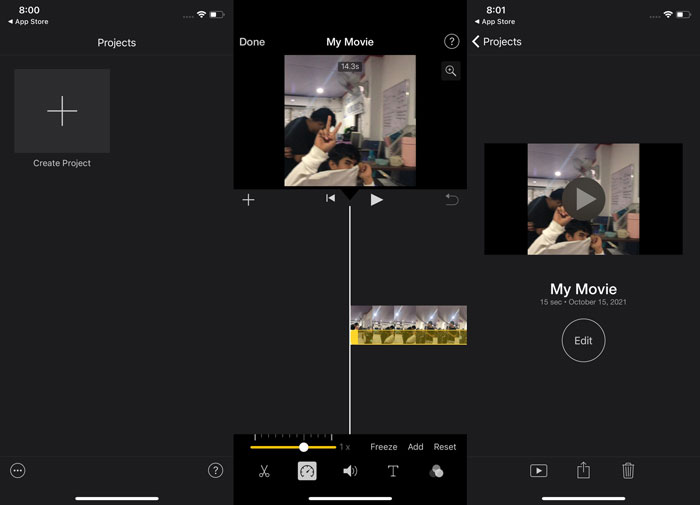
Paso 1: Ve a la App Store de tu iPhone o iPad y descarga la app iMovie. Cuando aparezca una pantalla de presentación de la interfaz, pulsa en Continuar. Cuando estés en la página de Proyectos, toca el icono con el signo + para empezar un vídeo nuevo. Continúa seleccionando Película en la ventana de Nuevos proyectos.
Paso 2: Después de seleccionar un vídeo de tu carrete, pulsa el botón Crear película en la parte inferior de la pantalla. Toca la línea de tiempo y espera a que aparezcan las herramientas de edición antes de usar la herramienta de velocidad, que tiene forma de velocímetro. Para adelantar o ralentizar tu vídeo, simplemente mueve el deslizador amarillo de la parte inferior. Puedes acelerar el vídeo hasta el doble de velocidad o ralentizarlo hasta una octava parte de su velocidad original.
Paso 3: Cuando termines, ve a la esquina superior izquierda de la pantalla del teléfono y pulsa OK (o Listo, según el idioma de tu dispositivo). Para guardar tu vídeo final, ve al menú Compartir y elige en qué lugar quieres almacenarlo entre las opciones que aparecen.
Para usuarios de Mac
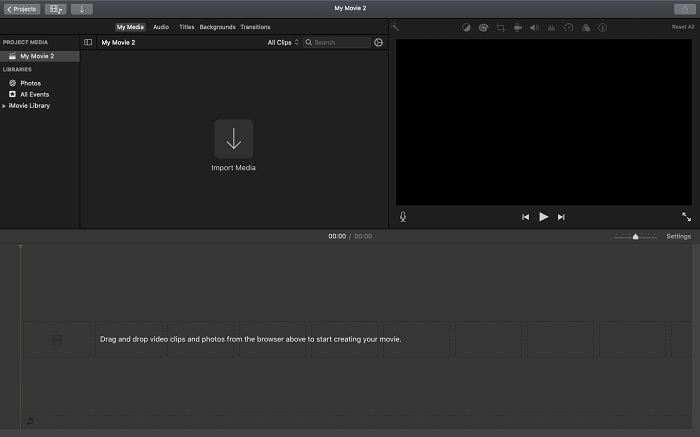
Paso 1: Selecciona un clip en la línea de tiempo en la app iMovie de tu Mac y luego cambia la velocidad del clip.
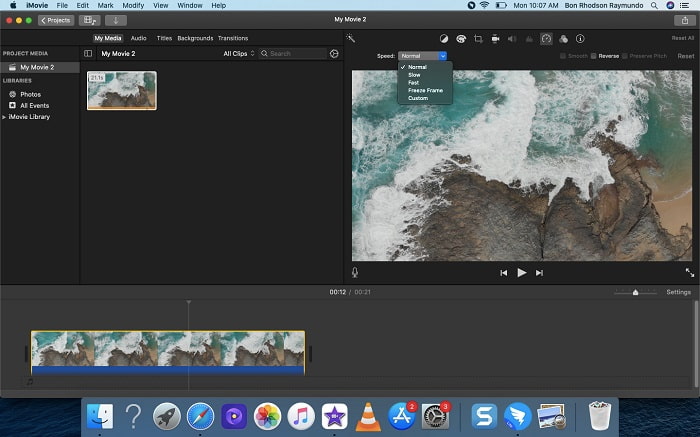
Paso 2: Haciendo clic en el botón Velocidad en la parte superior de la interfaz, podrás ver los ajustes de velocidad. Simplemente elige entre velocidades Lenta y Rápida desde un botón de velocidad para afinar la velocidad de reproducción.
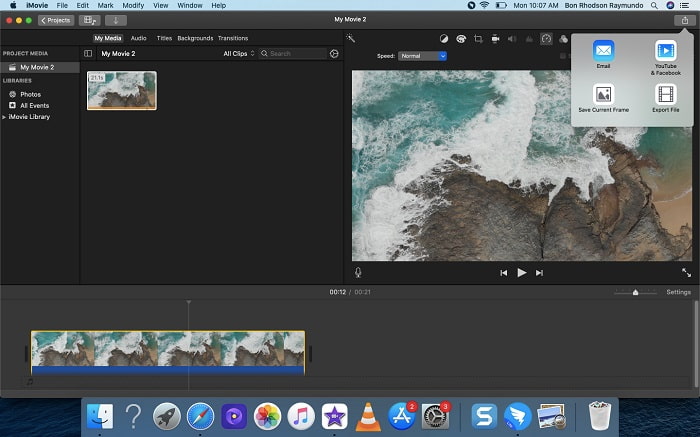
Paso 3: Haz clic en el icono Subir (Compartir) en la esquina superior de la interfaz para exportar el archivo a tu escritorio.
Parte 2. Otra forma más fácil de acelerar el video
Usar un iPhone u otras apps online disponibles solo en iPhone como editor de vídeo puede resultar difícil si quieres acelerar la velocidad de reproducción de tu vídeo. Video Converter Ultimate será la mejor opción que puedes considerar, ya que te permitirá acelerar tu vídeo de forma permanente. Con esta herramienta, que puedes conseguir gratis, podrás ajustar la velocidad de reproducción de tu vídeo. Cuenta con diferentes herramientas destacadas, entre ellas Controlador de velocidad de vídeo, que puede hacer que tu vídeo aumente su velocidad de reproducción con una salida de alta calidad y una conversión muy rápida. Para saber más detalles, estos son los pasos que debes seguir:
Paso 1: Para guardar el software en tu ordenador, haz clic en Descarga gratuita. Después, configura el programa instalándolo.
Descarga gratuitaPara Windows 7 o posteriorDescarga segura
Descarga gratuitaPara macOS 10.7 o posteriorDescarga segura
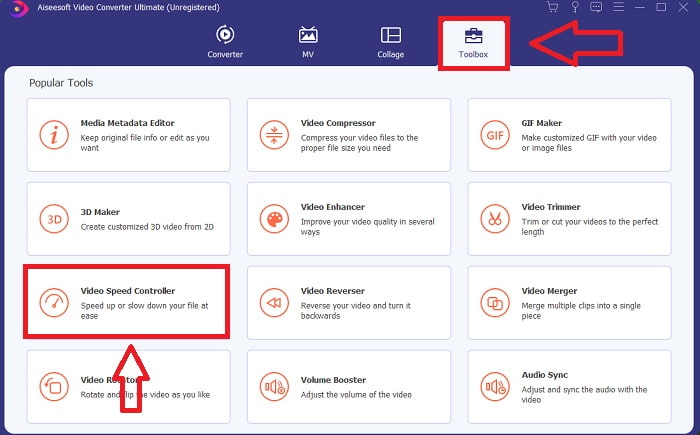
Paso 2: Tras iniciar el software por primera vez después de la instalación, selecciona la función Caja de herramientas y luego la función Controlador de velocidad de vídeo.
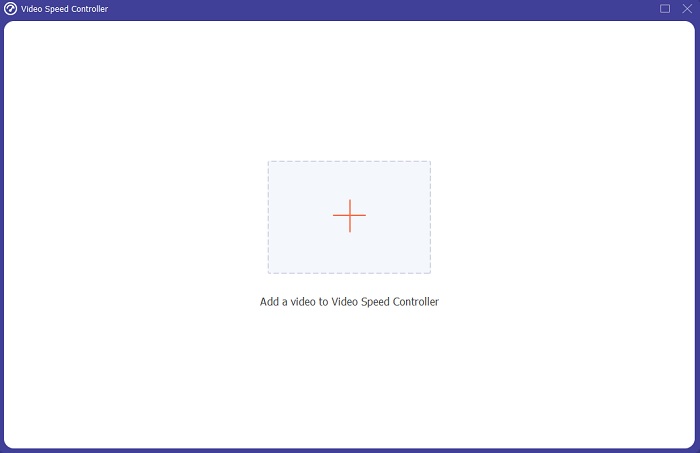
Paso 3: Para comenzar la fase de edición, ya puedes subir un archivo de vídeo desde tu ordenador haciendo clic en el signo + que aparecerá después de acceder a la herramienta Controlador de velocidad de vídeo.
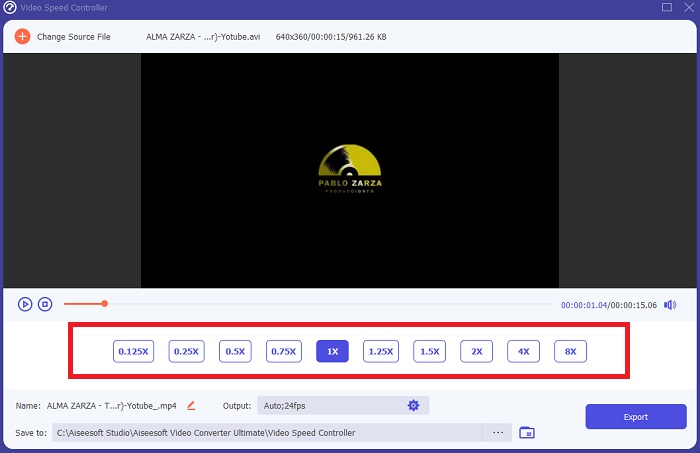
Paso 4: Ahora puedes acelerar un vídeo más de lo que permite iMovie, porque esta herramienta te ofrece varias opciones para elegir qué multiplicador de velocidad quieres aplicar a tu vídeo. También puedes reproducir la vista previa de tu vídeo después de elegir el ajuste de velocidad que prefieras para comprobar si te satisface.
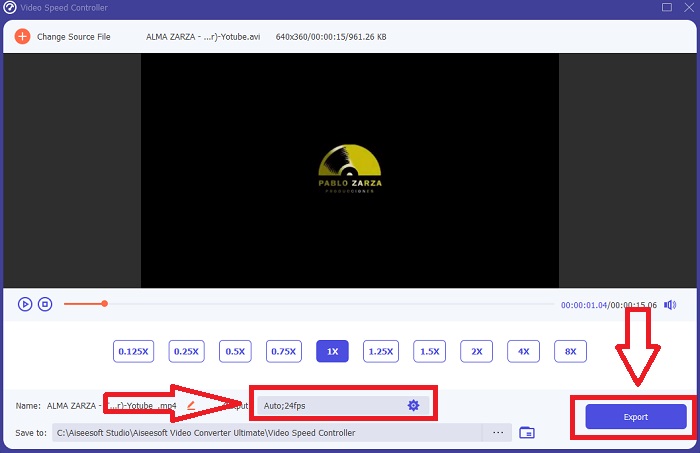
Paso 5: Puedes elegir el resultado que desees cambiando el formato, la resolución y la calidad de tu videoclip después de haber ajustado la velocidad de reproducción, entre otros parámetros. Cuando estés listo para guardar tu trabajo, selecciona Exportar y especifica una ubicación.
Relacionado:
Mejor reproductor de vídeo para iPhone
Parte 3. Preguntas frecuentes sobre cómo acelerar los videos
¿Qué sucede si envío un video rápido y recibo un video lento para reducir el tamaño del video?
No, solo afecta la presentación de los datos y no la cantidad de datos en sí. Sin embargo, es posible reducir el tamaño del video haciendo que se ejecute a una velocidad de fotogramas más baja. Con menos fotogramas por segundo, mantiene la misma velocidad que el original. 60 frente a 30 cuadros por segundo tiene un impacto significativo en el tamaño del archivo de video. Debido a las variaciones de cuadro a cuadro que se consideran durante la codificación de video. Reduzca la resolución del video, por ejemplo, de 1080p a 720p, para reducir aún más su tamaño. El tamaño del archivo se reducirá significativamente debido a esto.
¿Cuáles son sus opciones para acelerar la reproducción de video en una Mac?
Para aumentar la velocidad de reproducción dos o más veces (5 o más), haga clic en el botón de avance o retroceso hasta que el video se reproduzca a la velocidad deseada, como 30 o 60 veces. Mientras se reproduce el video, puede cambiar la velocidad de reproducción en incrementos de 1.1x haciendo clic en Opción y haciendo clic en el botón de avanzar o retroceder.
¿Cómo cambio de forma permanente la velocidad de reproducción de video?
Piensa en cuántos pasos se necesitan para cambiar la velocidad de reproducción de tus vídeos. Aunque las herramientas y editores de vídeo están fácilmente disponibles online, sigues buscando la mejor herramienta para solucionar los problemas de velocidad de reproducción de tu videoclip. En internet hay numerosas herramientas web, algunas de las cuales son gratuitas pero requieren pago para desbloquear todas las funciones. Video Converter Ultimate, un programa gratuito para acelerar vídeos, es tu mejor opción para cambiar de forma permanente la velocidad de reproducción.
Conclusión
En conclusión, iMovie es una gran app disponible en dispositivos con sistema iOS como Mac y iPhone para resolver el problema de la velocidad de reproducción de un vídeo. Es accesible para un gran número de usuarios, es práctico y es gratuito. Sí, es estupendo para editar la velocidad de reproducción; ¿pero qué pasa con los demás factores clave del vídeo? Por eso recomendamos usar Video Converter Ultimate como el mejor software para corregir la velocidad de reproducción de un vídeo; y no solo eso, también cuenta con muchas funciones que pueden ayudarte a crear un vídeo impresionante que nunca imaginarías.
-
 Reproductor de DVD de Android: cómo reproducir videos de DVD en dispositivos móviles con Android
 ¿Cómo reproducir archivos de DVD en móviles Android? ¿Hay reproductores de DVD de Android? En este artículo, aprenderá acerca de 3 formas de reproducir videos en DVD en móviles Android con o sin el controlador externo.
-
 Los 10 mejores reproductores MP4 de Android gratuitos para reproducir videos HD / 4K
 Aunque los móviles Android tienen los reproductores predeterminados para reproducir videos MP4, no admiten ajustar la configuración de reproducción y otras funciones. Por lo tanto, puede obtener información sobre los mejores 10 reproductores MP4 de Android en este artículo.
-
 Samsung Video Player Stuck: Top 5 mejores reproductores de video para Samsung
 Cuando reproduce videos a través del reproductor de video predeterminado de Samsung, es posible que siempre se atasque. Para tener una experiencia de visualización mejor y fluida, puede obtener información sobre los 5 mejores reproductores de video para Samsung en este artículo.
