


 Video Converter Ultimate
 Grabador de pantalla
 Reparación de vídeo
Cómo convertir MTV a AVI con alta calidad: los mejores enfoques que debe conocer
AVI (Audio Video Interleave) es un contenedor de vídeo que aloja y codifica tanto datos de audio como de vídeo. A pesar de tener menos capacidad de compresión que algunos de sus competidores, la mayoría de los reproductores de DVD pueden reproducir archivos en este contenedor. El códec AVI es necesario para que los reproductores multimedia decodifiquen los datos AVI. Este archivo de vídeo es compatible con prácticamente todos los reproductores y editores de vídeo. Sin embargo, el formato de vídeo MTV no es tan conocido ni utilizado, ni tampoco muy habitual a la hora de convertirlo a otros formatos. Si te preguntas cómo puedes convertir MTV a AVI, sigue leyendo el artículo para saber más sobre estos dos formatos.

Parte 1. Cómo convertir MTV a AVI en Windows y Mac
Existen muchos métodos diferentes para convertir MTV a AVI, y varían según el propósito. Puede descargarse como una aplicación, usarse como herramienta web en línea o instalarse como un programa. Pero ¿alguna vez has pensado en un software que pueda convertir múltiples formatos de vídeo de la manera más rápida posible? Video Converter Ultimate es el software que este artículo te recomienda utilizar, no solo porque es el conversor más rápido y se puede descargar gratis. Ofrece muchas herramientas destacadas que pueden ayudarte a editar vídeos. Una de sus funciones principales, que no encontrarás en otras aplicaciones o herramientas web, es que admite múltiples formatos, incluida la conversión de MTV a AVI. Si aún no te convence, lee estos detalles para conocer mejor el software:
Paso 1. Para empezar, haz clic en el botón Descarga gratuita que aparece a continuación para iniciar el proceso de descarga. Una vez que la descarga se haya completado, tienes la opción de descargar el software para Windows o Mac, según prefieras. Antes de ejecutar el programa, debes instalarlo en el escritorio de tu ordenador y hacer clic en Empezar ahora para iniciar.
Descarga gratuitaPara Windows 7 o posteriorDescarga segura
Descarga gratuitaPara macOS 10.7 o posteriorDescarga segura
Paso 2. Inicia la aplicación que has descargado. Cuando abras el programa por primera vez, aparecerá una ventana con la interfaz Convertidor. Aquí es donde introducirás tu archivo de vídeo y comenzarás la conversión.
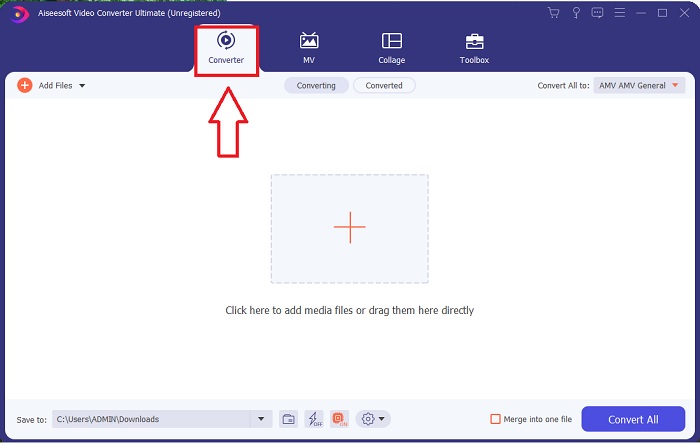
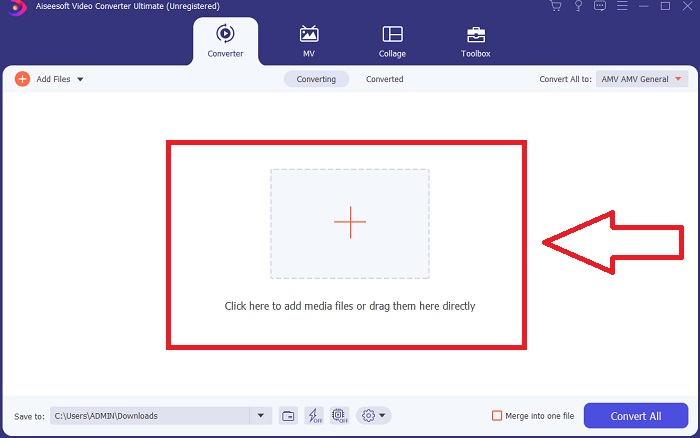
Paso 3. Importa tus archivos al conversor para iniciar el proceso de conversión. Arrastra y suelta el archivo de vídeo que quieras convertir sobre el icono +.
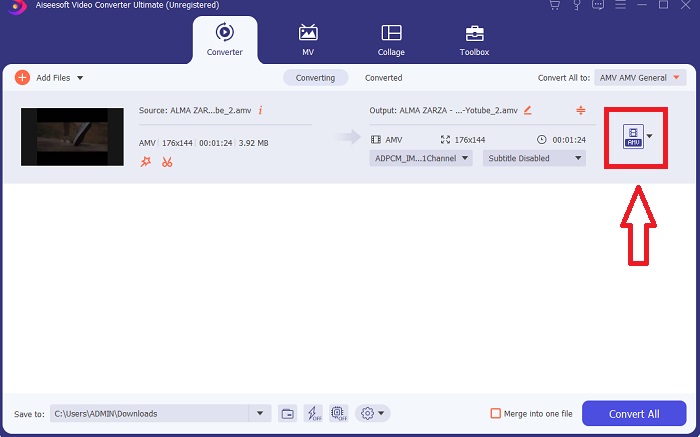
Paso 4. Selecciona un formato de vídeo de la lista situada en la esquina superior derecha de la pantalla. Busca y selecciona el menú desplegable de Convertir todo a, y luego elige el formato AVI de la lista de categorías de vídeo. Sin embargo, si el formato de salida de vídeo que prefieres no aparece, puedes cambiar los ajustes de calidad para adaptarlos a tus necesidades. Puedes modificar la resolución de la pantalla, la tasa de fotogramas e incluso la calidad del audio haciendo clic en el icono de engranaje. Para guardar los cambios, haz clic en el botón Crear nuevo.
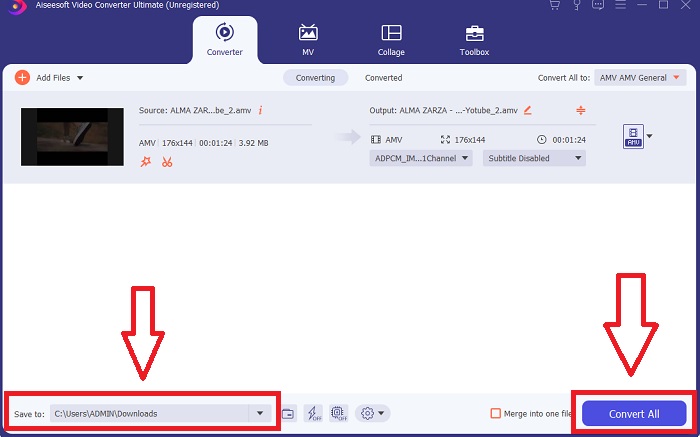
Paso 5. Una vez que hayas terminado de editar el vídeo y esté listo para convertirse, haz clic en Convertir todo para iniciar el proceso de transferirlo a tu ordenador.
Parte 2. Cómo convertir MTV a AVI en línea
Método 1: Online-Convert.com
Con este convertidor de archivos en línea gratuito, puede transformar fácil y rápidamente sus medios de un formato a otro. Muchos formatos se pueden convertir utilizando esta herramienta web, así como una amplia gama de destinos. Para obtener más explicaciones, estos son los pasos proporcionados para usted:
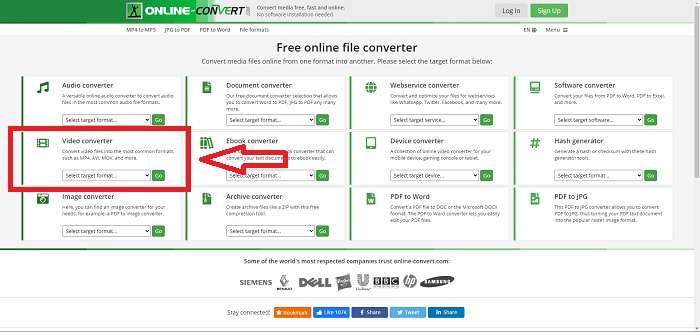
Paso 1. Busca online-convert en cualquier motor de búsqueda y haz clic en la herramienta web. Tras hacer clic en la herramienta, aparecerá su interfaz. Los distintos procesos de conversión de archivos serán tus opciones. Elige Video Converter si deseas convertir MTV a AVI; después, selecciona Convert to AVI y continúa haciendo clic en Go.
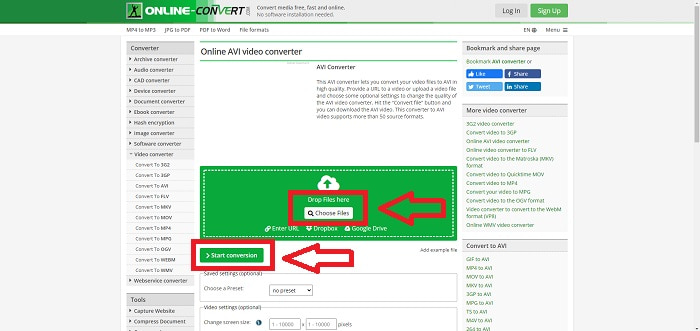
Paso 2. Tras continuar, aparecerá otra interfaz. Haz clic en Choose Files para subir el archivo que quieres convertir. Espera aproximadamente un minuto –dependiendo del tamaño del archivo– para que se procese tu vídeo. Después, haz clic en Start Conversion para convertir tu archivo a AVI.
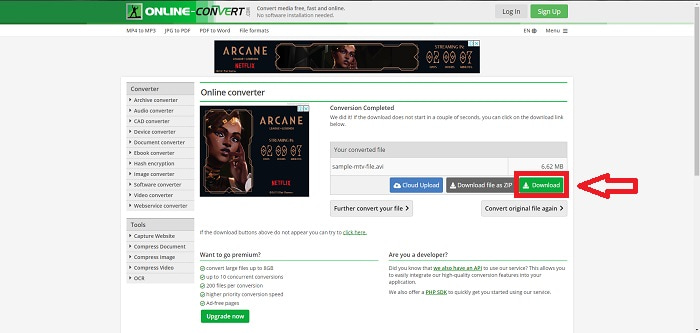
Paso 3. Para empezar a descargar el archivo convertido, haz clic en Download.
Método 2: Video-Converter.com
Use este convertidor de video en línea gratuito para modificar la configuración de video, como el formato, la resolución y el tamaño del video, dentro de su navegador web. Para saber más sobre esta herramienta web en línea, aquí están los procedimientos que necesita saber:
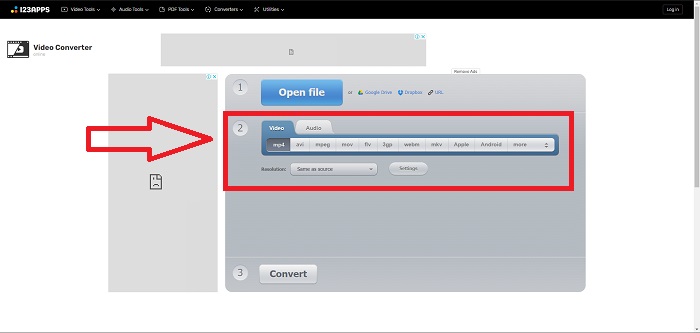
Paso 1. Abre el conversor de vídeo en cualquier motor de búsqueda. Haz clic en la herramienta web principal y se abrirá otra ventana. En la interfaz principal ya verás todo el proceso de conversión. Para empezar, haz clic en Open File para importar cualquier archivo de vídeo que quieras convertir.
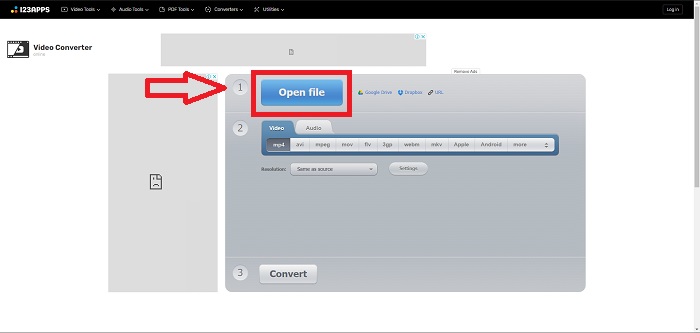
Paso 2. Elige el formato al que quieres convertir tu vídeo de entre todos los formatos de vídeo disponibles. Como vas a convertir MTV a AVI, elige AVI. Puedes editar la resolución y el resultado del vídeo haciendo clic en Same as Source o Settings.
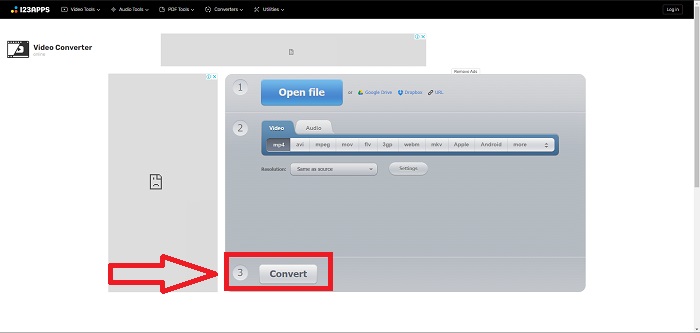
Paso 3. Convierte el archivo haciendo clic en Convert. Una vez convertido, ya puedes descargarlo haciendo clic en el botón Download.
Parte 3. Datos interesantes sobre MTV y AVI
¿Qué es AVI?
Este formato de archivo, también conocido como Audio Video Interleaved (AVI), combina datos de audio y vídeo en un solo archivo para reproducirlos simultáneamente. Su función principal es servir como espacio de almacenamiento para contenidos multimedia electrónicos como programas de televisión, películas y otras grabaciones de vídeo. Tras el lanzamiento de Windows 3.1, el formato AVI se popularizó ampliamente. El vídeo y el audio se combinan mediante un potente algoritmo de compresión que actualmente es el estándar convencional para el almacenamiento de películas en PC con Windows. Las imágenes y el audio pueden conservarse con gran fidelidad aunque el vídeo AVI no sea completamente sin pérdidas. Por el contrario, AVI consume mucha memoria, a veces tanta como la que ocupa un DVD. Probablemente por eso apareció después MPEG-1, y más tarde toda la evolución hasta MPEG-4 en la actualidad.
¿Qué es MTV?
La gran mayoría de los archivos de MTV son propiedad de MTV. El formato de archivo MTV se creó para permitir la reproducción de video en reproductores MP4 portátiles de bajo costo fabricados en China sin aumentar el precio de estos dispositivos con regalías de licencia y más potencia de procesador. El reloj MP4 es un producto que utiliza este formato de archivo.
Parte 4. Preguntas frecuentes sobre MTV y AVI
¿AVI es de alta calidad?
AVI es un formato de video de alta definición desarrollado por Microsoft. Es compatible con YouTube y hace un excelente trabajo al permitirle ver televisión en su computadora. El video de alta definición requiere un formato de codificación de video particular llamado Advanced Video Coding HD.
¿Dónde se usa comúnmente AVI?
Desde la creación de Microsoft en noviembre de 1992, el formato de archivo AVI se ha utilizado ampliamente para transmitir y almacenar datos de video y audio. Los archivos AVI se pueden reproducir en una amplia gama de sistemas operativos, incluidos Windows, Mac OS X, Linux y Unix, gracias a su alto grado de compatibilidad.
¿Cómo convierto un video a formato MTV?
Con AVS Video Converter, puede ir a la barra de herramientas principal, ir a la pestaña Formatos y hacer clic en el botón A MTV. Puede buscar un archivo de entrada haciendo clic en el botón Examinar en la barra de herramientas en la parte superior. Haga clic en el botón inferior Examinar y escriba el nombre del archivo de salida que desea crear. Decida sobre la apariencia de MTV creando una cuenta con MTV.
Conclusión
Para concluir, siempre hay una diferencia entre el software en línea y el que debe descargar primero antes de usarlo. Hay pros y contras en los diferentes lados, pero recomendamos usar Video Converter Ultimate para la base de salida de conveniencia y calidad. Con esto, puede experimentar el convertidor y editor profesional al mismo tiempo en un solo software.
-
 Cómo convertir TS a AVI / MKV / MOV / WMV en línea y gratis en Win / Mac
 ¿Quiere convertir archivos TS a AVI / MKV / MOV / WMV rápidamente? Este artículo muestra convertidores de video en línea y fuera de línea con una guía completa. Tal vez puedas obtener el mejor conversor TS gratuito aquí.
-
 4 formas eficientes de convertir MOV a AVI en PC y Mac [2021]
 ¿Quieres saber cuál es el mejor conversor de MOV a AVI en la web? Y por qué FVC Ultimate Video Converter podría ser el indicado para usted.
-
 Excelente opción para convertir MKV a formato AVI
 Domine cómo convertir videos MKV con sencillos pasos proporcionados exclusivamente para usted. ¿Quieres saber cómo? Luego haga clic en este enlace para obtener más información.
