


 Video Converter Ultimate
 Grabador de pantalla
 Reparación de vídeo
Domina el arte de agregar marcas de agua en iMovie con pasos detallados
Uno de los mejores editores que puedes usar en Mac es iMovie. Esta herramienta ofrece una interfaz muy intuitiva para los usuarios de Mac. Aunque la herramienta es excelente y fácil de manejar, algunos usuarios siguen buscando un tutorial sobre cómo usarla. Así que, si eres usuario de Mac y quieres aprender cómo añadir una marca de agua a un vídeo en iMovie, puedes seguir la guía que presentamos a continuación para sacar el máximo partido a la herramienta.

Parte 1. Tutorial sobre cómo agregar una marca de agua a un video en iMovie en macOS
Ya presentamos iMovie, por lo que los siguientes detalles le enseñarán cómo poner una marca de agua en un video en iMovie. Para aprender a agregar, puede seguir la guía detallada a continuación y léala detenidamente para comprender la idea completa.
Paso 1. Inicia iMovie en tu Mac y, si no lo encuentras, puedes ir rápidamente al Finder y buscarlo.
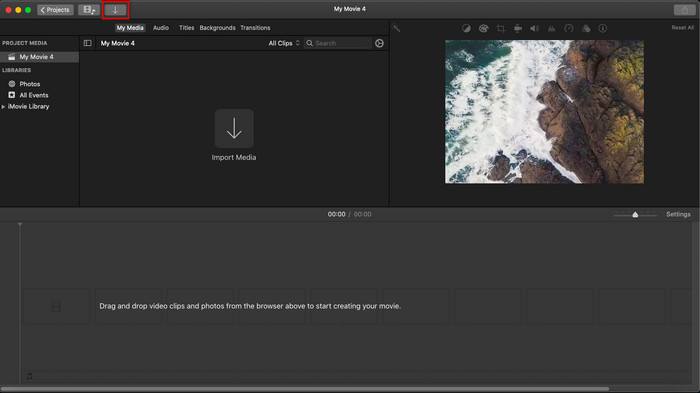
Paso 2. Haz clic en el botón Importar para subir el vídeo y la imagen que quieres usar como marca de agua. Arrastra el archivo de vídeo y la imagen a la Línea de tiempo de abajo, igual que con las imágenes. Asegúrate de que el vídeo esté en la parte superior de la línea de tiempo del vídeo. Realiza algunos ajustes en la imagen arrastrándola, cambiando su tamaño y más.
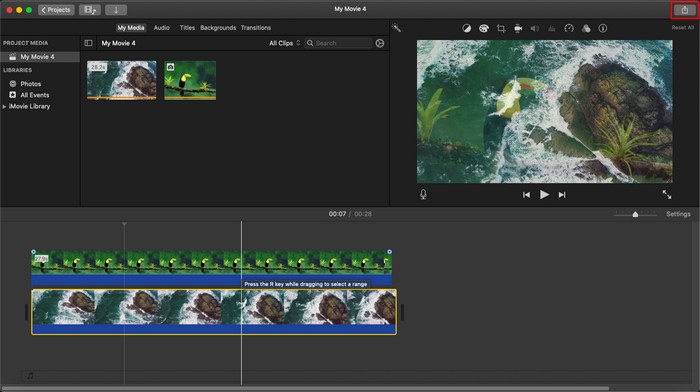
Paso 3. Si ya estás satisfecho con el ajuste, haz clic en Exportar en la parte superior derecha de la herramienta y luego en Exportar archivo.
Pros
- Es de uso gratuito en cualquier dispositivo Apple como dispositivos macOS e iOS.
- Realice ediciones rápidas en los videos sin procesar para que se vean bien.
- Están disponibles funciones de edición esenciales hasta la media.
Contras
- Admite menos formato, por lo que si desea editar el video aquí, debe convertirlo a MOV o cualquier formato compatible con dispositivos Apple.
- Menos soporte para la edición profesional.
Parte 2. La mejor herramienta para usar y poner marcas de agua en videos en computadoras Mac de una manera menos complicada
Si te parece que añadir una marca de agua en iMovie es complicado, puedes usar en su lugar la mejor alternativa, Video Converter Ultimate. Esta herramienta ofrece una forma mucho más sencilla de añadir una marca de agua a tu vídeo. Imagina esto: si iMovie ya es fácil de usar, la herramienta definitiva es aún más accesible. Aunque es fácil de manejar, la calidad final que ofrece es de primer nivel y una de sus ventajas frente a iMovie es que admite más formatos de imagen que puedes usar para subir. ¿Quieres saber más? Entonces, puedes leer las funciones que te presentamos a continuación.

FVC Video Converter Ultimate
5,689,200+ Descargas- Brinda funciones de edición completas que puede usar para hacer que su video sea más sobresaliente que el otro.
- Admite procesos ultrarrápidos y aceleración de hardware para importar y exportar videos rápidamente.
- Admite formatos de video como MOV, MKV, AVI, MP4, FLV, RMVB y más.
- Tiene una interfaz muy interactiva para tener la mejor experiencia.
- Disponible en todas las plataformas de escritorio como Windows y Mac.
Descarga gratuitaPara Windows 7 o posteriorDescarga segura
Descarga gratuitaPara macOS 10.7 o posteriorDescarga segura
¿No es asombroso tener todas estas funciones en una sola herramienta? Si estamos en la misma página, profundicemos en los detalles de cómo marcar con agua un video en iMovie pero de una manera más sencilla con la herramienta definitiva.
Pasos sobre cómo insertar una marca de agua en un video con la herramienta definitiva
Paso 1. Descarga el software en tu Mac, sigue el procedimiento de instalación y pulsa Start Now para iniciar la herramienta.
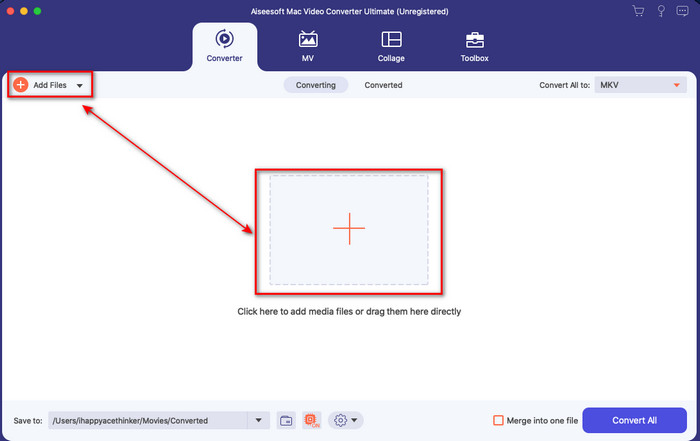
Paso 2. Sube el archivo de vídeo que quieras haciendo clic en el botón + o en Añadir archivos. Busca el vídeo en la carpeta que aparecerá en tu pantalla y pulsa Abrir para subirlo.
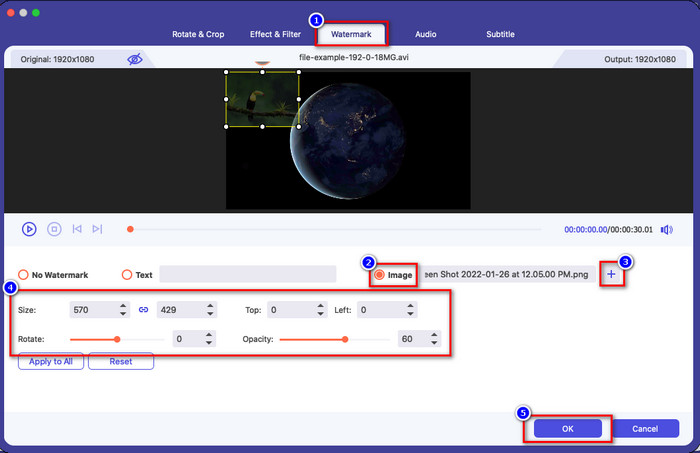
Paso 3. Haz clic en el botón con forma de varita para abrir la ventana de edición en la interfaz de la herramienta. Luego haz clic en la sección Marca de agua, marca Imagen, pulsa el botón + para añadir la imagen que quieras. Después, ajusta la opacidad de la imagen o gírala y haz clic en OK para guardar los cambios que has realizado.
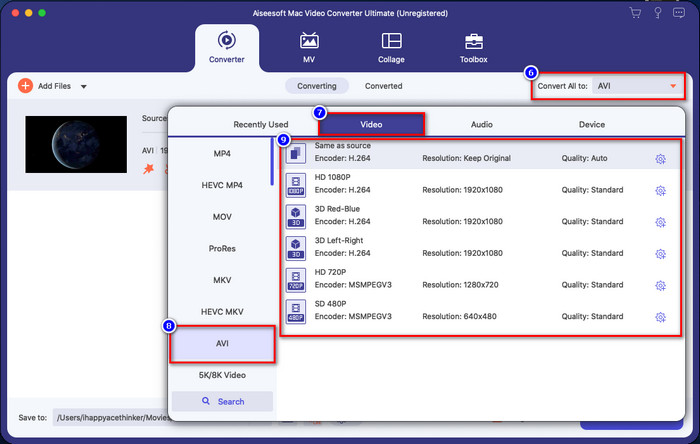
Opcional. Si quieres cambiar el formato, haz clic en Convertir todo a, elige el formato disponible en la lista y haz clic en él. Si no quieres cambiar el formato, puedes proceder al paso final.
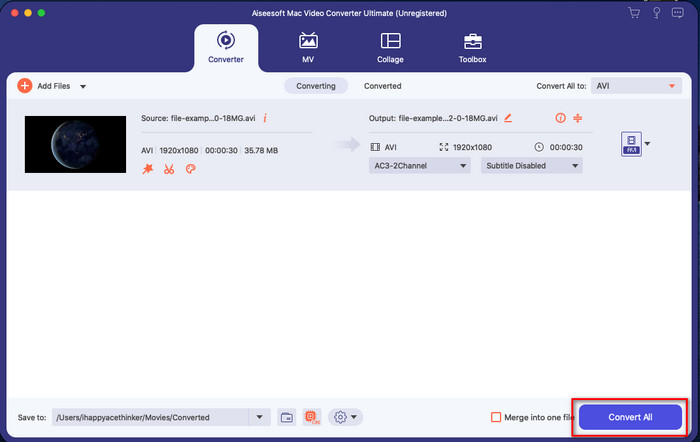
Paso 4. Para exportar el vídeo con una marca de agua, haz clic en Convertir todo. No tendrás que esperar demasiado gracias al proceso de conversión ultrarrápido que ofrece. Con eso, ya habrás añadido la marca de agua de imagen a tu vídeo en menos de un minuto.
Pros
- Es la mejor opción para cualquier usuario que tenga poca o ninguna idea de cómo editar.
- Admite más formatos de video que puede cargar para ahorrar tiempo y evitar convertirlo.
- Disponible en todas las plataformas como Windows o Mac para descargar.
Contras
- No es gratis para descargar, pero no es demasiado caro.
- Es necesario descargarlo en su disco.
Parte 3. Preguntas frecuentes sobre cómo agregar una marca de agua en iMovie
¿Es iMovie de uso gratuito?
Sí, iMovie es gratuito si utilizas un producto de Apple, pero no puedes descargarlo si usas Android o Windows. Ten en cuenta que no hay versiones de iMovie disponibles en otras plataformas. Así que, si descargas un supuesto iMovie en tu ordenador o móvil que no sea de Apple, es de esperar que no funcione tan bien como el iMovie original o, peor aún, que tenga un virus. Para evitar esto, puedes hacer clic y leer este artículo para conocer las alternativas a iMovie.
¿Es iMovie el mejor editor en Mac?
Podemos decir que es uno de los mejores, pero no el mejor, porque diferentes editores brindan múltiples funciones de edición que no puedes encontrar en iMovie. Aunque carece de algunas formas, sigue siendo un editor de primer nivel que puede usar en su Mac de forma gratuita para editar videos para vlogging, negocios, promoción y más.
Después de exportar el video en iMovie, ¿tiene una marca de agua?
A partir de este día, la marca de agua del video no está en los videos exportados. Por lo tanto, puede disfrutar de los videos descargados que edita en iMovie libremente sin la molesta marca de agua.
¿Puedo usar el video .avi en iMovie?
iMovie no es compatible con una amplia gama de formatos, pero puedes hacer clic y leer este artículo y aprender qué puedes hacer para que tu archivo AVI sea compatible con iMovie.
Conclusión
Este artículo ya demuestra que puedes usar el editor integrado que Apple te proporciona y añadir marcas de agua a los vídeos con los pasos que hemos añadido y que puedes seguir fácilmente. Aunque puedes usar iMovie libremente, seguimos pensando que Video Converter Ultimate es la mejor herramienta para esta tarea en cualquier momento. Así que, si quieres ayuda, puedes descargarla en tu Mac o en Windows pulsando el botón de descarga que aparece arriba.
-
 3 métodos para convertir MPEG a WMV sin perder calidad
 ¿Quieres ver tus videos en tu reproductor preferido, pero no es compatible con el formato del video? Lea este artículo ya que le brindamos las formas más eficientes de convertir MPEG a WMV.
-
 2 de las opciones de convertidor favoritas para convertir F4V a WMV [2022]
 ¿Es usted uno de los usuarios que busca la mejor manera de convertir F4V a WMV? Si es así, intente leer este artículo para saber mejor cómo hacerlo y cuáles son las herramientas disponibles.
-
 Los mejores convertidores de MXF a WMV para convertir MXF a WMV gratis
 ¿Quiere conocer la forma más sencilla de cambiar su archivo MXF a formato WMV? Si está listo para explorar cómo hacerlo, debe leer este artículo con atención.
